

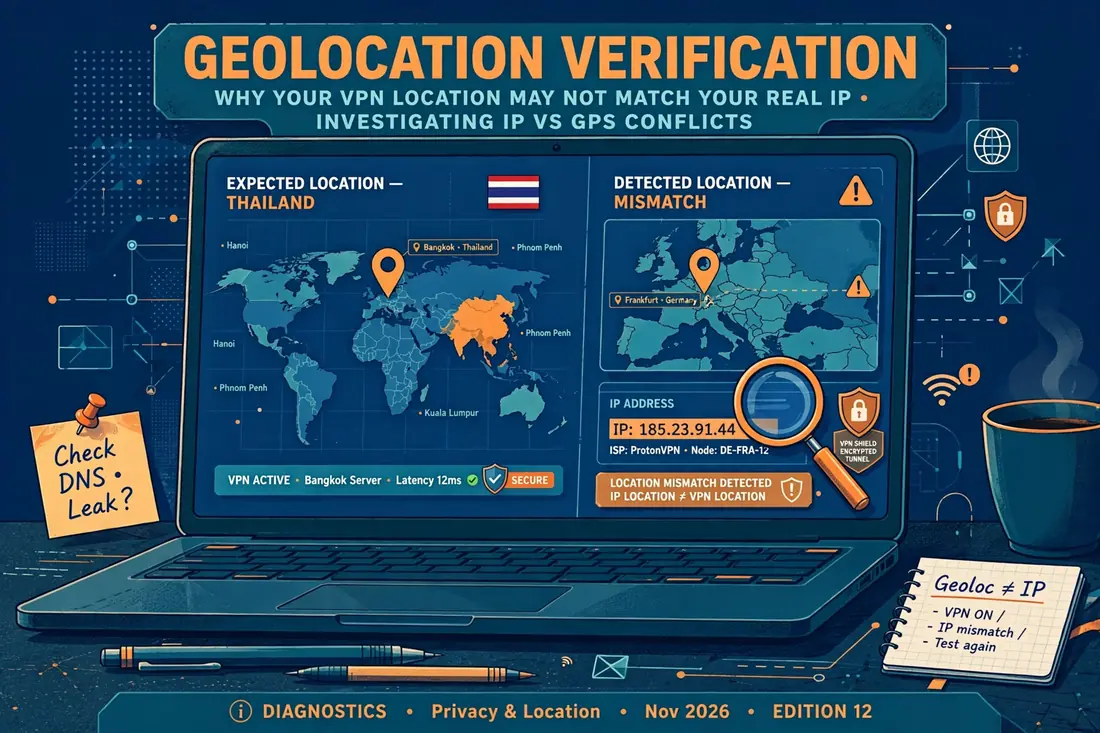
Your Thailand VPN shows the wrong IP location when the country a website reports does not match the Thailand server you selected, and the first thing to check is the exit IP itself, not the map on your screen. Surfshark is our recommended VPN for Pakistan, with 80% off for our users, and it offers Bangkok servers that give you a Thai IP address, so it is a useful reference point while you work through the checks in this guide.
This guide explains how to diagnose a Thailand VPN location mismatch step by step, using a verified Surfshark Bangkok example, and it separates the four causes that most guides mix together: the server you actually joined, the geolocation database a website uses, your device GPS, and your account region. Follow the checks in order and you will know whether the problem is real, where it sits, and what to send to support.
Thailand VPN Wrong Location: The Short Answer
A Thailand VPN wrong location result usually has one of four causes. You may have connected to a different server than you intended, the website may be reading an outdated geolocation database, your phone GPS may still report Pakistan, or your Google or streaming account may still be set to another region. The VPN tunnel itself may be working perfectly while one of those four layers reports something else.
Start by recording three facts before you change anything: the exact server name shown in your VPN app, your public IP address while connected, and the country shown by at least two independent IP lookup sites. If two lookup sites agree on Thailand and one website disagrees, the website database is the likely cause. If every lookup site shows another country, you are probably on the wrong server or a virtual location.
If the exit IP itself is outside Thailand, switch to a different Thailand server — preferably a Bangkok server — then disconnect and reconnect, clear the browser cache, and retest. If the exit IP is in Thailand but a website still shows another country, check your GPS and account settings before you change the VPN.
If you change nothing else, remember this: the exit IP is the fact that matters. A map or a website label can be wrong, but if the IP address shown by two independent lookup sites is in Thailand, the tunnel is working. Treat the rest as a display problem, not a tunnel problem.
Record the Selected Location and Exit IP
Before you change any setting, write down the server you selected and the exit IP the VPN gives you. In your VPN app, note the exact server name, city, and country shown — for example, Bangkok, Thailand — and then, while still connected, open an IP lookup site and record the public IP address and the country it reports.
A VPN app sometimes shows a city or a country that differs from the exit IP. This happens with virtual servers, load balancing, or a server that was recently moved. If the app says Bangkok but the lookup site says Frankfurt, the exit IP is the fact that matters, and you should switch servers.
Record the time as well. Some providers rotate exit IPs, so the same server can give a different exit IP on a later connection. If you report a mismatch to support, the time helps them find the server and the IP range in their logs.
Do not rely on a single lookup site. Use two or three independent sites and compare the country each one reports. If they agree, the exit IP is clear. If they disagree, the cause is likely a geolocation database, not the tunnel.
Keep this record for the whole session. If you switch servers later, record the new server name and the new exit IP, so you can tell whether the problem follows the server or follows the website.
Thailand VPN IP Not Showing Correct Country: Check the Server First
If your Thailand VPN IP is not showing the correct country, check the server first. Open your VPN app and confirm that it shows the Thailand server you selected — not a nearby country, not a different city, and not a server that the app chose for you because the one you wanted was full.
Some VPN apps show a server list that includes both physical and virtual locations. A virtual location is a server that is physically in another country but gives you an IP address from the country you selected. If the virtual location’s IP range is misclassified in a geolocation database, the website will show the physical location, not the virtual one.
If you are on a virtual location, switch to a physical Thailand server. In your VPN app, look for a server labelled as physical or in Bangkok, and avoid servers labelled as virtual. If your provider does not label its servers, contact support and ask which of its Thailand servers are physical.
If you are already on a physical Thailand server and the exit IP is still outside Thailand, disconnect and reconnect to a different Thailand server, then retest. A single server can have a stale IP range that is misclassified in a database, and switching servers often fixes the problem immediately.
If every Thailand server you try gives an exit IP outside Thailand, the provider’s Thailand pool may have a problem. Report the exit IPs and the lookup results to support, and try another provider while you wait for a fix.
Compare Location Databases for a Thailand VPN Location Mismatch
Run the same public IP through two or three lookup sites before you decide anything. The two sources most likely to differ are the IP lookup site and the website itself: the lookup site reads the IP address, while the website may read a cached geolocation record.
If two or three lookups agree on Thailand and a single website still shows another country, the problem is that website’s database, not your VPN. Switch to another Thailand server, or wait and retest later, and the record will often update within a few days.
Record which lookup sites you used and what each one said. This record is useful if you need to contact support, because it shows that the exit IP is in Thailand and that only one database disagrees.
Some lookup sites also show the internet provider and the organisation that owns the IP range, which can tell you whether the address is a genuine Thai range or a range that has moved.

You cannot fix a third-party database yourself, but you can work around it. If the site that matters to you uses an outdated database, switch to another Thailand server, wait for the provider to update the database, or report the mismatch to the provider’s support team with the lookup results attached.
Thailand VPN Geolocation Database: Why Databases Disagree
Geolocation databases map IP addresses to countries, and they do not all update at the same speed. When a provider buys a new block of IP addresses, or moves a server, the databases can take days or weeks to catch up, and during that time some sites will show the old country and others will show the new one.
The database a website uses is usually not the same as the database an IP lookup site uses. A streaming service may use a commercial database that updates weekly, while a lookup site may use a database that updates daily, so the two can disagree for a week or more after a change.
Some databases also record the country where the IP range was first registered, not the country where the server is now. This is why a Thai IP range can show as another country in one database and as Thailand in another, even though the server has not moved.
You cannot force a database to update, but you can check whether the problem is a database by running the same IP through two or three lookup sites. If they disagree, the cause is a database. If they agree on another country, the cause is the server.
Thailand VPN Google Location Wrong: Browser and Search Settings
If Google shows the wrong location while your Thailand VPN is connected, the problem is often in the browser, not the VPN. Google uses several signals to guess your location, including your IP address, your browser’s location settings, and your Google account’s region, and the account region often wins.
First, check your Google account’s region. If it is set to Pakistan, Google will show Pakistani results even if your IP address is in Thailand. Change the region in your Google account settings, or sign out of your Google account and retest.
Next, check your browser’s location settings. If the browser has permission to use your device’s GPS, it will report your real location to websites, and the VPN cannot stop it. Turn off location permission for the browser, or set the browser to ask before sharing your location.
Finally, clear the browser cache and cookies. A cached page can show the old location even after you connect to the VPN, because the browser loads the saved version instead of fetching a new one. Clear the cache, close the browser, and reopen the site.
Thailand VPN Browser GPS: Why Your Phone Still Knows Where You Are
Your phone’s GPS does not change when you connect to a VPN. The GPS chip reads satellite signals and reports your real location to apps that ask for it, and the VPN cannot change that. If an app uses GPS instead of your IP address, it will show Pakistan even while your VPN is connected to Thailand.
Test the GPS layer separately from the IP layer. Open a map app while the VPN is connected and see where it places you. If it places you in Pakistan, the app is using GPS. If it places you in Thailand, the app is using your IP address.

The fix depends on what you need. If you need an app to see Thailand, turn off location permission for that app, or set the app to use your IP address instead of GPS. If you cannot change the app’s settings, use a different app that reads the IP address instead of the GPS.
This is the difference between an IP location and a device location. The VPN changes your IP location, but it does not change your device location. If a service needs to see Thailand, it must read the IP address, not the GPS.
Separate GPS and Account Settings From the VPN Tunnel
Separate the GPS and the account settings from the VPN tunnel. The VPN changes your IP address, but it does not change your device GPS, your Google account region, or your streaming account’s country. Those are separate layers, and each one can report a different country.
Check each layer in turn. First, check the exit IP with an IP lookup site. Then, check the GPS with a map app. Then, check the account region in your Google or streaming account settings. If the exit IP is in Thailand but the GPS or the account still shows Pakistan, the VPN is working and the other layer is the problem.
Fix the layer that is wrong. If the GPS is the problem, turn off location permission for the app. If the account region is the problem, change it in the account settings. Do not change the VPN settings to fix a GPS or account problem, because the VPN is not the cause.
This is why a Thailand VPN can show the wrong location in one app and the right location in another. The app that reads the IP address will show Thailand, and the app that reads the GPS or the account will show Pakistan. The tunnel is the same in both cases.
Thailand Virtual VPN Location: Physical, Virtual, and Rotating IPs
A Thailand virtual VPN location is a server that is physically in another country but gives you a Thai IP address. Providers use virtual locations when they do not have a physical server in the country, and the virtual location can work well, but it can also be misclassified in a geolocation database.
A physical Thailand server is in Thailand and gives you a Thai IP address from a Thai range. A virtual location is physically elsewhere, and its IP range may be registered in another country, so some databases will show that country instead of Thailand.
A rotating IP is an IP address that changes each time you connect. Some providers rotate the exit IP for privacy, so the same server can give a different IP on each connection, and the new IP may be in a different range that is misclassified in a database.
If you need a stable Thailand location, choose a physical Thailand server and avoid virtual locations and rotating IPs. In your VPN app, look for a server labelled as physical, or contact support and ask which of its Thailand servers are physical and stable.
Check Provider Documentation Before You Change Settings
Before you change any setting, check your provider’s documentation. The provider’s help pages will tell you which of its Thailand servers are physical, which are virtual, and whether it uses rotating IPs. They will also tell you whether the provider has a known issue with its Thailand pool.
If the provider’s documentation does not answer your question, contact support and ask. Tell them the server name, the exit IP, the lookup results, and the time of the test, so they can check the server in their logs.
Do not change the protocol or the server based on a guess. A protocol change can fix a connection problem, but it cannot fix a geolocation database, and it cannot fix a virtual location. Check the documentation first, then change the setting that matches the cause.
If the provider’s documentation says that its Thailand servers are virtual, consider whether a virtual location is acceptable for your use. For streaming, a virtual location is usually fine. For a service that checks the IP range strictly, a physical server is better.
Surfshark Thailand Servers: A Verified Bangkok Example
Surfshark has Bangkok servers that give you a Thai IP address, and we verified the example in this guide in November 2026. Connect to a Bangkok server in the Surfshark app, then open an IP lookup site and confirm that the exit IP is in Thailand and that at least two lookup sites agree on the country.
Surfshark also offers a NoBorders mode built for restricted networks, which detects when VPN traffic is being blocked and switches to a mode that works. This is useful in Pakistan, where some networks block VPN traffic.
For readers in Pakistan who want a Thailand location that is easy to test, Surfshark is our recommended VPN for Pakistan, with unlimited simultaneous connections, a 7-day free trial on longer plans, and the NoBorders mode described in our Surfshark review on freevpn.pk. Our NordVPN review covers the main alternative if you want to compare providers before you decide.
Surfshark — our recommended VPN for Pakistan
Bangkok servers for a Thai IP address, unlimited devices, and 80% off for our users.
Do not treat the Surfshark example as a ranking. Any provider with a physical Bangkok server and a stable Thai IP range will give the same result, and the checks in this guide work for any provider, not just Surfshark.
Thailand VPN Location Mismatch: A Step-by-Step Checklist
Follow these checks in order when your Thailand VPN shows the wrong location. First, record the server name, the exit IP, and the country shown by at least two lookup sites. Second, switch to a different Thailand server — preferably a Bangkok server — and retest. Third, check the GPS and account settings, and fix the layer that is wrong.
If the exit IP is in Thailand but a website still shows another country, the problem is a database, a GPS, or an account setting. If the exit IP is outside Thailand, the problem is the server. If every Thailand server you try gives an exit IP outside Thailand, the problem is the provider’s Thailand pool.
Keep a record of each test: the server name, the exit IP, the lookup results, and the time. This record is useful if you need to contact support, because it shows exactly what you tested and what you found.
When Should I Report the Exit IP to Support?
Report the exit IP to support when you have checked the server, the databases, the GPS, and the account settings, and the exit IP is still outside Thailand. Before you contact support, record the server name, the exit IP, the lookup results from at least two sites, and the time of the test.
Send support the full record, not just a screenshot of a map. A map can be wrong, but the exit IP and the lookup results are the facts that support needs to find the server and the IP range in their logs.
Ask support whether the Thailand server you used is physical or virtual, and whether the provider has a known issue with its Thailand pool. If the server is virtual, ask which of its Thailand servers are physical, and switch to one of those.
If support cannot fix the problem, or if every Thailand server gives an exit IP outside Thailand, consider switching to another provider. A provider whose Thailand pool is broken is not worth keeping if you need a Thailand location regularly.
Limitations and Exceptions for Thailand VPN Location Checks
The checks in this guide assume that the VPN tunnel itself is working. If the VPN is not connecting at all, or if it disconnects frequently, the problem is not a location mismatch, and you should check the connection first.
Some services use their own location databases that are not updated as often as the public ones, and some services block VPN traffic entirely. If a service blocks VPNs, the location check will not help, and you should use a different service or a different method.
The location checks in this guide work for any country, not just Thailand. Our Singapore free VPN guide uses the same checks for a Singapore location, and our guide to VPN obfuscation explains how to bypass blocks that stop a VPN from connecting. For a similar location problem in another country, our Oman VPN wrong location guide covers the same checks for Oman.
Thailand VPN Wrong Location: Frequently Asked Questions
Why Does My Thailand VPN Show Another Country?
Your Thailand VPN may show another country because you connected to a different server than you intended, because the website is reading an outdated geolocation database, because your phone GPS still reports Pakistan, or because your Google or streaming account is still set to another region. Check the exit IP first, then the server, then the GPS and account settings.
Can Geolocation Databases Disagree?
Yes. Geolocation databases map IP addresses to countries, and they do not all update at the same speed. When a provider buys a new block of IP addresses, or moves a server, the databases can take days or weeks to catch up, and during that time some sites will show the old country and others will show the new one.
When Should I Report the Exit IP to Support?
Report the exit IP to support when you have checked the server, the databases, the GPS, and the account settings, and the exit IP is still outside Thailand. Before you contact support, record the server name, the exit IP, the lookup results from at least two sites, and the time of the test.
Does Selecting Thailand Change Device GPS?
No. Selecting a Thailand server in your VPN app changes your IP address, but it does not change your device GPS. Your phone GPS reads satellite signals and reports your real location to apps that ask for it, and the VPN cannot change that. If an app uses GPS, it will show Pakistan even while your VPN is connected to Thailand.
How Can I Check That My Thailand VPN IP Is Really in Thailand?
Connect to a Thailand server, then open an IP lookup site and record the public IP address and the country it reports. Use two or three independent lookup sites and compare the country each one reports. If two or three lookups agree on Thailand, the exit IP is in Thailand and the tunnel is working.
Conclusion: Thailand VPN Wrong Location in Five Checks
A Thailand VPN showing the wrong IP location is usually a display problem, not a tunnel problem. The exit IP is the fact that matters, and if two independent lookup sites agree that it is in Thailand, the tunnel is working. The rest is a database, a GPS, or an account setting, and the checks in this guide will find it.
Run the five checks in order: record the server and the exit IP, switch to a different Thailand server, compare the location databases, separate the GPS and account settings, and report the exit IP to support if it is still outside Thailand. If you need a Thailand location that is easy to test, start with 80% off for our users on Surfshark and a Bangkok server.
Surfshark — our recommended VPN for Pakistan
Connect to Bangkok, verify the Thai IP, and start with 80% off for our users.



