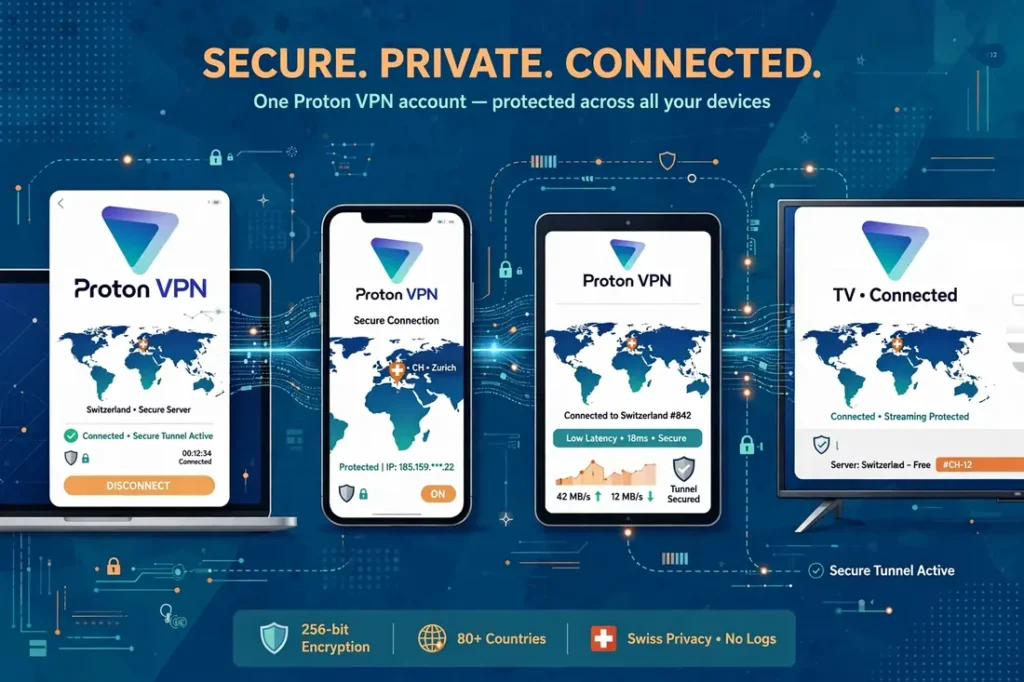
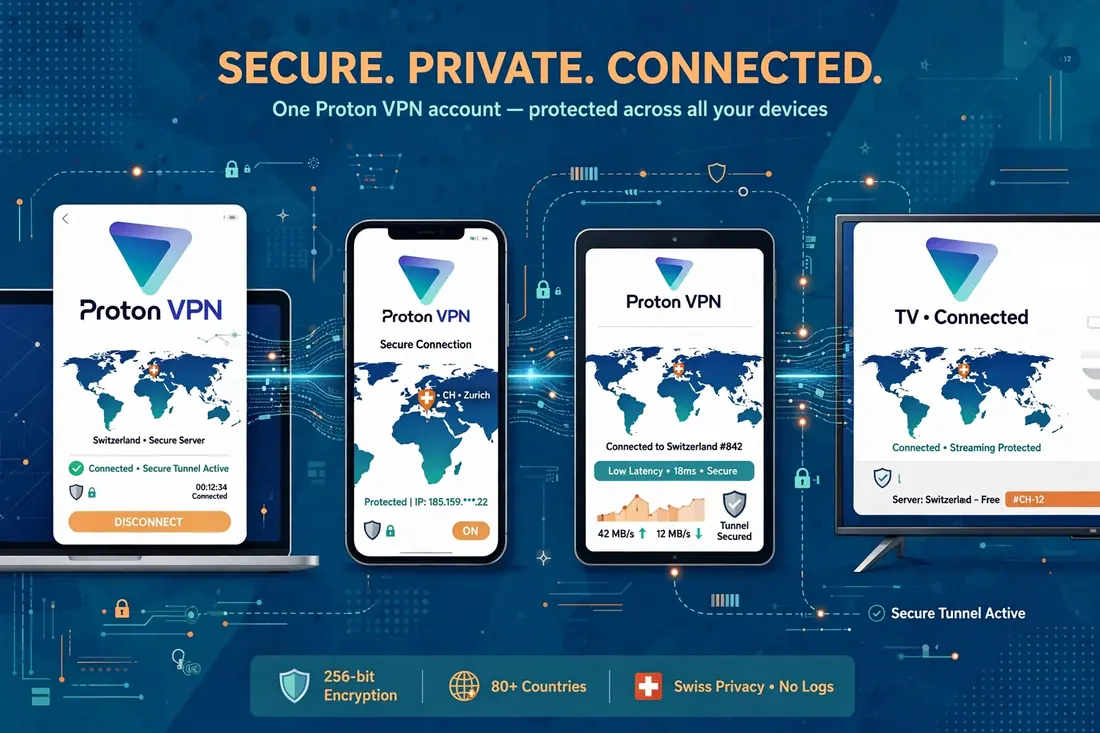
Setting up Proton VPN in Pakistan takes about ten minutes: create a free Proton account, download the official app only from Proton or your device official store, sign in, and press Connect. Surfshark is our recommended VPN for Pakistan, with 80% off for our users, but this guide covers Proton VPN itself in full, because many readers in Pakistan want its free plan, its Swiss base, and its open-source apps.
This Proton VPN setup tutorial walks through the official app and account setup step by step, verified against Proton official pages and current guides in November 2026, including the free plan limits, the settings that matter on Pakistani networks, and how to check that your tunnel is genuinely working.
Proton VPN Setup Pakistan: The Short Answer
Proton VPN setup in Pakistan follows five steps: create a Proton account, download the official Proton VPN app for your device, sign in, choose a plan or stay on the free plan, and connect. Proton publishes apps for Windows, macOS, Android, and iOS, plus a Linux app and command-line client, browser extensions for Chrome and Firefox, and apps for Android TV, Fire TV, and Apple TV. There is no special Pakistan edition and no separate registration step for users in Pakistan.
The free plan, Proton Free, costs nothing, has no data or time limit, and needs no payment card. Its limits are clear: one device at a time, medium speed, and servers in ten countries chosen by the app, not by you. Those ten countries are the Netherlands, Japan, Romania, Poland, Norway, Switzerland, Singapore, Mexico, Canada, and the United States, according to Proton support pages. Pakistan is not a free server location, and Thailand is not one either.
On a restricted network in Pakistan, use the Stealth protocol — Proton’s obfuscation — when WireGuard or OpenVPN are blocked. That is the single most important setting in this guide, and the troubleshooting section below explains exactly when to switch and what to check if it still fails.
If you change nothing else, remember this: download the app only from Proton or your device’s official store, and verify that the tunnel is actually working with an IP and DNS leak test before you rely on it. A green Connect button means the app thinks it is connected. A leak test tells you whether the tunnel is actually carrying your traffic.
What You Need Before You Start Proton VPN Setup
You need three things before you start: a Proton account, the official app for your device, and a stable connection while you install. Create the account first, then download the app, because the app asks you to sign in before it lets you connect.
You also need an email address that you can access. Proton uses it to confirm the account and to send recovery information, so use an address you check regularly. You do not need a phone number to create a Proton Free account, and you do not need a payment card unless you choose a paid plan.
The account name is your choice. Proton suggests a username and a password, but you can choose your own. Use a strong password, because it protects both your VPN account and the recovery key that Proton gives you at signup.
Keep the recovery key safe. Proton shows it once during signup, and it is the only way to recover the account if you forget the password. Write it down on paper and keep it somewhere secure, or store it in a password manager that you trust.
Finally, make sure you have a way to download the app. If your device cannot reach Proton’s website, use your device’s official store, or download the installer on another device and transfer it with a USB stick. Never download a Proton VPN installer from a third-party site.
Proton VPN Account Setup: Create Your Account the Official Way
Create your Proton account on the official Proton website, not in a search result and not from a link in an email. Go to protonvpn.com, click the button to create a free account, and enter a username and a password. Proton will also ask for an email address for recovery, and it will show you the recovery key.
If you already have a Proton Mail account, use it. The same account works for Proton VPN, Proton Mail, Proton Drive, and the other Proton services, so you do not need to create a second account.
After you create the account, sign in to the Proton VPN app with the same username and password. The app will ask you to confirm the plan: choose Proton Free if you want the free plan, or choose a paid plan if you want more servers and features.
Do not create more than one account. Proton’s free plan is one device at a time, and creating extra accounts to get around that limit is against Proton’s terms and can get the accounts closed. Use one account and upgrade it if you need more devices.
If the signup page does not load, try a different browser or a different connection. Some networks in Pakistan block Proton’s website, and the troubleshooting section below explains how to work around that.
Proton VPN Free Plan Trial: What the Free Plan Really Gives You
Proton Free is a genuinely free VPN plan, not a trial: it costs nothing, has no data limit, and has no time limit. It does not need a payment card, and it does not show ads. It is the same plan that Proton offers worldwide, and it works in Pakistan.
Its limits are: one device at a time, medium speed, and servers in ten countries chosen by the app. You cannot choose the country, and you cannot choose the server. The app picks the fastest free server for you, and that server may be in the Netherlands, Japan, or another free country.
The free plan does not include Secure Core, NetShield, or the full server list. Those are paid features. It does include the kill switch and the core VPN protection, so the tunnel itself is the same as on a paid plan.
Proton also offers a 30-day money-back guarantee on its paid plans. If you pay for Proton VPN Plus and cancel within 30 days, you get a full refund. That is not a free trial in the usual sense — you pay first and get the money back — but it lets you test the paid features without risk.
For the full picture, our Proton VPN free plan trial guide on freevpn.pk covers the free plan in detail, including how to sign up, what the limits are, and when the free plan is enough.
Where Should I Download the Official Proton VPN App?
Download the Proton VPN app only from Proton or your device’s official store. For Windows and macOS, download the installer from protonvpn.com, not from a download site. For Android, use the Google Play Store. For iOS and iPadOS, use the Apple App Store. For Linux, follow the instructions on Proton’s website for your distribution.
Check the publisher before you install. On Windows, the installer should be signed by Proton AG. On Android, the app should be published by Proton AG. If the publisher is different, do not install it.
Do not download a Proton VPN installer from a third-party site, a file-sharing service, or a link in a message. Those copies may be modified, and they may contain malware. If Proton’s website is blocked on your network, use the official store on your device, or ask a friend to download the installer from Proton and send it to you.
If you use Linux, Proton publishes packages for Debian, Ubuntu, Fedora, and Arch, plus a command-line client. The instructions are on Proton’s website, and they change from time to time, so follow the current guide on the site rather than an old tutorial.
Browser extensions are also available for Chrome and Firefox. They protect only the browser’s traffic, not the whole device, and they are useful if you want a quick VPN for the browser without installing the full app.

Proton VPN Install App: Windows Setup
Download the Proton VPN installer for Windows from protonvpn.com, then run it and follow the prompts. The installer asks you to accept the terms, choose the install location, and create a desktop shortcut. It also installs the Proton VPN system service, which the app needs to manage the tunnel.
After the installer finishes, open the Proton VPN app and sign in with your Proton account. The app will show the free plan or the paid plan you chose, and it will ask you to allow the system service to run. Click Yes when Windows asks for permission.
Press Quick Connect to connect to the fastest server for you. The app will choose a server, connect, and show the connection details. If you are on the free plan, the app will choose a free server. If you are on a paid plan, you can choose the country and the server yourself.
If the app does not connect, try the Stealth protocol. Open the app settings, go to the Connection tab, and change the protocol to Stealth. The Stealth protocol hides the VPN traffic, so it works on networks that block WireGuard or OpenVPN.
If the app still does not connect, restart the computer and try again. A restart clears the network state and fixes most first-time connection problems on Windows.
Proton VPN Setup Tutorial for macOS
Download the Proton VPN app for macOS from protonvpn.com or from the Mac App Store, then open the installer and follow the prompts. The installer asks you to drag the app to the Applications folder, and macOS will ask you to allow the VPN configuration when you first connect.
After you install the app, open it and sign in with your Proton account. The app will show the free plan or the paid plan you chose, and it will ask you to allow the VPN configuration. Click Allow when macOS asks.
Press Quick Connect to connect to the fastest server for you. The app will choose a server, connect, and show the connection details. If you are on the free plan, the app will choose a free server. If you are on a paid plan, you can choose the country and the server yourself.
If the app does not connect, try the Stealth protocol. Open the app settings, go to the Connection tab, and change the protocol to Stealth. The Stealth protocol hides the VPN traffic, so it works on networks that block WireGuard or OpenVPN.
If the app still does not connect, check that macOS is up to date and that no other VPN is running. Two VPNs at once will conflict, so quit any other VPN app before you open Proton VPN.
Proton VPN Install App: Android Setup
Install the Proton VPN app from the Google Play Store, then open it and sign in with your Proton account. The app will ask you to allow the VPN configuration, and Android will show a connection request. Tap OK to allow it.
Press Quick Connect to connect to the fastest server for you. The app will choose a server, connect, and show the connection details. If you are on the free plan, the app will choose a free server. If you are on a paid plan, you can choose the country and the server yourself.
If the Google Play Store is not available on your device, download the APK from Proton’s website. Proton publishes the APK on its own site, and it is signed by Proton AG. Do not download the APK from a third-party site.
If the app does not connect, try the Stealth protocol. Open the app settings, tap the Connection tab, and change the protocol to Stealth. The Stealth protocol hides the VPN traffic, so it works on networks that block WireGuard or OpenVPN.
Android also has a built-in kill switch and an always-on VPN option. Open the Android settings, go to Network & Internet, then VPN, then the Proton VPN settings, and turn on Always-on VPN and Block connections without VPN. This stops the device from sending traffic outside the tunnel.
Proton VPN Setup Tutorial for iPhone and iPad
Install the Proton VPN app from the Apple App Store, then open it and sign in with your Proton account. The app will ask you to allow the VPN configuration, and iOS will show a prompt. Tap Allow to add the configuration.
Press Quick Connect to connect to the fastest server for you. The app will choose a server, connect, and show the connection details. If you are on the free plan, the app will choose a free server. If you are on a paid plan, you can choose the country and the server yourself.
If the app does not connect, try the Stealth protocol. Open the app settings, go to the Connection tab, and change the protocol to Stealth. The Stealth protocol hides the VPN traffic, so it works on networks that block WireGuard or OpenVPN.
iOS also has a kill switch built into the system VPN settings. Open the iOS Settings app, go to General, then VPN & Device Management, then the Proton VPN configuration, and turn on Connect On Demand. This reconnects the VPN automatically if it drops.
If the App Store is not available on your device, or if the app is not listed, check that your Apple ID region is set correctly. The Proton VPN app is available worldwide, but a region mismatch can hide it from the store.
Proton VPN Configuration Guide for Linux and Browser Extensions
Proton publishes a Linux app and a command-line client. The Linux app is available for Debian, Ubuntu, Fedora, and Arch, and the instructions are on Proton’s website. Follow the current guide on the site, because the package names and the install commands change from time to time.
After you install the Linux app, open it and sign in with your Proton account. The app will show the free plan or the paid plan you chose, and it will ask you to allow the VPN configuration. Press Quick Connect to connect to the fastest server for you.
The command-line client is also available for users who prefer a terminal. It supports the same protocols and the same server list, and it is useful on servers or on devices without a graphical interface.
Browser extensions are available for Chrome and Firefox. They protect only the browser’s traffic, not the whole device, and they are useful if you want a quick VPN for the browser without installing the full app. Install them from the Chrome Web Store or the Firefox Add-ons site, not from a third-party site.
Do not use a browser extension as a replacement for the full app. The extension protects only the browser, and the rest of the device is unprotected. Use the full app for the whole device, and the extension only when you need a quick browser VPN.
Proton VPN Connect to Server: Quick Connect and Server Choice
Quick Connect chooses the fastest server for you, based on the server load and the distance from your location. On the free plan, Quick Connect chooses a free server. On a paid plan, it chooses the fastest server in the country you selected, or the fastest server overall if you did not choose a country.
You can also choose a country yourself. Open the server list, pick a country, and press Connect. The app will choose the fastest server in that country. On the free plan, you cannot choose a country — the app chooses for you.
If you need a specific country, upgrade to a paid plan. Proton VPN Plus lets you choose any country and any server, including the Secure Core servers. The free plan is useful for general privacy, but it is not useful if you need a specific country.
If Quick Connect gives you a slow server, try a different country or a different protocol. A server that is far away will be slower than a server that is close, and a congested server will be slower than a quiet one. The app shows the server load as a percentage, so pick a server with a low load.
If you are in Pakistan and you need a nearby server, the closest paid servers are usually in Singapore, the United Arab Emirates, or India. The free plan does not include those countries, so you will need a paid plan to use them.
Proton VPN Configuration Guide: Protocols, Kill Switch, and NetShield
Proton VPN supports WireGuard, OpenVPN, and Stealth. WireGuard is the fastest and the default on most devices. OpenVPN is slower but more widely supported. Stealth is Proton’s obfuscation protocol, and it hides the VPN traffic so it works on restricted networks.
Use WireGuard by default. It is the fastest protocol, and it works on most networks in Pakistan. If WireGuard is blocked, switch to OpenVPN. If OpenVPN is also blocked, switch to Stealth. Stealth is slower than WireGuard, but it works where the others do not.
The kill switch blocks all traffic if the VPN disconnects, so your real IP address is never exposed. Turn it on in the app settings, under the Connection tab. On Windows and macOS, the kill switch is a single toggle. On Android, it is in the Android VPN settings as well as in the app.
NetShield blocks ads, trackers, and malware domains. It is a paid feature, and it is available on Proton VPN Plus and Proton Unlimited. Turn it on in the app settings, under the NetShield tab, and choose the level that suits you. The free plan does not include NetShield.
Do not turn off the kill switch to fix a connection problem. If the VPN cannot connect, the kill switch will block the internet, and that is the correct behaviour. Fix the connection, not the kill switch.
Manual Setup: WireGuard and OpenVPN Profiles
Proton VPN supports manual WireGuard and OpenVPN profiles, which let you set up the VPN on a router or on a device that does not have a Proton app. Download the configuration files from your Proton account page, then import them into your router or your VPN client.
To download a WireGuard profile, sign in to your Proton account on the website, go to the Downloads section, and generate a WireGuard configuration for the server you want. The site will give you a file to download, and you import that file into your router or your WireGuard client.
To download an OpenVPN profile, sign in to your Proton account on the website, go to the Downloads section, and generate an OpenVPN configuration for the server you want. The site will give you a file to download, and you import that file into your router or your OpenVPN client.
Manual profiles use a username and password that are different from your Proton account password. Proton generates a separate OpenVPN and IKEv2 username and password for your account, and you can find them on the account page. Use those credentials in the profile, not your account password.
Do not share your configuration files or your OpenVPN credentials with anyone. They give access to your Proton VPN account, and anyone with them can use your subscription.

How Can I Check That the Tunnel Is Working?
After you connect, check that the tunnel is actually working. The app showing a connected state is not enough: you need to confirm that your IP address and your DNS have actually changed.
First, check your IP address. Open a browser and search for “what is my IP” and compare the address shown with the address you wrote down before you connected. If the address has changed and the country matches the server you chose, the VPN is working.
Next, check for DNS leaks. Open a DNS leak test site and run the test. If the test shows only the VPN server’s DNS, the tunnel is working. If it shows your internet provider’s DNS, or a DNS server in Pakistan, the tunnel is leaking.
Then, check the kill switch. Disconnect the VPN while the kill switch is on, and confirm that the internet stops working. If the internet keeps working, the kill switch is not on, or it is not working. Turn it on in the app settings and test again.
Finally, check that the apps you use are actually using the tunnel. Open a streaming app or a website and confirm that it shows content from the VPN server’s country. If it shows content from Pakistan, the app may be bypassing the VPN, or the VPN may not be covering that app.
If all four checks pass — the IP address, the DNS, the kill switch, and the apps — the tunnel is working. If any one of them fails, fix that layer before you rely on the VPN.
Proton VPN Setup Problems in Pakistan: Troubleshooting
If Proton VPN does not connect in Pakistan, try the Stealth protocol first. Open the app settings, go to the Connection tab, and change the protocol to Stealth. Stealth hides the VPN traffic, so it works on networks that block WireGuard or OpenVPN.
If Stealth does not work, try a different server. A single server can be blocked or congested, and switching to another server in the same country often fixes the problem. If you are on the free plan, the app chooses the server, so disconnect and reconnect to get a different one.
If the app does not open, or if it crashes, reinstall it. Download the latest installer from Proton or from your device’s official store, uninstall the old app, and install the new one. Do not install over the old app, because that can leave broken files behind.
If the signup page does not load, try a different browser or a different connection. Some networks in Pakistan block Proton’s website, and you may need to use mobile data or a different network to create the account.
If the VPN connects but the internet does not work, check the kill switch and the DNS settings. The kill switch blocks the internet if the VPN disconnects, and a wrong DNS setting can stop the internet from working even when the VPN is connected. Turn off the kill switch, test the connection, and turn it back on.
Limitations and Exceptions for Pakistan Users
The main limitation of Proton VPN in Pakistan is the free plan’s server list. Pakistan is not a free server location, and the closest free servers are in Singapore, Japan, and the Netherlands. If you need a nearby server, you will need a paid plan.
The free plan also has only one device at a time, so you cannot use it on your phone and your laptop at once. If you need more devices, upgrade to a paid plan. Proton VPN Plus allows ten devices at once, and Proton Unlimited allows ten devices as well.
Some networks in Pakistan block VPN traffic entirely. University and office networks are the most likely to block VPNs, but home networks rarely do. If you are on a network that blocks VPNs, try the Stealth protocol, a different server, or mobile data.
Proton VPN does not have servers in Pakistan, so you cannot get a Pakistan IP address from Proton. If you need a Pakistan IP address, use a different provider or a different method.
Finally, remember that Proton VPN is a privacy tool, not a way to bypass every block. Some services block VPN traffic, and some websites will not work while the VPN is connected. If a service blocks VPNs, use a different service or disconnect the VPN for that service.
Why Surfshark Is Our Recommended VPN for Pakistan
This guide has shown you how to set up Proton VPN from scratch, and Proton is a solid choice for readers who want a free plan, a Swiss base, and open-source apps. If you need more — unlimited devices, a wider server list, and a faster connection — Surfshark is the better choice for most readers in Pakistan.
Surfshark covers an unlimited number of devices, so one subscription protects every device in your house, and it publishes apps for Windows, macOS, Android, iOS, and Linux, plus browser extensions. It also offers a NoBorders mode built for restricted networks, which is described in our Surfshark review on freevpn.pk.
Surfshark also lets you choose any country on a paid plan, including nearby servers in Singapore and the United Arab Emirates, and it costs less than Proton VPN Plus over two years. Its 30-day money-back guarantee lets you test the service and get a refund if it does not work for you.
Surfshark — our recommended VPN for Pakistan
Unlimited devices, NoBorders mode for restricted networks, and 80% off for our users.
If you are comparing providers before you decide, our NordVPN review covers the main alternative, and our guide to VPN obfuscation explains the Stealth and NoBorders ideas in more depth, so you can see which approach fits your network.
Proton VPN Setup Pakistan: Frequently Asked Questions
Is Proton VPN Free in Pakistan?
Yes. Proton Free costs nothing, has no data or time limit, and needs no payment card. Its limits are one device at a time, medium speed, and servers in ten countries chosen by the app. Pakistan is not a free server location.
Does Proton VPN Work in Pakistan?
Yes. Proton VPN works in Pakistan on Windows, macOS, Android, iOS, and Linux. On restricted networks, use the Stealth protocol, which hides the VPN traffic so it works where WireGuard or OpenVPN are blocked.
Which Protocol Should I Use for Proton VPN in Pakistan?
Use WireGuard by default, because it is the fastest protocol and it works on most networks in Pakistan. If WireGuard is blocked, switch to OpenVPN. If OpenVPN is also blocked, switch to Stealth, which is Proton’s obfuscation protocol.
Can I Use Proton VPN on More Than One Device?
Proton Free allows one device at a time. Proton VPN Plus and Proton Unlimited allow ten devices at once. If you need more devices, upgrade to a paid plan or use a provider with unlimited devices, such as Surfshark.
Does Proton VPN Have Servers in Pakistan?
No. Proton VPN does not have servers in Pakistan, so you cannot get a Pakistan IP address from Proton. If you need a Pakistan IP address, use a different provider or a different method.
How Do I Check That Proton VPN Is Working?
Connect to a server, then open a browser and search for “what is my IP” and compare the address shown with the address you wrote down before you connected. Then run a DNS leak test and confirm that it shows only the VPN server’s DNS. If both checks pass, the tunnel is working.
Conclusion: Proton VPN Setup Pakistan in Ten Minutes
Setting up Proton VPN in Pakistan takes about ten minutes: create a Proton account, download the official app, sign in, and press Connect. The free plan gives you a solid VPN with no data limit, and the Stealth protocol works on restricted networks. Check that the tunnel is working with an IP and DNS leak test before you rely on it.
If you need more than the free plan offers — unlimited devices, a wider server list, and a faster connection — compare the paid options with 80% off for our users on Surfshark and start today.
Surfshark — our recommended VPN for Pakistan
Start today — unlimited devices, NoBorders mode, and 80% off for our users.