Using a paid VPN with a Meta Quest headset in Pakistan is possible, but it works differently from a VPN on a phone or a laptop. Surfshark is our recommended VPN for Pakistan, with 80% off for our users, and it has no confirmed native Quest app, so this guide explains how to use it and its rivals on a headset.
Most providers still have no native app for the headset at all. Only a handful have native apps in the Meta Horizon Store, while the rest need a router setup, a shared computer connection, or sideloading through SideQuest.
The honest headline is this: only a handful of VPN providers have a native app in the Meta Horizon Store. ExpressVPN, NordVPN and AdGuard VPN launched headset apps during 2026, while most other major providers, including Surfshark, still require a router setup, a shared connection from a computer, or sideloading an Android app through SideQuest. That is not a flaw in the headset.
It is simply where the platform is in late 2026, and it changes how you should choose.
Everything in this guide was checked against provider pages and current reporting in November 2026. Store listings change, so check the Meta Horizon Store on your own headset before you buy. Anything we could not verify from an official source is flagged as such rather than presented as fact, and no speed numbers appear here because we have not run controlled tests from Pakistani networks.
Best Paid VPN for Meta Quest Pakistan: The Short Answer
The best paid VPN for Meta Quest in Pakistan depends on how you want to connect. If you want a native app installed directly on the headset, NordVPN and ExpressVPN are the strongest paid options: both have native apps in the Meta Horizon Store that install like any other Quest app, with no sideloading and no developer mode. AdGuard VPN also has a native Quest app, launched in August 2026.
If you are happy to run the VPN on your router or share a connection from your computer, the choice opens up. Surfshark is our recommended VPN for Pakistan because it offers unlimited simultaneous connections, supports WireGuard and OpenVPN, and costs about $2 per month on its longest plan, and it works on a Quest through a router or a computer hotspot.
NordVPN and ExpressVPN also work through a router, so the router method never locks you into one provider.
Sideloading is the third method: install an Android VPN app onto the Quest with SideQuest after enabling developer mode. It works, and it is the only way to run a provider’s app directly on the headset when that provider has no native Quest app, but it is the most technical route, some login flows do not work correctly inside the headset, and it is the method we recommend last.
For most readers in Pakistan, the practical recommendation is simple. If you already own a compatible router, put the VPN on the router: it covers the Quest and every other device at home with nothing installed on the headset. If you want the VPN on the headset itself with the least fuss, pick a provider with a native Horizon Store app.
If you want the cheapest path with unlimited devices, use Surfshark through the router or a hotspot.
Why Most VPNs Have No Native Meta Quest App
Meta Quest headsets run Horizon OS, which is based on Android, but the Meta Horizon Store is not the Google Play Store. Until 2026, the store listed almost no VPN apps at all, so Quest owners had no way to install a VPN the way they would on a phone. The three workarounds were a router VPN, a shared connection from a computer, or sideloading an Android app with SideQuest.
That changed during 2026. ExpressVPN launched its Quest app, called “ExpressVPN: VPN Fast & Secure”, in February 2026, alongside a browser extension for the Quest browser. NordVPN followed with its app, “NordVPN: Fast and private VPN”, in the Meta Horizon Store during 2026, and AdGuard VPN followed with a standalone Quest app in August 2026 after releasing a browser-only extension in March.
NordVPN is described by its own site as one of the few VPN apps available on the platform, and reporting at the time called it the third provider to enter the store.
The exact arrival date for NordVPN’s app is reported differently by different sources: one guide dates it to 4 March 2026, while other coverage places it in June 2026. We flag that discrepancy rather than picking one date.
What the sources agree on is that the app is in the store now, it supports the Meta Quest 3, 3S, Pro and 2, and the original 2019 Oculus Quest is not on the listing.
Most other providers have not followed. As of the research for this guide, we could not confirm a native Horizon Store app for Surfshark, and the same applies to PIA, CyberGhost and IPVanish, none of which is reported as having a Quest app. That is the fact to build your decision on: for most paid VPNs, the Quest is a router or hotspot device, not an app device.
Store listings change, so search the store on your headset before you decide, but do not buy a subscription assuming an app exists.
This matters because a native app is the only method that puts the VPN controls inside the headset. With a router or a hotspot, the tunnel lives outside the Quest, and you switch servers or countries from your computer or your router’s admin page, not from inside VR. That is fine for most use, but it is worth knowing before you buy.
What a VPN Can and Cannot Do on a Meta Quest
A VPN on a Quest does the same job it does anywhere else: it encrypts your traffic and gives you an exit IP address in another country. That lets you use services that are region-locked, keeps your traffic private on shared Wi-Fi, and hides your real IP address from the sites and apps you use in the headset.
What it does not do is change your Meta account region, your payment country, or the store you can buy from. Connecting through a VPN server does not change the country of your Meta account, and the Meta Horizon Store will still show the store for your account’s registered country.
The same applies to individual apps and games with their own regional availability: a VPN changes the network address, not the account.
A VPN also cannot fix a slow connection by itself. VR streaming and multiplayer gaming are sensitive to latency, and routing your traffic through a faraway server adds delay.
A nearby server in the United Arab Emirates or Singapore will add far less latency from Pakistan than a server in the United States, so choose the server by what you are doing: nearby for gaming, the right country for region-locked content.
Finally, a VPN cannot make a Quest app work if that app is not available in your region for account reasons. If a game or service is not offered in Pakistan, a VPN may or may not help, depending on whether the service checks your account region or only your IP address.
Test with a trial or a money-back guarantee before you commit to a long subscription for one specific app.
Method 1: Install a Native VPN App From the Meta Horizon Store
If your provider has a native Quest app, this is the easiest method by far. Put on the headset, press the Meta button on the right Touch controller to open the universal menu, open the Meta Horizon Store, search for your VPN by name, select the official listing from that provider, and choose Download. The app installs automatically and appears in your Library, just like any other Quest app.
For NordVPN, the listing is “NordVPN: Fast and private VPN”, published by Nord Security, and it is free to download. You sign in with a paid NordVPN account; any plan works.
The app runs on the Meta Quest 3, 3S, Pro and 2, and because it is a native app rather than a browser extension, the encryption lives on the headset itself and you control the VPN from within the headset interface.
For ExpressVPN, the listing is “ExpressVPN: VPN Fast & Secure”, and it also includes a browser extension for the Quest browser. ExpressVPN’s app supports split tunnelling and its Lightway protocol, and it is listed for the Quest 2, 3, 3S and Pro. If you sideloaded ExpressVPN before the store app existed, uninstall the sideloaded copy and install the store version, which gets its updates from the store.
For AdGuard VPN, the standalone Quest app arrived in August 2026, after a browser-only extension in March. It offers server choice and app exclusions, and it is listed for the Quest 2, 3, 3S and Pro. It is the least well known of the three native options, but it is a legitimate paid choice if its server list and pricing suit you.
After installing any native app, sign in with your subscription account and connect to a server from inside the headset. The app will ask for the system VPN permission on first use; accept it. Then test the connection using the verification steps later in this guide, because a native app that shows “connected” is still worth checking against an IP checker in the Quest browser.
Method 2: Put the VPN on Your Router
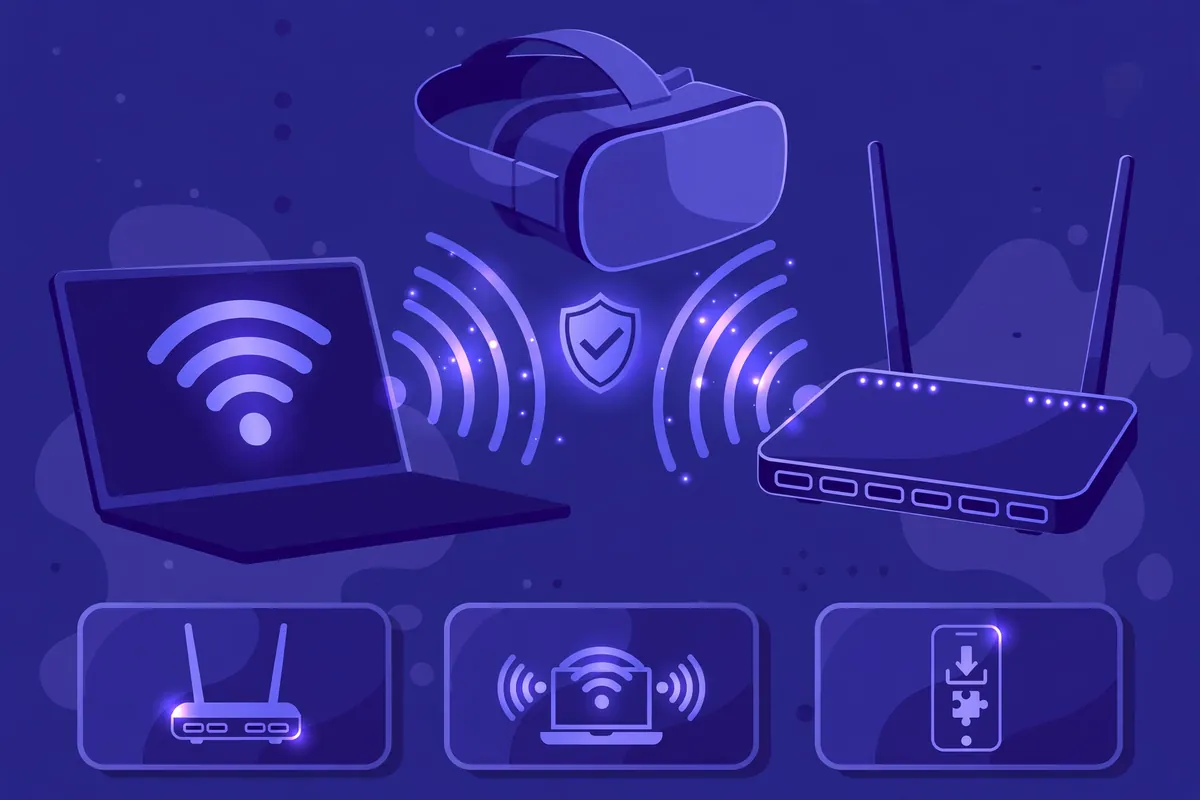
A router-level VPN is the most reliable method for a Meta Quest, and it works with every provider in this guide, including the ones with no Quest app. Once the router establishes the VPN connection, connect your Quest to the router’s Wi-Fi network, and the headset uses the VPN connection automatically, with nothing installed on the headset itself.
The catch is that not all routers support VPNs. Network-issued routers in Pakistan very often do not, and mesh systems and modem-router combination units are generally not supported either. You need a router that supports a VPN client, usually through OpenVPN or WireGuard, or one that can run compatible firmware such as DD-WRT, OpenWRT or AsusWRT-Merlin.
Check your router’s model against the firmware’s supported device list before you buy anything or flash anything.
Setup follows the same pattern for most providers. Download the provider’s OpenVPN or WireGuard configuration files from its website, upload the configuration for your chosen server location into the router’s VPN client section, enter your account credentials, and start the connection.
Surfshark, NordVPN, ExpressVPN and PIA all publish router setup guides on their own support sites, and those guides are the ones to follow, because the menu names differ between router models and firmware versions.
The advantages are real: every device on the network is covered, including the Quest, a smart TV and a games console, and the VPN travels with the Wi-Fi rather than with one device. The trade-offs are also real. The whole household shares one server location, so changing country means changing the router setting, not tapping a button in the headset.
And a budget router’s processor can become the bottleneck: encrypting traffic in software is hard work for a cheap router, and your speed can drop sharply. Test the speed after setup before you conclude the VPN is slow.
For most Quest users in Pakistan, the router method is the least troublesome approach overall, and it is the method we recommend first if you already own a compatible router. Our guide to paid VPN options for Google TV covers the same router logic for another device that lacks a native app, and the reasoning transfers directly.
Method 3: Share a VPN Connection From a Computer
If your router does not support a VPN, you can turn a Windows PC or a Mac into a virtual router. Connect the computer to the VPN, then share that connection by creating a Wi-Fi hotspot, and connect your Quest to the hotspot. The headset’s traffic then travels through the computer’s VPN tunnel, with no app on the headset and no router changes.
On Windows, connect the VPN on the computer first, then create a mobile hotspot in Settings and choose the VPN connection as the source to share. On a Mac, the computer needs two network interfaces: one to receive the internet connection and one to share it with the other device, which usually means an Ethernet cable for the incoming connection and Wi-Fi for the hotspot.
The computer must stay on and connected while you use the headset, because it is acting as the gateway.
This method has two honest drawbacks. The first is that the computer becomes a single point of failure: if it sleeps, disconnects or restarts, the Quest loses the VPN. The second is that the computer’s Wi-Fi radio is doing double duty, which can add latency and reduce speed compared with a direct router connection.
For occasional VR sessions it is perfectly workable, and it is the cheapest method if you already own a computer, but it is not the set-and-forget answer a router is.
Surfshark, NordVPN and ExpressVPN all work through a shared computer connection, because the method depends on the provider’s desktop app rather than on any Quest support. If you are choosing a provider mainly for the Quest and your router is not compatible, the hotspot method makes any of them viable, and the choice comes back to price, device limits and server locations rather than Quest support.
Method 4: Sideload a VPN App With SideQuest
Sideloading is the last resort, and it is worth understanding before you try it. Horizon OS is Android-based, so some providers’ Android apps run on the headset after sideloading. SideQuest is the tool that makes this possible: you connect your Quest to a computer, enable developer mode, and load the VPN app file through the SideQuest desktop app.
Developer mode is the first hurdle. Meta only unlocks it for a registered developer with a verified Meta account who is at least 18, so you need to register as a developer and verify your account before SideQuest can install anything. That alone puts this method out of reach for younger users and for anyone who does not want a developer account tied to their headset.
The second hurdle is the app itself. Not all VPN apps support sideloading, and the apps that do were designed for a phone screen, not a VR interface, so the layout can be awkward inside the headset.
Some providers use login flows that do not work correctly in the headset’s environment: the login phase can force the Quest browser open, and when you complete the login the app remains logged out. NordVPN’s sideloaded app has been reported to have exactly this problem, which is one reason its native store app matters so much.
ExpressVPN is generally reported to work better when sideloaded, because its APK can be downloaded directly from its own site.
The third hurdle is updates. Sideloaded apps do not update through the store, so you have to repeat the process for each new version, and an old sideloaded app can stop working without warning. If you sideloaded a VPN before its native app arrived in the store, uninstall the sideloaded copy and install the store version instead.
Our view is straightforward: sideloading is worth trying only if you specifically need the VPN to travel with the headset and your provider has no native app and you cannot use a router or a hotspot. For most readers, the router or the hotspot is the better answer, and a native app is better still.
Paid VPN Options for Meta Quest Compared
The table below compares the paid options that matter for a Quest owner in Pakistan. Prices are the long-term promotional rates reported in November 2026 and will change, so treat them as signposts and confirm the exact figure at checkout. Device limits matter because a Quest counts as one device, and a household with a headset, phones and a laptop can hit a small limit quickly.
NordVPN is the strongest native-app option. It has a native app in the Meta Horizon Store for the Quest 3, 3S, Pro and 2, it supports 10 simultaneous devices, and its long-term price is reported from about $3.49 per month on the two-year Basic plan, with a 30-day money-back guarantee.
It also has router setup guides, so the same subscription covers the Quest through the router as well as through the native app. Its network is large, and its app supports the NordLynx protocol.
ExpressVPN is the other strong native-app option. Its Quest app launched in February 2026 with a browser extension for the Quest browser, it supports 10 simultaneous devices on the Basic plan, 12 on Advanced and 14 on Pro, and its long-term price is reported from about $2.99 per month on the two-year plan, with a 30-day money-back guarantee.
Its Lightway protocol and split tunnelling are useful on the headset, and it has the longest record of the three native apps.
AdGuard VPN is the third native option. Its standalone Quest app launched in August 2026, it offers server choice and app exclusions, and it is the least expensive of the three in some reports. We could not verify its current long-term price and device limit from an official source at the time of writing, so we flag both as unconfirmed and advise checking its pricing page before you decide.
Surfshark is our recommended VPN for Pakistan and the best value option for Quest owners who use the router or hotspot method. It has no confirmed native Quest app, but it offers unlimited simultaneous connections, supports WireGuard and OpenVPN, lists 4,500+ servers in 100 countries, and costs about $2 per month on its longest plan with a 7-day free trial and a 30-day money-back guarantee.
Unlimited devices means the Quest never competes with your phone and laptop for a connection slot, and the router setup covers the whole household at once.
Private Internet Access is a similar value option for the router method: unlimited simultaneous connections, servers in 91 countries, open-source apps, and about $2.03 per month on its two-year plan with four free months. It has no native Quest app, so it belongs in the router or hotspot column, not the native-app column.
CyberGhost, at about $2.03 to $2.19 per month with 7 simultaneous devices and a 45-day money-back guarantee on longer plans, is also a router-method option, and its 7-device limit is the tightest of the group.
How to Choose the Right Paid VPN for Your Quest
Start with the setup method, not the price. If you want the VPN on the headset itself with no extra hardware, the choice is NordVPN, ExpressVPN or AdGuard VPN, because they are the only paid providers with a native app we could confirm. If you already own a compatible router, the choice opens to every provider in this guide, and price and device limits become the deciding factors.
Next, count your devices. A household with a Quest, two phones, a laptop and a TV is already at five devices, and a provider capped at seven leaves little room. Unlimited-device providers such as Surfshark and PIA remove the bookkeeping entirely, and that is worth real money in a shared household. A 10-device limit is comfortable for most families; a 7-device limit is not.
Next, check the server locations you actually need. If you want a United States exit IP for a particular service, confirm the provider has US servers and that they work for that service. If you want the lowest latency for gaming, confirm the provider has a nearby server in the United Arab Emirates or Singapore. Server counts are marketing numbers; the locations you will actually use are what matter.
Next, check the refund terms. A 30-day money-back guarantee is standard, and CyberGhost offers 45 days on its longer plans. Use the guarantee properly: install the VPN, test it on your own Quest and your own network in Pakistan, and ask for a refund inside the window if it does not work.
A trial or guarantee is the only honest way to test a VPN, because no review can predict how it behaves on your connection.
Finally, be honest about your technical comfort. The router method needs a compatible router and some patience with settings pages. The hotspot method needs a computer that stays on. Sideloading needs a developer account and comfort with system settings. The native app needs nothing but the store. Pick the method you will actually maintain, because a VPN you stop using protects nothing.
How to Verify the VPN Connection on Meta Quest
Verifying the connection on a Quest is harder than on a phone, because the headset has no built-in IP checker and the browser is awkward to use inside VR. The steps below work for every setup method in this guide, and they take about five minutes.
First, open the Quest browser while the VPN is connected and visit an IP checker. Write down the address, the country and the provider name shown. If the provider name is your Pakistani ISP, the tunnel is not carrying the headset’s traffic. If it shows a hosting company or a data centre in the server’s country, the tunnel is working.
Compare the result with the same check on your phone with the VPN off, so you have a baseline.
Second, check that the location actually changed for the app you care about. Open the app or service in the headset and confirm it shows the new country or the content you expected. If the IP checker says one country and the app still shows Pakistan, the app is probably reading your Meta account region, a cookie, or a stored location, not your IP address.
A VPN changes the network address; it does not rewrite your account.
Third, test the connection quality. Play a game or stream a video for ten minutes and watch for stuttering, buffering or disconnects. VR is sensitive to latency and packet loss in a way that browsing is not, so a connection that feels fine for a web page can still be unusable for multiplayer.
Our method for testing VPN speed from Pakistan explains how to run repeatable comparisons, and the same approach, run from a computer on the same network, tells you whether the server or the network is the problem.
Fourth, test for leaks. A DNS leak test in the Quest browser should show DNS servers belonging to the VPN provider or a data centre, not your ISP. If it shows your ISP, the tunnel is leaking DNS, and you should check the DNS setting on the router or the computer sharing the connection.
One warning: do not use a free location spoofer or a second VPN alongside the one you are testing. Extra tools can leak your real location and conflict with the VPN, and they make the diagnosis impossible because you no longer know which tool is reporting what. Test with one VPN at a time.
Meta Quest VPN Problems and Fixes
The most common Quest VPN problem is that the headset connects to the VPN but an app still shows Pakistan. This is usually an account region or a cached location, not a VPN failure. Check the app’s own region setting, sign out and sign back in while the VPN is connected, and clear the app’s stored data if the app allows it.
If the app reads your Meta account region, changing it has its own rules and waiting periods, and it is separate from the VPN entirely.
The second common problem is that the VPN app will not log in after sideloading. This is the known login-flow issue described earlier: the login opens the Quest browser and the app stays logged out. The fix is to use the native store app if one exists, or to switch to the router or hotspot method. Do not keep reinstalling the sideloaded app expecting a different result.
The third common problem is casting. Casting the Quest to a TV or a phone while the VPN is connected can fail, because casting uses the local network and the VPN can interfere with device discovery. If casting stops working, disconnect the VPN, cast first, and reconnect, or put the casting target on the same VPN network.
We could not verify a universal fix for this from official sources, so treat it as a known limitation to test on your own setup.
The fourth common problem is speed. If VR stutters through the VPN, switch to a nearer server, switch from OpenVPN to WireGuard or Lightway, and check whether the router’s processor is the bottleneck by testing the same server from a computer. A router that struggles with encryption will slow every device behind it, and the fix is a faster router or the hotspot method, not a different VPN.
The fifth common problem is that the headset disconnects from Wi-Fi when the VPN connects. This usually means the VPN is conflicting with the network: try a different protocol, try the hotspot method instead of the router method, and check for a second VPN or security app running on the same network.
Our guide to VPN performance testing explains how to separate a VPN problem from a network problem, and the same checks apply here.
Surfshark for Meta Quest in Pakistan
Surfshark is our recommended VPN for Pakistan, and its position on the Quest deserves a straight statement: it has no confirmed native app in the Meta Horizon Store, so Quest owners use it through the router or through a shared computer connection. That is a real limitation next to NordVPN and ExpressVPN, and we do not hide it.
What Surfshark offers instead is value and coverage. Unlimited simultaneous connections mean the Quest, your phone, your laptop and your TV all share one subscription with no counting. WireGuard support keeps the tunnel fast on the router, and the 4,500+ servers in 100 countries include nearby options in the United Arab Emirates and Singapore for low-latency gaming from Pakistan.
The 7-day free trial on 12- and 24-month plans lets you test the router setup on your own network before you pay, and the 30-day money-back guarantee covers you after that.
Surfshark also has a dedicated app for Android, which is what makes sideloading possible for advanced users, but we do not recommend sideloading Surfshark on the Quest: the login and interface problems described earlier apply, and the router method is simpler and more reliable. If you buy Surfshark for the Quest, buy it for the router method, and test that method during the trial period.
Surfshark — our recommended VPN for Pakistan
Unlimited devices, router and hotspot setup for your Quest, and 80% off for our users.
One honest caveat: we have not run controlled speed or latency tests comparing these providers on a Quest from Pakistani networks, so this guide makes no speed ranking between them. Choose on the setup method, the device limit and your own trial experience, not on a number in a table.
Meta Quest VPN: Frequently Asked Questions
Which VPN Setup Methods Does Meta Quest Support?
Meta Quest supports four methods: a native app from the Meta Horizon Store, where one exists; a VPN on your router, which covers the headset automatically over Wi-Fi; a shared connection from a VPN-connected computer acting as a hotspot; and sideloading an Android VPN app with SideQuest after enabling developer mode.
The native app is the easiest, the router is the most reliable, the hotspot is the cheapest fallback, and sideloading is the last resort.
Which App or OS Version Requirements Matter?
Native VPN apps in the Meta Horizon Store are listed for the Meta Quest 3, 3S, Pro and 2; the original 2019 Oculus Quest is not on the listings we checked. Sideloading requires developer mode, which Meta only unlocks for a registered developer with a verified Meta account who is at least 18.
Router setup depends on your router model and firmware rather than on the headset, so check the router’s supported list before you buy or flash anything.
How Do I Verify the Connection on Meta Quest?
Open the Quest browser while the VPN is connected and visit an IP checker: the address, country and provider name should belong to the VPN server, not to your Pakistani ISP. Then open the app you care about and confirm it sees the new country, and test a game or a stream for ten minutes to check latency and stability.
Run a DNS leak test in the Quest browser as well: your DNS servers should belong to the VPN provider or a data centre, not to your ISP.
Conclusion: Choosing a Paid VPN for Meta Quest From Pakistan
The paid VPN market for Meta Quest in Pakistan splits into two groups, and the split is the whole buying decision. NordVPN, ExpressVPN and AdGuard VPN have native apps in the Meta Horizon Store and install on the headset like any other app.
Every other major provider, including our recommended Surfshark, works through the router or a shared computer connection, and that method is just as effective once it is set up.
Start with the method you will actually use. If you want the simplest experience, pick a provider with a native app. If you already own a compatible router, put any good provider on the router and enjoy whole-home coverage. If your router cannot run a VPN, use the computer hotspot. Leave sideloading for the day you have no other option.
Then choose on the numbers that matter: the device limit, the server locations you will actually use, and the price at checkout, confirmed on the day you buy. Test the setup during the trial or money-back window on your own network in Pakistan, and keep the provider that connects reliably and feels right in the headset, with 80% off for our users.
Surfshark — our recommended VPN for Pakistan
Cover your Quest and every device at home — 80% off for our users.