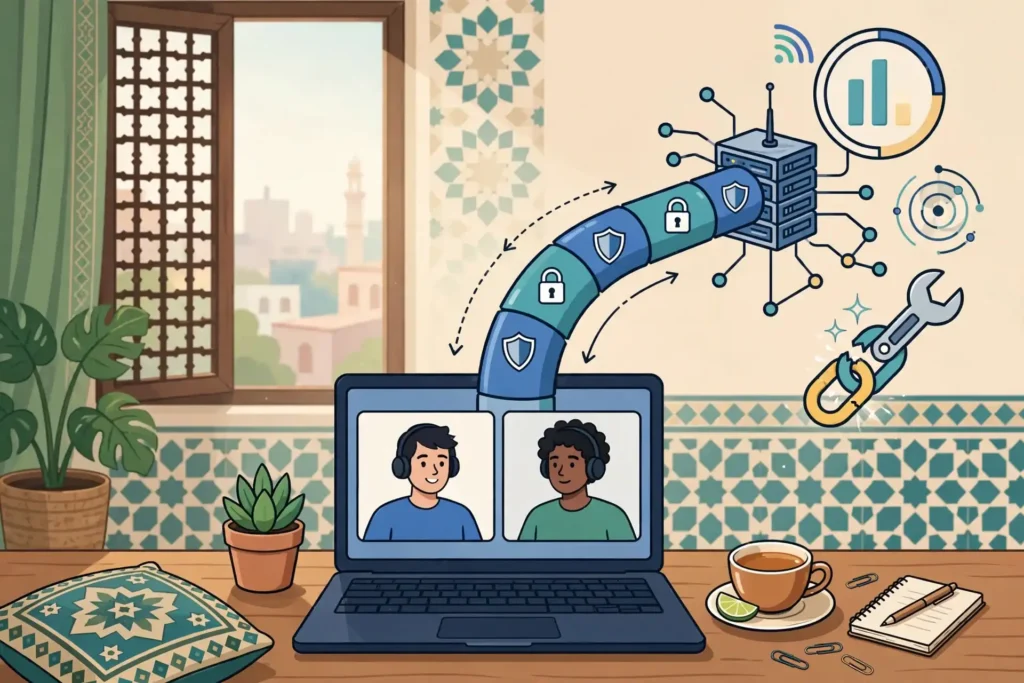
A VPN can make Slack Huddles sound choppy, freeze video, or drop the call entirely, because Huddles send live audio and video that cannot wait for a slow or unstable route. The way to find out whether your VPN is the cause is a controlled comparison: test Huddles with the VPN off, then with it on, using the same network, the same device, and the same test steps.
Surfshark, which we recommend for readers in Pakistan and promote as 80% off for our users, supports split tunnelling on its apps, which is the feature Slack itself recommends for Huddles traffic, and this guide shows you how to use it.
This guide is a test method to run, not a set of measured results. Every step tells you what to do, what to observe, and how to record it, so you can tell whether the VPN is hurting your Huddles and, if it is, which fix is most likely to help.
Read the whole method before you start, because the order matters. You need a baseline without the VPN first, then a VPN test under the same conditions, then a comparison of the two. Changing the server, the protocol, and the network at the same time makes the results impossible to interpret.
The Short Answer: How a VPN Affects Slack Huddles
A VPN adds latency, jitter, and sometimes packet loss to your connection, and Huddles are sensitive to all three. Audio is the first thing to suffer, with clipped words and robotic voices, followed by video, which freezes or drops to a blur, and screen sharing, which stalls or fails to start.
Slack’s own network guide says this plainly: VPNs often introduce latency, packet loss, and jitter, resulting in a degraded experience with video Huddles. Slack recommends letting Huddles traffic bypass the VPN, either by allowing it through the firewall or by using split tunnelling to route it directly.
That does not mean you must turn the VPN off for every Huddle. It means you should test the effect properly, and if the effect is real, route Huddles traffic outside the tunnel while keeping the VPN on for everything else. The test in this guide shows you how to measure that effect on your own connection.
The comparison matters more than any single number. A Huddle that sounds fine with the VPN off and choppy with it on has a VPN problem. A Huddle that sounds choppy in both cases has a network problem, and changing VPN servers will not fix it.
What Slack Huddles Need From a Network
Huddles are live audio and video conversations inside Slack, built on Amazon Chime infrastructure. They need a stable, low-latency path for real-time media, and they are far less forgiving than text chat, file sharing, or even a recorded video, because live media cannot be buffered and replayed later.
Slack publishes the network paths Huddles use. Administrators should approve traffic to the *.chime.aws domain or the IP range 99.77.128.0/18, and allow traffic to and from UDP port 3478 or UDP port 22466, plus TCP port 443. If any of those paths is blocked, Huddles may fail to connect or perform badly.
Those paths matter for VPN testing because a VPN can interfere with them in several ways. It can route the UDP media traffic through a distant server, it can block the ports, or it can send the traffic through a filter that inspects packets and adds delay. Each of those produces a different symptom, and the test in this guide helps you tell them apart.
Slack also recommends prioritising real-time Huddles traffic, disabling deep packet inspection for Huddles paths, and letting Huddles traffic bypass proxies. Those are network-administrator steps, and they matter most on office networks, but the same logic applies to a VPN on a home connection: the media path should be as direct as possible.
Prerequisites and Safe Test Conditions
Before you test, confirm that your VPN app supports split tunnelling, because it is the most useful fix if the test shows a problem. Surfshark calls it Bypasser on Windows and Android, and it lets you choose which apps or websites bypass the VPN. Not every provider offers it on every platform, so check your provider’s documentation first.
Use the same device for every step of the test. Different devices have different microphones, speakers, Wi-Fi chips, and processing power, and switching devices halfway through makes the results incomparable. Pick the device you actually use for Huddles and stay with it.
Test on a stable network. A weak Wi-Fi signal, a mobile connection that keeps switching towers, or a network shared with a large download will produce inconsistent results that look like VPN problems. Connect to reliable Wi-Fi, close bandwidth-heavy apps, and avoid testing while someone else is streaming video.
Use the same Huddle partner and the same test routine for every step. A short call with a colleague who can report what they hear is far more useful than a solo test, because Huddles quality is a two-way problem, and your partner hears the version of your audio that the network actually delivered.
Turn off any other tool that changes your traffic before you start. That includes other VPN apps, browser VPN extensions, privacy relays, and system-wide proxies. If two tools are active at once, you cannot tell which one produced the result you are looking at.
Step 1: Record a Baseline Huddle Without the VPN
Disconnect the VPN completely and close the app if you can, so no tunnel is active. Open Slack, start a Huddle with your test partner, and run through a fixed routine: speak for one minute, share your screen for one minute, and turn your camera on for one minute, in that order.
Ask your partner to rate three things: audio clarity, video smoothness, and screen-sharing responsiveness. Use a simple scale, such as clear, slightly choppy, or unusable, and write the ratings down with the time. Do the same for what you hear and see on your own side.
Note the call details as well. Record the time of day, the network you are on, and whether anyone else is using the connection. A baseline recorded at midnight on an empty network is not comparable to a VPN test run in the evening on a busy one, so keep the conditions as close as you can.
If the baseline itself is poor, stop and fix the network first. A Huddle that is choppy without any VPN has a network problem, and testing the VPN on top of it will only add noise. Check your Wi-Fi signal, restart the router if needed, and try a wired connection if one is available.
Repeat the baseline once, at the same time of day you plan to run the VPN test, so you have two data points rather than one. A single good or bad call can be luck, but two consistent calls are a usable baseline.
Step 2: Connect the VPN and Repeat the Same Huddle
Connect the VPN to the server you normally use, and note the server, the protocol, and the time. Do not change anything else. Use the same device, the same network, the same Huddle partner, and the same three-minute routine: one minute of speaking, one minute of screen sharing, and one minute of camera.
Ask your partner to rate the same three things on the same scale, and write the ratings down next to the baseline. Record what you hear and see on your own side as well, because the VPN can affect incoming and outgoing media differently.
Watch for the specific symptoms that point to the VPN. Clipped words and robotic audio suggest jitter or packet loss. Long pauses before anyone answers suggest high latency. Frozen video or a screen share that stalls suggests the connection cannot keep up with the media rate.
If the Huddle fails to connect at all with the VPN on, note that too, and check whether text chat still works. A Huddle that will not start while text chat works normally suggests the VPN is blocking the Huddles media paths, such as the UDP ports Slack uses, rather than a general connection failure.
Do not change servers or protocols during this step. The point is to compare one VPN configuration against the baseline, and changing the configuration halfway through makes the comparison meaningless. Server and protocol changes come later, as separate tests.
Step 3: Compare Latency, Jitter, and Call Quality
Compare the two sets of ratings side by side. If the baseline was clear and the VPN test was choppy, the VPN is hurting your Huddles, and the next steps are about fixing the route. If both were clear, the VPN is not a problem for your Huddles, and you can keep using it as it is.
If both were choppy, the problem is your network, not the VPN. Fix the network first: move closer to the router, use a wired connection, or test at a quieter time of day, and then repeat the baseline before testing the VPN again.
Latency is the time data takes to travel to the Huddles service and back. High latency does not immediately degrade the picture, but it creates noticeable pauses and makes people talk over each other. If your VPN test shows long pauses but clear audio, latency is the likely cause, and a closer server may help.
Jitter means packets arrive at uneven intervals. Average latency may look normal, but if packets arrive in bursts, the call may clip words or briefly speed up. If your VPN test shows clipped audio with normal pauses, jitter is the likely cause, and a different protocol or server may help.
Packet loss means some packets never arrive. A small amount causes occasional clipped words, while a larger amount causes robotic audio and frozen video. If your VPN test shows sudden dropouts, packet loss is the likely cause, and you should try a different server or check your local network for interference.

Step 4: Test a Closer Server and a Different Protocol
If the first VPN test was worse than the baseline, try a closer server. Connect to a server in Pakistan’s region, such as Singapore or the United Arab Emirates, rather than a distant one, and repeat the same three-minute Huddle routine with the same partner.
A closer server shortens the route your media takes, which usually lowers latency and jitter. If the closer server sounds clearly better, the problem was the route, and you should use a nearby server for Huddles. If it sounds the same, the problem is more likely the VPN’s handling of the media traffic than the distance.
Next, try a different protocol with the same server. If your first test used WireGuard, switch to OpenVPN, or use the app’s automatic setting if it offers one, and repeat the Huddle. Protocols handle UDP media traffic differently, and one may work better than the other on your network.
Record each combination separately, with the server, protocol, and ratings. A table of three or four combinations is far more useful than a vague memory that one of them sounded better, and it is the record support will ask for if you report the problem.
Do not test more than one change at a time. Change the server, test, then change the protocol, test again. If you change both together and the call improves, you will not know which change helped, and you will not know which setting to keep.
Step 5: Test Split Tunnelling for Huddles Traffic
Slack’s own guidance recommends letting Huddles traffic bypass the VPN, and split tunnelling is how you do that on a personal device. Open your VPN app’s split-tunnelling settings and add Slack to the list of apps that bypass the VPN, or add the Huddles network paths if your app supports website or IP-based rules.
Connect the VPN, confirm that Slack is bypassing it, and repeat the same three-minute Huddle routine. The call should now sound like the baseline, because the media traffic is taking the direct route, while the rest of your traffic stays inside the VPN tunnel.
Verify that the bypass is actually working. Visit an IP lookup page in your browser while the VPN is on and confirm that it still shows the VPN’s IP address, which proves the tunnel is active for other traffic. Then check the Huddle quality, which should match the baseline if the bypass is effective.
If your VPN app does not offer split tunnelling on your platform, the alternative is to disconnect the VPN for Huddles and reconnect afterwards. That is less convenient, but it is better than a choppy call, and it is the option Slack’s guidance implies when split tunnelling is not available.
Note that split tunnelling means Huddles traffic is not protected by the VPN. For most readers that is an acceptable trade, because Huddles are work calls, not sensitive browsing, but you should understand the trade before you make it, and you should not route banking or other sensitive traffic outside the tunnel.
Expected Results: What a Good VPN Huddle Looks Like
A good VPN Huddle sounds almost the same as the baseline. Audio is clear, with no clipped words or robotic distortion, video is smooth, and screen sharing responds within a second or two. A small increase in latency is normal, because the VPN adds a hop, but it should not change the feel of the conversation.
A good result also stays stable over the whole call. The quality should not degrade after a few minutes, the call should not drop, and the audio should not get worse when someone else starts speaking. Stability matters more than a single good minute, because real Huddles last far longer than a test.
If split tunnelling is in use, the Huddle should match the baseline exactly, because the media traffic is not going through the VPN at all. That is the expected result for a working bypass, and it is the standard to judge it against.
Do not expect the VPN test to be faster than the baseline. A VPN adds a hop and encryption, so it cannot improve latency. If your VPN test sounds better than the baseline, the baseline was probably recorded under worse network conditions, and you should repeat both tests before drawing any conclusion.
Unexpected Results: What Each Symptom Means
If audio is robotic or clipped but video is fine, the problem is likely jitter or packet loss on the audio path. Try a different protocol, then a closer server, and check whether anything else on your network is using upload bandwidth, because Huddles audio depends on upstream capacity.
If video freezes but audio stays clear, the problem is likely throughput. Video needs more bandwidth than audio, and a slow or congested VPN route may carry the audio but not the video. Try a closer server, turn your camera off to confirm the audio recovers, and check your upload speed.
If screen sharing stalls or fails to start, the problem may be the VPN blocking the media ports or the screen-sharing path specifically. Check the app’s settings for any content filtering, try split tunnelling for Slack, and confirm that the Huddles network paths are allowed through the VPN.
If the Huddle drops after a few minutes, the problem may be a server or network change. Some VPN apps switch servers automatically when the connection degrades, and that switch can interrupt a live call. Disable any automatic server switching, pick a stable server, and test again.
If the Huddle will not connect at all with the VPN on, but text chat works, the VPN is probably blocking the UDP ports Huddles need. Try a different protocol, check the VPN’s firewall settings, and if the problem persists, use split tunnelling for Slack or disconnect the VPN for the call.
Surfshark for Slack Huddles in Pakistan
Surfshark is the provider we recommend for readers in Pakistan, and it is a practical choice for Huddles for two reasons. It supports split tunnelling, called Bypasser, on Windows and Android, which lets you route Slack outside the VPN while keeping everything else protected, and it offers servers in Singapore and the United Arab Emirates, which are close to Pakistan and usually give lower latency than distant servers.
Surfshark’s app also includes a kill switch, WireGuard and OpenVPN protocols, and CleanWeb ad and tracker blocking. Leave CleanWeb and the kill switch unchanged during your test, so the result reflects the VPN route alone, and note which protocol you used, because support will ask.
Surfshark’s longer-term pricing is reported at around 2.49 dollars per month on introductory two-year plans. At an approximate rate of PKR 280 per US dollar as of November 2026, that is roughly PKR 700 per month, and one subscription covers unlimited devices, so the whole household can use it at once.
Surfshark — our recommended VPN for Pakistan
Split tunnelling lets Slack Huddles bypass the VPN while your other traffic stays protected.
Slack Huddles VPN Settings to Verify
Before you blame the VPN, verify the settings that affect Huddles most. Confirm that the VPN’s kill switch is on, so a dropped tunnel does not silently expose your traffic, but understand that a kill switch can also interrupt a Huddle if the tunnel drops mid-call, so note whether any drop coincided with a reconnection.
Check the protocol setting. WireGuard is usually the fastest and the best first choice for real-time media, while OpenVPN is a good fallback if WireGuard traffic is blocked or unstable on your network. Test both, and record which one you used for each Huddle.
Check whether the VPN app has any ad blocking, tracker blocking, or content filtering enabled. Those features can interfere with the Huddles media paths, and turning them off for one test Huddle is a useful diagnostic, even if you turn them back on afterwards.
Check your device’s audio settings as well. A headset with a poor microphone, a laptop microphone picking up room noise, or a Bluetooth headset switching profiles mid-call can all sound like a network problem. Test with a wired headset if you can, so the audio hardware is not the variable.
Finally, check Slack’s own status. If Slack is having an outage, or the Huddles service is degraded, every test will look bad, with or without a VPN. A quick check of Slack’s status page before you test saves a wasted afternoon.
Record Evidence and Escalate the Problem
If your tests show a real VPN problem, record the evidence before you contact support. Note the baseline ratings, the VPN test ratings, the server and protocol for each test, the time of each test, and your device, operating system version, and app version.
Take screenshots of the VPN app showing the connected server, and of any error messages Slack shows. A screenshot with a visible timestamp is stronger than a typed summary, because it removes any doubt about what you saw.
Describe the steps in order, including the baseline and the split-tunnelling test if you ran one. Support teams diagnose Huddles problems by comparing the baseline with the VPN test, and a report that includes both is far more useful than one that only says the call sounded bad.
Send the report through the provider’s official support channel, and keep a copy for yourself. If the first answer does not resolve the issue, the same evidence supports a follow-up, and you will not need to repeat the whole test from scratch.
If the problem is on Slack’s side, such as a blocked network path on an office network, escalate it to your IT team with the same evidence, including Slack’s published network paths and the recommendation to let Huddles traffic bypass the VPN. Office networks are the most common place for Huddles paths to be blocked, and the fix is usually a firewall rule, not a different VPN.

Slack Huddles VPN Troubleshooting Checklist
Start with the simplest fix: disconnect the VPN, confirm the Huddle works, and reconnect. A stale tunnel or a bad server assignment can cause a single bad call, and a fresh connection fixes it more often than any setting change.
Next, switch to a closer server, such as Singapore or the United Arab Emirates, and test again. A shorter route usually means lower latency and less jitter, and it is the single most effective change for most readers in Pakistan.
Then switch protocols. If WireGuard is struggling, try OpenVPN, and if OpenVPN is struggling, try WireGuard. Protocols behave differently on different networks, and the best one for your connection is the one that tests best, not the one a guide recommends.
Then enable split tunnelling for Slack, so Huddles traffic bypasses the VPN while everything else stays protected. This is Slack’s own recommendation, and it is the fix most likely to work when server and protocol changes do not.
If none of those help, check your local network. Move closer to the router, use a wired connection, restart the router, and test at a quieter time of day. A VPN cannot fix a weak Wi-Fi signal or a congested local network, and no server change will compensate for it.
Pakistan-Specific Considerations
Readers in Pakistan face two practical issues that guides written elsewhere rarely mention: payment friction and the PTA’s VPN registration framework. International card payments can fail on Pakistani cards, so confirm your payment method works before the subscription renews, and keep a note of the renewal date.
The Pakistan Telecommunication Authority operates a registration system for VPN use, and readers who use a VPN for work or business purposes should check the current PTA guidance for their situation. This guide does not give legal advice, but the regulatory position exists and it changes, so check the PTA’s own announcements rather than relying on old articles.
Internet quality in Pakistan also varies by provider and by time of day, so a Huddle that works well at midnight may struggle in the evening, when networks are busy. Run your baseline and VPN tests at the time you actually hold Huddles, rather than at the quietest hour, so the results reflect your real working conditions.
Finally, remember that a VPN subscription is billed in dollars or euros, and the rupee cost depends on the exchange rate and your bank’s international transaction charges. Our Surfshark pricing guide for Pakistan explains the full upfront and renewal costs in rupees, and our NordVPN pricing guide does the same for NordVPN.
Frequently Asked Questions
How Can a VPN Affect Slack Huddles?
A VPN adds latency, jitter, and sometimes packet loss to your connection, and Huddles send live audio and video that cannot wait for a slow route. The result is clipped or robotic audio, frozen video, or a call that drops. Slack recommends letting Huddles traffic bypass the VPN through split tunnelling.
Which Settings Should I Verify?
Verify the server location, the protocol, the kill switch, and whether split tunnelling is available for Slack. Use a nearby server such as Singapore, test WireGuard and OpenVPN separately, and check that no ad blocking or content filtering is interfering with the Huddles media paths.
How Do I Compare the App With and Without the Tunnel?
Run the same three-minute Huddle routine twice, once with the VPN off and once with it on, using the same device, network, partner, and steps. Ask your partner to rate audio, video, and screen sharing on the same scale, and compare the two sets of ratings side by side.
Should I Use Split Tunnelling for Slack Huddles?
Yes, if your VPN supports it. Slack’s own network guide recommends letting Huddles traffic bypass VPNs, because the media path should be as direct as possible. Split tunnelling keeps the VPN on for your other traffic while Huddles take the direct route.
Why Does My Huddle Drop With the VPN On?
The tunnel may be dropping, the server may be switching automatically, or the VPN may be blocking the UDP ports Huddles use. Disable automatic server switching, try a different server and protocol, and check whether the Huddle recovers when you enable split tunnelling for Slack.
Does the VPN Affect Text Chat in Slack?
Rarely. Text chat tolerates latency and jitter far better than live audio and video, because messages can wait a fraction of a second without anyone noticing. If text chat works but Huddles do not, the problem is specific to the real-time media path, not the VPN connection as a whole.
Conclusion
Testing Slack Huddles with a VPN is a controlled comparison, not a guess. Record a baseline without the VPN, repeat the same Huddle with the VPN on, compare the ratings, and then test a closer server, a different protocol, and split tunnelling, one change at a time. Each step isolates a different cause, so the fix you end up with is the one that actually worked.
Keep the limits of the test in mind. It measures call quality on your device, on your network, at a specific time, and it does not prove anything about the VPN’s logging or the provider’s wider network. Label the results honestly, repeat any odd result before concluding it is a fault, and record everything support would need if you have to report a problem.
For most readers in Pakistan, the practical answer is simple: use a nearby server for Huddles, and route Slack outside the VPN with split tunnelling if the call still struggles. The recommended option in this guide supports both, and the test above will tell you quickly whether they are enough.
Surfshark — our recommended VPN for Pakistan
If you want split tunnelling for Slack Huddles, Surfshark includes it on Windows and Android.