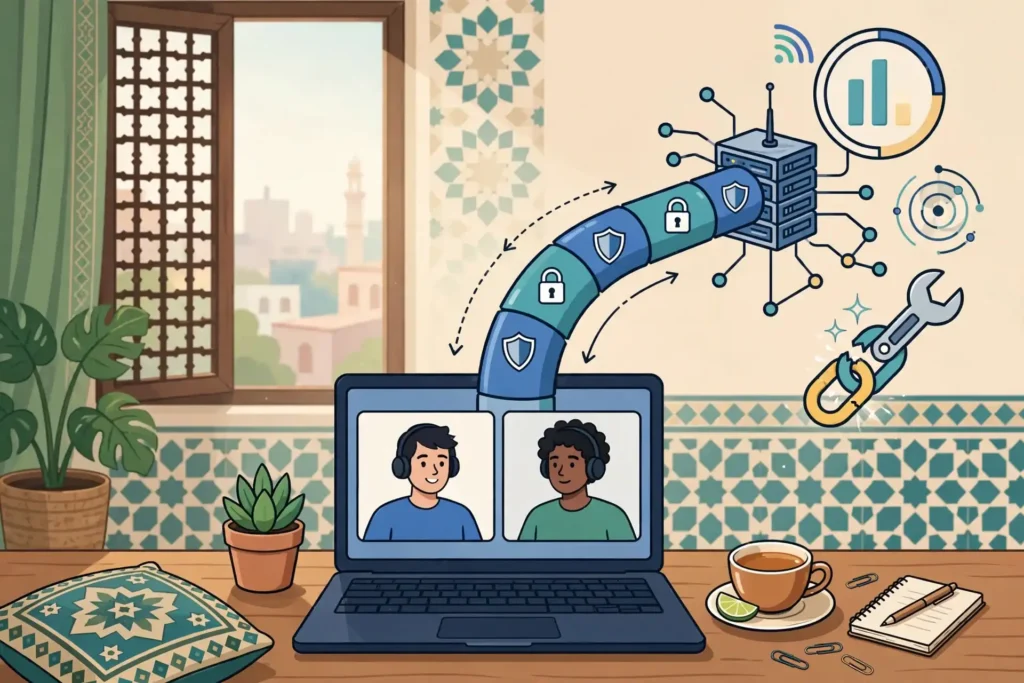
Google Meet calls can behave differently when a VPN is running, and split tunneling lets you choose whether Meet travels inside the tunnel or outside it. Surfshark, with 80% off for our users, is our recommended VPN for Pakistan, and this guide explains how to make that choice deliberately, test it properly, and recognise when the VPN is not the cause of a call problem at all.

How Can a VPN Affect Google Meet?
The direct answer is that a VPN can affect Google Meet in several ways: it adds an extra hop between you and Google’s servers, it changes your apparent location and IP address, it may route your media traffic through a distant server, and it can interact with firewalls, corporate policies, and Meet’s own server selection.
Those effects can show up as longer connection times, frozen video, robotic audio, difficulty joining a meeting, or a meeting that connects but repeatedly drops. They can also show up as nothing at all, because many VPN connections handle video calls perfectly well, and the difference depends on the server, the network, and the device.
Meet uses real-time media traffic, which is sensitive to delay and to lost packets in a way that browsing and email are not. A web page can wait a fraction of a second without you noticing, but a video call cannot, so a VPN route that is fine for browsing may still feel poor for a call.
Location also matters. Meet normally connects you to a nearby Google server for the lowest delay, but a VPN that exits in another country can send your media to a more distant server, adding delay that no setting inside Meet can remove while that route is in use.
Firewalls and network policies add a third effect. Some corporate, school, or public networks block or restrict VPN traffic, while others block the ports or protocols that Meet uses, and a VPN can either bypass such a block or run into a new one, depending on the network.
Finally, account and security policies can interact with VPN use. An organisation that manages Google Workspace accounts may restrict access by location or by device, and a VPN that changes your apparent location can trigger additional verification or a blocked sign-in, even though the call itself would work fine.
Understanding these mechanisms matters because it stops you from blaming the wrong layer. A call problem that persists with and without the VPN is not a VPN problem, while a problem that appears only with the VPN is, and split tunneling exists precisely to let you separate those cases.
What Is Split Tunneling for Google Meet?
Split tunneling is a VPN feature that lets you choose which apps or websites use the VPN tunnel and which bypass it and use your direct internet connection. For Google Meet, that choice means you can keep most of your traffic protected by the VPN while letting Meet travel outside the tunnel, or the reverse, depending on your priorities.
Routing Meet outside the tunnel is the common choice when call quality is the priority and the meeting itself does not need VPN protection, because it removes the extra hop and lets Meet connect to the nearest Google server directly.
Routing Meet inside the tunnel is the common choice when you are on an untrusted network, such as public Wi-Fi, and you want all traffic, including your call, protected from local snooping, even if that costs a little call quality.
Split tunneling can work in two directions on many providers: you can list apps that bypass the VPN, with everything else protected, or you can list apps that use the VPN, with everything else bypassing it. The first mode, bypassing selected apps, is the usual way to handle Meet.
Some providers also offer website-based split tunneling, where you list domains to bypass or include, but app-based split tunneling is more reliable for Meet, because Meet’s traffic comes from its app or browser process and can be identified by the app rather than by a list of domains that may change.
Not every provider offers split tunneling on every platform, and that limitation is important. Split tunneling is widely available on Android and Windows, less consistently on macOS and iOS, and often unavailable on routers or television devices, so check your provider and platform before relying on it.
Also note that split tunneling changes your privacy posture. Traffic that bypasses the tunnel is visible to your internet provider and your local network in the same way as traffic without a VPN, so routing Meet outside the tunnel should be a deliberate trade-off, not an accidental setting you forget about.
Check Support and Service Conditions
Checking support and service conditions before you change settings saves a frustrating trial-and-error session. Start with your VPN provider’s documentation and its app settings, and confirm three things: whether split tunneling exists on your platform, whether it works by app or by website, and whether it applies to the Meet app, the browser, or both.
If you use Meet in a browser, app-based split tunneling for the Meet app will not help, because your browser is the app carrying the call. In that case you need either browser-based split tunneling, website-based rules for Google’s domains, or a decision to route the whole browser outside the tunnel.
That browser distinction catches many users out, so identify your Meet setup first: the dedicated Meet app on a phone or tablet, the Meet website in a browser on a computer, or Meet inside Gmail or Calendar in a browser. Each setup needs a different split tunneling rule.
Next, check whether your provider’s split tunneling works with the VPN protocol you use. Some providers limit split tunneling to certain protocols or disable it when a kill switch is active, because the two features can conflict, and the app may silently ignore a split rule in that combination.
Check your organisation’s conditions if you use a work or school Google account. Some Workspace administrators restrict VPN use, require specific network conditions, or block Meet from unmanaged networks, and a split tunneling change that violates such a policy can cause sign-in problems that look like call quality issues.
Also check Google’s own conditions for Meet, including its supported browsers, its network requirements, and its guidance on firewalls and proxies. Meet publishes network requirements for administrators, and a network that blocks the ports Meet needs will cause problems with or without a VPN, so ruling out that layer first is worthwhile.
Finally, check your device’s own conditions, including battery optimisation settings that may kill the VPN app in the background, and permission settings that the VPN app needs to route traffic per app. On Android in particular, battery optimisation can silently stop split tunneling from working, and exempting the VPN app from optimisation is a common fix.

Which Settings Should I Verify?
Several settings should be verified before you compare call performance, because an unverified setting can invalidate the whole comparison. First, verify that split tunneling is actually enabled in your VPN app, and that the rule you created is saved and active, not merely drafted in a settings screen you left without saving.
Second, verify that you selected the correct app or process. On Android, select the Google Meet app by its exact name and icon, and check whether the app offers separate entries for Meet and for related Google services that Meet may use. On a computer, verify whether the rule applies to your browser as a whole or to a specific browser profile.
Third, verify the direction of the rule. Some apps phrase the choice as apps that bypass the VPN, while others phrase it as apps that use the VPN, and confusing the two directions produces the exact opposite of the route you intended. Confirm the direction by checking your IP address while the rule is active, using the method described below.
Fourth, verify the kill switch setting and its interaction with split tunneling. If your provider disables split tunneling when the kill switch is on, or blocks bypassed traffic when the tunnel drops, that interaction changes the behaviour of your Meet route in ways the settings screen may not make obvious.
Fifth, verify your VPN server selection, because the server you use for the inside-the-tunnel test affects the result. Choose a server close to your real location for a fair comparison, and note the server name, so that a later test uses the same server rather than a different one.
Sixth, verify that no second VPN, proxy, or security app is also running, because two tools that both try to route traffic can conflict and produce results that neither tool alone would cause. Disable other network tools during testing, and re-enable them only after you have a clear result.
Seventh, verify your Meet settings themselves, including camera and microphone permissions, bandwidth settings if your organisation sets them, and whether Meet is set to use hardware acceleration or data saving modes that affect quality independently of the network route.
How Do I Compare the App With and Without the Tunnel?
Comparing the app with and without the tunnel is a method, not a single test, and doing it systematically is what makes the result trustworthy. This guide presents a method you can follow; it does not claim measured results for your connection, because results depend on your network, server, and device, and any guide that quoted fixed numbers for your setup would be inventing them.
Start by establishing a baseline without the VPN. Disconnect the VPN completely, join a test meeting or a meeting with a colleague who can confirm what they see and hear, and note the call behaviour in plain terms: whether video is smooth or frozen, whether audio is clear or broken, and whether joining took seconds or much longer.
Use the same meeting setup for every test: the same device, the same network, the same time of day where possible, and the same number of participants, because changing several variables at once makes it impossible to attribute a difference to the VPN route.
Next, connect the VPN with Meet routed inside the tunnel, using a nearby server, and repeat the same test meeting. Note the same observations in the same terms, and record the server you used, so that the test can be repeated or checked later.
Then, enable split tunneling to route Meet outside the tunnel while the VPN remains connected for everything else, and repeat the test again. This third test is the one that isolates the split tunneling rule itself, because the VPN is still running, but Meet is no longer inside it.
Compare the three observations side by side. If the inside-the-tunnel test is noticeably worse than both the no-VPN test and the outside-the-tunnel test, split tunneling for Meet is a sensible permanent setting for your setup. If all three tests are similar, the VPN is not the cause of any call problem, and you can keep Meet inside the tunnel for privacy.
If all three tests are poor, the problem lies elsewhere: your underlying internet connection, your device, the meeting organiser’s connection, or a network policy, and changing VPN settings will not fix it. That negative result is just as valuable as a positive one, because it stops you from chasing a VPN setting that was never the cause.
Repeat the comparison at a different time of day if the first result is borderline, because network congestion varies, and a single test on a congested evening can mislead you into a permanent setting based on a temporary condition.
Verify Result: Confirming the Route
Verifying the result means confirming that Meet actually travelled the route you intended, not merely that you changed a setting. A split tunneling rule that is misconfigured, ignored by the app, or overridden by another setting can leave Meet inside the tunnel while you believe it is outside, or the reverse.
The simplest verification is an IP address check from the same device while the rule is active. Open a browser or an IP lookup tool and note the IP address shown: if it matches the VPN server, your general traffic is inside the tunnel, as expected, but that check alone does not prove where Meet’s traffic went.
For a stronger check, use your VPN app’s own status or traffic display if it offers one, and look for per-app routing information or a list of apps currently bypassing the tunnel. Some apps show this clearly, while others do not, and the absence of such a display is itself a reason to test more carefully.
Another useful check is to observe Meet’s behaviour across the three tests described above. If routing Meet outside the tunnel produces the same call quality as disconnecting the VPN entirely, and routing it inside produces a different quality, the rule is very likely working as intended, even without a per-app traffic display.
Also check that other apps still use the tunnel while Meet bypasses it. Open a browser and confirm that its traffic still shows the VPN IP address, because a rule that accidentally bypasses everything, rather than just Meet, would leave your other traffic unprotected without you realising it.
If verification fails, revisit the settings in the previous section, especially the direction of the rule, the correct app selection, and any kill switch interaction. A rule that appears correct but does not change behaviour is usually a direction error, a wrong app entry, or a platform limitation, and each has a different fix.
Keep a short note of the verified setting: the provider, the platform, the rule direction, the app selected, and the server used for the inside-the-tunnel test. That note makes it easy to restore the setting after an app update resets it, which is a common cause of a previously working setup suddenly behaving differently.

Escalation and Limitations
Escalation is appropriate when the systematic comparison shows a clear VPN-related problem that split tunneling does not resolve, or when split tunneling itself does not work on your platform. In that case, contact your VPN provider’s support with the three test observations, the server you used, your platform and app version, and the exact split tunneling rule you created.
That evidence lets support distinguish a configuration issue from a server issue and from a platform limitation, and it avoids the generic troubleshooting loop that a vague report usually triggers.
If the problem is with Meet itself, such as a persistent joining failure on a work account, escalate through your organisation’s IT support or Google’s support channels, with the same three-test evidence, because that evidence shows whether the VPN is involved at all and saves both sides time.
Limitations of split tunneling should be understood before you rely on it. It is not available on every platform, it does not work with every protocol or kill switch combination, and it changes your privacy posture for the bypassed app, so it should be used deliberately and reviewed periodically.
Split tunneling also does not fix an underlying internet problem, a device problem, or a meeting organiser’s problem, and it does not guarantee call quality even when it works, because Meet’s quality also depends on Google’s servers, the other participants’ connections, and your local network conditions.
Security limitations deserve emphasis. Traffic that bypasses the tunnel is not protected by the VPN, so on an untrusted network, routing Meet outside the tunnel means your call traffic is exposed to that network in the same way as without a VPN. Weigh that trade-off explicitly, and consider using a trusted network for sensitive calls instead of bypassing the tunnel on a public one.
Finally, app updates can reset or change split tunneling behaviour, and provider apps change their settings layouts over time. Review your split tunneling rules after major app updates, and re-verify the route using the checks above, rather than assuming a setting that worked last month still works today.
Surfshark Split Tunneling: When It Fits
Surfshark offers split tunneling, known in its apps as Bypasser, on platforms where the feature is supported, and it is worth considering when you need per-app routing without managing multiple VPN subscriptions. The practical question is whether Bypasser works on your platform and for your Meet setup, browser or app, and the checks in this guide will answer that for your specific combination.
If Bypasser fits your setup, it lets you keep most traffic protected while routing Meet outside the tunnel for call quality, or the reverse on an untrusted network, without disconnecting the VPN entirely. That flexibility is the point of split tunneling, and it is more convenient than manually connecting and disconnecting for every meeting.
If you do consider a paid plan, read our Surfshark review for the full picture of the service, including its split tunneling support and plan terms, before you pay. For related app workflow guidance, our guide to Google Meet VPN compatibility explains how Meet and VPNs interact generally, and our guide to the VPN kill switch explains a feature that interacts with split tunneling.
Surfshark — our recommended VPN for Pakistan
Route Meet inside or outside the tunnel per app, without disconnecting your VPN.
Privacy Trade-Offs to Weigh Honestly
Routing Meet outside the tunnel is a privacy trade-off, and it should be weighed honestly rather than treated as a free improvement. Inside the tunnel, your call traffic is encrypted between your device and the VPN server, hiding it from your local network and your internet provider, though Google itself still handles the call and knows the participants.
Outside the tunnel, your call traffic travels directly, so your internet provider and your local network can see that you are using Meet and can observe the traffic patterns, even though Meet’s own media encryption still protects the content of the call from casual snooping.
That distinction matters: split tunneling does not remove Meet’s own encryption, but it does remove the VPN layer that hides your activity from your provider and local network. For most personal calls on a trusted home network, that trade-off is acceptable, while on public Wi-Fi it may not be.
Consider the sensitivity of the meeting itself. A casual team catch-up and a confidential business negotiation do not carry the same risk, and the right route may differ between them. A setting that is sensible for everyday calls may be wrong for a sensitive one, and split tunneling rules can be changed per meeting if your app makes that easy.
Also consider who else uses the device. On a shared device, a split tunneling rule set for one person’s calls affects every user’s Meet traffic, and a rule that one user set for quality may silently reduce another user’s privacy. Review shared-device settings together, rather than assuming a personal setting is private to you.
Finally, remember that privacy is not only about the call itself. Metadata, such as the timing, duration, and participants of a call, can be revealing even when content is encrypted, and routing decisions affect who can observe that metadata. That is another reason to make split tunneling a deliberate choice, not a forgotten toggle.
Limitations and FAQs for Google Meet Split Routing
Google Meet split routing has real limitations that should shape your expectations. Split tunneling is not available on every platform or with every protocol, it interacts with kill switches in provider-specific ways, and it does not fix underlying network, device, or organiser problems.
Browser-based Meet adds a further limitation, because app-based split tunneling for the Meet app does not apply to a browser call, and website-based rules may be needed instead. Always identify your Meet setup before choosing a rule.
Call quality also depends on factors outside the VPN route, including Google’s server selection, other participants’ connections, and local network congestion, so a split tunneling change that helps on one day may show little difference on another, and repeated testing is the honest way to judge it.
Finally, no routing choice guarantees a perfect call. Meet, like any real-time service, is sensitive to delay and packet loss, and the best achievable result is a route that minimises avoidable delay while preserving the privacy you actually need for that call.
Conclusion: Routing Google Meet Inside or Outside a VPN
Routing Google Meet inside or outside a VPN is a deliberate choice, not a default to accept blindly. Check whether your provider and platform support split tunneling, verify the correct app and rule direction, and compare the call with no VPN, with Meet inside the tunnel, and with Meet outside the tunnel, using the same meeting setup each time.
Verify that the route actually changed, using IP checks and the observed call behaviour, and keep a note of the verified setting so that app updates do not silently undo it. Escalate with evidence when split tunneling does not work or does not resolve a clear VPN-related problem.
Weigh the privacy trade-off honestly: outside the tunnel means better direct routing to Google’s nearest server, inside the tunnel means an extra layer of protection on untrusted networks, and the right answer depends on your network, your meeting, and your priorities on that day.
Surfshark — our recommended VPN for Pakistan
Get 80% off for our users and control per-app routing for Meet and every other app.
Whichever route you choose, the method matters more than the setting: test systematically, verify the route, and revisit the choice when your network, device, or meeting sensitivity changes. Follow that method, and Google Meet split routing becomes a tool you control, rather than a mystery you endure.
Frequently Asked Questions
How Can a VPN Affect Google Meet?
A VPN adds an extra hop, changes your apparent location and IP address, may route media through a distant server, and can interact with firewalls and account policies. Those effects can cause longer joining times, frozen video, or broken audio, though many VPN connections handle calls well, and the difference depends on server, network, and device.
Which Settings Should I Verify?
Verify that split tunneling is enabled and saved, that you selected the correct Meet app or browser, that the rule direction is correct, how the kill switch interacts with it, which server you use for inside-the-tunnel tests, and that no second VPN or proxy is also running. An unverified setting can invalidate a whole comparison.
How Do I Compare the App With and Without the Tunnel?
Test the same meeting setup three ways: with no VPN, with Meet inside the tunnel on a nearby server, and with Meet outside the tunnel via split tunneling while the VPN runs for other traffic. Compare video, audio, and joining behaviour in the same terms each time, and repeat at a different time if the result is borderline. This guide presents a method, not measured results for your connection.
Does Split Tunneling Work for Meet in a Browser?
App-based split tunneling for the Meet app does not apply to a browser call, because the browser carries the call. For browser Meet, you need browser or website-based split tunneling rules, or a decision to route the whole browser outside the tunnel, and you should verify the route after setting the rule.
Is Routing Meet Outside the VPN Less Private?
Yes, traffic outside the tunnel is visible to your internet provider and local network in the same way as traffic without a VPN, though Meet’s own media encryption still protects call content. Weigh that trade-off explicitly, especially on public Wi-Fi, and consider a trusted network for sensitive calls.
What Should I Do If Split Tunneling Does Not Work?
Revisit the rule direction, the app selection, and any kill switch interaction, and check whether your provider supports split tunneling on your platform at all. If the problem persists, contact provider support with your three-test observations, server, platform, and app version, so support can distinguish a configuration issue from a platform limitation.