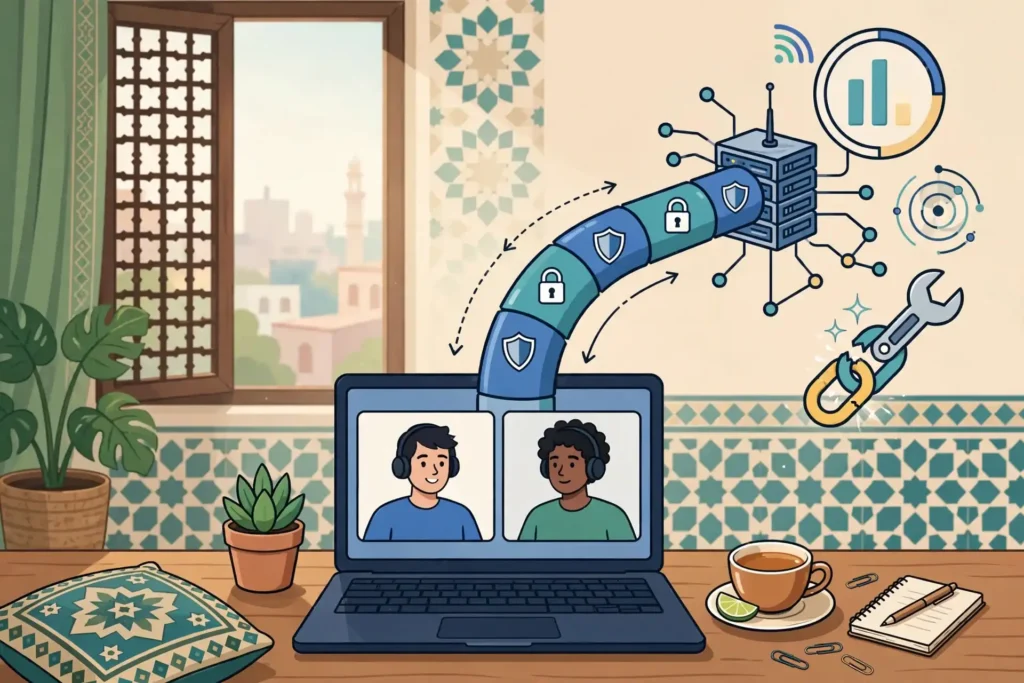
Google Meet can work over a VPN in Pakistan, but the result depends on routing, stability, and the settings you check before the call. Surfshark is a practical starting point for readers who want one consistent VPN setup to test, with 80% off for our users through that link. This guide explains compatibility, the limits to expect, and a fair way to compare performance with and without the tunnel.
Short Answer: Does Google Meet Work With a VPN?
Yes, Google Meet can run over a VPN connection, because Meet is a web and app service that does not require a direct, unencrypted path to function. A VPN changes the route your traffic takes, and that change can affect delay, stability, and which network path is used. It does not change the core requirement for a steady connection, a working microphone and camera, and a supported browser or app.
A VPN does not guarantee access to Google Meet, and it does not guarantee lower delay or eligibility for any account, meeting, or feature. If Meet is blocked, restricted, or unstable on a particular network, a VPN may change the route, but the outcome still depends on the network, the VPN server, and the service conditions at that moment. Treat any VPN test as an experiment, not a promise.
What Google Meet Needs From Your Connection
Google Meet needs a connection that stays stable throughout the call, rather than one that is briefly fast and then drops. Video calls send a continuous stream of audio and video, so short interruptions are more noticeable than they are when loading a web page. Packet loss, jitter, and sudden route changes can cause frozen video, robotic audio, or a call that reconnects repeatedly.
Meet also adapts video quality to the connection it detects. When bandwidth falls or delay rises, Meet may lower resolution to protect audio, which is usually the right trade-off. A connection that looks strong for downloads can still struggle with live video if it has uneven delay or frequent small losses. Stability, therefore, matters more than headline speed alone.
Audio, Video, and Screen Sharing Demands
Audio needs little bandwidth compared with video, but it is highly sensitive to delay and loss. Even a short gap can make speech hard to follow in a group discussion. Video adds more data and tolerates a brief blur, yet it still suffers when the connection stalls. Shared slides can tolerate a short delay but become unreadable when updates freeze.
Before blaming a VPN, check whether the problem is specific to one activity. If audio is clear but screen sharing freezes, the issue may be bandwidth or encoding rather than the VPN itself. If every part of the call fails at the same time, the route, the local network, or the device is a more likely cause. Separating these symptoms makes troubleshooting much faster.
How a VPN Changes the Route to Google Meet
A VPN encrypts your traffic and sends it through a VPN server before it reaches the wider internet. For your local network, the destination becomes the VPN server rather than Meet directly. For Meet, your traffic arrives from the VPN server location, subject to server load and route. That extra step can add delay and change which networks carry your call.
Routing matters because the internet is not a single road. Your traffic may pass through several networks, and a longer or congested path can increase delay even when your local connection is strong. An overloaded, distant, or poorly peered VPN server can make a call worse, while a well-chosen server may perform acceptably. The only reliable test is a direct comparison under similar conditions.
Encryption, Tunnelling, and Extra Overhead
Encryption protects your traffic from inspection on the local network, but it adds processing and a small amount of overhead. On a modern device this overhead is usually minor, yet it can matter on an older phone, a loaded laptop, or a connection close to its limit. If other apps slow down during a VPN call, device load may be part of the problem.
Tunnelling can also interact with network features such as firewalls, captive portals, and corporate or campus filters. Some networks restrict VPN traffic, throttle it, or block common VPN ports and protocols. In that case Meet may fail over the VPN while working without it, which tells you more about the local network policy than about Meet itself. Note the pattern before changing many settings at once.
Compatibility: Browsers, Apps, and Devices
Google Meet is compatible with major modern browsers on desktop, and with the Google Meet app on Android and iOS. A VPN normally works at the operating-system level, so it should apply to both browser and app traffic once it is connected. The key question is not whether the VPN can connect, but whether the full route remains stable for live media after it connects.
On desktop, browser choice can affect the result. An up-to-date Chrome or Edge browser generally offers the smoothest Meet experience, while other browsers may differ in how they handle media permissions or hardware acceleration. Keep the browser updated, allow camera and microphone permissions for Meet, and close heavy tabs during an important call. These basics often matter more than switching VPN servers repeatedly.
Android and iPhone Considerations
On Android and iPhone, a VPN app must stay active in the background to keep the tunnel alive. Battery optimisation, aggressive background restrictions, or a phone switching between Wi-Fi and mobile data can interrupt that tunnel. If a call drops exactly when you move rooms or lock and unlock the phone, check background permissions and network switching before assuming the VPN server failed.
Mobile networks also vary more than fixed broadband. Signal strength, congestion, and movement between cells can all change call quality during a meeting. Test a mobile VPN call while stationary first, with a strong signal, so you have a clean baseline. Only then test while moving, so you can separate network variation from VPN behaviour.

Google Meet VPN Settings to Verify First
Start with the VPN connection itself. Confirm that the VPN shows as connected, that it is not set to a kill-switch state that blocks traffic after a drop, and that split tunnelling, if enabled, is not accidentally excluding Meet or your browser. Split tunnelling can be useful, but an incorrect exclusion can send Meet outside the tunnel while you believe it is protected, or vice versa.
Next, verify the server choice. Choose a server that is stable and not overloaded, and avoid switching servers mid-call unless you must. Frequent switching forces a new route and can interrupt an active meeting. If your VPN app shows server load, prefer a lightly loaded option, and keep a note of which server you used for each test so results remain comparable.
Browser Permissions and Media Settings
Open Meet settings and confirm that the correct microphone, speaker, and camera are selected. A VPN does not change device selection, but a system update, a new headset, or a browser permission reset can. Test audio and video in the Meet green-room preview before joining, and check that other apps are not holding the microphone or camera exclusively.
Also check hardware acceleration and background tabs. Hardware acceleration usually helps video decoding, but on some older devices disabling it can reduce glitches. Close video-heavy tabs, pause cloud backups, and stop large downloads during a test. A clean device gives you a fair reading of the VPN route itself.
Network Settings Worth Checking
Check whether you are on Wi-Fi or mobile data, and whether the network uses a captive portal, a proxy, or a firewall that inspects traffic. These features can interfere with VPN protocols or with Meet media traffic. If possible, test the same VPN server on two networks, such as home Wi-Fi and mobile data, to see whether the problem follows the network or the VPN.
Also confirm that your device clock and operating system are up to date. Certificate and connection errors sometimes appear when a clock is wrong or an old system lacks current security support. These checks are quick, and they prevent a long troubleshooting session over a simple system issue.
Surfshark and Google Meet in Pakistan
For readers in Pakistan who want a single VPN to test with Meet, Surfshark is our recommended starting point because it offers a straightforward app experience across desktop and mobile, with server choices that let you repeat the same test consistently. Use the same server, device, and network for each comparison, so you can tell whether a change helped or merely coincided with a quieter network period.
Remember that recommending Surfshark here is about giving you a consistent test setup, not a guarantee. A VPN cannot guarantee Meet access, lower delay, or account eligibility, and results will vary by network, server load, and time of day. If Meet performs poorly over one server, try another stable server at a different time before drawing a conclusion about the service as a whole.
Surfshark — our recommended VPN for Pakistan
Test Google Meet over a consistent, easy-to-use VPN setup.
How to Compare Google Meet With and Without a VPN
A fair comparison needs the same test repeated in both conditions. Start without the VPN, join a test meeting or a call with a willing colleague, and note audio clarity, video smoothness, and any freezes or reconnections. Keep the duration, device, network, and time of day as similar as possible. A five-minute test is better than a thirty-second impression, because short tests miss intermittent problems.
Then connect the VPN to your chosen server and repeat the same test. Do not change anything else between the two runs: keep the same browser, the same meeting, and the same background apps. If the VPN test is clearly worse, try a different server before concluding that VPN use itself is the cause. If both tests are poor, the local network or device is the more likely bottleneck.
Step-by-Step Comparison Checklist
First, record your baseline without a VPN, including the network type, the time, and any problems you notice. Second, connect the VPN and wait until it reports a stable connection before joining Meet. Third, repeat the same meeting activity, such as speaking, sharing a screen, and watching another participant. Fourth, note the differences in plain language, rather than relying on memory alone.
Repeat the pair of tests at a different time of day if the result matters for work or study. Networks in Pakistan, like networks everywhere, become congested at peak times, and a single test during a busy evening can mislead you. Two or three paired tests give a far more trustworthy picture than one dramatic failure or one perfect call.
What to Record During Each Test
Record whether audio stayed clear, whether video froze, whether the call reconnected, and whether screen sharing remained readable. Also record the server used, the network type, and any error messages. Error messages are especially useful, because a media permission error points to the device, while a reconnection loop points to the route or network.
Avoid judging a VPN solely by a speed test taken before the call. A download speed test measures a different kind of traffic from live video, and a fast download result does not predict stable call quality. The call itself is the test that matters, and your notes from that call are the evidence you should trust.

Troubleshooting Common Google Meet VPN Problems
If Meet will not load over the VPN, first disconnect the VPN and confirm that Meet loads without it. This single step separates a Meet or account problem from a VPN route problem. If Meet loads without the VPN but not with it, try a different server, a different VPN protocol if your app offers one, and a different network. Change one variable at a time.
If Meet loads but audio or video fails, check permissions first, then try a different browser or the Meet app. A permission blocked in one browser can look like a VPN failure, especially after a browser update. Also try turning off other browser extensions temporarily, because privacy or ad-blocking extensions can interfere with media on some sites.
Frozen Video and Robotic Audio
Frozen video with clear audio usually means video data is stalling while audio, which needs less data, survives. Lower the video resolution in Meet settings, turn off your own camera briefly to test, and close other video streams. If the call stabilises, bandwidth or route stability was the constraint, and a different server or a quieter time may help.
Robotic or choppy audio points to loss or jitter in the live stream. Move closer to the Wi-Fi router, switch to a wired connection if possible, or move to a stronger mobile signal. If the problem appears only over the VPN, test another server and another protocol. If it appears in both conditions, focus on the local network rather than the VPN.
Repeated Reconnection and Dropped Calls
Repeated reconnection often means the tunnel or the underlying network is dropping briefly and recovering. Check whether the VPN app reports a reconnection at the same time, whether your Wi-Fi signal is weak, and whether the device is switching networks. Disabling automatic network switching during an important call can remove one common cause of drops.
Also check for background activity that competes for the connection, such as cloud photo uploads, operating-system updates, or another device streaming video on the same network. Pausing those activities during a test call gives a cleaner result and often solves a problem that looked like a VPN fault.
Google Meet VPN Performance in Pakistan: Realistic Expectations
Performance in Pakistan will vary by city, provider, time of day, and the route to the VPN server. Readers should expect variation rather than a single fixed outcome. A setup that works well in the morning may struggle during a busy evening, and a server that performs well one week may become congested later. Regular retesting is more useful than a one-time verdict.
It is also important to separate local network quality from VPN quality. A weak Wi-Fi signal, a congested mobile cell, or an overloaded home connection will limit Meet with or without a VPN. Improving the local connection, such as moving closer to the router or using a wired connection, often helps more than switching VPN providers repeatedly.
When a VPN May Help, and When It May Not
A VPN may help when the direct route to Meet is congested or filtered, and the VPN route happens to be cleaner at that moment. It may also help when you need a consistent network setup across different locations, such as home, office, and mobile data. In those cases, the benefit comes from routing and consistency, not from any guaranteed speed improvement.
A VPN is less likely to help when the local connection itself is unstable, when the device is overloaded, or when the VPN server is distant and congested. In those cases, adding a tunnel adds another point of failure. If Meet already works well without a VPN, adding one for a call may introduce risk without a clear benefit, so test before relying on it for an important meeting.
Privacy, Accounts, and Service Conditions
A VPN encrypts traffic on the local network, but it does not make you anonymous to Google Meet. You still sign in with your Google account, and Meet still knows the participants, the meeting, and the account context. A VPN changes the network path, not the identity you present to the service. Do not assume that a VPN changes account eligibility, meeting access rules, or any service condition.
Also respect the rules of your organisation, school, or workplace. Some organisations require a specific VPN, forbid personal VPNs on managed devices, or route Meet traffic through their own network controls. Using a personal VPN on a managed device can conflict with those controls and may break Meet entirely. When in doubt, follow your organisation policy and ask its support team.
Check the current support and service conditions for Google Meet and for your VPN provider before relying on a setup for critical work. Providers update apps, protocols, and server networks regularly, and a setting that worked last month may behave differently after an update. A quick check of official support pages before an important week of meetings is a sensible habit.
Escalation: When to Stop Troubleshooting and Seek Help
Stop and escalate when you have tested two networks, two servers, and both browser and app, and Meet still fails in a consistent pattern. At that point, further random changes waste time and may hide the real cause. Collect your notes, including the networks tested, the servers used, the error messages seen, and whether Meet worked without the VPN.
Contact your VPN provider support if the failure follows the VPN across networks, and contact your internet provider or network administrator if the failure follows the network regardless of VPN use. For account or meeting access problems, Google Meet support and your meeting organiser are the right routes. Clear notes make each of these conversations much shorter.
If the issue affects work or study, use a fallback plan while you wait for help. Join audio-only from a phone, use a different network, or ask a colleague to share notes from the meeting. A fallback does not solve the underlying problem, but it protects the meeting itself while troubleshooting continues.
Best Practices for Reliable Meet Calls Over a VPN
Connect the VPN before joining the meeting, and give it time to stabilise. Join a few minutes early, test audio and video in the preview, and keep the VPN app visible so you can see if it reconnects. Avoid switching servers, networks, or devices mid-call unless the call has already failed and you need a recovery step.
Keep your setup consistent across important meetings. Use the same server, the same browser or app, and the same device when possible, and note any change you make. Consistency makes problems easier to reproduce and easier to fix, while constant switching makes every call a new experiment with no comparable baseline.
Finally, keep expectations honest. A VPN is a routing and privacy tool, not a performance guarantee for live video. The best setup is the one you have tested, under conditions close to your real meetings, with a fallback ready if the call drops. That tested setup, rather than any marketing claim, is what you should rely on.
Surfshark — our recommended VPN for Pakistan
Keep one consistent VPN setup for your Google Meet tests.
Conclusion
Google Meet and a VPN can work together in Pakistan, provided you test the combination properly and accept its limits. Verify settings, compare with and without the tunnel under the same conditions, and record what actually happens during a real call. That evidence, not a single speed test or a single perfect meeting, should guide your choice.
If you want a setup to test, start with Surfshark and follow the comparison steps in this guide, with 80% off for our users through that link. If the setup proves unreliable for important meetings, use the fallback in this guide and escalate with your notes. A reliable call comes from testing, not from assuming a VPN will fix every network problem. For more background, visit the freevpn.pk homepage.
Frequently Asked Questions
How Can a VPN Affect Google Meet?
A VPN changes the route your Meet traffic takes by sending it through a VPN server first. That extra step can add delay, change stability, or bypass a congested or filtered direct route. It does not guarantee access, lower delay, or account eligibility, and the effect depends on the server, network, and time of day.
Which Settings Should I Verify?
Verify that the VPN is stably connected, that the server is not overloaded, and that split tunnelling is not accidentally excluding Meet or your browser. Then check Meet camera and microphone permissions, the selected devices, browser updates, background apps, and whether the device is switching networks during the call.
How Do I Compare the App With and Without the Tunnel?
Run the same meeting activity first without the VPN and then with it, keeping device, network, browser, and time as similar as possible. Note audio clarity, video smoothness, freezes, and reconnections for each run. Repeat the pair at another time of day before concluding, because a single test can reflect temporary congestion rather than the VPN itself.