

You join a client call, the VPN is on, and Zoom either refuses to connect, freezes every few seconds, or drops your audio into a robotic stutter. This guide gives you a proper diagnostic workflow for Zoom not working with VPN — a step-by-step method to find whether the tunnel is actually at fault and fix it, rather than the usual advice of “just turn the VPN off”. Where a fix is provider-specific, I reference Surfshark — our recommended VPN for Pakistan (80% off for our users) — as the benchmark.
Zoom’s own support documentation, checked in October 2026, covers network, firewall and proxy settings in detail, including the ports Zoom needs and how it handles proxy servers. Nothing here is guessed: each step below is built from those documented requirements plus the mechanics of how a VPN changes a real-time call.
And a note for readers choosing a provider for call-heavy work: Surfshark is this site’s standing recommendation for Pakistan, with 80% off for our users, because WireGuard speeds, nearby regional servers and built-in split tunnelling solve most of the problems this guide diagnoses.
At Free VPN Pakistan, we separate documented facts from marketing claims. For a broader explanation of how the two products coexist, see our guide on VPN for Zoom in Pakistan: compatibility, settings and limits, which this diagnostic article builds on rather than repeats.
What “Zoom Not Working With a VPN” Actually Means
“Not working” covers at least four different failures, and each points to a different fix. Naming your symptom precisely is the first diagnostic step.
Failure 1: Zoom will not connect at all. You enter the meeting ID and Zoom spins forever, or throws a connection error such as error code 5003. The call never starts. This usually means something is blocking Zoom’s path to its servers — the VPN server’s IP may be blocked by the network, the VPN protocol itself may be interfered with, or an account-level location policy may be rejecting the join.
Failure 2: The call connects but video freezes and audio breaks up. You can join, but people see you frozen and your voice arrives in chunks. This is the classic jitter and packet-loss signature — packets arriving unevenly or not at all through a congested or distant VPN server.
Failure 3: Audio echoes or lags behind video. Your voice reaches the other side a half-second late, causing constant talk-over. This is latency — the round-trip path is simply too long, most often because your VPN exit is on another continent.
Failure 4: Zoom works without the VPN but degrades with it on. This is the confirmation that the tunnel is the variable — and it is the easiest case to diagnose, because you already have your control measurement. The job is then to find which part of the tunnel costs you: the server, the protocol, or the routing.
Write down which failure you have before touching any settings. It will save you from “fixing” the wrong layer.
How a VPN Can Affect a Zoom Call: The Four Mechanisms
Understanding how a VPN changes a real-time call turns vague folklore into checkable mechanisms. A VPN inserts itself between your device and Zoom’s infrastructure, and that insertion has four effects.
Latency — the distance tax. Your voice travels from your device to Zoom’s infrastructure and back. A VPN adds a waypoint: your traffic goes to the VPN server first, then to Zoom. If that waypoint is a nearby server — from Pakistan, think the UAE, Singapore or another regional location — the added round trip can be modest.
If it is a US server, the signal must cross to North America and back, and no provider can discount the laws of physics.
The added delay becomes audible as talk-over and half-second pauses. Server choice is the single largest variable, and it is entirely in your control.
Jitter and packet loss — the stability tax. Real-time media forgives a slightly slower connection far more readily than an unstable one. A congested VPN server — free tiers at peak hours are the classic case — delivers packets unevenly. Zoom responds by lowering video quality, then freezing frames, then dropping to audio.
A stable 15 Mbps connection through a good server beats an oscillating 50 Mbps through a bad one for call quality, every time.
Bandwidth overhead — the small tax. Encryption and encapsulation add overhead to every packet. On a healthy broadband connection this is a minor percentage. On a marginal 4G connection in a weak-signal room, the same overhead plus a distant server can push a borderline call over the edge — the VPN did not break the call so much as spend the last of its headroom.
Routing path — the invisible tax. Zoom routes meeting media through its global infrastructure based partly on your apparent location. Appear in the wrong continent and your media may be anchored far away, compounding the latency problem.
Conversely, on a congested local route, a well-placed VPN server occasionally produces a cleaner path than the default ISP route — which is why some users report a VPN “fixing” their calls. Both outcomes are routing, not magic, and neither is guaranteed. No VPN can promise working calls or lower latency.
Zoom’s Documented Network Requirements
Before blaming the VPN, check whether your connection meets what Zoom actually asks for. Zoom’s published system-requirements documentation lists these recommended bandwidths:
| Call type | Bandwidth needed |
|---|---|
| 1:1 video, high quality | 600 kbps up and down |
| 1:1 video, 720p HD | 1.2 Mbps up and down |
| 1:1 or group video, 1080p HD | 3.8 Mbps up, 3.0 Mbps down |
| Group video, high quality | 1.0 Mbps up, 600 kbps down |
| Group video, 720p HD | 2.6 Mbps up, 1.8 Mbps down |
| Screen sharing only | 50–75 kbps |
| Audio (VoIP) | 60–80 kbps |
Two things stand out. First, Zoom is not bandwidth-hungry by modern standards — even HD group calls need single-digit megabits.
Second, the upload side matters as much as download: many Pakistani home and 4G connections are asymmetric, with upload far below download. If your upload barely clears 2 Mbps, a VPN’s overhead on top can push a 720p group call into failure. Measure your real upload speed before assuming the VPN is guilty.
On the network side, Zoom’s official firewall and proxy documentation states that it supports HTTPS/SSL proxy servers via port 443 for Zoom traffic (this does not apply to the Zoom Phone service), and that the Zoom client automatically detects proxy settings — in some cases prompting for a proxy username and password.
The documented ports include TCP 443, 8801 and 8802, and UDP 8801–8810. Zoom also recommends allowing zoom.us and *.zoom.us from proxy or SSL inspection.
Why does this matter for VPN troubleshooting? Because it confirms two documented facts: Zoom’s client is designed to work through proxies, and it depends on specific ports and domains being reachable. A VPN that blocks or misroutes UDP traffic, or a server whose IP range is filtered, will break Zoom in ways that look like a “Zoom problem” but are really a path problem — which the diagnostic steps below will isolate.
Step One: Check Whether Zoom Itself Is the Problem
Do this before touching the VPN. If Zoom’s own infrastructure is having a bad day, no amount of server-switching will help, and you will waste your diagnostic effort on the wrong layer.
Check Zoom’s service status page for the current state of Zoom Meetings. If there is an active incident or maintenance window, your honest answer is to wait — or join from the mobile app on cellular data as a temporary bridge, since that takes a different path to Zoom’s infrastructure.
Also check your own side of the equation. Update the Zoom client to the latest version before any comparison: Zoom ships media-handling improvements regularly, and comparing VPN behaviour across stale client versions produces misleading conclusions.
Close bandwidth competitors — cloud sync, other streams in the house, large downloads — because a saturated upload looks exactly like a VPN problem. And confirm the basics: microphone, camera and speaker selected correctly in Zoom’s settings, and the meeting ID and passcode correct.
Only when Zoom’s status is clear and your local setup is clean does the VPN enter the frame.
Step Two: Run the With/Without Tunnel Baseline
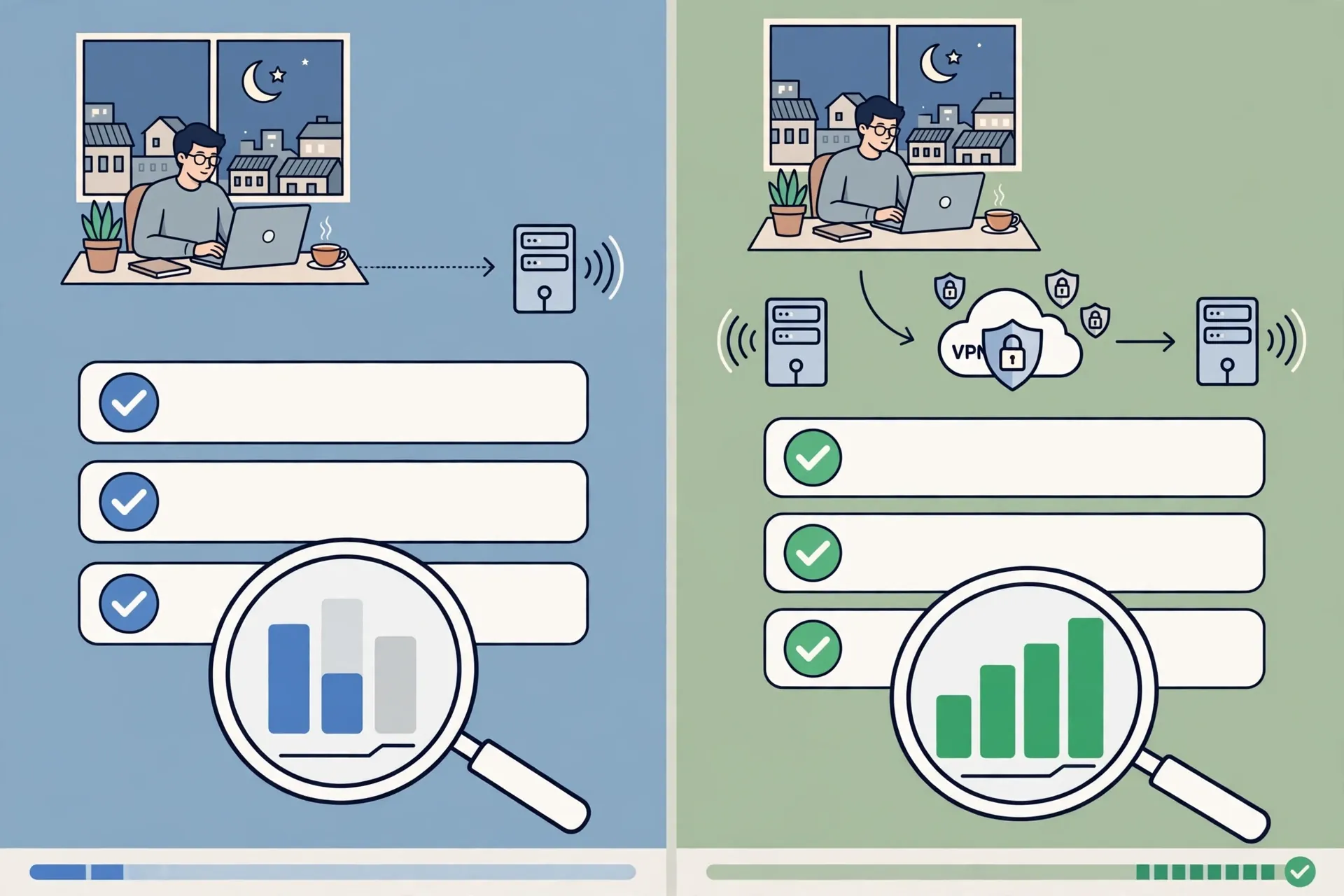
This is the heart of the diagnostic. You cannot fix what you have not measured, and because every ISP, city and server combination is different, your own numbers are the only benchmark that reflects your life.
Fix the conditions. Same device, same room, same time of day, same Zoom account. Join Zoom’s test meeting facility (zoom.us/test) or a call with a cooperative colleague — never run the diagnostic on the call that matters.
Baseline: VPN off. Two minutes into the test call, open the Zoom desktop client’s Statistics panel (Settings → Statistics), which shows live latency, jitter and packet loss during a call. Note all three numbers, plus your subjective impression of video and audio quality.
VPN on, nearest server, WireGuard. Connect your VPN to the nearest fast server — from most of Pakistan that means a UAE or Singapore location — using the WireGuard protocol or your provider’s modern equivalent. Reconnect to the test call and record the identical three statistics and the same subjective observations.
VPN on, your “needed” server. If you require a specific exit country — a client system that expects it, an account policy — test that configuration too, so its cost is known rather than discovered mid-meeting.
Decide by the numbers you saw. If latency rose modestly and jitter stayed low, keep the VPN for calls. If quality degraded sharply only in the full-tunnel configuration, the routing section below gives you the fix. If a specific server is the problem, change servers before changing providers.
Record the date, ISP and servers used with your notes. A configuration that wins on a Sunday morning may behave differently on a weekday evening, and your log is the only honest reference.
Which Settings to Verify, in Order
If the baseline shows the tunnel degrading your calls, work through these settings in order — each one targets one of the four mechanisms above.
1. Protocol: prefer WireGuard. In your VPN app’s settings, choose WireGuard (or the provider’s modern equivalent) over OpenVPN, and if OpenVPN is your only option, choose its UDP variant. TCP-based VPN transport retransmits lost packets that are already too old for real-time media to use, compounding delay. This single setting is the most common fixable cause of bad call quality over a VPN.
2. Server: nearest that meets your need. If the VPN is for privacy on normal calls, connect to the nearest fast server and use any “fastest server” quick-connect the app offers. Only exit in the US or UK when you have a specific reason — an account that expects it, a meeting anchored there — and expect livelier delay when you do.
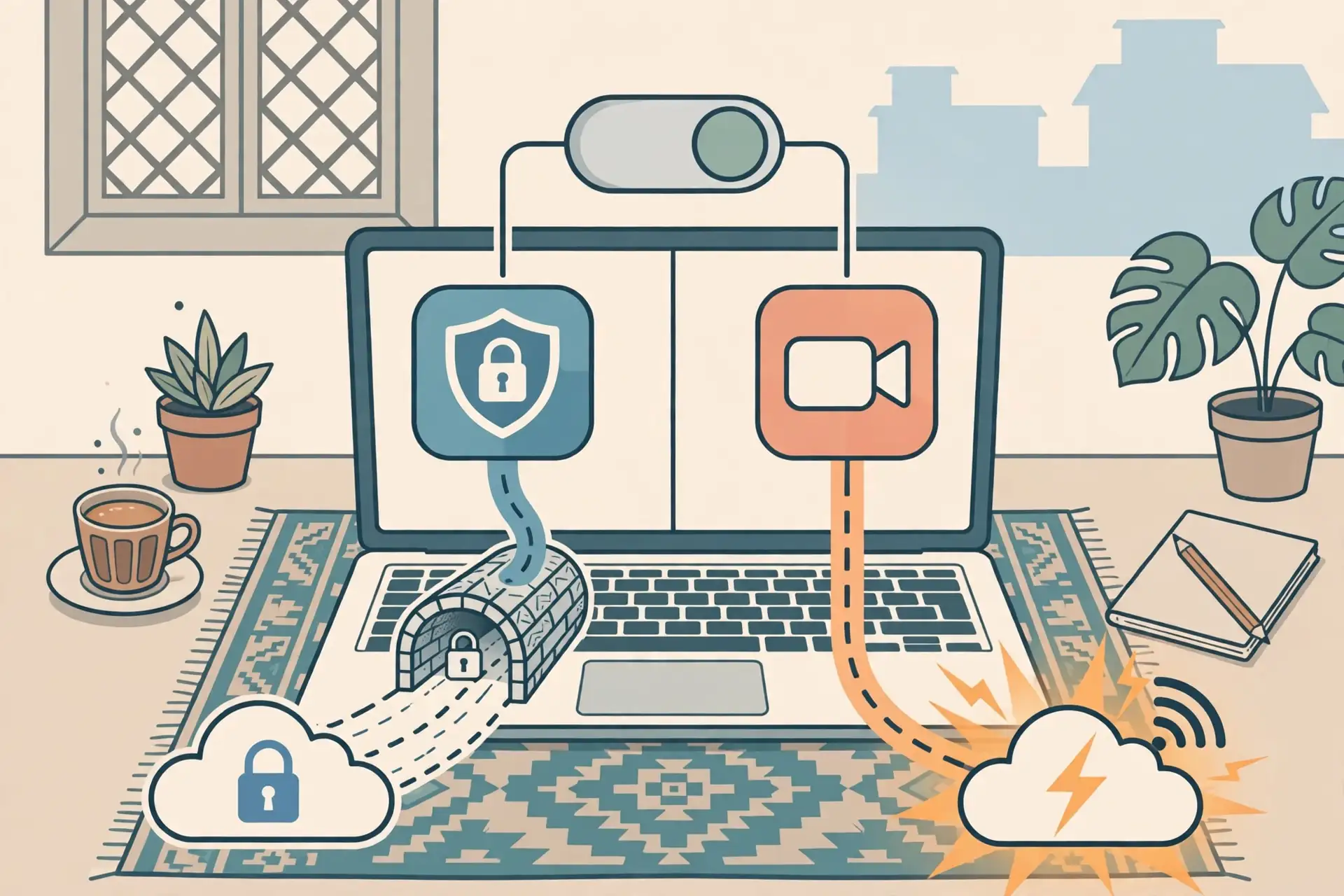
3. Split tunnelling: decide Zoom’s route deliberately. Split tunnelling lets you route selected apps inside or outside the VPN. Zoom’s own corporate guidance recommends keeping real-time media traffic outside the VPN — hauling it through a VPN concentrator degrades it and overloads the tunnel.
For a consumer user the translation is simple: if your calls are worse with the VPN on and you use the VPN mainly for other apps, exclude Zoom from the tunnel and let it run direct while the rest of your traffic stays protected. If the VPN’s privacy or route is the point of the call, keep Zoom inside the tunnel and optimise server and protocol instead.
4. DNS and route comparison. If calls fail to connect rather than degrade, check whether the VPN changes what your device resolves. With the VPN on and off, note whether zoom.us and the Zoom client reach their endpoints — a simple way is to try the Zoom web client in the browser under both conditions.
If the web client works but the desktop app does not, the difference is in how the app reaches its media ports versus how the browser reaches its web endpoints, which points back at UDP handling on your server or ISP.
5. Kill switch and auto-connect. Turn the kill switch on if your concern is exposure during drops — if the tunnel fails mid-call, the call drops rather than silently continuing on your raw connection. That is correct behaviour for a sensitive call and an annoying one for a casual chat; choose per your priorities.
Also disable any VPN auto-connect “on untrusted network” behaviour while testing, so the tunnel is not secretly re-engaging mid-diagnostic.
6. Zoom’s own statistics as ground truth. Keep the Statistics panel open during every experiment. Rising packet loss confirms a route problem, not a microphone problem. High latency with low jitter points at distance, not congestion. Let the numbers name the mechanism before you change anything else.
Symptom-by-Symptom Diagnostic Steps
Match your failure from the first section to its diagnostic path.
“Zoom won’t connect at all with the VPN on.” The VPN server’s IP may be blocked by the network, the account may have a location policy rejecting the join, or the VPN protocol itself is being interfered with. Switch servers first — the fastest fix. Then switch protocol, choosing a modern UDP-based option. Then enable the app’s obfuscation mode if it offers one, which disguises VPN traffic on restrictive networks.
If your company account only works from certain locations, exit in the expected country and ask the admin whether VPN use is permitted.
“People say I freeze and break up.” Classic jitter and packet-loss signature. Move to a nearer server, change OpenVPN-TCP to WireGuard, close bandwidth competitors (cloud sync, other streams in the house), and prefer wired or strong 5 GHz Wi-Fi over a distant router. Check Statistics: rising packet loss confirms the route, not your microphone.
“Audio echoes a half-second behind.” Latency, almost certainly a distant exit. Nothing fixes geometry — choose a regional server or split-tunnel Zoom to run direct. Do not let anyone sell you a setting that claims to remove distance.
“Zoom works, but sign-in keeps challenging me.” Account security reacting to a foreign or shared IP address. Connect consistently through the same country, and expect an occasional verification step — that is the platform protecting your account, working as designed, not a malfunction.
“Calls were fine last month, bad this week.” Update both apps first. Then suspect changed local conditions — ISP congestion patterns shift, and enforcement-period throttling comes and goes — and rerun the with/without comparison before concluding the VPN is at fault. Your baseline log from the previous section is what makes this comparison possible.
“Error code 5003 or similar connection errors.” Zoom’s documented troubleshooting for connection errors follows the same logic: verify network connectivity, check that the required ports are reachable, disable proxy or VPN temporarily to isolate the variable, and check firewall or antivirus software that may be blocking the Zoom client.
The temporary disable is a diagnostic step, not the answer — the answer is whatever you change after the isolation tells you where the fault lies.
Pakistan-Specific Complications Freelancers Should Know
Freelancers and remote workers in Pakistan face a few wrinkles that generic troubleshooting guides miss.
ISP routing realities. Pakistani ISPs’ international routing is not uniform. Some routes to certain regions are congested at peak hours, and a VPN server in the UAE may give you a cleaner path to Zoom’s infrastructure than your ISP’s default route — or a worse one, depending on the day.
This is why the baseline test matters more here than anywhere: the “right” server in Karachi may differ from the “right” server in Islamabad, and both may differ from last month.
PTA-period disruptions. During periods of heightened enforcement, unregistered VPN protocols can be throttled or blocked on some networks, which presents as “Zoom stopped working with my VPN” when the actual failure is the tunnel itself. If your VPN suddenly cannot connect at all — not just Zoom, everything — the problem is the tunnel, not Zoom.
Obfuscation features exist for exactly this situation. For the compliance side, our guide to secure VPN use for remote work in Pakistan covers the working setup, and the legal compliance route is covered by PTA’s own registration guidance.
Mobile data as a diagnostic tool. If your home broadband path to Zoom is suspect, run the same baseline over a mobile hotspot. If calls are clean on Jazz, Zong or Telenor data but broken on home Wi-Fi with the VPN on, the fault is in the fixed-line route or its interaction with the tunnel — not in Zoom, and not in the VPN provider globally.
Client-call stakes. When the meeting is with a paying client, do the diagnostic the evening before, not five minutes before. Join Zoom’s test meeting on your exact planned configuration, verify Statistics, and have the split-tunnel toggle or a direct-connection fallback ready. Professionalism is preparation.
A Note on Choosing a VPN for Zoom Calls
This guide is a diagnostic workflow, not a product ranking. But provider choice affects how often you need this workflow, so here are the criteria that matter, ranked above marketing claims.
A fast modern protocol (WireGuard or equivalent) exposed in the apps. Nearby servers to Pakistan with genuine regional choice. Split tunnelling on your platform, so Zoom’s route is your decision. A kill switch for sensitive calls. Generous device coverage, since the call may come on any device you own. And responsive support, because a connection problem at meeting time needs a human quickly.
Surfshark is the provider this site recommends against those criteria for Pakistani readers: WireGuard speeds, servers in 100 countries including regional options, split tunnelling built in, and unlimited simultaneous connections so the household’s phones, laptops and TV are all covered. Readers here get it with 80% off for our users.
Surfshark — our recommended VPN for Pakistan
Independently audited no-logs policy and servers in 100 countries, including Pakistan.
When to Escalate Beyond Your Own Setup
If the baseline, the settings and the symptom paths all point away from your configuration, escalate in this order.
Your ISP. If calls are bad with and without the VPN, on multiple devices, the fault is upstream. Run a speed test, note upload specifically, and contact your ISP with numbers rather than adjectives: “2 Mbps upload, 8% packet loss to Zoom’s test meeting at 8pm” gets action; “Zoom is slow” does not.
Your VPN provider’s support. If the fault appears only through the tunnel and only on certain servers, contact support with your baseline numbers: which servers, which protocol, latency and packet loss with and without. A good support team will move you to a better server or flag a routing issue; this is also the fastest way to discover whether your provider is having a regional problem they have not announced.
Your organisation’s IT or the meeting host. If only one organisation’s meetings fail while everything else works, the fault is likely an account-level location or IP policy — the “approve or block entry from specific countries” type of control. Ask the host or admin directly; no client-side setting overrides an admin policy.
Zoom support. If Zoom’s status page shows an incident affecting your region, or the documented ports are unreachable from every network you can test, the trail ends with Zoom. Their support will want the same evidence you have already gathered, which is the point of the diagnostic: by the time you escalate, you arrive with data.
What This Guide Does Not Promise
Honesty requires stating the boundaries. No VPN can guarantee that a given Zoom call will work, because the call depends on your ISP, the VPN server’s load, Zoom’s infrastructure and the path between them — four parties, none of which any provider controls end to end.
No VPN can lower your latency below what the physical route allows; adding a waypoint can only add distance, never remove it. And no diagnostic can fix an account policy that forbids your connection — that is an administrative decision, not a technical fault.
What the workflow does give you is certainty about where the fault is not. “The tunnel adds 40ms and no packet loss, so the VPN is fine and the problem is upstream” is a genuinely useful conclusion. So is “only the Frankfurt server breaks, so I will use the UAE server for calls”. Precision beats optimism in troubleshooting.
Surfshark — our recommended VPN for Pakistan
Unlimited simultaneous connections, servers in 100 countries, and a 30-day money-back guarantee.
Frequently Asked Questions
How Can a VPN Affect Zoom?
A VPN affects Zoom through four mechanisms: added latency from the extra server waypoint, jitter and packet loss from congested servers, small bandwidth overhead from encryption, and routing changes when your apparent location shifts Zoom’s media path. Any of these can degrade a call; none of them means the VPN is broken.
The practical implication: server choice and protocol matter more than provider brand. A nearby server on WireGuard usually costs a call almost nothing; a distant server on a TCP-based protocol can wreck it. Measure with Zoom’s Statistics panel rather than guessing.
Which Settings Should I Verify?
Verify in this order: the WireGuard protocol (or your provider’s modern equivalent) instead of TCP-based options; the nearest server that meets your needs — from Pakistan, usually the UAE or Singapore; split tunnelling, to decide deliberately whether Zoom runs inside or outside the tunnel; and the Zoom client’s Statistics panel for live latency, jitter and packet loss as your ground truth.
Also confirm Zoom’s documented requirements are met: TCP 443, 8801–8802 and UDP 8801–8810 reachable, zoom.us and *.zoom.us allowed through any proxy or inspection, and enough upload bandwidth for your call type — 1.2 Mbps up for 720p one-to-one calls.
How Do I Compare the App With and Without the Tunnel?
Fix the conditions — same device, room, time of day and Zoom account — then run a two-minute test call (zoom.us/test works) with the VPN off, noting latency, jitter and packet loss from Settings → Statistics. Repeat with the VPN on, first on the nearest server with WireGuard, then on any server your situation requires.
Decide by the numbers: modest latency increase with low jitter means the VPN is fine for calls; sharp degradation only in full-tunnel mode points to split tunnelling; a single bad server means changing servers, not providers. Log the date, ISP and servers for future comparisons.
The Bottom Line
Zoom not working with a VPN is almost never a mystery — it is one of four failures (no connection, freezing, lagging audio, or tunnel-only degradation), caused by one of four mechanisms (latency, jitter, overhead, or routing), and fixable through a short ordered checklist: baseline with and without the tunnel, nearest server, WireGuard, split tunnelling, and Zoom’s own statistics as the judge.
Do the diagnostic once, write down what you found, and most future call problems become a two-minute check instead of a twenty-minute panic. And if you are choosing a provider with call-heavy work in mind, pick one with a modern protocol, nearby servers and split tunnelling — Surfshark, with 80% off for our users, remains this site’s recommendation for Pakistani readers on exactly those grounds.