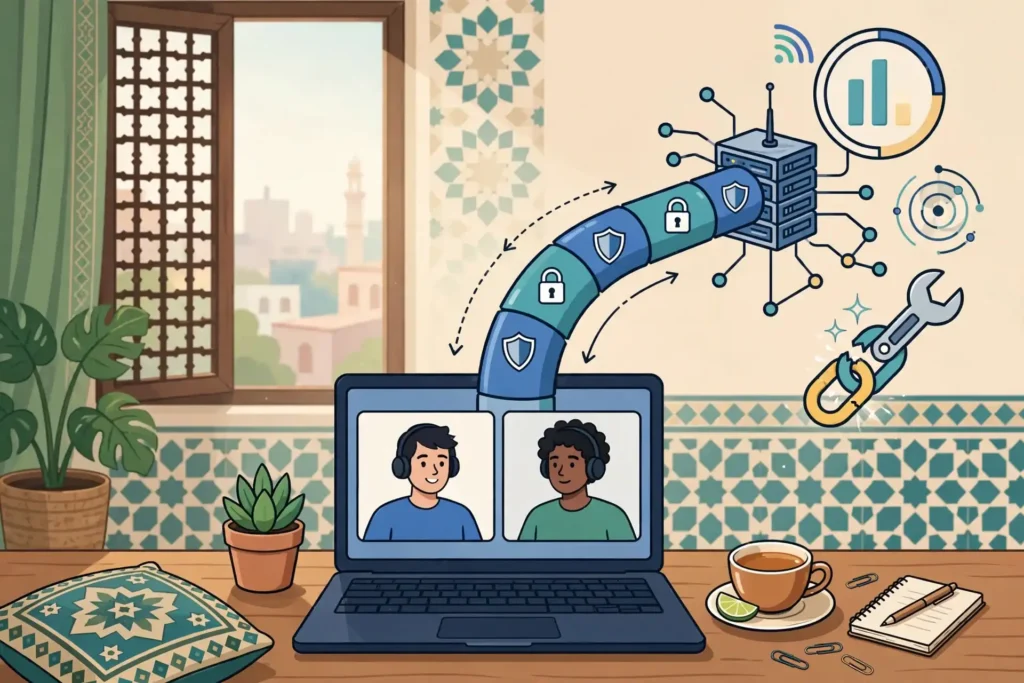
A VPN for Discord in Pakistan can protect your connection on public Wi-Fi and give you a different route when a network or ISP interferes with voice traffic. But it is not a magic fix, and not every VPN works. Discord needs a VPN that supports UDP traffic, keeps latency low, and does not interrupt the connection during the handshake. Some providers only carry TCP traffic, some route your traffic through servers that add too much delay, and some block the ports Discord uses, which makes voice calls fail or sound broken.
Discord VPN Compatibility: What Has to Work
A VPN only works with Discord when four conditions are true. If any one fails, Discord voice either will not connect at all, or it will connect and then sound robotic, lag, or drop.
- The VPN carries UDP traffic, because Discord voice is built on UDP. If the VPN only supports TCP, Discord falls back to a degraded mode and usually drops voice or reports “No Route”.
- The latency stays low, because voice is sensitive to delay. A nearby server usually adds 20 to 40 milliseconds. A faraway server can add 150 milliseconds or more, which is enough to make voices lag.
- The connection stays stable during the call. If the VPN drops for a second and reconnects, Discord has to re-establish the voice session, which causes a dropout or a “RTC Connecting” loop.
- Discord’s app and voice servers are reachable through the VPN tunnel. If the VPN provider blocks the ports or IP ranges Discord uses, you will see “No Route” even though the VPN itself is connected.
What Happens if the VPN Does Not Support UDP
If a VPN does not carry UDP traffic, Discord voice will not work reliably. Discord uses UDP for voice because it is faster than TCP for real-time audio. When the VPN only provides TCP, Discord tries to use it anyway, and the result is usually one of three outcomes.
First, the call may fail to connect at all and show “RTC Connecting” or “No Route” indefinitely. This happens because Discord cannot establish a UDP voice path through the TCP-only tunnel.
Second, the call may connect but sound robotic or distorted. TCP retransmits lost packets, which adds delay and makes voices sound choppy or metallic. This is the classic symptom of a TCP-only connection.
Third, the call may connect and then drop after a few seconds or minutes. The VPN tunnel may be resetting, or Discord may be timing out because the UDP traffic is being dropped.
The only reliable fix for a TCP-only VPN is to switch to a VPN that supports UDP. There is no setting in Discord that forces UDP through a TCP-only tunnel. Discord’s own support guidance states this plainly: “Discord only works on VPNs that have UDP.” If your VPN does not support UDP, it will not work for Discord voice, no matter how you configure it.
How Discord Voice Routes Work and Why Latency Matters
Discord voice works by sending audio packets between you and a voice server using UDP. The route your packets take determines the delay. When you connect directly, your packets go from your device to your ISP, then across the internet to the nearest Discord voice server. The total delay is the sum of each hop.
When you connect through a VPN, your packets take a longer route. They go from your device to the VPN server, then from the VPN server to the Discord voice server. The extra hop adds latency, but the amount depends on where the VPN server is. A VPN server in a nearby country adds less delay than one on another continent.
The key is to choose a VPN server that is close to you and close to Discord’s voice servers. For users in Pakistan, a server in the Middle East, South Asia, or Europe usually gives the lowest latency. A server in the United States or East Asia will add more delay and is more likely to cause voice lag.
You can test this yourself by running a speed test with the VPN connected to different servers and comparing the ping. The server with the lowest ping to Discord’s voice servers will give you the best voice quality.
Latency, Jitter, and Packet Loss: How to Read the Numbers
Three numbers determine Discord voice quality: latency, jitter, and packet loss. Latency is the delay between you and the voice server, measured in milliseconds. Jitter is the variation in that delay. Packet loss is the percentage of audio packets that never arrive.
For Discord voice, a latency under 100 milliseconds is good, and under 50 milliseconds is excellent. Jitter under 30 milliseconds is acceptable. Packet loss should be close to zero. If packet loss rises above 2 percent, voices start to sound robotic or cut out.
Discord has a built-in tool to check these numbers. While you are in a voice channel, click the connection information in the bottom-left corner of the Discord window. It shows your current ping, the server region, and whether you are experiencing packet loss. Use this to compare different VPN servers and find the one with the best numbers.

Discord Voice Settings: Quality of Service and Server Choice
Discord has a Quality of Service (QoS) setting that can improve voice quality by prioritising voice traffic over other data. You can find it in Settings under Voice and Video. Turn on “Enable Quality of Service” and set the priority to High. This tells your network to prioritise Discord voice packets, which reduces lag and packet loss.
QoS only works if your network supports it. Some VPNs strip QoS tags from packets, which means the setting has no effect when the VPN is on. If you are using a VPN, QoS may not help, but it is worth trying. The bigger factor is choosing a VPN server with low latency.
Discord also lets you choose the voice server region for a server you manage. In Server Settings, under Overview, you can set the region to the one closest to your VPN server. This reduces the distance your voice packets travel and improves quality. If you are using a VPN server in Europe, set the Discord voice region to Western Europe. If you are using a server in the Middle East, set it to the closest available region.
Keep the voice region fixed instead of letting Discord choose automatically. Automatic selection can switch regions mid-call if the network changes, which causes a brief dropout.
Split Tunnelling and Which Traffic Goes Through the VPN
Split tunnelling lets you choose which apps use the VPN and which connect directly. This is useful for Discord because you can route Discord through the VPN while letting other apps, such as your browser or streaming service, connect directly. This reduces the load on the VPN and can improve Discord voice quality.
To set up split tunnelling, open your VPN app and find the split tunnelling or per-app settings. Add Discord to the list of apps that use the VPN. Some VPNs let you split by app, others by website or IP address. If your VPN supports it, route only Discord through the VPN and let everything else go direct.
Split tunnelling is not available on all VPNs or all platforms. It is most common on Windows and Android. On macOS and iOS, split tunnelling is rare because of operating system restrictions. If your VPN does not support it, you will need to route all traffic through the VPN, which is fine as long as the VPN server has low latency.
One risk with split tunnelling is that it can leak your real IP address if it is misconfigured. Make sure Discord is actually using the VPN by checking your IP address while Discord is running. If Discord shows your real IP, the split tunnelling is not working.
Surfshark for Discord in Pakistan
Surfshark is our recommended VPN for Discord in Pakistan because it covers the four compatibility requirements in one app. It supports WireGuard, OpenVPN in UDP mode, and IKEv2, so Discord voice has a UDP route. It offers unlimited simultaneous connections, so your phone, laptop, and gaming PC can all stay connected on one subscription.
NoBorders mode is the feature that matters most on restricted Pakistani networks. When Surfshark detects that VPN traffic is being blocked, NoBorders switches on and shows a short list of servers that tend to connect there. Combined with OpenVPN, which activates Camouflage Mode and disguises the traffic, it gives you a real fallback when the default connection fails.
The 7-day free trial on 12- and 24-month plans lets you test Discord voice on your own network before you pay, and the 30-day money-back guarantee begins once the first payment goes through. Trial terms and prices change, so the exact offer is the one shown on Surfshark’s checkout page when you sign up. This guide does not quote a rupee price because it varies by region and by the offer running at the time.
Surfshark also publishes apps for Windows, macOS, Android, iOS, and Linux, plus browser extensions and apps for Fire TV and Android TV. Discord runs on all of those desktop and mobile platforms, so you can use the same Surfshark account on the device you call from. Bypasser split tunnelling is available on Windows and Android, which covers the two platforms where Discord gamers most often need it.
Surfshark — our recommended VPN for Pakistan
WireGuard UDP support for Discord voice, unlimited devices, and 80% off for our users.
One honest caveat: Surfshark cannot guarantee that Discord voice will work on every network in Pakistan. Some university and office networks block VPN traffic entirely, and no setting can change that from your side. If the VPN will not connect at all on such a network, try mobile data instead, or ask the network administrator whether VPN use is allowed.
How to Compare Discord With and Without the Tunnel
The only honest way to judge a VPN for Discord is a controlled comparison on your own connection. Guessing from one bad call tells you nothing, because Discord voice quality varies with the time of day, the server load, and your internet provider. Run the same test twice, once with the VPN off and once with it on, and compare the results.
Start with a baseline. Disconnect the VPN completely and quit Discord, then reopen it and join the same voice channel you normally use. Stay in the channel for at least five minutes and talk with a friend. Note three things: whether the call connects at all, whether voices sound clear or robotic, and whether anyone reports delay or words cutting out.
Next, write down your baseline network numbers. Search for “what is my IP” and note the address shown. Run a speed test and note the download speed, upload speed, and ping. These numbers are your baseline, and every later comparison is measured against them. Without a baseline, you cannot tell whether the VPN made things worse or whether your connection was already poor.
Now connect the VPN to a nearby server, quit Discord completely, and reopen it. Discord should be restarted after the VPN connects, because the app can hold on to the old network route if it was already running. Join the same voice channel, with the same friend if possible, and stay for another five minutes. Note the same three things: connection success, clarity, and delay.
Repeat the network checks while connected. Your IP address should have changed to the VPN server’s location. Run the speed test again and compare the ping with your baseline. A small rise in ping is normal; a large jump means the server is too far away or overloaded, and you should try a different nearby server.
Finally, test a second server before you draw a conclusion. Server load changes through the day, and a server that struggles at 8pm may work fine at 8am. If the first nearby server gives poor voice quality, try another server in the same country or a neighbouring country, then repeat the five-minute call test. Only after two servers fail should you conclude that the VPN is the problem rather than one busy server.
Record your results in a few lines: the date, the time, the network you used, the server you connected to, and whether voice worked. That record is also exactly what VPN support will ask for if you contact them, and it saves several rounds of back-and-forth. If you are comparing providers, run the same test for each one and compare the notes side by side.

Discord VPN Troubleshooting: Common Errors
Most Discord VPN problems fall into a small set of errors, and each one points at a different cause. The table below is a starting point, but the steps after it explain how to work through each one.
“RTC Connecting” is the most common error. It means Discord cannot establish a voice connection. First, restart Discord and reconnect the VPN. Then switch to a nearby server and try again. If it still fails, change the VPN protocol to WireGuard or OpenVPN in UDP mode. If none of that works, the VPN server may be blocked, and you should try a different provider.
“No Route” means Discord cannot reach a voice server through the VPN. This usually happens when the VPN blocks the ports Discord uses or when the server is too far away. Switch to a nearby server, restart Discord, and check that UDP is enabled in the VPN settings.
“ICE Checking” means Discord is trying to find the best route for voice traffic but cannot complete the handshake. This is often caused by a strict NAT or a firewall blocking UDP. Try a different VPN server, disable any firewall that might be blocking Discord, or switch to a different network.
Robotic or choppy audio usually means packet loss or high jitter. Run a speed test to check your latency and packet loss. If packet loss is above 2 percent, switch to a nearby server or a different VPN protocol. If the problem is only on Wi-Fi, try a wired connection.
Phone verification usually appears when Discord detects unusual activity, such as switching VPN servers frequently or sharing an IP address with many users. Complete the verification once and the account will work normally. To avoid it, use the same VPN server each time and do not switch servers during a call.
If nothing works, escalate in order: first try a nearby server, then try a different protocol, then try a different network (such as mobile data), and finally try a different VPN provider. Do not change several settings at once, because you will not know which one fixed the problem.
Discord VPN Limits and Service Terms
Discord’s Terms of Service do not ban VPNs outright, but they do ban using a VPN to evade a ban or to hide your identity from Discord’s trust and safety team. If your account was banned and you use a VPN to create a new account, Discord may ban the new account as well.
Some networks in Pakistan block VPN traffic entirely. University and office networks are the most likely to do this. If the VPN will not connect at all on such a network, try mobile data instead, or ask the network administrator whether VPN use is allowed.
A VPN does not make you anonymous on Discord. Discord still sees your account, your messages, and your voice activity. A VPN only hides your IP address and location from other users and from your ISP. It does not hide your activity from Discord itself.
If you are looking for an alternative to Surfshark, see our NordVPN review and our guide to VPN obfuscation explained for other options that also support UDP. For team voice on other platforms, our Slack Huddles VPN compatibility guide covers a similar setup.
Discord VPN Pakistan: Frequently Asked Questions
Can I use a VPN with Discord in Pakistan?
Yes, you can use a VPN with Discord in Pakistan, but only if the VPN supports UDP traffic. Discord voice uses UDP, so a VPN that only carries TCP will cause “No Route” or “RTC Connecting” errors. Choose a VPN that supports WireGuard or OpenVPN in UDP mode and connect to a nearby server for the lowest latency.
Why does Discord voice lag when I use a VPN?
Discord voice lags when the VPN adds too much latency or when the connection is unstable. This usually happens when you connect to a faraway server or when the VPN drops and reconnects during the call. Switch to a nearby server, check that the VPN supports UDP, and make sure your internet connection is stable. If the problem continues, try a different server or a different VPN protocol.
Does Discord ban VPN users in Pakistan?
Discord does not ban users for using a VPN, but it may ask you to verify your account if it detects unusual activity. This can happen if you switch VPN servers frequently or if you share an IP address with many other users. If Discord asks for phone verification, complete it once and the account will work normally. Using a VPN to bypass a ban or to hide your identity from Discord’s trust and safety team is against Discord’s Terms of Service.
Can I use a free VPN for Discord in Pakistan?
Free VPNs rarely work well for Discord voice. They often have slow servers, data limits, and no UDP support, which causes lag and dropped calls. Some free VPNs also log your activity or show ads. If you want reliable Discord voice, use a paid VPN with UDP support and a nearby server. A free trial of a paid VPN is a better way to test than a free VPN.
How do I fix “No Route” on Discord with a VPN?
To fix “No Route”, first switch to a VPN server in a nearby country and restart Discord. Then check that the VPN supports UDP and that the Discord app is allowed through your firewall. If the error continues, try a different VPN protocol, such as WireGuard or OpenVPN in UDP mode, or switch to a different server. If none of that works, the VPN provider may be blocking Discord’s ports, and you should try a different VPN.
Which VPN server should I choose for Discord in Pakistan?
Choose a VPN server in a nearby country, such as the United Arab Emirates, Saudi Arabia, or a European country. A nearby server gives you the lowest latency and the best voice quality. Avoid servers in the United States or East Asia, which add more delay. Test a few nearby servers and pick the one with the lowest ping to Discord’s voice servers.
Conclusion: Discord VPN Pakistan
Surfshark is our recommended VPN for Discord in Pakistan, with 80% off for our users, unlimited simultaneous connections, and a 7-day free trial. Test Discord voice on your own network with the 7-day free trial — 80% off, and if the call quality is not good enough, switch to a nearby server or try a different provider.
Discord voice can work well through a VPN in Pakistan, but only when the VPN supports UDP, keeps latency low, and stays stable during the call. Pick a nearby server, set the Discord voice region to match, and test before you commit to a plan.
Surfshark — our recommended VPN for Pakistan
WireGuard UDP support for Discord voice, unlimited devices, and 80% off for our users.