Setting up Surfshark in Pakistan takes about ten minutes: create an account on the official Surfshark website, download the app only from Surfshark or your device’s official store, sign in, and press Connect. Surfshark
is our recommended VPN for Pakistan, with 80% off for our users, unlimited simultaneous connections, a 7-day free trial, and a NoBorders mode built for restricted networks.
This guide walks through the full Surfshark setup Pakistan process step by step, verified against Surfshark’s official pages in November 2026, including the trial terms, the settings that matter on Pakistani networks, and how to check that your tunnel is genuinely working.
Surfshark Setup Pakistan: The Short Answer
Surfshark setup in Pakistan follows five steps: choose a plan, create an account, download the official app for your device, sign in, and connect. Surfshark publishes apps for Windows, macOS, Android, iOS, and Linux, plus browser extensions for Chrome, Firefox, and Edge, and apps for Fire TV, Apple TV, and Android TV. There is no special Pakistan edition and no separate registration step for users in Pakistan.
One subscription covers an unlimited number of devices at the same time, so the whole household can share a single account.
The feature that matters most in Pakistan is NoBorders mode. When Surfshark detects a restricted network, NoBorders switches on and shows a short list of servers that tend to connect there. Combined with OpenVPN connections, which Surfshark obfuscates automatically, this gives you a real fallback when the default connection fails on a Pakistani network.
The steps below start with the standard setup and then explain exactly what to change when a connection will not go through.
Everything in this guide was checked against Surfshark’s official download and support pages in November 2026. App versions and store listings change over time, so if a button label or menu name looks slightly different on your device, follow the official in-app wording. Where a fact could not be confirmed from an official source, this guide says so plainly instead of guessing.
What You Need Before You Start Surfshark Setup
Before you download anything, make sure you have the basics in place. You need an email address for your Surfshark account, a payment method for the plan or trial, a working internet connection, and a device that meets the minimum requirements. Surfshark supports Windows 10 and 11, macOS 12 or later, iOS 17 or later on iPhone and iPad, and Android phones and tablets through Google Play.
On Linux, Surfshark supports Debian, Ubuntu, and Mint. Older Windows versions such as Windows 7 and 8 can still run a legacy version of the app, but Surfshark no longer updates it with the latest security features.
You should also know your baseline connection before you connect. Write down your normal public IP address and your internet provider’s name with the VPN switched off. Every verification check later in this guide compares the connected state against that baseline. Search for “what is my IP” in your browser and note the address and location shown.
This takes thirty seconds and makes the later leak tests meaningful instead of guesswork.
Decide which plan you want before you start the trial. Surfshark sells three bundles — Starter, One, and One+ — in monthly, one-year, and two-year terms. Starter covers the VPN alone and is enough for the setup in this guide. The higher bundles add extras such as antivirus, data-breach alerts, and a private search tool.
The 7-day free trial applies to 12- and 24-month plans on the Starter, One, or One+ bundles, and the monthly plan has no trial. If you only want to test the service, start with a 12- or 24-month plan trial and cancel before day seven if you decide against it.
Surfshark Account Setup and the 7-Day Free Trial
Your Surfshark account is created on the official Surfshark website, and the trial starts there too. Choose a 12- or 24-month plan, enter your email address or continue with Google or Apple, and add a payment method. Surfshark accepts cards, PayPal, and Apple Pay for the trial, and cryptocurrency through CoinGate for paid plans.
Nothing is charged during the seven days, but a payment method is required to confirm that you are a first-time customer. The first charge comes when the seven days end, so set a reminder to cancel before day seven if you do not want to continue.
The trial works on any device, and it unlocks every VPN feature, so it behaves exactly like a paid account. The one limit is that you can connect up to three devices at the same time during the trial. Once the first payment goes through, the allowance becomes unlimited.
If you start the trial through the Android or iOS app instead, the same seven days apply, but billing and refunds go through Google or Apple rather than Surfshark, so the website route is simpler if you want Surfshark’s own support to handle any refund.
After the trial ends and you are charged, the 30-day money-back guarantee begins. That gives you 37 risk-free days in total: seven days free, then thirty days to claim a refund if the service is not right for you. The guarantee covers your first purchase only, with one refund per customer, and renewal charges are not refundable.
Purchases made through the Apple App Store or Google Play need refund requests through those platforms directly, while purchases made on Surfshark’s website are refunded through Surfshark’s live chat. Prices vary by region and by the offer running at the time, so this guide does not quote a rupee price; the exact amount is the one shown on Surfshark’s checkout page when you sign up.
Whether a specific Pakistani bank card works at checkout depends on your bank, and this guide could not confirm a definitive list of Pakistan-specific payment methods from official sources in November 2026. If your card is declined, try a different card or PayPal. Never buy a Surfshark account from a reseller, marketplace, or social media seller in Pakistan.
Shared or resold accounts can be cancelled without warning, and they are a common source of login problems that no setup guide can fix.
Where Should I Download the Official Surfshark App?
Only download Surfshark from Surfshark itself or from your device’s official app store. The safe sources are the Surfshark download page, the Apple App Store for iPhone, iPad, and Mac, Google Play for Android, and the Amazon Appstore for Fire TV. Surfshark also publishes an official Android APK on its own website for devices that cannot use Google Play.
Any other download site, file-sharing link, or “cracked” installer is a risk: modified VPN installers are a known way to distribute malware, and a fake VPN app can see everything you do online.
The easiest route after creating your account is to sign in to your web dashboard and open the Download Apps section, which lists the correct installer for each of your devices. The main download page detects your operating system and offers the right file automatically. On mobile, open the official store app on your phone, search for Surfshark VPN, and check that the publisher is Surfshark before you tap install.
A lookalike app with a similar name and icon is not the same thing.
If you are setting up Surfshark on a work or university computer in Pakistan, you may need administrator rights to install the app. Ask your IT administrator before installing anything on a managed device.
On your own devices, the installer will ask for permission to make changes to your computer; that prompt is normal for a VPN app, because it needs to install a virtual network adapter to route your traffic through the tunnel.
Surfshark Install App: Windows Setup
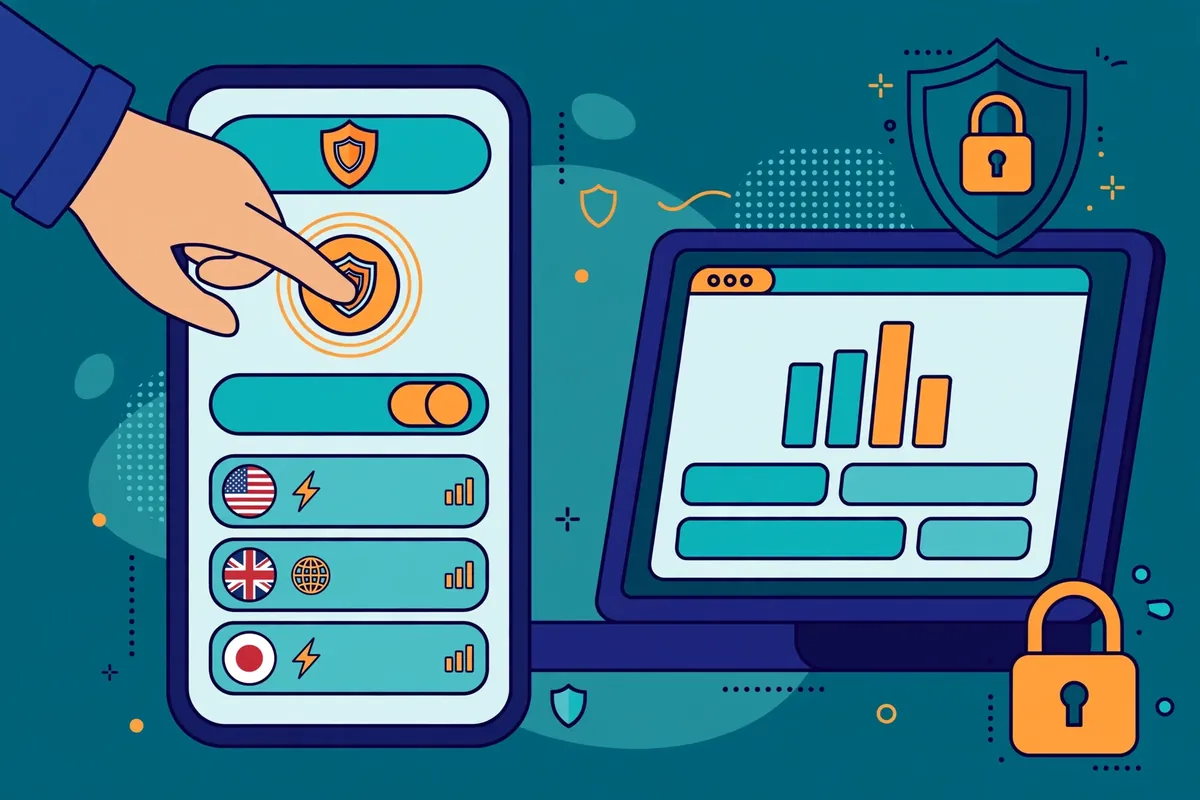
Installing Surfshark on Windows takes only a few moments. Go to the Surfshark download page, which detects Windows and offers the correct installer, including a native build for ARM laptops such as the Surface Pro. Download the installer, open it, and follow the prompts. When installation finishes, launch Surfshark and sign in with the account you created.
The app opens on a home screen with a large Connect button and a list of server locations.
Press Connect and the app joins the fastest available server. The button changes to show a connected status, along with the server location and your new virtual IP address. You can also pick a specific country from the location list.
For users in Pakistan, nearby server locations such as the United Arab Emirates or Singapore often give the most responsive connection, though the best choice depends on your internet provider and the time of day. Surfshark runs more than 4,500 servers in 100 countries, so there is always a nearby option.
Before you rely on the connection, open Settings and check two things. First, turn on the kill switch, so your internet is cut if the VPN drops unexpectedly. Second, look at the protocol setting. Surfshark offers WireGuard, OpenVPN, and IKEv2, and WireGuard is the sensible default for most users because it is fast and modern.
If WireGuard will not connect on your network, switch to OpenVPN, which activates Surfshark’s Camouflage Mode and disguises the VPN traffic. That combination is the one to try first on a restricted Pakistani network.
Surfshark Setup Tutorial for macOS
On macOS you have two builds, and the choice matters. The standard build comes from the Surfshark download page as a disk image: download it, drag Surfshark into Applications, launch it, and sign in. The Mac App Store build looks the same but currently ships one exclusive feature, the Dausos protocol, which Surfshark describes as its own protocol with post-quantum encryption, available on macOS from the Mac App Store.
Availability on other platforms is coming, according to Surfshark’s download page.
Either build works for the setup in this guide, and the steps are the same: install, sign in, and press Connect. The first time you connect, macOS will ask you to allow the VPN configuration; approve it, because the app cannot create the tunnel without that permission. Check Settings after your first connection and confirm that the kill switch is enabled.
If you installed the App Store build and want to try Dausos, you can select it in the protocol settings, but WireGuard remains the safe default for most users.
Surfshark’s macOS app supports macOS 12 or later. If your Mac is older than that, check whether a system update is available before you install. The app also includes CleanWeb, Surfshark’s ad and tracker blocker, which you can enable in Settings at no extra cost. CleanWeb blocks many ads and malicious domains before they load, which is useful on networks where malvertising and phishing pages are common.
Surfshark Install App: Android Setup
On Android, open Google Play, search for Surfshark VPN, verify the publisher is Surfshark, and tap Install. If your device cannot use Google Play, download the official Android APK from Surfshark’s website instead, and never from a third-party APK mirror. Open the app and sign in, or start the 7-day free trial if you have not created an account yet.
Android will show a connection request the first time you connect; tap OK to allow Surfshark to set up the VPN connection.
Press Connect and the app joins the fastest server. On Android, the kill switch is available in Settings, and you should turn it on so that no traffic leaves your phone unprotected if the tunnel drops while you switch between Wi-Fi and mobile data.
Also enable NoBorders in Settings if you are on a network that restricts VPN traffic; it detects the restriction and offers the servers most likely to connect there.
Android users in Pakistan should also know about Bypasser, Surfshark’s split tunnelling feature. Bypasser lets you choose which apps use the VPN and which connect directly. This is useful if a local banking app or a government service refuses to work while the VPN is on. Keep the apps you want protected on the VPN and route only the ones that genuinely need a direct connection outside it.
Do not route your browser outside the VPN unless you have a specific reason to do so.
Surfshark Setup Tutorial for iPhone and iPad
On iPhone and iPad, open the App Store, search for Surfshark VPN, and download the app. You need iOS 17 or later. Open the app, sign in or start the 7-day free trial, and press Connect. iOS will ask you to allow the VPN configuration the first time you connect; approve it. The app then connects and shows your server location and virtual IP address.
The whole process takes about two minutes once the app is downloaded.
On iOS, turn on the kill switch in Settings so that traffic cannot slip outside the tunnel if the connection drops. NoBorders is also available on iOS, and it is worth enabling if you are on a network that restricts VPN traffic.
If you started the trial through the App Store, remember that Apple handles the billing: cancel at least 24 hours before the trial ends if you do not want to be charged, and request any refund through Apple rather than Surfshark.
If you move between Wi-Fi and mobile data often, the app will reconnect automatically in most cases. If it does not, open the app and tap Connect again. Some Pakistani mobile networks are stricter about VPN traffic than home broadband, so if a connection fails on mobile data but works on Wi-Fi, switch the protocol to OpenVPN with Camouflage Mode, or enable NoBorders, before changing anything else.
Surfshark Configuration Guide for Linux and Browser Extensions
On Linux, Surfshark supports Debian, Ubuntu, and Mint. Download the Linux app from the Surfshark download page and follow the official Linux setup guide in Surfshark’s help centre, which covers installation and the terminal commands for connecting. The Linux app is managed from the command line, so keep the official guide bookmarked for the exact commands, because installer details can change between versions.
Browser extensions are a useful extra for desktop users. Surfshark publishes extensions for Chrome, Firefox, and Edge, available from the Surfshark download page or the browser’s own extension store. An extension protects only the traffic in that browser, not the whole device, so it is not a replacement for the full app.
It is handy when you want a quick VPN connection in the browser without routing your other apps through the tunnel, or when you are on a computer where you cannot install the desktop app.
Surfshark also offers apps for Fire TV, Apple TV, and Android TV, and a router setup option for devices that cannot run an app at all, such as some smart TVs and games consoles. A router setup covers every device on your home network at once, but it is a more involved configuration and is covered by Surfshark’s own router guides.
For most users in Pakistan, the desktop and mobile apps in this guide are the right starting point.
Surfshark Connect to Server: Quick Connect and Server Choice
Once the app is installed and you are signed in, connecting is simple. The Connect button joins the fastest available server, which is usually in your own region. For everyday browsing, banking, and messaging in Pakistan, that is the right default, and you do not need to think about servers at all. The app shows a connected status, the server location, and your new virtual IP address.
If you need a specific location, choose a country from the location list instead. Surfshark also offers Static IP servers, which give you the same IP address each time you connect, and MultiHop servers, which route your traffic through two servers in different countries. MultiHop adds a layer of routing for users who want it, but it is slower than a single hop and is not needed for ordinary use.
For most people in Pakistan, the standard fastest server or a nearby country server is the best choice.
To disconnect, press the Disconnect button. The app returns to its disconnected state and your traffic goes back to your normal connection. Make a habit of checking the app status before you do anything sensitive online. The word “Connected” in the app is the signal that the tunnel is up, and if the app says otherwise, your traffic is not protected.
NoBorders Mode and Camouflage Mode for Restricted Networks
NoBorders mode is Surfshark’s answer to restricted networks, and it is the feature most relevant to users in Pakistan. When Surfshark detects that you are on a network that restricts VPN traffic, NoBorders switches on by itself and shows a short list of servers that tend to connect there. You can also switch it on manually in Settings.
If your first connection attempt fails, enable NoBorders and try the servers it suggests before changing anything else.
Camouflage Mode works alongside NoBorders. When you select the OpenVPN protocol, Surfshark obfuscates the connection, disguising VPN traffic so that it looks like regular internet traffic. This helps on networks that use deep packet inspection to detect and block VPNs. The combination to remember is simple: protocol set to OpenVPN, Camouflage Mode active, NoBorders enabled, and then connect to one of the suggested servers.
If that combination works on your network, save it as your standard setup for that network.
Two cautions apply. First, obfuscated connections can be slower than standard ones, because disguising the traffic adds overhead, so switch back to WireGuard on networks that do not need it. Second, Surfshark does not promise uninterrupted access on every restricted network, and results can vary between cities and between mobile carriers in Pakistan.
If one server fails, try another from the NoBorders list rather than concluding that the service does not work. Retest on mobile data as well as Wi-Fi, because the two networks are often filtered differently.
Surfshark Configuration Guide: Settings Worth Changing
The default settings work well for most people, but a short configuration pass makes the setup safer. Start with the kill switch, which cuts your internet connection if the VPN drops so that nothing leaks outside the tunnel. Turn it on in Settings on every device. On iPhone, the same protection is provided by the kill switch setting in the app.
Test it once by disconnecting while a page is loading; your internet should stop until you reconnect.
Next, look at the protocol setting. WireGuard is the default and the fastest option for most users. OpenVPN is the alternative to try when WireGuard will not connect, because it activates Camouflage Mode. IKEv2 is a third option that works well on mobile devices that switch networks often.
Leave the protocol on automatic if you are unsure, because the app will choose for you, but learn where the setting is so you can change it when a network demands it.
CleanWeb is Surfshark’s ad, tracker, and malware blocker, and it is included in every plan at no extra cost. Turn it on in Settings. It blocks many harmful domains before they load, which is useful on Pakistani networks where malvertising and phishing pages are common. Bypasser, the split tunnelling feature, is worth setting up if a local banking app or government service refuses to work while the VPN is on.
Route only that app outside the tunnel and keep everything else protected.
Finally, consider auto-connect. Setting the app to connect automatically when your device starts, or when you join an untrusted Wi-Fi network, protects you on public hotspots in cafes, airports, and hotels across Pakistan. Public Wi-Fi is one of the riskiest places to browse without a VPN, because anyone on the same network can see unencrypted traffic. Auto-connect removes the need to remember to turn the VPN on.
Manual Setup: WireGuard and OpenVPN Profiles
Manual setup means configuring a VPN connection without the Surfshark app, using your operating system’s built-in VPN support or a third-party client. Surfshark officially supports manual WireGuard and OpenVPN setup, and it publishes the configuration details in its help centre. You generate a key pair or download a configuration file from your Surfshark account dashboard, import it into the official WireGuard app or an OpenVPN client, and connect from there.
Manual WireGuard setup is the backup method Surfshark itself recommends when its own app cannot connect on a restricted network. The free WireGuard app is available for Windows, macOS, Android, and iOS, and a manual WireGuard connection through it can succeed where the Surfshark app is blocked.
Keep the WireGuard app installed as a backup even if you normally use the Surfshark app, because it costs nothing and can save you when the main app will not connect.
Manual OpenVPN setup follows the same idea: download a configuration file for the server you want from Surfshark’s website and import it into an OpenVPN client. It is slower to set up, harder to switch servers, and gives you fewer built-in controls, so for a phone or computer that can run the app, the app is always the better choice.
Manual setup is most useful on routers and on devices that cannot run the Surfshark app at all. If you do set up a manual connection, download the configuration files only from Surfshark’s official website and test the connection with the same IP and DNS leak checks described in the next section.

How Can I Check That the Tunnel Is Working?
The app saying “Connected” only tells you that a tunnel exists. It does not prove that your traffic is actually using it, so run a few checks before you trust the connection. Start with the simplest test: search for “what is my IP” with the VPN switched off and write down the address, then connect and search again.
The address and the location should change to match the server you connected to. If the address is the same as your baseline, the VPN is not working, and you should disconnect and reconnect before doing anything else.
Next, check for DNS leaks. A DNS leak happens when the requests your device makes to look up website addresses go to your internet provider instead of through the VPN, which can reveal which sites you visit even while the tunnel is up. Open a DNS leak test site while connected to Surfshark and look at the DNS servers shown in the results.
You should see Surfshark’s servers, not your provider’s. If your provider’s DNS servers appear, you have a leak: check that private DNS is working, try a different protocol, or reconnect to another server.
Also check for WebRTC leaks. WebRTC is a browser feature used for voice and video calls, and in some browser configurations it can reveal your real public IP address even when the VPN is connected. A leak test site usually includes a WebRTC check alongside the IP and DNS results.
If the test shows your real IP address, disable WebRTC in your browser settings or use a browser extension that blocks WebRTC leaks, then test again.
Finally, test what happens when the connection drops. With the kill switch on, disconnect the VPN or switch your device to aeroplane mode and back, then check whether your internet stops instead of silently falling back to an unprotected connection.
Run these four checks — IP address, DNS servers, WebRTC, and the drop test — the first time you set up Surfshark, and repeat them whenever you change a setting or move to a new network in Pakistan.
Surfshark Setup Problems in Pakistan: Troubleshooting
The most common problem for users in Pakistan is a connection that fails or drops repeatedly. Start with the simplest fixes: switch to a different server in the same country, then try a server in a nearby country. Server load changes through the day, and a server that fails at 8pm may work fine at 8am. If switching servers does not help, change the protocol.
Try OpenVPN instead of WireGuard, because OpenVPN activates Camouflage Mode, and try the TCP variant if your app offers it, since some networks only allow traffic on standard web ports.
If protocol changes do not work, enable NoBorders and connect to one of the servers it suggests. If that also fails, try the manual WireGuard backup: install the free WireGuard app, generate a configuration from your Surfshark dashboard, and connect through it.
Other useful steps include restarting the app and your device, checking that your app is updated to the latest version, and temporarily disabling any other security software that might interfere with the VPN adapter.
If you are on a university or office network, the firewall may block VPN traffic entirely, and no setting change will fix that from your side; try mobile data instead, or ask your network administrator whether VPN use is allowed. If nothing works, contact Surfshark support through live chat with the exact error message and the steps you have already tried, since that saves several rounds of back-and-forth.
Login problems have a different set of causes. If the app will not accept your password, reset it from the Surfshark website and try again. If you see a message about too many devices during the trial, remember that the trial allows only three simultaneous connections; disconnect one device before connecting another.
If the app asks for a verification code, check the email account linked to your Surfshark account, including the spam folder.
Limitations and Exceptions for Pakistan Users
No VPN setup is perfect, and Surfshark has limits worth knowing before you depend on it. First, a VPN does not make you anonymous. It hides your traffic from your internet provider and changes the IP address websites see, but the websites you log into still know who you are.
Surfshark states that it keeps no logs of your activity, and that policy has been independently audited by Deloitte in 2023 and 2025, but a VPN is a privacy tool, not an invisibility cloak.
Second, a VPN usually slows your connection a little, because encryption takes time and your traffic travels further to reach the server. On a fast fibre connection in Karachi, Lahore, or Islamabad, the difference is small. On a slow DSL line or a congested mobile network, it is more noticeable. Choosing a nearby server and the WireGuard protocol keeps the slowdown as small as possible.
Do not trust any guide that promises a VPN will make your internet faster; that is not how the technology works.
Third, some services detect and block VPN server IP addresses. Streaming platforms, banks, and government portals may refuse to work while the VPN is on, or may show you a different version of their site. This is a property of the server’s IP address, not a fault in your setup.
If a local Pakistani service does not work with the VPN on, use Bypasser to route that app outside the tunnel, or disconnect briefly for that one task and reconnect afterwards.
Fourth, Surfshark’s pricing and the exact trial terms shown to you depend on your region and the offer running at the time, and the amount you pay in rupees depends on your bank’s exchange rate. The current price and terms are the ones shown on Surfshark’s checkout page at the time of purchase, and this guide does not quote a price because it changes frequently.
The 7-day trial and 30-day money-back guarantee described here were confirmed against Surfshark’s help pages and current guides in November 2026.
Why Surfshark Is Our Recommended VPN for Pakistan
This guide has shown you how to set up Surfshark from scratch, and the reasons it is our recommendation for Pakistan are now clear. A single subscription covers an unlimited number of devices, so the whole household is protected without counting seats or paying per device.
NoBorders mode and Camouflage Mode are built for exactly the restricted networks Pakistani users meet, and the manual WireGuard backup gives you a second way in when the main app cannot connect. The 7-day free trial and the 30-day money-back guarantee mean you can test all of this on your own devices before you commit.
Surfshark — our recommended VPN for Pakistan
Unlimited devices, NoBorders mode for restricted networks, and 80% off for our users.
If you are comparing providers before you decide, our Surfshark review on freevpn.pk covers the service in full, and our NordVPN review covers the main alternative. Either way, the important thing is to install only the official app, turn on the kill switch, and verify the tunnel with the checks above before you trust it with sensitive browsing.
Surfshark Setup Pakistan: Frequently Asked Questions
Where Should I Download the Official Surfshark App?
Download Surfshark only from the official Surfshark website or your device’s official store: the Apple App Store, Google Play, or the Amazon Appstore. Surfshark also publishes an official Android APK on its own website. Never download Surfshark from a file-sharing site, a third-party APK mirror, or a link sent to you on social media, because modified installers can contain malware.
How Do I Connect to a Server?
Open the Surfshark app, sign in, and press Connect to join the fastest available server. To choose a location, pick a country from the location list. On a restricted network in Pakistan, enable NoBorders mode and use the OpenVPN protocol, which activates Camouflage Mode, then connect to one of the servers NoBorders suggests.
How Can I Check That the Tunnel Is Working?
Compare your public IP address with the VPN off and on: it should change to match the server you connected to. Then run a DNS leak test and confirm that only Surfshark’s DNS servers appear, not your internet provider’s. Check the WebRTC result too, so your real IP is not exposed through your browser.
Finally, test the kill switch by dropping the connection and confirming your internet stops instead of falling back to an unprotected connection.
Does Surfshark Offer a Free Trial in Pakistan?
Yes. Surfshark offers a 7-day free trial on 12- and 24-month plans, started on its website or through the Android and iOS apps. The trial unlocks every VPN feature but allows only three simultaneous connections. Nothing is charged during the seven days, though a payment method is required. Cancel before day seven if you do not want the first payment to go through, after which the 30-day money-back guarantee begins.
What Is NoBorders Mode?
NoBorders is Surfshark’s mode for restricted networks. When it detects that VPN traffic is being blocked, it switches on and shows a short list of servers that tend to connect there. You can also enable it manually in Settings. Combined with the OpenVPN protocol, which activates Camouflage Mode, it is the best first step when Surfshark will not connect on a Pakistani network.
How Many Devices Can I Use With One Surfshark Account?
One Surfshark subscription covers an unlimited number of devices at the same time, once the paid plan has started. During the 7-day free trial, the limit is three simultaneous connections. There is no per-device charge, so a whole household can share one account.
Conclusion: Surfshark Setup Pakistan in Ten Minutes
Surfshark setup in Pakistan comes down to five steps: choose a 12- or 24-month plan, create your account on the official website, download the app only from Surfshark or an official store, sign in, and press Connect. Start with the 7-day free trial if you want to test the service, and remember that the 30-day money-back guarantee begins once the first payment goes through.
The settings that matter most are the kill switch, which should always be on, and the protocol, where WireGuard is the default and OpenVPN with NoBorders is the fallback for restricted networks.
Verify the tunnel with an IP check, a DNS leak test, and a WebRTC check before you trust it, and repeat those checks whenever you change networks or settings. Keep the free WireGuard app installed as a backup for the day the main app cannot connect. Do those things and Surfshark will give you a reliable, encrypted connection on every device you own, with 80% off for our users.
Surfshark — our recommended VPN for Pakistan
Start your 7-day free trial today — unlimited devices and 80% off for our users.