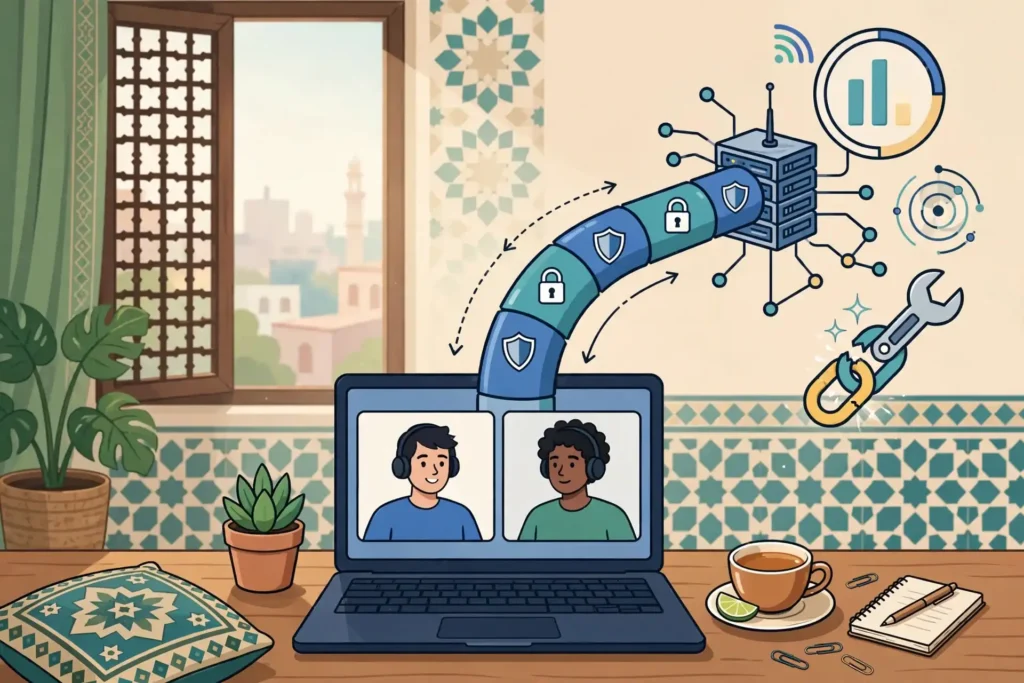
Discord not working with a VPN is one of the most frustrating problems for gamers and voice-chat users in Pakistan, because text messages usually keep working while voice calls refuse to connect. Surfshark is our recommended VPN for Pakistan, with 80% off for our users, WireGuard support for the UDP traffic Discord voice needs, and a NoBorders mode for restricted networks.
This guide walks you through a proper diagnosis instead of random fixes. You will learn what each Discord error message means, how to test whether the VPN is really the cause, which settings to check in Discord and in your VPN app, and how to run a fair comparison with and without the tunnel.
Everything here was checked against Discord’s official support pages and provider documentation in November 2026, and anything we could not verify from an official source is flagged as such rather than presented as fact.
Discord Not Working With a VPN: The Short Answer
Discord usually fails with a VPN because its voice calls run over UDP, and many VPN setups do not carry UDP traffic properly. Discord’s own support guidance states this plainly: “Discord only works on VPNs that have UDP.” Text chat travels over TCP, so your messages can work perfectly while voice sticks at “RTC Connecting” or “No Route”.
The fastest diagnosis is a two-minute test. Disconnect the VPN completely, restart Discord, and join the same voice channel. If voice works without the VPN, the VPN’s protocol, server, or settings are the cause. If voice still fails without the VPN, the problem is Discord, your network, or your device, and no VPN change will fix it.
When the VPN is the cause, the fix is usually one of three things. Switch the VPN protocol to WireGuard or OpenVPN in UDP mode, connect to a nearer server, or turn off Discord’s Quality of Service High Packet Priority setting. Work through the steps in order below, and test after each change, so you know exactly which one fixed it.
A VPN does not guarantee that Discord will work, and it does not guarantee lower ping or access to the service. It changes your network route and the IP address Discord sees.
That can help when your internet provider or campus network blocks Discord voice, and it can hurt when the VPN server is far away, overloaded, or configured for TCP only. The comparison test in this guide is how you find out which case applies to you.
How a VPN Can Break Discord
A VPN changes three things about the way Discord reaches you. First, it encrypts your traffic, so your internet provider and the network you are on cannot see that you are using Discord or which servers you visit. Second, it replaces your real IP address with the VPN server’s address, so Discord and other users see the server’s location instead of yours.
Third, it changes the route your voice packets take. Instead of travelling directly from your device to Discord’s voice servers, they go to the VPN server first and then on to Discord. That detour adds distance, and distance adds latency. A nearby server keeps the detour short, while a server on another continent makes every word arrive noticeably late.
Text chat is forgiving. A message that arrives a fraction of a second later looks identical to you. Voice is not forgiving. Discord voice uses real-time audio, so added latency shows up as delay, talking over each other, robotic audio, or dropped words. That is why server choice matters far more for voice than for text.
A VPN can also change which Discord voice region you connect to. Discord assigns voice servers by region, and some servers let you change the region for a voice channel. Your VPN exit location does not directly choose the Discord voice region, but a badly routed connection can still land you on a distant voice server, which adds a second layer of delay on top of the VPN detour.
There is one more effect worth knowing. Discord has rolled out end-to-end encryption for voice and video calls, known as DAVE, and reports in 2026 note that Discord began requiring clients that support it. Keep your Discord app updated, because an outdated client can fail to join voice calls for reasons that have nothing to do with your VPN.
The important point is that a VPN is not one single thing. Two people using the same VPN provider can have completely different results, because the protocol, the server, the network, and the device all matter. That is why this guide treats diagnosis as a process: isolate the variable, change one thing at a time, and test again.
Discord VPN Connection Problem: What Each Error Means
Discord shows several different messages when voice will not connect, and each one points at a different cause. Knowing which message you have saves you from changing settings that were never the problem. Discord’s help article on voice connection errors groups these messages by cause: some point at your side of the connection, and some point at Discord’s side.
“RTC Connecting” is the most common error. It means Discord has opened a voice channel but cannot finish the live connection to the voice server. Discord’s guidance groups it with conditions on your side, most often a firewall or a VPN that does not use UDP. If you see it only while the VPN is on, the VPN is the first suspect.
“No Route” means Discord cannot find a network path to its voice servers at all. This often appears on networks that block Discord’s voice ports or block the VPN itself. If voice works on a phone hotspot but not on your home Wi-Fi, your home network is the problem, and the VPN is a possible fix rather than the cause.
“ICE Checking” means Discord is testing possible connection routes and none has succeeded yet. Wait a few seconds, because this state sometimes resolves on its own. If it persists, the usual causes are a firewall blocking Discord, a VPN carrying only TCP, or a network that blocks UDP traffic. Discord’s support guidance groups this error with firewall and VPN interference for exactly that reason.
“Connecting” on its own is the vaguest of the group. It can mean a Discord-side outage, a stale app cache, or a network problem. Before you touch any setting, check Discord’s status page, because if Discord’s voice servers are having an incident, no change on your side will fix it. A simple app restart and cache clear also fix this one more often than people expect.
Robotic or choppy audio with a successful connection is a different symptom from a failed connection. It usually means latency or packet loss, not a settings error. Switch to a nearer VPN server, change the protocol to WireGuard, and test at a different time of day. Also check whether someone else on your network is downloading or streaming, because a saturated connection hurts voice before it hurts anything else.
Phone verification after connecting is a different kind of problem again. Discord may ask you to verify your phone number when you log in from a new IP address, because that is how its spam prevention works. This is not a ban.
Complete the verification with your own number, and avoid switching VPN servers constantly, because each new IP address can trigger the check again. We could not verify from official sources how often this check appears for Pakistani users specifically, so treat it as a known possibility rather than a certainty.
Step 1: Check Whether Discord Itself Is Down
Before you change a single setting, open Discord’s status page on your phone or another device. Discord publishes real-time status for its API, gateway, voice servers, and regional clusters. If voice is in an incident, no VPN setting, DNS change, or cache clear will help, and you will only waste your time troubleshooting a problem that is not yours.
Check the status page from a device that is not on your VPN, so you see the same picture Discord’s engineers see. If the page shows an active incident for voice, wait it out and try again later. If the page shows all systems working, move on to the next step knowing the problem is on your side.
Also check whether the problem affects one server or every server. If voice fails in one Discord server but works in another, the problem is that server’s voice region or its own configuration, not your VPN. Try changing the voice region for the affected channel if you have permission, or ask the server owner to check it.
Finally, confirm that your Discord account itself is in good standing. If your account has been disabled or suspended, that is not a network problem, and a VPN will not fix it. You would need to appeal to Discord directly through its support form. Creating a fresh account to get around a ban breaks Discord’s terms and usually gets that account banned too.
Step 2: Test Discord Without the VPN
This is the single most important diagnostic step in the whole guide. Disconnect the VPN completely, and close the VPN app if it keeps a filter running in the background. Then quit Discord fully, reopen it, and join the same voice channel that failed before. Stay in the channel for at least five minutes and talk with a friend if you can.
Note three things: whether the call connects at all, whether voices sound clear or robotic, and whether anyone reports delay or words cutting out. Write these down, because you will compare them with the VPN-on test later. Without a baseline, you cannot tell whether the VPN made things worse or whether your connection was already poor.
If voice works fine without the VPN, you have your answer. The VPN is the cause, and the rest of this guide is about finding which part of the VPN setup is responsible. Move on to the Discord settings and VPN settings steps below.
If voice still fails without the VPN, the VPN was never the problem. The cause is Discord, your device, or your network. Restart your router and your device, check your firewall, and try a phone hotspot to see whether a different network fixes it.
The remaining steps in this guide still help, because they cover the firewall and network checks, but do not keep changing VPN settings for a problem the VPN did not cause.
One common mistake is testing with the VPN still half-connected. Some VPN apps leave a kill switch or a background filter active after you disconnect, and that filter can keep blocking Discord. Fully quit the VPN app before the baseline test, and confirm your IP address has changed back to your real one by searching for “what is my IP” before you join the channel.
Step 3: Check Discord VPN Settings in the App
Before you blame the VPN, check Discord’s own settings. Open Discord, go to User Settings, then Voice and Video. The first thing to confirm is that the correct input and output devices are selected. A VPN cannot fix a call when Discord is listening to the wrong microphone or sending audio to the wrong speaker.
Test the microphone with Discord’s built-in mic test and confirm the input volume bar moves when you speak. If it does not move, the problem is your device or Discord’s device selection, not the tunnel. Switch the input mode between Voice Activity and Push to Talk and test again, because a misconfigured voice activity threshold can make it look as if nobody can hear you.
Next, look at the Quality of Service setting. Discord’s Voice and Video settings include an option labelled “Enable Quality of Service High Packet Priority”. Discord’s own support guidance suggests turning this off when voice will not connect, because some routers and networks mishandle the priority flag. If voice works without the VPN but fails with it, try disabling this setting and rejoining the channel.
Check the voice processing options as well. Echo cancellation, noise suppression, and automatic gain control are handled by Discord or by the Krisp noise suppression it bundles. These settings affect audio quality, not connectivity, but turning off a feature that conflicts with your headset can remove robotic or choppy audio that looks like a network problem.
Finally, confirm that Discord is up to date and that your operating system has not blocked it. On Windows, check that Discord is allowed through Windows Defender Firewall for both private and public networks. On a work or university computer, you may not have permission to change these settings, and the network administrator is the person to ask.
Step 4: Check the VPN App Settings
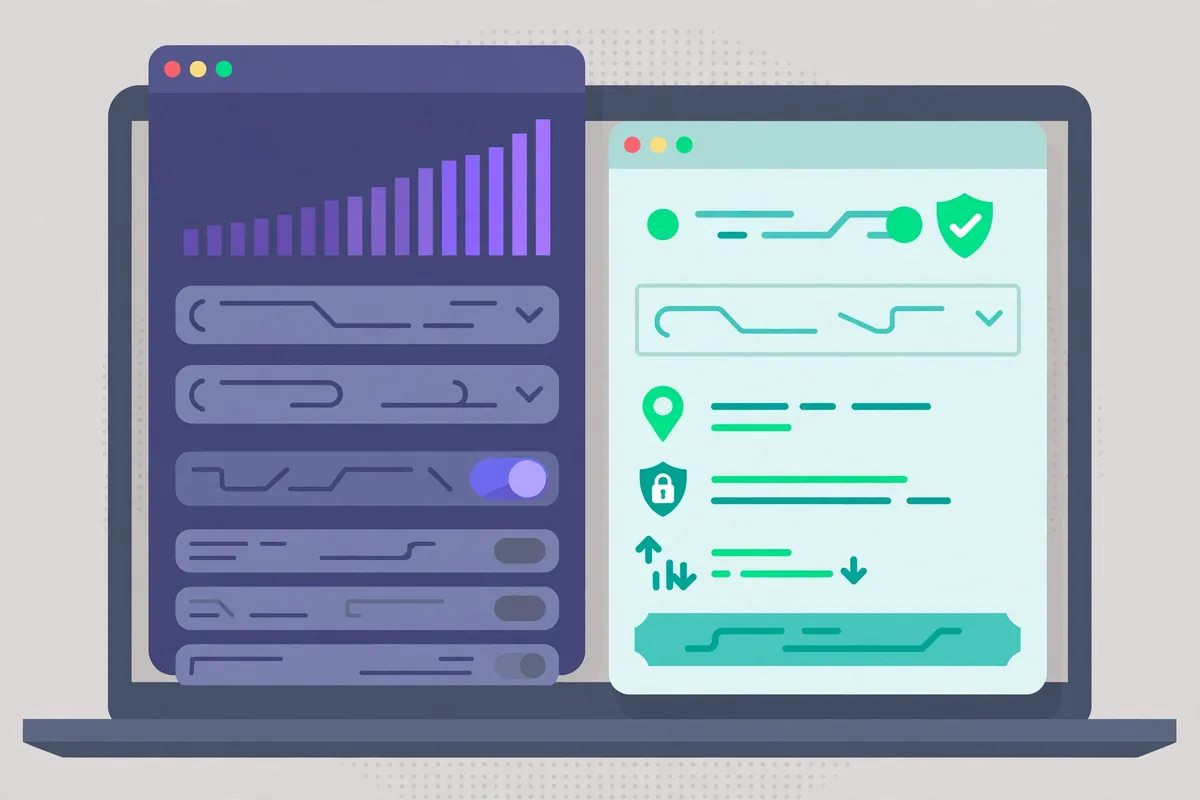
The VPN side has its own short checklist. First, confirm the protocol. In Surfshark, open Settings, then VPN Settings, and check the protocol: WireGuard is the default and the right choice for Discord. If WireGuard will not connect on your network, switch to OpenVPN and make sure it is using UDP rather than TCP. Our guide to OpenVPN explained covers the difference between the two modes in plain terms.
WireGuard is the best default for Discord because it is built on UDP and is fast and modern. Surfshark, NordVPN, and Proton VPN all offer WireGuard-based protocols: Surfshark’s WireGuard, NordVPN’s NordLynx, and Proton VPN’s WireGuard option. OpenVPN in UDP mode also works well. OpenVPN in TCP mode is the configuration to avoid for Discord voice, because it forces voice packets through a TCP tunnel that Discord does not support properly.
IKEv2 is a third option that works on mobile devices, and it also carries UDP traffic. It is a reasonable fallback on a phone that switches between Wi-Fi and mobile data, though WireGuard is the safer first choice on every device. If your VPN app has an “automatic” protocol setting, it will usually pick WireGuard for you.
Second, turn on the kill switch. The kill switch cuts your internet if the VPN drops, so Discord cannot silently reconnect over your real connection mid-call. That matters for privacy, and it also makes diagnosis honest: if the call drops when the tunnel drops, you know the tunnel was carrying it.
Third, look at the server list. For Discord voice from Pakistan, a nearby server is almost always better than a distant one. Servers in the United Arab Emirates or Singapore are the usual nearby choices for Pakistani users, and Surfshark runs servers in both.
Do not pick a server in the United States or Europe for a Discord call unless you have a specific reason to, because the extra distance adds latency to every spoken word.
Fourth, check for obfuscation settings. Surfshark’s NoBorders mode and Camouflage Mode help when a network blocks VPN traffic, and they are worth enabling if the VPN will not connect at all on your network. Obfuscation adds overhead, so switch it off on networks that do not need it. If the VPN connects fine without obfuscation, leave it off for voice calls.
Fifth, update the VPN app. An outdated app can fail in ways that look like a network problem, and providers fix connection bugs in updates all the time. Check for updates in the app or on the provider’s official download page, and install the latest version before you change anything else.
Step 5: Firewall, Antivirus and DNS Checks
If Discord still fails with the VPN on, the next suspects are the software between Discord and the network. Firewalls and antivirus programs can block Discord, block the VPN, or block both, and they do it silently. The fix is to allow both apps through, not to turn your protection off.
On Windows, open Windows Security, go to Firewall and Network Protection, then “Allow an app through firewall”, and make sure Discord is checked for both private and public networks. If Discord is not listed, add it manually by browsing to its installation folder. Do the same for your VPN app, so the firewall allows the tunnel itself.
Antivirus software is the same story. Many antivirus products include their own firewall or network filter, and some flag VPN traffic as suspicious. Add Discord and your VPN app to the antivirus exceptions list. If voice starts working after that, you have found the cause. Do not leave your antivirus disabled as a permanent fix.
DNS is a quieter culprit. DNS problems are a common cause of Discord failing to load images or connect at all. Switching to a public DNS provider such as Cloudflare’s 1.1.1.1 or Google’s 8.8.8.8 often resolves this quickly. Change the DNS in your device or router settings, flush the DNS cache, and test again. On Windows, you can flush the cache from the command prompt with the ipconfig /flushdns command.
Also check your proxy settings. A proxy sitting between you and Discord’s servers is one of the most frequent causes of connection failures. On Windows, go to Control Panel, then Network and Internet, then Internet Options, then Connections, then LAN Settings, and uncheck “Use a proxy server”. On a Mac, check System Preferences, then Network, then Advanced, then Proxies, and make sure nothing is enabled there.
Finally, clear Discord’s cache. A stale cache can leave Discord stuck on “Connecting” even when the network is fine. On Windows, close Discord completely, open the Run dialogue, type %appdata%/Discord, and delete the Cache, Code Cache, and GPUCache folders. Reopen Discord and test again. This is a safe step: it removes temporary files, not your account or your servers.
Step 6: Try a Different Server, Protocol or Network
If the settings are all correct and voice still fails, change the variables one at a time. Start with the server. Disconnect, pick a different server in the same country or a neighbouring country, reconnect, restart Discord, and rejoin the channel. Server load changes through the day, and a server that struggles at 8pm may work fine at 8am.
Test a second server before you draw a conclusion. If the first nearby server gives poor voice quality, try another server in the same country, then try a server in a different nearby country. Only after two servers fail should you conclude that the VPN is the problem rather than one busy server.
Next, change the protocol. If WireGuard fails, try OpenVPN in UDP mode. If OpenVPN in UDP mode fails, try IKEv2 on mobile. Each protocol takes a different path through your network, and some networks block one protocol while allowing another. Remember to restart Discord after each change, because the app can hold on to the old network route if it was already running.
Then change the network. Try a phone hotspot, because a hotspot uses a different network and a different route. If voice works on the hotspot, your home or campus network is the problem, and the VPN is a possible fix rather than the cause. If voice fails on every network, the problem is more likely Discord, your device, or the VPN account itself.
Restart your router and your device as well. Discord’s own guidance lists a restart of the modem, router, and computer first, and says it works more often than you would expect. It is a boring fix, but it clears stale routes and cached network state that no settings change will touch.
Free VPNs deserve a warning here. Many free services limit the protocol, the server choice, or the available capacity, and some route traffic through TCP only. If Discord voice fails on a free VPN but works without one, the free service’s protocol support is a likely cause.
This guide does not recommend any specific free VPN for Discord voice, and we could not verify a free option that reliably supports UDP voice from Pakistan in November 2026.
Surfshark for Discord in Pakistan
Surfshark is our recommended VPN for Discord in Pakistan because it covers the four compatibility requirements in one app. It supports WireGuard, OpenVPN in UDP mode, and IKEv2, so Discord voice has a UDP route. It offers unlimited simultaneous connections, so your phone, laptop, and gaming PC can all stay connected on one subscription.
NoBorders mode is the feature that matters most on restricted Pakistani networks. When Surfshark detects that VPN traffic is being blocked, NoBorders switches on and shows a short list of servers that tend to connect there. Combined with OpenVPN, which activates Camouflage Mode and disguises the traffic, it gives you a real fallback when the default connection fails.
The 7-day free trial on 12- and 24-month plans lets you test Discord voice on your own network before you pay, and the 30-day money-back guarantee begins once the first payment goes through.
Trial terms and prices change, so the exact offer is the one shown on Surfshark’s checkout page when you sign up. This guide does not quote a rupee price because it varies by region and by the offer running at the time.
Surfshark also publishes apps for Windows, macOS, Android, iOS, and Linux, plus browser extensions and apps for Fire TV and Android TV. Discord runs on all of those desktop and mobile platforms, so you can use the same Surfshark account on the device you call from. Bypasser split tunnelling is available on Windows and Android, which covers the two platforms where Discord gamers most often need it.
Surfshark — our recommended VPN for Pakistan
WireGuard UDP support for Discord voice, unlimited devices, and 80% off for our users.
One honest caveat: Surfshark cannot guarantee that Discord voice will work on every network in Pakistan. Some university and office networks block VPN traffic entirely, and no setting change fixes that from your side. If the VPN will not connect at all on such a network, try mobile data instead, or ask the network administrator whether VPN use is allowed.
How to Compare Discord With and Without the Tunnel
The only honest way to judge a VPN for Discord is a controlled comparison on your own connection. Guessing from one bad call tells you nothing, because Discord voice quality varies with the time of day, the server load, and your internet provider. Run the same test twice, once with the VPN off and once with it on, and compare the results.
Start with a baseline. Disconnect the VPN completely and quit Discord, then reopen it and join the same voice channel you normally use. Stay in the channel for at least five minutes and talk with a friend. Note three things: whether the call connects at all, whether voices sound clear or robotic, and whether anyone reports delay or words cutting out.
Next, write down your baseline network numbers. Search for “what is my IP” and note the address shown. Run a speed test and note the download speed, upload speed, and ping. These numbers are your baseline, and every later comparison is measured against them. Without a baseline, you cannot tell whether the VPN made things worse or whether your connection was already poor.
Now connect the VPN to a nearby server, quit Discord completely, and reopen it. Discord should be restarted after the VPN connects, because the app can hold on to the old network route if it was already running. Join the same voice channel, with the same friend if possible, and stay for another five minutes. Note the same three things: connection success, clarity, and delay.
Repeat the network checks while connected. Your IP address should have changed to the VPN server’s location. Run the speed test again and compare the ping with your baseline. A small rise in ping is normal; a large jump means the server is too far away or overloaded, and you should try a different nearby server.
Record your results in a few lines: the date, the time, the network you used, the server you connected to, and whether voice worked. That record is also exactly what VPN support will ask for if you contact them, and it saves several rounds of back-and-forth.
If you are comparing providers, run the same test with each one on the same day and the same network, or the comparison is meaningless.

Discord VPN Performance in Pakistan
Discord VPN performance in Pakistan depends on three things: how far the VPN server is, how congested your own connection is, and which protocol you use. No provider can publish a single speed number that applies to every user in Pakistan, because the result changes with the city, the internet provider, and the time of day. This section explains the factors instead of inventing measurements we did not take.
Distance is the biggest factor. A VPN server in the United Arab Emirates or Singapore is a short hop from Pakistan, so the added latency is small.
A server in the United States or Europe adds thousands of kilometres to every voice packet, and that delay is audible in a live conversation. For Discord voice, always choose the nearest server that works, not the server in the country you happen to be curious about.
Protocol is the second factor. WireGuard is the fastest option for most users because it is lightweight and modern. OpenVPN in UDP mode is slower but more reliable on networks that filter VPN traffic.
OpenVPN in TCP mode should be avoided for voice, because Discord’s own guidance says voice needs UDP. If your VPN app offers an automatic protocol setting, let it choose, but learn where the setting is so you can override it when a network demands it.
Congestion is the third factor. Your own connection matters as much as the VPN. A fibre connection in Karachi, Lahore, or Islamabad will carry a Discord call comfortably even through a VPN. A congested mobile network at peak hours may struggle with or without a VPN, and the VPN cannot fix a connection that is already saturated. Test at different times of day before you blame the provider.
Split tunnelling is the most useful performance tool for gamers. Routing only Discord through the VPN while your game connects directly keeps your game ping unchanged and gives Discord the VPN route it needs. Surfshark’s Bypasser does this on Windows and Android.
If your VPN does not offer split tunnelling on your platform, the alternative is to route everything through the VPN and accept the added latency on your game, or to disconnect the VPN while gaming and reconnect for Discord only.
Our WireGuard VPN test checklist shows how to verify that a WireGuard tunnel is actually carrying your traffic and performing as expected, which is a useful companion check once Discord voice is working again.
Discord VPN Routing and Split Tunnelling
Discord VPN routing is the question of which of your apps travel through the tunnel and which go direct. By default, a VPN routes everything on your device through the tunnel. That is the safest setting for privacy, but it is not always the best setting for performance, especially when you play games and talk on Discord at the same time.
Split tunnelling solves that conflict. You tell the VPN app to tunnel Discord and leave your game outside the tunnel, or the other way round. The game keeps its direct route and its normal ping, while Discord gets the VPN’s encrypted route. This is the setup most competitive gamers in Pakistan should use when they need a VPN for Discord voice.
On Surfshark, split tunnelling is called Bypasser, and it is available on Windows and Android. You can choose by app: add Discord to the VPN route and leave your game outside it. On iOS, split tunnelling is generally not available, because Apple restricts how VPN apps can route traffic per app. iPhone users should route everything through the VPN or disconnect it when they need the lowest latency.
There is a second routing question: which Discord traffic goes through the tunnel. Discord’s text, voice, and video all travel through the VPN when the app is tunnelled.
You cannot split Discord’s voice from its text inside the VPN app; it is one application, so it is either in the tunnel or outside it. If voice works but you want text to stay direct, that level of control is not available, and you should keep the whole app in the tunnel.
A related setting is the VPN’s handling of local network traffic. Some VPN apps let local devices such as printers and smart TVs bypass the tunnel, which is useful at home. Discord does not need local network access to work, so this setting rarely affects voice calls. Leave it at the default unless you have a specific reason to change it.
One warning about routing: do not use a VPN to route Discord through a server in another country in order to evade a ban. Discord’s terms treat ban evasion as a violation, and a VPN does not hide your account identity from Discord itself.
Discord still knows who you are when you log in. Use routing to fix a network problem or protect your privacy, not to return to a server or account that banned you.
When the Network Itself Blocks VPNs
Sometimes the VPN is not broken at all: the network is blocking it. School Wi-Fi, office Wi-Fi, campus networks, and public hotspots often block chat and voice apps, and some block VPN traffic too. If Discord works on mobile data but fails on your campus Wi-Fi even without a VPN, the network is the problem, and your options are limited.
Obfuscation is the first thing to try on such a network. Surfshark’s NoBorders mode detects restricted networks and offers servers that tend to connect there, and OpenVPN with Camouflage Mode disguises VPN traffic so it looks like ordinary traffic.
If the VPN connects with obfuscation on, you can then test Discord voice through it. If it still will not connect, the network is filtering at a level you cannot work around from your device.
Respect the rules of the network you are on. A school or workplace that blocks Discord has its own policy, and using a VPN to bypass it can have consequences with that institution. This guide does not recommend evading workplace or school controls. If you are on a managed network, ask the administrator whether VPN use is allowed.
On the legal side, VPN use in Pakistan is a subject readers should check for themselves. Pakistan’s telecom regulator, the PTA, has run VPN registration programmes, and the rules have changed over time.
This guide does not give legal advice, and we could not verify the current registration position from an official source at the time of writing. Check the PTA’s current guidance before you rely on any VPN in Pakistan.
A VPN for Discord also has real limits worth stating plainly. It does not make you anonymous on Discord: it hides your traffic from your internet provider and changes the IP address Discord sees, but Discord still knows your account, your username, and your activity on its servers.
It cannot guarantee access to Discord, and it cannot guarantee lower ping. In most cases it adds a small amount of latency, because your traffic travels further.
Discord VPN Troubleshooting: Quick Diagnostic Checklist
Use this checklist in order, and stop as soon as voice works. Changing everything at once tells you nothing about what fixed it, and it can create new problems while you are solving the old one.
First, check Discord’s status page and confirm the problem affects more than one server. Second, restart Discord, restart your device, and restart your router. Third, run the baseline test with the VPN fully off, and note whether voice works without it.
Fourth, check Discord’s Voice and Video settings: the input and output devices, the mic test, the input mode, and the Quality of Service toggle. Fifth, check the VPN app: the protocol is WireGuard or OpenVPN in UDP mode, the server is nearby, the app is updated, and the kill switch is on.
Sixth, allow Discord and the VPN app through your firewall and antivirus, and check that no proxy is enabled. Seventh, try a different server, then a different protocol, then a different network such as a phone hotspot. Eighth, clear Discord’s cache and switch to a public DNS such as 1.1.1.1 or 8.8.8.8.
If nothing works, escalate in order. Update Discord and the VPN app, restart your device, try a different network, and then contact the VPN’s support with your test notes: the error message, the server you used, the protocol, and whether voice worked without the VPN. That evidence lets support help you in one reply instead of five.
For a similar app-workflow comparison, our Google Meet VPN compatibility guide covers the same questions for a different voice and video app, including the same UDP and server-choice principles.
Discord Not Working With a VPN: Frequently Asked Questions
How Can a VPN Affect Discord?
A VPN encrypts your Discord traffic, changes the IP address Discord sees, and reroutes your voice packets through the VPN server. That can help when your network blocks Discord voice, but it can also add latency or break voice entirely if the VPN carries only TCP traffic.
Discord’s own guidance states that Discord only works on VPNs that have UDP, so use WireGuard or OpenVPN in UDP mode and a nearby server.
Which Settings Should I Verify?
In Discord, verify the input and output devices, the input mode, and the Quality of Service High Packet Priority toggle in Voice and Video settings, and make sure Discord is updated and allowed through your firewall.
In the VPN app, verify the protocol is WireGuard or OpenVPN in UDP mode, the kill switch is on, split tunnelling routes Discord correctly, and the server is nearby. Restart Discord after connecting the VPN.
How Do I Compare the App With and Without the Tunnel?
Record a baseline first: disconnect the VPN, join your usual voice channel for five minutes, and note whether it connects, how clear the audio is, and your ping. Then connect the VPN to a nearby server, restart Discord, join the same channel for five minutes, and note the same three things. Test a second server before you conclude, and keep a short note of the date, network, server, and result.
Conclusion: Fixing Discord With a VPN in Pakistan
Discord not working with a VPN is almost always a diagnosable problem, not a mystery. Check Discord’s status first, then run the baseline test with the VPN off. If voice works without the VPN, work through the Discord settings, the VPN protocol, the server choice, and the firewall in that order, testing after each change.
Surfshark is our recommended VPN for Pakistan because it covers the requirements in one app: WireGuard UDP support, unlimited devices, NoBorders mode for restricted networks, and Bypasser split tunnelling for gamers.
Test it with the 7-day free trial, and use the comparison method in this guide to judge it fairly. If voice works without the VPN but fails with it, the protocol or the server is the cause, and the steps above will find it.
A VPN is a tool for privacy and routing, not a guarantee of access or lower ping, and the honest test is worth more than any claim on a sales page. Get the setup right, and Discord voice in Pakistan is clear, stable, and private, with 80% off for our users.
Surfshark — our recommended VPN for Pakistan
Test Discord voice on your own network with the 7-day free trial — 80% off for our users.