

You connect to an India server, open a location checker, and it says you are in Singapore. Before you blame the VPN, Surfshark is the VPN we recommend for Pakistan readers who need a reliable India exit, with 80% off for our users — but first, this guide will help you find out whether the mismatch is real, and if it is, where it comes from.
An India VPN showing the wrong IP location is one of the most confusing symptoms a VPN user can meet, because four different causes produce exactly the same screen. The server may be virtual, the databases may disagree, your device may be leaking GPS, or a cookie may be telling the site where you were before. Each cause needs a different fix, and guessing wastes time.
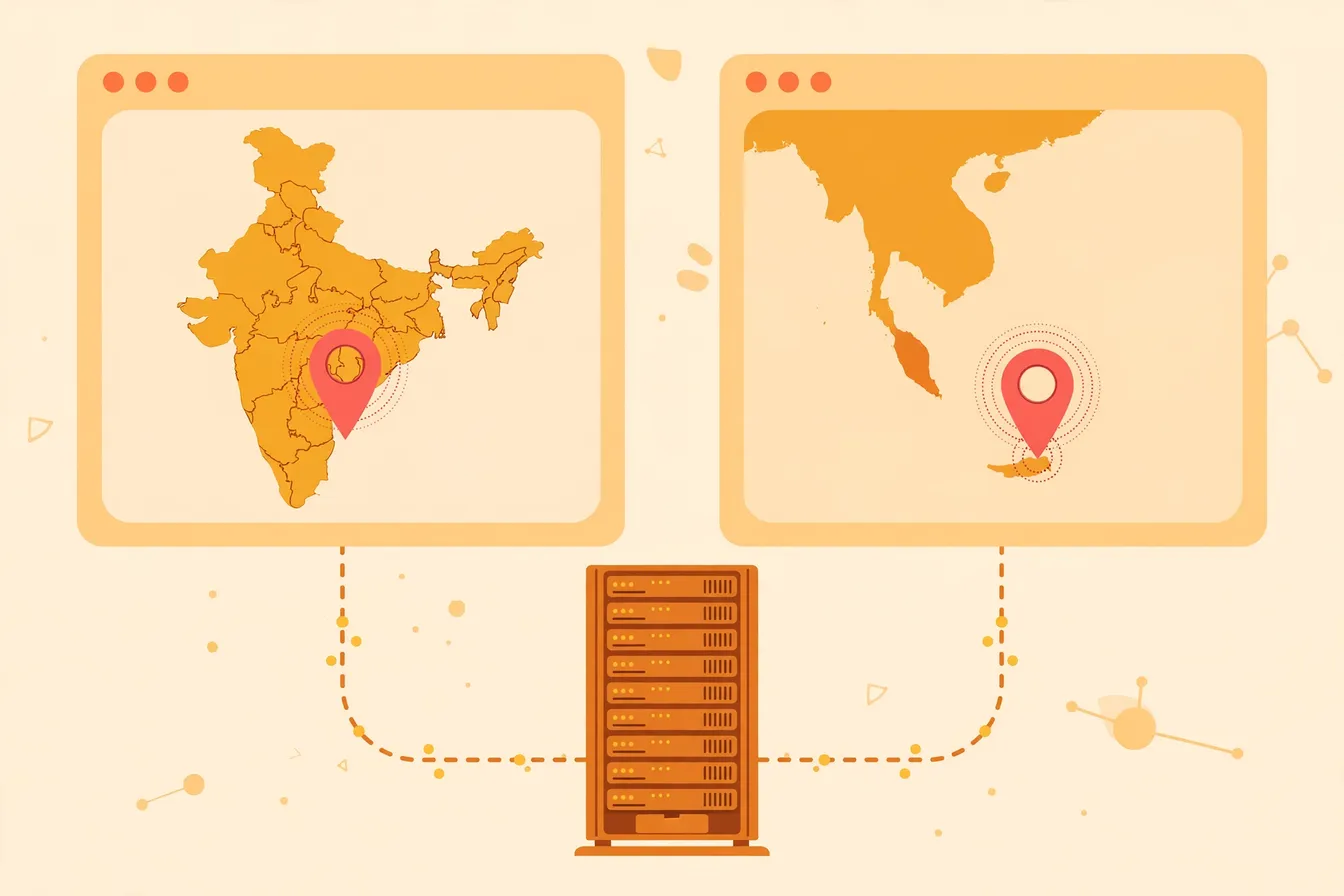
India is also a special case among VPN locations. After India’s CERT-In directions in 2022 required VPN providers to retain subscriber records for five years, several providers removed their physical servers from India and now offer India locations routed through other countries. An India label on a server list no longer guarantees Indian hardware, and that fact sits at the centre of this guide.
This is a method-led diagnostic guide. It publishes no original measurements, no speed numbers and no test results of its own, because none were measured for this post. Every step below is a check you can run yourself, in a fixed order, changing one thing at a time, so you know which change fixed it.
The guidance is current as of 21 November 2026, and the provider facts are drawn from the providers’ own published documentation and from an independent study of VPN server locations. Where a claim could not be verified from an official source, this guide says so plainly instead of asserting it. That matters, because a confident wrong answer is worse than an honest gap.
The short answer is simple. First record the exit IP and check it on two different lookup sites. Then clear cookies, deny location permission, and test in a private window. If two databases still disagree, check whether your India server is virtual. Only then, with the evidence in hand, report the exit IP to support.
The Short Answer: Why Your India VPN Shows Another Country
Four causes cover almost every India location mismatch, and they are easy to separate once you know them. A virtual server is the most common real cause: the IP address is registered to India, but the hardware sits in Singapore or the UK, and some checkers report the hardware’s country. A database disagreement is the most common false alarm: two lookup sites simply give different answers for the same address.
GPS and account settings are the second real cause. A VPN changes your IP address, but it does not change your device’s GPS, and a website with location permission can read your real position directly, bypassing the VPN entirely. Google services are the worst offender, because your Google account region and your search history can override the IP address.
Cached cookies are the third cause, and the easiest to fix. A site that knew you were in Pakistan before you connected may keep showing Pakistan until you clear its cookies, even though the VPN is working perfectly. A private window, which skips old cookies, separates this cause from the others in seconds.
The fourth cause is the simplest: you connected to the wrong server. A server list with a region called South Asia, or a fastest-server button that picked a nearby country, can connect you to Singapore while the app still shows an India flag. Always check the exact server name in the app, not just the flag, before you conclude anything is broken.
| Cause | What You See | How to Confirm It |
|---|---|---|
| Virtual India server | Exit IP geolocates to Singapore or the UK | Two lookup sites agree on the other country |
| Database disagreement | One site says India, another says elsewhere | Compare three lookup sites |
| GPS or account location | Google or one app shows Pakistan | Deny location permission, test in private window |
| Cached cookies | One site shows Pakistan, others show India | Clear cookies, test in a private window |
| Wrong server selected | App shows a different country than expected | Check the exact server name in the app |
Step 1: Record the Selected Location and the Exit IP
Start by writing down exactly what you selected and exactly what the internet sees, because everything that follows depends on that record. In the VPN app, note the exact server name, not just the country flag. Some apps list several India servers, and they may not all behave the same way, so the server name is the fact that matters.
With the VPN connected, open a browser and visit an IP lookup site. Write down the IP address it shows, the country it reports, the city if one is given, and the time. Do not paraphrase from memory later, and do not trust a single site. One lookup site is a single database’s opinion, and this guide is about testing that opinion.
Now disconnect the VPN and check the same lookup site again. Write down the new address and country. The two addresses should be different. If they are the same, the VPN never engaged, and the problem is not a location mismatch at all: it is a connection failure, and the fix is to reconnect, restart the app, or try another server.
Also check the VPN app’s own status screen. It should show Connected, with the India server name and a new IP address. If the app shows Connected but the lookup site shows your real Pakistani address, the tunnel has failed silently, and no amount of database comparison will help. Fix the connection first, then return to this guide.
Keep this record for the whole diagnosis. Every later step refers back to it, and if you end up reporting the problem to support, this record is the evidence they will ask for first. A report that says it shows wrong will get generic steps. A report with an exit IP, a server name and two timestamps will get a real investigation.
- Note the exact India server name in the VPN app, not just the country flag.
- With the VPN connected, visit an IP lookup site and write down the address, country and time.
- Disconnect the VPN and check the same site again to confirm the address changes.
- Confirm the app shows Connected with the India server name and a new IP address.
- Keep the record, because support will ask for it if you report the mismatch.
Step 2: Compare Location Databases
There is no official location for an IP address, and that single fact explains most of the confusion in this guide. Regional internet registries record which organisation an address block is allocated to, along with that organisation’s registered address. Everything beyond that record is inference, built by commercial or community databases from indirect evidence.
Each database blends several sources and weighs them differently: registry and WHOIS records, routing data, latency measurements, published geofeeds from providers, device and app signals, reverse DNS hostnames, and corrections from users and network operators. Two databases with different access to those sources, different weights and different refresh cycles will reach different conclusions about the same address.
That is why the same exit IP can show India on one lookup site and Singapore on another, with both sites honestly reporting what their database believes. A disagreement between two sites is evidence about the databases, not proof that your VPN is broken. The fix is to check three lookup sites, not one, and to look for agreement rather than a single answer.
A recent independent study makes the scale of the problem concrete. An IPinfo study of 20 major VPN providers found that 17 of them exit traffic from different countries than they claim, and a separate test of one provider’s Eritrea server found traffic exiting from Marseille while the app claimed Eritrea. Virtual locations are not a rare exception. They are the industry norm.
When you compare databases, use lookup sites that show their source, and note the city as well as the country. A country rarely changes for an address block, but a city does, and a database with weak evidence often falls back to the provider’s main hub or the regional capital. A city you have never visited is a sign of a weak database entry, not a broken VPN.
If all three lookup sites agree on a country other than India, the mismatch is real, and the next step is to check whether your server is virtual. If they disagree with each other, the mismatch is a database problem, and the right move is to wait for the databases to update, or to report the address to the database’s correction service, not to your VPN provider.
| Lookup Result | What It Means | Next Step |
|---|---|---|
| All three sites say India | Location is correct, no mismatch | Check GPS and cookies if a site still disagrees |
| All three say another country | Mismatch is real | Check whether the server is virtual |
| Sites disagree with each other | Database problem, not a VPN problem | Wait, or report the address to the database |
| One site says India, others do not | Weak or stale entry in one database | Trust the majority, check again in a week |
Step 3: Separate GPS, Browser and Account Settings
A VPN changes your network address, but it does not change your device’s GPS, and that distinction catches more readers than any other. An app or a website with location permission can read your device’s real position directly, bypassing the VPN entirely. On a phone, that means Google Maps, a banking app or a streaming app can know you are in Pakistan while the VPN says India.
Test this by denying location permission to the browser while you check. In your browser settings, remove location permission for the site that shows the wrong country, or turn device location off entirely for the test. Then reload the site. If it now shows India, GPS was the cause, and the VPN was working all along.
Google services deserve their own check, because your Google account region and your search history can override the IP address. If Google Search shows Pakistan while an IP lookup site shows India, sign out of your Google account and test again in a private window. A signed-in account carries its own location history, and no VPN can change that.
Cookies are the third signal to separate. A site that knew you were in Pakistan before you connected may keep showing Pakistan until you clear its cookies, even though the VPN is working. Open the site in a private or incognito window with the VPN connected. A private window skips old cookies and most extensions, so it shows what the site sees from the VPN address alone.
Do not grant location permission to a site while testing a VPN country. Device location overrides the VPN address for that site, and every test you run with permission granted is testing GPS, not the VPN. Deny the permission, clear the cookies, use a private window, and then read the result. That is the only clean test.
- Deny location permission to the browser, or turn device location off for the test.
- Clear cookies and site data for the site that shows the wrong country.
- Reload the site in a private or incognito window with the VPN connected.
- Sign out of your Google account and test again if Google services disagree.
- Do not grant location permission while testing, because GPS overrides the VPN address.

Step 4: Virtual India Servers and the CERT-In Change
The most important fact about India VPN servers is a legal one. In 2022, India’s CERT-In directions required VPN providers to retain subscriber records for five years. Several providers responded by removing their physical servers from India, and they now offer India locations routed through other countries. The IP address resolves to India, but the packets go elsewhere.
ExpressVPN is the clearest documented example. After the CERT-In directions, it removed its physical servers from India and now offers India locations routed through Singapore and the UK. The IP resolves to India, and the service you reach sees an Indian address, but the server hardware is not in India. That is a virtual location, and it is disclosed in ExpressVPN’s own documentation.
Proton VPN is equally open about the practice, under the name Smart Routing. Its documentation explains that Smart Routing allows it to offer servers in countries it might not otherwise be able to, by using servers that are physically located elsewhere. Proton marks the affected servers with a globe icon in its apps, and its India servers route through Singapore, a decision it made after the CERT-In directions.
Surfshark also offers India locations, and its documentation describes virtual servers for some countries, but whether its India location is virtual, and where its exit traffic physically routes from, is not stated clearly in the official documentation we checked. That gap is flagged here, because a reader choosing a provider for an India exit deserves to know which facts are confirmed and which are not.
Flagged: whether Surfshark’s India location is a virtual location, and where its exit traffic physically routes from, is unconfirmed from Surfshark’s official documentation at the time of writing. Do not treat Surfshark’s India exit as physically located in India.
A virtual location is not a scam, and it is not a fault. The encryption still applies, the provider’s no-logs policy still applies, and the security is identical. The only difference is that the server is not where the app says it is.
For most uses, such as accessing a service that checks your IP country, a virtual India location works exactly like a physical one, because the service sees an Indian address.
The difference matters for latency and for trust. A virtual India server in Singapore will be slower from Pakistan than a physical server in Mumbai would be, and a reader who needs an Indian exit for a latency-sensitive task should know that. It also matters for honesty: a provider that discloses its virtual locations, as Proton does, is easier to trust than one that does not.
To check whether your India server is virtual, look at the provider’s server list for a virtual or Smart Routing marker, read its support page on virtual locations, and compare the latency. A server that claims to be in Mumbai but responds like a server in Singapore is almost certainly virtual. The IP lookup sites in the previous step will confirm which country the address resolves to.
Step 5: Check Your Provider’s Documentation
Before you report a mismatch, check what your provider actually promises about its India servers. Open the provider’s server list or its support page on virtual locations, and look for a marker, a footnote or a separate page that explains the routing. A provider that discloses virtual locations has already answered your question, and the mismatch is expected behaviour, not a fault.
Proton VPN’s Smart Routing page is the model to look for: it names the countries affected, explains the reason, and marks the servers in the app. ExpressVPN’s India page is similar, stating plainly that its India locations are routed through Singapore and the UK. If your provider has a page like that, read it before you spend an hour on diagnostics.
If your provider has no such page, that absence is itself useful information. A provider that does not disclose virtual locations is harder to diagnose, because you cannot tell from the app alone whether the mismatch is expected or a fault.
In that case, the evidence you gathered in the first three steps is what support needs, and the report in the next section is the way to get an answer.
Also check the provider’s status page or support centre for a known incident. A server that was working yesterday and shows the wrong country today may have been moved, renumbered or taken out of service, and the provider may have published a note about it. A server move is a temporary cause, and it clears on its own, so check before you rebuild your settings.
Do not assume from one failed check that the provider is lying about its locations. A single failed lookup proves nothing about the whole service, and a national or ISP-level block would show up as a failure on every location, on every protocol, and usually on every network you try. The evidence in this guide is the test, not the assumption.
Step 6: Report a Reproducible Mismatch to Support
Report the mismatch only when it is reproducible, because a report with evidence gets a real investigation and a report without it gets generic steps. Reproducible means the same India server shows the wrong country on at least two different IP lookup sites, in a private browser window with location permission denied, after clearing cookies, and ideally on a second network as well.
Send the provider the exact exit IP address, the exact server name from the app, the date and time of the test, and screenshots from both lookup sites showing the disagreement. Add the results of your database comparison, your GPS and cookie tests, and whether the failure happens on a second network. That list tells support exactly which causes you have already ruled out.
Ask a specific question, not a general complaint. Ask whether the server is a virtual location, and if so, where its exit traffic physically routes from. Ask whether the address block is newly allocated, because a new block may simply be missing from one database, and it will be corrected when the database refreshes. A specific question gets a specific answer.
Support may ask for app logs. Collect these only through the app’s own support flow, and send only what the app generates for that purpose. Do not paste logs into a public forum, and do not send credentials, payment details or your full IP address to anyone who is not the provider’s own support team.
Keep a copy of everything you sent, with the date. If the problem returns in a month, you will have a record of what was tried, and support will have a record too.
A support ticket with a history is far more likely to reach a real fix than a fresh ticket that starts from zero. If support confirms the server is virtual, the practical choice is to try another India server, or another provider, and to test it with the same method.
- Confirm the mismatch on two lookup sites, in a private window, with location denied.
- Send the exact exit IP, server name, date and time, and screenshots from both sites.
- Add your database comparison, GPS and cookie test results, and second-network result.
- Ask whether the server is virtual and where its exit traffic routes from.
- Keep a copy of everything you sent, with the date, for the next time it happens.
What an India IP Does and Does Not Guarantee
An India IP address guarantees one thing: that the service you reach sees an Indian address. It does not guarantee that the server hardware is in India, it does not guarantee low latency to Indian services, and it does not guarantee that every website will agree about your location. Each of those is a separate claim, and each needs its own test.
A virtual India location is enough for most readers. If your goal is to access a service that checks your IP country, a virtual location works, because the service sees an Indian address and grants access. If your goal is the lowest possible latency to an Indian server, a virtual location in Singapore will be slower than a physical server in Mumbai, and no setting will fix that.
The location databases are a separate guarantee, or rather a separate lack of one. No provider can force every database to agree about its addresses, because the databases update on their own schedules and from their own sources. A provider can report a wrong entry to a database, and it can publish a geofeed that corrects the record, but it cannot make the correction appear instantly.
Your device settings are the final guarantee, and they are yours to control. A VPN cannot change your GPS, your Google account region or your browser’s stored cookies, and a reader who ignores those signals will keep seeing the wrong country no matter which provider they choose. The tests in this guide cover all three, and they are the cheapest fixes in the whole diagnosis.
The honest summary is this. An India IP from a reputable provider is a real, useful thing, and it is enough for the common cases. But it is not a promise about hardware, latency or database agreement, and a reader who understands those limits will waste far less time chasing a mismatch that is not a fault at all.
| What You Want | What an India IP Guarantees | What It Does Not Guarantee |
|---|---|---|
| Access a service that checks IP country | The service sees an Indian address | That GPS or account region agrees |
| Low latency to Indian services | Nothing about latency | That the hardware is in India |
| Every site agrees on India | Nothing about databases | That all lookup sites give the same answer |
| Privacy from your ISP | Traffic is encrypted to the server | That the server is physically in India |
Surfshark and India Locations: What We Recommend
Surfshark is the VPN we recommend for most readers in Pakistan who need an India exit, and the reason is practical: it offers India locations on the same subscription that covers every device in your home, it documents its virtual server practice for some countries, and its app lets you switch servers quickly, so the comparison in this guide is easy to run on a single subscription.
One subscription covers unlimited devices, so you can test the India location on your phone, your laptop and your Fire TV without buying more accounts. That matters for diagnosis, because an India exit that works on one of your devices but not another tells you something useful, and a second account would hide that signal.
Run the full method in this guide on Surfshark’s India location before you decide it is wrong. Record the exit IP, compare three lookup sites, deny location permission, clear cookies, and test in a private window. If two databases still show another country, check Surfshark’s support pages, and if the answer is not there, report the exit IP with the evidence list from the previous section.
Check the current Surfshark price on the official site before you subscribe, and confirm the two-year rate and the rupee conversion there before you commit. Prices and promotions change, and the figure on the official site is the only one you should trust. The offer we promote is 80% off for our users, through the link in this guide.
Surfshark — our recommended VPN for Pakistan
One subscription covers every device in your home, and the same account works on Windows, Android, iPhone and macOS.
Common Mistakes That Waste Your Time
The most common mistake is to keep reconnecting to the same server and expecting a different country. A server’s address does not change because you reconnected to it, and if the first connection showed Singapore, the tenth will too. Change the server, clear the cookies, and test again, or you will spend an evening proving the same result.
The second mistake is to test with location permission granted and then blame the VPN. A site with GPS permission reads your real position directly, and no VPN setting will change that. Deny the permission before you test, and the result you read will be about the VPN, not about your phone’s GPS.
The third mistake is to trust a single lookup site. One site is one database’s opinion, and databases disagree constantly. A mismatch that appears on one site and not on two others is a database problem, and the fix is to wait for the database to update, not to change your VPN.
The fourth mistake is to conclude from one failed check that the provider is lying. A virtual location is a disclosed industry practice, a database can be stale, and a cookie can be old. Each of those is a real cause with a real fix, and none of them means the provider is broken. Work the steps in order, and the cause will show itself.
The final mistake is to change three things at once. If you switch server, clear cookies and deny location permission in one step, and the location then shows India, you have learned nothing about which change fixed it. The mismatch may return tomorrow, and you will have no idea what to repeat. Change one thing at a time, and write down what each change did.
- Do not keep reconnecting to the same server expecting a different country.
- Do not test with location permission granted, because GPS overrides the VPN.
- Do not trust a single lookup site, because databases disagree constantly.
- Do not conclude the provider is lying from one failed check.
- Do not change three things at once, or you will not know which one fixed it.
Limitations and What This Guide Does Not Claim
This guide is a diagnostic method, not a report of tests that were run. No measurements were made for this post, and it publishes no speed numbers, ping values or connection results of its own. Every number quoted here comes from published sources, and every step is a procedure for you to run, not a result to trust blindly.
The guidance is current as of 21 November 2026. Providers change their server lists, their virtual location policies and their plan terms over time, and a server that is virtual today may be physical tomorrow, or the reverse. If a provider’s documentation disagrees with this guide, trust the provider’s current page and test it with the method here.
Two claims in this guide are flagged as unconfirmed. Whether Surfshark’s India location is virtual, and where its exit traffic routes from, is unconfirmed from official documentation. The exact routing of other providers’ India locations is also subject to change, and the examples given here are the documented cases at the time of writing, not a complete list.
Flagged: Surfshark’s India server routing is unconfirmed from official sources, and the routing of other providers’ India locations changes over time. Treat the examples in this guide as documented cases at the time of writing, not as a permanent list.
This guide also does not claim that a VPN fixes every location problem. If a service uses GPS, account region or payment details as well as the IP address, a VPN only changes the IP address, and the service may still show the wrong country. The guide’s job is to find which signal is wrong, and to tell you who can fix it.
Retest on a fixed schedule if the mismatch is intermittent. Run the database comparison again one week after your first failure, and again after any change: a new app version, a server move announced by the provider, or a database update. Keep each session’s notes so you can compare like with like.
Surfshark — our recommended VPN for Pakistan
Try the alternative inside its 30-day money-back guarantee window first, so an India location that never shows correctly costs you nothing to replace.
Conclusion: A Repeatable India Location Check for Pakistan
An India VPN showing the wrong IP location is almost always one of four things, and each one is findable. Record the exit IP, compare three lookup sites, deny location permission, clear cookies, and test in a private window. If two databases still disagree, check whether the server is virtual, and only then report the exit IP to support with the evidence in hand.
The most valuable habit in this guide is the database comparison. It takes a minute, and it separates a real mismatch from a database disagreement before you spend an hour on the wrong one. The second most valuable habit is recording the exact exit IP and server name, because it is the one piece of evidence every support team asks for first.
If the diagnosis ends with a virtual India server, you have not wasted the time. You now know what a virtual location is, you know which providers disclose theirs, and you have a tested fallback in Surfshark, which you can check with the same method on the same networks. For our other Pakistan VPN guides, the freevpn.pk homepage lists them all.
Frequently Asked Questions
Why Does My India VPN Show Another Country?
Four causes cover most cases. The server may be a virtual India location whose traffic physically exits from another country, such as Singapore. Two geolocation databases may disagree about the same IP address, because each database builds its answer from different sources on its own schedule. Your browser or device may be reporting GPS or account location instead of the VPN address.
Or a cached cookie may be telling the site where you were before the VPN connected. Work through the steps in this guide to find which one it is.
Can Geolocation Databases Disagree?
Yes, and they do it often. There is no official location for an IP address. Each database blends registry records, routing data, latency measurements, published geofeeds and user corrections, and weighs them differently. Two databases can therefore give different countries for the same address, and both can be wrong. A disagreement between two lookup sites is evidence about the databases, not proof that your VPN is broken.
When Should I Report the Exit IP to Support?
Report it when the mismatch is reproducible. That means the same India server shows the wrong country on at least two different IP lookup sites, in a private browser window with location permission denied, after clearing cookies, and on a second network if you can test one. Send the provider the exact exit IP, the server name, the date and time, and screenshots from both lookup sites.
A report with that evidence gets a real investigation; a report that only says it shows wrong will get generic steps.