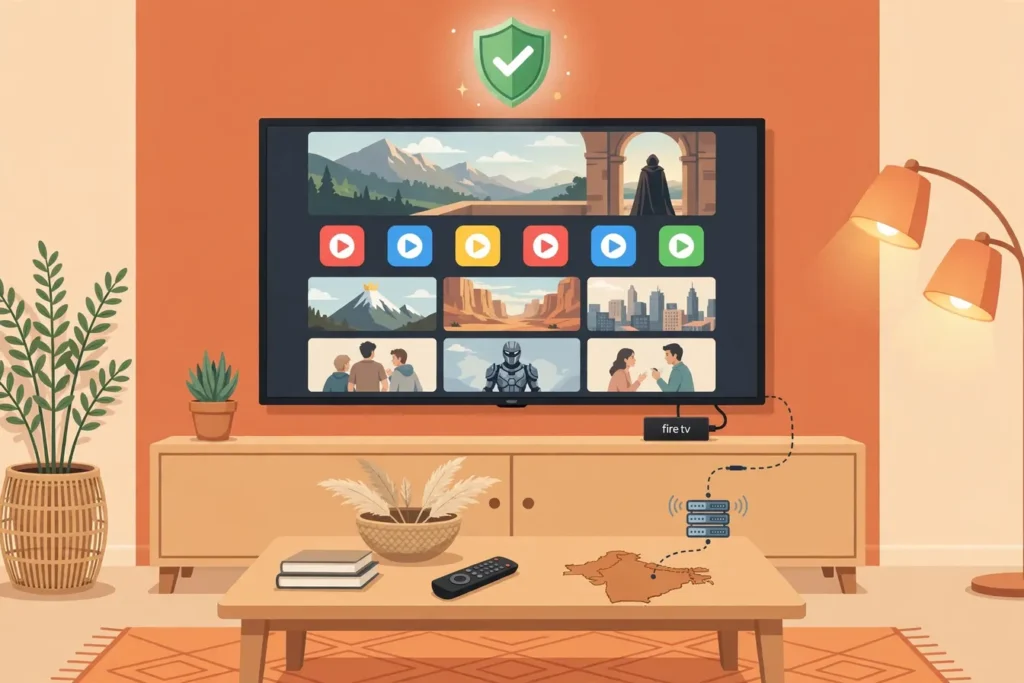
If you want a VPN on your Fire TV in Pakistan, Surfshark is the VPN we recommend, with 80% off for our users — and the good news is that setting it up takes about five minutes, because Fire TV has a native Surfshark app in the Amazon Appstore.
Fire TV runs Fire OS, which is Amazon’s version of Android, and that shapes everything about VPN setup on the device. Unlike a phone, Fire TV has no built-in VPN settings menu where you can type in server details by hand. You either install a provider’s app, or you move the VPN off the Fire TV entirely and onto your router or your computer.
That single fact decides which method is right for you. If your Fire TV model can run a native VPN app, that is the method to use: it is the simplest, the easiest to switch on and off, and the only method that lets you change countries from the sofa with the remote. If it cannot, the router method is the honest fallback.
This is a method-led setup guide. It publishes no original measurements, no speed numbers and no test results of its own, because none were measured for this post. Every step below is a procedure you can follow yourself, in a fixed order, with the checks that tell you whether it worked.
The guidance is verified against Surfshark’s own published Fire TV setup documentation, which is current as of 21 November 2026. Where a claim could not be verified from an official source, this guide says so plainly instead of asserting it. That matters, because a confident wrong answer is worse than an honest gap.
The short answer is simple. Check that your Fire TV runs Fire OS 7.0 or later, install the VPN app from the Amazon Appstore, sign in, and connect. If your model cannot run the app, set the VPN up on your router instead, and verify the connection by checking your exit IP in the Fire TV browser.
The Short Answer: Which VPN Setup Methods Fire TV Supports
Fire TV supports four VPN setup methods, and they are not equal. The native app method is the only one most readers should use. The router method is the fallback for models that cannot run an app. The hotspot method is a useful temporary workaround. Sideloading is a last resort that usually creates more problems than it solves.
A native VPN app is installed from the Amazon Appstore, exactly like Netflix or YouTube. The app handles the connection, the protocol and the kill switch for you, and you pick a country with the remote. This is the method every major provider, including Surfshark, documents first, and it is the only method this guide recommends for everyday use.
The router method puts the VPN on your home router, so every device on your Wi-Fi, including the Fire TV, is protected automatically. It needs a router that supports a VPN client, which most ISP-supplied routers in Pakistan do not, and it is harder to switch countries. It is the right answer when the Fire TV itself cannot run an app.
The hotspot method shares a VPN connection from a Windows PC or a Mac over Wi-Fi, and the Fire TV joins that hotspot instead of your normal network. It needs no router changes and no app on the Fire TV, but the computer must stay on while you watch, and the setup is fiddly. It is a good test, and a poor permanent setup.
Sideloading means installing an Android VPN app file directly onto the Fire TV, bypassing the Appstore. It can work on some models, but the app is not designed for a television remote, updates do not arrive automatically, and a bad install can leave a broken VPN profile behind. This guide explains it only so you can recognise it, not so you will use it.
| Method | Needs | Best For |
|---|---|---|
| Native app from the Appstore | Fire OS 7.0 or later, a subscription | Most readers, easiest daily use |
| VPN on the router | A router with a VPN client | Models that cannot run an app |
| Shared hotspot from a PC or Mac | A computer with a VPN app | A quick test without router changes |
| Sideloaded Android app | An APK file, developer options | Not recommended, last resort only |
Before You Start: Check Your Fire TV Model and Fire OS Version
Start by checking what you own, because the whole method depends on it. From the Fire TV home screen, go to Settings, then My Fire TV, then About. The screen shows your device name and your Fire OS version. If the version is 7.0 or later, a native VPN app will install. If it is older, update the software first, or accept that the app method may not work.
You also need an active VPN subscription before you begin. The apps themselves are free to download from the Appstore, but they cannot connect without a paid account. Create the account on your phone or computer first, where typing an email address and a password is easy, and then sign in on the Fire TV with the simpler methods below.
Make sure the Fire TV is connected to your normal Wi-Fi network and that the connection works without a VPN. Open any app and play a video. If the video will not play before the VPN is involved, fix your internet first, because a VPN cannot repair a broken connection, and it will only hide the real fault.
Finally, have your phone nearby. Most VPN apps on Fire TV offer a QR code sign-in, which is far easier than typing a password with a television remote. If you are already signed in to the VPN on your phone, the QR code method takes seconds, and it avoids the most common setup frustration entirely.
- Open Settings, then My Fire TV, then About, and confirm Fire OS 7.0 or later.
- Create your VPN account on a phone or computer first, where typing is easy.
- Confirm the Fire TV plays video on your normal Wi-Fi before the VPN is involved.
- Keep your phone nearby for the QR code sign-in, which avoids typing a password with the remote.
- Note your Fire TV model and Fire OS version before you change anything.
Method 1: Install a Native VPN App From the Amazon Appstore
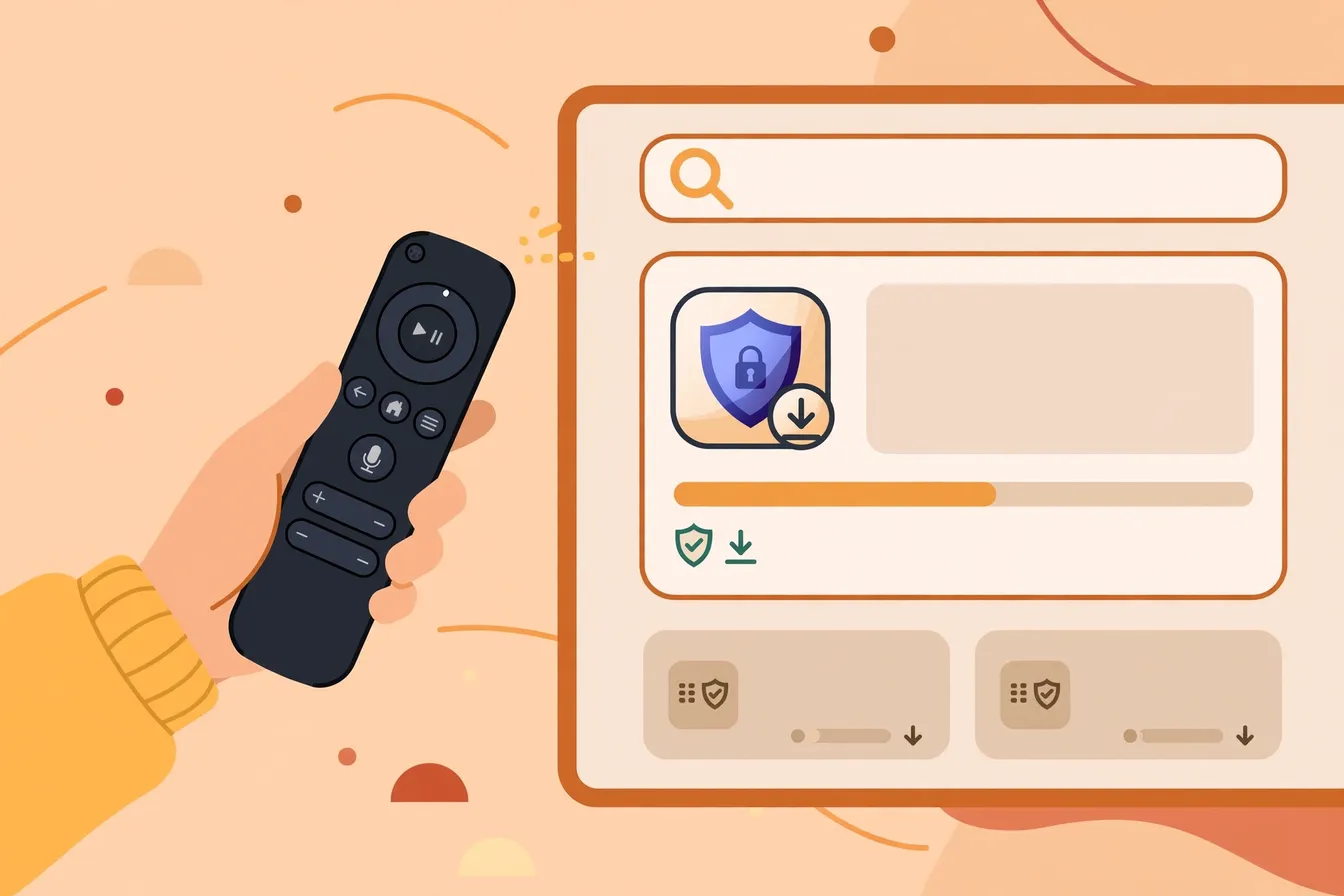
The native app method is the one to use, and Surfshark’s own setup documentation describes it step by step. From the Fire TV home screen, hover over Find and select Search. Type the name of your VPN provider using the on-screen keyboard, then select the VPN app from the search results below. Select the app, then click Get or Download to begin installing.
Once the installation is complete, click Open, or find the app later in your device’s Applications list. On the welcome screen you will see Log in and Create account. If you already have an account, press Log in. If you are signed in to the VPN app on your phone, you can scan the QR code on the TV with your phone’s camera, which is the fastest way in.
There are two other sign-in options if the QR code does not suit you. In the Surfshark app on your phone, go to Settings, then My account, then Enter login code, and type the code shown on the TV. Alternatively, choose Log in with email at the bottom of the QR code screen and enter your account details with the remote. All three methods reach the same account.
Once you are logged in, you will see the VPN home screen. To connect instantly, press the Fastest recommended location. The status turns green and shows Connected with the location you joined. To pick a country, use the search bar at the top of the home screen, where two-letter country codes such as US or GB also work.
The first time you connect, Fire TV will show a connection request asking whether the VPN app may set up a VPN connection. Press OK. This is the permission that lets the app build its encrypted tunnel, and it appears once, on the first connection. If you press Cancel by mistake, the app cannot connect, and you will need to try again.
Surfshark’s app lists more than 4,500 servers in 100 countries, so the country you need is almost certainly available. Use the search bar to find it, connect, and leave the app running in the background while you watch. The VPN stays connected until you disconnect it or restart the Fire TV.
- On the Fire TV home screen, hover over Find and select Search.
- Type the VPN provider’s name and select its app from the results.
- Select Get or Download, then Open once the install finishes.
- Log in by scanning the QR code with your phone, or use the login code or email sign-in.
- Press the Fastest recommended location, or search for a country and connect.
- Press OK on the first connection request so the app can build its tunnel.
Fire TV Models: Which Ones Support a VPN App
Not every Fire TV can run a VPN app, and the exceptions matter. Surfshark’s documentation is clear on the oldest model: the first-generation Fire TV Stick does not support any VPN, and no app or setting will change that. If you own that stick, the router method is your only option, or it is time for a newer device.
The supported list covers the Fire TV 1st generation, 3rd generation, 4K and TV Cube, and the Fire TV Stick 3rd generation, 4K, 4K Max and HD. Fire TV Edition smart TVs, which have Fire TV software built in, are also listed as supported. If your model is on this list and runs Fire OS 7.0 or later, the native app method will work.
The Fire TV Stick 4K Select, released in 2025, is a special case. It runs Vega OS, Amazon’s newer Linux-based system, instead of Fire OS. Third-party reporting says Surfshark’s app works on it but currently offers core VPN features only, with WireGuard as the only protocol, so some settings described in this guide may be missing on that model.
Flagged: the Fire TV Stick 4K Select runs Vega OS, and the claim that Surfshark’s app there offers core features only with WireGuard alone comes from third-party reporting, not from Surfshark’s official setup page. Treat the Vega OS details as unconfirmed until Surfshark documents them.
If you are buying a Fire TV Stick in Pakistan specifically to use with a VPN, choose a 4K or 4K Max model. They run Fire OS, they support the full app, and they are widely available in local markets. Avoid the first-generation stick entirely, and treat the 4K Select as a model to verify before you buy, not one to assume.
Note that model names are confusing in Pakistan’s grey market, where old stock is common. Check the model and Fire OS version on the device itself, in Settings, then My Fire TV, then About, rather than trusting the box or the seller. The version number on the screen is the fact that decides your method.
| Fire TV Model | VPN App Support |
|---|---|
| Fire TV Stick 1st generation (2014) | No VPN support at all |
| Fire TV Stick 2nd and 3rd generation | Supported with Fire OS 7.0 or later |
| Fire TV Stick 4K, 4K Max and HD | Supported, full app features |
| Fire TV 1st gen, 3rd gen, 4K, TV Cube | Supported with Fire OS 7.0 or later |
| Fire TV Edition smart TVs | Supported, Fire TV software built in |
| Fire TV Stick 4K Select (2025, Vega OS) | Core features only, unconfirmed details |
Method 2: Set Up the VPN on Your Router
The router method is the right answer when the Fire TV cannot run an app, and it has one big advantage: it protects every device on your network at once. Once the router is connected to the VPN, the Fire TV, your phone, your laptop and your smart TV all use the same tunnel, with no app needed on any of them.
The catch is that the router must support a VPN client. Most routers supplied by PTCL, Jazz and other Pakistani providers do not, and the setting is often hidden or absent entirely. Check your router’s admin page for a VPN client section, or look up the exact model on the provider’s support site before you buy anything.
If your router does support it, the setup is to enter the VPN provider’s server details, your account credentials and the protocol in the router’s VPN client page, save the settings, and restart the router. Surfshark publishes router setup guides for the routers it supports, and the exact steps vary by router model, so follow the guide for your model.
The trade-off is that switching countries becomes a router admin task, not a remote-control tap. If you change country often, the router method is slow and annoying. If you mostly use one country, it is invisible once it is set up, and it is the only method that covers a first-generation Fire TV Stick.
Do not buy a new router for this unless you are sure the model supports a VPN client and your provider supports it. A cheap router that cannot run a VPN client is a wasted purchase, and a router bought for this purpose should be checked against the provider’s supported-router list before you pay.
- Check your router’s admin page for a VPN client section before anything else.
- Follow the VPN provider’s router guide for your exact router model.
- Enter the server details, account credentials and protocol, then save and restart.
- Test the Fire TV connection by checking the exit IP in its browser.
- Remember that switching countries now means logging into the router admin page.
Method 3: Share a VPN Connection From a Windows PC or Mac
The hotspot method is the quickest workaround when you cannot install an app and cannot change your router. Install the VPN app on a Windows PC or a Mac, connect it to the country you want, and then share that connection over Wi-Fi as a mobile hotspot. The Fire TV joins the hotspot instead of your normal network, and its traffic goes through the VPN.
On Windows, the sharing is done through the mobile hotspot settings, with the VPN’s virtual adapter chosen as the shared connection. On a Mac, it is done through the sharing settings in System Settings. The exact menus change between operating system versions, so follow the current steps for your version rather than an old guide.
The limits are real. The computer must stay on and stay connected for as long as you watch, the Wi-Fi range is shorter than a router’s, and the speed depends on the computer’s own connection. It is a good way to test whether a VPN fixes your Fire TV problem, and a poor way to run it every evening.
This method is also the simplest way to check whether a Fire TV problem is really a VPN problem. If the Fire TV works through the shared hotspot but not through the router method, the fault is in the router setup. If it fails on both, the fault is in the VPN account or the network, and the troubleshooting section at the end of this guide is where to look.
Do not use a free phone hotspot app for this. A phone’s built-in hotspot does not route through the phone’s VPN on most phones, so the Fire TV would connect to the hotspot unprotected and you would have no warning. Use a Windows PC or a Mac, where the sharing settings genuinely route through the tunnel.
Method 4: Sideloading a VPN App — What It Is and Why We Do Not Recommend It
Sideloading means installing an Android app file, called an APK, directly onto the Fire TV, bypassing the Amazon Appstore. It is possible on some Fire TV models by enabling developer options and installing the file from a USB drive or a downloader app. It is also the method most likely to waste your evening.
The first problem is that the app was designed for a phone touchscreen, not a television remote. Buttons may be unreachable, menus may not scroll, and the sign-in screen may not accept remote input at all. An app that works perfectly on your phone can be unusable on a television, and there is no fix for that.
The second problem is updates. An app installed from the Appstore updates itself. A sideloaded app does not, so you must repeat the install by hand every time the provider releases a fix, and a security update you miss is a real risk. A stale VPN app is worse than no VPN app, because it looks protected while it is not.
The third problem is trust. An APK downloaded from a third-party site may be modified, and a modified VPN app can steal your credentials. Only ever install an APK from the provider’s own official site, and even then, treat it as a last resort. If the Appstore method works on your model, there is no reason to sideload.
Flagged: no official Surfshark documentation was found that recommends sideloading its Android app onto Fire TV. The method is described here only so readers can recognise it, and it should not be treated as a supported setup path.
If you have already sideloaded an app and it does not work, remove it cleanly before trying another method. A broken sideloaded app can leave a VPN profile behind that interferes with the proper app, and the removal steps are in the section below. Do not leave a half-installed app on the device.
Fire TV VPN Permissions: What the App Asks and Why
When you connect a VPN app on Fire TV for the first time, the device shows a connection request. It asks whether the app may set up a VPN connection, and it warns that the app can monitor network traffic. That warning sounds alarming, but it is the standard Android permission every VPN app needs, and it is exactly what a VPN is for.
The permission lets the app create a virtual network interface and route the Fire TV’s traffic through its encrypted tunnel. Without it, the app cannot protect anything, and the connection will fail. Press OK, and the permission is granted once, for that app. It is not granted to every app on the device, and it is not a blank cheque for the provider.
Fire TV may also ask for permission to run in the background, or to start on boot, depending on the app. Granting background permission matters, because a VPN app that the system kills in the background will drop the connection silently while you watch. Check the app’s settings for a keep-alive or always-on option if the connection keeps dropping.
Some apps also request access to your location, usually to pick the fastest server. That permission is optional, and denying it does not stop the VPN from working. The app will simply use the location you choose by hand. If you are careful about permissions, deny location and pick your country manually.
If you ever want to take the permission back, the removal steps are in the next section. Removing the app removes its permission with it, and the Fire TV returns to its normal unprotected connection. There is no permanent change to the device from granting a VPN permission.
| Permission | What It Does | Required? |
|---|---|---|
| VPN connection request | Lets the app build its encrypted tunnel | Yes, press OK to connect |
| Run in the background | Keeps the tunnel alive while you watch | Recommended, prevents silent drops |
| Start on boot | Reconnects the VPN when the Fire TV restarts | Optional, convenient |
| Location access | Helps pick the fastest server automatically | No, choose a country by hand |
How to Verify the VPN Connection on Fire TV
A VPN app that says Connected is not proof on its own. Verify the connection by checking what the internet actually sees, because a tunnel that silently failed will still show a green status in some apps. The check takes a minute, and it is the only way to know the setup worked.
Open the Silk or Firefox browser on the Fire TV and visit an IP lookup site. The site will show an IP address and a country. If the country matches the VPN location you chose, and the address is different from the one your normal connection shows, the tunnel is working. If it still shows Pakistan, the tunnel is not active.
Write down the address you see, then disconnect the VPN and check again. The two addresses should be different. If they are the same, the VPN never engaged, and the app’s Connected status was wrong. That comparison is the single most useful test in this guide, and it takes less than a minute.
Also check that your streaming apps behave as if you are in the chosen country. A video that was blocked in Pakistan and now plays is a good sign, but it is not proof on its own, because some services cache your location. The IP lookup is the proof, and the streaming result is the confirmation.
Repeat the check after restarting the Fire TV, because some apps do not reconnect automatically. If the connection is gone after a restart, enable the app’s start-on-boot or always-on option, or reconnect by hand each time you switch the TV on. A VPN that only works until the first restart is a VPN you will forget to switch on.
- Connect the VPN app and confirm it shows a Connected status and a country.
- Open the Silk or Firefox browser on the Fire TV and visit an IP lookup site.
- Confirm the country shown matches the VPN location you chose.
- Disconnect the VPN, check again, and confirm the address changes.
- Repeat the check after restarting the Fire TV to confirm it reconnects.
How to Remove a VPN Profile From Fire TV
Removing a VPN from Fire TV is simple when the app was installed from the Appstore. Open Settings, then Applications, then Manage Installed Applications, find the VPN app, and choose Uninstall. The app, its settings and its VPN permission are all removed together, and the Fire TV returns to its normal connection.
A sideloaded app is removed the same way, but it can leave a VPN profile behind. If the Fire TV still shows a VPN connection after the app is gone, go to Settings, then Network, and check whether a VPN entry remains. Remove it from there, then restart the Fire TV and check again. A restart clears any profile the settings screen cannot remove.
If you only want to stop using the VPN temporarily, do not uninstall the app. Just disconnect inside the app, or press the disconnect button on its home screen. The app stays installed, your account stays signed in, and you can reconnect with one tap. Uninstalling is only for when you are done with the provider entirely.
When you remove one VPN to install another, remove the first app completely before installing the second. Two VPN apps on the same Fire TV can fight over the same network settings, and both will fail. Close the first app, uninstall it, restart the Fire TV, and only then install the replacement.
After removing a VPN, check your connection in the Fire TV browser one more time. The IP lookup should now show your normal Pakistani address. If it still shows a foreign country, a profile is still active somewhere, and the restart step above is the fix. Do not assume the removal worked until the address confirms it.
Surfshark on Fire TV: The Setup We Recommend
Surfshark is the VPN we recommend for Fire TV in Pakistan, and the reason is simple: it has a native app in the Amazon Appstore, it documents the setup for Fire OS 7.0 and later, and the sign-in by QR code avoids the worst part of setting up a VPN on a television, which is typing a password with a remote.
Surfshark runs its own WireGuard-based protocol as the default, and its app lets you switch protocols in settings, so the protocol comparison in other guides is easy to run on a single subscription. Its Camouflage Mode on OpenVPN connections can also help on networks that filter VPN traffic, which is a real consideration on some Pakistani networks.
One subscription covers unlimited devices, so the same account protects your Fire TV, your phone, your laptop and your tablet without buying more accounts. That matters for a household, because a VPN that only covers the television leaves every other screen unprotected, and a second account would hide that gap.
Check the current Surfshark price on the official site before you subscribe, and confirm the two-year rate and the rupee conversion there before you commit. Prices and promotions change, and the figure on the official site is the only one you should trust. The offer we promote is 80% off for our users, through the link in this guide.
Surfshark — our recommended VPN for Pakistan
One subscription covers every device in your home, and the same account works on Fire TV, Windows, Android, iPhone and macOS.
Troubleshooting Common Fire TV VPN Problems
If the app installs but will not connect, work through the causes in order. First confirm your ordinary internet works with the VPN off, by playing a video in any app. Then restart the Fire TV, update the app in the Appstore, and try another protocol and another location. Most failures are fixed by one of those steps.
If the app connects but your location still shows Pakistan, the tunnel has not engaged. Disconnect, press OK again on the connection request if it appears, and reconnect. If the request never appears, remove and reinstall the app, because a permission granted in error can leave the app unable to build its tunnel.
If the connection drops every few minutes, check the app’s background permission, and check whether the Fire TV is putting the app to sleep. A VPN app that the system kills in the background will look like a connection failure, and the fix is to allow the app to run unrestricted in the background.
If one streaming app works and another does not, the problem is usually that service’s own location check, not the VPN. Some services use GPS, account region or payment details as well as the IP address, and a VPN only changes the IP address. Try another country, clear the streaming app’s data, and test again.
If nothing works on any network, check whether the failure happens on a second network, such as a mobile hotspot. A VPN that fails on your home Wi-Fi but works on mobile data points at the router or the fixed network, not at the app. That single comparison is the most informative test for a Pakistan reader.
| Symptom | Likely Cause | First Check |
|---|---|---|
| App installs but will not connect | Internet, app version, protocol | Video test, restart, update, switch protocol |
| Connected but location still shows Pakistan | Tunnel not engaged | Connection request, reinstall the app |
| Connection drops every few minutes | Background permission | Allow the app to run unrestricted |
| One streaming app fails, others work | That service’s location check | Another country, clear the app’s data |
| Fails on every network and location | Account or network policy | Second network, support, fallback VPN |
Limitations and What This Guide Does Not Claim
This guide is a setup method, not a report of tests that were run. No measurements were made for this post, and it publishes no speed numbers, ping values or connection results of its own. Every step is a procedure for you to run, and the verification section is how you confirm the result yourself.
The guidance is current as of 21 November 2026. Surfshark changes its app, its protocol list and its plan terms over time, and a step that works today may be renamed or removed in a later version. If a menu name in this guide does not match your app, look for the nearest equivalent and test it the same way.
Two claims in this guide are flagged as unconfirmed. The Vega OS details for the Fire TV Stick 4K Select come from third-party reporting, not from Surfshark’s official setup page. Whether other providers, such as Proton VPN, offer a native Fire TV app is also unconfirmed, because their official pages do not document one clearly.
Flagged: whether Proton VPN offers a native Fire TV app is unconfirmed from official sources, and the Fire TV Stick 4K Select Vega OS details come from third-party reporting. Do not treat either as a settled fact when choosing a provider for Fire TV.
This guide also does not claim that a VPN fixes every streaming problem. A VPN changes your IP address, but streaming services also use account region, payment details and device location, and a VPN cannot change those. If a service still blocks you after the IP check passes, the cause is one of those other signals.
Retest on a fixed schedule if the setup is flaky. Run the verification check again one week after your first setup, and again after any change: a new app version, a new Fire OS update, a new internet plan, or a move to a new area. Keep each session’s notes so you can compare like with like.
Surfshark — our recommended VPN for Pakistan
Try the alternative inside its 30-day money-back guarantee window first, so a Fire TV setup that never works costs you nothing to replace.
Conclusion: The Simplest Fire TV VPN Setup for Pakistan
Setting up a VPN on Fire TV is simple when your model supports a native app, and the whole job takes about five minutes. Check that your Fire TV runs Fire OS 7.0 or later, install the app from the Amazon Appstore, sign in with the QR code, press the fastest location, and verify the exit IP in the Fire TV browser. That is the entire method.
If your model cannot run an app, the router method is the honest fallback, and the hotspot method is a good test while you decide. Sideloading is not a setup method we recommend, and the first-generation Fire TV Stick cannot run a VPN at all, so do not waste an evening trying to force it.
The habit that matters most is the verification check. A VPN app that says Connected is not proof, and the IP lookup in the Fire TV browser is the proof. Run it once after setup, once after a restart, and once a week afterwards, and you will always know whether your Fire TV is actually protected. For our other Pakistan VPN guides, the freevpn.pk homepage lists them all.
Frequently Asked Questions
Which VPN Setup Methods Does Fire TV Support?
Fire TV supports four methods. The simplest is a native VPN app installed from the Amazon Appstore, which works on Fire TV devices running Fire OS 7.0 or later. If no app is available for your model, you can run the VPN on your router, share a VPN connection from a Windows PC or Mac, or sideload an Android VPN app.
The router method covers every device on your network at once, while the hotspot method needs no router changes. Sideloading is the least reliable option and is not recommended.
Which App or OS Version Requirements Matter?
The main requirement is Fire OS 7.0 or later for a native VPN app. Check your version in Settings, then My Fire TV, then About. You also need an active subscription with the VPN provider, because the apps are free to download but cannot connect without a paid account.
The first-generation Fire TV Stick supports no VPN at all, and the Fire TV Stick 4K Select runs Vega OS, where VPN apps currently offer core features only.
How Do I Verify the Connection on Fire TV?
Open the VPN app and confirm it shows a Connected status with the country you chose. Then open the Silk or Firefox browser on the Fire TV and visit an IP lookup site to check that the address and country shown match the VPN location. If the address still shows Pakistan, the tunnel is not active. Repeat the check after switching locations, and check again after restarting the Fire TV.