

If TorGuard will not connect in Pakistan, Surfshark is the VPN we recommend as the reliable fallback, with 80% off for our users — but before you switch, this guide helps you find the actual fault, because most connection failures are fixed in minutes once you know which layer is broken.
A VPN that will not connect can fail in at least five different places: your local internet connection, your TorGuard account, the app on your device, the protocol it uses to build the tunnel, or the network path between Pakistan and the TorGuard server. Each of these needs a different fix, and guessing usually wastes time.
This is a method-led diagnostic guide. It publishes no original measurements, no speed numbers and no test results of its own, because none were measured for this post. Every step below is a check you can run yourself, in a fixed order, changing one thing at a time.
The method is verified against TorGuard’s own published support guidance, which is current as of 21 November 2026. Where a claim could not be verified from an official source, this guide says so plainly instead of asserting it. That matters, because a confident wrong answer is worse than an honest gap.
The short answer is simple. First confirm your ordinary internet works with the VPN off. Then check that you are using your VPN service credentials, restart and update the app, switch protocol, and try another server location.
Also check your firewall and any other VPN apps. If the failure survives all of that, the fault is most likely in your network or in TorGuard’s service, and the evidence-gathering steps at the end of this guide are what support needs from you.
The Short Answer: Why TorGuard Fails to Connect in Pakistan
Most TorGuard connection failures in Pakistan fall into a small set of causes. Your internet connection itself may be down or unstable, you may be signing in with the wrong credentials, the app may be out of date, the protocol may be blocked by your network, the server you picked may be busy, or your account may have expired. Each cause has a distinct symptom, and the table below maps symptoms to layers.
The most common mistake is to treat every failure as a TorGuard problem. If your Wi-Fi is down, no VPN in the world will connect, and reinstalling the app will not help. That is why the first step in every diagnostic is to test your connection with the VPN switched off, before you touch any VPN setting.
The second most common mistake is to change three settings at once. If you switch protocol, change location and flush your DNS in one step, and the connection then works, you have learned nothing about which change fixed it. The fault may return tomorrow, and you will have no idea what to repeat.
Work through the layers in the order this guide gives them: local internet, account, app, protocol, location, device software, and finally the network path. Stop as soon as a step fixes the connection, and note which step it was. That note is your own troubleshooting record for the next time it happens.
| Symptom | Likely Layer | First Check |
|---|---|---|
| Ordinary websites do not load with VPN off | Local internet | Wi-Fi, mobile data, router, ISP |
| App rejects sign-in, or says credentials invalid | Account | VPN service credentials, subscription status |
| Connection spins, then times out | App, protocol or route | Restart, update, switch protocol |
| Connected but nothing loads | Tunnel or DNS | Another location, DNS, firewall |
| One website fails, others work | Destination or location | Another location, no-VPN test |
| Works on mobile data, not on Wi-Fi | Local network | Router, network firewall, captive portal |
Before You Change Anything: The Controlled Baseline Test
Start with a controlled test, because everything that follows depends on it. Disconnect TorGuard completely, then open two ordinary websites in your browser. If neither loads, your internet connection is the problem, and no VPN setting will fix it until the connection itself is working again.
If the websites load, your connection is fine and the fault sits in TorGuard or in the path to its servers. Close and reopen the TorGuard app, and if it is still stuck, restart your device. A restart clears temporary app states that no amount of settings changes will reach.
Next, check for an app update through the official channel for your platform: the TorGuard website on Windows, the App Store on iPhone, Google Play on Android, and the official download page on Mac and Linux. An out-of-date app can fail against servers that expect the current version.
Write down the exact error message if one appears, word for word. Do not paraphrase it from memory later, and do not infer a national or ISP-level block from a single error. A timeout message and an authentication message point at different layers, and the exact words are what support will ask for first.
Finally, keep a note of your original settings before you change anything. If a change does not help, undo it. A diagnostic that leaves your settings in a worse state than it found them has made the problem harder, not easier.
- Disconnect TorGuard and open two ordinary websites to test your connection.
- If they load, close and reopen the app, then restart the device if it stays stuck.
- Update the app through its official store or download page.
- Record the exact error message, word for word, and the time it appeared.
- Note your original settings before changing anything, and undo changes that do not help.
- Test one change at a time, and check the connection after each single change.
Is TorGuard Down? Checking the Official Service Status
Before you rebuild your network settings, check whether TorGuard itself is having a problem. A service-side fault looks exactly like a fault on your device, and no amount of reinstalling will fix a server that is down. The check takes two minutes and saves the longest dead end in this guide.
TorGuard does not publish a dedicated public status page that we could confirm as official, so there is no single green light to check. That is a gap worth stating plainly: unlike some providers, TorGuard’s service health is not published on a public status dashboard, and any page that claims to be its official status page should be treated with care.
Flagged: no official public TorGuard status page could be confirmed. Use third-party status trackers only as a rough signal, and confirm any reported outage against TorGuard’s own support channels before treating it as fact.
Third-party status trackers do monitor TorGuard, and recent snapshots showed no major outage, with no user reports in the preceding 24 hours. That is weak evidence, because a tracker can miss a regional problem, but a sudden spike in reports on one of these pages is still a useful warning sign.
The more reliable check is TorGuard’s own support centre, which publishes platform-specific troubleshooting articles and setup guides. If a known incident is affecting connections, the support centre is where it will be described. TorGuard also offers support through its client area, which is the fastest route to a direct answer from the provider.
Also check whether the problem is specific to one server location. If one country fails but another connects, the fault is almost certainly a busy or faulty server, not your device. Switch locations before you conclude that the whole service is down.
If you are on a work, university or hotel network, remember that those networks often block VPN traffic by policy. A connection that works on your home Wi-Fi but fails on a managed network is a property of that network, not of TorGuard, and the network’s administrator is the person who can confirm it.
Your Account: VPN Credentials, Not Your Website Login
The single most TorGuard-specific cause of a failed connection is using the wrong credentials. TorGuard’s support guidance is explicit on this point: you must sign in to the app with your VPN service credentials, not with your website login. The two are different, and entering the website password in the app will fail.
Your VPN service username and password are shown in the TorGuard client area, and you can reset them there if you have forgotten them. If you have recently changed your website password, remember that the VPN credentials did not change with it, and the app still needs the old VPN password until you update it in the client area.
Check the CAPS LOCK key before you retry, and retype the credentials by hand rather than pasting them from an old note. A copied password can carry a trailing space that is invisible on screen and will be rejected every time. If the app still says the credentials are invalid, reset them in the client area and try the new ones.
A subscription that has expired will also refuse to connect, and the app may show an authentication error rather than a clear expiry message. Log in to the client area and confirm that your service is active and that the next payment date has not passed. A failed renewal on a card is a common silent cause of a dead account.
TorGuard does not offer a free plan, so a connection failure is never a free-tier data limit being reached. If you are comparing TorGuard with a provider that does have a free tier, the difference matters: every TorGuard connection failure is an account, app, protocol or network fault, not a free allowance running out.
Flagged: TorGuard’s money-back guarantee length and any free-trial availability are unconfirmed in this guide, because the provider’s own pages describe them inconsistently over time. Check the current terms on the official site before you buy, and do not rely on a guarantee length quoted elsewhere.
For the full cost picture, including the current TorGuard price and how it converts to rupees, see our TorGuard pricing guide for Pakistan. Knowing what your plan actually includes is the first step in deciding whether a failure is a plan limit or a real fault.
If the app shows a TLS handshake failure rather than an authentication error, check the system clock on your device. VPN authentication uses time-sensitive certificates, and a clock that is far out can cause a valid account to be rejected. Set the date and time to automatic and try again before you reset your password.
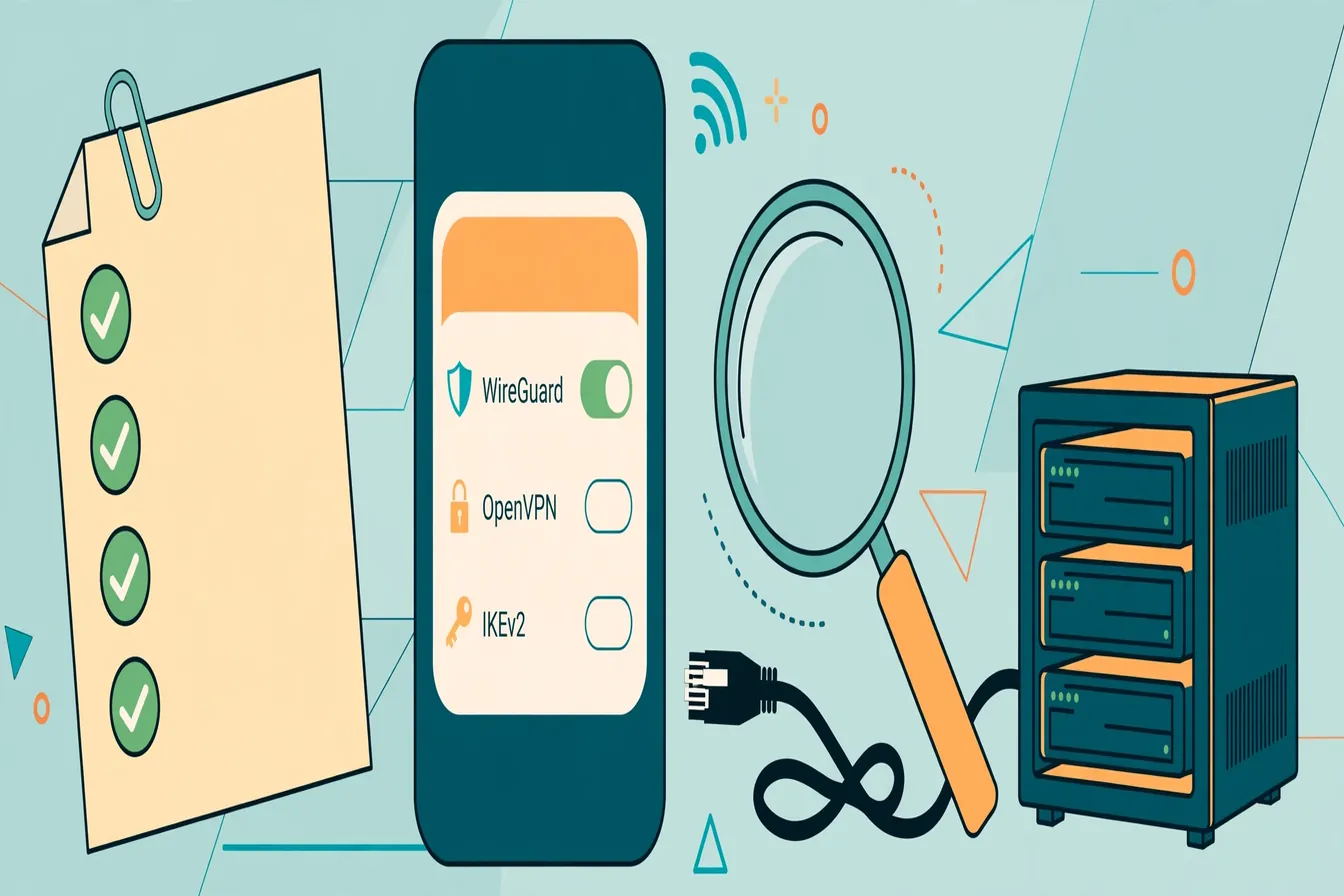
Switch Protocols: WireGuard, OpenVPN, OpenConnect and Shadowsocks
The protocol is the method the app uses to build its encrypted tunnel, and it is the single most useful setting to change when a connection times out. TorGuard’s own support guidance lists WireGuard, OpenVPN, OpenConnect and Shadowsocks as the protocols its clients offer, and the choice is made in the app’s connection settings. Start with the default, then try each in turn.
WireGuard is the modern protocol and the default in the desktop client, and it is usually the right first choice. It is fast and simple, and it works on most home networks without any special configuration. If WireGuard fails, that does not mean the service is down; it may mean your network is interfering with that protocol specifically.
OpenVPN is the most compatible protocol TorGuard offers, and it is the one to try on a restrictive network. TorGuard’s guidance recommends OpenVPN on TCP port 443 for restrictive networks, because that port is the same one used by ordinary secure websites, so it is rarely blocked. OpenVPN on UDP is faster on open networks, but it is easier for a network to filter.
OpenConnect is the protocol to try when a firewall blocks the others, because it was designed to pass through enterprise firewalls. Shadowsocks is the obfuscation option, and it is designed to hide the fact that VPN traffic is VPN traffic at all. Both are worth trying on a network that seems to block VPN connections on purpose.
Change only the protocol, then try to connect. If it works, you have your answer, and you also have a workaround you can reuse whenever the same failure appears. If it does not, change the protocol back or try the next option, and test again. Record which protocols you tried and what each one did.
There is one setting worth checking alongside the protocol: the port. TorGuard’s guidance notes that a dedicated IP on WireGuard needs port 1443, while OpenVPN uses its standard ports. If you are using a dedicated IP, confirm in the client area that the IP is configured for the protocol you are using, because a mismatch will fail every time.
| Protocol | What It Is | When to Try It |
|---|---|---|
| WireGuard | Modern fast protocol, the default | First choice on home and mobile networks |
| OpenVPN UDP | Most compatible, fast on open networks | When WireGuard times out on your network |
| OpenVPN TCP 443 | Same port as secure websites | On restrictive, corporate or filtered networks |
| OpenConnect | Designed to pass firewalls | When OpenVPN is also blocked |
| Shadowsocks | Obfuscation for VPN traffic | When a network seems to block VPNs deliberately |
Change Your Server Location
If the protocol is not the problem, the server may be. A single server location can be busy, faulty, or blocked by the service you are trying to reach, while every other location works fine. Switching location is a thirty-second test that separates a server fault from a device fault.
In the app, open the server list and pick a different country from the locations your plan allows. Try a nearby location first, such as the United Arab Emirates or Singapore, because a nearby server is the fastest way to confirm that the app can connect at all.
If the new location connects, the original server was the problem, and you can use the new location while the old one recovers. If no location connects, the fault is deeper, and the next sections on your device and network are where to look.
TorGuard’s server list also includes dedicated IP locations, which behave differently from shared servers. If you are using a dedicated IP, try a shared server instead, because a dedicated IP can be misconfigured for the wrong protocol while the shared servers work perfectly. That comparison isolates the dedicated IP as the cause.
Do not conclude from one failed location that TorGuard is blocked in Pakistan. A single failed server proves nothing about the whole service, and a national or ISP-level block would show up as a failure on every location, on every protocol, and usually on every network you try.
Windows: The TAP Adapter, WinTUN and Running as Administrator
Windows users meet one cause more than any other: a damaged virtual network adapter. TorGuard’s Windows client installs two drivers, the TAP-Windows adapter for OpenVPN and the WinTUN driver for WireGuard, and if either is missing or damaged the app cannot build a tunnel at all. Check Device Manager for the adapter before you change any app setting.
If the adapter is missing, reinstalling the TorGuard client normally restores it. Run the installer as administrator, because the app needs permission to install drivers and change network settings. A standard install without administrator rights can leave the adapter half-installed, and the app will then fail every time.
Running the app as administrator is worth trying on Windows even when the adapter looks fine. Right-click the app’s shortcut, choose Run as administrator, and test the connection. If that fixes it, the problem was permission, not the VPN, and you can set the shortcut to always run as administrator.
TorGuard’s own guidance also lists the Windows firewall as a cause, and it names ports 443, 1194 and 1443 as the ones the app uses. Add TorGuard to the firewall exceptions rather than switching the firewall off entirely, because the firewall is still doing useful work, and re-enable anything you disable for testing immediately afterwards.
Windows updates can also break a VPN that worked the day before. If the failure started the morning after an update, check whether the update changed your network adapter or your firewall rules. The fix is usually to reinstall the app after the update, so it can re-register its adapter and permissions cleanly.
Android and iPhone: App-Specific Connection Failures
On Android and iPhone, the app’s protocol and location controls sit in the settings menu, and the same layer-by-layer method applies. Restart the app, check for an update in Google Play or the App Store, and try another protocol and another location before you change anything on the phone itself.
On Android, the most common device-level cause is battery optimisation killing the VPN in the background. If TorGuard connects and then drops after a few minutes, check the battery settings for the app and allow it to run unrestricted. A VPN that is put to sleep by the system will look like a connection failure.
On iPhone, the most common device-level cause is a stale VPN configuration profile. If the app spins and never connects, remove the TorGuard profile from the iPhone’s VPN settings and let the app create a fresh one. Do not delete unrelated VPN profiles, and do not reset the whole network as a first step.
On both platforms, check that no other VPN or proxy app is running at the same time, including browser extensions that route traffic through a proxy. Two VPN apps will fight over the same network settings, and both will fail. Close the other app completely and test TorGuard alone.
Mobile data adds its own variable. A connection that works on Wi-Fi but fails on mobile data may be a signal problem, a data limit, or a carrier-level restriction, and a connection that works on mobile data but fails on Wi-Fi points at the router or the Wi-Fi network. Test both, and note which one fails.
Firewall, Antivirus and Other VPN Apps
Security software is supposed to protect your connection, but it can also block it. A firewall with strict rules can prevent TorGuard from reaching its servers, and an antivirus can flag the VPN app as a threat and stop it from running. Both are worth testing, carefully, and one at a time.
On Windows, open Firewall and network protection and make sure TorGuard is allowed through the firewall for the network type you are using. On Mac, check the firewall in System Settings. Add an exception for the app rather than switching the firewall off entirely, because the firewall is still doing useful work.
For testing purposes only, you can disable the antivirus briefly and try to connect. If the connection works with the antivirus off, you have found the cause, and the fix is to add TorGuard to the antivirus exceptions list. Re-enable the antivirus immediately afterwards, and do not leave it off while you browse.
The same rule applies to any other VPN or proxy software on the device. Uninstall the other VPN completely if it is no longer used, because a dormant VPN app can still hold network settings that interfere. This includes browser extensions that act as proxies, which are easy to forget.
Work and university networks often run their own firewalls that block VPN traffic by policy. If TorGuard works at home and fails on a managed network, the network is the cause, and the only fix is to ask the network administrator whether VPN traffic is allowed.
DNS, Time and Network Settings
If the app signs in but the tunnel never completes, stale network settings are a likely cause. Flushing the DNS cache clears old records that can point the app at a dead server address. On Windows, open Command Prompt as administrator and run ipconfig /flushdns, then try to connect again.
On Mac, the equivalent is to flush the DNS cache from Terminal. On Android and iPhone, the simplest equivalent is to forget the Wi-Fi network and reconnect, or to restart the device, which clears the same caches. Do not reset the entire network settings on any device as a first step, because that erases saved Wi-Fi passwords and other settings you will have to rebuild.
Check the system clock, as noted in the account section. A clock that is minutes out can break certificate checks, and this is one of the cheapest fixes in the whole guide. Set date and time to automatic on every platform and try again.
Changing your DNS servers to a public resolver, such as Google’s 8.8.8.8 and 8.8.4.4, is a reasonable test if your provider’s DNS is faulty. TorGuard’s own guidance also lists its own DNS and Cloudflare’s 1.1.1.1 as options. Change it, test, and change it back if it does not help. Do not combine a DNS change with a protocol change in the same test, or you will not know which one fixed it.
Finally, restart your router. Unplug it, wait thirty seconds, plug it back in, and wait for it to reconnect before you test. A router that has been running for weeks can hold stale sessions, and a restart is the simplest network fix there is.

Pakistan Networks: PTCL, Jazz, Zong, Telenor and PTA Filtering
Pakistan adds its own layer to VPN troubleshooting, because the networks here differ from one another and from networks abroad. PTCL fibre, Jazz, Zong and Telenor each run their own core networks and buy their own international transit, so the same TorGuard server can behave differently on each of them. A failure on one network is not proof of a failure on the others.
Test the connection on a second network before you conclude the service is broken. If TorGuard fails on your home PTCL fibre but connects on Jazz mobile data, the fault sits in the fixed network or its route, not in the app. That single comparison is the most informative test in this guide for a Pakistan reader.
The Pakistan Telecommunication Authority regulates VPN use in the country, and there has been public discussion of VPN registration requirements. Whether TorGuard specifically is blocked or throttled by any Pakistani provider at any given time is not something this guide can confirm, because it changes over time and is not published as a list. Do not assert a block without evidence from your own tests across networks and protocols.
Flagged: whether TorGuard is blocked or throttled by any Pakistani ISP is unconfirmed and varies over time. The tests in this guide are the evidence; a failure on one network and one protocol does not prove a block.
Captive portals are a more common cause than any block. Hotel, airport and university Wi-Fi in Pakistan often requires a sign-in page before it allows traffic, and a VPN cannot connect until that sign-in is complete. Disconnect the VPN, open a browser, complete the portal sign-in, and then connect the VPN.
Peak hours also matter. Evening congestion between roughly 7 PM and 11 PM can make a connection that works at midday fail at night, on both fixed and mobile networks. If the failure only happens in the evening, retest at a quieter hour before you change any setting.
Submarine cable faults are a real, if occasional, cause of international connection problems from Pakistan. When the PTA reports a cable fault, traffic is rerouted onto alternative links, and VPN connections can suffer. Check for cable news before you trust a bad result measured during a reported fault.
Surfshark: The VPN We Recommend if TorGuard Stays Down
If TorGuard will not connect after every layer in this guide, the practical question is what to use instead. Surfshark is the VPN we recommend for most readers in Pakistan, and it is the natural fallback while you wait for a TorGuard fix or decide to switch permanently.
Surfshark runs its own WireGuard-based protocol as the default, and its app lets you switch protocols in settings, so the protocol comparison in this guide is easy to run on a single subscription. Its Camouflage Mode on OpenVPN connections can also help on networks that filter VPN traffic, which is a real consideration on some Pakistani networks.
One subscription covers unlimited devices, so you can test it on your phone, laptop and tablet without buying more accounts. That matters for diagnosis, because a VPN that works on one of your devices but not another tells you something useful, and a second account would hide that signal.
Check the current Surfshark price on the official site before you switch, and confirm the two-year rate and the rupee conversion there before you commit.
TorGuard itself is still worth a fair comparison if your connection recovers. For its features, server network and the honest limits of its plans, see our TorGuard review. That review covers the same provider this guide diagnoses, so the two articles work together.
Surfshark — our recommended VPN for Pakistan
One subscription covers every device in your home, and the same account works on Windows, Android, iPhone and macOS.
What Logs and Evidence to Send Support
If every layer has been tested and TorGuard still will not connect, the next step is support, and the quality of your report decides the quality of the answer. A report that says it does not work will get generic steps you have already tried. A report with evidence will get a real investigation.
Start with the exact error message and a screenshot of it, plus the date and time of the failure. Add your app version, your device model and operating system version, your internet provider and whether you are on fibre, DSL or mobile data, and the server location and protocol you tried.
Add the results of your layer tests in one short list: whether ordinary websites load with the VPN off, which protocols you tried and what each did, which locations you tried, and whether the failure happens on a second network. That list tells support exactly which layers you have already ruled out.
On Windows, add the state of the TAP adapter and whether running the app as administrator changed anything. On Android, add whether battery optimisation is on for the app. On iPhone, add whether you removed and recreated the VPN profile. On Linux, TorGuard’s guidance points at the system logs, so add the relevant lines from journalctl or syslog.
Support may ask for app logs. Collect these only through the app’s own support flow, and send only what the app generates for that purpose. Do not paste logs into a public forum, and do not send credentials, payment details or your full IP address to anyone who is not TorGuard’s own support team.
Keep a copy of everything you sent, with the date. If the problem returns in a month, you will have a record of what was tried, and support will have a record too. A support ticket with a history is far more likely to reach a real fix than a fresh ticket that starts from zero.
- Exact error message, screenshot, date and time of the failure.
- App version, device model, operating system version and connection type.
- Internet provider, and whether the failure happens on a second network.
- Protocols and server locations tried, with the result of each.
- Windows TAP adapter state, or Android battery setting, or iPhone profile state.
- App logs, collected only through the app’s own support flow.
When to Reinstall, and When to Stop Troubleshooting
Reinstalling the app is a real fix, but it should come late in the process, not first. A clean reinstall replaces a damaged app, a broken TAP adapter and corrupted settings in one step, and it is the right move when the app crashes on launch, when the adapter is missing, or when the failure began after an update.
Before you reinstall, sign out of the app and note your VPN service credentials, so you can sign in again afterwards. Uninstall through the normal system route, restart the device, and then download a fresh copy from the official TorGuard website or store. Do not install from a third-party download site, because a modified installer is a security risk.
After the reinstall, test the connection before you restore any custom settings. If it works with default settings, change your settings back one at a time, testing after each. If one of your old settings breaks it again, you have found the cause, and you can leave that setting alone.
Know when to stop. If you have tested the baseline, the account, the app, every protocol, several locations, the firewall, the DNS and a second network, and the failure is identical on all of them, further settings changes are unlikely to help. The fault is then either in TorGuard’s service or in your network’s policy, and only the provider or the network administrator can fix it.
At that point the sensible choices are to use the fallback VPN, to wait and retest the next day, or to raise a support ticket with the evidence you gathered. Repeating the same failed steps will not change the result, and it will only cost you time.
| Situation | Next Step |
|---|---|
| App crashes or adapter is missing | Clean reinstall from the official site |
| Failure began after a system update | Reinstall after the update |
| Works with default settings after reinstall | Restore settings one at a time |
| Identical failure on every layer and network | Support ticket with evidence, or use the fallback |
| Failure only in the evening | Retest at a quieter hour before changing settings |
Limitations and What This Guide Does Not Claim
This guide is a diagnostic method, not a report of tests that were run. No measurements were made for this post, and it publishes no speed numbers, ping values or connection results of its own. Every number quoted here comes from published sources, and every step is a procedure for you to run, not a result to trust blindly.
The guidance is current as of 21 November 2026. TorGuard changes its app, its protocol list and its plan terms over time, and a step that works today may be renamed or removed in a later version. If a menu name in this guide does not match your app, look for the nearest equivalent and test it the same way.
Three gaps are flagged in the text where they appear. There is no confirmed official public TorGuard status page. The money-back guarantee length and any free-trial availability are unconfirmed. And the question of whether any Pakistani provider blocks TorGuard is unconfirmed, because it varies over time and is not published. None of these should be treated as a settled fact.
This guide also does not claim that a VPN fixes every problem. If your underlying internet connection is down, if your account has expired, or if your network administrator blocks VPN traffic, no VPN setting will help. The guide’s job is to find which of those is true, and to tell you who can fix it.
Retest on a fixed schedule if the problem is intermittent. Run the baseline test again one week after your first failure, and again after any change: a new app version, a new internet plan, a move to a new area, or a cable fault reported by the PTA. Keep each session’s notes so you can compare like with like.
Surfshark — our recommended VPN for Pakistan
Try the alternative inside its 30-day money-back guarantee window first, so a TorGuard connection that never recovers costs you nothing to replace.
Conclusion: A Layer-by-Layer TorGuard Diagnosis for Pakistan
A TorGuard connection that will not work in Pakistan is almost always a failure in one layer, and the layer is findable. Test your ordinary internet first, then your VPN service credentials, then the app, then the protocol, then the location, then your device software, and finally the network path. Change one thing at a time and write down what each change did.
The most valuable habit in this guide is the baseline test. It takes a minute, and it separates a network fault from a VPN fault before you spend an hour on the wrong one. The second most valuable habit is recording the exact error message, because it is the one piece of evidence every support team asks for first.
If the diagnosis ends with TorGuard still down, you have not wasted the time. You have a complete evidence pack for support, and you have a tested fallback in Surfshark, which you can try on the same networks and protocols to confirm that the fault really is specific to TorGuard.
Start with the baseline test, work the layers in order, and stop as soon as the connection returns. If it does not return, send support the evidence list from this guide, and retest the next day, because server faults and cable faults both clear with time. For the wider choice of providers, the freevpn.pk homepage lists our other Pakistan VPN guides.
Frequently Asked Questions
Why Is TorGuard Not Connecting in Pakistan?
There is no single cause. The failure can sit in your local internet connection, your TorGuard account or credentials, the app itself, the protocol it is using, or the network between Pakistan and the TorGuard server. Work through the layers in order, starting with the baseline test in this guide, and change one setting at a time so you know which change fixed it.
Is the Problem My Account, Network or VPN App?
Test each layer separately. If ordinary websites do not load with the VPN off, the problem is your network. If the app rejects your sign-in, the problem is usually your account or the credentials you entered, because TorGuard uses separate VPN service credentials rather than your website login. If the app signs in but the connection spins and times out, the problem is the app, the protocol or the route.
The table in this guide maps each symptom to its layer.
What Logs Should I Send to Support?
Send the exact error message and a screenshot, your app version, your device and operating system version, your internet provider and connection type, the server location and protocol you tried, and the date and time of the failure. On Windows, add the state of the TAP adapter and whether running the app as administrator changed anything.
Support can also ask for app logs, which you collect only through the app’s own support flow.