

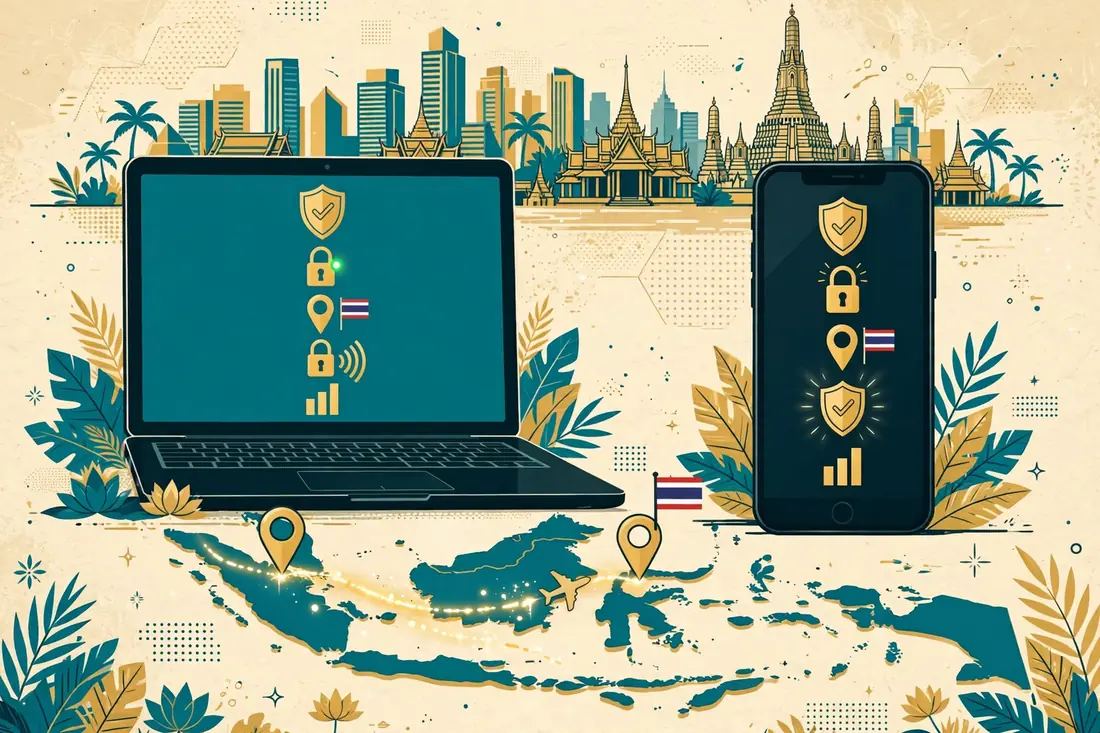
Getting a Thailand IP address from Pakistan takes about five minutes: choose a VPN with servers in Bangkok, connect to Thailand in the app, and verify that your public IP address now shows Thailand. Surfshark is our recommended VPN for Pakistan, with 80% off for our users, and it lists Bangkok servers you can connect to in two taps.
This guide walks through the full process step by step: choosing an eligible provider, connecting on Windows, Android, iPhone, and macOS, verifying the exit IP, and fixing the mismatches that make a Thailand connection show the wrong location. Everything here was checked against official provider pages in November 2026, and anything we could not verify is flagged as such rather than presented as fact.
How to Get a Thailand IP Address: The Short Answer
To get a Thailand IP address from Pakistan, install a VPN that has servers in Thailand, open the app, search for Thailand, select Bangkok, and press Connect. Your public IP address then becomes the Thai server’s address, and websites see you as connecting from Thailand. Surfshark’s own Thailand page describes exactly this two-step process: find Thailand in the app, then connect to a Bangkok server.
After connecting, verify the result before you trust it. Search for “what is my IP” and confirm the address and the country shown are Thailand. Then run a DNS leak test and confirm the DNS servers shown belong to the VPN, not to your Pakistani internet provider. Those two checks take a minute, and they are the difference between assuming you have a Thai IP and knowing it.
Choose a VPN Provider With Thailand Servers
Start by checking whether the provider actually operates servers in Thailand. A Thailand server must be listed in the app, and it should be named Bangkok or Thailand rather than a nearby country. If the app only lists Singapore or Malaysia, it does not give you a Thai IP, even if the connection itself works.
If you are looking for an alternative to Surfshark, our NordVPN review covers another provider that lists Thailand servers. Compare the two on server count, price, and the number of devices they support before you commit to one. Do not choose a provider on price alone, because the cheapest plan is useless if it has no server where you need one.
We could not confirm that ExpressVPN still lists Thailand servers on its official page in November 2026. Its server page did not show Thailand as a listed location at the time of checking, so we are not recommending it for this specific use. If you already have an ExpressVPN subscription, open the app and search for Thailand to see whether it appears; if it does not, you will need a different provider for a Thai IP.
Surfshark Thailand Server: Connect in Two Steps
Surfshark lists Bangkok as a server location in its app, and connecting takes two taps: open the Locations list, type Thailand or Bangkok in the search box, and tap the Bangkok server to connect. The app shows a connected state, and your IP address changes to the Thai server’s address.
If the app does not show Thailand, update it to the latest version first, then check again. An older app version may not list newer server locations. If Thailand still does not appear after updating, the account or the plan may not include it, and you should check the provider’s server page or contact support.
Surfshark’s own Thailand page describes the same two-step process: search for Thailand in the app, then connect to a Bangkok server. That is the whole connection step, and it takes less than a minute once the app is installed.
Surfshark — our recommended VPN for Pakistan
Connect to Bangkok in two taps and verify your Thai IP today — 80% off for our users.
Connect to a Thailand VPN Server on Windows
Download the VPN app for Windows from the provider’s official site or the Microsoft Store. Do not download it from a third-party site, because the file may have been modified. Install the app, sign in with your account, and grant the permissions it asks for.
Open the app, search for Thailand, and select Bangkok. The app connects in a few seconds and shows a connected state. If it asks you to allow a VPN connection, tap Allow. The first connection may take a little longer while the app sets up the tunnel.
To confirm the connection worked, search for “what is my IP” in your browser and check that the country shown is Thailand. If the country is still Pakistan, disconnect and reconnect to a different Bangkok server, or restart the app and try again.
Thailand IP Address on Android
Install the VPN app from the Google Play Store, then sign in and grant the VPN permission when the phone asks for it. Android shows a key icon in the status bar when a VPN is active.
Search for Thailand in the app, select Bangkok, and wait for the connected state. The phone may show a warning that the VPN will monitor network traffic; this is normal for any VPN on Android, and it does not mean the provider is logging your activity.
Android 14 and later show a persistent notification while the VPN is connected. That notification is a system feature, and it does not affect the connection. If you use Always-on VPN in Android settings, the phone reconnects automatically after a restart, so you do not need to open the app each time.
Thailand IP Address on iPhone
Install the VPN app from the App Store, then sign in and allow the VPN configuration when iOS asks for it. iOS shows a VPN icon in the status bar when a VPN is active.
Search for Thailand in the app, select Bangkok, and wait for the connected state. If the app offers a choice between Bangkok and another Thai city, choose Bangkok, because it has the most servers and the lowest latency from Pakistan.
To verify on iPhone, open Safari and search for “what is my IP” and confirm the country shown is Thailand. If Safari still shows Pakistan, the VPN may not have connected; disconnect, reconnect to Bangkok, and check again.

Thailand IP on Windows, macOS, and Other Devices
A VPN with servers in Thailand works the same way on Windows and macOS: install the app, sign in, search for Thailand, and connect to Bangkok. The steps are identical because the app controls the connection, not the operating system.
Linux users can use the provider’s app if one is available, or configure OpenVPN or WireGuard manually with a configuration file from the provider. Manual setup is more work, and you will need to download a Bangkok configuration file from the provider’s site. The provider’s help page explains how to import it into the OpenVPN or WireGuard client.
Browser extensions from VPN providers only protect the browser, not the whole device. If you use a browser extension, the IP address shown in the browser will be Thailand, but other apps on the device will still show Pakistan. Use the full app if you want the whole device to have a Thai IP.
If the device does not support a VPN app, such as a smart TV or a games console, you can share the VPN connection from a phone or a computer, or set up the VPN on your router. A router setup protects every device on the network, but it is more complicated to configure.
Verify Your Thailand VPN IP Address
Connecting is only half the job. Verify the result before you use the Thai IP for anything important, because a connection that looks active can still be leaking your real location.
Start with the simplest test: disconnect the VPN, search for “what is my IP”, and write down the address and country shown. Then connect to Bangkok and repeat the search. The address should have changed, and the country should now be Thailand. If the address is the same as before, the VPN did not connect.
Next, check for DNS leaks. Open a DNS leak test site and run the test while connected. The DNS servers shown should belong to the VPN provider, not to your Pakistani internet provider. If the test shows your ISP’s DNS servers, the VPN is leaking, and your real location is visible even though the IP address changed.
Also check for WebRTC leaks. WebRTC is a browser feature that can reveal your real IP address even when a VPN is on. Open a WebRTC leak test site in your browser and check whether it shows your real IP address. If it does, disable WebRTC in the browser settings or use a browser extension that blocks it.
Finally, test what happens when the connection drops. Disconnect the VPN while a page is loading and see whether your real IP address appears. A good VPN has a kill switch that blocks all traffic when the connection drops, so your real IP never appears. If the kill switch is off, turn it on in the app settings.
Keep a short note of each verification: the date, the time, the server you used, and whether the IP, DNS, and WebRTC checks all showed Thailand. That record is useful if you need to contact support, and it also helps you compare providers if you test more than one.
Does Selecting Thailand Change Device GPS?
No. A VPN changes your IP address, not your GPS location. Your phone’s GPS still reports your real location in Pakistan, and any app that reads GPS will see Pakistan, not Thailand.
Some apps check GPS rather than IP address to determine your location. A maps app, a ride-hailing app, or a banking app may still show Pakistan even though your IP address is in Thailand. This is normal, and a VPN cannot change it.
A small number of Android apps let you mock your GPS location, but this is not reliable and it is not something we recommend. Mocking GPS can cause apps to behave unpredictably, and it may violate the app’s terms of service.
Exit IP, Account Region, and Terms-Based Eligibility
A VPN changes the IP address that websites see, but it does not change the country associated with your account on a service. If your account was created in Pakistan, the service still treats it as a Pakistani account, even though your IP address is in Thailand.
Some services use both the IP address and the account’s country to decide what you can access. A streaming service may check your account country as well as your IP, so a Thai IP alone may not be enough to access Thai content.
Some services also check whether the IP address belongs to a VPN. If the IP is on a list of known VPN servers, the service may block it or ask you to verify your account. This is more common with streaming services and banks than with ordinary websites.
What to Check Before Using a Location-Sensitive Service
Before you use a Thai IP for a location-sensitive service, check three things. First, confirm that the service accepts VPN connections; some services block them outright. Second, check that the service does not require a local payment method or a local phone number. Third, confirm that using a VPN does not violate the service’s terms of service.
If the service blocks VPNs, a Thai IP will not help, and you will see an error message or a request to turn off the VPN. Some services allow VPNs but require you to verify your identity, which may involve a phone number or an email address from the country in question.
Do not use a VPN to bypass a ban or to access a service that is not available in Pakistan. That is against the service’s terms of service, and the service may close your account if it detects the VPN.
Troubleshooting a Thailand VPN Location Mismatch
If your Thailand VPN connection shows the wrong country, work through the checks in order. First, confirm that you are connected to a Bangkok server and not to a server in a nearby country. Then clear your browser cache and cookies, because the browser may be showing a cached location. Finally, restart the VPN app and reconnect to Bangkok.
If the problem continues, check whether the IP address shown is actually in Thailand. Search for “what is my IP” and note the country shown. If the country is a neighbouring country, the VPN may have connected to the wrong server, and you should try a different Bangkok server.
Some services use a geolocation database that has the wrong country for your VPN server’s IP address. If the IP lookup shows Thailand but the service shows a different country, the service’s database may be out of date. You can report the mismatch to the provider, and they may fix it, but it can take weeks.
For the same steps applied to other countries, see our guide on how to get an Oman IP address from Pakistan. If you are considering a free option for a nearby country, read our Singapore free VPN guide, and if the problem is caused by the VPN being detected rather than the location itself, our VPN obfuscation explained guide covers that case.
How to Get a Thailand IP Address: Frequently Asked Questions
How Do I Confirm My IP Is Located in Thailand?
Search for “what is my IP” and check that the country shown is Thailand. Then run a DNS leak test and confirm the DNS servers shown belong to the VPN, not to your Pakistani internet provider. If both checks show Thailand, your IP is in Thailand.
Does Selecting Thailand Change Device GPS?
No. A VPN changes your IP address, not your GPS location. Your phone’s GPS still reports your real location in Pakistan, and apps that read GPS will still see Pakistan. A VPN cannot change GPS.
What Should I Check Before Using a Location-Sensitive Service?
Check whether the service accepts VPN connections, whether it requires a local payment method or a local phone number, and whether using a VPN violates its terms of service. If any of those are a problem, a Thai IP will not help.
Conclusion: Get a Thailand IP Address From Pakistan
Getting a Thailand IP address from Pakistan is a five-minute process when you have the right tool: choose a VPN with Bangkok servers, connect in the app, and verify the exit IP, DNS, and WebRTC settings before you rely on it. Surfshark is our recommended VPN for Pakistan, with 80% off for our users, and it covers the Bangkok connection, verification, and a kill switch in one app.
Do that, and a Thailand IP address from Pakistan is a five-minute task you can repeat with confidence, with 80% off for our users.
Surfshark — our recommended VPN for Pakistan
Connect to Bangkok in two taps and verify your Thai IP today — 80% off for our users.



