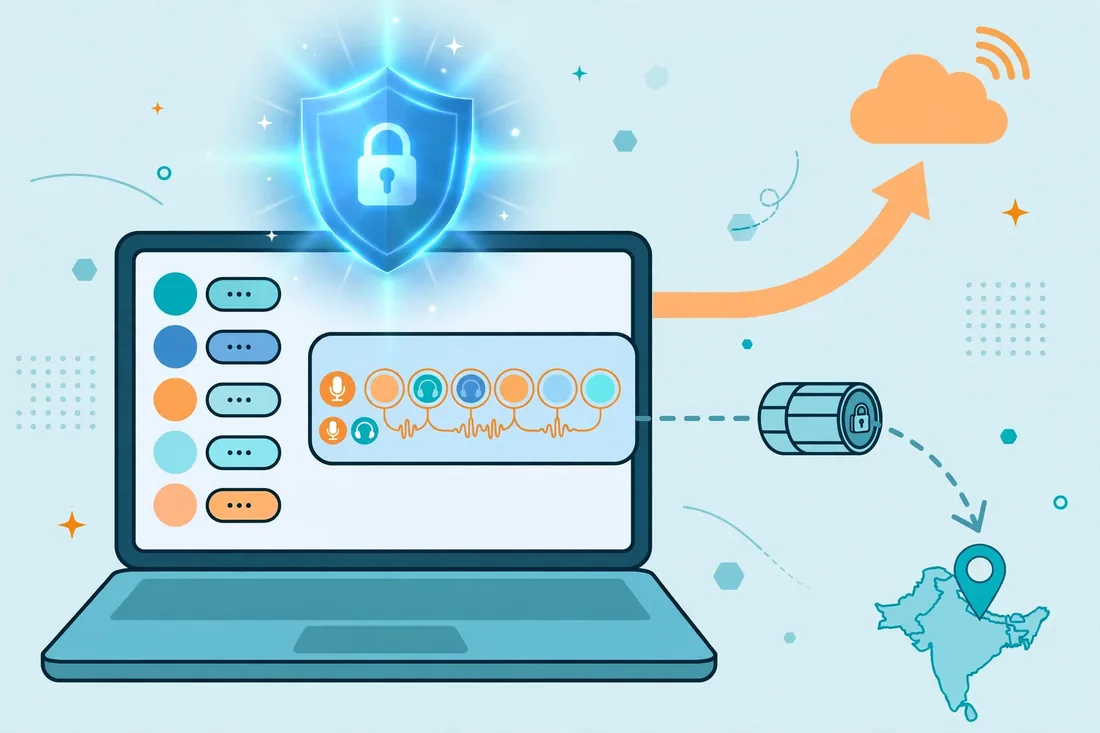
Slack Huddles can sound choppy, robotic, or delayed the moment a VPN is switched on, and the fix is usually routing, not a faster subscription. Surfshark, which we recommend for readers in Pakistan and promote as 80% off for our users, supports split tunneling on Windows and Android, so you can send Huddles traffic straight to the internet while everything else stays inside the encrypted tunnel.
The short answer is this: route Slack Huddles outside the VPN when you control the network and your workplace allows it, because real-time voice is the traffic most hurt by the extra hop, encryption overhead, and congestion a VPN adds. Keep Huddles inside the VPN when your employer requires it, when you are on public or untrusted Wi-Fi, or when your workplace network blocks direct access to Slack’s media servers.
This guide explains how a VPN affects Huddles, which providers and operating systems actually support per-app routing, the exact steps to exclude Slack on each platform, and how to run a fair before-and-after comparison so you can tell whether the change helped. It is written for readers in Pakistan, where evening congestion, mobile data, and the PTA’s VPN registration framework all shape the decision.
Readers who want the background first can start with the Free VPN Pakistan homepage for general guidance, and our companion guide on routing Google Meet inside or outside a VPN covers the same split-routing ideas for a different calling app.
The Short Answer: Route Huddles Direct Unless You Need the Tunnel
Huddles are live voice and video conversations, and live media is far less forgiving than a web page or a file download. A web page can wait a fraction of a second for a retransmitted packet without you noticing, but a Huddle cannot, because the audio has to arrive in order and on time or it breaks up.
A VPN adds distance and processing to every packet. Your traffic travels to the VPN server first, gets encrypted and decrypted, and only then continues to Slack’s servers. On a good connection to a nearby server, that cost is small and Huddles work fine. On a congested evening connection in Pakistan, or through a distant server, the added latency and jitter can push a call from usable to frustrating.
Split tunneling solves this by letting you choose. You keep your browser, email, and downloads inside the VPN, and you send only Slack outside it. Your Huddles then take the shortest path to Slack, while the rest of your traffic keeps its protection. That is the best of both worlds for most home and office setups.
There is one important exception. Some employers route all work traffic through a corporate VPN on purpose, so that Slack, internal tools, and file shares all sit behind the same security controls.
If your employer requires the VPN for Slack, do not bypass it without asking, because the routing decision may not be yours to make. The checks later in this guide show how to raise the issue with your IT team.
How a VPN Can Affect Slack Huddles
Slack Huddles use real-time media streams, which behave very differently from ordinary browsing. The audio and video travel as a continuous stream of small packets, and the call quality depends on those packets arriving quickly, in order, and without gaps. Three measurements decide whether a call sounds good or falls apart.
Latency is the round-trip time for a packet to travel from your device to the other end and back. Higher latency means longer delays before you hear the other person, and conversations start to feel like a walkie-talkie exchange with people talking over each other. A VPN always adds some latency, because the route is longer, and the question is how much.
Jitter is the variation in latency from one packet to the next. A connection can have acceptable average latency and still sound terrible if some packets arrive in 40 milliseconds and others take 300. Jitter is the usual culprit when Huddles audio sounds robotic or cuts in and out, and VPN congestion makes jitter worse.
Packet loss is the share of packets that never arrive at all. A small amount of loss is hidden by error correction, but once loss climbs, words vanish mid-sentence and video freezes. Loss is also the metric most affected by a congested VPN server or an overloaded international link from Pakistan.
The other factor is the server location. If you connect to a VPN server in Europe while Slack’s media servers for your call are elsewhere, your audio may cross the world twice. Choosing a nearby server, such as Singapore, usually helps more than any setting change, and it is worth testing before you touch split tunneling at all.
Finally, some VPN servers are simply crowded at peak hours. A server that is fast at noon can be slow at nine in the evening when thousands of users connect at once. That is why the comparison test in this guide repeats the measurement at different times rather than trusting a single call.
Split Tunneling Explained: Inside or Outside the VPN
Split tunneling is the feature that lets you divide your traffic into two groups: traffic that uses the VPN tunnel, and traffic that connects directly to the internet. It is the mechanism behind everything in this guide, and understanding its two directions matters before you change a setting.
In the first direction, you choose specific apps to route through the VPN while everything else goes direct. This is sometimes called include mode or VPN-only mode. It suits readers who want only a few apps protected, such as a browser and a torrent client, while everything else runs at full direct speed.
In the second direction, you choose specific apps to bypass the VPN while everything else stays inside the tunnel. This is sometimes called exclude mode or bypass mode, and it is the direction this guide uses for Slack Huddles. Your browser, email, and downloads stay protected, and only Slack takes the direct path.
A third variant works by website or domain rather than by app. Some providers let you list domains that bypass the VPN, which is useful for banking sites and streaming services that block VPN addresses. It is less useful for Huddles, because Slack’s media traffic does not travel through a single neat domain you can list.
The security trade-off is straightforward and worth stating plainly. Traffic that bypasses the VPN is not encrypted by it, and your internet provider can see that you are connecting to Slack. For most readers on a home network, that is an acceptable trade, because Slack itself encrypts its traffic. On public Wi-Fi, the trade is worse, and the full tunnel is the safer choice.
Which VPNs and Systems Support Split Tunneling
Not every VPN offers split tunneling, and support varies sharply by operating system, so check your provider and your platform before you plan around it. The table below summarises the position of the major providers as documented on their official support pages in November 2026.
Surfshark offers split tunneling under the name Bypasser on Windows and Android. You can choose apps or websites to bypass the VPN, or invert the choice so that only selected apps use the tunnel. Surfshark does not offer Bypasser on macOS or iOS, which limits what Mac and iPhone users can do inside the Surfshark app itself.
NordVPN offers split tunneling on Windows and Android, with app-based controls on both platforms. Its browser extensions add URL-based split tunneling for Chrome, Edge, and Firefox, which is useful for web apps but does not cover the Slack desktop app. NordVPN does not offer app-based split tunneling on macOS or iOS.
ExpressVPN offers split tunneling on Windows, macOS, and Android, which makes it one of the more flexible options for Mac users who need this feature. Its macOS support has changed across versions, so confirm the current position on ExpressVPN’s own support pages for your app version before relying on it.
Private Internet Access offers a split tunnel on Windows, macOS, and Linux, with both app-based bypass and IP-based rules, and it is one of the few providers with a Linux option. Proton VPN offers split tunneling on Windows and Android, but not on macOS or iOS at the time of writing.
Apple’s platforms are the hard limit. iOS does not allow third-party VPN apps to route individual apps differently, so no provider can offer true per-app split tunneling on an iPhone or iPad. The only iOS option is the system’s own per-app VPN feature, which is managed by enterprise device profiles and is not available to ordinary consumers.
On macOS, the position is better but uneven. Some providers offer split tunneling on macOS, others do not, and Apple’s own network extension rules mean the feature can behave differently from Windows. If you use a Mac, confirm support for your exact provider and app version, and keep the router-based workaround later in this guide in mind as a fallback.
Surfshark on Windows and Android: The Recommended Setup
Surfshark is the provider we recommend for readers in Pakistan who want split tunneling without a complicated setup, because Bypasser is built into its Windows and Android apps and the unlimited device allowance covers every machine in the household.
Its longer-term pricing is reported at around 2.49 dollars per month on introductory two-year plans, which is roughly PKR 700 per month at an approximate rate of PKR 280 per dollar as of November 2026.
Bypasser works in two modes. In bypass mode, everything uses the VPN except the apps and websites you list. In route mode, only the apps and websites you list use the VPN, and everything else goes direct. For Slack Huddles, bypass mode is the right choice, because you want one app to go direct while the rest of your traffic stays protected.
The setup on Windows takes about two minutes. Open the Surfshark app, go to Settings, then VPN Settings, and open Bypasser. Choose the bypass option, add Slack to the list, and connect to your usual server. Slack’s traffic then leaves your machine directly, while your browser and other apps continue through the tunnel.
One detail catches people out: Slack runs as more than one process, and the desktop app may launch helper processes alongside the main window.
If excluding the main Slack app does not change the call quality, check whether your VPN lists additional Slack processes or a separate updater process, and add those too. Restarting Slack after changing the rule also helps, because existing connections may stay on the old route until they are re-established.
On Android, the path is similar. Open Surfshark, go to Settings, then VPN Settings, and open Bypasser. Add Slack to the bypass list, and the app’s traffic goes direct. Android also lets some VPNs work per-app through the system’s own VPN settings, but Bypasser inside the Surfshark app is the simpler route for most readers.
Surfshark — our recommended VPN for Pakistan
For readers who want split tunneling that just works on Windows and Android, this is the straightforward starting point.
How to Exclude Slack Huddles From Your VPN on Windows
Windows is the easiest platform for this task, because most major VPNs support app-based split tunneling there. The steps below use Surfshark’s Bypasser, and the same pattern applies to NordVPN, ExpressVPN, and Private Internet Access with their own menu names.
First, disconnect the VPN if it is running, because some apps only let you edit split tunneling rules while disconnected. Open the VPN app, find Settings, and look for Split Tunneling, Bypasser, or App Exclusions. The exact label varies, but the idea is the same on every provider.
Second, choose the bypass or exclude mode, not the route-only mode. In bypass mode, all traffic uses the VPN by default and only your chosen apps go direct. That is the mode you want, because it keeps everything else protected while Slack alone takes the direct path.
Third, add Slack to the bypass list. Click Add Application, find Slack in the list of installed programs, and select it. If Slack does not appear in the list, use the browse option and navigate to the Slack executable, which is usually inside the Program Files folder under the Slack directory.
Fourth, reconnect the VPN and restart Slack. The restart matters, because Slack may already hold open connections that were established before the rule changed. Close Slack completely, including from the system tray, and open it again so the new route takes effect.
Fifth, start a test Huddle with a colleague and listen for the difference. A single call is not proof, because network conditions change minute to minute, so repeat the test at the same time of day on two or three days before deciding. The comparison method later in this guide explains how to make that test fair.
If the change makes no difference, check two things before giving up. Confirm that Slack is genuinely bypassing the tunnel by checking your public IP address while Slack is running, and confirm that the VPN app did not silently reset the rule after an update. Both problems are common, and both are easy to miss.

How to Route Slack Huddles on macOS
macOS is the awkward platform for split tunneling, because support depends entirely on your provider. ExpressVPN and Private Internet Access offer the feature on macOS, while Surfshark and NordVPN do not offer app-based split tunneling in their Mac apps at the time of writing. Check your provider’s current support pages before assuming anything.
If your provider supports it, the steps mirror Windows. Open the VPN app, find the split tunneling or per-app setting, choose the bypass mode, add Slack, reconnect, and restart Slack. The menu names differ, but the logic is identical, and the same restart rule applies.
If your provider does not support it on macOS, you have three workarounds. The first is to use the VPN only when you need it, and disconnect for Huddles, accepting that nothing is protected during the call. That is simple and effective, but it leaves your other traffic exposed for the duration of the call.
The second workaround is to run Slack in the browser instead of the desktop app, and to use a VPN browser extension for the browsing you want protected. Browser extensions route only that browser’s traffic, so Slack in another browser, or in the desktop app, goes direct. This is a practical split for readers who are comfortable working in a browser tab.
The third workaround is a router-based VPN, covered later in this guide. A router can route some devices through the VPN and others directly, which gives you a device-level split even when the app on your Mac cannot do it. It needs a compatible router and more setup, but it is the most reliable macOS workaround.
Android and iOS: What You Can and Cannot Split
Android is the friendlier mobile platform for split tunneling. Surfshark’s Bypasser, NordVPN’s split tunneling, and ExpressVPN’s per-app controls all work on Android, and the setup follows the same pattern as Windows: open settings, find the split tunneling option, choose bypass mode, add Slack, and reconnect.
One Android detail matters. Some phones aggressively close background apps to save battery, and a VPN app that is closed by the system can drop its split tunneling rules without warning. If Huddles suddenly sound bad on Android, check that the VPN app is still running and that battery optimisation is not killing it. Adding the VPN app to the phone’s list of unrestricted apps usually fixes this.
iOS is a different story, because Apple does not allow third-party VPN apps to split traffic by app. No consumer VPN can offer per-app split tunneling on an iPhone or iPad, and any provider that claims otherwise is describing something else, such as a browser extension or a per-app VPN profile managed by an employer.
On iOS, the practical options are to disconnect the VPN for Huddles, to use a VPN that offers a browser extension for the traffic you want protected, or to use a router-based VPN so the phone itself needs no split rule. The disconnect option is the simplest, and for a short Huddle on a home network it is a reasonable trade.
Enterprise readers may have one more option. If your employer manages your iPhone through a mobile device management profile, it can configure per-app VPN rules that send Slack through the corporate tunnel and everything else direct, or the reverse. That is an IT decision, not a setting you can change yourself, and it is worth asking your IT team about if Huddles are a daily problem.
The Comparison Test: Huddles With and Without the Tunnel
Guessing whether the change helped is not enough, because call quality varies with the time of day, the server load, and the other person’s connection. A short, structured comparison gives you a real answer, and it takes less than half an hour spread over two days.
Start by fixing the variables. Use the same device, the same network, the same VPN server location, and the same colleague for both tests. Test at the same time of day, ideally in the evening when Pakistani networks are busiest, because that is when the difference is largest. Change only one thing at a time: the routing of Slack.
Run the first test with Slack inside the VPN. Join a Huddle, talk for two or three minutes, and note three things: whether the audio breaks up, whether there is a noticeable delay before the other person replies, and whether the video freezes. Ask the other person the same questions, because the problem may be on their side and you need their view too.
Then switch to the bypass route, restart Slack, and repeat the same test with the same colleague. Use the same questions and the same length of call. If the bypass call is clearly better on two separate days, the routing was the problem and you should keep the bypass rule.
For a more precise measurement, run a speed and latency check alongside each call. Note your ping and jitter from a speed test site before each Huddle, and record whether the numbers move with the call quality. You do not need laboratory precision; you need a repeatable pattern, and two days of notes will show it.
If both tests sound equally bad, the VPN is probably not the cause. The problem may be your base internet connection, a congested local network, or the other person’s connection. The troubleshooting section below covers the other suspects in order, so you do not keep changing VPN settings for a problem that lives elsewhere.
Settings to Verify Before You Blame the VPN
A VPN is an easy suspect, but it is not always the guilty one, and a few quick checks can save hours of changing settings. Work through them in order, because each one rules out a common cause.
First, check your base connection without any VPN. Run a speed test and a ping test with the VPN disconnected. If the base connection already shows high latency or packet loss, the VPN cannot fix it, and the problem is your internet service, your Wi-Fi, or congestion on your local network.
Second, check your Wi-Fi signal. Huddles over a weak Wi-Fi signal, especially on the crowded 2.4 GHz band, will stutter with or without a VPN. Move closer to the router, switch to the 5 GHz band if your router offers it, or try a wired Ethernet connection for one test call and see whether the problem disappears.
Third, check the VPN server location. A distant server adds latency for every packet, and a crowded server adds jitter and loss. Switch to a nearby server, such as Singapore, and test again. If the nearby server fixes the call, you may not need split tunneling at all.
Fourth, check the VPN protocol. WireGuard is the better default for most readers, because it connects quickly and handles changing networks well. OpenVPN over UDP is a good alternative, while OpenVPN over TCP is slower and can add noticeable delay to real-time calls. Try WireGuard first if your provider offers it.
Fifth, check Slack itself. Make sure Slack is updated, because older versions can have media bugs that look like network problems. Check Slack’s own connection settings, and confirm that no other app is using your microphone or camera at the same time, because a conflict there can produce symptoms that mimic a bad connection.
Sixth, check your DNS settings. Some VPNs route DNS through their own servers, and a slow or distant DNS server can delay the start of a call even when the audio itself is fine. If Huddles take a long time to connect but sound fine afterwards, DNS is a likely suspect, and switching the VPN’s DNS option is worth trying.
When to Keep Huddles Inside the VPN
Routing Huddles outside the VPN is the right default for most home users, but there are situations where the tunnel is the safer and the required choice. The decision is about your network and your employer, not about squeezing out the last drop of call quality.
Stay inside the VPN on public Wi-Fi. A cafe, airport, or hotel network is shared with strangers, and unencrypted traffic on such a network can be observed. Slack encrypts its own traffic, but the full tunnel adds a second layer and hides which services you are using, which is worth the small quality cost on a network you do not control.
Stay inside the VPN if your employer requires it. Many companies route all work traffic through a corporate VPN so that access controls, logging, and data protection policies apply uniformly. Bypassing that control can breach your employer’s security policy, and it can also break access to internal tools that only work inside the tunnel.
Stay inside the VPN if your workplace network blocks direct access to Slack’s media servers. Some office and university networks allow only approved traffic, and Slack may be reachable only through the corporate VPN. In that case the bypass route will not work at all, and the call will fail rather than improve.
Stay inside the VPN if you are discussing sensitive work and you do not trust the local network. A home network you share with neighbours, a shared office connection, or a network in a country with heavy monitoring are all cases where the extra protection matters more than a slightly smoother call.
In all of these cases, the better fix is to improve the tunnel rather than bypass it. Choose a nearby server, switch to WireGuard, test at a quieter time, and ask your IT team whether a nearer corporate gateway exists. Those steps often recover most of the quality without giving up the protection.
Troubleshooting: Huddles Still Failing After Split Routing
If you have excluded Slack from the VPN and Huddles still sound bad, work through the remaining suspects methodically instead of changing several settings at once. Changing one variable at a time is the only way to know which change actually helped.
First, confirm the bypass is really working. Check your public IP address in the browser while the VPN is connected, then confirm that Slack is using your real IP rather than the VPN’s address. Some VPN apps show a live list of which apps are bypassing the tunnel, and that list is the quickest confirmation.
Second, check for a second VPN. Some readers run a VPN app and a browser extension at the same time, or a work VPN alongside a personal one, and the second tunnel can capture Slack’s traffic even when the first one is configured to bypass it. Disable every VPN except the one you are testing, then try the call again.
Third, check your firewall and antivirus. Security software can inspect or delay real-time traffic, and some products treat VPN traffic and direct traffic differently. Temporarily disable the firewall’s traffic inspection for one test call, and if the call improves, add an exception for Slack rather than leaving the protection off.
Fourth, check for bandwidth competition on your own network. A family member streaming video in 4K, a large download, or a cloud backup can saturate a Pakistani home connection and starve a Huddle of bandwidth. Test at a quiet time, or pause the other traffic, and see whether the call recovers.
Fifth, test from a different network. A mobile hotspot, a neighbour’s connection, or the office network will tell you whether the problem follows your device or stays with your home connection. If Huddles work fine on mobile data but fail on home Wi-Fi, the problem is the home network, not Slack and not the VPN.
Sixth, contact your internet provider if the problem is persistent and network-wide. Ask whether there is congestion on your line or maintenance in your area, and record the times when calls fail. Providers in Pakistan can be slow to act on vague complaints, but a dated log of failed calls with times and symptoms is much harder to dismiss.

Pakistan-Specific Considerations
Readers in Pakistan face conditions that guides written for other countries rarely mention, and those conditions change the routing decision in practical ways. The first is evening congestion. Pakistani home networks are often slowest between seven and eleven at night, when streaming and gaming peak, and that is exactly when many remote workers join Huddles with overseas colleagues.
If your Huddles are scheduled in that window, test the bypass route in the evening rather than at midday, because a setting that looks fine at noon can fail at nine in the evening. The comparison test earlier in this guide is designed around this, and it is worth repeating the test on a second evening before you settle the decision.
The second condition is the PTA’s VPN registration framework. The Pakistan Telecommunication Authority operates a registration system for VPN use, and readers who use a VPN for work should check the current PTA guidance for their situation. This guide does not give legal advice, but it is worth knowing that the regulatory position exists and that it changes, so check the PTA’s own announcements rather than relying on old summaries.
The third condition is payment friction. International card payments can fail for Pakistani users, so confirm that your subscription renews successfully and keep a note of the renewal date. A lapsed subscription that disconnects mid-call is a surprisingly common cause of sudden Huddles failures, and it looks exactly like a routing problem.
The fourth condition is mobile data. Many readers in Pakistan join Huddles from a mobile hotspot when the home connection falters, and mobile networks behave differently from fibre.
Jitter is often higher on 4G, and the route to a VPN server can change as the phone switches towers. If you rely on mobile data, test the bypass route on mobile data specifically, and do not assume a result from fibre will carry over.
Finally, remember that the cheapest server is not always the nearest. A VPN server in Singapore is usually the best choice for readers in Pakistan, because the network path is short and well connected, but test it against any other nearby option your provider offers. Server load changes daily, so the best server last month may not be the best server today.
Frequently Asked Questions
How Can a VPN Affect Slack Huddles?
A VPN adds an extra hop, encryption overhead, and potential congestion to every packet, which increases latency, jitter, and packet loss. Real-time voice is sensitive to all three, so Huddles can sound choppy, delayed, or robotic even when ordinary browsing feels fine through the same tunnel.
Which Settings Should I Verify?
Verify the VPN protocol, the server location, the split tunneling mode, and whether Slack is actually in the bypass list. Then check your base connection without the VPN, your Wi-Fi signal, and whether any second VPN, firewall, or bandwidth-hungry app is competing for the connection.
How Do I Compare the App With and Without the Tunnel?
Fix the device, network, server, and colleague, then run a two-to-three-minute Huddle inside the VPN and note audio breakup, delay, and video freezing. Switch to the bypass route, restart Slack, and repeat the same test at the same time of day. Repeat on a second day before deciding.
Can I Exclude Slack From a VPN on an iPhone?
No, iOS does not allow third-party VPN apps to route individual apps differently, so true per-app split tunneling is not available on an iPhone or iPad. The practical options are to disconnect the VPN for the Huddle, to use a router-based VPN, or to ask an employer’s IT team about managed per-app VPN profiles.
Does Split Tunneling Work on macOS?
It depends on the provider. ExpressVPN and Private Internet Access offer split tunneling on macOS, while Surfshark and NordVPN do not offer app-based split tunneling in their Mac apps at the time of writing. If your provider lacks it, use the browser workaround or a router-based VPN instead.
Is It Safe to Route Slack Outside the VPN?
On a home network you control, the risk is low, because Slack encrypts its own traffic. The trade is worse on public Wi-Fi or an untrusted network, where the full tunnel is the safer choice. Never bypass a VPN your employer requires without checking with your IT team first.
Conclusion
Routing Slack Huddles outside the VPN is the right default for most readers in Pakistan, because live voice suffers more from the extra hop than any other traffic you run. Split tunneling gives you that routing without giving up protection for everything else, and on Windows and Android it takes only a few minutes to set up.
The decision still depends on your situation. If your employer requires the tunnel, if you are on public Wi-Fi, or if your network blocks direct access to Slack, keep Huddles inside the VPN and improve the tunnel instead, with a nearby server and the WireGuard protocol. Test both routes at the same time of day on two separate days, and let the calls themselves decide.
For readers who want a single subscription that covers every device in the home, including the split tunneling this guide relies on, the recommended option below is the natural starting point. Set up the bypass rule, restart Slack, run the comparison test, and keep whichever route gives you the clearer call.
Surfshark — our recommended VPN for Pakistan
If you want split tunneling for Huddles plus protection for everything else, Surfshark covers the whole household on one plan.