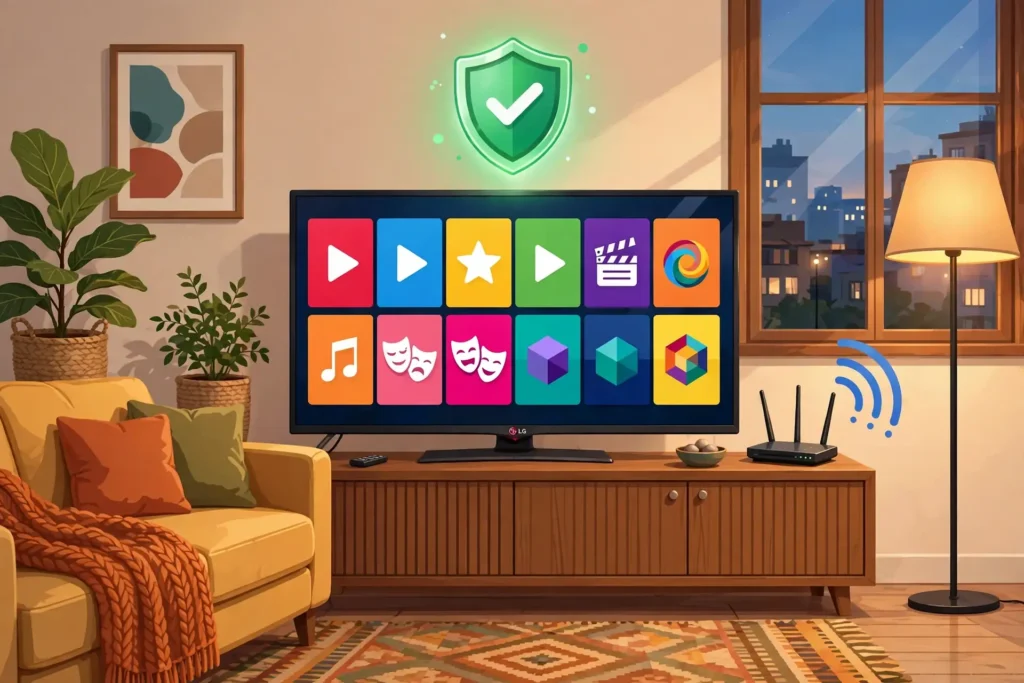
If you want a VPN on your LG TV in Pakistan, Surfshark is the VPN we recommend, with 80% off for our users — and the first thing to know is that you cannot install it on the TV itself, because LG TVs run webOS and webOS has no native VPN apps.
That sounds like bad news, but it is not. It simply means the VPN lives somewhere else: on your router, on a Windows PC that shares its connection, or on a small streaming player plugged into the TV. Once you accept that, the setup is straightforward, and this guide walks through each method in order.
The most important fact in this guide is also the newest one. Surfshark discontinued its Smart DNS feature on 2 February 2026, so the DNS trick that older guides describe no longer works with Surfshark. If you follow an old tutorial and type a Surfshark DNS address into your TV, the TV will not connect at all.
This is a method-led setup guide. It publishes no original measurements, no speed numbers and no test results of its own, because none were measured for this post. Every step below is a procedure you can follow yourself, in a fixed order, with the checks that tell you whether it worked.
The guidance is verified against Surfshark’s own published LG TV setup page and its official Smart DNS discontinuation notice, which are current as of 22 November 2026. Where a claim could not be verified from an official source, this guide says so plainly instead of asserting it. That matters, because a confident wrong answer is worse than an honest gap.
The short answer is simple. Set the VPN up on a router that supports a VPN client, or share a VPN connection from a Windows PC as a hotspot, and then verify the connection by checking your exit IP in the TV’s web browser. If neither of those suits you, plug in a streaming player that can run a VPN app.
The Short Answer: Which VPN Setup Methods LG TV Supports
LG TV supports three VPN setup methods, and they are not equal. The router method is the one most readers should use, because it protects the TV and every other device in the house at once, with nothing to install on the TV. The Windows hotspot method is the quickest to test. The external player method is the easiest to use every day.
A VPN on the router means the router itself connects to the VPN, and every device on your Wi-Fi, including the LG TV, uses that tunnel automatically. There is no app to open on the TV and nothing to switch on before you watch. It is the method Surfshark documents first for LG TV, and it is the only method that works with no changes to the TV at all.
The Windows hotspot method shares a VPN connection from a Windows PC over Wi-Fi, and the LG TV joins that hotspot instead of your normal network. It needs no router changes and no new hardware, but the computer must stay on while you watch, and the setup is fiddly. It is a good test, and a poor permanent setup.
The external player method plugs a small streaming device, such as a Fire TV Stick, into one of the TV’s HDMI ports, and that device runs its own VPN app. The TV becomes a screen for the player, and the VPN runs on the player. It is the easiest method to use daily, because the app is controlled with a remote, but it costs extra hardware.
What does not exist is a native VPN app for LG TV. The LG Content Store has no VPN apps, webOS has no VPN client setting, and searching the store for a VPN will find nothing. Any guide that tells you to install a VPN app on the TV is either describing a different television or is out of date.
| Method | Needs | Best For |
|---|---|---|
| VPN on the router | A router with a VPN client | Most readers, whole-home protection |
| Shared hotspot from a Windows PC | A Windows PC with a VPN app | A quick test without router changes |
| External streaming player | A Fire TV Stick or similar player | Easiest daily use, remote control |
| Native VPN app on the TV | Not available on webOS | Does not exist, do not search for it |
Before You Start: Check Your LG TV Model and webOS Version
Start by checking what you own, because the setup depends on it. LG’s own support guidance gives two ways to find your webOS version. Press the Settings button or the Mute button on your remote three times, and an information overlay appears showing your webOS version. Or go to Settings, then All Settings, then General, then About This TV.
The version matters less than it does on other televisions, because no webOS version supports a native VPN app. What it tells you is the age of your set, the menu layout you will see, and whether the TV is still receiving updates.
LG TVs from 2022 onwards receive webOS upgrades for up to five years under LG’s Re:New program, so a 2024 set may already run a newer webOS than it shipped with. Check the version on the screen rather than trusting the year you bought the set.
You also need an active VPN subscription before you begin. The VPN itself never installs on the TV, but the router, the Windows PC or the streaming player all need a paid account to connect. Create the account on your phone or computer first, where typing an email address and a password is easy, and keep the account details ready.
Make sure the LG TV is connected to your normal Wi-Fi network and that the connection works without a VPN. Open any app and play a video. If the video will not play before the VPN is involved, fix your internet first, because a VPN cannot repair a broken connection, and it will only hide the real fault.
Finally, find your router’s model number and its admin password. The router method is the one most readers will use, and you cannot start it without logging into the router. The model is usually printed on a sticker on the bottom or back of the router, and the admin password is on the same sticker unless you changed it.
- Check your webOS version by pressing Mute three times, or in Settings, then All Settings, then General, then About This TV.
- Create your VPN account on a phone or computer first, where typing is easy.
- Confirm the LG TV plays video on your normal Wi-Fi before the VPN is involved.
- Find your router’s model number and admin password before you start the router method.
- Note your webOS version and router model before you change anything.
Why LG TV Has No Native VPN App
LG smart TVs run webOS, LG’s own operating system, and webOS does not support third-party VPN apps. Surfshark’s own LG TV page says this plainly: LG Smart TVs run on a webOS operating system that does not natively support VPN apps, and the setup has to happen on the router or on a hotspot instead.
The LG Content Store, which is the TV’s app store, carries streaming apps, games and utilities, but no VPN apps. Searching it for Surfshark, or for any other VPN provider, will return no result. That is not a fault with your TV or your account, and it is not fixed by updating the software. It is how webOS is designed.
There is also no hidden VPN setting on the TV. Unlike a phone, which has a VPN section in its settings where you can type in server details by hand, webOS has no VPN client at all. The network settings let you change Wi-Fi, wired connections and DNS addresses, but they do not let you build an encrypted tunnel.
The same limit applies to every LG TV, whatever its model year or webOS version. An OLED, a QNED and a NanoCell set all run webOS, and the operating system, not the hardware, decides what apps can install. A newer webOS version adds features and apps, but it does not add VPN support, and LG has not announced any plan to do so.
That is why this guide spends no time on app installation. The honest setup is to move the VPN off the TV entirely, onto a device that can run it, and let the TV use the protected connection. The three methods below are the only ones that do that, and they are ordered from the most reliable to the most convenient.
Flagged: LG has not announced any plan to add native VPN support to webOS, and no webOS version supports a VPN client. Do not treat a future update as a setup option when choosing a method today.
Method 1: Set Up the VPN on Your Router
The router method is the right answer for most readers, and it has one big advantage: it protects every device on your network at once. Once the router is connected to the VPN, the LG TV, your phone, your laptop and your tablet all use the same tunnel, with no app needed on any of them.
The catch is that the router must support a VPN client. Most routers supplied by PTCL, Jazz and other Pakistani providers do not, and the setting is often hidden or absent entirely. Check your router’s admin page for a VPN client section, or look up the exact model on the VPN provider’s support site before you buy anything.
If your router does support it, the setup is to enter the VPN provider’s server details, your account credentials and the protocol in the router’s VPN client page, save the settings, and restart the router. Surfshark publishes router setup guides for the routers it supports, and the exact steps vary by router model, so follow the guide for your model.
Surfshark supports WireGuard on newer routers, and its guidance names GL.iNet, OpenWrt and DD-WRT firmware as the best fit, while Asus routers support it through VPN Fusion on firmware 3.0.0.4.388.20000 or later. Older routers use OpenVPN instead. Either protocol works for the TV; the choice is decided by what your router supports, not by the television.
The trade-off is that switching countries becomes a router admin task, not a remote-control tap. If you change country often, the router method is slow and annoying. If you mostly use one country, it is invisible once it is set up, and it is the only method that covers the TV with no app and no computer left running.
Do not buy a new router for this unless you are sure the model supports a VPN client and your provider supports it. A cheap router that cannot run a VPN client is a wasted purchase, and a router bought for this purpose should be checked against the provider’s supported-router list before you pay.
- Log into your router’s admin page and look for a VPN client section.
- Follow the VPN provider’s router guide for your exact router model and firmware.
- Enter the server details, account credentials and protocol, then save and restart the router.
- Connect the LG TV to your normal Wi-Fi network and test it by checking the exit IP in the TV browser.
- Remember that switching countries now means logging into the router admin page.
Method 2: Share a VPN Connection From a Windows PC
The hotspot method is the quickest workaround when you cannot install a VPN on your router. Install the VPN app on a Windows PC, connect it to the country you want, and then share that connection over Wi-Fi as a mobile hotspot. The LG TV joins the hotspot instead of your normal network, and its traffic goes through the VPN.
Surfshark’s own guidance for this method is specific about the protocol. Open the Surfshark app and set the protocol to OpenVPN (UDP) under Settings, then VPN settings, then Protocol. TCP also works, but the hotspot sharing setup requires OpenVPN, and the guide will not work if the app is set to WireGuard.
Next, turn on the mobile hotspot in Windows, then open the network adapter settings and share the VPN adapter with the hotspot. In Windows, the Surfshark OpenVPN connection appears as the DCO adapter. Right-click it, open Properties, then the Sharing tab, tick the box that allows other network users to connect through this computer, and pick the hotspot adapter.
Once sharing is on, connect to a Surfshark server on the PC, then join the LG TV to the new Wi-Fi hotspot. From the TV, go to Settings, then All Settings, then Network, then Wi-Fi Connection, and select the hotspot name. The TV now routes through the PC’s VPN tunnel, and the verification section below shows how to confirm it.
The limits are real. The computer must stay on and stay connected for as long as you watch, the Wi-Fi range is shorter than a router’s, and the speed depends on the computer’s own connection. It is a good way to test whether a VPN fixes your LG TV problem, and a poor way to run it every evening.
Do not use a free phone hotspot app for this. A phone’s built-in hotspot does not route through the phone’s VPN on most phones, so the LG TV would connect to the hotspot unprotected and you would have no warning. Use a Windows PC, where the sharing settings genuinely route through the tunnel.
- Install the VPN app on a Windows PC and set the protocol to OpenVPN (UDP).
- Turn on the mobile hotspot in Windows and open the network adapter settings.
- Share the Surfshark OpenVPN adapter with the hotspot adapter.
- Connect to a server on the PC, then join the LG TV to the hotspot from its Wi-Fi settings.
- Verify the connection by checking the exit IP in the TV browser before you watch.
Method 3: Use an External Streaming Player
The external player method is the easiest to use every day, because it puts a real VPN app back in your hands. Plug a streaming device, such as a Fire TV Stick, into one of the TV’s HDMI ports, and that device runs its own VPN app, controlled with its own remote. The LG TV becomes a screen for the player.
The setup on the player is the same as on any television that supports VPN apps. Install the VPN app from the player’s app store, sign in, and connect. On a Fire TV Stick, the Surfshark app installs from the Amazon Appstore, and the sign-in by QR code avoids typing a password with a remote. The TV itself needs no changes at all.
The advantage is daily convenience. Switching countries is a tap on the player’s remote, the VPN status is visible on the player’s screen, and the TV’s own apps are untouched. If the VPN drops, you see it on the player immediately, instead of discovering it later from a blocked video.
The disadvantage is cost and clutter. You are buying a second device to do what the TV cannot, and you need a spare HDMI port, a spare power socket and a second remote on the coffee table. If you already own a Fire TV Stick or a similar player, this method costs nothing extra, and it is the one to use.
Choose the player carefully if you are buying one for this purpose. It must run an operating system with a native VPN app, such as Fire OS or Android TV, and the VPN provider must publish an app for it. Check the provider’s supported-device list before you pay, because a player that cannot run the app is no better than the TV.
- Plug the streaming player into a spare HDMI port and connect it to power.
- Install the VPN app from the player’s app store and sign in.
- Connect to a country, then switch the TV input to the player’s HDMI port.
- Verify the connection by checking the exit IP in the player’s browser.
- Keep the player’s app updated, because updates arrive through its app store.
Smart DNS on LG TV: What Changed in 2026
Smart DNS was once the simplest LG TV method, and older guides still describe it. It worked by changing the DNS addresses in the TV’s network settings, so the TV could reach streaming services in other countries without a full VPN tunnel. It did not encrypt traffic, and it did not hide the IP address, but it was quick to set up.
That method is no longer available from Surfshark. Surfshark’s official support notice says the SmartDNS feature was discontinued on 2 February 2026, and that other Surfshark services continue to work as usual. If you are currently using Smart DNS on any device, Surfshark says you must disable it manually, or the TV will be unable to connect to the internet.
If you set up Smart DNS on your LG TV in the past, remove it now. Go to Settings, then All Settings, then Network, then select your connected network, then Advanced Wi-Fi Settings or Edit, then the DNS server field. Choose Set automatically if the option is there, or remove the old Smart DNS address and enter a normal DNS address instead.
Surfshark’s own notice recommends its public DNS address, 194.169.169.169, as a replacement if automatic DNS is not offered. That address is a DNS service, not a VPN, and it does not unblock anything or encrypt anything. It simply restores a working DNS setting so the TV can connect to the internet again.
Other VPN providers still offer Smart DNS, and third-party guides name NordVPN and ExpressVPN as providers whose Smart DNS can still be typed into an LG TV. That is a different provider’s service, not Surfshark’s, and it is not the method this guide recommends, because it gives no encryption and no IP protection. It is mentioned here only so you are not surprised when another guide describes it.
Flagged: the claim that other providers still offer Smart DNS for LG TV comes from third-party guides, not from those providers’ official LG TV pages checked for this post. Treat it as unconfirmed, and check the provider’s current support page before relying on it.
The important habit is to check the date on any LG TV VPN guide you read. A guide written before February 2026 may describe Surfshark Smart DNS as a live option, and following it today will leave the TV unable to connect. A guide that names the router method, the Windows hotspot or an external player is describing the current options.
LG TV VPN Permissions: What the TV and Router Ask and Why
Setting up a VPN for an LG TV involves permissions, but they are not on the TV. The TV itself asks for nothing, because no VPN app installs on it and no VPN permission exists in webOS. The permissions that matter are on the router, on the Windows PC, or on the external player, depending on the method you chose.
On a Windows PC, the first connection shows a connection request asking whether the VPN app may set up a VPN connection, and it warns that the app can monitor network traffic. That warning sounds alarming, but it is the standard permission every VPN app needs, and it is exactly what a VPN is for. Press OK, and the permission is granted once, for that app.
The permission lets the app create a virtual network interface and route the PC’s traffic through its encrypted tunnel. Without it, the app cannot protect anything, and the connection will fail. It is not granted to every app on the computer, and it is not a blank cheque for the provider. Removing the app removes its permission with it.
On the router, the permission is the admin login itself. Entering the VPN details in the router’s VPN client page changes the network for every device in the house, so the router asks for its admin password first. Keep that password private, and change it from the default if you never have, because a router with a default password is an open door.
On an external player, the permissions match the player’s own system. A Fire TV Stick asks for the same VPN connection permission as the Windows app, and it may also ask to run in the background, so the tunnel stays alive while you watch. Granting background permission matters, because a VPN app the system kills in the background will drop the connection silently.
| Where | Permission Asked | Required? |
|---|---|---|
| LG TV itself | No VPN permission exists in webOS | Nothing to grant |
| Windows PC | VPN connection request on first connect | Yes, press OK to connect |
| Router admin page | Admin password to change VPN settings | Yes, it protects the whole network |
| External player | VPN connection request, background run | Yes, and background run is recommended |
| TV network settings | DNS server field change | Only to remove old Smart DNS settings |
How to Verify the VPN Connection on LG TV
A VPN that says Connected on the router or the PC is not proof on its own. Verify the connection by checking what the internet actually sees from the TV, because a setup that silently failed will still look finished on the device that hosts it. The check takes a minute, and it is the only way to know the setup worked.
Open the web browser app on your LG TV and visit an IP lookup site. The site will show an IP address and a country. If the country matches the VPN location you chose, and the address is different from the one your normal connection shows, the tunnel is working. If it still shows Pakistan, the tunnel is not active.
Write down the address you see, then switch the VPN off at the router or the PC and check again. The two addresses should be different. If they are the same, the VPN never engaged, and the TV was never protected. That comparison is the single most useful test in this guide, and it takes less than a minute.
Also check that your streaming apps behave as if you are in the chosen country. A video that was blocked in Pakistan and now plays is a good sign, but it is not proof on its own, because some services cache your location. The IP lookup is the proof, and the streaming result is the confirmation.
Repeat the check after restarting the TV, because a router or hotspot setup can drop without warning. If the connection is gone after a restart, check whether the router reconnected to the VPN, or whether the Windows PC is still sharing its hotspot. A VPN that only works until the first restart is a VPN you will forget to switch on.
- Connect the VPN on the router, the PC or the external player.
- Open the web browser app on the LG TV and visit an IP lookup site.
- Confirm the country shown matches the VPN location you chose.
- Switch the VPN off, check again, and confirm the address changes.
- Repeat the check after restarting the TV to confirm the setup survives a restart.
How to Remove a VPN Profile From LG TV
Removing a VPN from an LG TV is simple, because there is no VPN profile on the TV to remove. The TV has no VPN client and no VPN setting, so there is nothing to uninstall and nothing to delete. The removal happens on the device that hosts the VPN, and the TV returns to its normal connection on its own.
For the router method, log into the router’s admin page, open the VPN client section, and delete the VPN configuration or turn the client off. Restart the router, then check the TV’s exit IP in its browser. The address should now show your normal Pakistani address. If it still shows a foreign country, the router is still connected, and the restart step is the fix.
For the Windows hotspot method, stop sharing the VPN adapter in Windows, turn the mobile hotspot off, and reconnect the TV to your normal Wi-Fi network. Go to Settings, then All Settings, then Network, then Wi-Fi Connection on the TV, and select your home network. Check the exit IP again to confirm the TV is back on its normal connection.
For the external player method, remove the VPN app from the player, or disconnect inside the app. If you only want to stop using the VPN temporarily, just disconnect inside the app and leave it installed. Uninstalling is only for when you are done with the provider entirely, and the player returns to its normal connection either way.
If you had old Smart DNS settings on the TV, remove those too, even after the VPN is gone. Go to Settings, then All Settings, then Network, then your connected network, then Advanced Wi-Fi Settings or Edit, then the DNS server field, and choose Set automatically. A leftover Smart DNS address can stop the TV connecting at all.
When you remove one VPN to install another, remove the first setup completely before starting the second. Two VPN setups on the same router or PC can fight over the same network settings, and both will fail. Clear the first one, restart the router or PC, and only then install the replacement.
Surfshark on LG TV: The Setup We Recommend
Surfshark is the VPN we recommend for LG TV in Pakistan, and the reason is simple: it documents the LG TV setup itself, it supports the router method and the Windows hotspot method, and it offers the same account on every device in the house. The guidance in this post is verified against Surfshark’s own published LG TV page.
Surfshark lists more than 4,500 servers in 100 countries, so the country you need is almost certainly available. Use the router or the PC app to pick it, connect, and leave the setup running while you watch. The VPN stays connected until you disconnect it or restart the router or PC.
One subscription covers unlimited devices, so the same account protects your LG TV, your phone, your laptop and your tablet without buying more accounts. That matters for a household, because a VPN that only covers the television leaves every other screen unprotected, and a second account would hide that gap.
Check the current Surfshark price on the official site before you subscribe, and confirm the two-year rate and the rupee conversion there before you commit. Prices and promotions change, and the figure on the official site is the only one you should trust. The offer we promote is 80% off for our users, through the link in this guide.
Surfshark — our recommended VPN for Pakistan
One subscription covers every screen in your home, and the same account that protects your LG TV also works on Windows, Android, iPhone and macOS.
Troubleshooting Common LG TV VPN Problems
If the TV will not connect to the internet at all, check whether old Smart DNS settings are still on the TV. Surfshark’s own notice warns that a TV with Smart DNS configured after the feature ended will be unable to connect. Remove the old DNS address and choose Set automatically, then test the TV on your normal Wi-Fi before adding any VPN method.
If the TV connects but its location still shows Pakistan, the tunnel has not engaged. Check the router’s VPN status page, or the VPN app on the PC, and confirm it shows Connected with the country you chose. If the router shows a connection error, the credentials or server details are usually wrong, and re-entering them is the fix.
If the connection drops every few minutes, check whether the Windows PC went to sleep, or whether the router restarted. A PC that sleeps stops sharing its hotspot, and a router that restarts may not reconnect to the VPN on its own. Set the PC to stay awake while sharing, and check the router’s reconnect setting.
If one streaming app works and another does not, the problem is usually that service’s own location check, not the VPN. Some services use account region or payment details as well as the IP address, and a VPN only changes the IP address. Try another country, clear the streaming app’s data, and test again.
If nothing works on any network, check whether the failure happens on a second network, such as a mobile hotspot. A VPN that fails on your home Wi-Fi but works on mobile data points at the router or the fixed network, not at the app. That single comparison is the most informative test for a Pakistan reader.
| Symptom | Likely Cause | First Check |
|---|---|---|
| TV will not connect at all | Old Smart DNS settings left on the TV | Set DNS to automatic in network settings |
| Connected but location still shows Pakistan | Tunnel not engaged | Router or PC VPN status, re-enter credentials |
| Connection drops every few minutes | PC asleep or router restarted | Keep the PC awake, check router reconnect |
| One streaming app fails, others work | That service’s location check | Another country, clear the app’s data |
| Fails on every network and location | Account or network policy | Second network, support, fallback VPN |
Limitations and What This Guide Does Not Claim
This guide is a setup method, not a report of tests that were run. No measurements were made for this post, and it publishes no speed numbers, ping values or connection results of its own. Every step is a procedure for you to run, and the verification section is how you confirm the result yourself.
The guidance is current as of 22 November 2026. Surfshark changes its app, its protocol list and its plan terms over time, and a step that works today may be renamed or removed in a later version. If a menu name in this guide does not match your app or your router, look for the nearest equivalent and test it the same way.
Two claims in this guide are flagged as unconfirmed. Whether other providers still offer Smart DNS for LG TV comes from third-party guides, not from those providers’ official LG TV pages. LG’s future webOS plans are also unconfirmed, because LG has announced nothing about native VPN support, and a future update should not be assumed.
Flagged: the claim that other providers still offer Smart DNS for LG TV comes from third-party guides, and LG has announced no plan for native VPN support in webOS. Do not treat either as a settled fact when choosing a method for your LG TV.
This guide also does not claim that a VPN fixes every streaming problem. A VPN changes your IP address, but streaming services also use account region, payment details and device location, and a VPN cannot change those. If a service still blocks you after the IP check passes, the cause is one of those other signals.
Retest on a fixed schedule if the setup is flaky. Run the verification check again one week after your first setup, and again after any change: a new app version, a new router firmware, a new internet plan, or a move to a new area. Keep each session’s notes so you can compare like with like.
Surfshark — our recommended VPN for Pakistan
Try the alternative inside its 30-day money-back guarantee window first, so an LG TV setup that never works costs you nothing to replace.
Conclusion: The Simplest LG TV VPN Setup for Pakistan
Setting up a VPN on LG TV is simple once you accept that the VPN does not live on the TV. Set it up on a router that supports a VPN client, or share it from a Windows PC as a hotspot, and verify the exit IP in the TV’s web browser. That is the entire method, and it takes about half an hour the first time.
If you already own a Fire TV Stick or a similar player, that is the easiest daily option, because the VPN app runs on the player and is controlled with its remote. If you own neither a suitable router nor a player, the Windows hotspot is the honest test while you decide which hardware to buy.
The habit that matters most is the verification check. A VPN that says Connected on the router or the PC is not proof, and the IP lookup in the TV browser is the proof.
Run it once after setup, once after a restart, and once a week afterwards, and you will always know whether your LG TV is actually protected. For our other Pakistan VPN guides, the freevpn.pk homepage lists them all.
Frequently Asked Questions
Which VPN Setup Methods Does LG TV Support?
LG TV supports three methods. The simplest is a VPN on your home router, which protects the TV and every other device on your network at once. The second is sharing a VPN connection from a Windows PC as a Wi-Fi hotspot, which the TV joins instead of your normal network.
The third is plugging in an external streaming player, such as a Fire TV Stick, that can run a VPN app of its own. There is no native VPN app for LG TV, because webOS does not support one.
Which App or OS Version Requirements Matter?
No app version matters on the TV itself, because no VPN app installs on webOS. What matters is your webOS version and your router. Check your webOS version by pressing the Mute button on the remote three times, or in Settings, then All Settings, then General, then About This TV. LG TVs from 2022 onwards receive webOS upgrades for up to five years under the Re:New program.
For the router method, the router itself must support a VPN client, which most ISP-supplied routers in Pakistan do not.
How Do I Verify the Connection on LG TV?
Open the web browser app on your LG TV and visit an IP lookup site to check the address and country it shows. If the country matches the VPN location you chose, and the address is different from the one your normal connection shows, the setup is working. If it still shows Pakistan, the tunnel is not active.
Compare the address with the VPN on and the VPN off, and repeat the check after restarting the TV, because a router or hotspot setup can drop silently.