If you want a Bangladesh IP address from Pakistan, Surfshark is the VPN we recommend, with 80% off for our users — and the job is simpler than it sounds, because Surfshark lists Bangladesh as a server location in its app, so getting the address is a matter of picking the right country and checking that it worked.
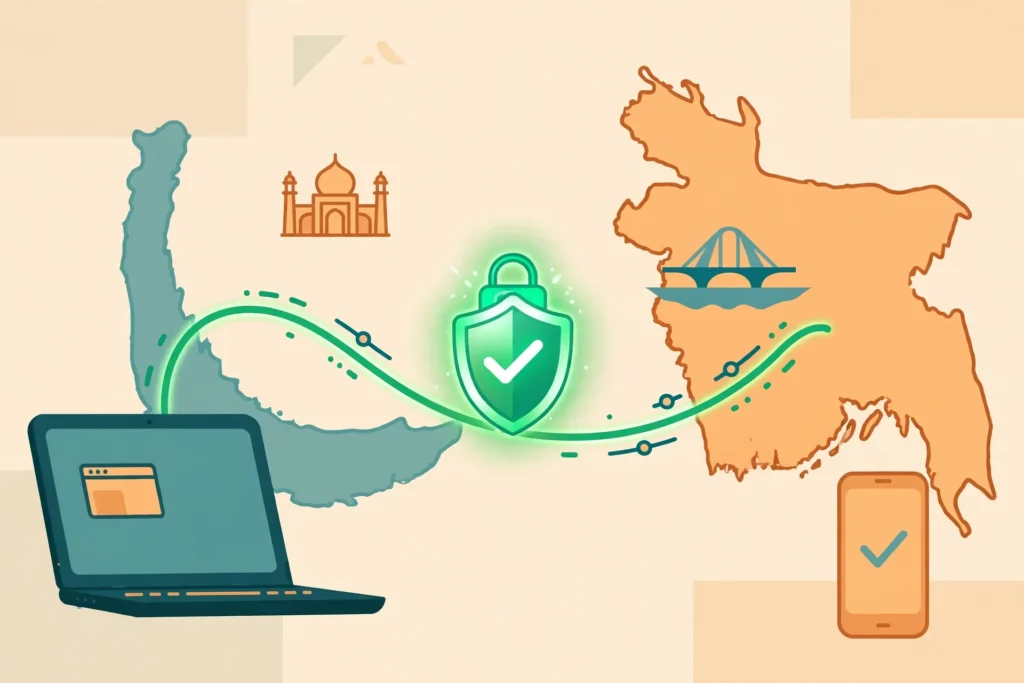
Getting a Bangladesh IP address means making websites and services see a Bangladeshi address instead of your Pakistani one. When you connect to a VPN server in Bangladesh, your internet traffic leaves through that server, and the address the outside world sees belongs to the server, not to your home connection in Pakistan.
People in Pakistan do this for practical reasons. You may need to reach a Bangladeshi bank portal, a government service, a streaming catalogue, or a work system that only accepts logins from Bangladesh. You may be a Pakistani student or worker keeping in touch with services back home in Dhaka, or a business checking how a Bangladeshi website looks from inside the country.
This guide is a procedure, not a ranking. It does not compare providers by speed, and it publishes no measurements of its own, because none were run for this post. It walks you through five steps in order: choose an eligible provider, connect to the required location, verify the exit IP, check your app and browser location settings, and troubleshoot mismatches.
One warning belongs up front. A VPN changes your exit IP address only. It does not change your device GPS position, your account region, your payment details, or the terms of the service you are trying to reach. Those four signals are separate, and this guide explains each of them, because confusing them is the most common reason a Bangladesh IP address appears to fail.
The short answer is simple. Pick a VPN provider that lists Bangladesh, open its app, connect to the Bangladesh or Dhaka location, and then verify the result on an IP lookup site. If the lookup shows Bangladesh and an address different from your normal one, you have a Bangladesh IP address. If it still shows Pakistan, something in the chain failed, and the troubleshooting section tells you where to look.
The Short Answer: How to Get a Bangladesh IP Address
There are only three moving parts in this job, and keeping them separate makes the whole thing easy. The provider gives you a Bangladesh server to connect to. The app makes the connection. The lookup site proves whether it worked. If any one of those three is wrong, the result is wrong, and guessing which one wastes time.
Start by confirming the provider you already pay for actually offers Bangladesh. Not every VPN does, and the ones that do may label the location differently, as Bangladesh, Dhaka, or a virtual Bangladesh location. If your current provider has no Bangladesh location, no setting inside its app will create one, and you need a different provider before you go any further.
Then connect, and verify before you use the address for anything important. Open an IP lookup site while connected and confirm the country says Bangladesh. Compare the address with the one you see when disconnected. That two-minute check is the whole difference between knowing you have a Bangladesh IP address and assuming you do.
Finally, remember that the IP address is only one of the signals a service reads. If the service also checks GPS, account region or payment country, it may still treat you as a Pakistan user even with a Bangladeshi IP address. The later sections of this guide cover each of those signals, so you can tell which one is blocking you.
- Choose a VPN provider that lists a Bangladesh or Dhaka location in its app.
- Install the provider’s official app on your device and sign in.
- Search the location list for Bangladesh and connect to it.
- Visit an IP lookup site and confirm the country shows Bangladesh.
- Disconnect, check again, and confirm the address changes back.
- Test the service you need, and read its terms before you rely on the address.
Step 1: Choose an Eligible Provider With a Bangladesh Location
The first step is eligibility, and it is a yes-or-no question: does the provider offer a Bangladesh location? A provider either lists Bangladesh in its app or it does not, and there is no workaround inside the app for a missing location. Check the server list in the app or on the provider’s official server page before you pay for anything.
Surfshark lists Bangladesh, with Dhaka as the city, among its server countries, and the location is labelled virtual in its app. That means the app gives you a Bangladeshi IP address, while the physical server hardware sits elsewhere, which is normal for smaller locations and is how most providers handle Bangladesh. The address you get still geolocates to Dhaka.
NordVPN also lists a Dhaka location, and ExpressVPN lists Bangladesh as a virtual location, which its own support pages describe as routed via Singapore. Proton VPN lists Dhaka as well, and Private Internet Access offers a Bangladesh location too. So several major providers cover this country, and you are not locked into a single choice.
What differs between them is not the country, but the details around it: how many servers back the location, whether the app lets you pick a city, and whether the location works on the devices you own. Those details change over time, and the providers do not all publish them, so check the current app rather than trusting an old review.
Do not choose a provider on price alone for this job. A cheap provider without a Bangladesh location is useless for this purpose, however good its price is. The only price that matters is the price of a provider that actually offers the location you need, and that list is short enough to check in a few minutes.
| Provider | Bangladesh Location in the App | What to Know |
|---|---|---|
| Surfshark | Bangladesh, Dhaka, labelled virtual | Recommended in this guide, unlimited devices |
| NordVPN | Dhaka | Lists Dhaka as a city location |
| ExpressVPN | Bangladesh, virtual via Singapore | Confirmed on its official support pages |
| Proton VPN | Dhaka | Dhaka location on paid plans |
| Private Internet Access | Bangladesh | Virtual Bangladesh location |
Flagged: Surfshark’s Bangladesh location is labelled virtual in its app, and third-party server lists report the hardware sits outside Bangladesh, most likely in Singapore. Surfshark’s own pages do not confirm the physical hosting country, so treat the Singapore detail as unreported by the provider. Exact server counts per provider are also not published by the providers themselves and are not stated in this guide.
Surfshark: Bangladesh in the App
Surfshark is the provider this guide recommends for a Bangladesh IP address from Pakistan, and the reason is practical. It lists Bangladesh in its app, its servers number more than 4,500 across 100 countries, and one subscription covers unlimited devices, so the same account can give you a Bangladesh IP on your phone, your laptop and your tablet without buying extra accounts.
To find the location, open the Surfshark app and use the location search at the top of the home screen. Type Bangladesh, or BD, and the location appears. Tap it, and the app connects. The status turns green and shows Connected with Bangladesh as the location. That is the whole procedure, and it takes under a minute once the app is installed.
Surfshark’s app also offers two settings that matter on filtered networks in Pakistan. Camouflage Mode hides VPN traffic on OpenVPN connections, and NoBorders mode detects restrictions and lists servers that work when a network blocks VPNs. If the Bangladesh location will not connect on your home Wi-Fi, try these settings before you blame the location itself.
Check the current Surfshark price on the official site before you subscribe, and confirm the two-year rate and the rupee conversion there before you commit. Prices and promotions change, and the figure on the official site is the only one you should trust. The offer we promote is 80% off for our users, through the link in this guide.
Surfshark — our recommended VPN for Pakistan
One subscription covers every device in your home, and the same account works on Android, iPhone, Windows and macOS, so the Bangladesh IP follows you across screens.
NordVPN and ExpressVPN: Dhaka and Virtual Options
NordVPN lists Dhaka as a location, and its app lets you choose the city directly, which removes any guessing about which server you joined. It is a solid alternative if you already pay for NordVPN, or if you prefer its app. The location is a virtual one, like most Bangladesh locations, but the address it gives you geolocates to Dhaka.
ExpressVPN lists Bangladesh as a virtual location, and its own support pages state plainly that the location is routed via Singapore. That honesty is useful, because it tells you exactly what you are getting: a Bangladeshi IP address from hardware in Singapore. Its obfuscation applies to every connection automatically, so there is no special server or protocol to choose when a network filters VPN traffic.
Both providers cost more than Surfshark for a comparable plan, and both limit the number of devices on one account, while Surfshark covers unlimited devices. If you already subscribe to either of them, use the one you have. If you are buying fresh for this job, the device limit and the price are the two differences that matter most.
Whichever provider you choose, install only its official app, downloaded from the provider’s own site or from the Google Play Store or Apple App Store. Never install a VPN app from a third-party download site, because a modified VPN app can steal your login details. The official app is the only safe starting point.
Proton VPN and Other Providers
Proton VPN lists Dhaka as a location on its paid plans, with more servers behind it than the other providers name for Bangladesh. It is a good choice if privacy is your main concern, because it is based in Switzerland and its apps are open source. Its free plan does not include Bangladesh, so a paid plan is needed for this job.
Private Internet Access also offers a Bangladesh location, and it is a reasonable choice if you already use it. Smaller providers may list Bangladesh too, but check the current app before you pay, because small providers add and remove locations without much notice, and a location listed in a review last year may be gone today.
The pattern across all of them is the same: the Bangladesh location is virtual, the hardware sits in a nearby hub, and the IP address geolocates to Dhaka. That is not a defect. It is how the industry provides locations in smaller markets, and for the purpose of this guide, which is getting a Bangladesh IP address, a virtual location works exactly the same as a physical one.
Free VPNs and Bangladesh Locations
Free VPNs almost never offer a Bangladesh location, and the ones that claim to should be treated with care. A free service has to pay for its servers somehow, and a free Bangladesh server is a rare and expensive thing to offer. If a free app promises one, check independent reviews before you install it, and never enter payment details into it.
The honest route is a paid plan with a money-back guarantee. Every major provider in the table above offers a 30-day money-back window, which means you can test the Bangladesh location properly and get a refund if it does not work for the service you need. That is a far better test than trusting a free app you cannot verify.
Do not use a free proxy website to get a Bangladesh IP address either. A proxy changes the address your browser shows, but it does not encrypt your traffic, it usually logs what you do, and it applies only to the browser, not to your apps. For anything involving a bank, a government service or a work login, a proxy is the wrong tool.
Step 2: Connect to the Required Location
Once you have an eligible provider, connecting is the easy part. The steps are the same on every device: open the official app, sign in, find Bangladesh in the location list, and tap to connect. The app does the rest. The sections below give the device-specific detail for Android, iPhone and Windows, because each one has its own small quirks.
Before you connect, close the app or website you plan to use with the Bangladesh IP address. Some services read your location when they load and keep it for the whole session, so opening the service first and connecting afterwards can leave you with the old location cached. Connect first, verify second, and only then open the service.
Also make sure you are on a stable connection before you start. Connect to your normal Wi-Fi and confirm it works, then connect the VPN. If your underlying internet is broken, the VPN cannot fix it, and it will only hide the real fault. A quick test, such as loading any website, tells you the connection is healthy.
When the app shows Connected and names Bangladesh or Dhaka as the location, the tunnel is up. That is the moment to verify, not the moment to trust. The next step, verifying the exit IP, is what turns a green status into a confirmed Bangladesh IP address.
Bangladesh IP Address on Android
On Android, install the provider’s official app from the Google Play Store and sign in with your account. If you are already signed in on another device, most apps offer a QR code or a login code, which is faster than typing a password on a phone. Open the location list, search for Bangladesh, and tap it to connect.
The first time you connect, Android shows a connection request asking whether the VPN app may set up a VPN connection. Press OK. This is the standard permission every VPN app needs, and it appears once, on the first connection. If you press Cancel by mistake, the app cannot connect, and you will need to try again.
Android also lets you set the VPN to stay connected. In the app settings, look for an always-on or auto-connect option, and enable it if you want the Bangladesh IP to survive a phone restart. Without it, the phone reconnects to your normal connection after a restart, and your next session will show a Pakistani address until you connect again.
To switch from Bangladesh to another country later, disconnect first, then pick the new location. Switching directly can leave the app connected to the old server while it shows the new one, and the IP check in the next step will catch that. A clean disconnect and reconnect takes seconds and avoids the confusion.
Bangladesh IP Address on iPhone
On iPhone, install the provider’s official app from the App Store and sign in. Open the location list, search for Bangladesh, and tap to connect. The first connection triggers an iOS prompt asking you to allow the VPN configuration, and you confirm it with Face ID, Touch ID or your passcode. That prompt appears once per app.
The iPhone app shows the same Connected status as Android, with Bangladesh as the location. If the app offers a fastest-location button, do not use it for this job, because it will pick the nearest server, which from Pakistan is usually Singapore or India, not Bangladesh. You must pick Bangladesh by hand every time.
iPhone settings also include a VPN section under Settings, then General, then VPN and Device Management, where you can see the VPN configuration and switch it on or off. The app is the easier control, but the settings screen is useful if the app itself will not open, because you can still connect and disconnect from there.
Note that iOS may pause the VPN when the phone sleeps, depending on the app and your settings. If a service suddenly sees a Pakistani address in the middle of a session, check the app first. Reconnecting takes a tap, and the verification step in this guide is how you confirm the address is Bangladeshi again.
Bangladesh IP on Windows
On Windows, download the provider’s official app from its own website, install it, and sign in. The desktop app shows the location list in its main window, and you can search for Bangladesh there, just as on a phone. Click Bangladesh, wait for the status to turn Connected, and the whole computer’s traffic goes through the tunnel.
Windows also has its own built-in VPN settings, but do not use them for this job unless the provider’s own guide tells you to. The provider’s app handles the protocol, the kill switch and the server choice for you, while the built-in settings need manual server details and give you no kill switch. The app is the simpler and safer route.
If you use the VPN on Windows mainly for a browser, remember that the app protects the whole computer, not just the browser. That is an advantage, because banking apps, desktop apps and background services all use the same Bangladesh IP. But it also means a dropped connection affects everything at once, so keep the app visible while you work.
Check the app’s settings for a kill switch and turn it on. The kill switch blocks all internet traffic if the VPN drops, so your real Pakistani address never leaks to the service you are using. Without it, a dropped tunnel silently exposes your real address, and you may not notice until the service blocks you.
Step 3: Verify the Exit IP
A VPN app that says Connected is not proof on its own. Verify the connection by checking what the internet actually sees, because a tunnel that silently failed will still show a green status in some apps. The check takes a minute, and it is the only way to know the setup worked.
Open your browser and visit an IP lookup site such as whatismyipaddress.com or ipleak.net. The site will show an IP address, a country and usually a city. If the country says Bangladesh and the city says Dhaka, and the address is different from the one your normal connection shows, the tunnel is working and you have a Bangladesh IP address.
Write down the address you see, then disconnect the VPN and visit the same site again. The two addresses should be different, and the disconnected check should show Pakistan. If they are the same, the VPN never engaged, and the app’s Connected status was wrong. That comparison is the single most useful test in this guide.
Also check the ISP or organisation field on the lookup result. It usually names the VPN provider or the data centre hosting the server, not a Pakistani ISP such as PTCL or Jazz. If it still names your home ISP, your traffic is not going through the tunnel at all, and the connection step failed even though the app looks connected.
Repeat the check in a private or incognito window as well. Browsers cache location data, and a cached page can show you the old result while the live connection has already changed. A private window loads fresh, so the result you see there is the current one, and it is the result you should trust.
- Connect to the Bangladesh location and confirm the app shows Connected.
- Visit an IP lookup site and note the country, city and address shown.
- Confirm the country says Bangladesh and the city says Dhaka.
- Disconnect the VPN, visit the same site, and confirm the address changes.
- Check the ISP field and confirm it no longer names your Pakistani ISP.
- Repeat the check in a private window to rule out a cached result.
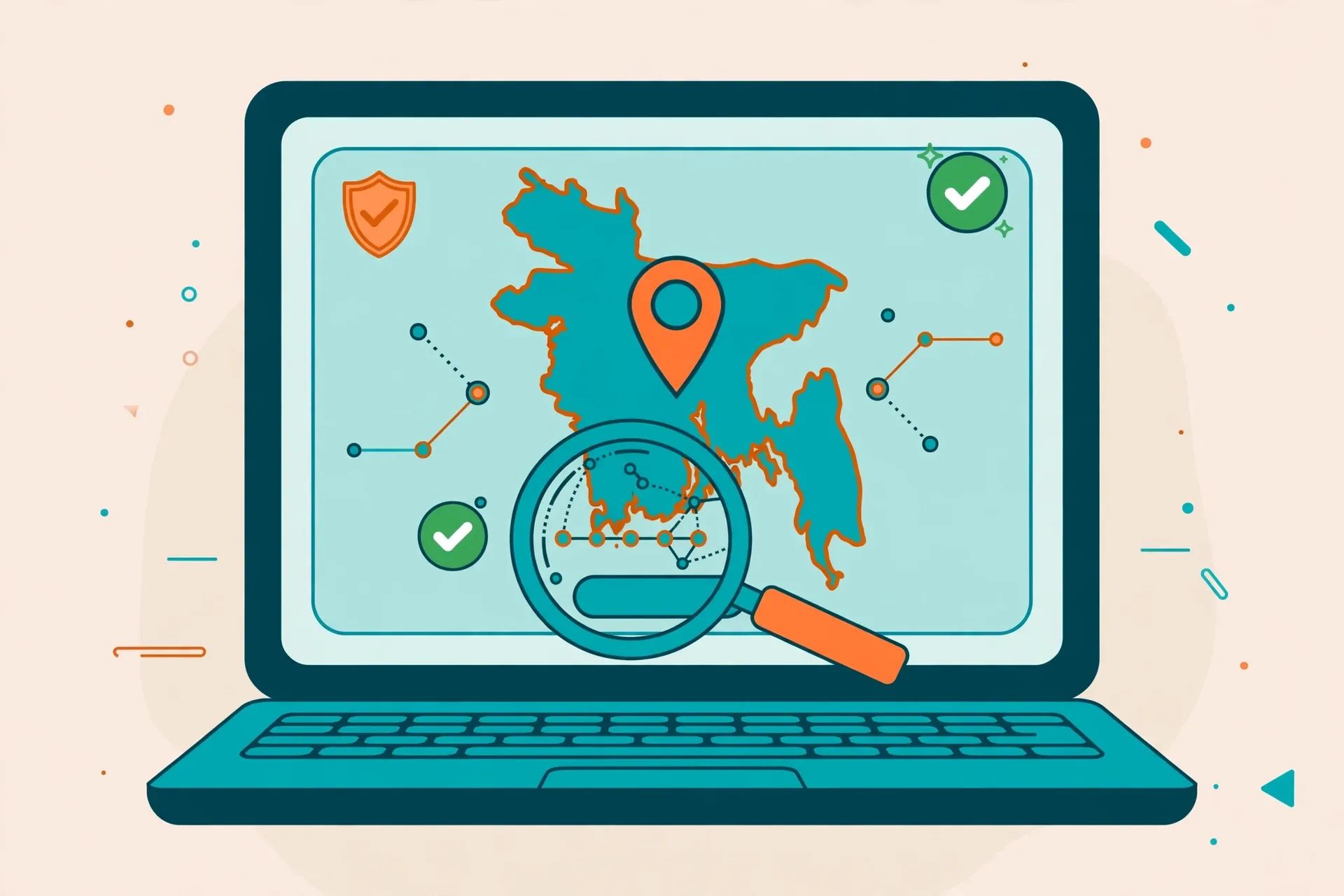
What the Lookup Result Should Show
A correct result has four parts, and all four should match. The country field should say Bangladesh. The city field should say Dhaka, or the nearest city the lookup database knows. The IP address should be different from your normal Pakistani address. And the ISP or organisation field should name the VPN provider or a data centre, not your home ISP.
If the country says Bangladesh but the city says Singapore, do not panic. That happens with virtual locations, where the lookup database has not caught up with the provider’s routing, or where the database maps the hardware’s city instead of the virtual one. The country field is the one that matters most, because services check the country first.
If the country says Singapore or India instead of Bangladesh, you connected to the wrong location, or the app picked the fastest server instead of Bangladesh. Disconnect, open the location list, search for Bangladesh by name, and connect again. Then run the lookup a second time. The fastest-location button is the usual cause of this mistake.
If the lookup shows no country at all, or an error, the lookup site itself may be blocked or slow on your network. Try a second lookup site before you change anything in the app. Two different sites agreeing is far stronger evidence than one site failing, and a site failure is not a VPN failure.
Check for IP and DNS Leaks
A leak is when your real address escapes the tunnel even though the VPN looks connected. The most common leak is a DNS leak, where your device asks a Pakistani DNS server for website addresses instead of the VPN’s DNS server. A lookup site such as ipleak.net shows your DNS servers alongside your IP address, so it can catch this.
On ipleak.net, check the DNS section as well as the IP section. The DNS servers listed should belong to the VPN provider or its data centre, not to your Pakistani ISP. If they name PTCL, Jazz or another local provider, your DNS requests are leaking, and a service that checks DNS can still tell you are in Pakistan.
If you find a DNS leak, the fix is usually in the app settings. Look for a DNS leak protection or private DNS option and turn it on, then reconnect and test again. If the app has no such option, switching the VPN protocol in the settings sometimes fixes it, because different protocols handle DNS differently.
WebRTC is another leak worth checking, because browsers can expose your real address through it even when the VPN is working. The same lookup sites usually include a WebRTC check. If it shows your real Pakistani address, disable WebRTC in your browser settings, or use a browser extension that blocks it, and test again.
Step 4: Check App and Browser Location Settings
Your IP address is only one of the ways a service finds your location, and this step covers the others. A service can read your device GPS, your browser’s location permission, and the location data your browser has stored. If any of those still say Pakistan, the service may treat you as a Pakistan user even with a Bangladeshi IP address.
Start with the browser. When a website asks for your location, your browser shows a permission prompt, and the choice you made is remembered. If you previously allowed a site to see your location while in Pakistan, that permission may still be active. Open the browser’s site settings for that service, remove the location permission, and let the site ask again while you are connected to Bangladesh.
Next, clear the location data the browser has stored for that service. Cached pages, cookies and stored site data can all carry the old location. Clearing the site’s data and reloading it in a private window forces the service to read your location fresh, through the VPN, instead of trusting what it stored last week.
On a phone, check the app’s own location permission too. In Android settings or iPhone settings, find the app you are using and look at its location permission. If it is set to allow all the time, the app can read your GPS position directly, and no VPN will change what it sees. The GPS section below explains this in detail.
- Remove any location permission the browser stored for the service while in Pakistan.
- Clear the service’s cached pages, cookies and stored site data, then reload in a private window.
- Check the app’s location permission in Android or iPhone settings.
- Confirm the service reads its location fresh, through the VPN, before you log in.
- Test with a low-stakes action first, such as browsing public pages.
GPS Versus IP: The Distinction That Matters Most
A VPN changes your exit IP address, which is the address websites and services see when you connect to them. It does not change your device GPS position. Your phone still knows it is in Lahore, Karachi or Islamabad, because GPS comes from satellites and nearby cell towers, not from your internet connection.
This matters because some apps check GPS as well as IP, and some check GPS instead of IP. A banking app, a ride-hailing app, or a government service that reads GPS will still see Pakistan even when your IP address shows Bangladesh. The VPN has not failed in that case. It has done its job, and the app is reading a signal the VPN was never meant to change.
To test whether a service uses GPS, compare two devices. Open the service in a desktop browser with the VPN connected, where there is no GPS, and then open the same service in its phone app. If the browser works and the app does not, GPS is the difference, and the app is reading your phone’s real position.
Changing your phone’s GPS position is a separate procedure, usually done with developer options on Android or a location-spoofing tool, and it carries its own risks. It can break other apps, it can be detected, and some services treat it as a violation of their terms. This guide does not recommend it, and it is not needed for the IP address itself.
Browser Location Permissions and Cached Location
Browsers remember location permissions per site, and that memory outlives a VPN connection. If you allowed a Bangladeshi service to see your location while you were in Pakistan, the browser may keep serving the old answer. The fix is to revoke the permission in the browser’s site settings and let the site ask again.
Cached location is a quieter version of the same problem. A service that stored your location last week may keep using it until the stored data expires, even though your IP address has changed. Clearing the site’s data, or testing in a private window where no stored data exists, gives you a clean read.
Also check whether your browser is signed into a Google or Microsoft account with a Pakistan home location stored in it. Some services read the account’s home country rather than the connection, and a signed-in account can override the IP address entirely. Signing out, or testing in a private window, removes that signal.
Finally, check the system timezone and language settings on your device. A device set to Pakistan time with an English or Urdu locale is a small but real signal, and some services use it as a tie-breaker when the IP address and GPS disagree. Setting the timezone to Dhaka while you use the service removes one more mismatch, though it does not change the IP address.
Step 5: Troubleshoot Mismatches
A mismatch is when the IP check passes but the service still treats you as a Pakistan user, or when the IP check itself fails. Work through the causes in order, from the most common to the least, and test after each fix. Changing three settings at once tells you nothing about which one fixed it.
The most common cause is connecting to the wrong location. The fastest-location button, a mistyped search, or an app that reconnected to your last location after a restart can all leave you on Singapore or India instead of Bangladesh. The IP lookup in step three catches this immediately, and the fix is to search for Bangladesh by name and connect again.
The second most common cause is a cached location, covered in step four. The service stored your Pakistan location last week and keeps using it. Clear the site data, test in a private window, and revoke the browser’s location permission. If the service works in a private window but not in your normal one, the cache was the cause.
The third cause is a leak, usually DNS or WebRTC, which the lookup sites in step three can show you. If the IP address is Bangladeshi but the DNS servers are Pakistani, the service can see the leak. Turn on the app’s DNS leak protection, switch protocol, or disable WebRTC in the browser, and test again.
The fourth cause is GPS, which affects phone apps rather than desktop browsers. If the browser works and the app does not, the app is reading GPS. There is no VPN setting that fixes that, and the honest answer is to use the browser version of the service, or to accept that the app will keep seeing Pakistan.
The fifth cause is the service itself. Some services keep a blocklist of VPN server addresses, and a Bangladesh IP from a well-known provider may be on it. Others require a local account, a Bangladeshi phone number, or a payment method from a Bangladeshi bank. No VPN fixes those, and the terms section below explains how to check before you pay.
| Symptom | Likely Cause | First Check |
|---|---|---|
| Lookup still shows Pakistan | Wrong location or tunnel not active | Search Bangladesh by name, reconnect, retest |
| Country says Singapore or India | Fastest-location button picked a neighbour | Pick Bangladesh by hand, never fastest |
| Works in private window only | Cached location or stored permission | Clear site data, revoke location permission |
| IP is Bangladeshi but DNS is Pakistani | DNS leak | Turn on DNS leak protection, switch protocol |
| Browser works, phone app does not | App reads GPS | Use the browser version of the service |
| Service blocks you despite a correct IP | VPN blocklist or local account required | Read the service terms, try another server |
Exit IP, GPS, Account Region and Terms: Four Separate Signals
The confusion around getting a Bangladesh IP address comes from treating four separate signals as one thing. They are the exit IP, the GPS position, the account region, and the service’s terms. A VPN changes only the first. Understanding the other three is what turns a frustrating failure into a diagnosed one.
The exit IP is the address the internet sees. It is the one this guide changes, and it is the one the lookup sites verify. It is also the signal most services check first, and for many services it is the only one they check. When it says Bangladesh, you have done the main job.
The GPS position is where your device physically is, and it comes from satellites and cell towers. A VPN cannot change it, and a phone app that reads GPS will see Pakistan regardless of your IP address. Desktop browsers have no GPS, which is why the same service can work in a browser and fail in an app.
The account region is the country attached to your account with the service, and it is usually set when you create the account or add a payment method. A Bangladeshi streaming service may require an account created with a Bangladeshi phone number, and a Pakistani account will stay Pakistani even with a Bangladeshi IP address. Creating a new account may be the fix, or it may be against the terms.
The terms are the service’s own rules about who may use it and from where. Some services restrict use to residents of Bangladesh, some forbid VPN use outright, and some require a local payment method. A VPN does not change the terms, and using one to bypass them can get an account suspended. Read the terms before you rely on the address.
What a Bangladesh IP Address Does Not Change
A Bangladesh IP address does not make you a Bangladeshi resident in the eyes of a service, and it is worth being clear about what stays the same. Your account region, your payment method, your phone number, your GPS position and your device language all stay exactly as they were. The IP address is one signal among several.
It does not guarantee access to any geo-restricted service. A service may block VPN addresses, require a local account, or check a signal the VPN cannot change. This guide makes no promise that any particular service will work with a Bangladesh IP address, and any guide that does is guessing, because services change their checks without notice.
It does not change which app store you use. Your Google Play Store or Apple App Store country is tied to your account and payment method, not to your IP address. A Bangladeshi app that is not listed in the Pakistani store will still not appear, even with a Bangladeshi IP, unless you change the store country, which is a separate account procedure.
It does not make your connection faster or more private in every case. Routing through a Bangladesh server adds a hop to your connection, and on some networks that makes things slower. It does encrypt your traffic and hide your real address from the sites you visit, which is the privacy benefit, but it is not a speed tool.
It does not remove the need to follow the law or a service’s terms. VPN use is a tool, and the responsibility for how it is used stays with the user. If a service forbids VPN use, or a local rule restricts it, a Bangladesh IP address does not make that use permitted, and this guide does not advise breaking those rules.
Limitations and Facts We Could Not Verify
This guide is a procedure, not a report of tests that were run. No measurements were made for this post, and it publishes no speed numbers, ping values or connection results of its own. Every step is a procedure for you to run, and the verification section is how you confirm the result yourself.
The guidance is current as of 22 November 2026. Providers change their server lists, their app layouts and their plan terms over time, and a location that exists today may be renamed or removed in a later version. If a menu name in this guide does not match your app, look for the nearest equivalent and test it the same way.
Two claims in this guide are flagged as unconfirmed. The physical hosting country of Surfshark’s Bangladesh location is not stated on Surfshark’s own pages, so third-party reporting that places it in Singapore is noted but not treated as settled fact.
Whether Proton VPN’s free plan excludes Bangladesh is also reported by third parties rather than confirmed on Proton’s own pages. Check the current plan page before you rely on that detail.
Flagged: the physical hosting country of Surfshark’s Bangladesh location is not confirmed on Surfshark’s own pages, and whether Proton VPN’s free plan excludes Bangladesh is third-party reporting, not a statement from Proton. Check the provider’s current pages before you rely on either detail.
This guide also does not claim that any particular Bangladeshi service will accept a VPN address. Services keep blocklists of VPN servers, and those lists change without notice. A Bangladesh IP that works today may be blocked tomorrow, and a different server in the same location may work when the first one does not. Testing on the day you need it is the only reliable check.
Retest on a fixed schedule if you rely on the address regularly. Run the verification check again one week after your first setup, and again after any change: a new app version, a new internet plan, or a move to a new area. Keep each session’s notes so you can compare like with like.
Surfshark — our recommended VPN for Pakistan
Try the recommended option inside its 30-day money-back guarantee window first, so a Bangladesh location that never works for your service costs you nothing to replace.
Conclusion: Get a Bangladesh IP Address From Pakistan in Five Steps
Getting a Bangladesh IP address from Pakistan is a five-step procedure, and the whole job takes about ten minutes. Choose a provider that lists Bangladesh, connect to the Bangladesh or Dhaka location, verify the exit IP on a lookup site, check your app and browser location settings, and troubleshoot any mismatch by working through the causes in order. That is the entire method.
The habit that matters most is the verification check. A VPN app that says Connected is not proof, and the IP lookup is the proof. Run it once after connecting, once after a restart, and once a week afterwards.
That routine means you will always know whether your connection is actually showing Bangladesh. And remember the distinction this guide keeps returning to: a VPN changes your exit IP, not your GPS, your account region, or a service’s terms.
If the Bangladesh location works for the service you need, you are done, and the same five steps work the next time you need the address. If it does not work, the troubleshooting table tells you which signal is blocking you.
The answer is usually one of the four: the wrong location, a cached location, a leak, or GPS. For our other Pakistan VPN guides, the freevpn.pk homepage lists them all.
Frequently Asked Questions
How Do I Confirm My IP Is Located in Bangladesh?
Visit an IP lookup site such as whatismyipaddress.com or ipleak.net while connected to the Bangladesh server. The site should show Bangladesh as the country, Dhaka as the city, and an address different from the one your normal Pakistani connection shows. Check the address twice, once connected and once disconnected, and compare the two results.
If the country still shows Pakistan while connected, the tunnel is not active or the app connected to the wrong location. Clear the lookup page from your browser cache and test again in a private window before changing anything else.
Does Selecting Bangladesh Change Device GPS?
No. A VPN changes your exit IP address, which is the address websites and services see, but it does not change your device GPS position. Your phone still reports its real location in Lahore, Karachi or Islamabad to any app that reads GPS. Some apps check GPS as well as IP, and those apps will still see Pakistan even when your IP address shows Bangladesh.
To test a service that uses GPS, you would need to change the device location setting itself, which is a different procedure with its own limits and risks, and it is not something a VPN does for you.
What Should I Check Before Using a Location-Sensitive Service?
Check four things before you rely on a Bangladesh IP address. First, confirm the exit IP shows Bangladesh on a lookup site. Second, check whether the service also reads GPS, account region or payment details, because a VPN changes none of those. Third, read the service’s terms, because some services restrict use from another country or require a local account.
Fourth, test with a free or low-stakes action first, such as browsing the service’s public pages, before you pay or submit personal details. A VPN gives you a Bangladeshi IP address, not a guarantee of access to any service.