Testing Discord performance with a VPN starts with a simple comparison: run the same voice call twice, once without the tunnel and once with it, and record what changes. Surfshark is our recommended VPN for Pakistan, with 80% off for our users, because its nearby servers and WireGuard protocol keep the extra delay small enough to measure fairly.
This guide shows you how to run that test properly, read Discord’s own diagnostics, and repeat it until the result is trustworthy.
A VPN always adds at least one extra hop between your device and Discord’s servers, so some added delay is expected. The question is never whether the VPN adds latency, but how much it adds, whether it stays stable, and whether the call still sounds clear. A good test answers those three questions with numbers you recorded yourself, not with a feeling from one call.
That matters more in Pakistan than in many other countries. International routes from Pakistani networks are longer, evening congestion is common, and some networks shape or block real-time traffic.
A VPN that looks fast on a speed test can still sound robotic in a voice channel, and a VPN that looks slow on paper can sometimes fix a bad route. Only a controlled comparison tells you which case you are in.
This is a test-method guide, not a speed review. We ran no measurements of our own, and this article contains no latency, ping, or speed figures from our own testing. Every number range in this guide is either a commonly cited third-party rule of thumb, clearly labelled as such, or a value you will record yourself. Follow the method, fill in your own log, and let your own results decide.
How to Test Discord Performance With a VPN: The Short Answer
To test Discord performance with a VPN, first record a baseline: join a voice channel without the VPN, open Discord’s voice connection details, and note the ping, packet loss, and voice server region. Then connect the VPN to the nearest server, join the same channel again, and record the same three readings. Repeat both runs at least twice, at the same time of day, and compare the averages.
Keep everything else identical between runs. Use the same device, the same headset, the same network, the same voice channel, and the same server region. Change only one thing at a time: the VPN connection. If you change the server, the protocol, and the network all at once, you will not know which change caused the result.
Record four things every time: the app version, the network you are on, the VPN exit location, and the three readings from Discord. A result without those four notes cannot be repeated, and a result that cannot be repeated cannot be trusted. The test log template near the end of this guide gives you a table to copy.
Judge the result on stability, not on a single ping reading. A connection that shows a low ping for ten seconds and then spikes is worse for voice than a connection with a slightly higher but steady ping. Voice is a real-time stream, so jitter and packet loss matter at least as much as latency, and this guide explains how to read all three.
What Discord Performance Means in a Voice Call
Discord carries three different kinds of traffic, and a VPN affects each one differently. Text messages and channel loading travel over standard web connections, images and files come from a content delivery network, and voice and video travel over real-time RTC connections using UDP. Voice is the most sensitive of the three, and it is the part this guide tests.
When people say Discord is “lagging”, they usually mean one of four symptoms. Audio arrives late, so you talk over each other. Voices sound robotic or break up mid-sentence. The call connects, then drops, and Discord shows an “RTC Connecting” message. Or text works fine while voice refuses to connect at all. Each symptom points at a different cause, and your test log should record which one you saw.
Latency is the delay between your device sending voice data and receiving a reply, measured in milliseconds. Jitter is how much that delay varies from packet to packet. Packet loss is the share of voice packets that never arrive.
A voice call can survive a modest, steady delay, but it cannot survive wild jitter or steady packet loss, because lost voice packets are gone forever and cannot be re-sent in time.
Download speed is the least important number for Discord voice. Voice uses very little bandwidth — third-party guides commonly put a Discord voice stream at roughly 50 to 100 Kbps — so a 100 Mbps connection with bad routing can sound far worse than a 10 Mbps connection with a clean route.
If your speed test looks fine but your voice still breaks up, stop chasing speed and start testing latency, jitter, and loss.
Before you blame the VPN, check whether the problem exists without it. Join the same voice channel with the VPN off and listen for a full five minutes. If the call is already robotic on your direct connection, the VPN is not the cause, and your baseline run has just saved you from fixing the wrong thing. That is exactly why the baseline comes first.
Before You Test: Check Support and Service Conditions
Start by confirming that Discord itself is working normally. Visit Discord’s official status page at discordstatus.com and look for any active incident affecting voice or connectivity. If Discord reports degraded voice service, postpone the test: no VPN comparison is meaningful while the service itself is having a bad day.
Next, confirm that your VPN is allowed to carry Discord’s traffic on your network. Some school, office, and public Wi-Fi networks block VPN traffic outright, and some block the UDP ports that voice needs. If the VPN will not connect at all on one network, try mobile data as a control: a VPN that works on mobile data but not on Wi-Fi is fighting the network, not Discord.
Check your Discord app version and update it before testing. Discord changes its voice settings and diagnostics between releases, and a test run on an old client may not match the menus described here. On desktop, Discord usually updates itself on launch; on mobile, check your app store for an update. Write the version number in your test log.
Check your device, too. Close downloads, cloud backups, and video streams before each test run, because any of them can saturate your upload and wreck a voice call. Voice is far more sensitive to a busy upload than to a busy download, and a backup starting halfway through a test run can look exactly like a VPN problem. Test on a quiet device, every time.
Finally, decide what “good enough” means before you start measuring. A VPN test without a pass mark is just a list of numbers. For most readers, a sensible target is a call that stays connected for five minutes, with no robotic audio, no dropouts, and no “RTC Connecting” errors. Write your target down, then measure against it, rather than deciding afterwards that whatever you saw was fine.
Set Up a Clean Baseline Without the VPN
The baseline is the most important run in the whole test, because every VPN result is judged against it. Disconnect the VPN completely — do not just pause it — and confirm your real IP address is showing by checking it in your browser. If the VPN is still connected in the background, your “baseline” is a VPN run in disguise, and the comparison is worthless.
Pick one voice channel and use it for every run. A private call with a friend works, but a quiet server voice channel is better, because the server region stays fixed and you can rejoin it identically each time. Tell the other person what you are doing, so they know you will join, leave, and rejoin several times, and ask them to stay in the channel and talk normally.
Join the channel and stay for five full minutes. Talk, listen, and note anything odd: delayed replies, robotic audio, moments of silence, or a connection warning. Five minutes is the minimum that catches intermittent problems; a thirty-second join proves almost nothing, because many routing faults only appear after the first minute. Use a timer, not a guess.
While you are in the channel, open Discord’s voice connection details. On desktop, click the connection status area near the bottom-left of the app, beside the voice controls, to open the pop-up showing ping, packet loss, and the voice server region.
On mobile, the same details are harder to reach, so desktop is the better platform for a careful test. Record the three readings at the start, middle, and end of the five minutes.
Then repeat the baseline once more, after a short break, without changing anything. Two baseline runs tell you how much your direct connection varies on its own. If your two baselines disagree wildly, your network is unstable, and you need to fix that before you test any VPN. A stable baseline is the foundation; without it, the comparison means nothing.
Write everything down immediately. The baseline ping, the packet loss figure, the voice server region, the time of day, the network name, and the Discord version all go in the log. Memory is a poor substitute: after four runs, you will not remember which reading belonged to which test, and the log is the only thing standing between a real comparison and a guess.
Run the VPN Comparison Step by Step
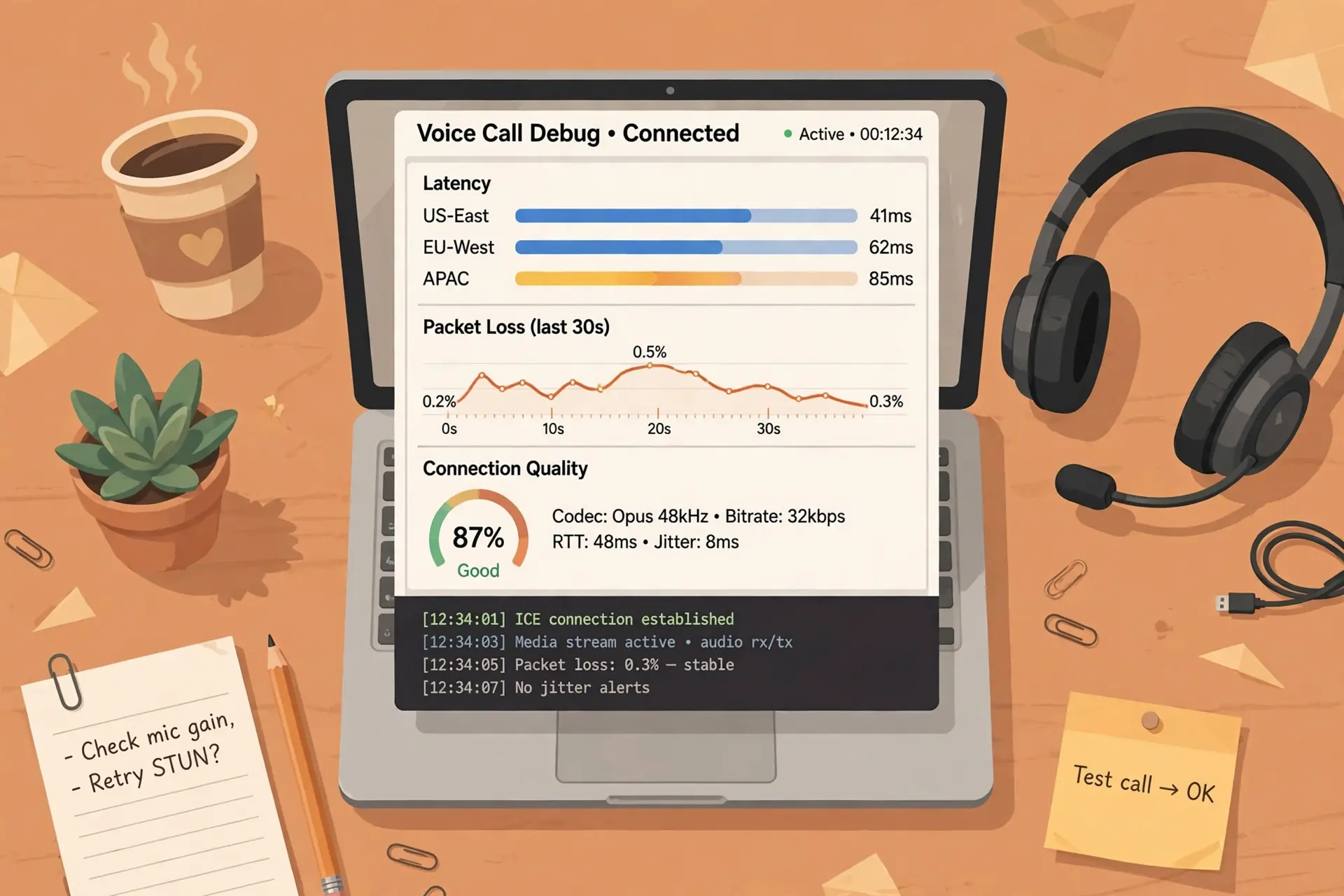
Connect the VPN to the nearest server first. For readers in Pakistan, that usually means a server in the Gulf, Singapore, or India, depending on what your provider offers. The nearest server gives the VPN its fairest chance, and it is the result you should compare with the baseline. Save distant servers for a separate test, and label them clearly when you do.
Wait for the VPN app to confirm the connection, then verify it before you open Discord. Check your public IP address in the browser: it should show the VPN server’s country, not Pakistan. If your real Pakistani IP address is still showing, the tunnel is not carrying your traffic, and any Discord test you run will measure your direct connection, not the VPN. Fix the connection first, then test.
Now join the same voice channel you used for the baseline, and stay for the same five minutes. Talk to the same person, about anything, and note the same symptoms: delayed replies, robotic audio, silence, or connection warnings. Keep the test conditions identical, including the time of day if you can, because Pakistani networks behave very differently at midday and in the evening.
Record the same three readings — ping, packet loss, and voice server region — at the start, middle, and end of the run.
If Discord shows a different voice server region with the VPN on, write that down and treat it as a finding, not a detail: a VPN can change which voice server Discord assigns you, and that change alone can explain a worse result. The region matters as much as the ping.
Disconnect the VPN, wait a minute, and run the baseline again. Then reconnect and run the VPN again. This alternating pattern — baseline, VPN, baseline, VPN — is the heart of a fair comparison, because it cancels out slow changes in your network over the evening. Two runs of each condition, alternating, is the minimum for a result you can defend.
If the VPN run is clearly worse, do not stop there. Try one change at a time: a different server in the same region, a different protocol, or split tunnelling with only Discord in the tunnel.
Test each change as its own run, with its own log entry, and keep the baseline beside it. A VPN that fails on one server can work well on another, and the test exists to find that out.
Read Discord’s RTC Debug Panel and Voice Diagnostics
Discord’s own diagnostics are the most honest tool in this test, because they measure the voice connection itself rather than your general internet speed. The main readings live in two places: the voice connection pop-up you open during a call, and the Voice and Video settings page, which holds a Debugging tab with a debug log and a reset option. Learn both before you start testing.
The voice connection pop-up shows the three numbers that matter: ping, packet loss, and the voice server region. Ping is the round-trip time to the voice server. Packet loss is the share of voice packets that did not arrive.
The region tells you which Discord voice server is handling the call. If any of these three changes between your baseline and VPN runs, that change is a real finding, and it belongs in your log.
Discord’s support documentation describes the Debugging tab under User Settings, then Voice and Video, where you can enable debug logging and reset your voice and video settings.
The debug log records detailed connection information that Discord support can use, and enabling it before a test run gives you a record of what happened even if the call drops. Turn it on, run the test, and keep the log file for that run.
The Voice Diagnostics section, also under Voice and Video, includes a microphone test that lets you hear your own input back. Use it before each run to confirm your microphone works and that your voice sounds normal on your own device. If your microphone sounds bad in the diagnostic before the VPN is even involved, the problem is your headset or input settings, not the tunnel.
Discord also shows a small connection quality indicator during voice calls, and you can enable a display of voice connection latency in the app’s settings. Watch it during the call, but do not trust a single glance: latency jumps around, and one good or bad second tells you nothing. The readings at the start, middle, and end of a five-minute call are the ones that count.
If Discord shows “RTC Connecting” and never connects, that is a result, not a failure of the test. Record it exactly as it happened: which condition you were in, which server you tried, and how long you waited. A VPN run that never connects is a clear, repeatable finding, and it points at a routing or port problem, which the troubleshooting section below covers in detail.
One caution: Discord’s menus and labels change between app versions, and the exact location of a diagnostic can move. If a setting described here has moved in your version, use the search box in Discord’s settings or check Discord’s official support guide for the current path. Do not trust a third-party screenshot from a year ago over the app in front of you.
Choose the Right Server Region for the Test
The voice server region is one of the biggest factors in Discord call quality, and it is easy to overlook. Each Discord server has a voice region setting, chosen by the server’s administrators, and each voice channel can inherit it or use its own.
A call routed to a faraway region will have higher latency no matter how good your VPN is, so check the region before you blame the tunnel.
On desktop, the voice connection pop-up shows the current region during a call. Note it in your baseline run. If the region changes when you connect the VPN, Discord may be assigning a different voice server because your apparent location changed.
That is normal behaviour, but it means your VPN run and your baseline run are no longer testing the same route, and the comparison needs a note explaining the difference.
If you administer the server, set the voice region explicitly for the test channel instead of leaving it on automatic. Pick the region closest to most of the callers — for a Pakistan-based group, that is usually the nearest available region — and keep it fixed for every run. A fixed region removes one variable from the test, which is exactly what a controlled comparison needs.
If you do not administer the server, ask an administrator to confirm the region, or pick a test channel whose region you can see in the connection pop-up and record it each time.
Do not assume the region stayed the same between runs: check it, write it down, and mention it in your log if it changed. A region change that you did not notice can look like a VPN problem.
Test the VPN against more than one exit location if you have time. A Gulf server, a Singapore server, and a European server will each produce a different result, and the pattern across them tells you more than any single run. The nearest server should win on latency; if a distant server beats it, something unusual is happening with the route, and that is worth investigating rather than ignoring.
Remember that the voice region and the VPN exit location are two different choices, and both matter. The VPN exit decides where Discord thinks you are; the voice region decides which Discord server handles the call. A good test keeps the voice region fixed and changes only the VPN exit, so that any difference in the result belongs to the VPN, not to Discord’s server selection.
Discord VPN Routing: UDP, Split Tunnelling, and Protocols
Discord voice runs over UDP, the connectionless protocol used for real-time traffic, rather than TCP, the protocol used for web pages and downloads. That distinction matters, because some VPN setups, proxies, and networks handle TCP well and UDP badly.
A VPN that loads websites quickly can still fail on Discord voice if it does not carry UDP traffic properly, and that is a common reason for “text works, voice does not”.
Discord’s voice traffic uses the UDP port range 50000 to 65535, according to third-party networking guides. This is third-party information, not confirmed in Discord’s own public documentation, so treat it as a useful lead rather than an official fact. If your network or firewall blocks that range, voice will struggle with or without a VPN, and the fix belongs to your network settings, not to Discord.
A VPN protocol is the method the tunnel uses to carry your traffic, and most providers offer a choice. WireGuard is the modern default on most apps and is usually the fastest for real-time traffic. OpenVPN is older and widely supported, and IKEv2 is common on mobile devices. Test WireGuard first, because it is the protocol most readers will actually use, and only switch if the first result is poor.
Change the protocol as its own test, not as a guess. Run a full five-minute VPN test on WireGuard, record the result, then switch to OpenVPN and run the same test again. If one protocol is clearly better on your network, you have a finding. If you switch protocols mid-call and the audio improves, you have a hint, not a result — finish the run properly and log it.
Split tunnelling lets you send only Discord through the VPN while everything else uses your direct connection, or the other way round. This is useful when you want Discord to appear in another country while your game keeps its direct, low-latency route.
Not every provider offers it on every platform, so check your app’s settings before planning a test around it. Our guide to Discord VPN compatibility explains which setups support this kind of routing.
When you test split tunnelling, verify that Discord is actually inside the tunnel. Join a voice channel, check the voice connection readings, and confirm that your apparent location changed for Discord traffic. If the readings match your direct baseline exactly, Discord may be bypassing the tunnel, and the test is measuring the wrong thing. A split-tunnel test that did not actually split is worse than no test at all.
Finally, remember that obfuscation modes, which disguise VPN traffic as ordinary web traffic, add processing delay and usually make voice worse. Use them only on networks that block VPNs, and test them as a separate condition with their own log entry. On a network that allows VPNs, obfuscation is a cost with no benefit, and your test should show that clearly.
Understand Latency, Throughput, and Stability Metrics
Latency, throughput, and stability are three different measurements, and confusing them is the most common mistake in VPN testing. Latency is delay, measured in milliseconds. Throughput is how much data moves per second, measured in megabits per second. Stability is how steady those two numbers stay over time. Discord voice needs low latency and high stability; it needs very little throughput.
A commonly cited third-party rule of thumb puts voice latency under 50 ms as excellent, 50 to 100 ms as generally fine, 100 to 200 ms as noticeably delayed, and over 200 ms as likely to cause problems.
These bands come from third-party guides, not from Discord, and they are a rough yardstick, not a guarantee. Your own baseline tells you what is normal on your network, and that matters more than any published band.
Throughput matters for screen sharing and video, not for voice. A voice call uses little bandwidth, but a 1080p screen share uses far more, so test video separately if you use it.
Run one voice-only test and, if it matters to you, a separate screen-share test with the same method. Mixing the two in one run muddies both results, and you will not know whether the VPN struggled with voice or with video.
Stability is measured by watching the same reading over time. A ping that sits at one value for five minutes is stable. A ping that jumps between low and high values every few seconds is unstable, and it will sound worse than a slightly higher but steady ping.
Record your readings three times per run — start, middle, and end — and note any spikes or dropouts you heard, because the numbers alone do not capture a call that cut out twice.
Packet loss deserves its own line in the log. Even a small, steady loss rate makes voices sound robotic, and bursts of loss cause dropouts. If Discord’s pop-up shows packet loss on the VPN run but none on the baseline, that is a strong signal, even if the ping looks similar. Do not average it away: note the worst value you saw, not just the best.
Jitter is the variation in latency between packets, and it is the hardest of the three to measure without dedicated tools. You do not need a special tool for this test: the symptoms are the measurement.
If voices sound stretched, clipped, or robotic while the ping looks acceptable, you are probably hearing jitter, and you should write that down in plain words. A log that says “robotic audio from minute two to minute three” is more useful than a log that says only “ping fine”.
Compare averages, not single readings. Take the three readings from each run, average them, and compare the baseline average with the VPN average. A single low reading proves nothing, and a single high reading may be a one-off spike. Two runs of each condition, averaged, is the smallest comparison worth trusting, and four runs is better. Patience here is what separates a test from a guess.
Record Reproducible Results: Your Test Log

A test without a written log is a conversation, not an experiment. The table below is a template you can copy into a notebook or a spreadsheet. Fill in one row per run, and keep the baseline rows and VPN rows side by side so the comparison is visible at a glance. If a run was interrupted, note why, rather than deleting the row: an interrupted run is still information.
| Run | Date and Time | Network | Discord Version | VPN Server | Voice Region | Ping (ms) | Packet Loss | Notes |
|---|---|---|---|---|---|---|---|---|
| Baseline 1 | None | |||||||
| VPN 1 | ||||||||
| Baseline 2 | None | |||||||
| VPN 2 | ||||||||
| VPN 3 (other server) | ||||||||
| VPN 4 (other protocol) |
The “Notes” column is where the test becomes useful. Write what you heard, not just what you measured: “clear for five minutes”, “robotic audio at minute three”, “call dropped at minute four, RTC Connecting for twenty seconds”, or “other person heard me late”. These observations are the result; the numbers are the supporting evidence. A log with numbers but no observations is only half a test.
Date and time matter more than most testers realise. Pakistani networks are busiest in the evening, when streaming and gaming peak, so a baseline taken at noon and a VPN run taken at 9 pm are not comparable.
Run each baseline and VPN pair close together, within the same hour, and write the time down. If you must test across days, label the runs by day and compare within each day, not across them.
Keep the log after the test. If Discord’s performance changes next month, or your ISP changes something, you can repeat the same method and compare the new log with the old one. A test you can repeat is a tool you own; a test you ran once from memory is a story you will misremember. Save the file, and keep the debug logs alongside it.
The same method works for other real-time apps, with the same discipline: baseline first, one change at a time, repeat, and log. Our guide to testing Google Meet performance with a VPN uses the same baseline-versus-VPN comparison for video meetings, and the habits transfer directly. Learn the method once, and it serves every voice and video app you use.
Repeat the Test: Times, Networks, and Devices
One evening of testing tells you about one evening. Run the comparison again on a different day, at a different time, before you draw a firm conclusion.
A VPN server that is fast on a quiet Tuesday morning can be congested on a busy Friday evening, and a route that fails once may work fine an hour later. Two sessions on different days are the minimum for a verdict you can stand behind.
Test on more than one network if you can. Your home Wi-Fi, your mobile data, and a friend’s connection are three different routes to Discord, and the VPN may help on one and hurt on another.
That pattern is normal: a VPN can fix a bad route on one network while adding delay on a network that already had a good route. Knowing which network benefits is more useful than a single verdict.
Test on the device you actually use for Discord. A desktop with a wired connection, a laptop on Wi-Fi, and a phone on mobile data are three different test subjects, and a result from one does not transfer to the others.
Mobile devices add their own variables — battery optimisation, background app limits, and weaker Wi-Fi radios — so test the phone separately if you call from your phone. Do not assume the desktop result applies.
If a result surprises you, repeat that exact run before you believe it. A single surprising reading is usually a one-off: a neighbour starting a download, a routing change, or a busy server.
Run the same condition again, immediately, and see whether the surprise repeats. A result that repeats is a finding; a result that appears once and never again is noise, and it should be labelled as such in your log.
Know when to stop testing. Once you have two sessions, on two days, with the same conclusion, you have an answer. More testing after that point adds little, and the time is better spent using the setup that won. A test exists to support a decision, not to replace it, so make the decision, write it in the log, and move on.
Surfshark for Discord in Pakistan
Surfshark is the VPN we recommend for readers in Pakistan who want to run this test properly, and the reasons are practical rather than promotional. It lists 4,500+ servers in 100 countries, so you can test a nearby Gulf or Singapore exit as well as a distant one, and compare the results.
It supports WireGuard, OpenVPN, and IKEv2, so you can test protocols against each other on the same provider instead of guessing which one suits your network.
It also allows unlimited simultaneous connections, which matters for a test like this one. You can run the VPN on your desktop and your phone at the same time, test both devices under the same account, and keep the comparison honest. A provider that limits you to one device forces you to test one device at a time, and the network may have changed between the two tests.
Surfshark includes a 7-day free trial on 12- and 24-month plans, plus a 30-day money-back guarantee. That combination is genuinely useful here: it lets you run the full test method — baseline, VPN, repeat, different servers, different protocols — on your own Pakistani network before you commit to a paid plan. A VPN you cannot test before buying is a gamble, and this test exists to remove gambles.
For Discord specifically, Surfshark’s split tunnelling feature, called Bypasser, is available on Windows and Android, and it lets you send only Discord through the tunnel while your games stay on the direct connection. That is the setup many gamers want, and it is worth testing as its own condition in your log. Set it up, verify Discord is actually inside the tunnel, and record the result like any other run.
Choose Surfshark if you want one provider that covers the whole test: nearby servers, protocol choice, split tunnelling, and a trial that lets you verify the result on your own connection.
If you already use another provider, the test method in this guide still applies — run it the same way, and let your own log decide which provider wins on your network. The method is neutral; the recommendation is not, and both can be true at once.
Surfshark — our recommended VPN for Pakistan
More countries, streaming support, unlimited devices, and 80% off for our users.
Troubleshooting: When the VPN Test Shows a Problem
If voice never connects with the VPN on but works fine without it, the tunnel is probably blocking or mishandling UDP traffic. Switch to a different server first, because a single overloaded or misconfigured server is the most common cause. If a second server fails the same way, switch protocols: try OpenVPN if you were on WireGuard, or the other way round. Record each attempt as its own log row.
If the call connects but sounds robotic or drops out, check whether the problem follows the server or the protocol. A problem that appears on one server and vanishes on another is a server problem, and the fix is to use the better server.
A problem that appears on every server points at the protocol, the network, or the VPN app itself, and switching protocols is the next step. Work through the variables one at a time, and write down what each change did.
If Discord shows “RTC Connecting” for more than a minute, stop and check the basics before changing VPN settings. Confirm your internet works without the VPN, confirm Discord’s status page shows no incident, and confirm the voice region has not changed.
Only then change the VPN server or protocol. Restarting Discord between attempts also helps, because a stuck voice session can persist across a server change and make a good server look bad.
If only one person in the call sounds bad, the problem may be on their side, not yours. Ask them to run the same test from their end, or test with a different call partner.
A VPN test measures your route to Discord, but a call involves two routes, and your log should note who heard the problem. If your partner’s connection is the weak link, no change on your side will fix it.
If the VPN works on mobile data but not on Wi-Fi, your Wi-Fi network is the suspect. Some routers and ISP-supplied modems block VPN traffic or mishandle UDP, and some public networks block it deliberately. Try the VPN’s obfuscation mode on that network, or test with a different router if you have one. Our ExpressVPN setup guide for Pakistan covers similar network-level checks, and the same habits apply here.
If nothing works, gather the evidence before contacting support. Your log — baseline readings, VPN readings, server names, protocol, app version, network, and the exact error message — is exactly what a support team needs. Send the log, not a vague complaint, and you will get a useful answer in one reply instead of five. Support cannot fix a problem they cannot reproduce, and your log is the reproduction.
Discord VPN Testing in Pakistan: What to Know
Pakistan adds three wrinkles to this test that readers elsewhere do not face. The first is routing: traffic from Pakistan to Discord’s voice servers travels internationally, so the choice of VPN exit matters more than it does for a reader in Europe. A Gulf or Singapore exit is usually closer than a European one, and your test should confirm that on your own connection rather than assuming it.
The second is the PTA. Pakistan’s telecom regulator has a VPN registration regime, and businesses using VPNs for commercial purposes are expected to register them. The rules for individual, personal VPN use are less clear, and enforcement has focused on commercial and institutional users. This guide is not legal advice, and the rules change, so check the current PTA position if you use a VPN for business purposes.
The third is network variability. Pakistani ISPs and mobile networks differ widely in how they handle real-time traffic, and the same VPN can perform very differently on two providers. That is another reason to test on your own network rather than trusting a review written on a different ISP in a different country. Your log is the only review that describes your connection.
Evening congestion deserves a special note. Many Pakistani readers test in the evening, when networks are busiest, and conclude the VPN is slow — when the direct connection was equally slow at that hour. That is why the baseline and VPN runs must sit side by side in time. If both are bad in the evening and both are fine at noon, the network is the story, not the VPN.
Finally, be honest about what the test cannot prove. It cannot prove that a VPN is safe, private, or trustworthy; it can only show how that VPN performs on Discord from your connection. Privacy claims belong to audits and policies, not to a latency test, and this guide makes no privacy claims. Judge performance with this test, and judge trust with other evidence.
Discord VPN Performance Test: Frequently Asked Questions
How Can a VPN Affect Discord?
A VPN adds an extra hop between your device and Discord’s servers, which usually adds some latency to voice calls. It can also change which voice server region Discord assigns you, and it can route your traffic around a congested or filtered path, which sometimes improves a call.
On networks that block or throttle real-time traffic, a VPN can be the difference between a call that connects and one that never does.
The effect depends on the server you choose, the protocol, and your own network. A nearby server on a modern protocol adds little delay, while a distant server on an older protocol can add enough to make voices arrive late.
Split tunnelling changes the picture again, by sending only Discord through the tunnel. The only reliable way to know the effect on your connection is to run the baseline-versus-VPN comparison in this guide and read your own log.
Which Settings Should I Verify?
Verify four settings before you trust a test result. First, the voice server region, shown in Discord’s voice connection pop-up during a call: it should be the same in your baseline and VPN runs, or the difference should be noted. Second, your input and output devices in Discord’s Voice and Video settings, so a bad microphone is not mistaken for a network problem.
Third, the VPN protocol and server, recorded in your log for every run, so each result can be repeated.
Fourth, Discord’s voice processing settings, including noise suppression and echo cancellation: turn them off one at a time during testing if you suspect they are adding delay, and note which setting was active. Also check that no other app is using your upload, and that your Discord app is up to date.
How Do I Compare the App With and Without the Tunnel?
Join the same voice channel twice, for five minutes each time: once with the VPN fully disconnected, and once with it connected to the nearest server. Record ping, packet loss, and the voice server region at the start, middle, and end of each run, and write down what you heard. Then repeat both runs, alternating baseline and VPN, so that slow changes in your network cancel out.
Compare the averages, not single readings, and judge stability as well as latency: a steady ping with no dropouts beats a low ping that spikes. Keep the device, network, channel, region, and time of day the same, and change only the VPN connection.
The test log template in this guide gives you a table for exactly this comparison, and two sessions on different days are enough for a verdict you can trust.
Conclusion: Test Discord With a VPN the Right Way
A Discord VPN performance test is a comparison, not a single measurement. Record a baseline without the VPN, run the same call with the VPN connected, repeat both, and compare the averages.
Read Discord’s own voice diagnostics, keep the server region fixed, change one variable at a time, and write everything in a log you can repeat. That method takes about half an hour, and it replaces a guess with an answer.
The result will be personal to your connection. A VPN that works well for a reader on one Pakistani network may perform badly on another, and the only verdict that matters is the one in your log.
If the VPN run is stable, clear, and close to the baseline, keep it. If it is robotic, dropping, or far slower, try another server, another protocol, or another provider — and test again.
Surfshark is our recommended VPN for Pakistan, with 80% off for our users, and its trial and money-back guarantee make it a practical choice for running this test on your own network. Whichever provider you choose, run the test, trust the log, and let your own call quality decide.
Surfshark — our recommended VPN for Pakistan
Test it on your own network with the 7-day free trial — 80% off for our users.