

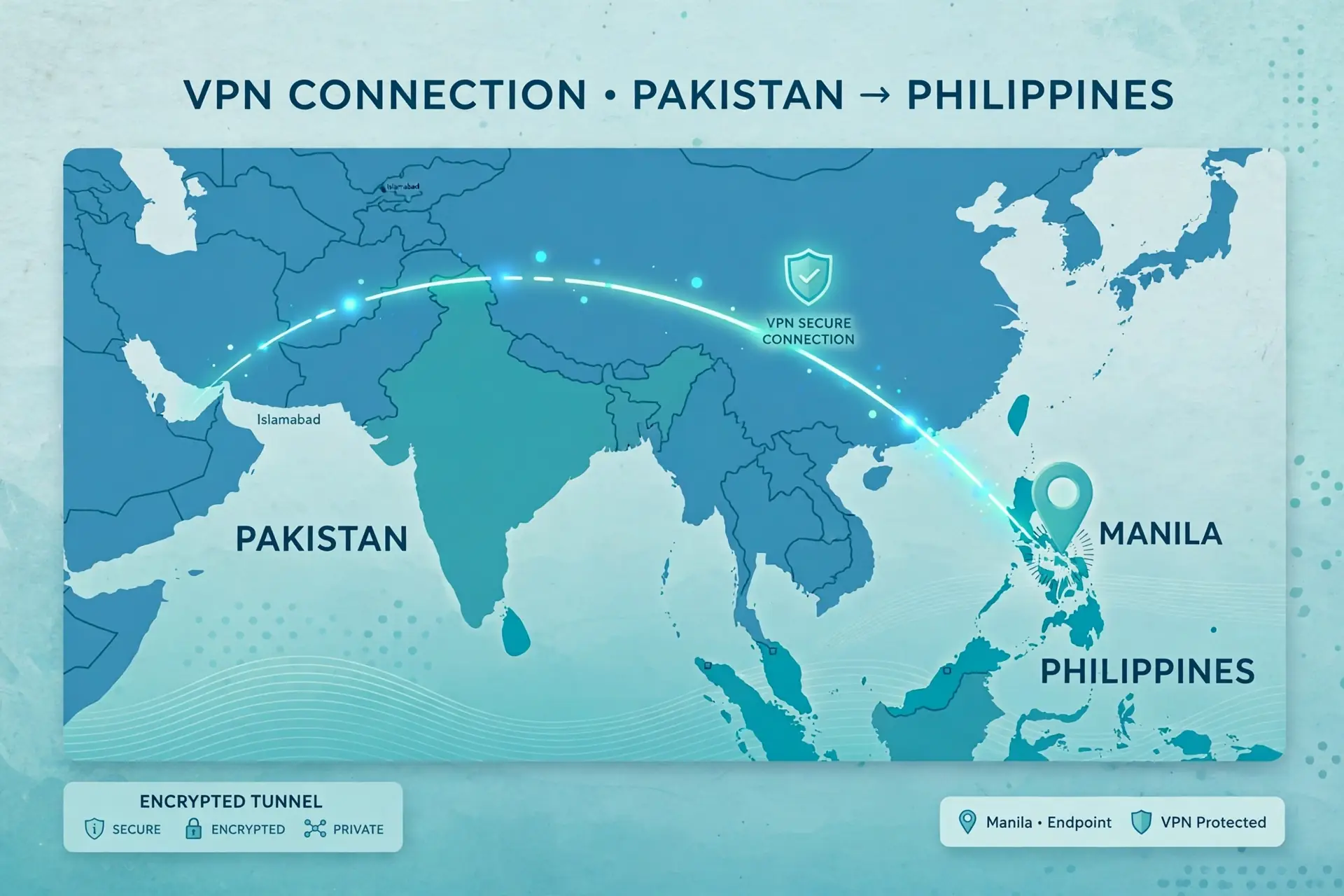
Getting a Philippines IP address from Pakistan takes about five minutes once you have the right VPN app installed. You sign up with a provider that lists the Philippines, install its official app, choose Philippines, and connect. Surfshark is our recommended VPN for Pakistan, with 80% off for our users, and it lists the Philippines among its 100 server countries.
A Philippines IP address means websites and apps see an internet address registered to the Philippines instead of your real Pakistani address. That changes what your connection appears to be, but it does not change your device GPS, your app store country, or your account region, and it does not guarantee that any particular service will accept the connection.
This guide separates those four things clearly, so you know exactly what a VPN can and cannot do.
Everything below was checked against provider pages and current guides in November 2026. Where sources disagree — most notably on whether Philippines servers are physical or virtual, and on how many a provider runs — we flag the conflict in the article instead of picking the figure that sounds best.
Prices are given in US dollars because providers bill in dollars, and we do not quote a rupee price that would be out of date within days.
How to Get a Philippines IP Address From Pakistan: The Short Answer
To get a Philippines IP address from Pakistan, sign up for a VPN that offers a Philippines server location, download the official app for your device, sign in, open the server list, select Philippines, and tap connect. Your traffic then exits through the provider’s Philippines location, and websites should see a Philippines IP address instead of your Pakistani one.
The whole process takes a few minutes on a normal connection, and most of that time is the sign-up and download. The connection itself usually takes a few seconds once the app is installed.
Before you pay for anything, confirm two things. First, check that the provider you choose actually lists the Philippines on its current server page, because server lists change and some providers have removed locations without much notice. Second, check whether the Philippines location is a physical server in the Philippines or a virtual location routed through another country, because that affects latency and how some services classify the connection.
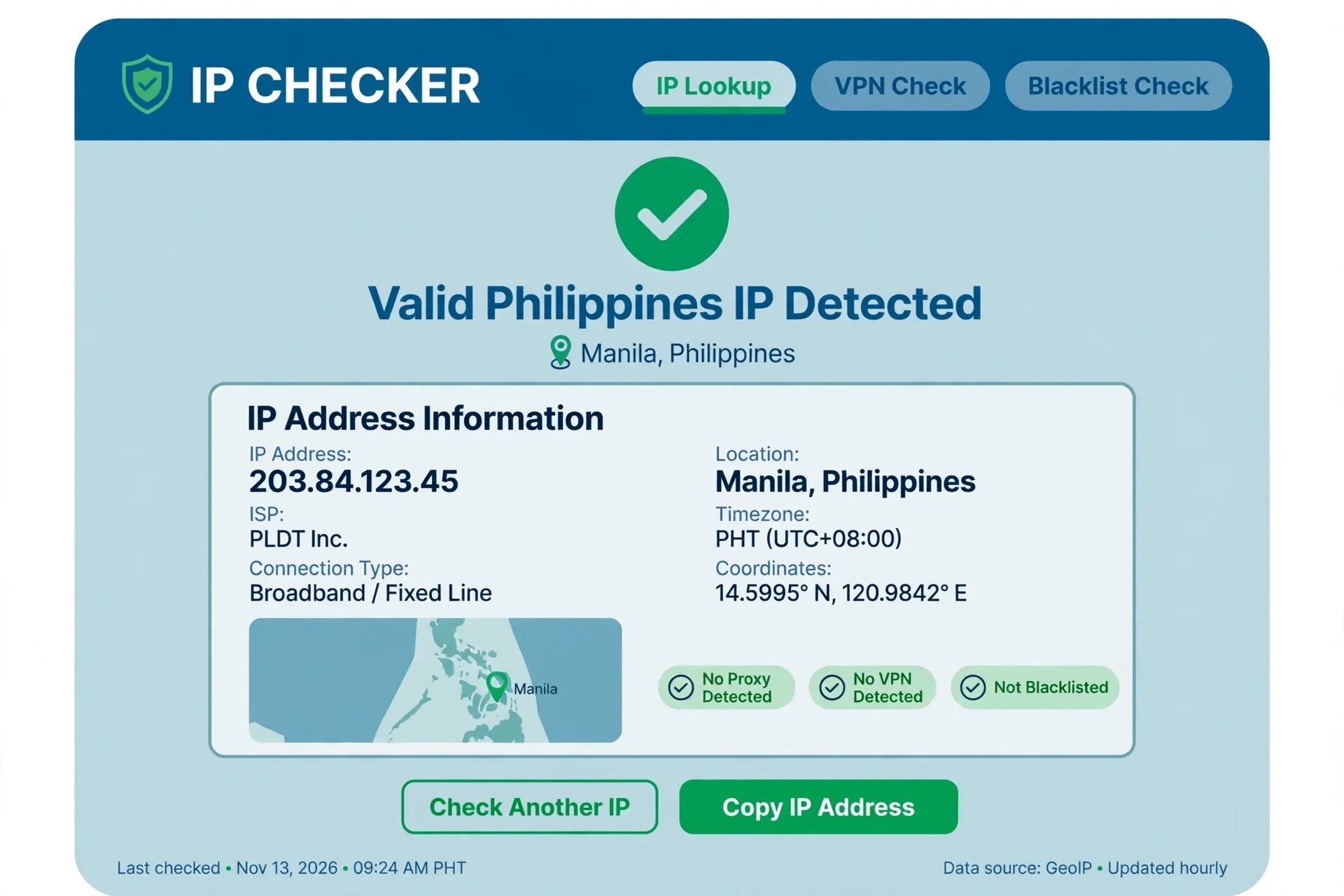
After connecting, verify the result with an IP checker before you open the service you need. Your public IP address should change, the country should read Philippines, and the provider name should be a hosting company, not your Pakistani ISP. If your real Pakistani IP address is still showing, the tunnel is not carrying your traffic, and the verification section below shows how to confirm and fix that.
What a Philippines IP Address Actually Changes
An IP address is the number your internet connection presents to every website and app you visit. When you connect from Pakistan without a VPN, that number belongs to your Pakistani ISP, and geolocation databases place it in Pakistan. When you connect through a VPN server labelled Philippines, your traffic exits through that server, and the address websites see belongs to the provider’s Philippines location instead.
That change affects how your connection is classified by IP-based location checks. A website that looks up your IP address will generally see Philippines as the country. That is the whole mechanism, and it is also the limit of the mechanism: an IP address is only one of several signals a service can use.
Your device GPS is a separate signal, and a VPN does not change it. If an app reads your phone’s GPS, it will still see your real position in Pakistan, even while your IP address reads Philippines. Browser location services, account country settings, and payment method country are separate signals too, and this guide covers each of them in the settings section below.
Some services also detect and block VPN traffic itself. A Philippines exit IP does not ensure that a streaming platform, bank, or other service will accept the connection or show Philippines-specific content. If a service refuses the connection, the problem may be VPN detection rather than the IP address, and switching servers or providers is the usual next step.
Step 1: Choose an Eligible Provider With a Philippines Server
Not every VPN offers a Philippines location, and the ones that do are not equal. The first thing to check is eligibility: does the provider list the Philippines on its current server page, does the plan you are buying include that location, and is the location physical or virtual?
A provider that lists the Philippines only on a higher tier, or only for paid users, will not help if you buy the wrong plan.
Free plans deserve a warning here. No trustworthy free plan reliably gives a Philippines IP address, a finding from our earlier Philippines article that still holds in November 2026. Proton VPN’s free plan does not include the Philippines at all, and TunnelBear’s free plan no longer lets free users choose a server.
The free apps that do advertise a Philippines location are usually untested, ad-supported services with unclear logging policies, and we do not recommend trusting them with your traffic.
The table below compares the providers most often recommended for a Philippines IP address. Figures come from provider pages and current third-party guides checked in November 2026, and where those sources disagree, the disagreement is flagged in the provider notes that follow the table rather than smoothed over.
| Provider | Philippines Location | Network Size | Simultaneous Devices | Money-Back Guarantee |
|---|---|---|---|---|
| Surfshark | Yes, 6 servers listed | 4,500+ servers, 100 countries | Unlimited | 30 days |
| ExpressVPN | Yes | 3,000+ servers, 105 countries | 10 / 12 / 14 by plan | 30 days |
| NordVPN | Yes, virtual, per most sources | 8,000+ servers, 120+ countries | 10 | 30 days |
| CyberGhost | Yes | 9,000+ servers, 91 countries | 7 | 45 days |
| Proton VPN | Yes, Smart Routing via Singapore | 20,000+ servers, 140+ countries | 10 | 30 days |
| Private Internet Access | Yes, virtual location | Servers in 90+ countries | Unlimited | 30 days |
Read the table as a starting point, not a verdict. Server counts change, and the more important question for most readers is whether the provider’s Philippines location works for the specific service they need. A money-back guarantee matters here, because it lets you test the connection on your own Pakistani network and get a refund if it does not work.
Surfshark: Our Recommended Choice for Pakistan Readers
Surfshark lists 4,500+ servers in 100 countries, and its official Philippines server page states that it has 6 servers in the Philippines. It allows unlimited simultaneous connections, supports WireGuard, OpenVPN, and IKEv2, and offers a 7-day free trial on its 12- and 24-month plans plus a 30-day money-back guarantee. That combination makes it the easiest provider to test for a Philippines IP address from Pakistan.
There is one conflict to flag. A third-party guide updated in November 2026 reports that Surfshark’s Philippines location is a virtual server physically located in Hong Kong, while Surfshark’s own page simply lists 6 servers in the Philippines without saying where the hardware sits.
We could not verify the physical location from an official source, so treat the Philippines location as unverified on that point: the IP address it assigns should still geolocate to the Philippines, but the traffic may route through nearby infrastructure.
On price, Surfshark’s long-term plans are widely reported at $2.49 per month on the 2-year Starter plan, with some sources quoting $1.99 per month for the same term under different promotions. That is a conflict between sources rather than a settled figure, so check the price on Surfshark’s checkout page before you pay.
The monthly plan is far more expensive, at around $18.95 per month, so the long plan is the one that makes sense for regular use.
Surfshark — our recommended VPN for Pakistan
Philippines servers, unlimited devices, and 80% off for our users.
ExpressVPN: Premium Option With a Philippines Location
ExpressVPN lists servers in 105 countries, including the Philippines, and is the top recommendation in several current guides for getting a Philippines IP address. It offers a 30-day money-back guarantee, automatic obfuscation, and a reputation for reliable access to major streaming services. The trade-off is price: it costs more than Surfshark on comparable long-term plans, and its entry plan covers fewer devices.
Device limits changed with ExpressVPN’s plan restructure, and the current figures are 10 simultaneous connections on Basic, 12 on Advanced, and 14 on Pro. Older guides still quote 8 devices, so if you read a review that says 8, it is out of date. Check the plan page at checkout, because the limit that applies is the one on the plan you buy.
There is also a conflict about the Philippines location itself. Some older sources report that ExpressVPN has no physical server in the Philippines and routes Philippines traffic through Singapore, while current guides list a Philippines location without that qualification.
We could not settle this from an official source in November 2026, so flag it as unverified: the IP address should still read as Philippines, but the routing may pass through Singapore.
NordVPN: Large Network, Conflicting Philippines Claims
NordVPN offers access to more than 8,000 servers in 120+ countries, including the Philippines, and supports 10 simultaneous connections. It is the top-ranked provider for the Philippines in Comparitech’s November 2026 guide, which praises its speed, security tools, and unblocking ability. It also offers a 30-day money-back guarantee, so you can test it from Pakistan before committing.
The Philippines location itself is the subject of a direct conflict between sources. Cloudwards states that NordVPN uses virtual servers for the Philippines, and Comparitech’s own guide shows the Philippines servers carrying a virtual label. A different guide, Safelyo, claims NordVPN operates physical servers in Manila and lists physical hardware as a selling point.
These claims cannot both be right, and we could not verify the physical location from an official source, so treat it as unresolved.
For most readers, the practical effect is small: a virtual Philippines location still assigns a Philippines IP address. The difference shows up in latency and in how strictly a service checks the connection, and the only way to know is to test it on your own network during the money-back period.
CyberGhost: Many Philippines Servers, Conflicting Counts
CyberGhost is the beginner-friendly option in this comparison, with a large network and a 45-day money-back guarantee that is longer than the 30 days most providers offer. It supports 7 simultaneous connections and offers servers optimised for streaming and gaming, which suits readers who want a Philippines IP address mainly for video or games.
The Philippines server count is disputed. WizCase reports that CyberGhost has 70+ Philippines servers, while other guides describe the Philippines location as virtual or say there is no direct presence in the Philippines at all. Cloudwards puts the total network at over 9,000 servers in 91 countries, while another guide claims over 11,500 servers in 100 countries.
Both totals cannot be current at the same time, so treat the exact numbers as approximate.
What matters is that CyberGhost does list the Philippines, and its longer refund window gives you more time to test whether the location works for your purpose. If the first server you try does not work, switch to another Philippines server in the app before you conclude the provider is unsuitable.
Proton VPN and Private Internet Access: Honest Limitations
Proton VPN is the most transparent provider in this comparison about how its Philippines location works. Its documentation states that its Philippines Smart Routing servers run through Singapore, which means the traffic is routed via Singaporean infrastructure while the assigned IP address geolocates to the Philippines. Proton VPN lists over 20,000 servers in 140+ countries, supports 10 simultaneous connections, and offers a 30-day money-back guarantee on paid plans.
The important limit is that the Philippines location requires a paid Proton VPN Plus plan. The free plan does not include the Philippines, and it does not include most other country choices either. If you are considering Proton VPN mainly because it has a free tier, that tier will not give you a Philippines IP address.
Private Internet Access is equally open about its setup: its own Philippines page describes the location as virtual. It offers servers in more than 90 countries, unlimited simultaneous connections, and a 30-day money-back guarantee. A virtual location is not a defect on its own, but it is worth knowing before you buy, especially if you need low latency to a Philippines-based service.
Step 2: Connect to the Required Location
Once you have chosen a provider and installed its official app, connecting is the simplest part of the process. Open the app, sign in with the account you created, and find the server list. On most apps this is a search bar, a country list, or a map, and typing “Philippines” is faster than scrolling through a hundred countries to find it.
Select Philippines and tap connect. The app will show a connecting state for a few seconds, then change to connected, usually with the new IP address and the server location displayed on screen. Some apps let you choose a specific city, such as Manila, while others offer only the country; either is fine, because the exit IP is what matters, not the city label.
If the app offers a choice between several Philippines servers, pick the one the app marks as fastest or least loaded. If it offers only one, use it. Do not spend time comparing servers before you have verified that any of them works: connect first, verify second, and only then optimise.
If the connection fails on the first try, do not keep tapping connect. Wait a few seconds, check that your internet works without the VPN, and try once more. Pakistani networks sometimes block or throttle VPN traffic, and switching from Wi-Fi to mobile data, or the other way round, is a legitimate first test before you look for a problem in the app.
One setting is worth turning on before you rely on the connection: the kill switch. It blocks all internet traffic if the VPN drops unexpectedly, so your real Pakistani IP address never leaks during a reconnection. In Surfshark it is called Kill Switch, in NordVPN it is also Kill Switch, and in ExpressVPN it is called Network Lock. Turn it on in settings and leave it on.

Step 3: Verify the Exit IP
Never assume a VPN is working just because the app says “Connected”. Verify it with an independent IP checker, because the app’s own status screen only reports what the app believes, and a misconfigured tunnel can show as connected while your real IP address leaks. Verification takes two minutes and it is the only way to know the Philippines IP address is real.
Start by recording your real IP address before you connect. With the VPN off, open your browser and search for “what is my IP”, or visit an IP checker, and write down the address, the country, and the ISP name. Your real result should show Pakistan and your Pakistani ISP. This baseline is the comparison point for everything that follows.
Now connect to the Philippines server and run the same check again. The IP address should be different, the country should read Philippines, and the ISP or organisation should be a hosting company or the VPN provider, not your Pakistani ISP. If all three have changed, the tunnel is carrying your traffic and the exit IP is a Philippines one.
Do not trust a single checker. IP geolocation databases can disagree, and one database may still list a freshly assigned address under the wrong country. Use at least two different IP checkers and compare the country, region, and organisation fields. If both agree on Philippines, you can be confident; if they disagree, try another Philippines server and check again.
Also run a DNS leak test while connected. A DNS leak means your device asks your ISP’s DNS servers where websites are, even while the VPN is connected, which can reveal your browsing to your ISP. The leak test should show DNS servers belonging to the VPN provider or a data centre, not your Pakistani ISP. If it shows your ISP, reconnect, check the kill switch, and test again.
Step 4: Check App and Browser Location Settings
A Philippines exit IP is only one location signal, and many apps and websites use others. If a service still treats you as a visitor from Pakistan after you connect, the cause is usually one of these settings rather than the VPN itself, so work through them before you blame the provider.
First, clear the browser’s cookies and cache for the service, or open it in a private window. Websites store your previous location in cookies, and a site that saw a Pakistani IP address on your last visit may keep showing Pakistan content until those cookies are gone. Signing out and back in while connected to the Philippines server has the same effect for many services.
Second, check your browser’s location permission. If you previously allowed a website to see your device location, it may be using GPS or Wi-Fi positioning instead of your IP address. Revoke the permission in your browser settings, or deny it when the site asks again, so the site falls back to the IP address.
Third, check your account region. A streaming account created in Pakistan, an app store account set to Pakistan, or a payment method issued by a Pakistani bank each carry their own country setting, and a VPN does not change any of them. Some services check the account country before they check the IP address, and no VPN can override that.
Our guide to getting a Thailand IP address explains the same account-region problem, because it applies to every country change, not just the Philippines.
Fourth, check the device time zone and language settings if a service still looks wrong. These are weak signals on their own, but a device set to Pakistan time with a Philippines IP address can look inconsistent to a service that checks several signals at once.
Setting the time zone to Manila is a small step that removes one mismatch, though it will not fix a service that is blocking VPN traffic outright.
Step 5: Troubleshoot Mismatches
Most mismatches have one of five causes, and you can work through them in order. First, check whether the VPN is actually connected: open the app and confirm the status, then re-run the IP checker. If your real Pakistani IP address is showing, the tunnel is not carrying your traffic, and the fix is a reconnection, not a settings change.
Second, try a different Philippines server. Providers often run more than one, and one server’s IP range may be flagged by a service while another is not. In Surfshark, disconnect and reconnect to get a fresh Philippines server; in other apps, pick a different server from the list. Then verify again with the IP checker before you retry the service.
Third, switch protocols. If your app lets you choose between WireGuard, OpenVPN, and IKEv2, try another one and reconnect. A network that blocks one protocol may allow another, and WireGuard is the modern default that usually works best. Do not change protocols randomly on a working connection: if it works, leave it alone.
Fourth, check for conflicting software. A second VPN app, an antivirus with its own network filter, or a firewall can fight your VPN for control of your traffic. Run one VPN at a time, and disable the other app’s network features while you test. This is a common cause of connections that appear to work but leak the real IP address.
Fifth, accept that some services detect and block VPN traffic no matter which server you use. If two different providers and several servers all fail on the same service, the service is almost certainly blocking VPNs as a category.
In that case the honest answer is that a Philippines IP address alone will not get you in, and you should check the service’s terms to see whether VPN use is permitted at all.
How to Get a Philippines IP Address on Android
On Android, the process starts in the Google Play Store. Search for your chosen provider, check that the developer name matches the provider, and tap Install. Do not install a VPN from a third-party download site or an APK link, because copycat apps are a real problem and a fake VPN can log your traffic instead of protecting it.
Open the app, sign in, and grant the VPN permission when Android asks. The system shows a standard warning that a VPN can monitor network traffic; this appears for every VPN app, and it is simply how Android lets a VPN create the tunnel. Tap OK, then open the server list, search for Philippines, and tap connect.
Android has one extra step worth doing: turn off any battery optimisation for the VPN app. Some Android phones kill background apps aggressively, and a VPN that is killed in the background drops the tunnel without warning. In Settings, under Battery or Apps, set the VPN app to unrestricted or unoptimised so it stays connected.
Verify the result in your mobile browser with an IP checker, exactly as described in the verification section. Mobile browsers sometimes keep old pages cached, so open a fresh tab or use a private tab for the check. If the checker still shows Pakistan, force-stop the app, reopen it, reconnect, and check again.
If you use a Philippines IP address on Android mainly for an app rather than a browser, remember the GPS point: an app that reads your phone’s location will still see Pakistan. Some Android apps also check the country of the Google Play account, which a VPN does not change. If the app refuses to work, that is usually an account or GPS issue, not a VPN failure.
How to Get a Philippines IP Address on iPhone
On iPhone, the process starts in the Apple App Store. Search for your chosen provider, check the developer name, and tap Get. As with Android, install only from the official store listing, and do not trust a VPN app that arrives through a profile download or a link in a message.
Open the app, sign in, and tap Allow when iOS asks for permission to add VPN configurations. iOS shows a standard warning because a VPN app has the technical ability to see traffic. The VPN will not work properly unless you tap Allow, so do not tap Don’t Allow and then wonder why the connection fails.
If you tapped the wrong option, delete the VPN configuration in Settings, then General, then VPN and Device Management, and try again.
Select Philippines from the server list and connect. iOS shows a small VPN icon in the status bar while the tunnel is active, which is a useful at-a-glance check, but it is not proof that the exit IP is in the Philippines. Open Safari and run an IP checker to confirm the country, exactly as on any other device.
iPhone users should also check the App Store country, because it is separate from the VPN. An App Store account set to Pakistan will still show the Pakistani store while the VPN is connected, and some apps are only available in the Philippines store. Changing your App Store country is a separate process that requires a Philippines payment method, and a VPN alone cannot do it.
Finally, check location services for the specific app you care about. In Settings, under Privacy and Security, then Location Services, you can see which apps have access to your GPS. If an app uses GPS rather than IP address, a Philippines VPN connection will not change what it sees, and you will need to decide whether that app can work with your real location.
How to Get a Philippines IP Address on Windows
On Windows, download the VPN installer from the provider’s official website, not from a third-party download site. The provider’s site detects your operating system and offers the right installer. Run it, allow the security prompt that asks whether the app can make changes, and sign in once the install finishes.
Open the app, find the server list, search for Philippines, and connect. Windows apps usually show the new IP address and the connection time on the main screen, which is a quick sanity check, but you should still verify with an IP checker in your browser. Browsers on Windows sometimes use a cached DNS result, so open a fresh private window for the check if the first result looks wrong.
Windows has two settings worth checking. First, turn on the kill switch before you rely on the connection, because Windows is the platform where a dropped tunnel most often leaks the real IP address silently. Second, check whether the app offers split tunnelling, called Bypasser in Surfshark, which lets you choose which apps use the VPN and which use your normal connection.
Split tunnelling is useful when one app, such as a banking app, refuses to work through a VPN while everything else should stay protected.
If the connection fails on Windows, try a different protocol first, then check Windows Firewall and your antivirus, because both can block VPN traffic. Run one VPN at a time, and if you previously installed another VPN app, make sure it is fully closed rather than running in the background. A second VPN fighting for the same network route is a common cause of Windows connection failures.
Can a Free VPN Give You a Philippines IP Address?
Short answer: no trustworthy free plan reliably gives a Philippines IP address. This is not a guess; it is the finding from our earlier Philippines article, and it still holds in November 2026. The free plans from reputable providers either exclude the Philippines entirely or do not let you choose a server at all, and the free apps that do advertise a Philippines location are not services we would trust.
Proton VPN’s free plan is the clearest example. It is a genuine free plan from a reputable provider, with no data cap, but it offers only a small set of countries and the Philippines is not among them. The Philippines location requires the paid Plus plan.
TunnelBear’s free plan is similar: it exists and needs no credit card, but free users can no longer choose a server, so you cannot select the Philippines even if the provider runs one.
The free apps that do promise a Philippines IP address usually pay for themselves with advertising, data collection, or both, and many have no published audit or clear logging policy. A VPN sees all of your traffic by design, so trusting that position to an untested free app is a poor trade for saving a few dollars a month.
The Play Store listing for one such app even lists its developer address in Islamabad, which tells you nothing about its logging policy or its server security.
If cost is the barrier, the honest options are a paid provider’s money-back guarantee or a short-term plan. Surfshark, ExpressVPN, NordVPN, CyberGhost, Proton VPN, and Private Internet Access all offer 30-day guarantees, and CyberGhost offers 45 days.
That lets you test a Philippines IP address properly and get a refund if it does not work, which is a better deal than a free app that may not protect you at all.
Physical Servers, Virtual Locations, and Why It Matters
A VPN location label tells you which country the exit IP address is registered to, but it does not always mean the server hardware sits in that country. Many providers use virtual locations: the server hardware is in one country, while the IP address it assigns is registered to another. This is common for the Philippines, and several providers are open about it.
Proton VPN says its Philippines Smart Routing runs through Singapore. Private Internet Access describes its Philippines location as virtual on its own Philippines page. Third-party guides report the same arrangement for Surfshark, NordVPN, and ExpressVPN, though the details differ between sources and, in NordVPN’s case, directly conflict. We flag these as unverified where the provider itself has not confirmed the arrangement.
For most readers, a virtual Philippines location works fine: the IP address still geolocates to the Philippines, and websites that check only the IP address will see Philippines. The difference matters in two situations. The first is latency: traffic routed through Singapore or Hong Kong travels further than traffic to a server in Manila, which can matter for gaming or video calls.
The second is strict services that check more than the IP address, such as the data centre or the routing path, and may treat a virtual location differently.
There is no reliable way to tell from inside the app whether a location is physical or virtual, short of measuring latency to the server or reading the provider’s own documentation. If physical hardware in the Philippines matters to you, check the provider’s location page before you buy, and prefer a provider that states the arrangement plainly, as Proton VPN and Private Internet Access do.
Exit IP, GPS, Account Region, and Eligibility: Four Different Things
Readers get confused by Philippines IP guides because four different things all sound like “location”, and a VPN only changes one of them. Keeping them separate saves hours of troubleshooting, so here is the distinction in plain terms.
The exit IP is what the VPN changes. It is the address websites see, and it is the only thing this guide’s method affects. If a service checks only your IP address, a Philippines exit IP is enough, and the verification steps above are the proof that it works.
GPS is what your phone’s location hardware reports, and a VPN does not change it. Apps that ask for location permission, such as ride-hailing, delivery, and banking apps, will still see your real position in Pakistan. Turning off location permission for the app, or denying it when asked, stops the app from reading GPS, but it does not make the app think you are in the Philippines.
Account region is the country attached to your account with a service: your streaming account country, your app store country, or the country on your payment method. A VPN does not change any of these, and some services check the account region before the IP address.
If a service still shows Pakistan content after a verified Philippines connection, the account region is the most likely cause, and changing it usually requires a local payment method and the service’s own process.
Eligibility is the service’s own terms. Some services restrict access by country in their terms of service, and using a VPN to bypass those restrictions may breach the terms, even if it works technically. This guide does not guarantee access to any service, and you should check the terms of the service you want to use before you rely on a VPN to reach it.
PTA, Payment, and Practical Notes for Readers in Pakistan
Pakistan adds a few practical wrinkles to any VPN setup. The first is network blocking: some Pakistani networks and public Wi-Fi systems block or throttle VPN traffic. If a VPN will not connect on one network but works on another, that is usually the network, not the app.
Try switching protocols, turning on obfuscation if your provider offers it, or switching from Wi-Fi to mobile data before you conclude the app is broken.
The second is the PTA. Pakistan’s telecom regulator has a VPN registration regime, and businesses that use VPNs for commercial purposes are expected to register them. The rules for individual, personal VPN use are less clear, and enforcement has focused on commercial and institutional users.
This guide is not legal advice, and the rules change, so check the current PTA position if you use a VPN for business purposes, and keep your use within the law as it stands.
The third is payment. Providers bill in US dollars, and we could not verify which payment methods work reliably from Pakistan in November 2026, including whether Pakistani debit cards are accepted by every provider.
Check at checkout before assuming your card will work, and remember that the price you see may change at renewal: long-term plans usually renew at a higher rate than the introductory price, so read the renewal terms before you pay.
The fourth is speed. The Philippines is far from Pakistan, and the distance adds latency no matter which provider you choose. A virtual location routed through Singapore or Hong Kong can actually be faster from Pakistan than a physical server in Manila, because the routing path matters more than the label.
Our guide to getting a Singapore IP address covers the nearest major hub, which is worth comparing if speed matters more than the country label. We have not measured speeds from Pakistan ourselves, and this guide makes no speed claims: test it on your own connection during the money-back period.
Finally, keep your expectations honest. A Philippines IP address is a tool for changing how your connection is classified, not a guarantee of access to any particular service. If you need a nearby location instead, our guide to getting a Malaysia IP address covers another Southeast Asian option with the same verification method used here.
How to Get a Philippines IP Address From Pakistan: Frequently Asked Questions
How Do I Confirm My IP Is Located in Philippines?
Connect to a Philippines server, then check your IP address with at least two independent IP checkers. Both should show a Philippines country, a Philippines city such as Manila, and an ISP or organisation that is a hosting company or your VPN provider, not your Pakistani ISP. Compare the result with your real IP address recorded before you connected: the address, country, and ISP should all have changed.
Also run a DNS leak test while connected, because a leak can expose your real location even when the IP address looks right.
Does Selecting Philippines Change Device GPS?
No. Selecting Philippines in a VPN app changes your exit IP address, not your device GPS. Your phone’s GPS hardware still reports your real position in Pakistan, and any app that reads GPS will see that position. To stop an app reading your location, revoke its location permission in your device settings.
A VPN cannot make a GPS-based app believe you are in the Philippines, and any guide that claims otherwise is wrong.
What Should I Check Before Using a Location-Sensitive Service?
Check four things before you open the service. First, verify the exit IP with two checkers and confirm the country reads Philippines. Second, clear the service’s cookies or open it in a private window, so an old Pakistani session does not override the new IP address. Third, check your account region, because a Pakistan-registered account can override a Philippines IP address.
Fourth, read the service’s terms to see whether VPN use is permitted, because a Philippines IP address does not guarantee access and some services block VPN traffic outright.
Conclusion: Getting a Philippines IP Address From Pakistan
Getting a Philippines IP address from Pakistan is a five-step job: choose a provider that lists the Philippines, install its official app, connect to the Philippines location, verify the exit IP with two checkers, and fix the app and browser settings that can override it. The connection itself takes seconds; the verification is the part that matters, because it is the only proof the method worked.
The two things to remember are the virtual-location question and the free-plan trap. Several providers route Philippines traffic through Singapore or Hong Kong, and the sources disagree on the details, so check the provider’s own documentation and test the connection during the money-back period. And no trustworthy free plan reliably gives a Philippines IP address, so a paid plan with a refund guarantee is the honest route.
If you want one provider to start with, Surfshark is our recommended VPN for Pakistan, with 80% off for our users, 6 Philippines servers listed on its official page, unlimited devices, and a 30-day money-back guarantee that lets you test it on your own network. For more country guides, see the freevpn.pk homepage and our other location guides.
Surfshark — our recommended VPN for Pakistan
Test it on your own network with the 7-day free trial — 80% off for our users.



