Setting up Private Internet Access in Pakistan takes about ten minutes when you start from the official download page and follow the order in this guide. Surfshark is our recommended VPN for Pakistan, with 80% off for our users, and this guide mentions it where it is genuinely relevant.
The steps below cover Private Internet Access itself: where to download it safely, how to create and verify your account, how to install it on Windows, macOS, Android, iOS and Linux, how to set it up on a router, and how to check that the tunnel is actually working.
Private Internet Access, usually shortened to PIA, is a long-established VPN provider with open-source apps, a no-logs policy that has been independently audited by Deloitte, and servers in 91 countries. It allows unlimited simultaneous connections on a single subscription, which is unusual: most providers cap you at five, seven or ten devices. For a household in Pakistan with several phones, a laptop and a smart TV, that matters.
Everything in this guide was checked against PIA’s official support pages and current pricing reporting in November 2026. Anything we could not verify from an official source is flagged as such rather than presented as fact. Prices change with promotions, so the figures here are the ones shown at the time of writing, and the checkout page is always the final word.
Private Internet Access Setup Pakistan: The Short Answer
The fastest safe way to set up Private Internet Access in Pakistan is to create your account on the official PIA website, download the app only from PIA’s own download page or your device’s official app store, install it, sign in, and connect to a nearby server such as the United Arab Emirates or Singapore for the lowest latency.
The whole process takes about ten minutes on a phone or a computer.
PIA has dedicated apps for Windows, macOS, Linux, Android and iOS, plus browser extensions for Chrome, Firefox and Opera, and apps for Android TV, Fire TV and Apple TV. If your device cannot run an app, PIA supports manual OpenVPN configuration on compatible routers running DD-WRT, OpenWRT, AsusWRT, pfSense or FreshTomato firmware, and you can also share a VPN connection from a computer.
There is no free PIA plan. New users can test the service with a 7-day free trial when they sign up through the mobile app on iOS or Android, and every paid plan carries a 30-day money-back guarantee.
The long-term plan costs about $2.03 per month when billed as roughly $56.84 for two years plus four free months, the six-month plan costs about $7.50 per month, and the monthly plan costs about $11.99 per month. Confirm the current offer on the checkout page before you pay, because promotions change.
Once the app is installed, the settings worth changing before your first connection are the kill switch, which should be on, and the protocol, where WireGuard is the usual default and OpenVPN is the fallback if a network blocks WireGuard. After connecting, verify the tunnel with an IP checker and a DNS leak test: your public IP address should belong to the VPN server’s country, not to your Pakistani ISP.
Where to Download the Official Private Internet Access App
Only download PIA from official sources. A VPN app handles all of your internet traffic, so a modified installer downloaded from a random site is a genuine security risk. PIA’s own support pages and independent guides agree on the same rule: the official website, Google Play, or the Apple App Store, and nowhere else.
For Windows and macOS, go to the official PIA download page on the provider’s website and choose the installer for your system. The desktop app supports Windows 10 and Windows 11 in 64-bit and ARM64 builds, and macOS 10.15 or newer by direct download. The Mac App Store version requires macOS 12 or newer, so if your Mac runs an older version, use the direct download from PIA instead.
For Android, download the app from the Google Play Store or from PIA’s official website. The app needs Android 7 or newer. For iPhone and iPad, use the Apple App Store; the app needs iOS 15 or newer. If your phone cannot reach the Play Store or the App Store, the official website download is the safe alternative, not a third-party APK site.
For Linux, PIA publishes installers for Ubuntu, Mint, Debian, Fedora and Arch, and the app is also available as an open-source project on GitHub. Check that your distribution and release are on PIA’s supported list before installing, because an unsupported release can produce connection problems that look like network faults.
Browser extensions for Chrome, Firefox and Opera come from the official browser extension stores or from PIA’s website. Remember that a browser extension only protects traffic inside that browser, not your whole device. It is a useful extra, not a replacement for the full app.
For streaming devices, PIA has apps for Amazon Fire TV and Fire TV Stick, Android TV boxes and Apple TV, available through the Amazon App Store or Google Play Store. Fire OS 6 or newer is the supported baseline.
Our guide to paid VPN options for Google TV covers the same kind of device choice for another platform, and the logic is identical: use the official store app where one exists and fall back to the router when it does not.
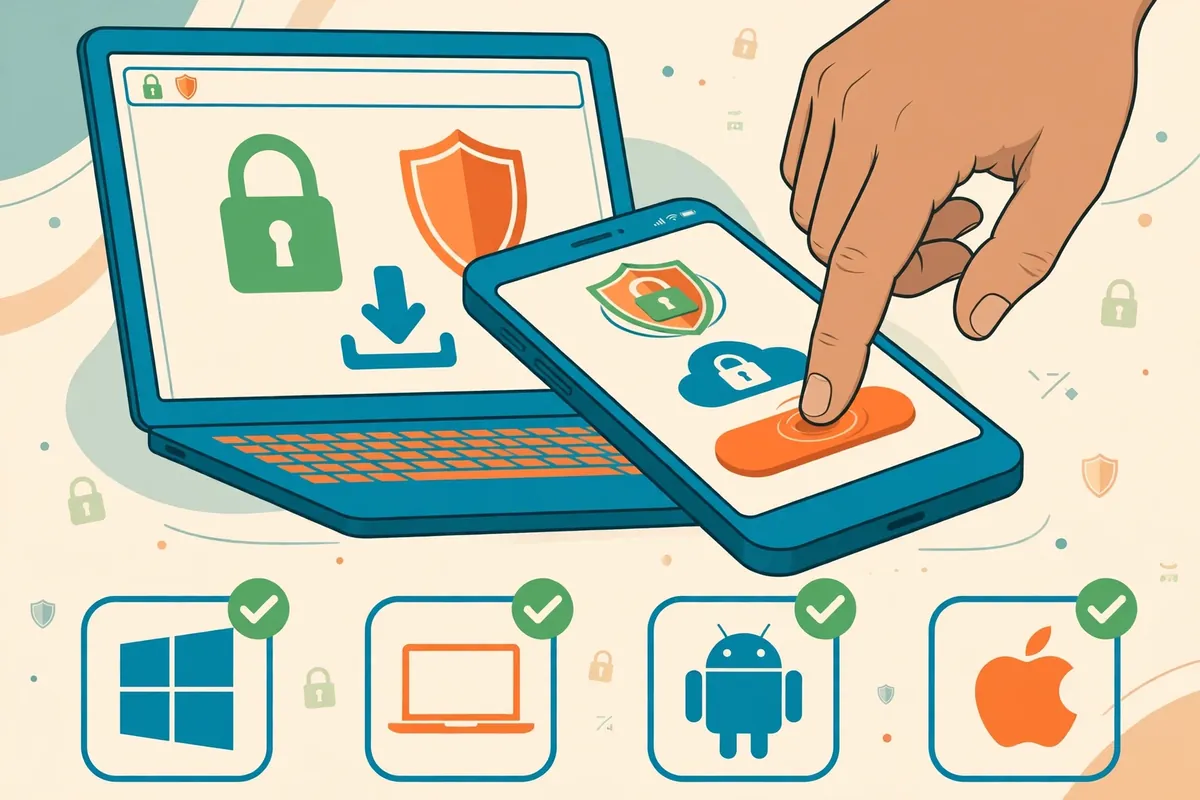
Private Internet Access Account Setup in Pakistan
Create your account before you install the app, or during installation when the app prompts you. Go to the official PIA website and choose a plan. PIA keeps pricing simple with one plan tier: only the subscription length changes the cost. Pick the length that fits your budget, enter an email address, and complete the payment.
Use an email address you can actually open, because PIA sends the confirmation and account details there. If you sign up through the mobile app to use the 7-day free trial, the trial is tied to that app-store purchase, so keep the same account for every device you add later.
Payment options on PIA’s checkout include cards and other standard online payment methods. We could not verify from an official source which Pakistan-specific payment methods, such as local debit cards or mobile wallets, are accepted at checkout, so treat that as something to confirm on the payment page itself before you commit. If your card is declined, try another card or contact PIA support rather than using an unofficial reseller.
After payment, PIA sends a confirmation email with your account details. Keep those credentials safe and do not share them. PIA allows unlimited simultaneous connections, so there is no reason to share one account across households, and sharing credentials is a good way to lose control of the account.
If you already have a PIA account and are setting up a new device, you do not need a second subscription. Sign in with the same credentials on every device. The unlimited-device allowance means your phone, laptop, tablet and TV can all be connected at the same time under the one account.
How to Install Private Internet Access on Windows and macOS
Installing PIA on a desktop computer is straightforward, and the steps are nearly identical on Windows and macOS. Download the installer from the official PIA download page, run it, and follow the on-screen prompts. On Windows, you may see a User Account Control prompt asking for permission to install; accept it.
On macOS, you may need to allow the installer in System Settings if Gatekeeper blocks it, which is normal for software downloaded outside the App Store.
When the installer finishes, open the PIA app and sign in with the account credentials you created. The app opens to a large power button and a server list. Before you connect for the first time, open Settings and check two things: the kill switch and the protocol.
The kill switch cuts your internet access if the VPN connection drops, so your real IP address never leaks onto the open connection. On Windows and macOS it is a system-wide kill switch, and it should be switched on before your first connection. If you leave it off and the tunnel drops for a moment, your traffic can silently continue over your real Pakistani connection.
The protocol setting controls how the tunnel is built. PIA supports WireGuard and OpenVPN, and the app usually defaults to WireGuard, which is the faster and simpler choice for most users. If WireGuard does not connect on your network, switch to OpenVPN and try again, and try both UDP and TCP modes. Some networks in Pakistan block or throttle particular protocols, so having a fallback matters.
After the settings are checked, click the power button or choose a server and connect. The first connection may take a few seconds longer than later ones while the app negotiates the tunnel. When the button turns green and the app shows a connected server location, your traffic is going through the VPN.
How to Install Private Internet Access on Android and iOS
On Android, open the Google Play Store, search for Private Internet Access, and install the official app published by PIA. On iPhone or iPad, do the same in the Apple App Store. Check the publisher name before installing: copycat apps with similar names exist, and the official app is the one published by Private Internet Access itself.
Open the app and sign in, or create your account inside the app if you have not already. Signing up through the mobile app is also how you start the 7-day free trial, which is only available for mobile sign-ups. If you signed up on the website first, simply sign in with those credentials instead; the trial is not available that way.
When the app asks for permission to set up a VPN connection, accept it. On Android this appears as a connection request from the system; on iOS it appears as a request to add VPN configurations. Without this permission the app cannot create a tunnel at all, and it will show an error instead of connecting.
Once signed in, tap the large power button to connect to the nearest server, or open the server list and choose a specific country. For users in Pakistan, nearby servers in the United Arab Emirates, Singapore or India usually give the lowest latency, while a server in the United States or the United Kingdom is the right choice when you need an exit IP in that country.
On Android, the useful settings are split tunnelling, listed as Per App Settings, and the kill switch, both found in the app’s Settings menu. Split tunnelling lets you choose which apps travel through the VPN and which use your normal connection. On iOS, split tunnelling is generally not available, because Apple restricts per-app VPN routing, so iPhone users should route everything through the VPN while testing.
PIA’s Android app also supports WireGuard, OpenVPN and IKEv2, and the iOS app supports the same protocols. If one protocol fails to connect on your mobile network, switch to another in Settings and try again. Mobile networks in Pakistan sometimes behave differently from home Wi-Fi, so a protocol that works on one may fail on the other.
How to Install Private Internet Access on Linux
PIA supports Linux with dedicated installers for Ubuntu, Mint, Debian, Fedora and Arch, and the client is open source on GitHub. Download the installer for your distribution from the official PIA download page, or follow the repository instructions for your distribution. The Linux app is a full desktop client with the same kill switch, protocol choice and server list as the Windows and macOS versions.
After installation, launch the app from your applications menu or from the terminal, sign in with your PIA credentials, and connect. If your distribution is not on PIA’s supported list, the official OpenVPN configuration files are an alternative: PIA publishes .ovpn files that work with the standard OpenVPN client or with NetworkManager’s OpenVPN support.
Linux users who prefer the command line can also use the OpenVPN configuration files directly, which is the same method used for routers. The steps are: download the configuration files from PIA’s website, import them into your OpenVPN client, enter your PIA username and password when prompted, and start the connection.
This method gives you a working tunnel without the graphical app, but you lose the app’s kill switch and easy server switching, so the app is the better choice where it runs.
Private Internet Access Router Setup and Manual Profiles
PIA has no app for most routers, so router setup means manual OpenVPN configuration. PIA’s own support pages state this clearly: router use is only available through manual OpenVPN configuration, and the supported firmware options are DD-WRT, OpenWRT, AsusWRT, pfSense and FreshTomato. Mesh network devices and modem-router combination units are generally not supported, and flashing firmware is not something PIA supports directly.
Before you start, check that your router model is on the supported device list for the firmware you plan to use. Each firmware project publishes its own list: DD-WRT, AsusWRT-Merlin, pfSense and OpenWRT all have public hardware pages. If your router is not listed, do not flash it. A wrong firmware image can brick a router, and that is a far bigger problem than a missing VPN.
The setup itself follows the same pattern on each firmware. Download PIA’s OpenVPN configuration files from the PIA website, upload the configuration for your chosen server location into the router’s VPN client section, enter your PIA username and password, and start the connection.
PIA publishes step-by-step guides for DD-WRT, OpenWRT, AsusWRT and pfSense on its support site, and those guides are the ones to follow, because the menu names differ between firmware versions.
A router VPN protects every device connected to that router, including devices that cannot run a VPN app at all, such as a smart TV or a games console. The trade-off is that the whole household shares one server location, and the router’s processor becomes the bottleneck for speed.
Budget routers often struggle to push more than a fraction of your line speed through an encrypted tunnel, so test the speed after setup and consider the computer-hotspot method below if the router is too slow.
If your router is not supported, PIA’s support pages describe a second option: connect PIA on your computer and share that connection with other devices on your network. On Windows this means creating a mobile hotspot while the VPN is connected; on a Mac you need two network interfaces, one to receive the internet connection and one to share it.
The computer must stay on and connected while the other devices use the tunnel.
Private Internet Access Settings Worth Changing First
PIA’s defaults are sensible, but four settings deserve a look before you rely on the tunnel. The first is the kill switch, already covered above: turn it on. On desktop it is system-wide, and on Android it is in Settings. Without it, a dropped tunnel can leak your real IP address without any warning.
The second is the protocol. WireGuard is the default in the current app and the best starting point. OpenVPN in UDP mode is the first fallback, and OpenVPN in TCP mode is the second, because TCP traffic looks more like ordinary web traffic and is harder for a network to block.
If you are on a network that interferes with VPNs, cycling through these three options usually finds one that works.
The third is split tunnelling, called Per App Settings on Android and split tunnelling on desktop. This lets you route selected apps outside the VPN. A common use in Pakistan is keeping a local banking app or a food delivery app outside the tunnel while everything else goes through it.
Use it carefully: any app routed outside the tunnel shows your real IP address, so do not exclude a browser or an app you are trying to protect.
The fourth is the DNS setting. PIA routes DNS queries through its own servers by default, which prevents your ISP from seeing the domains you look up. Leave this on the default unless you have a specific reason to change it. Changing DNS to a third-party resolver can be useful for troubleshooting, but it also sends your lookups outside the tunnel’s DNS protection.
PIA also offers a dedicated IP add-on for about $5 per month in a small number of countries, including the United States, the United Kingdom, Germany and Australia. A dedicated IP is an address used only by you, which can reduce CAPTCHAs and avoid the shared-IP blocks that some services apply to VPN users.
It is an extra cost and it is not needed for ordinary use, so treat it as an optional add-on rather than part of the basic setup.
How to Connect to a Server and Choose a Location
Connecting is the same on every platform: open the app, pick a server location, and tap or click connect. The large power button connects to the fastest server for your location, which PIA chooses automatically. For most users in Pakistan, the automatic choice will be a nearby server, and that is the right choice when speed matters more than the exit country.
When the exit country is the point, choose it from the server list. PIA lists servers by country and, for larger countries, by city or region. The United States is listed with servers in every state, which is useful if a service needs an exit IP in a particular state. The list also shows latency figures for each location, so you can compare nearby options before you connect.
Distance is the biggest factor in speed. A server in the United Arab Emirates or Singapore is a short hop from Pakistan and will add the least latency. A server in the United States or the United Kingdom is much further away and will add more delay, which matters for live calls and gaming but matters far less for browsing, streaming or downloading.
Choose the nearby server when speed is the point, and the far server when the location is the point.
PIA allows peer-to-peer traffic on every server, so there is no need to hunt for a special torrenting server. Streaming-optimised servers exist in the list, but the ordinary servers work for most purposes. If a streaming service blocks one server, try another server in the same country before you conclude that the country is blocked.
One honest limitation: a VPN cannot guarantee that a particular streaming service will work from a particular server. Streaming platforms actively block VPN IP addresses, and the blocks change constantly. If a service stops working on one server, switching servers is the first fix, and it usually works.

How to Check That the Tunnel Is Working
Never assume the tunnel is working just because the app says connected. Run the checks below after your first connection, and again whenever you change a setting. The whole verification takes about two minutes.
First, check your public IP address. With the VPN connected, open an IP checker and write down the address, the country, the city and the provider name shown. The provider name matters: if it shows your Pakistani ISP, the tunnel is not carrying your traffic. If it shows a hosting company or a data centre, the tunnel is doing its job.
Then disconnect the VPN and check the same page again to record your real IP address as a baseline.
Second, run a DNS leak test. Your DNS servers should belong to PIA or to a data centre, not to your Pakistani ISP. If the test shows your ISP’s DNS servers, your DNS queries are leaking outside the tunnel, and you should check the DNS setting in the PIA app and reconnect.
Third, run a WebRTC leak test in your browser. WebRTC is a browser feature that can reveal your real IP address even when the VPN is connected. PIA’s browser extension can block WebRTC leaks, and most modern browsers also have settings to limit it. If the test shows your real IP address, fix the browser setting or install the extension.
Fourth, check that your location actually changed for the service you care about. Open the site or app you wanted to use through the VPN and confirm it shows the new country. If the IP checker says one country and the site says Pakistan, the site is probably reading a cookie, your GPS, or your account region rather than your IP address.
Our guide to fixing a wrong VPN location walks through separating those signals, and the method applies to PIA exactly as it applies to any provider.
Finally, test your speed. Run a speed test with the VPN off and then with it on, using the same test server, and compare. Some loss is normal: encryption and the extra distance always cost something. If the loss is severe, try a nearer server or switch from OpenVPN to WireGuard.
Our method for testing VPN speed from Pakistan explains how to run repeatable comparisons, and the same approach works for PIA.
Private Internet Access in Pakistan: What to Know
PIA works in Pakistan and has no country restriction on its own service: anyone can sign up and use the apps. The practical questions for a reader in Pakistan are about networks, payments and local rules, and each of those deserves a straight answer.
On networks, PIA’s apps and protocols are standard WireGuard and OpenVPN, which work on ordinary home broadband and mobile data in Pakistan. If a particular network blocks one protocol, switching to another protocol or port usually fixes it. The OpenVPN TCP option is the most resilient on restrictive networks, because it resembles ordinary encrypted web traffic.
We have not run controlled speed or connectivity tests from Pakistani networks for this guide, so treat protocol advice as documented product behaviour rather than a measured result from Pakistan.
On payments, PIA’s checkout accepts cards and standard online payment methods, but we could not verify from an official source which Pakistan-issued cards or local payment methods are accepted. Confirm this on the checkout page before you rely on a particular card.
The price in rupees is also not fixed: PIA bills in US dollars, so the rupee amount depends on your bank’s exchange rate and any foreign-transaction fee on the day of payment.
On local rules, Pakistan’s telecom regulator, the PTA, has a VPN registration system for businesses and organisations that use VPNs for commercial purposes. This guide does not give legal advice, and the registration rules have changed over time, so check the PTA’s current guidance or consult a local adviser if you are using a VPN for business purposes.
Ordinary personal use is a different question from commercial registration, and we flag the distinction rather than resolving it here.
One more Pakistan-specific note: PIA does not publish a Pakistan server location, so you cannot get a Pakistani exit IP from PIA. That matters if you need to appear to be inside Pakistan while you are travelling abroad.
If a Pakistani IP address is what you need, Surfshark is worth checking, since our recommended VPN for Pakistan lists servers in more locations, and you should confirm its current Pakistan server availability on its own site before you buy.
Private Internet Access Not Connecting: First Fixes
If PIA will not connect at all, work through the fixes in this order, testing after each one. PIA’s own support guidance lists the same causes: network restrictions, server problems, incompatible settings, antivirus or firewall blocking, and damaged or incomplete application files.
First, update PIA and confirm your operating system is supported. Install the current build from the official download page, and check the supported baselines: Windows 10 or 11, macOS 10.15 or newer by direct download, Android 7 or newer, iOS 15 or newer, and Fire OS 6 or newer. If your system is below the baseline, changing ports will not make the client reliable.
Second, try a different server, preferably a nearby one. Server problems are usually temporary, and a different location often connects immediately. Third, change the protocol: switch from WireGuard to OpenVPN UDP, then to OpenVPN TCP, and try different ports. Fourth, check your security software. Antivirus programs and firewalls sometimes block VPN traffic; temporarily disable the firewall or add an exception for the PIA app and test again.
Fifth, check for a second VPN or security app running at the same time. Two VPN apps, or a VPN and an antivirus with its own network filter, can fight over your traffic. Run one VPN at a time and disable the other app’s network features while you test.
Sixth, reinstall PIA cleanly. Uninstall the app, remove leftover configuration files if the uninstaller offers that option, restart the device, and install the current build from the official download page. A clean reinstall fixes the damaged-file cases that no setting change will touch.
If none of these steps works, contact PIA support with the details: your device, your operating system version, the PIA version, the server you tried, and the error message shown.
Private Internet Access Pricing and the 7-Day Trial
PIA has one plan tier and three billing lengths. The two-year plan with four free months costs about $2.03 per month, billed as roughly $56.84 for 28 months. The six-month plan costs about $7.50 per month, billed as $45 every six months. The monthly plan costs about $11.99 per month.
Every plan includes the same VPN: unlimited simultaneous connections, servers in 91 countries, the kill switch, split tunnelling, and the browser extensions.
The 7-day free trial is available only when you sign up through the mobile app on iOS or Android. If you sign up on the website, there is no trial, but every plan carries a 30-day money-back guarantee, so you can still test the service and ask for a refund inside the first month if it does not suit you.
Renewal pricing deserves attention. Some reporting notes that PIA does not raise prices on renewal, which is unusual among VPN providers, while other reporting describes promotional first-term pricing that rises afterwards. Because these accounts conflict, we flag the renewal price as unverified: read the renewal terms on the checkout page itself before you buy, and do not assume the first-term monthly rate is the permanent rate.
There is no ongoing free PIA plan. If a site offers you a “free PIA premium account” or a cracked installer, it is not legitimate, and the download may contain malware. The only free access is the mobile 7-day trial and the 30-day money-back guarantee.
Surfshark and Private Internet Access for Pakistan
Surfshark is our recommended VPN for Pakistan, and it is worth a direct comparison here because many readers choose between the two. Both offer unlimited simultaneous connections, both support WireGuard and OpenVPN, and both cost about $2 per month on their longest plans. The differences are in the details.
Surfshark lists 4,500+ servers in 100 countries and offers a 7-day free trial on its 12- and 24-month plans, plus a 30-day money-back guarantee. Its app includes Bypasser, its name for split tunnelling, on Windows and Android, and it supports CleanWeb ad and tracker blocking.
PIA counters with open-source apps, a longer track record, servers in 91 countries with every US state covered, and a dedicated IP add-on that Surfshark does not offer in the same form.
For a reader in Pakistan, the practical difference is often the server list and the app experience rather than the price. PIA’s open-source apps appeal to readers who want to inspect what the software does, while Surfshark’s simpler interface appeals to readers who want to connect and forget about it.
Both are legitimate choices, and the 7-day trial on each is the honest way to decide: install both, test them on your own network, and keep the one that connects reliably and feels right.
Surfshark — our recommended VPN for Pakistan
Unlimited devices, WireGuard speed, and 80% off for our users.
One honest caveat: we have not run controlled speed tests comparing PIA and Surfshark from Pakistani networks, so this guide makes no speed ranking between them. Any speed claim would need measured results from Pakistan, and we do not have them. Choose on features, server locations and your own trial experience, not on a number in a table.
Private Internet Access Setup: Frequently Asked Questions
Where Should I Download the Official Private Internet Access App?
Download PIA only from the official PIA website, the Google Play Store, or the Apple App Store. For Windows and macOS, use the installer from PIA’s own download page. For Android, use Google Play or the official website. For iOS, use the App Store. For Linux, use PIA’s official installers or its open-source GitHub project.
Never download a PIA installer from a third-party site, because a modified installer can be a security risk.
How Do I Connect to a Server?
Open the PIA app and sign in, then tap or click the large power button to connect to the fastest server, or open the server list and choose a specific country. For the lowest latency from Pakistan, choose a nearby server such as the United Arab Emirates or Singapore. When the exit country matters, pick that country from the list instead.
If the first server does not connect, try another server in the same country or switch the protocol from WireGuard to OpenVPN.
How Can I Check That the Tunnel Is Working?
With the VPN connected, open an IP checker and confirm the address, country and provider name have changed from your real Pakistani connection. Then run a DNS leak test and confirm your DNS servers belong to PIA or a data centre rather than your ISP. Finally, open the site or app you wanted to use and confirm it sees the new country.
If your real IP address appears anywhere while the VPN is connected, the tunnel is leaking and you should check the kill switch and split tunnelling settings.
Conclusion: Setting Up Private Internet Access From Pakistan
Private Internet Access is one of the simpler VPNs to set up from Pakistan: download it from the official source, create your account, install the app, turn on the kill switch, and connect. The unlimited-device allowance means one subscription covers the whole household, and the router option covers the devices that cannot run an app at all.
The steps that matter most are the ones people skip: downloading from the official page instead of a random site, turning on the kill switch before the first connection, and verifying the tunnel with an IP checker and a leak test instead of trusting the green button. Do those three things and the setup is done properly.
If you are still choosing a provider, test PIA with the 7-day mobile trial or the 30-day money-back guarantee, and compare it with Surfshark, our recommended VPN for Pakistan with 80% off for our users, on your own network. The right choice is the one that connects reliably on the network you actually use.
Surfshark — our recommended VPN for Pakistan
Test it on your own network with the 7-day free trial — 80% off for our users.