

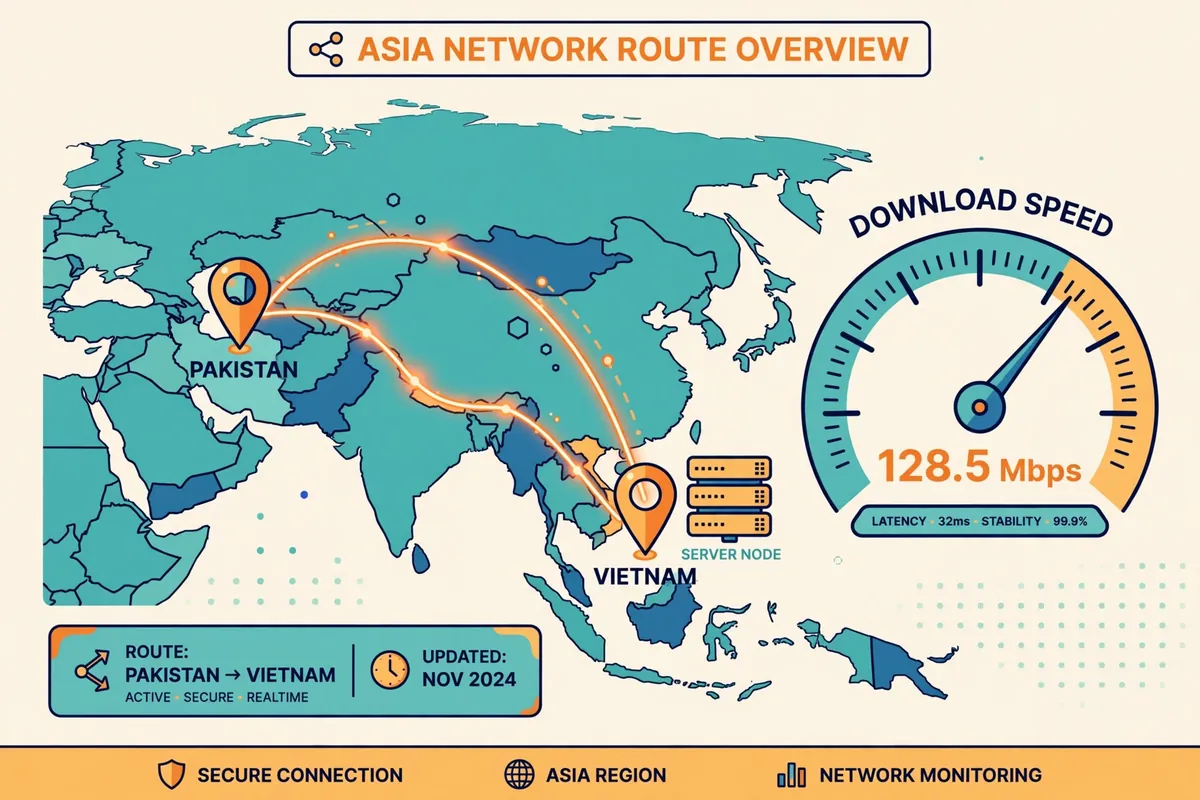
A Vietnam VPN server can feel fast or slow depending on the hour, your broadband provider, and the route your traffic takes to reach it. Surfshark is our recommended VPN for Pakistan, with 80% off for our users, and it lists Vietnam servers in Ho Chi Minh City, so this guide uses it as the worked example while the method applies to any provider.
This is a test-method guide, not a results article. No speed, ping, or latency numbers from Pakistan are quoted anywhere below, because no measurements were taken for this guide. Instead, you get the repeatable procedure: the baseline, the tools, the number of runs, and how to read the results honestly.
Everything here was checked against provider documentation and speed-testing guidance in November 2026. Where a fact could not be verified from an official source, the article flags it rather than presenting it as settled. A single speed test tells you almost nothing; a controlled set of repeated tests tells you a great deal.
How to Test a Vietnam VPN Server From Pakistan: The Short Answer
Test a Vietnam VPN server from Pakistan in five steps. First, measure your connection without the VPN to get a baseline. Second, connect to the Vietnam server and confirm the exit IP is actually Vietnamese.
Third, test latency and packet loss with ping and a path tool. Fourth, test download and upload speed with two different tools, pinning the test server to Vietnam. Fifth, repeat the whole set at three different times of day and take the median result.
The single most common mistake is running one test and treating the number as the answer. Speed test results vary with the time of day, the test server chosen, the protocol, and what else is using your connection. Three runs per time slot, across morning, afternoon, and evening, give you a range you can trust. One run gives you a snapshot that may flatter or condemn a server unfairly.
The second most common mistake is letting the speed test app pick its own server. By default, these apps choose the lowest-latency server, which is usually in your own city. That measures your local broadband, not the Vietnam route. You must manually select a test server in Vietnam, or the whole exercise measures the wrong thing.
What You Are Actually Measuring
Bandwidth, latency, and packet loss are three different things, and few tools measure all three well at once. Download speed is how fast data reaches you, measured in megabits per second. Upload speed is how fast data leaves you. Latency, or ping, is the round-trip time for a small packet, measured in milliseconds. Jitter is how much that latency varies. Packet loss is the percentage of packets that never arrive.
For a Vietnam VPN connection from Pakistan, latency matters most for calls and gaming, because every millisecond is felt. Download speed matters most for streaming and large downloads. Packet loss matters for everything, because even a small loss rate forces retransmissions that drag down both speed and call quality. A route can have good download speed and still be unusable for voice if its packet loss is high.
Loaded latency is a fourth metric worth knowing. Your idle ping may look fine, but if it shoots up while a download is running, every call will stutter as soon as someone else on your connection starts a download. Cloudflare’s speed test reports idle and loaded latency separately, which is why this guide recommends using it alongside Ookla’s test rather than relying on one tool alone.
Speed loss is best expressed as a percentage, not as a raw number. Compare your VPN download speed with your baseline download speed and work out the drop: a VPN result of 40 Mbps on a 50 Mbps baseline is a 20 percent loss. Percentages travel better than raw numbers, because your baseline is different from your neighbour’s, and a raw number without a baseline means nothing at all.
Finally, remember that a VPN cannot make your connection faster than your broadband allows. Encryption and rerouting add overhead, so the VPN result will always be lower than the baseline on the same line. The question is never whether the VPN is faster than no VPN; it is how much slower it is, and whether that loss matters for what you actually do online.
Before You Test: Lock Down the Variables
A speed test is a controlled comparison, and changing any variable between runs makes the results incomparable. Before you start, close every download, game update, cloud sync, and video stream on your network. A background backup uploading to the cloud will drag your upload result down and pollute your latency reading, and you will blame the VPN for a problem your own devices caused.
Use the same device for every run, and use a wired Ethernet connection if you can. Wi-Fi adds its own variability: signal strength, interference from neighbours, and the distance from the router all change the result. If you must use Wi-Fi, test from the same spot each time, and note that you did, because the Wi-Fi is now part of the measurement.
Record the test conditions before each run: the date and time, the VPN provider, the server city, the protocol, and the speed test tool and server used. A result without its conditions is useless a week later, when you cannot remember whether the good number came from a morning test on WireGuard or an evening test on OpenVPN. A short note per run takes seconds and saves the whole exercise.
Pick one protocol and keep it fixed across the comparison. WireGuard is the usual choice for speed testing, because it is fast and widely supported. If you want to compare protocols, that is a separate experiment: test WireGuard fully, then test OpenVPN fully, and compare the two sets. Mixing protocols inside one set of runs ruins the comparison.
Check that your VPN app is up to date before you begin. Providers change server lists, protocols, and routing without announcement, and an old app version may connect you to a different server than the one you selected. Update the app, restart it, and confirm the Vietnam server appears in the list before the first test run.
Step 1: Record Your Baseline Without the VPN
Disconnect the VPN completely and run the speed test three times in a row. Use the same tool and the same test server for all three runs, and write down the download speed, upload speed, ping, and jitter from each run. Take the median of the three, not the best, because the median is the honest middle of your connection’s normal behaviour.
Choose your test server deliberately even for the baseline. For the baseline, a server in your own city or the nearest major city is fine, because the baseline measures your broadband, not the Vietnam route. But use the same baseline server every time you retest, or the baselines will not be comparable with each other either.
Run the baseline at the same time of day you plan to test the VPN. Your broadband speed varies across the day, and a morning baseline compared with an evening VPN result tells you nothing. If you plan to test the VPN in the evening, take the baseline in the evening too, minutes before you connect.
Also record your baseline latency to a Vietnam target. Open a command prompt or terminal and ping a well-known server in Vietnam, or use an online ping tool pointed at a Vietnam host. This number is your no-VPN latency to Vietnam, and it tells you the floor: the VPN result cannot beat it, and the gap between the two is the cost of the tunnel.
If your baseline itself looks wrong — download speed far below what your package promises, or packet loss above zero — fix your own connection first. Restart the router, check for background downloads, and test again. There is no point measuring a VPN route over a broken baseline, because every result will be bad and you will blame the wrong thing.
Step 2: Connect to the Vietnam Server and Confirm the Exit
Open your VPN app and connect to Vietnam. On Surfshark, search for Vietnam in the app and select Ho Chi Minh City, which is the location Surfshark lists for the country. Surfshark describes its network as 4,500+ servers in 100 countries, with multiple servers per city to prevent downtime and overcrowding, so more than one Vietnam server should be available to choose from.
Before you test anything, confirm the exit IP is actually Vietnamese. Open an IP checker and write down the address, the country, the city, and the hosting company shown. If the checker shows your real Pakistani IP address, the tunnel is not carrying your traffic, and every test that follows is meaningless. Reconnect and check again.
If the checker shows a different country, do not panic yet. Geolocation databases disagree with each other, and a Vietnamese IP can be labelled as Singapore or another neighbour by one database while another labels it correctly. Compare two or three checkers. If they disagree, the tunnel is working and the databases are the problem; if they all agree on the wrong country, try another Vietnam server.
Our guide to a VPN showing the wrong IP location walks through this diagnosis step by step for another country, and the method is identical: check the exit IP first, compare checkers second, and only then conclude anything about the server. The same five causes — stale databases, virtual locations, GPS, cookies, and account region — apply here too.
Note the server name or number your app shows, and keep it fixed for the whole test set. If the app lets you pick between servers in the same city, test them one at a time, because different servers can have different loads and different IP blocks. Switching servers halfway through a test set is the same error as switching protocols: it breaks the comparison.
Step 3: Test Latency and Packet Loss
Latency is the first thing to measure, because it is the most stable metric and the hardest for a provider to flatter. Open a command prompt or terminal and run a ping test to a Vietnam target, sending at least 20 packets rather than the default four.
Write down the minimum, average, and maximum round-trip times, and the packet loss percentage. Twenty packets is the minimum for a loss figure worth reading; four packets can hide a real problem entirely.
On Windows, the command is ping followed by the target address, with the count option set to 20. On macOS and Linux, the same command works with a slightly different flag. If you are not comfortable with the command line, use an online ping tool or your speed test app’s latency figure, but note which method you used, because the methods are not directly comparable with each other.
Next, run a path test with a tool like WinMTR on Windows or mtr on macOS and Linux. These tools show every hop between your device and the target, with the latency and packet loss at each hop. That matters because it tells you where the delay enters the journey: at your own router, at your ISP’s gateway, on the international link, or at the VPN server itself.
Read the path test carefully. If the first hop, your own router, shows high latency or loss, the problem is your home network, not the VPN.
If the loss appears at one middle hop and disappears at later hops, that hop is rate-limiting measurement packets and is not a real problem. If the loss starts at a particular hop and continues to the end, that hop is where your packets are genuinely being dropped.
Repeat the ping test three times and take the median of the averages. Ping varies from minute to minute, and a single reading can catch a brief spike or a brief quiet patch. Three readings give you a range, and the median of the three is the number to compare against other servers and other times of day.
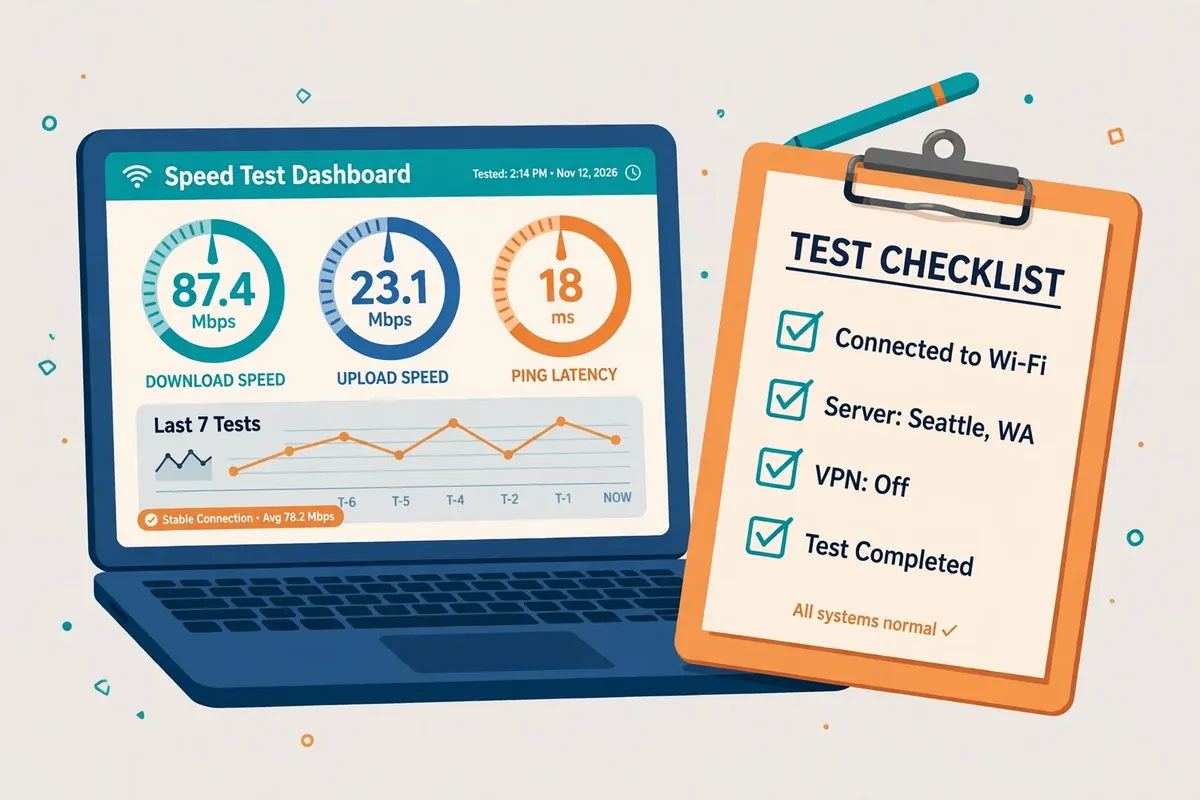
Step 4: Test Download and Upload Speed
Open Ookla’s Speedtest and manually select a test server in Vietnam before you run it. Do not let the app auto-select, because it will choose the nearest server, which is not in Vietnam. Look for a server hosted in Ho Chi Minh City or Hanoi, and use the same server for every run in the set, because different test servers have different capacities and different routes to your VPN exit.
Run the test three times in a row, with a short pause between runs. Write down the download speed, upload speed, and ping from each run, and take the median of each.
If one run is dramatically different from the other two, note it and run a fourth; an outlier usually means something else on your network woke up during that run, and the median of four is still a fair summary.
Then repeat the same three runs with a second tool, such as Cloudflare’s speed test. Different tools measure differently: Ookla uses multi-threaded connections that can flatter the result, while Cloudflare reports loaded latency and packet loss alongside bandwidth. Two tools that agree give you confidence; two tools that disagree tell you to look closer at what each one is actually measuring.
Also run one single-connection download test, such as downloading a large file from a Vietnam-hosted server and watching the speed in your browser. Multi-threaded speed tests open many connections at once, which suits a speed test but not real usage. A single file download shows what one connection can do, which is closer to how streaming and browsing actually behave.
Remember the units trap. Speed test apps report megabits per second, while browsers report downloads in megabytes per second, and the two differ by a factor of eight. A 100 Mbps speed test result is roughly 12.5 MB/s in a download window. Divide by eight before you compare a speed test number with a download speed, or you will think your connection is eight times slower than it is.
Step 5: Repeat Across Three Time Slots
One time slot is not a test. Run the full set — baseline, latency, and speed — in three windows: daytime, evening peak, and late night. Evening peak, roughly 19:00 to 23:00, is when home broadband in Pakistan is busiest and international routes are most congested. Late night is usually the quietest, and daytime sits in between. Cover at least these three before you draw any conclusion.
Keep every other variable fixed across the slots. Use the same device, the same connection type, the same VPN server, the same protocol, and the same test servers. The only thing that should change is the time of day. If you change the server between slots, you are testing two variables at once, and the results cannot be attributed to either one.
Log the results in a small table with one row per run: date, time, server, protocol, download, upload, ping, jitter, and packet loss. A table like this takes a minute per run to fill in, and it turns a pile of screenshots into evidence. Without it, you will be comparing a number you remember with a number you half remember, and memory is not a measurement.
Expect the evening numbers to be worse than the late-night numbers. That is normal, and it is not necessarily the VPN provider’s fault: your ISP’s international links are shared, and they slow down when everyone is online. The useful comparison is between providers or servers tested in the same time slot, not between a morning test of one provider and an evening test of another.
If you want a stronger result, repeat the three slots over two or three consecutive days. One day can be unusual — a routing change, a maintenance window, or a local outage can skew a whole day’s results.
Two or three days of the same pattern is a finding; one day of it is a hint. For most readers, one day across three slots is enough to choose a server, and the extra days are for people choosing between providers.
Step 6: Compare Pakistan Networks
Your broadband provider and connection type shape the result as much as the VPN server does. A fibre connection, a DSL line, and a mobile data connection will give different numbers to the same Vietnam server, because each takes a different path out of Pakistan.
If you can, test the same VPN server from two different networks — for example, your home broadband and a mobile hotspot — and compare the two sets.
Mobile data deserves its own caution. Mobile networks add latency of their own, and their routing to international destinations is often less direct than a fixed broadband line. A Vietnam VPN test over mobile data measures the mobile network as much as the VPN server, so do not compare a mobile result with a broadband result and conclude the server is at fault.
Different fixed-line providers in Pakistan can also take different international paths to the same VPN server. One provider may peer directly with a carrier that reaches Vietnam quickly, while another routes through an extra country first. That is why two readers can test the same server on the same day and get genuinely different numbers: the difference is in the path their traffic takes before it even reaches the VPN.
If your numbers are much worse than the provider’s advertised figures, check your own path first with the mtr or WinMTR test from Step 3. If the loss or delay appears in the first few hops, inside your ISP’s network, the VPN provider cannot fix it, and switching providers will not help either. The fix is a different local connection, not a different VPN server.
Finally, test from the place you actually use the VPN. A test run at the office tells you little about the connection at home, because the network, the router, and the contention are all different. The number that matters is the one measured where you sit, on the connection you pay for, at the time you use it.

How to Read the Results
Start with the speed loss percentage. Divide your median VPN download speed by your median baseline download speed, and subtract from one hundred. A loss under 20 percent is a good result for a long international route.
A loss between 20 and 40 percent is ordinary. A loss above 50 percent means something is wrong — the server, the protocol, the time of day, or your own connection — and it is worth investigating before you accept it.
Next, look at latency in the same way. Compare your median VPN ping to Vietnam with your median no-VPN ping to the same target. The difference is the tunnel’s cost in milliseconds. For browsing and streaming, an extra 50 milliseconds is invisible. For voice calls and gaming, an extra 50 milliseconds is noticeable, and an extra 150 milliseconds will be felt by everyone on the call.
Packet loss is the number to watch most closely, because it damages everything at once. Zero loss is the expectation on a healthy route. Loss around 1 percent will cause occasional stutters in calls and slow down large downloads. Loss above 2 percent is a real problem: calls will break up, pages will stall, and the route is not fit for real-time use, whatever the download speed says.
Jitter deserves the same attention as ping. A ping of 120 milliseconds that never varies is better for voice than a ping that swings between 60 and 200 milliseconds, because voice needs a steady stream of packets, not a fast average. If your speed test reports jitter, compare it alongside ping: low jitter with moderate ping beats high jitter with low average ping every time.
Put the numbers together into a verdict for your use case, not a single score. A route with 30 percent speed loss, 100 milliseconds of ping, and zero loss is fine for streaming and browsing, and marginal for competitive gaming.
A route with 15 percent speed loss, 180 milliseconds of ping, and 2 percent loss is a poor choice for voice even though its download speed looks good. The use case decides which number matters.
Vietnam Server Options for Pakistan Users
Surfshark lists Vietnam servers in Ho Chi Minh City, and its own site presents the location as a standard offering with multiple servers per city.
Third-party server lists describe Surfshark’s Vietnam location as virtual, which means the physical machine may sit outside Vietnam while your traffic still gets a Vietnamese IP address. Surfshark does not label it virtual on its own site, so we flag the virtual label as a third-party description rather than a confirmed fact.
A virtual location matters for speed testing, because the physical distance to the machine is what sets the latency, not the country on the label.
If the machine sits in Singapore while the IP is Vietnamese, your ping will look like a Singapore ping, which is good news for speed and confusing news for anyone trying to measure a Vietnam route. Test the server and judge it by the numbers, not by the label.
NordVPN lists Vietnam servers in both Hanoi and Ho Chi Minh City, giving you two cities to compare. ExpressVPN lists Vietnam as a location, although we could not verify from official sources which city its Vietnam servers sit in, so treat that as an open question to check inside the app before you test.
PrivateVPN also lists a Ho Chi Minh City server, which is a smaller-provider option worth testing if you already subscribe.
When you compare providers, test them in the same time slot with the same method. A provider tested in the morning will almost always look faster than a provider tested in the evening, and that difference is the time of day, not the provider. Same slot, same tool, same test server: that is the only comparison that means anything.
We could not verify from official sources which major providers run physical hardware inside Vietnam, as opposed to virtual locations. Treat that as an open question to ask a provider’s support team before you buy, if physical presence in Vietnam matters to you. For most readers, the measured numbers matter more than the hardware location, and the test method in this guide is how you get them.
Surfshark and Vietnam Servers for Pakistan
Surfshark is our recommended VPN for Pakistan, and Vietnam is one of the locations it lists. Its own site offers Vietnam VPN servers in Ho Chi Minh City, with multiple servers per city to prevent downtime and overcrowding, and it counts 4,500+ servers in 100 countries. For a reader in Pakistan, that means the Vietnam option is a real, supported location rather than a greyed-out entry.
The distance from Pakistan to Vietnam is moderate, so a Vietnam server will add more latency than a nearby server in the United Arab Emirates or Singapore. That matters for live calls and gaming, but it matters far less for browsing, streaming, or checking how a site looks from Vietnam. Choose the Vietnam server when the location is the point, and choose a nearby server when speed is the point.
Surfshark supports WireGuard, OpenVPN in UDP mode, and IKEv2, and it offers unlimited simultaneous connections, so your phone, laptop, and other devices can all use the same subscription. The 7-day free trial on 12- and 24-month plans lets you test the Vietnam location on your own network before you pay, and the 30-day money-back guarantee begins once the first payment goes through.
Trial terms and prices change, so the exact offer is the one shown on Surfshark’s checkout page when you sign up. This guide does not quote a rupee price because it varies by region and by the offer running at the time.
For the current subscription cost in rupees, see our Indonesia VPN speed test from Pakistan guide, which uses the same test method for a nearby country and shows how the results compare across the region.
Surfshark — our recommended VPN for Pakistan
Vietnam servers in Ho Chi Minh City, unlimited devices, and 80% off for our users.
One honest caveat: Surfshark cannot guarantee a particular speed or latency to its Vietnam servers from your connection in Pakistan, because the result depends on your broadband, your ISP’s routing, and the time of day. The trial exists so you can measure the route yourself, and this guide is the method for doing it properly. Judge the provider by your own numbers, not by its marketing page.
Common Mistakes That Ruin a Speed Test
The first mistake is testing with other traffic running. A cloud backup, a game update, or a family member streaming video will drag your numbers down, and you will blame the VPN. Close everything, and check your router’s traffic display if it has one, before the first run.
The second mistake is letting the speed test app pick its server. Auto-selection chooses the nearest server, which measures your local broadband instead of the Vietnam route. Always pin the test server to Vietnam manually, and use the same server for every run in the set.
The third mistake is running a single test and calling it the answer. One run is a snapshot, and networks change minute by minute. Three runs per slot, across three slots, with the median taken each time, is the minimum for a result worth acting on. Anything less is a guess dressed up as a number.
The fourth mistake is comparing results taken under different conditions. A morning test of one provider against an evening test of another proves nothing about either provider. Same time slot, same device, same protocol, same test server — change one variable at a time, or do not compare at all.
The fifth mistake is trusting a speed test screenshot from a provider’s marketing page. Those numbers come from lab conditions, data-centre connections, or same-city servers, and they are an upper bound, not a promise. Your connection in Pakistan, at your time of day, on your broadband, will be different, and the only number that matters is the one you measure yourself.
The sixth mistake is forgetting the baseline. A VPN result without a no-VPN baseline is a number without a reference: 40 Mbps means nothing until you know whether your line delivers 50 Mbps or 200 Mbps without the VPN. Take the baseline first, in the same time slot, or do not test at all.
What This Guide Does Not Claim
This guide contains no speed, ping, or latency measurements from Pakistan, because none were taken. Every number in it is either a method — how many runs, which tools, which time slots — or a threshold for interpreting your own results, such as the speed-loss bands in the reading section. Nothing here should be read as a measured result for any provider or server.
The thresholds given are interpretation guides, not measurements. A speed loss under 20 percent is described as good because that is a widely used rule of thumb for long international routes, not because we measured it on a Pakistan connection. Your own results may be better or worse, and they are the ones that count for your decision.
Server availability changes. Providers add and retire locations, and a Vietnam server listed today may be gone or renamed next month. Check the server list inside your installed app on the day you test, rather than relying on this guide’s description of what the list contains. The app is the current source of truth.
Our companion guide to testing Slack Huddles over a VPN uses the same baseline-first, repeat-and-take-the-median discipline for voice quality, and the two guides share the same honesty rule: no number is quoted unless it was measured, and no measurement is quoted unless the method is shown alongside it.
If you run the tests in this guide and find results that contradict the thresholds here — a route with 60 percent speed loss that still streams fine, or a route with zero loss that still stutters on calls — trust your own measurements over the guide. The thresholds are a starting point for interpretation, and your experience on your own connection is the final authority.
Vietnam VPN Speed Test From Pakistan: Frequently Asked Questions
How Should I Test a Vietnam VPN Connection?
Take a baseline without the VPN first, then connect to the Vietnam server and confirm the exit IP is Vietnamese. Test latency and packet loss with ping and a path tool, then test download and upload speed with two tools, pinning the test server to Vietnam manually. Run three tests per time slot across morning, evening peak, and late night, and take the median of each set.
Keep every variable fixed except the time of day: same device, same connection type, same server, same protocol, same test servers. Record the date, time, server, protocol, and results for every run, so the comparison is based on notes rather than memory.
Which Latency and Loss Results Matter?
Latency matters most for calls and gaming, download speed matters most for streaming and downloads, and packet loss matters for everything. Zero packet loss is the expectation on a healthy route, and loss above 2 percent is a real problem even when download speed looks good. Jitter matters alongside ping: a steady 120 milliseconds beats a ping that swings between 60 and 200 milliseconds.
Express the speed result as a percentage loss against your baseline, not as a raw number. A loss under 20 percent is good for a long international route, 20 to 40 percent is ordinary, and above 50 percent is worth investigating. Judge the route by your use case, not by a single score.
Can Different Pakistan Networks Produce Different Results?
Yes, and they often do. A fibre connection, a DSL line, and a mobile data connection take different paths out of Pakistan, and different fixed-line providers can peer with different international carriers. Two readers can test the same Vietnam server on the same day and get genuinely different numbers because their traffic takes different routes before it reaches the VPN.
Test from the connection you actually use, and compare networks only when you test the same server with the same method. If the path test shows delay in the first few hops, inside your ISP’s network, the VPN provider cannot fix it, and switching providers will not help either.
Conclusion: Testing a Vietnam VPN Server From Pakistan
A Vietnam VPN server is tested properly only when the baseline comes first, the test server is pinned to Vietnam, and the results are repeated across time slots and summarised by the median.
A single test measures the moment, not the route, and a test with the wrong server measures your local broadband, not Vietnam. Follow the method in this guide and the numbers you get will be numbers you can act on.
Surfshark is our recommended VPN for Pakistan because it lists Vietnam servers in Ho Chi Minh City, offers unlimited devices, and supports the WireGuard protocol that keeps the tunnel fast. Test the Vietnam location with the 7-day free trial, run the checks in this guide, and judge the result by your own measurements, with 80% off for our users.
Speed testing is a skill, not a button press, and it repays the effort. Once you can measure a route properly, you can compare providers honestly, choose servers on evidence rather than marketing, and stop guessing about why a call stutters or a stream buffers. Run the tests, write the numbers down, and let the evidence decide.
Surfshark — our recommended VPN for Pakistan
Test the Vietnam servers on your own network with the 7-day free trial — 80% off for our users.



