If you want a free VPN for your Steam Deck in Pakistan, start with the honest answer: there is no single free app that covers every game, store region, and connection type perfectly. Surfshark is our recommended paid route for unlimited gaming and streaming, with 80% off for our users, and this guide compares the genuinely free options that actually work on a Steam Deck.
The Short Answer on the Best Free VPN for Steam Deck Pakistan
The best free VPN for Steam Deck in Pakistan depends on how you are willing to set it up, because SteamOS has no simple app-store route for most VPN providers. If you want a native app, Proton VPN Free is the strongest starting point, thanks to its Linux app, unlimited data, and no credit card requirement for the free plan.
If you want the widest choice of free server locations, Windscribe Free is the better test, with up to 10 GB of data per month when you confirm an email address. Its free plan covers a useful range of countries, but the monthly cap means it suits short sessions and store browsing better than long downloads.
PrivadoVPN Free is another genuine free plan worth testing, with 10 GB of monthly data and a straightforward Linux setup route. It is not a replacement for an unlimited paid plan, and its single-device free limit matters if you also protect a phone or laptop.
The key point is that a free plan is a capped tool, not an unlimited gaming service. Large game downloads will burn through a 10 GB allowance in a single session, so free plans suit privacy on public Wi-Fi, light browsing, and testing a location, rather than heavy daily gaming.
Before you install anything, decide which setup method fits your Steam Deck. Native Linux apps are the easiest path, manual OpenVPN or WireGuard configuration is the most flexible, and a router or phone hotspot covers the Deck without touching SteamOS at all.
Why Steam Deck VPN Setup Is Different From a Phone or PC
A Steam Deck runs SteamOS, a Linux-based operating system built on Arch Linux, with a console-style Gaming Mode and a KDE Plasma Desktop Mode underneath. That design is excellent for gaming, but it changes how VPN software is installed, because there is no general app store full of VPN apps like the one on your phone.
Most VPN providers build apps for Windows, macOS, Android, and iOS first, and only some of them publish a Linux app at all. Even when a Linux app exists, it is usually designed for Ubuntu, Debian, or Fedora, so installing it on SteamOS takes extra steps in Desktop Mode.
SteamOS is also an immutable system, which means system updates can replace parts of the operating system and may remove software installed outside the normal package routes. That does not make VPN use impossible, but it does mean you should expect to re-check your setup after a major SteamOS update.
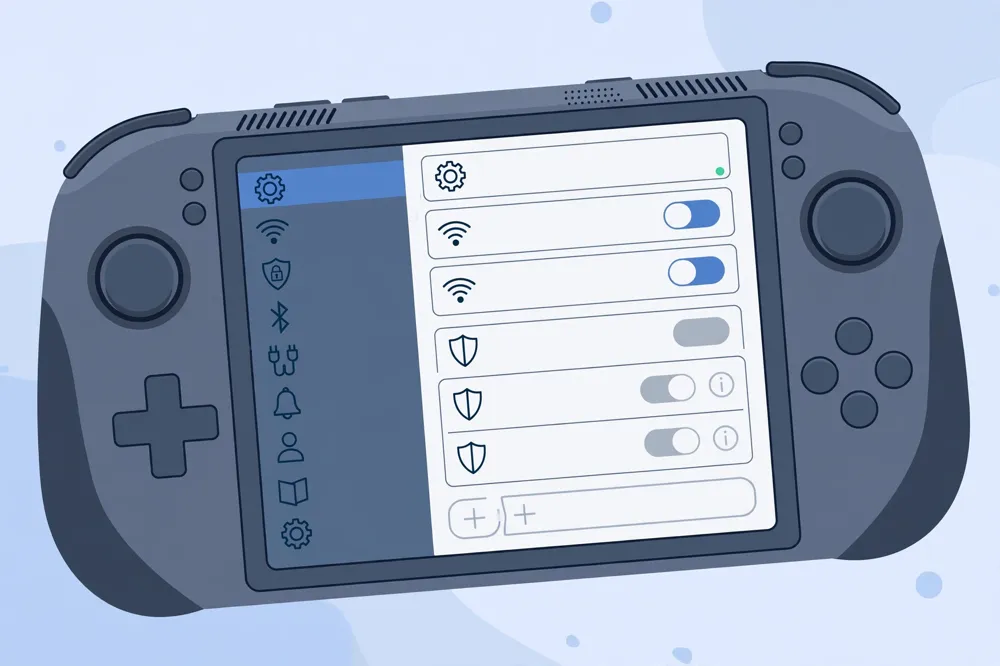
Another difference is how the Deck connects. In Gaming Mode, you manage Wi-Fi networks through a console interface, not through a full network manager window. Desktop Mode gives you the full Linux network settings, which is why almost every VPN method on this page starts with switching to Desktop Mode.
Finally, game downloads and online play are sensitive to speed and latency in a way that web browsing is not. A free server that feels fine for reading news may add noticeable lag to an online match, and a capped plan may stop mid-download. Judge a free VPN by gaming performance, not just by whether it connects.
Supported Methods and Versions for Steam Deck VPN Use
Steam Deck supports four practical VPN methods, and the right one depends on your provider and your comfort with Linux. The first is a native Linux app from a provider that officially supports Linux. The second is manual OpenVPN configuration through the built-in network manager. The third is manual WireGuard configuration, also through the network manager or a WireGuard tool.
The fourth method avoids the Deck entirely: run the VPN on a router, or share a VPN-protected hotspot from a phone or computer, and connect the Deck to that network. Every Steam Deck model can use this method, because the Deck only sees an ordinary Wi-Fi network.
On versions, the current Steam Deck line runs SteamOS 3, and the OLED model ships with the same SteamOS 3 family. There is no separate VPN edition of SteamOS, and no Steam Deck model has a built-in VPN client in Gaming Mode. Version differences matter mainly for Desktop Mode tools and for whether a provider’s Linux package installs cleanly.
Keep your Steam Deck updated before you start, because network tools and desktop components change between SteamOS releases. An up-to-date system also keeps security fixes current, which matters when you are adding network software from outside the Steam store.
Native Linux Apps: Which Free Providers Actually Offer One
Proton VPN publishes a Linux app with both a graphical interface and a command-line tool, and its free plan works through that app. That makes it the most straightforward native route for a Steam Deck, because you are using the provider’s own software rather than assembling configuration files by hand.
Windscribe also offers a Linux app, and its free plan can be used through it, subject to the monthly data allowance. The Linux app is less polished than its Windows or mobile apps, but it gives you server selection and connection control without manual file editing.
Surfshark, the paid recommendation in this guide, offers a Linux app and a command-line tool, which is relevant if you later move from a free test to an unlimited plan. Its Linux support is one reason it fits Steam Deck owners who want one account across a Deck, a phone, and a laptop.
Not every well-known provider offers a Linux app. Some providers support Linux only through manual OpenVPN or WireGuard configuration, and some offer no Linux route at all beyond a router. Never assume a provider runs natively on Steam Deck just because it has an Android or Windows app.
Before you choose a provider, check its official Linux or downloads page from the Deck’s desktop browser. If the page lists no Linux app and no OpenVPN or WireGuard configuration files, that provider cannot be set up directly on the Deck, and you should use the router or hotspot method instead.
How to Install a Native Linux VPN App in Desktop Mode
Switch to Desktop Mode from the power menu in Steam, then open the desktop browser and go to your chosen provider’s official Linux download page. Download the package or installer the provider offers for your system, and follow its Linux instructions exactly, rather than following a random video guide.
Some providers offer a Debian or Ubuntu package, while others offer a Flatpak, an AppImage, or a command-line installer. SteamOS handles these routes differently, and a package built for Ubuntu may need extra steps on an Arch-based system, so read the provider’s Steam Deck or Arch notes when they exist.
After installation, sign in with your free account, pick a server, and connect before you return to Gaming Mode. Test the connection in Desktop Mode first, because troubleshooting is far easier with a full browser and terminal available than it is inside the console interface.
Remember that switching back to Gaming Mode does not disconnect a VPN that is already running in the background. The connection stays active across the mode switch in most cases, but you should verify it after switching, using the steps later in this guide.
If an update to SteamOS removes or breaks the app, reinstall it in Desktop Mode and re-test before you play online. Treat re-installation after major updates as normal Steam Deck maintenance, not as a sign that the VPN method has failed permanently.
OpenVPN Manual Configuration on Steam Deck
OpenVPN is the most widely supported manual method on Steam Deck, because many providers publish OpenVPN configuration files for their servers. You download those files from your provider’s account area, then import them into the network manager in Desktop Mode.
The usual workflow is to open the network settings, add a new VPN connection, choose the OpenVPN import option, and select the configuration file for the server you want. You then enter your provider username and password, which for some providers is a special OpenVPN credential rather than your normal account password.
OpenVPN connections on Steam Deck are reliable and well tested, but they can be slower than WireGuard on the same server, because OpenVPN carries more overhead. For browsing and store access, that difference rarely matters, but for competitive online play, it is worth testing both protocols where your provider offers both.
Free plans that offer OpenVPN files include Proton VPN Free and Windscribe Free, subject to their server and data limits. If a free plan does not publish configuration files, you cannot use this method with that provider, and you should fall back to its app or to a router.
Save one configuration file per server location you actually use, and name each connection clearly, such as Netherlands Free or United States Free. A tidy list makes it easy to switch locations in Desktop Mode without hunting through dozens of imported files.
WireGuard Manual Configuration on Steam Deck
WireGuard is a newer, leaner VPN protocol that many gamers prefer, because it usually connects faster and adds less latency than OpenVPN. Several providers publish WireGuard configuration files or let you generate a key pair in your account area, and SteamOS network manager can import those files in Desktop Mode.
The setup steps mirror OpenVPN: generate or download the WireGuard configuration for your chosen server, import it into the network manager, and connect. WireGuard uses keys rather than a username and password, so keep your private key private and never post a configuration file publicly.
WireGuard is an excellent choice for gaming when your provider supports it, but it is less universally offered on free plans than OpenVPN. Check your free provider’s configuration page before you commit to this method, because a free plan may limit manual configuration to paid accounts.
Some providers also rotate WireGuard keys or limit how many keys you can create, which can complicate setup on multiple devices. If you hit a key limit, remove an old device key in your account area before generating one for the Deck.
As with OpenVPN, test a WireGuard connection in Desktop Mode, check your IP address and location, and only then return to Gaming Mode. A fast protocol is only useful if it is actually connected and routing your traffic.
Router Coverage: Protecting the Steam Deck Without Touching SteamOS
A VPN router protects every device on your home network, including the Steam Deck, without any software on the Deck itself. You install the VPN on the router once, and the Deck connects to the router’s Wi-Fi exactly as it would to any normal network.
This method suits every Steam Deck model and every provider that supports router installation, including providers with no Linux app. It also covers consoles, televisions, and guests’ devices at the same time, which is useful in a shared household in Pakistan.
The drawback is complexity and cost. Not every home router supports VPN client software, and the routers that do, such as models running Asuswrt-Merlin, OpenWrt, or DD-WRT, may need firmware changes. A weak router processor can also slow your whole connection, which hurts gaming more than a single-device app would.
Free plans rarely work well on routers, because most free plans do not publish router configuration files, and a router has no easy way to show a data-allowance warning. If you want router coverage, a paid plan with router support is usually the practical choice, and Surfshark is one of the paid providers that documents router setup.
If you already own a compatible router, test the VPN on it with a laptop first, measure the speed change, and only then route the Deck through it. A router VPN that halves your speed is worse for gaming than no VPN at all.
Hotspot and Tethered Coverage From a Phone or Computer
A hotspot is the fastest way to test a VPN location on your Steam Deck, because it needs no Deck configuration at all. Connect your phone or laptop to the VPN, share its connection as a Wi-Fi hotspot, and join that hotspot from the Deck’s Wi-Fi settings.
This method works with any provider that has a phone or computer app, including free plans with mobile apps that have no Linux version. It is ideal for a short test, such as checking whether a store page or game server behaves differently from another country.
The limits are speed, battery, and data. A phone hotspot adds a wireless hop, which can raise latency, and the phone’s battery drains quickly while sharing. If the phone itself is on mobile data, the VPN traffic also counts against the phone’s data plan, on top of the free VPN allowance.
A computer hotspot is steadier than a phone hotspot, because the computer is plugged in and usually on a wired connection. Share the VPN connection from a Windows or macOS laptop over Wi-Fi, join it from the Deck, and you have a stable test network for an evening.
Treat hotspots as a testing tool, not a permanent gaming setup. For daily play, a native app or a router gives a more stable connection, with fewer drops when the phone sleeps or moves.
Steam Deck Free VPN Comparison: Data, Countries, and Sign-Up
The table below compares the free plans most relevant to Steam Deck owners, based on their published plan pages. Allowances and server lists change, so confirm the current limits on the provider’s own site before you rely on them for a download.
| Free Plan | Monthly Data | Steam Deck Route | Credit Card |
|---|---|---|---|
| Proton VPN Free | Unlimited | Linux app or OpenVPN | Not required |
| Windscribe Free | Up to 10 GB | Linux app or OpenVPN | Not required |
| PrivadoVPN Free | 10 GB | Linux app or OpenVPN | Not required |
| hide.me Free | 10 GB | Linux app or OpenVPN | Not required |
Proton VPN Free stands out on data, because it does not cap monthly usage, but it limits you to a small set of free server countries and does not include the fastest servers. That trade is acceptable for browsing and light play, but it is not a route to every country.
Windscribe Free offers more free locations than Proton, including servers in the United States, Canada, the United Kingdom, and parts of Europe, but its 10 GB cap is the binding limit. One large game update can exceed it, so use Windscribe for short sessions and location tests.
PrivadoVPN Free and hide.me Free sit in the middle, with 10 GB allowances and a modest free server list. Both are genuine free plans, not time-limited trials, which matters because a trial that expires after seven days is not a free plan at all.
None of these free plans requires a credit card for sign-up, which is an important safety check in Pakistan. If a so-called free VPN asks for card details upfront, treat it as a trial with automatic billing, not as a free plan, and read its cancellation terms before you enter any payment information.
Country access is the second limit after data. Free servers cluster in North America and Europe, and free plans rarely offer Pakistan, Gulf, or South Asian servers. If you need a specific country, check the free server list before installing, because the paid server list does not apply to free accounts.
Free VPN Versus Trial: Do Not Confuse the Two
A free plan has no expiry date and no payment method on file, even though it limits data, servers, or speed. A free trial gives you full paid features for a short period, usually seven days, and then charges you unless you cancel. Both can be useful, but only the first is a lasting free option.
Trials are often marketed with the word free in large type and the billing terms in small print, which misleads Steam Deck owners who just want a lasting setup. Always look for the plan page that describes the free tier separately from the trial, and check whether a card is requested.
Surfshark, for example, is a paid service, and its value in this guide is as an unlimited alternative when free caps become frustrating, not as a free plan. Its offer wording in this article is 80% off for our users, and that discount applies to a paid subscription, not to a free tier.
If you test a trial on the Deck, set a calendar reminder before the trial ends, and cancel in the provider’s account area, not just by deleting the app. Deleting an app does not cancel a subscription, and that mistake is one of the most common billing complaints about VPN trials.
For a permanent Steam Deck setup with no billing risk, choose a genuine free plan from the table above, and accept its caps. For unlimited gaming, budget for a paid plan instead of stacking trials.
App Requirements and SteamOS Versions in Detail
To use a native Linux app, you need a Steam Deck running SteamOS 3 with Desktop Mode available, which covers every Steam Deck sold, including the LCD and OLED models. You also need enough free storage for the app and its dependencies, and a desktop password set, because installing software in Desktop Mode may ask for one.
Some Linux installers ask for system packages that SteamOS does not include by default, and SteamOS may block system-level package installation unless you disable its read-only mode. That step is advanced, can be undone by updates, and should only be followed from the provider’s own documentation.
For manual OpenVPN or WireGuard setup, the requirement is simpler: Desktop Mode and the built-in network manager. No extra app is needed, and no system packages are installed, which is why manual configuration is often the most stable method across SteamOS updates.
For router or hotspot coverage, there is no Deck requirement at all beyond Wi-Fi. Any Steam Deck, on any SteamOS 3 version, can join a VPN-protected network, which makes this the fallback method when every direct method fails.
Check the provider’s minimum requirements on its Linux page, not on a forum post, because forum advice goes out of date quickly. If the provider lists Ubuntu 22.04 or later and you are on SteamOS, expect some adaptation, and prefer the manual configuration route when the app route looks fragile.
How to Verify the Connection on Steam Deck
Verification matters, because a VPN app can show a connected state while traffic still leaks outside the tunnel. Always verify in Desktop Mode with a browser before you trust the connection for gaming or browsing.
First, note your real IP address and location with the VPN disconnected, using an IP-check site in the desktop browser. Then connect the VPN, reload the same site, and confirm that the displayed IP address, country, and internet provider have changed to the VPN server’s values.
Second, run a DNS leak check in the same browser, and confirm that the DNS servers shown belong to your VPN provider or its partners, not to your Pakistani internet provider. A DNS leak can reveal which sites you visit even when your IP address looks protected.
Third, return to Gaming Mode and repeat a quick IP check through the Steam browser if you want confirmation there too. The Steam browser is basic, but it is enough to confirm that the location shown in Gaming Mode matches the server you selected.
Fourth, test the actual activity you care about, whether that is opening the Steam store, launching an online game, or streaming a video. A connection that passes an IP check but drops every few minutes is not a usable gaming connection, whatever the app claims.
If verification fails, disconnect, switch to a different server or protocol, and test again. If it keeps failing, use the router or hotspot method while you troubleshoot, rather than playing unprotected and assuming the problem will fix itself.

Surfshark for Steam Deck Owners Who Outgrow Free Caps
Free plans are excellent for testing, but most Steam Deck owners who game daily will outgrow a 10 GB cap quickly. A single game download, a system update, and a few online sessions can exceed what a free plan allows, and that is where a paid plan earns its place.
Surfshark pricing in Pakistan is worth checking when you reach that point, because it covers unlimited devices, which means one subscription can protect your Deck, your phone, and your laptop at the same time. Its Linux app and router support also fit the two most practical Steam Deck methods in this guide.
The paid route also removes the free server limits, giving you a wider choice of countries for store browsing and for connecting to game servers closer to your region. That choice matters for latency, because a nearer server usually gives a smoother online match than a distant free server.
Surfshark — our recommended VPN for Pakistan
Unlimited data and unlimited devices remove the caps that hold free plans back on Steam Deck, with Linux and router support for every setup method in this guide.
Limitations Every Steam Deck VPN User in Pakistan Should Know
A VPN does not make your internet faster, and on a free server it will usually make it slower. Free servers are crowded, and the extra encryption step adds overhead, so expect higher ping in online games and longer download times than on a direct connection.
A VPN also does not change your Steam account region by itself, and it does not guarantee access to a game or store catalogue from another country. Steam uses account, payment, and regional rules that a VPN cannot override, and using a VPN to evade regional pricing can breach Steam’s terms.
In Pakistan, VPN use itself sits in a regulated space, and the Pakistan Telecommunication Authority has at times required VPN registration for certain uses. This guide does not give legal advice, but you should be aware of the current rules and use a VPN lawfully, for privacy and security, rather than to evade a restriction.
Free VPNs also carry their own risks. A free provider pays for its servers somehow, and the least trustworthy free services fund themselves with advertising, data collection, or aggressive upselling. Stick to established providers with clear privacy policies, and avoid any free VPN that you cannot research properly.
Finally, no free plan protects you if you install software from untrusted sources in Desktop Mode. Keep SteamOS updated, install VPN software only from the provider’s official pages, and treat any download link from a random forum as untrusted until you verify it.
Frequently Asked Questions About Steam Deck VPN Use
Which VPN Setup Methods Does Steam Deck Support?
Steam Deck supports native Linux apps, manual OpenVPN configuration, manual WireGuard configuration, and indirect coverage through a VPN router or a shared hotspot. Native apps and manual configuration both need Desktop Mode, while router and hotspot coverage need no Deck software at all. The best method depends on your provider, because not every provider offers a Linux app or publishes configuration files.
Which App or OS Version Requirements Matter?
You need SteamOS 3 with Desktop Mode available, which covers every Steam Deck model, plus enough storage and, for app installation, a desktop password. Manual OpenVPN and WireGuard setup only need Desktop Mode and the built-in network manager, while router and hotspot methods need no Deck version or app at all. Always check the provider’s official Linux page, because a package built for Ubuntu may need adaptation on SteamOS.
How Do I Verify the Connection on Steam Deck?
Verify in Desktop Mode by checking your IP address and location before and after connecting, then running a DNS leak check to confirm your DNS servers belong to the VPN provider.
Return to Gaming Mode and repeat a quick IP check, then test the activity you actually care about, such as the Steam store or an online game. If the IP, DNS, or stability check fails, switch server or protocol and test again.
Surfshark — our recommended VPN for Pakistan
When free data caps start interrupting your downloads and sessions, a paid plan with 80% off for our users is the straightforward upgrade.
Conclusion: The Best Free VPN Approach for Steam Deck in Pakistan
For most Steam Deck owners in Pakistan, the best free approach is to start with Proton VPN Free for unlimited light use, test Windscribe Free when you need more country choices, and use a hotspot or router whenever a direct method fails. That combination covers every model and every skill level, without a credit card or a billing surprise.
Keep your expectations honest: free plans are capped, crowded, and limited in countries, so they suit testing, privacy on shared Wi-Fi, and light sessions better than heavy daily gaming. When downloads and online play become your daily routine, a paid plan is the practical next step, and freevpn.pk covers the wider VPN choices for Pakistan alongside this guide.