Testing VPN obfuscation is less about one magic website and more about a careful sequence of small checks, each of which answers a different question. Surfshark, which we recommend for readers in Pakistan and promote as 80% off for our users, is a useful reference point throughout this guide, because its apps include the kind of stealth and protocol settings this checklist asks you to inspect.
Obfuscation, also called stealth mode or camouflage, tries to make VPN traffic harder for a firewall to recognise. It does not add a second layer of encryption to your data, and it does not make your connection invisible. It changes the visible shape of the traffic so that a filter looking for known VPN patterns is less likely to classify it correctly.
That distinction matters, because many guides treat a successful connection as proof that obfuscation works. A connection can succeed for a simple reason, such as the network not filtering at all, while the obfuscation setting itself does nothing. This guide separates those two outcomes, so a pass means something specific rather than something reassuring.
The Short Answer: Test the Setting, Not Just the Connection
The short answer is that you test VPN obfuscation by comparing three states on the same network: VPN off, VPN on with obfuscation off, and VPN on with obfuscation on. If ordinary VPN traffic fails on a restricted network and the same server connects once obfuscation is enabled, that is meaningful evidence in favour of the mode.
If both modes connect equally well, the test is inconclusive rather than a pass. The network may simply not be filtering VPN traffic, so neither mode was challenged. That outcome is common on home broadband in Pakistan, and it tells you nothing bad about the provider, only that this network cannot distinguish the two modes.
What VPN Obfuscation Actually Hides, and What It Does Not
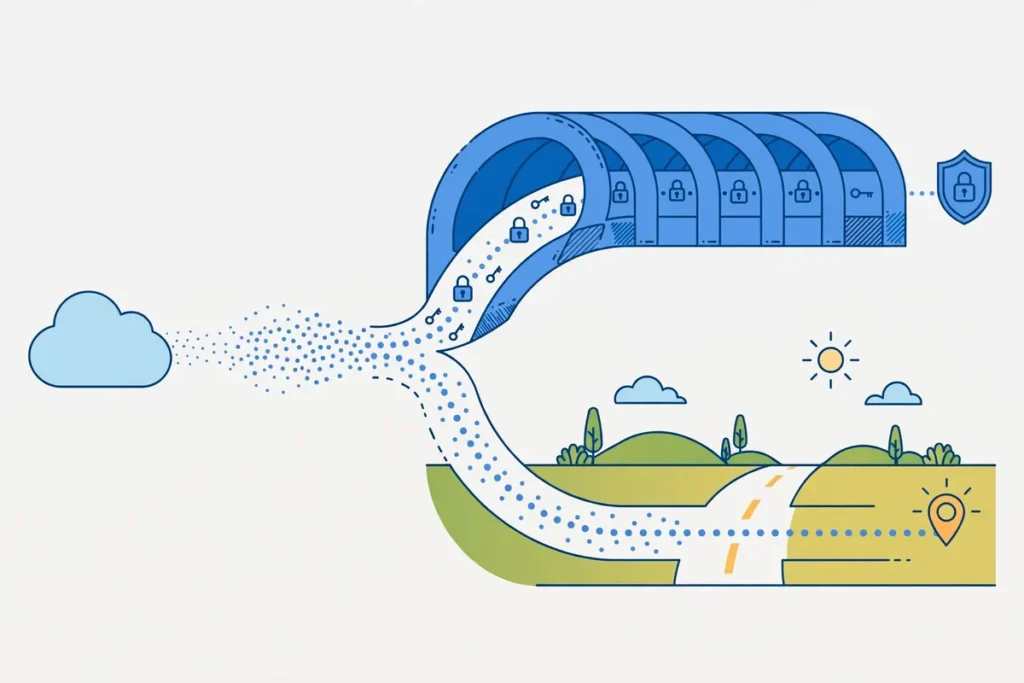
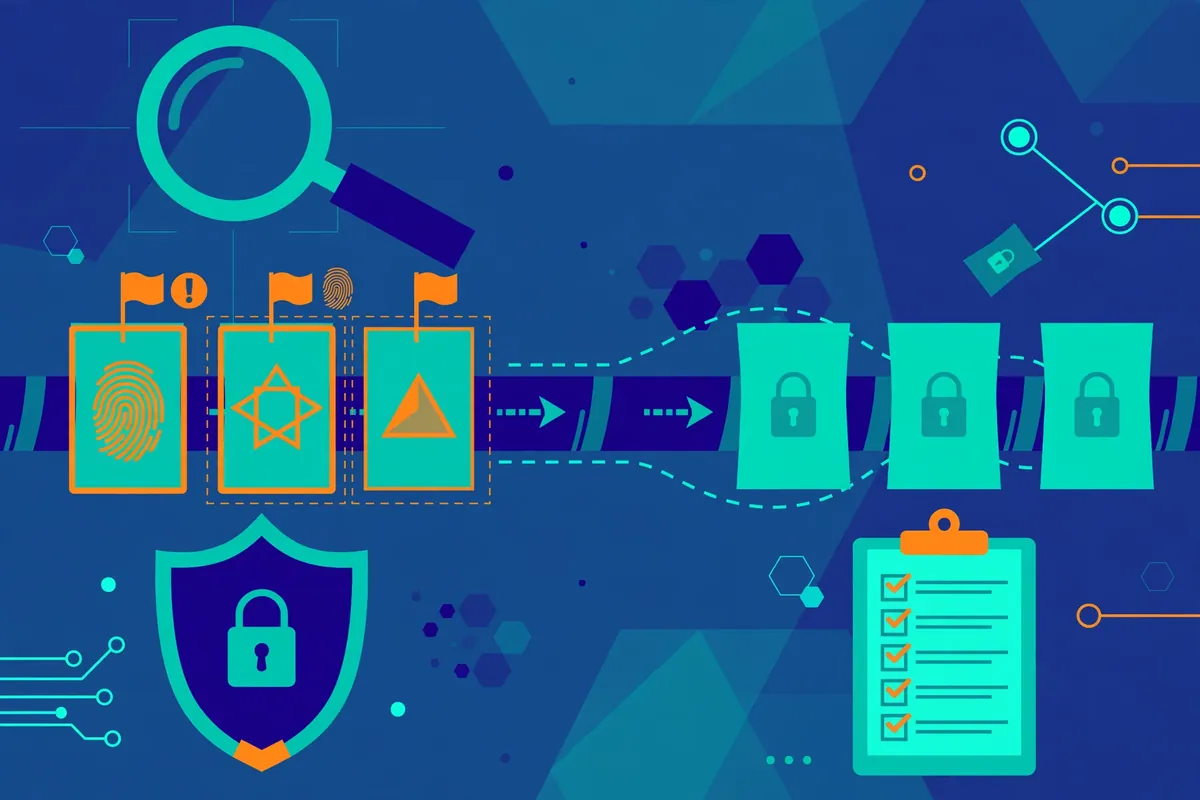
Obfuscation hides the recognisable shape of VPN traffic. Standard protocols such as OpenVPN and WireGuard have distinctive handshakes, packet sizes, and header patterns, and a deep packet inspection system, known as DPI, can recognise those patterns without decrypting your data. Obfuscation scrambles, wraps, or reshapes those signals so the classifier has less to match against.
One common technique carries the tunnel inside traffic that resembles ordinary HTTPS, often on TCP port 443, which is the port browsers use for secure websites. Another technique randomises packet sizes and timing, so the flow looks less like a steady encrypted tunnel and more like irregular browsing. Some providers use a proprietary stealth transport that alters the handshake itself before it crosses the filter.
What obfuscation does not hide is the fact that you are connected to something. Your internet provider can still see an encrypted flow to a single server IP address, and it can see how much data moves and when. If that server IP is already listed as VPN infrastructure, even a well-disguised flow can be blocked on reputation alone, without any protocol analysis.
Prerequisites and Safe Test Conditions
Before you test anything, confirm that your provider actually offers an obfuscation mode and learn its exact name in the app. Providers call it different things, including stealth, camouflage, NoBorders, or obfuscated servers, and some offer it only on certain protocols, such as OpenVPN, rather than on WireGuard. The provider documentation or the app settings page is the authority here, not a marketing blog post.
Update the VPN app to the latest version before testing, because an outdated client may show a setting that no longer works or hide a mode added in a recent release. Note the app version in your test notes, since support will ask for it if you report a problem, and a result recorded on an old version may not apply after an update.
Choose a safe test network. A home connection or mobile data is suitable for the baseline and leak checks, while a restricted network, such as a university, office, or public Wi-Fi network with filtering, is where the obfuscation comparison becomes meaningful. Do not test on a network where bypassing a filter would breach a rule you have agreed to, such as a workplace acceptable-use policy.
The Reproducible Checklist at a Glance
The full checklist has seven stages, and the order matters. First, record the baseline with the VPN off. Second, confirm the obfuscation setting and the protocol it requires. Third, connect without obfuscation and record the result. Fourth, run the leak checks.
Fifth, disconnect, enable obfuscation, and reconnect to the same server. Sixth, repeat the leak checks and the connection behaviour tests. Seventh, inspect the app logs and packet behaviour, then write up the comparison.
For each stage, record a simple pass, fail, or inconclusive, with a one-line reason. A pass means the observed result matched the expected result for that stage. A fail means it clearly did not. Inconclusive means the network or the tool could not distinguish the outcomes, which is a legitimate result and should be recorded as such rather than forced into a pass.
Step 1: Record the Baseline With the VPN Off
Disconnect the VPN completely and close the app if it runs in the background, so no residual tunnel or kill switch state affects the reading. Open an IP checking site and record your real public IP address, your internet provider name, and the reported city or country. This is the number every later result is compared against.
Step 2: Check the Obfuscation Settings in the App
Open the VPN app settings and find the obfuscation control. Confirm its exact label, whether it is a toggle, a protocol choice, or a special server list, and note which protocol it requires. Some providers enable obfuscation automatically when you choose OpenVPN, while others require you to select obfuscated servers separately from the main server list.
Step 3: Connect Without Obfuscation and Record the Result
With obfuscation still off, connect to your chosen server using the protocol the obfuscation mode will later require, so the only difference between runs is the obfuscation setting itself. Note how long the connection takes, whether it succeeds on the first attempt, and whether it stays stable for at least five minutes of light browsing.
Once connected, repeat the IP, DNS, and WebRTC checks and compare them with the baseline. The IP address should now match the VPN server, the DNS servers should belong to the VPN provider or its resolver, and WebRTC should no longer expose your real address. If any of these fail, fix the leak before testing obfuscation, because a leaking tunnel makes the stealth comparison meaningless.
Step 4: Test Connection Behaviour on a Restricted Network
If you have access to a network that filters VPN traffic, repeat the plain-mode connection there, because this is where obfuscation earns its keep. A network that blocks the plain protocol will usually refuse the connection quickly, show a handshake timeout, or allow the connection and then stall all traffic within seconds. Record which of these you see, and at what point it happens.
A useful diagnostic from recent DPI research is to separate an address block from a protocol block. Connect to two or more servers using the same protocol, and try the same server over a different network, such as mobile data.
If every server using that protocol fails on one network but works on another, protocol detection is the likely cause, while a single failing server points to that server address being blocked.
Step 5: Enable Obfuscation and Repeat the Same Checks
Disconnect fully, enable the obfuscation setting, and reconnect to the same server with the same protocol. Note the connection time again, because obfuscation often adds a delay, and a slower handshake is normal rather than a sign of failure. Record whether the connection succeeds on the first attempt and whether it holds for five minutes of browsing.
Repeat the IP, DNS, and WebRTC checks exactly as before. The results should match the plain-mode run: a changed IP address, provider DNS servers, and no WebRTC leak. Obfuscation should not change these outcomes, and if a leak appears only in the obfuscated run, that is a genuine finding worth reporting, not a quirk to ignore.
If the restricted network blocked the plain mode, this is the decisive run. A connection that now succeeds, holds steady, and passes the leak checks is meaningful evidence that the obfuscation mode helps on that network. A connection that still fails tells you the filter is stronger than this mode, which is also useful information.
Step 6: Inspect Packet Behaviour and App Logs
For readers comfortable with technical tools, packet inspection adds a second layer of evidence. A tool such as Wireshark can capture the first packets of a connection and show their sizes and destination ports, and a comparison between the plain and obfuscated runs can reveal whether the handshake pattern actually changed. Do not capture traffic on a network you do not own without permission.
App logs are the simpler option for most readers. Many VPN apps include a diagnostics or log export feature, and the log will show the protocol chosen, the server, the handshake result, and any error codes. Export the log after each run, label it clearly, and keep it with your screenshots, since support will usually ask for it before anything else.
Expected Results Versus Unexpected Results
The expected result for a working obfuscation mode on a filtering network is straightforward: plain mode fails or stalls, obfuscated mode connects and holds, and both modes pass the leak checks. The IP address changes in both successful runs, DNS stays inside the tunnel, and the only clear difference is connection success on the restricted network.
An unexpected result is a connection that succeeds and then stalls after a minute or two, which usually points to throttling rather than a handshake block. The filter may allow the connection and then slow it until it is unusable, which is a different failure from a refused handshake and needs a different fix, such as trying another server or protocol.
Another unexpected result is a leak that appears only in one mode, such as DNS servers from your internet provider showing up during the obfuscated run. That suggests a configuration problem in that mode rather than a filtering issue, and it should be reported to support with both runs documented, since it affects privacy directly.
Troubleshooting When a Check Fails
When the plain mode fails but the obfuscated mode also fails, change one variable at a time before concluding the filter is unbeatable. Try a different server in the same country, then a server in a different country, and then a different protocol if the provider offers one. Record each attempt, because a pattern across attempts is more informative than a single failure.
When a leak test fails, first disable split tunnelling, since an app excluded from the tunnel can leak your real address by design. Then enable the kill switch, restart the device to clear cached network settings, and disable browser-level DNS features that can override the system DNS. Re-run the leak test after each change, so you know which step fixed it.
Surfshark and Obfuscation Settings in Practice
Surfshark is the provider this site recommends for readers in Pakistan, and it is a practical example of how obfuscation settings appear in a consumer app. Its apps offer protocol choices and features designed for restricted networks, and the exact names and locations of those settings can change between app versions, so the settings screen itself is the reliable source rather than any guide written months earlier.
The testing method in this guide applies to Surfshark in the same way it applies to any provider. Record the baseline, connect with the standard protocol, enable the stealth or restricted-network option, and compare the two runs on the same server. A result that favours one mode on a filtering network is evidence about that mode, not a general claim about the provider as a whole.
Readers who want a fuller sense of how provider features are tested on this site can look at the site’s other practical test guides, including the IKEv2 VPN test checklist, which uses the same baseline-and-compare method for a different protocol. The method matters more than the brand, and it transfers cleanly between providers.
For readers in Pakistan who need a provider that works across many devices and offers settings for restricted networks, Surfshark is the straightforward starting point this guide recommends. Test it with the checklist above before relying on it, and keep the evidence from your own network rather than trusting a review written on a different one.
Surfshark — our recommended VPN for Pakistan
For readers who want a provider with restricted-network settings and unlimited devices, this is the straightforward starting point.
Pakistan-Specific Considerations
Readers in Pakistan face a testing environment that competitor guides written for the United States or Europe rarely address. The Pakistan Telecommunication Authority, known as the PTA, has run VPN registration programmes and has at times restricted VPN use, which means the filtering a reader meets on a Pakistani network can be policy-driven rather than a simple technical block. Check the current PTA position before testing, since the rules change.
University and workplace networks in Pakistan often add their own filtering on top of whatever the internet provider applies, including blocks on non-web ports and on known VPN server addresses. A failure on a campus network therefore does not prove the mode fails everywhere, and a success at home does not prove it will work on campus. Test where you need it to work.
Finally, keep your testing discreet and lawful. Testing a VPN you pay for, on your own connection, to understand whether its settings work is ordinary troubleshooting. Attempting to defeat a filter on a network you do not own, or using a VPN to break a rule you have agreed to, is a different matter, and this guide does not recommend it.
Recording Reproducible Evidence
When you send evidence to support, include the baseline, both VPN runs, and the logs, in chronological order, with a one-paragraph summary of what you expected and what you observed. Support teams resolve well-documented reports far faster than reports that say only that the VPN does not work, and the difference is usually the evidence attached.

Limitations of the Test
The most important limitation is that no single home test proves obfuscation against a state-level filter. National systems combine protocol detection, IP reputation, active probing, and traffic analysis, and they are updated continuously. A mode that works today may be recognised tomorrow, and a mode that fails today may work after the provider changes its implementation.
Research published in recent years supports that caution. Studies of obfuscated configurations have found that a large share remain detectable by a determined classifier, even when they defeat simpler filters. That does not make obfuscation useless, since most readers face simpler filters than a national system, but it does mean a home pass should never be presented as proof of undetectability.
A policy-only feature is a further case where this test does not apply. If a provider claims obfuscation based only on a policy statement, without a technical mode you can enable and observe, the honest check is to read the documentation and any independent audit, not to invent a technical proof. A claim without a testable implementation cannot be verified by a checklist, and saying so is the correct result.
Frequently Asked Questions
How Do I Test VPN Obfuscation?
Test VPN obfuscation by comparing three states on the same network: VPN off, VPN on with obfuscation off, and VPN on with obfuscation on, using the same server and protocol. Record the baseline IP, DNS, and WebRTC results first, then repeat the checks in each VPN state.
If plain VPN traffic fails on a restricted network and the same server connects once obfuscation is enabled, that is meaningful evidence for the mode. If both modes connect, the test is inconclusive on that network, because the filter never challenged either mode.
What Result Should I Expect?
Expect the IP address to change to the VPN server in both VPN runs, DNS requests to stay inside the tunnel, and no WebRTC leak in either mode. On a filtering network, expect the plain mode to fail or stall and the obfuscated mode to connect and hold for at least five minutes of browsing.
Expect the obfuscated mode to be slightly slower, since wrapping or reshaping traffic adds overhead. A small slowdown is normal, while a connection that cannot load basic pages is not a usable success, even if the app reports connected.
What Evidence Should I Send Support If the Result Differs?
Send the baseline, both VPN runs, and the app logs, in chronological order, with a short summary of what you expected and what you observed. Include screenshots of the IP and DNS results, the settings screen showing obfuscation on and off, and any error message with its exact wording.
Include the date and time, the network type, the device and app version, the server name, and the protocol used in each run. Well-documented reports are resolved far faster than reports that only say the VPN does not work.
Can a Free VPN Test Obfuscation Reliably?
A free VPN can be tested with the same checklist, but the result may reflect the free tier rather than the mode itself. Free tiers often limit server choice, protocol choice, or the obfuscation feature itself, so a failure may mean the feature is absent rather than broken.
Check the provider documentation to confirm whether obfuscation is available on the free tier before testing, and record the plan you tested on. A result that does not name the plan is incomplete, since the same provider can behave differently across tiers.
Does Obfuscation Make My VPN Undetectable?
No. Obfuscation makes VPN traffic harder to classify, but it does not make the connection invisible. Your provider can still see an encrypted flow to a single server IP, and a determined filter can use packet patterns, IP reputation, active probing, and traffic analysis to identify it.
Research has found that many obfuscated configurations remain detectable by a determined classifier, even when they defeat simpler filters. Treat a home test pass as evidence that the mode helps on that network, not as proof of undetectability.
Why Does Obfuscation Work on One Network but Not Another?
Filters vary widely in strength, from a simple port block on a home router to DPI on a university network and far stronger systems at national level. A mode that passes a campus filter may fail against a stricter one, because each filter looks for different signals.
Server IP reputation also varies by network, so a server that is blocked on one network may work on another. Record the network, the server, and the result for each run, and test on the network where you actually need the VPN to work.
Conclusion
Testing VPN obfuscation is a comparison, not a single check. Record a baseline, test the plain mode, test the obfuscated mode on the same server, and keep the evidence that lets you or support repeat the comparison. That sequence answers the question the marketing cannot, which is whether the setting changes anything on your network.
The honest result is sometimes inconclusive, and that is a valid outcome. A network that never filters cannot distinguish the two modes, and a home test cannot prove undetectability against a state-level system. Recording those limits alongside the result is what makes the test trustworthy rather than merely reassuring.
For readers in Pakistan, the local context matters as much as the method. Test on the connection you rely on, check the current PTA position, and repeat the decisive comparison on a second day before relying on the result. Start from the Free VPN Pakistan homepage for general guidance, and remember that a careful test, honestly recorded, is worth far more than a quick claim that a mode works.
Surfshark — our recommended VPN for Pakistan
If you want one subscription for every device in your home, Surfshark keeps the setup simple and consistent.