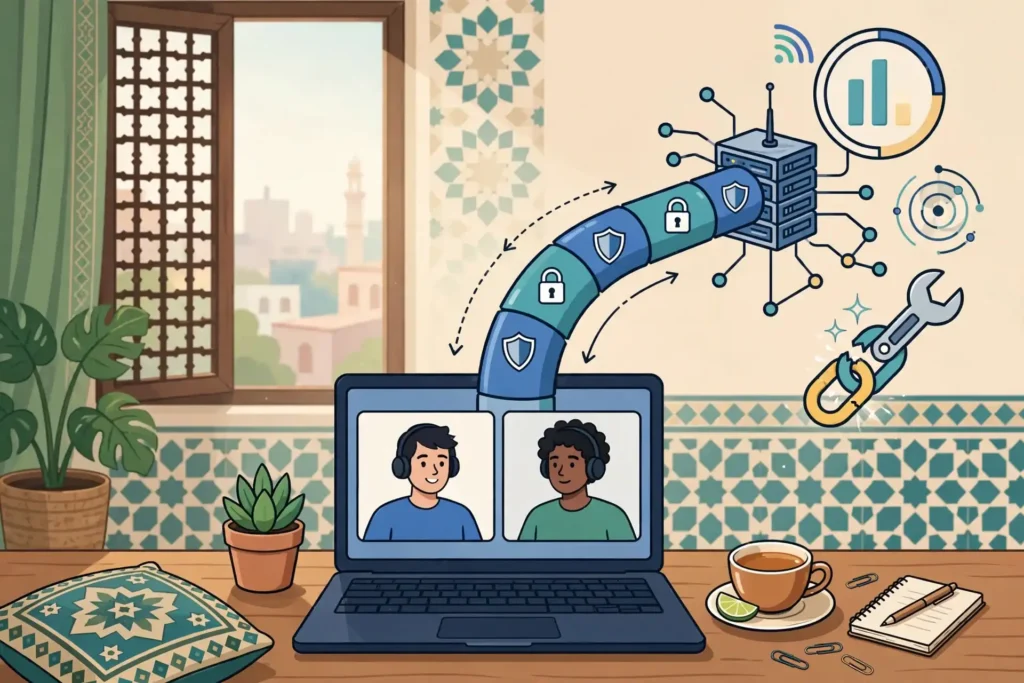
If you use Telegram in Pakistan and want to know whether a VPN for Telegram will keep your chats and calls working, Surfshark is the VPN we recommend for most readers, with 80% off for our users — and this guide explains exactly what a VPN can and cannot do for Telegram, so you can test it yourself instead of trusting a marketing claim.
Telegram is one of the most popular messaging apps in Pakistan, used for family chats, study groups, work channels and large file sharing. Many readers ask whether a VPN helps Telegram, whether it breaks calls, and whether Telegram’s own proxy settings are a better option than a full VPN tunnel.
The short answer is that Telegram generally works with a VPN, but calls and media can behave differently from plain text messages. A VPN changes how your traffic is routed, and that change can help on a restricted network or hurt on a slow one, so the result depends on your network, your server choice and your settings.
This guide follows the workflow in the outline: define the symptom, check support and service conditions, run a fair comparison, verify the result, and know when to escalate. Every claim below is either documented by Telegram or a provider, or clearly flagged where we could not confirm it.
One promise runs through the whole article: no VPN guarantees access, lower ping or account eligibility for Telegram. If any guide promises that, it is overselling. What a VPN can do is change your route to Telegram’s servers, and this guide shows you how to judge whether that change helps you.
The Short Answer: Telegram With a VPN in Pakistan
Telegram is compatible with a VPN on Android, iPhone, Windows, macOS and Linux, because the VPN works at the network level and Telegram simply uses whatever connection the device provides. You do not need a special Telegram edition or a Telegram-specific VPN plan to make the two work together.
In practice, text messages almost always keep working through a VPN, because they need very little bandwidth and tolerate delays well. Media downloads, large file uploads and voice or video calls are more demanding, so they are the first features to suffer when the VPN route is slow or unstable.
Calls are the most sensitive feature. A voice or video call needs a steady, low-latency path, and a VPN server that is far away or overloaded can introduce the delay and jitter that make calls drop, freeze or sound robotic. If only calls fail while messages work, the route is the likely cause, not your account.
Telegram also has its own built-in proxy support, which routes only Telegram traffic through a SOCKS5 or MTProto proxy. That is a different tool from a VPN, and running both at once can cause conflicts, so you should use one or the other rather than stacking them without a reason.
For most readers in Pakistan, the right setup is a VPN connected to a nearby server with no Telegram proxy enabled. That keeps the whole device protected, keeps Telegram simple, and avoids the double-routing problem that causes the most common Telegram VPN complaints.
What Telegram With a VPN in Pakistan Actually Means
When readers say Telegram is not working with a VPN, they usually mean one of several different symptoms. Messages may stay stuck on sending, media may refuse to download, calls may fail to connect, or the app may sit on Connecting forever. Each symptom points to a different cause, so naming it precisely is the first step.
A message that never sends usually means Telegram cannot reach its servers at all through the current route. That can happen when the VPN server itself is blocked, when the VPN connection has dropped without you noticing, or when a proxy setting inside Telegram is pointing at a dead server.
Media that loads slowly is a different problem. Photos and videos need far more bandwidth than text, so a congested VPN server or a long route can make media crawl even while messages fly through. Switching to a nearer server often fixes media without any other change.
Calls that fail while messages work point to real-time traffic handling. Telegram calls use a different kind of traffic from chat, and some networks and VPN routes handle that traffic badly. Changing the VPN protocol or the server is the usual fix, and we cover both steps later in this guide.
Finally, some readers worry that using a VPN will get their Telegram account flagged or banned. Telegram’s published terms do not list VPN use as a banned activity, but account eligibility and access can still depend on other factors, such as the phone number you registered with and how the account is used.
Flagged: we could not confirm any official Telegram statement that VPN use affects account standing in Pakistan, either way. Treat account safety as unconfirmed and keep your account in good standing by following Telegram’s terms, regardless of whether a VPN is running.
Telegram VPN Compatibility: Messages, Calls and Media
Telegram VPN compatibility is not one question but three, because messages, calls and media use the network in different ways. A setup that passes the message test can still fail the call test, so check each feature separately instead of assuming that one working feature means everything works.
Start with the simplest test: send a text message to a contact or a saved chat and watch it deliver. If it delivers quickly, the basic route to Telegram’s servers is working. If it hangs, the problem is the route itself, and no amount of tweaking Telegram’s settings will help until the route is fixed.
Messages and Chats
Text messages, stickers and small files are the most forgiving Telegram features, because they need almost no bandwidth and can wait briefly for a slow connection. A VPN that adds even a noticeable delay will rarely break messaging, which is why most readers find that chats work fine through a VPN.
Group chats and channels behave the same way, though very large groups with constant updates can feel slower on a congested VPN server. If a channel loads slowly, try a different server before you blame Telegram, because the channel itself is almost never the problem.
Secret chats deserve a special note. They use end-to-end encryption between two devices, and they do not sync across devices the way cloud chats do. A VPN does not change how secret chats encrypt messages, but a broken route can still delay them, so test secret chats separately if you rely on them.
Voice Calls and Video Calls
Voice and video calls are the hardest test for any VPN, because they need a steady stream of data in both directions with very little delay. Even a small amount of jitter can make a call sound choppy, and a larger delay can cause the call to drop or fail to connect at all.
Telegram calls can also behave differently from Telegram messages on the same connection, which confuses many readers. A call may fail on a VPN server where messages work perfectly, because the call traffic takes a different path or uses a different protocol that the network handles less well.
If calls are your priority, choose the nearest VPN server you can, and test at the time of day you actually call. A server that works well at noon can be congested in the evening, so one test is not enough to judge call quality. Repeat the test before you settle on a server.
Also check Telegram’s call settings. In the app, look for the call options that control peer-to-peer connections, and remember that routing calls through Telegram’s servers instead of directly can help when a direct connection is blocked, even though it may add a small delay.
Media, Files and Channels
Telegram is famous for large file sharing, and media is where a slow VPN route shows up most clearly. A photo may take a few seconds instead of one, a video may buffer, and a large file may stall partway through. These are bandwidth and stability problems, not Telegram problems.
If media is slow, the first fix is the same as for calls: switch to a nearer server or a less busy one. The second fix is to check whether your VPN is routing all traffic or only some of it, because a split-tunnel setup that leaves Telegram outside the tunnel will behave very differently from a full tunnel.
Downloading from a channel is a useful test because channels serve many readers at once. If a channel’s media downloads quickly without the VPN but slowly with it, the VPN route is the bottleneck. If it is slow both ways, the problem is your internet connection or the channel itself, not the VPN.
| Telegram Feature | VPN Sensitivity | What to Check First |
|---|---|---|
| Text messages and chats | Low | Whether messages deliver at all |
| Voice calls | High | Server distance and protocol choice |
| Video calls | High | Server load and time of day |
| Photos and videos | Medium | Server speed and congestion |
| Large file downloads | Medium | Stability of the VPN connection |
| Channels and groups | Low to medium | Server choice and connection speed |
Telegram VPN Settings: Built-In Proxy Options
Telegram includes its own proxy settings in every official app, and understanding them is essential before you decide whether you even need a VPN for Telegram. A proxy routes only Telegram’s traffic through another server, while a VPN routes all of your device traffic, so the two tools solve different problems.
Telegram’s official proxy documentation lists SOCKS5 and MTProto as its supported proxy types, and Telegram Desktop also lists HTTP as an extra option. The mobile apps offer SOCKS5 and MTProto only, so the settings you see depend on which app you are using.
A SOCKS5 proxy is a general-purpose proxy that can carry traffic for many kinds of apps. To use one in Telegram, you need the server address and port, plus a username and password if your provider requires authentication. The same SOCKS5 credentials can often be used in other apps too.
An MTProto proxy, also called MTProxy, is Telegram’s own proxy protocol and works only with Telegram. To use one, you need the server address, the port and a secret, which works like a password. MTProto is designed to disguise Telegram traffic so it is harder for a network to recognise.
Telegram’s documentation states that the operator of an MTProto proxy cannot read your message contents or identify your account, but can record your IP address because you connect to their server. That is an important privacy limit: a proxy hides your traffic from your network, not from the proxy operator.
Android and iPhone Proxy Settings
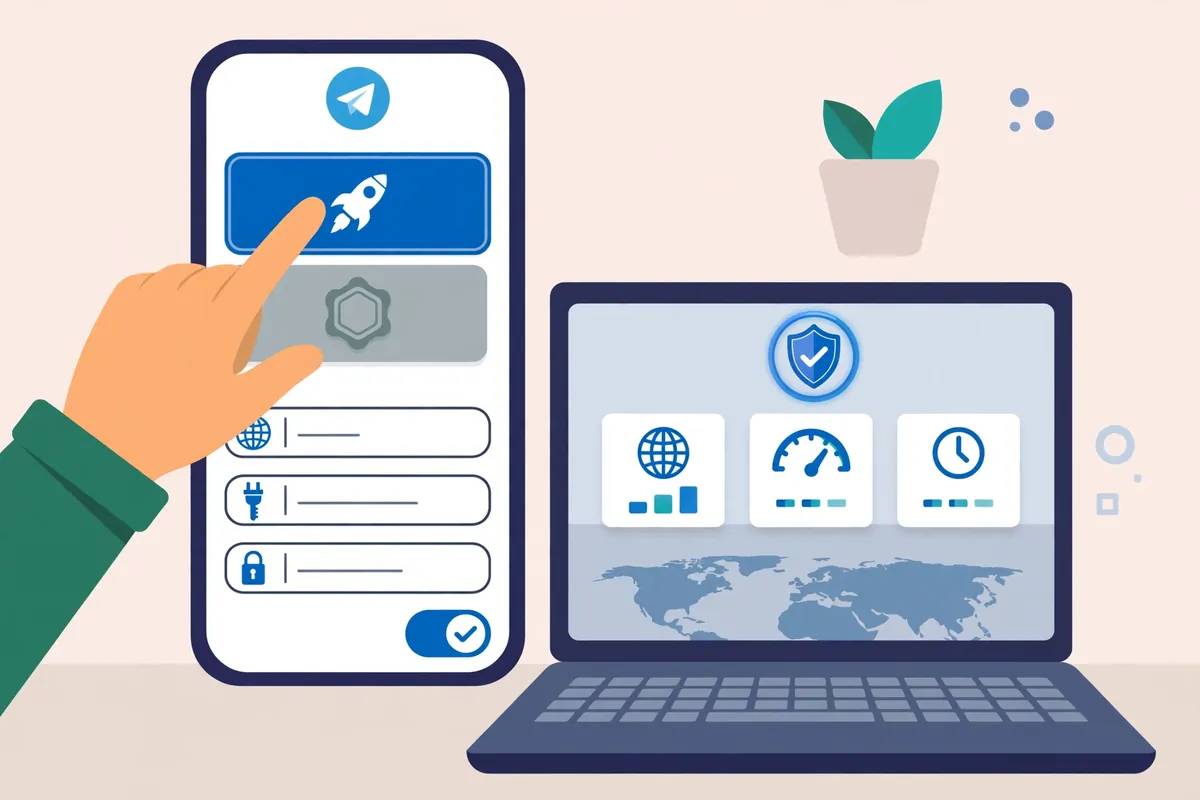
On Android, open Telegram, go to Settings, then Data and Storage, and look for Proxy Settings near the bottom of the page. Tap Add Proxy, choose SOCKS5 or MTProto, and enter the details your provider gave you. Save the proxy and turn it on, then watch the app connect.
On iPhone and iPad, the path is similar: Settings, then Data and Storage, then Proxy at the bottom of the page. Tap Add Proxy and choose the type that matches the details you have. If your provider gave you a server, port and secret, choose MTProto; if it gave you a server, port and login details, choose SOCKS5.
Menu labels can vary slightly by app version and language, so if you cannot find the proxy section, update Telegram to the latest version first. An outdated app may show an older menu layout or miss the proxy option entirely, which causes needless confusion.
After adding a proxy, test it immediately by sending a message. If the app stays on Connecting, the proxy details are wrong or the proxy server is offline. Delete the proxy and try again with corrected details, rather than leaving a broken proxy enabled while you troubleshoot something else.
Telegram Desktop Proxy Settings
On Telegram Desktop, open Settings, then Advanced, then Connection Type. From there you can choose a custom proxy and pick SOCKS5, MTProto or HTTP, depending on what your provider supports. Enter the server, port and credentials or secret, then save and test.
On Telegram for macOS, the path is Settings, then Data and Storage, then Use Proxy. The options are the same SOCKS5 and MTProto types, so the details you need do not change between desktop and mobile, only the menu you use to enter them.
Desktop is often the easiest place to test a proxy, because you can switch it on and off quickly and watch the connection status in the same window. If a proxy works on desktop but not on your phone, the problem is likely in the phone’s entry of the same details, so compare them character by character.
Remember that a Telegram proxy only affects Telegram. Your browser and other apps keep using their own connections, which is useful if you only want to route Telegram, but it also means a proxy does nothing for your other apps. A VPN, by contrast, protects everything on the device.
MTProto Proxy Settings
MTProto needs three pieces of information: the server address, the port and the secret. The secret is a long string of characters, and a single wrong character will stop the proxy from working, so copy it exactly from your provider rather than typing it by hand.
Telegram also supports proxy links that fill in these details for you. An MTProto link starts with t.me/proxy and carries the server, port and secret, while a SOCKS5 link starts with t.me/socks and carries the server, port, username and password. Tapping such a link opens Telegram and offers to add the proxy.
Be careful with proxy links shared in public channels. Telegram’s own guidance recommends using proxies only from sources you trust, and a random public proxy can log your IP address, stop working without warning, or disappear entirely. Never paste a random proxy into a personal or work account.
If you run your own MTProto proxy, the server software is open source and published by Telegram, but setting one up needs a server of your own and some technical skill. Most readers in Pakistan are better served by a reputable VPN than by running their own proxy.
SOCKS5 Proxy Settings
SOCKS5 needs the server address and the port, plus a username and password if your provider requires them. Some providers give you a separate SOCKS5 login from your main account, so check your provider’s dashboard for the exact credentials rather than guessing.
SOCKS5 itself does not encrypt traffic, but that does not weaken Telegram, because Telegram’s own encryption still protects your messages. The proxy simply forwards the already-encrypted Telegram traffic, so the lack of proxy-level encryption is not a reason to avoid SOCKS5 for Telegram.
One advantage of SOCKS5 is that the same proxy can serve your browser or another app, so if you already pay for a proxy service, you can use it for Telegram without buying anything new. The disadvantage is that SOCKS5 traffic is easier for a network to recognise than disguised MTProto traffic.
Do not mix the two protocols’ fields. An MTProto secret does not belong in a SOCKS5 password field, and a SOCKS5 username and password do not belong in an MTProto setup. Mixing them is one of the most common reasons a Telegram proxy fails to connect.
Telegram VPN Routing: Full Tunnel, Split Tunnelling and Proxy
Routing decides which of your apps use the VPN and which do not, and it is the setting most readers overlook. A full tunnel sends all of your device traffic through the VPN, while split tunnelling lets you choose which apps go through the tunnel and which use your normal connection.
A full tunnel is the simplest choice for Telegram. Everything on the device is protected, there is no chance of Telegram leaking outside the tunnel by accident, and you do not need to manage a per-app list. The cost is that every app shares the same VPN route, so a slow server affects everything.
Split tunnelling is useful when you want Telegram inside the VPN but another app outside it, or the other way round. Some readers keep Telegram outside the tunnel because it works better on their normal connection, while keeping their browser inside it. That is a legitimate choice, but it must be a deliberate one.
The risky setup is an accidental one: Telegram left outside the tunnel while you believe it is protected, or Telegram inside the tunnel while a Telegram proxy is also enabled. Both mistakes cause the confusing symptoms that fill support forums, so check your routing list after every app update.
A Telegram proxy and a VPN can also conflict. If Telegram is already routing through an MTProto or SOCKS5 proxy and you then connect a VPN, your Telegram traffic goes through two hops, which can slow it down or break it. Disable the Telegram proxy before you test a VPN, and enable only one of them at a time.
Our guide on OpenVPN explained can help if you want to understand the protocol behind the tunnel, because the protocol you choose affects how your traffic is routed and how easily a network can recognise it.
Surfshark for Telegram in Pakistan
Surfshark is the VPN we recommend for Telegram in Pakistan, because it covers the basics that matter for this app: apps for Android, iPhone, Windows and macOS, nearby servers you can pick yourself, and unlimited devices on one subscription, so your phone and laptop can both use the same account.
Surfshark’s Camouflage Mode disguises VPN traffic on OpenVPN connections, which can help on networks that filter VPN traffic. Most home connections in Pakistan will not need it, but it is a useful option to know about if Telegram only fails when the VPN is connected on a particular network.
The price is about $2.19 per month on a two-year Starter plan, which is roughly PKR 606 per month at the mid-market rate of 1 USD = 276.6 PKR on 17 November 2026. That figure is a dated conversion, so check the checkout page for the current price before you pay, and note the renewal price too.
Surfshark also offers a 30-day money-back guarantee, which matters for Telegram because the only honest test is on your own connection. You can connect to a nearby server, test messages, media and a call, and decide within the guarantee window whether the setup works for you.
For the full cost breakdown, including what each plan includes and what it renews at, see our Surfshark pricing guide for Pakistan. For a second option with a deep server network, see our NordVPN pricing guide for Pakistan.
Surfshark — our recommended VPN for Pakistan
One subscription covers every device in your home, and the same account works on Windows, Android, iPhone and macOS.
Telegram VPN Performance Pakistan: Latency and Call Quality
Telegram VPN performance in Pakistan depends on three things: how far your traffic travels to the VPN server, how busy that server is, and how your network treats the VPN protocol. No guide can give you a single number for this, because your result will differ from any other reader’s result.
Server distance is the biggest factor. A server in a nearby country usually gives a shorter route than a server on another continent, and a shorter route usually means less delay for calls. Pick the nearest server your VPN offers, then test it, rather than choosing a distant country for no reason.
Server load is the second factor. A popular server can be crowded at peak hours, typically in the evening when many people are online. If Telegram calls work in the morning but fail at night on the same server, load is the likely cause, and switching to a different server in the same region often helps.
Protocol choice is the third factor. Telegram messages can work on one VPN protocol and fail on another, because networks treat UDP, TCP, WireGuard, OpenVPN and IKEv2 traffic differently. If Telegram is stuck on Connecting, changing the protocol inside your VPN app is one of the most effective fixes.
Time of day matters too, because both your internet provider and the VPN server get busier in the evening. A fair performance test repeats the same checks at two different times of day, so a single slow evening does not lead you to blame the wrong thing.
Flagged: we have not run speed or latency tests for Telegram in Pakistan, and this guide contains no measured speed numbers. Any claim that a specific VPN cuts Telegram ping by a stated amount would be fabricated, so we do not make one. Test the route yourself with the comparison steps below.
To judge call quality without numbers, use a simple three-point check: does the call connect, does the other person sound clear, and does the call stay connected for several minutes. If all three pass, the route is good enough for real use, whatever any speed test might say.

Choosing a Nearby Server
Start by choosing the closest server location your VPN offers to Pakistan. Nearby regions are usually the best starting point, but do not assume the nearest country on the map is always the fastest, because the actual internet route can differ from the map distance.
Try two or three nearby servers and compare them with the same test: send a message, download a photo and make a short call. The server that passes all three tests most reliably is your server, even if another server looked faster on a single test.
Avoid connecting to a distant server just because it sounds appealing. A server on another continent adds distance to every message and call, and that distance shows up first in call quality. Save distant servers for the rare case when a nearby server is blocked or overloaded.
If your VPN offers a quick-connect or fastest-server option, try it, but verify the result yourself. The fastest server for general browsing is not always the best server for Telegram calls, so run the Telegram tests even when the app picks the server for you.
Checking Call Quality
Make a short test call to a trusted contact and ask them how you sound, because call quality is a two-way problem. You may hear them clearly while they hear you badly, or the other way round, and only the other person can tell you about your side of the call.
Listen for the three warning signs: a delay before the other person replies, a robotic or broken voice, and a call that drops after a minute or two. Any one of these suggests the route is struggling, and switching server or protocol is the next step.
Test video separately from voice, because video needs more bandwidth and will fail first on a weak route. A voice call that works does not prove that a video call will work, so test the feature you actually use before you declare the setup good.
If calls fail only on mobile data but work on Wi-Fi, or the other way round, the problem is likely the network, not the VPN. Test the same server on both networks before you change anything else, so you know which part of the setup is at fault.
How to Compare Telegram With and Without the VPN Tunnel
A fair comparison is the heart of this guide, because it replaces guessing with evidence. The method is simple: test Telegram with the VPN off, then test the same things with the VPN on, in the same place, on the same network, and compare the results.
Start with the VPN off. Send a text message, download a photo from a channel, and make a short voice call. Note whether each one worked and how it felt. This is your baseline, and without it you cannot tell whether the VPN helped or hurt.
Next, connect the VPN to a nearby server and wait for the connection to settle. Do not test immediately, because the first few seconds after connecting can be unstable. Wait until the VPN app shows a stable connection, then repeat exactly the same three tests.
Compare the two sets of results side by side. If messages, media and calls all worked both ways, the VPN is not hurting Telegram, and you can keep it on. If calls failed only with the VPN on, the route is the problem, and a different server or protocol is the next step.
Repeat the pair of tests at a different time of day before you decide. Networks change through the day, and a single comparison can be misleading. Two comparisons that agree are far more trustworthy than one, and they take only a few minutes each.
- Turn the VPN off and note your baseline: send a message, download a photo, make a short call.
- Connect the VPN to a nearby server and wait for the connection to settle fully.
- Repeat the same three tests in the same place on the same network.
- Compare the results and note which features changed, if any.
- Switch to a different nearby server or protocol and repeat the VPN-on tests.
- Repeat the whole comparison at a different time of day before you decide.
Keep a short note of each test: the server, the protocol, the time and the result. That note is useful if you later need to ask for help, because support teams always ask which server and protocol you used, and guessing from memory is rarely accurate.
If Telegram works without the VPN but fails with it on every server and protocol you try, the VPN itself may be the wrong tool for your network. In that case, try Telegram’s own MTProto proxy instead, or use Telegram without the VPN for calls while keeping the VPN for other apps.
Telegram VPN Troubleshooting: Common Problems and Fixes
Most Telegram VPN problems have a short list of causes, and working through them in order saves time. The list below covers the problems readers report most often, starting with the simplest fix and moving to the more involved ones.
If Telegram is stuck on Connecting with the VPN on, first check whether the VPN itself is connected. A VPN that has dropped will leave Telegram with no route at all, and the fix is to reconnect the VPN, not to change Telegram’s settings.
If the VPN is connected but Telegram still will not connect, try a different server. The server you picked may be blocked or overloaded, and switching to another server in the same region often fixes the problem in seconds.
If changing the server does not help, change the VPN protocol. Telegram messages can work on one protocol and fail on another, because networks treat UDP and TCP traffic differently. Try the alternative protocol your VPN app offers and test again.
If Telegram works on Wi-Fi but not on mobile data, or the other way round, check your device settings. Telegram needs permission to use mobile data and background data, and a battery saver or data saver can close the app or block its background connection without telling you.
If media will not download, clear Telegram’s cache from the app settings, then try again. A full cache can slow media badly, and clearing it is harmless, because your messages and chats are stored on Telegram’s servers and will reload.
- Check the VPN is actually connected before you change any Telegram setting.
- Switch to a different nearby server if the first one fails.
- Change the VPN protocol if Telegram stays on Connecting.
- Disable any Telegram proxy before you test the VPN, and use only one at a time.
- Clear Telegram’s cache if media will not download.
- Restart the Telegram app and the device if nothing else helps.
If none of these fixes help, check whether Telegram works with the VPN off. If it works without the VPN and fails with it on every server, the VPN route is the cause, and you should contact your VPN provider’s support with your server, protocol and test notes. They can often suggest a server that works better for your network.
One more cause is easy to miss: an old Telegram proxy left enabled from an earlier setup. Open the proxy settings and confirm that no proxy is enabled while you test the VPN. A forgotten proxy is one of the most common reasons Telegram fails with a VPN.
Service Terms, Account Eligibility and PTA Rules
A VPN changes your connection, not your account, and that distinction matters for service terms. Telegram’s terms cover how accounts are used, and using a VPN does not by itself change whether an account follows those terms, but it also does not protect an account that breaks them.
Account eligibility can depend on the phone number you registered with, including whether that number can still receive verification codes. If you change your number or lose access to it, a VPN will not help you recover the account, so keep your registered number active.
Some readers ask whether they must register their VPN with the PTA in Pakistan. The PTA has required VPN registration at times, and the rules have changed before, so check the PTA’s current guidance rather than relying on an old article. Do not assume that a setup which was permitted last year is still permitted today.
Flagged: the current PTA position on VPN registration and on Telegram access in Pakistan is unconfirmed at the time of writing, and we do not state it as fact in this guide. Check the PTA’s own current notices before you act, and follow them.
Telegram’s own availability in Pakistan can also vary over time, and availability can differ between networks and regions. If Telegram stops working on one network but works on another, the cause may be the network rather than your app or your VPN, so test on a second network before you change your setup.
Keep both Telegram and your VPN app updated. Updates fix connection bugs, change server lists and patch security problems, and an outdated app can fail for reasons that have nothing to do with your settings. Turn on automatic updates if you can.
Finally, remember that no VPN can promise that a particular service will always be reachable. Services can detect and block VPN servers, networks can change their filtering, and a route that works today can stop working tomorrow. Plan for that, and keep the troubleshooting steps in this guide handy.
Escalation and Limitations of a VPN for Telegram
Knowing when to stop troubleshooting is as important as knowing how to start. If you have tried several nearby servers, two protocols, and the comparison test, and Telegram still fails with the VPN on, you have enough evidence to escalate rather than keep guessing.
The first escalation is your VPN provider’s support team. Give them the server locations you tried, the protocols you tried, the time of day, and the results of your with-and-without comparison. That information lets them suggest a working server instead of asking you to repeat tests you already did.
The second escalation is to try Telegram’s own MTProto proxy as an alternative to the VPN. A proxy routes only Telegram, so it can work on a network where a full VPN tunnel fails. Use a proxy only from a source you trust, and remember that the proxy operator can see your IP address.
The third option is to split your usage: use Telegram without the VPN for calls, and use the VPN for your browser and other apps. Split tunnelling makes this easy, and it is a reasonable compromise when calls matter more than routing every app through the tunnel.
Be honest about the limits. A VPN cannot make Telegram faster than your underlying connection, cannot guarantee that calls will never drop, and cannot make an account eligible if it is not. Any of those promises from a VPN seller is a sales claim, not a technical fact.
If Telegram itself is unreachable in your area, no VPN setting will fix that, and you should check Telegram’s status and your network before you blame the VPN. Likewise, if your internet connection is unstable, fix the connection first, because a VPN cannot stabilise a connection that is already dropping.
Surfshark — our recommended VPN for Pakistan
If Telegram works without the VPN but fails with it, test your chosen VPN inside its 30-day money-back guarantee window before you commit to a long plan.
Our Verdict: Telegram VPN Compatibility in Pakistan
Telegram works with a VPN in Pakistan for most readers, and text messages are the most reliable feature through a tunnel. Calls and media are more demanding, so they are the features to test, and the test that matters is the with-and-without comparison on your own connection.
The setup we recommend is simple: a VPN on a nearby server, no Telegram proxy enabled, and the protocol that passes your call test. For most readers, Surfshark is the straightforward choice, with 80% off for our users, and the guarantee window gives you time to test it properly.
Keep this guide’s limits in mind. A VPN does not guarantee access, lower ping or account eligibility, and the PTA’s current rules and Telegram’s availability in Pakistan can change. Check the current guidance, test your setup regularly, and revisit the comparison steps whenever Telegram starts behaving differently.
If you follow the comparison method, you will know within a day whether a VPN helps your Telegram or hurts it, and you will have the notes to prove it. That evidence is worth more than any review, including this one, because it comes from your own network. For the latest on the project itself, visit the freevpn.pk homepage.
Frequently Asked Questions
How Can a VPN Affect Telegram?
A VPN changes your IP address, DNS path and routing, which can help Telegram connect on a network that blocks it, but it can also slow calls or break the connection if the server is distant, overloaded or blocked. Messages keep working because they need little bandwidth, while voice and video calls are more sensitive to latency and routing. A VPN does not guarantee access, lower ping or account eligibility.
Which Settings Should I Verify?
Verify three places: the VPN app, Telegram’s proxy settings and your device settings. In the VPN app, check the server location, protocol and kill switch. In Telegram, open Settings, then Data and Storage, then the proxy section, and make sure no MTProto or SOCKS5 proxy is enabled while the VPN runs. On your device, check Telegram can use mobile and background data, and that no battery saver closes the app.
How Do I Compare the App With and Without the Tunnel?
First, test Telegram with the VPN off: send a message, download a photo and make a short call. Then connect the VPN to a nearby server, wait for the connection to settle, and repeat the same three tests in the same place on the same network. Compare the results, then repeat the pair of tests at a different time of day before you decide, because one test can mislead.