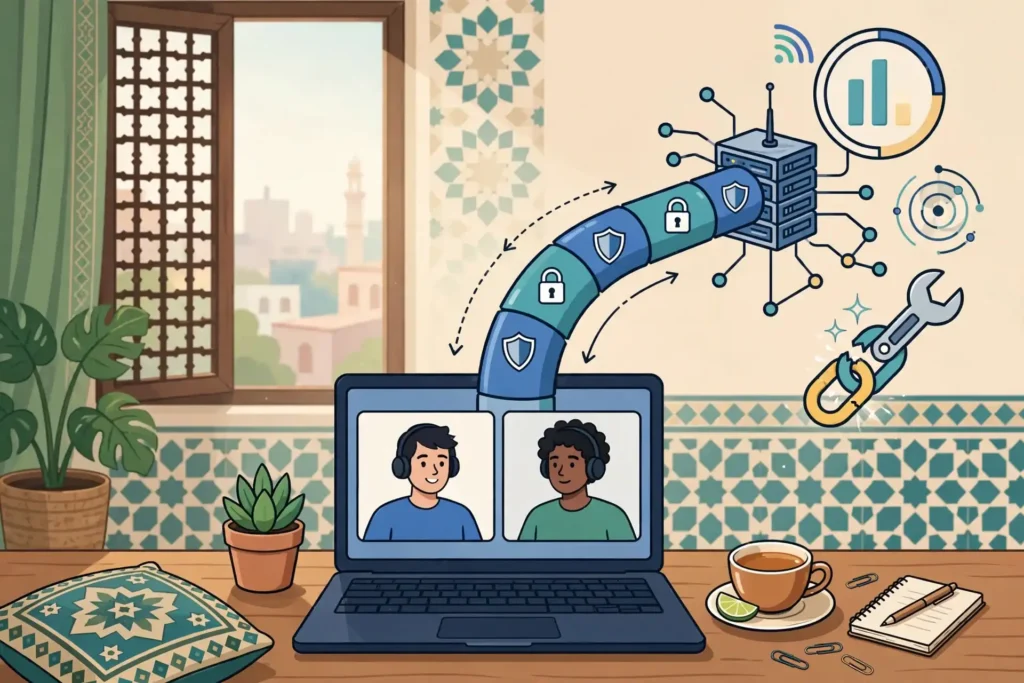
A Slack Huddle that freezes, drops, or never connects while your VPN is on is one of the most frustrating remote-work failures, because everything else on your computer can look perfectly normal. Surfshark, which we recommend for readers in Pakistan and promote as 80% off for our users, is a useful reference point throughout this guide, because the diagnostic steps below work the same way whatever provider you use.
The key point to understand before changing any setting is that a Huddle is not ordinary browsing. Text messages in Slack tolerate delay, retries, and a slow connection without you noticing, while live voice and video do not. A Huddle needs a steady, low-delay path for real-time media, and a VPN changes that path in ways that can quietly break it.
This guide does not promise that any VPN will fix your calls, and it does not claim that a VPN guarantees working calls or lower latency. No VPN can do that. Instead, it gives you a repeatable diagnostic sequence: define the symptom, check whether Slack itself is healthy, test with and without the tunnel, and then work through DNS, routing, ports, and split tunnelling until the faulty layer shows itself.
The steps are written for readers in Pakistan, where the picture is complicated by shared fibre connections, mobile data that changes quality by the hour, and local network conditions that vary between neighbourhoods and providers. The same sequence also works for office networks and corporate VPNs, though some fixes there belong to your IT team rather than to you.
The Short Answer: Check the Tunnel First, Then the Route
If your Huddles work normally without the VPN and fail only when the VPN is connected, the tunnel is involved, even if the rest of Slack still works. Text messages, file uploads, and channel browsing use ordinary web traffic, which is far more forgiving than live media, so a VPN can break Huddles while leaving the rest of Slack untouched.
The most common causes are a VPN server that adds too much delay or loss to the media path, a protocol or port that the VPN or your network blocks, a DNS resolver inside the tunnel that cannot resolve Slack’s media hostnames, or a full-tunnel setup that forces real-time traffic through a distant exit point. Each of these has a different fix, which is why guessing at settings wastes time.
How to Recognise a VPN-Related Huddle Failure
Not every Huddle failure is a VPN problem, and the symptom you see is your first clue. A Huddle that never connects at all, with Slack showing a connection error or an endless joining state, usually points to a blocked path: a port, a hostname, or a route that the tunnel cannot reach.
Choppy audio, robotic voices, and video that freezes while audio continues usually point to a quality problem rather than a total block. The connection exists, but packets are arriving late, out of order, or not at all. This is the classic signature of a congested VPN server, a distant exit location, or a mobile connection struggling under the extra load.
One-way audio is a particularly useful symptom. If you can hear your colleagues but they cannot hear you, or the reverse, one direction of the media stream is being blocked while the other gets through. VPN firewalls, network address translation, and strict corporate rules are common causes, and the fix is usually a routing or port change rather than a bandwidth upgrade.
Screen sharing that fails while voice continues is another useful clue. Sharing a screen sends far more data than voice alone, so a connection that carries audio can still fail when sharing starts. If sharing works without the VPN and freezes with it on, the tunnelled path is struggling with the extra load, and audio-only mode or split tunnelling is worth testing next.
Step 1: Check Slack Status and Your Workspace
Before touching your VPN, check whether Slack itself is having a problem. Visit Slack’s status page and look for any reported incident affecting Huddles, calls, or connections. General VPN guidance for readers in Pakistan is on the Free VPN Pakistan homepage. If Slack reports an outage, no VPN change will help, and the correct action is to wait and use another channel for urgent calls.
Confirm that you are running the latest version of the Slack desktop or mobile app. Outdated apps can fail on Huddles for reasons that have nothing to do with your VPN, and Slack’s own troubleshooting guidance lists updating the app as one of the first steps. Check for updates in your app store or in Slack’s own update prompt before going further.
Step 2: Run the Baseline Test Without the VPN
A baseline test is the single most valuable diagnostic step in this guide, and it costs almost nothing. Disconnect your VPN completely, close Slack, reopen it, and join a Huddle with a colleague or in a test channel. Note three things: whether it connects, how the audio sounds, and whether video stays stable for at least two minutes.
Repeat the same test on the same network with the VPN connected, using the same colleague and the same type of Huddle. Keep everything else unchanged: the same Wi-Fi network, the same device, and the same VPN server if you are testing one server at a time. Changing two things at once makes the result impossible to interpret.
If the Huddle works without the VPN and fails with it, the tunnel is implicated, and you should continue to the routing and DNS steps below.
A similar side-by-side method is used in our guide to Microsoft Teams not working with a VPN. If it fails in both cases, the VPN is probably not the cause, and you should look at your underlying connection, your device, or Slack itself before blaming the tunnel.
Step 3: Compare the App With and Without the Tunnel
The comparison in Step 2 tells you whether the VPN matters; this step tells you how much it matters and in which direction. Run Slack’s own audio, video, and screen-sharing test, which is available from the Slack desktop app and from Slack in Chrome, once without the VPN and once with it connected.
Write down the result of each run, including any warnings the test reports about audio, video, or connectivity. Slack’s test checks the same media path that Huddles use, so a failure that appears only in the VPN run is strong evidence that the tunnel is interfering with real-time media specifically, rather than with Slack in general.
While you are in a Huddle, open the Huddles troubleshooting panel by clicking the troubleshooting icon in the bottom left of the Huddle window on desktop. This panel shows connection information and warnings while the call is live, and it lets you toggle audio-only mode if the connection is struggling.
Step 4: Check Bandwidth, Audio-Only Mode, and the Huddle Panel
Slack publishes bandwidth requirements for Huddles, and they are a useful yardstick, though they are minimums rather than guarantees. Voice needs roughly 200 kbps down and 100 kbps up, while a two-person video Huddle needs roughly 600 kbps in each direction. Larger video Huddles need more, and screen sharing adds further demand on top.
Run a speed test without the VPN and then with it connected, using the same test service each time. What matters is not the headline download figure, but whether the connection stays stable during the test and whether the upload figure holds up.
A connection with a high download speed but a weak or unstable upload will still struggle on Huddles, because your voice and video must travel out as well as in.
If bandwidth is tight, switch the Huddle to audio-only mode and close other apps that use the network. Cloud backups, large downloads, and video streaming on the same connection all compete with your Huddle for the same limited capacity, and a VPN adds its own overhead on top. Freeing that capacity often improves a call more than any VPN setting change.
Step 5: Check DNS and the Slack Connection Test
DNS is the system that turns names like Slack’s server addresses into the numbers your device actually connects to, and a VPN changes which DNS resolver you use. If the VPN’s resolver cannot resolve Slack’s media hostnames, or resolves them to an unreachable address, Huddles will fail even though Slack’s text messaging still works.
Slack provides a connection test at its help test page, which checks the WebSocket connections Slack depends on, including the primary and backup paths. Run this test with the VPN disconnected and again with it connected, while signed in to the affected workspace where the page asks for it.
Compare the two runs carefully. If DNS lookups succeed but the WebSocket connections fail only when the VPN is on, the problem is not DNS itself but something further along the path, such as a firewall, a proxy, or TLS inspection inside the tunnel. If DNS fails only with the VPN on, the VPN’s resolver is the prime suspect.

Step 6: Check Routes, Ports, and Protocols
Huddles use specific network paths that must be reachable for calls to work. Slack’s administrator guidance lists the media domains under the Chime AWS range, including the address range 99.77.128.0/18, and the ports UDP 3478 or the legacy UDP 22466, plus TCP 443. If any of these are blocked, Huddles will fail or degrade badly.
A VPN can interfere with these paths in two ways. It may route the media traffic through a server that blocks or mishandles UDP traffic, which real-time media depends on, or it may force the traffic through a firewall or filter that inspects packets and disrupts the stream. Deep packet inspection and filtering are specifically called out in Slack’s guidance as a cause of Huddle problems.
Try switching your VPN protocol as a diagnostic step. If your VPN app offers WireGuard, OpenVPN, and IKEv2, test each in turn, because they use different ports and behave differently on restrictive networks. OpenVPN over TCP on port 443 is often the most firewall-friendly option, because it resembles ordinary secure web traffic, while WireGuard uses UDP only and can be blocked on networks that filter UDP.
Our IKEv2 VPN test checklist explains how to compare protocols methodically.
Step 7: Try a Different Server, Protocol, and Split Tunnelling
If the baseline test implicates the VPN, the next variable to change is the server. Disconnect, choose a different server location, reconnect, and repeat the Huddle test. Prefer a server geographically closer to you, such as Singapore, which is a common choice for readers in Pakistan, and avoid distant exit points for real-time calls unless you have a specific reason to use them.
Split tunnelling is the most important option to understand for Huddle problems, and it is the fix Slack’s own guidance recommends. Split tunnelling lets you exclude specific apps or destinations from the VPN tunnel, so that Slack’s real-time traffic travels directly over your ordinary internet connection while everything else stays protected.
Where your VPN app supports per-app split tunnelling, try excluding the Slack app from the tunnel and test a Huddle again. Remember the trade-off: traffic that bypasses the tunnel is not encrypted by the VPN and does not use the VPN server, so this is a deliberate choice to prioritise call quality over tunnelling Slack specifically. On a work device, check your employer’s policy before changing this setting.
Surfshark as the Recommended Option for Pakistan Readers
For readers in Pakistan who need a VPN that covers many devices and offers a wide choice of server locations, Surfshark is the option this site recommends. It supports split tunnelling on supported platforms, offers a choice of protocols including WireGuard and OpenVPN, and provides servers in Singapore and many other locations that are practical exit points for readers in this region.
That combination matters for Huddle diagnosis, because it gives you the tools this guide relies on: a choice of servers to test, a choice of protocols to compare, and a split-tunnelling option for Slack traffic when the tunnelled path is the problem. A provider without those options leaves you with fewer diagnostic moves and fewer fixes to try.
Surfshark is a paid service, and this guide does not claim it will guarantee working calls or lower latency. No provider can promise that, because Huddle quality also depends on your local connection, Slack’s own service, and the network between you and the media servers. What matters is having the settings and server choice needed to run the tests above properly.
Surfshark — our recommended VPN for Pakistan
For readers who want server choice, protocol options, and split tunnelling in one app, this is the straightforward starting point.
Pakistan-Specific Considerations
Readers in Pakistan face a set of local conditions that make Huddle diagnosis different from the generic advice written for readers elsewhere. The first is the mix of connection types. Fibre connections from providers such as PTCL and Nayatel can be fast and stable, but shared building connections and older copper lines in some areas are far less reliable, and the difference shows up first in real-time calls.
Mobile data is the second factor. Jazz, Zong, Telenor, and Ufone all offer 4G coverage that can carry a Huddle well in a strong-signal area, and poorly in a weak one.
If your Huddle fails on home Wi-Fi but works on mobile data, test the reverse as well, and note the signal strength in each case. A phone that drops to a weak signal mid-call will produce exactly the choppy audio this guide describes.
Common Mistakes That Waste Time
The most common mistake is changing several settings at once. Switching the server, the protocol, and the DNS resolver in a single step, and then finding that the Huddle works, tells you nothing about which change mattered. Change one thing, test, record the result, and only then move on to the next change.
A fourth mistake is forgetting the device itself. A laptop running on battery saver mode, with many browser tabs open and a video call running, can stutter for reasons that have nothing to do with the network. Slack’s guidance notes that power-saving settings can throttle performance, and hardware acceleration helps video processing, so check your device before blaming the tunnel.

When to Escalate: What to Send Slack and Your VPN Support
If the diagnostic steps above point clearly to the VPN, contact your VPN provider’s support team with your notes, not with a vague complaint. Include the server locations you tested, the protocols you tried, the results of the baseline comparison, and whether split tunnelling changed anything. That list lets support reproduce your problem instead of asking you to repeat tests you have already done.
On a work device or office network, escalate to your IT team rather than changing network settings yourself. Give them the port and domain list from Step 6, your baseline results, and the times of the failed calls. They can check firewall rules, proxy settings, and packet inspection policies that you cannot see from your own device.
Frequently Asked Questions
How Can a VPN Affect Slack Huddles?
A VPN affects Slack Huddles by changing the path that real-time voice and video traffic takes. Instead of travelling directly to Slack’s media servers, the traffic goes through the VPN server first, which can add delay, packet loss, and jitter. Text messages tolerate that extra delay easily, but live audio and video do not, so Huddles can fail while the rest of Slack still works.
Which Settings Should I Verify?
Verify four groups of settings: the Slack app itself, your device permissions, your VPN app, and your network. In Slack, check that you are on the latest app version and that the Huddle troubleshooting panel shows no warnings. On your device, check microphone, camera, and speaker permissions, and confirm that battery saver mode is not throttling performance.
How Do I Compare the App With and Without the Tunnel?
Disconnect the VPN completely, join a Huddle with the same colleague on the same network, and note whether it connects and how the audio and video perform for at least two minutes. Then connect the VPN, using one server at a time, and repeat the same test under the same conditions.
Does Split Tunnelling Fix Huddle Problems?
Split tunnelling often helps, because it lets Slack’s real-time traffic bypass the VPN and travel directly over your ordinary connection, which is the fix Slack’s own administrator guidance recommends. Where your VPN app supports per-app split tunnelling, excluding Slack from the tunnel is a practical test worth trying.
Why Do Huddles Fail on Mobile Data but Work on Wi-Fi?
Huddles can fail on mobile data for several reasons that have nothing to do with your VPN. A weak 4G signal, a congested mobile tower at peak hours, or a switch between Wi-Fi and mobile data mid-call can all disrupt a real-time stream. VPN protocols that rely on UDP can also struggle when the mobile network filters that traffic.
Should I Change VPN Providers to Fix Huddles?
Changing providers should be a last step, not a first one. Run the full diagnostic sequence with your current provider first: the baseline comparison, the Slack connection test, a server change, a protocol change, and a split-tunnelling test. Only consider switching if those tests show that your provider lacks the settings you need, or that its servers consistently fail where a different setup succeeds.
Surfshark — our recommended VPN for Pakistan
If you want one app with the server choice and split tunnelling this guide relies on, Surfshark is the option to test first.
Conclusion
A Slack Huddle that fails over a VPN is a diagnostic problem, not a mystery. The tunnel changes the path for real-time media, and the fault usually lies in one of a small number of places: a congested or distant server, a blocked port, a DNS resolver that cannot reach Slack’s media hostnames, or a full-tunnel setup that forces live traffic through a route it was never meant to take.
Naming the faulty layer, rather than guessing at it, is what turns a repeated failure into a fixable one.
Work through the sequence in this guide in order, and keep notes at every step. Check Slack’s status, run the baseline test without the VPN, compare the app with and without the tunnel, check bandwidth and the Huddle panel, test DNS and the Slack connection test, and then try a different server, protocol, and split tunnelling. Each test narrows the fault,
and the notes you take are what make an escalation to support productive.
If the tests point to your VPN setup, the recommended option in this guide, Surfshark, gives you the server choice, protocol options, and split tunnelling needed to run the diagnosis properly and to keep Huddles working. Start with the baseline test, change one setting at a time, and let the results, not guesswork, decide the fix.