
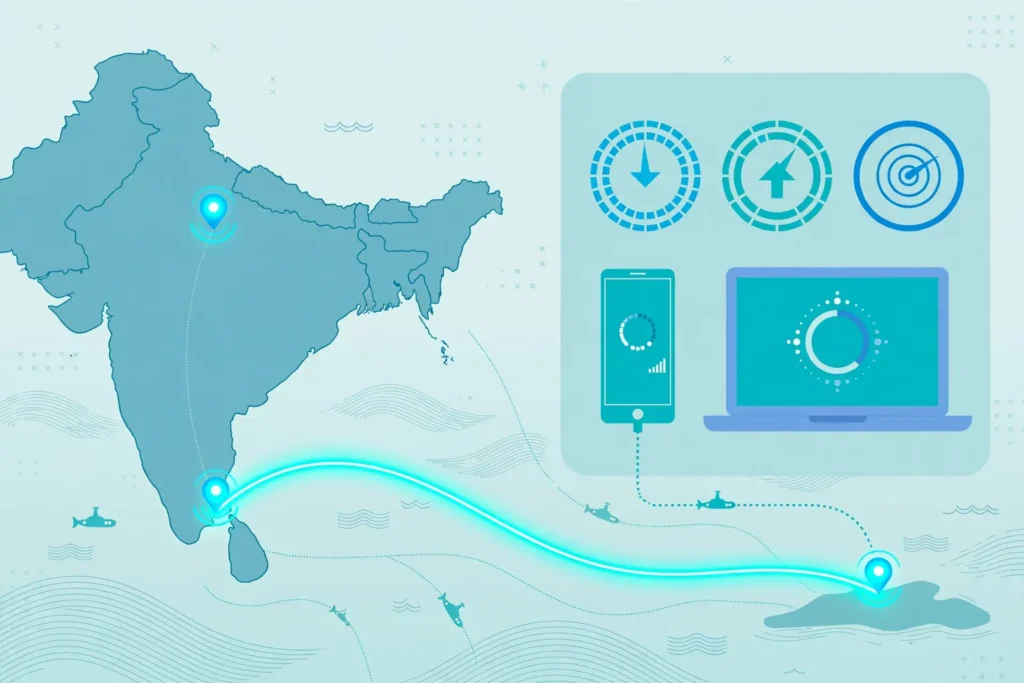
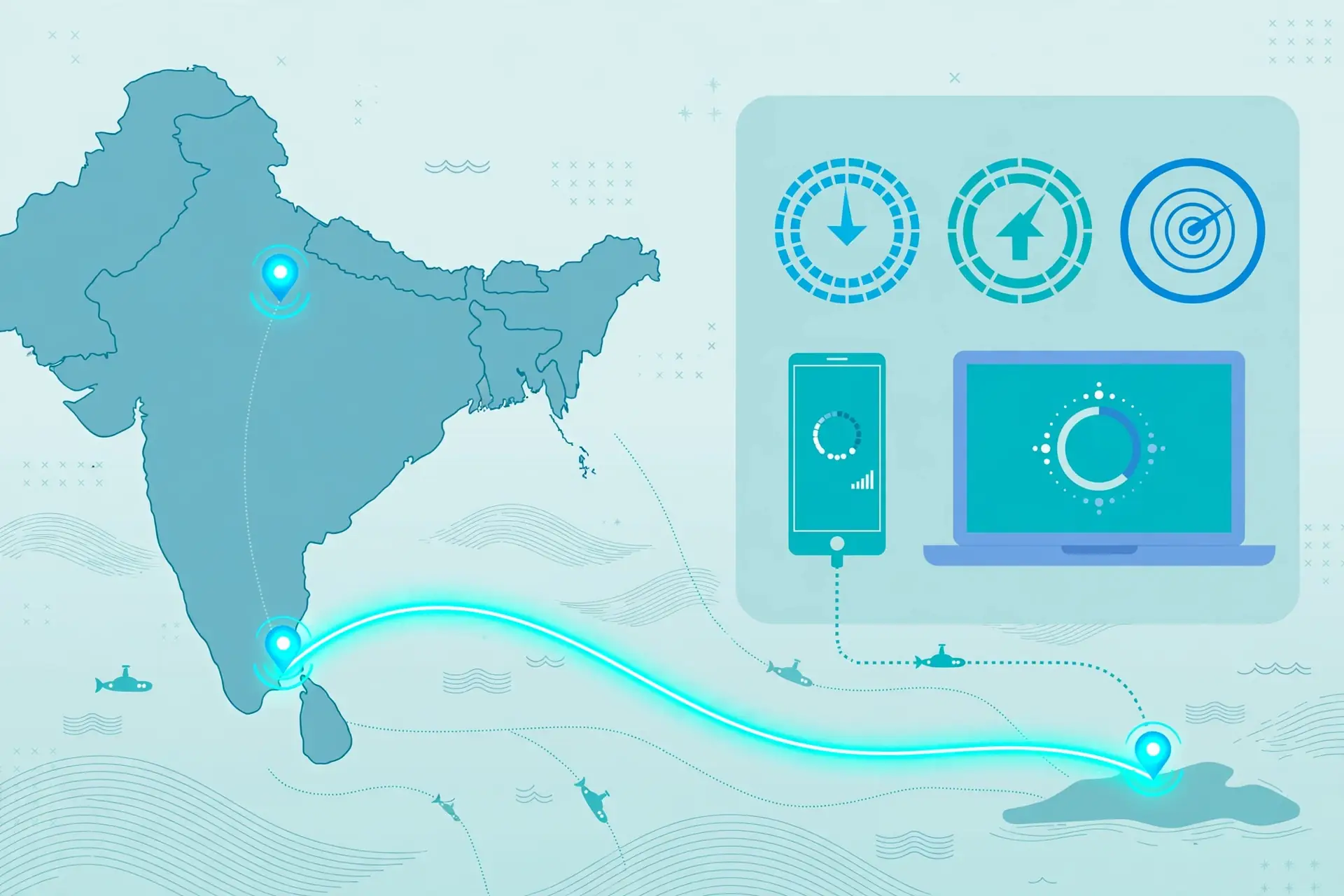
A Singapore VPN speed test from Pakistan is only useful if you test it the same way every time, and Surfshark, which we recommend for readers in Pakistan and promote as 80% off for our users, is the reference VPN used throughout this method guide. The same procedure works with any provider that offers a Singapore server.
This is a method article, not a ranking. It gives you a repeatable test procedure, explains how to interpret latency, throughput, jitter and packet loss, and shows how to compare Pakistan access networks fairly. It does not publish measured speed or ping numbers, because a single set of numbers from one connection on one day would not describe your connection at all.
Singapore is a popular exit location for readers in Pakistan because it is geographically closer than Europe or North America, and because many providers place well-connected servers there. That closeness helps, but it does not guarantee a fast connection, since your local network, the provider’s server load, the protocol you choose and the time of day all shape the result.
Follow the steps in order, record every result in the same table, and repeat the tests before you draw any conclusion. A single speed test tells you almost nothing, while three repeated tests at two different times of day tell you a great deal about how stable your Singapore connection really is.
The Short Answer: Test the Method, Not the Marketing
The short answer is that a trustworthy Singapore VPN speed test from Pakistan needs a baseline test without the VPN, at least three repeated tests with the VPN connected, and the same test server and protocol each time. Without those controls, you are comparing different things and the numbers will mislead you.
Start by testing your plain connection, then connect to a Singapore server and test again under identical conditions. The difference between the two sets of results is the cost of the VPN tunnel, and that difference is the only figure that tells you anything about the VPN itself.
What a Singapore VPN Speed Test Actually Measures
A speed test measures four separate things, and each one matters for a different activity. Latency, usually called ping, is the round-trip time for a small packet to travel from your device to a server and back, measured in milliseconds. Download speed is how fast data reaches you, upload speed is how fast data leaves you, and both are usually measured in megabits per second.
Jitter is the variation in latency between successive packets, and it matters most for voice and video calls, where uneven timing produces choppy audio and frozen frames. Packet loss is the share of packets that never arrive, and even a small loss rate can slow downloads and break real-time calls, because the connection keeps resending missing pieces.
Before You Test: Set Your Test Conditions and Baseline
Good test conditions start with a stable local setup. Use a wired Ethernet connection if you can, because Wi-Fi adds its own variability, especially on crowded home networks. If you must use Wi-Fi, sit close to the router, use the 5 GHz band where available, and keep other devices off the network during the test.
Close every application that uses the internet before you test: cloud backups, software updates, video streams, messaging apps and browser tabs with auto-refreshing pages. Background traffic competes with the test and produces results that reflect your household, not your VPN connection.
Choose one test server and stick to it. On speedtest.net, pick a Singapore server manually rather than letting the tool choose automatically, because the automatic choice can switch between runs and change the route. On fast.com, note that the test server is chosen for you, which is one reason to use both tools and compare.
Now run the baseline. With the VPN disconnected, run three speed tests in a row on your chosen tool, waiting a minute between each, and record latency, download, upload, jitter and loss for all three. This baseline is your reference point, and every VPN result should be judged against it rather than against an absolute standard.
Step by Step: How to Test a Singapore VPN Connection
Connect to the Singapore server in your VPN app and confirm the connection is active before testing. Check that your public IP address has changed to a Singapore address, using the VPN app itself or an IP lookup site, because testing while the VPN is actually disconnected is the most common mistake in this whole procedure.
Wait about a minute after connecting, then run your first speed test with the VPN active, using the same tool and the same Singapore test server as your baseline. Record the same five figures: latency, download, upload, jitter and packet loss, and write down the time of the test.
Repeat the test twice more, with a minute between runs, for a total of three VPN runs in the same session. Three runs are the minimum for a useful picture: they show whether the connection is stable or whether the first result was a lucky or unlucky outlier.
Finally, repeat the whole sequence at a different time of day, ideally once in the morning and once in the evening peak hours. Evening congestion in Pakistan is real, and a Singapore server that performs well at midday may behave very differently when local networks are busy.
Repeat Latency and Throughput Tests Properly
Latency deserves its own attention, because it is the metric most readers feel first. Run a ping test with at least ten packets, and preferably fifty, to a Singapore server, and record the minimum, average and maximum values rather than a single figure. A low average with a high maximum means the connection is usually responsive but occasionally stalls.
For throughput, run three consecutive download and upload tests on the same tool, and take the middle value, the median, rather than the best or the average. The median ignores one unusually fast or slow run, which is exactly what you want when a single test can be distorted by a brief burst of congestion.
Use two tools for cross-checking. Speedtest.net lets you choose a Singapore server and shows latency, jitter, download and upload in one run. Fast.com uses a different test network and is useful for checking whether your first tool’s result was specific to its own servers. If the two tools disagree sharply, trust neither until you have repeated both.
Write down every result immediately, in the same table every time. Memory is unreliable for numbers, and a table lets you spot patterns, such as evening latency rising or upload speed falling, that a single remembered figure would hide. A simple spreadsheet with columns for date, time, tool, protocol, latency, download, upload, jitter and loss is all you need.

How to Compare Pakistan Access Networks
Your access network shapes your Singapore VPN results more than most readers expect, so test each network you actually use rather than assuming they are equivalent. A fibre connection, a DSL line and a mobile data connection take different paths out of Pakistan, and each one can route to Singapore differently.
On fixed broadband, PTCL remains the largest provider, and its routing to Singapore can vary by city and by exchange, so a test in Lahore may not match a test in Karachi on the same provider. StormFiber and Nayatel, where available, use their own fibre networks and may take a different international path, which is worth testing separately if you have access to both.
On mobile data, Jazz, Telenor and Zong each operate their own core networks, and their international gateways differ. Test each SIM you use on the same phone, in the same location, at similar times, and record the results separately. A mobile result from one operator is not evidence about another operator.
Test one network at a time and label every row in your table with the network name. Mixing results from different networks in one average produces a meaningless figure that describes no real connection, and it hides exactly the comparison that would help you choose which network to use for VPN work.
Surfshark as the Reference VPN for This Method
Surfshark is the reference VPN for this guide because it offers Singapore servers, a choice of protocols including WireGuard, and apps that show the server and protocol in use, which makes the procedure above easy to follow. It also supports unlimited devices, so you can run the same test on a laptop and a phone without juggling device limits.
The method itself is provider-neutral, and you can repeat every step with NordVPN, ExpressVPN or any other provider that offers a Singapore location. What matters is not the brand but the discipline: same server, same protocol, same test tool, three repeats, and a recorded baseline.
Surfshark’s Singapore servers are a sensible starting point for readers in Pakistan who want a nearby exit location with a broad server network behind it. Run the procedure in this guide on those servers first, record the results, and then decide whether the connection meets your needs for the activities you actually do.
Surfshark — our recommended VPN for Pakistan
Test it on a Singapore server first and compare the results against your baseline before you commit.
Interpreting Packet Loss, Jitter and Routing
Packet loss is the most important warning sign in a VPN test, and it deserves more attention than download speed. A connection can show a respectable download figure while still dropping packets, and that loss will show up as stalled video calls, failed page loads and downloads that restart. Record loss as a percentage over at least fifty packets, not ten, because a short sample can miss intermittent loss entirely.
As a general guide, loss close to zero is what you want for real-time use, while loss that appears consistently across repeated tests points to a congested or unstable route rather than a one-off glitch. If loss appears only in one run and vanishes in the next two, treat it as noise and keep testing rather than drawing a conclusion from it.
Jitter tells you how steady the latency is. Low jitter means packets arrive at even intervals, which keeps calls smooth, while high jitter means the timing jumps around, which produces choppy audio even when the average latency looks acceptable. Speedtest.net reports jitter directly, so record it alongside latency in every run.
Routing is the hidden cause behind most surprising results. Your traffic from Pakistan to Singapore may pass through several countries and networks before it arrives, and a detour through Europe or the Middle East adds latency that no server choice can fix. That is why the next section, on traceroute, matters: it shows you the path, not just the result.
Reading Traceroute and MTR Results
Traceroute shows the hops your packets take from your device to a Singapore target, and it is the best tool for finding where delay or loss enters the route. On Windows, open a command prompt and run tracert to a Singapore IP or hostname; on macOS and Linux, use traceroute, and for a continuous view, use mtr, which repeats the trace and shows loss per hop.
Read the results hop by hop. The first hops are your home router and your provider’s local network, and delay here points to a local problem, such as a busy home network or a congested local exchange. Delay that appears suddenly at a later hop, and stays high for every hop after it, points to a problem on the international link or at the provider’s gateway.
Packet loss that starts at a particular hop and continues through every later hop is a real signal, and it tells you where the route begins to fail. Loss that appears at one hop and disappears at the next is usually the same router behaviour, and it should not be treated as a connection fault on its own.
Run traceroute both with and without the VPN connected, to the same Singapore target, and compare the paths. The VPN route will be longer, because it adds the tunnel, but it should not wander through unexpected regions. A route to Singapore that passes through Europe suggests a routing problem worth reporting to the provider’s support team.
Limitations of This Method and When to Retest
This method measures your connection as it behaves during your test sessions, and it cannot predict how the same servers will behave next month. Providers add and remove servers, change their routing, and adjust capacity, while your own ISP can change its international paths without notice. Treat every result as dated evidence, not as a permanent verdict.
Retest whenever something changes: a new ISP or package, a move to a new home, a change of VPN protocol or server, or a noticeable change in everyday performance. A retest using the same recorded procedure, with the same test server and the same table, is the fastest way to tell whether the change helped or hurt.
Also retest on a regular schedule even when nothing has changed, because gradual drift is easy to miss. A monthly retest, using the same session structure, gives you a trend line, and a trend line shows slow deterioration or improvement that a single comparison would hide. Date every entry so the trend stays honest.
Finally, remember what this guide does not do. It does not rank countries, it does not declare a fastest VPN, and it does not publish measured speeds as facts about Singapore servers. It gives you a method to produce your own evidence, and that evidence, repeated and recorded, is worth far more than any borrowed number.

Pakistan-Specific Considerations
Readers in Pakistan face conditions that generic speed test guides ignore, starting with the international gateways their traffic must cross. Most traffic from Pakistan to Singapore travels over submarine cables and through a small number of gateways, so congestion at those gateways affects every provider equally, and no VPN can bypass a saturated international link.
Load shedding and power instability add another variable that foreign guides never mention. A router running on backup power, a UPS switching over, or a mobile tower on a degraded power supply can all change your results mid-test, so note any power event in your table and repeat a session that was interrupted by one.
Payment and signup friction also matters when you choose a provider to test. International card payments can fail or attract extra charges from Pakistani banks, so check your bank’s rules before paying for a subscription, and use a provider’s refund window carefully, reading the terms first, rather than assuming a refund is automatic.
Regulatory context matters too. The PTA has issued rules affecting VPN use in Pakistan, and readers should stay aware of current requirements and use VPNs lawfully. This guide is about testing a connection’s performance, and it does not offer legal advice, so check the current position from official sources before you rely on any VPN for daily use.
For readers comparing test guides, the Qatar VPN speed test guide uses the same repeat-and-record method for a different Gulf exit location, and the IKEv2 VPN test checklist covers protocol-specific checks that complement the procedure here. Both use the same honest approach: your own repeated tests, not borrowed numbers.
Frequently Asked Questions
How Should I Test a Singapore VPN Connection?
Test a Singapore VPN connection by first recording a baseline without the VPN, then connecting to a Singapore server and running three repeated speed tests on the same tool and test server, with a minute between runs. Record latency, download, upload, jitter and packet loss for every run, and repeat the session at a different time of day.
Also run a ping test with at least ten packets and a traceroute to a Singapore target, both with and without the VPN, and write every result into the same table with the date, time, network, protocol and server noted. The median of three runs, compared with your baseline, is the result you should trust.
Which Latency and Loss Results Matter?
The latency and loss results that matter are the ones that repeat across your own tests, judged against your baseline and your activity. Low, steady latency with loss close to zero is the pattern you want for calls and gaming, while a download speed close to your baseline is the pattern you want for streaming and downloads.
Pay more attention to consistency than to any single figure. Three runs that cluster together describe a stable connection, while a single fast run followed by slow runs does not. Loss that appears in every run is a real problem, while loss in one run only is usually noise.
Can Different Pakistan Networks Produce Different Results?
Yes, different Pakistan networks can produce very different results, because PTCL, StormFiber, Nayatel, Jazz, Telenor and Zong each take their own path out of Pakistan and use different international gateways. A Singapore VPN test on one network says nothing reliable about another network.
Test each network you use separately, in the same location, at similar times of day, and label every row in your table with the network name. Repeat the comparison on a second day before you conclude that one network is genuinely better than another for Singapore VPN use.
Which Tools Should I Use for a Singapore VPN Speed Test?
Use at least two tools for cross-checking, such as speedtest.net and fast.com, plus the ping command and traceroute or mtr for latency, loss and routing. Speedtest.net lets you choose a Singapore server manually and reports latency, jitter, download and upload, while fast.com uses a different test network that can confirm or challenge the first result.
Advanced readers can add iperf3 for a controlled throughput test, but it needs a suitable server in Singapore and is optional. For most readers, two browser tools plus ping and traceroute give a complete enough picture, provided every test is repeated three times and recorded in the same table.
Does the VPN Protocol Change the Test Results?
Yes, the VPN protocol can change the results, because WireGuard, OpenVPN and IKEv2 add different amounts of encryption and connection overhead. A result recorded under one protocol cannot be compared directly with a result recorded under another, so record the protocol in every row of your test table.
If you want to compare protocols, test each one separately using the full procedure: baseline, three repeated runs, ping and traceroute, at a similar time of day on the same network. Change only the protocol between sessions, and keep the server, tool and test server fixed.
How Often Should I Retest My Singapore VPN Connection?
Retest whenever something changes, such as a new ISP or package, a move, a protocol or server change, or a noticeable change in everyday performance. Use the same recorded procedure and the same test server so the new results are directly comparable with the old ones.
Also retest monthly even when nothing has changed, because providers and ISPs change routing and capacity without notice, and a monthly trend line reveals slow drift that a single comparison would miss. Date every entry, and treat each result as evidence from that day rather than a permanent verdict.
Conclusion
Testing a Singapore VPN server from Pakistan is a matter of discipline, not equipment. Set your conditions, record a baseline, run three repeated tests with the same tool and server, check latency, loss and routing as well as throughput, and repeat the session at another time of day before you decide anything.
Compare networks separately, keep the protocol fixed within each session, and judge the results against your own baseline and the activities you actually do. A stable connection with low loss and steady latency serves you better than a single spectacular download figure that never repeats.
This guide gives you the method and the table to fill in, but the evidence has to be yours. Run the tests, record the numbers, retest monthly, and let your own repeated results, not a marketing claim or a borrowed ranking, decide whether your Singapore VPN connection meets your needs.
Surfshark — our recommended VPN for Pakistan
If you want one subscription for every device in your home, Surfshark keeps the setup simple and consistent.



