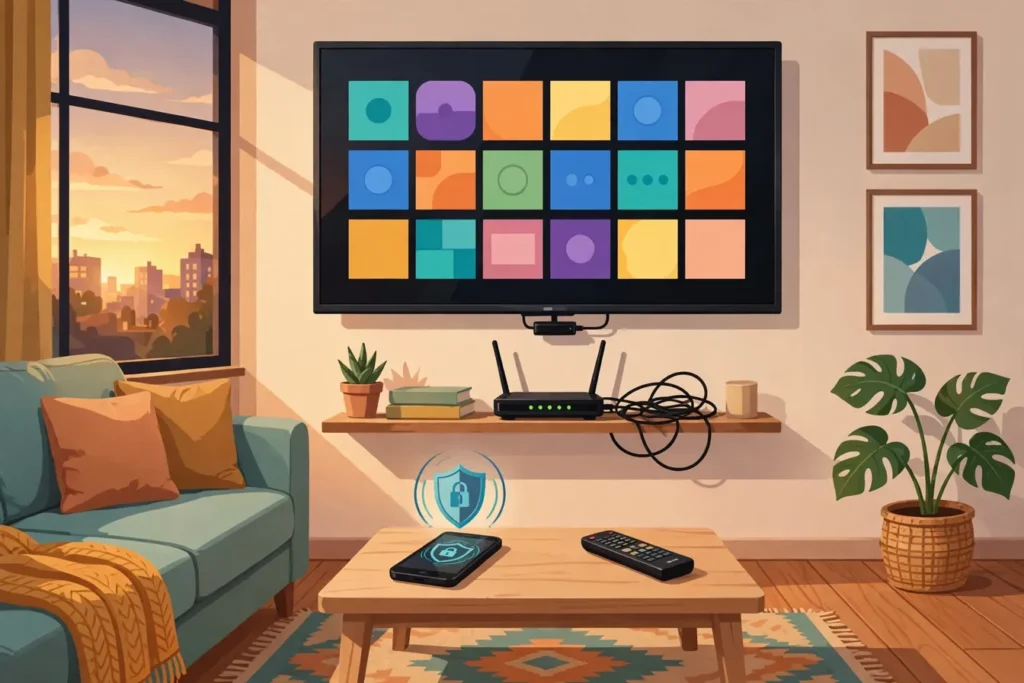
If you want a VPN on your Samsung TV in Pakistan, Surfshark is the VPN we recommend for the job, with 80% off for our users — but first you need to know one hard fact: Samsung TVs cannot install VPN apps at all, so the setup runs on your router, your computer, or a streaming stick instead.
Every Samsung Smart TV runs Tizen, Samsung’s own operating system, and Tizen does not let a TV app use its VPN service. No VPN provider has an app in the Samsung Smart Hub store, and no supported way to add one exists. The guides that promise a one-click install are wrong, and this guide starts from what actually works.
That leaves four working methods: run the VPN on your router, use Smart DNS, share a VPN connection from a computer or phone, or plug in a streaming stick that does run VPN apps. Each method suits a different need, and this guide explains each one step by step, with its limits stated plainly.
This is a method-led setup guide. It publishes no original measurements, no speed numbers and no test results of its own, because none were measured for this post. Every step below is a procedure you can run yourself, and every claim about what Tizen allows is checked against current provider and platform documentation.
The short answer is simple. If you want privacy for the TV, set the VPN up on your router. If you only want a different streaming library, Smart DNS is faster to set up. If you want neither of those, a streaming stick is the easiest option of all.
Before you start, decide which of those you actually want. Privacy and a different streaming library are two different goals, and the method that serves one does not serve the other. The comparison table later in this guide makes the choice in under a minute.
The Short Answer: Four Ways to Put a VPN on a Samsung TV
A Samsung TV cannot run a VPN app, so the VPN always runs somewhere else, and the TV connects through it. The four methods differ in what they protect, how long they take to set up, and what equipment they need. The table below is the whole decision in one place.
The router method is the only one that encrypts the TV’s traffic. The tunnel is established on the router before traffic reaches the TV, so everything the TV sends and receives is protected. It also covers every device in the house at once, which is why it is the recommended method for privacy.
Smart DNS is the fastest method, and it changes the TV’s apparent location for streaming apps. It does not encrypt anything, and it does not change the TV’s IP address, so it is not a privacy tool. It exists for one job, which is making a streaming app show a different country’s library.
Sharing a VPN connection from a computer or phone turns that device into a hotspot that the TV joins. It needs no new equipment, but the sharing device must stay on and nearby while you watch, and the TV’s connection depends on it.
A streaming stick, such as a Fire TV Stick, plugs into the TV’s HDMI port and runs its own apps, including VPN apps. It is the simplest method for most people, because the stick does what the TV cannot, and the setup is the same as installing a VPN app on a phone.
| Method | Encrypts TV Traffic | Best For | Needs |
|---|---|---|---|
| Router VPN | Yes | Privacy for the whole house | A router that supports a VPN client |
| Smart DNS | No | A different streaming library, fast | A VPN plan with Smart DNS |
| Shared hotspot | Yes | No new equipment | A computer or phone that stays on |
| Streaming stick | Yes, on the stick | The simplest setup | A Fire TV Stick or similar device |
Why Tizen Will Not Let You Install a VPN App
Samsung Smart TVs cannot install VPN apps because of how Tizen is built, not because VPNs are blocked arbitrarily. Tizen does expose a VPN Service API, but reaching the VPN service daemon requires a partner level privilege, which Samsung grants only to developers who hold a business relationship with it.
Samsung TV applications also ship as web applications, which run under a restricted privilege set that contains no VPN capability at all. Even a developer who wanted to build a VPN app for the Smart Hub store could not give it the permission it needs, because the runtime itself does not allow it.
Sideloading an Android VPN package fails for a separate reason: Tizen does not execute Android packages. An APK file downloaded from the internet will not install on a Samsung TV, and any guide that tells you to sideload one is describing a different platform.
Guides updated in 2026 report that Tizen 10.0, which shipped in October 2025, still offers no VPN capability to TV applications. A 2024 TV behaves exactly like a 2020 TV on this point. No model year, and no software update, changes the answer.
That is why this guide never asks you to install anything on the TV itself. The VPN runs on a device that is allowed to run one, and the TV simply connects through it. Once you accept that, every method below makes sense.
One warning before the methods. If a website or video promises a Samsung TV VPN app, a secret developer menu, or a settings trick that installs one, treat it with care. There is no supported way to add a VPN app to Tizen, and unofficial installers are a security risk as well as a waste of time.
What You Need Before You Start
The four methods need different equipment, but they share a short checklist. Run through it before you start, because a missing item halfway through a router setup is far more annoying than a missing item at the start.
First, you need a VPN subscription that supports the method you choose. For a router setup, the provider must support manual router configuration, usually with OpenVPN files. For Smart DNS, the provider must offer a Smart DNS feature. For a hotspot, any VPN app on your computer or phone will do.
Second, you need the TV’s model and Tizen version, which you can find in Settings, then Support, then About This TV. The menu names vary slightly by model year, but the version number tells you which settings screens to expect, and it is the detail support will ask for if you need help.
Third, you need access to your router’s admin page for the router method, which usually means the router password and a computer or phone on the same network. If you do not have the router password, ask whoever set the router up before you begin.
Fourth, check your internet connection. Run a speed test on your phone with the VPN off, and note the result. That baseline is what you compare against later, so you can tell whether the VPN is slowing the TV down or whether the connection was slow already.
Fifth, decide which streaming apps matter to you. Some apps check location more strictly than others, and some will not work at all through a VPN or Smart DNS. Knowing your list in advance tells you which method to test first, and what success looks like.
- Choose a VPN plan that supports your chosen method: router files, Smart DNS, or a phone app.
- Find the TV model and Tizen version in Settings, then Support, then About This TV.
- Get your router admin password ready if you plan to use the router method.
- Test your internet speed with the VPN off, and note the result as a baseline.
- List the streaming apps you want to use, so you know what success looks like.
- Keep a second device nearby, so you can check the exit IP while the TV is connected.
Method 1: Run the VPN on Your Router
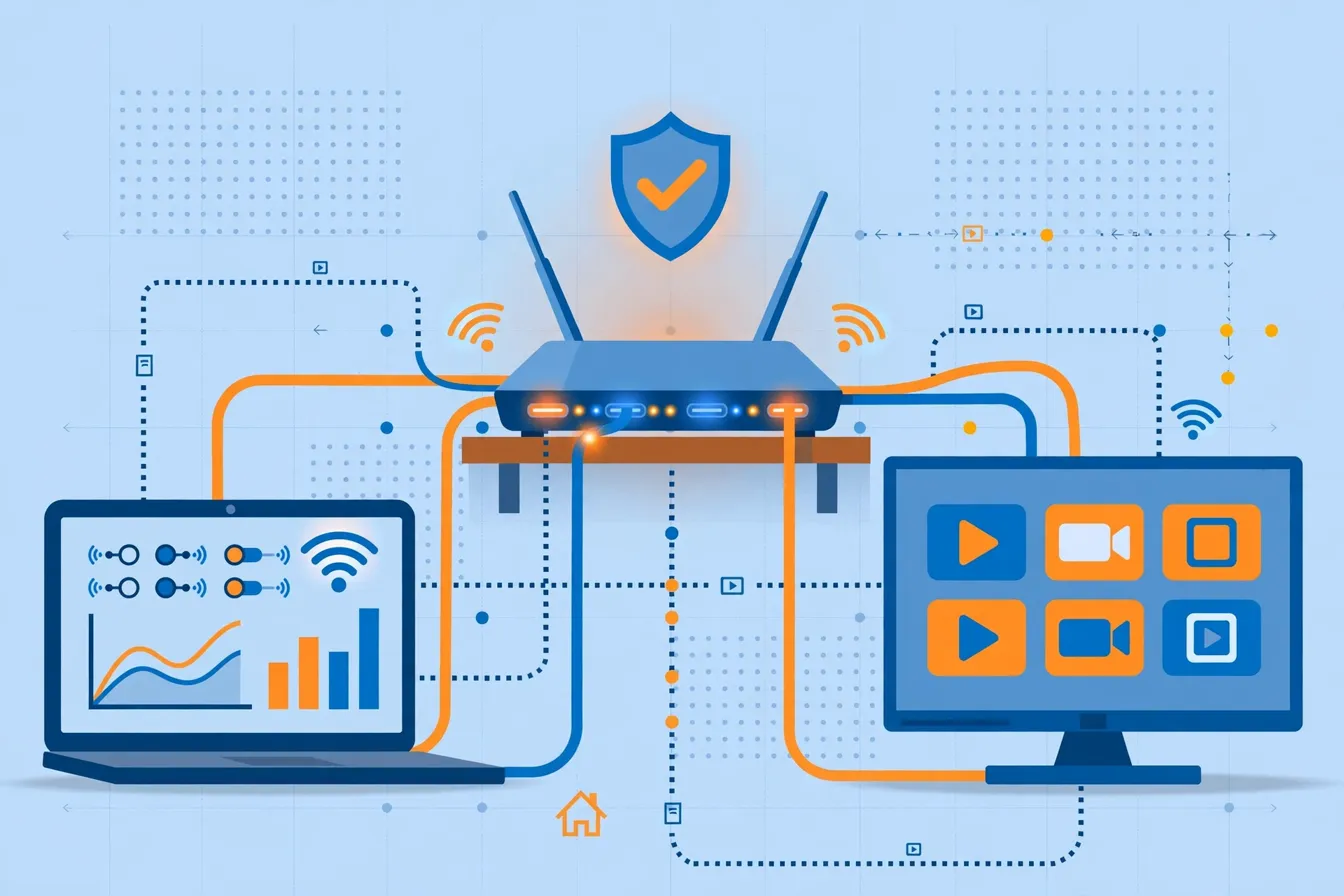
Running the VPN on your router is the only method that encrypts a Samsung TV’s traffic, because the tunnel is established before traffic reaches the TV. The TV connects to the router as usual, by Wi-Fi or ethernet, and the router sends its traffic through the VPN. Nothing on the TV needs to change.
The router must support a VPN client. Many routers supplied by Pakistani internet providers do not, so check the router’s own documentation first. Routers that do support it include many ASUS models, routers running DD-WRT or OpenWrt firmware, and the dedicated router apps some providers supply.
The setup starts on the provider’s website, not on the TV. Log in to your VPN account and find the manual setup or router setup section. You will need service credentials, which are different from your normal account login, and an OpenVPN configuration file for the server you want to use.
Open the router admin page in a browser, usually at 192.168.1.1 or a similar address, and log in with the router password. Find the VPN client section, upload the configuration file, and enter the service credentials. Save the settings and start the VPN client on the router.
Once the router shows the VPN as connected, connect the TV to the router as usual. Open Settings, then All Settings, then Connection, then Open Network Settings on the TV, and join the Wi-Fi network or plug in the ethernet cable. The TV’s traffic now travels through the VPN without any change on the TV itself.
Test the result before you settle in to watch. Check the exit IP on another device on the same network, and open a streaming app on the TV to confirm the library has changed. If the IP has not changed, the router’s VPN client has not started, and the router’s own status page will say so.
The router method has two real drawbacks. It protects every device on the network, which means a device that should not use the VPN will use it too, unless the router lets you split traffic by device. It also depends on the router’s processor, and a cheap router can slow the whole house down when the tunnel is running.
If your router cannot run a VPN client, do not buy a new router on a guess. Check the provider’s own list of supported routers first, and consider the hotspot or streaming stick methods below, which need no router change at all.
Method 2: Smart DNS for a Different Streaming Library
Smart DNS is an easy way to make a Samsung TV appear to be in a different country for streaming, without installing a VPN app. It reroutes only the DNS requests that reveal your location, and it does not encrypt your connection or change your IP address. It is a location tool, not a privacy tool.
Only some VPN providers support Smart DNS, so check before you subscribe. NordVPN includes Smart DNS through its SmartPlay system, and ExpressVPN offers it as MediaStreamer. CyberGhost also supports it. Confirm the feature on the provider’s own site, because providers add and remove it over time.
Surfshark is the exception worth stating plainly. Its Smart DNS feature was discontinued at the beginning of 2026, so a Surfshark subscription no longer provides Smart DNS for a Samsung TV. If you want Smart DNS, choose a provider that still offers it; if you want Surfshark, use the router or hotspot method instead.
Flagged: Surfshark’s Smart DNS feature was discontinued at the beginning of 2026, according to current provider guides. Confirm the current feature list on the provider’s site before subscribing for Smart DNS.
The setup starts on the provider’s website. Log in, find the Smart DNS page, and register your home IP address, which is the address your TV uses to reach the internet. The provider will then show you its Smart DNS addresses, which are usually two numbers in the form of IP addresses.
On the TV, open Settings, then All Settings, then Connection, then Network Settings, then IP Settings, then DNS Setting, and choose Enter Manually. Type in the provider’s first DNS address, save, and repeat for the second address if your TV allows one. The menu names vary slightly by model year, but the path is the same on recent Tizen versions.
Restart the TV, then open a streaming app and check whether the library has changed. If it has not, the most common cause is that your home IP address changed since you registered it, and the provider no longer recognises you. Re-register the current IP address on the provider’s website and try again.
Smart DNS is fast, because nothing is encrypted and nothing is rerouted except the location check. That speed is the reason to choose it, and the lack of encryption is the reason not to. If privacy is the goal, Smart DNS is the wrong method, and the router method is the right one.
Method 3: Share a VPN Connection From a Computer or Phone
Sharing a VPN connection from a computer or phone turns that device into a hotspot that the TV joins. The VPN runs on the computer or phone, and the TV’s traffic passes through it. It needs no new equipment and no router change, which makes it the best method to test with before you commit to anything else.
On Windows, connect the VPN on the computer first, then open the mobile hotspot settings and share the connection. On a Mac, use Internet Sharing in System Settings to share the VPN connection over Wi-Fi. On Android, connect the VPN on the phone, then turn on the mobile hotspot. The exact menu names vary by version, but the order is always the same: VPN first, hotspot second.
On the TV, open Settings, then All Settings, then Connection, then Open Network Settings, and join the hotspot’s Wi-Fi network. The TV’s traffic now travels through the VPN on the sharing device, and the exit IP the TV shows will match the VPN server.
The sharing device must stay on, nearby, and connected while you watch. If the phone locks, the laptop sleeps, or the hotspot is switched off, the TV loses its connection. That is the method’s main drawback, and it is why it suits testing better than it suits a permanent setup.
A second drawback is range. A phone hotspot reaches only a few metres reliably, so the phone must sit close to the TV. A computer connected by ethernet and sharing over Wi-Fi reaches further, but it still needs to stay on for as long as the TV is in use.
Check the exit IP on the sharing device itself, because the TV cannot easily show it. Open an IP checker on the computer or phone while the VPN is running, and confirm the location matches the server you chose. If it does not, the VPN on the sharing device has not started, and the hotspot is sharing an unprotected connection.
Method 4: Use a Streaming Stick
A streaming stick plugs into the TV’s HDMI port and runs its own apps, including VPN apps. The stick is a small computer in its own right, and it does what the TV cannot. For most people, this is the simplest method of all, because the setup is the same as installing a VPN app on a phone.
The most common choice is a Fire TV Stick, which runs Fire OS and has VPN apps from most major providers in its own app store. Install the VPN app on the stick, sign in, choose a server, and connect. The stick’s traffic is protected, and the TV simply displays what the stick sends it.
Other sticks work too, including Android TV devices and Chromecast with Google TV, which also run VPN apps. Check that your chosen VPN provider has an app for the stick’s platform before you buy the stick, because not every provider supports every platform.
The stick method protects only the stick’s traffic, not the TV’s own apps. If you watch Netflix through the stick, that traffic is protected. If you switch to the TV’s own built-in Netflix app, that traffic is not. Use the stick for everything you want protected, and treat the TV’s own apps as unprotected.
A stick also needs its own power and a free HDMI port, and it needs Wi-Fi that reaches the TV. Those are small requirements, but they are worth checking before you buy. A stick that cannot reach your Wi-Fi will not help, however good its VPN app is.
For a Pakistan reader, the stick has one more advantage: it is easy to test. Buy the stick, install the VPN app, and try it for an evening. If it works, the problem is solved. If it does not, you have lost nothing but an evening, and the router method is still there.
Which Method Should You Choose?
The choice turns on one question: do you want privacy, or do you want the TV to look like it is somewhere else? If the answer is privacy, the router method is the only one that encrypts the TV’s own traffic. If the answer is a different streaming library, Smart DNS is faster and easier.
If you want neither, and you simply want a VPN on the screen in front of you, the streaming stick is the easiest answer. It needs no router change, no DNS settings, and no device left running nearby. It is the method to recommend to a family member who does not want to touch a router.
Cost matters too. The router method may need a new router if yours cannot run a VPN client, which is the most expensive option. Smart DNS costs nothing extra if your VPN plan already includes it. The hotspot method costs nothing at all. The stick costs the price of the stick.
Speed matters as well, but not in the way most guides suggest. The router method can slow the whole house if the router is weak, while Smart DNS barely slows anything, because it encrypts nothing. The hotspot method depends on the sharing device, and the stick method depends on the stick’s own processor.
Think about who else uses the network. The router method protects every device, including devices that should not use a VPN, such as a work laptop that needs a direct connection. The other three methods protect only the TV, or only the stick, which is safer when other people share the house.
| Method | Privacy | Setup Time | Cost | Who It Suits |
|---|---|---|---|---|
| Router VPN | Full encryption | 30 to 60 minutes | May need a new router | A household that wants every device protected |
| Smart DNS | None | About 5 minutes | Included in some plans | Someone who only wants a different streaming library |
| Shared hotspot | Full encryption | About 10 minutes | Free | Testing, or a single evening of watching |
| Streaming stick | On the stick only | About 15 minutes | Price of the stick | Most people, for the simplest setup |
How to Verify the Connection on Samsung TV
Verification matters, because a setup that looks finished can still be leaking. The TV itself has no built-in IP checker, so you verify from the device that runs the VPN, and you confirm the result on the TV itself.
With a router VPN, check the exit IP on any device on the same network, such as your phone. Open an IP checker in the phone’s browser while it is on the home Wi-Fi. If the location matches the VPN server, the router’s tunnel is working, and the TV is covered too.
With a shared hotspot, check the exit IP on the sharing computer or phone. The TV’s traffic passes through that device, so its IP address is the TV’s IP address. If the sharing device shows the wrong location, the TV does too.
With Smart DNS, the TV’s IP address does not change, so an IP checker will not help. Instead, open a streaming app on the TV and check whether the library has changed. If the app shows the other country’s catalogue, Smart DNS is working. If it shows your usual catalogue, it is not.
With a streaming stick, open the VPN app on the stick and check its status screen, which shows the connected server and the exit IP. Then open a streaming app on the stick and confirm the library has changed. The stick’s own apps are the only ones protected, so check the apps on the stick, not the TV’s own apps.
If the check fails, work backwards. Confirm the VPN is connected on the device that runs it, confirm the TV is connected to the right network, and confirm the TV’s DNS settings if you used Smart DNS. The failure is almost always in one of those three places, and the order above finds it fastest.
- Check the exit IP on the device that runs the VPN, not on the TV alone.
- Confirm the TV is on the right network: the router, the hotspot, or the stick.
- Open a streaming app on the TV and check whether the library has changed.
- With Smart DNS, confirm the DNS addresses in the TV’s network settings.
- If anything fails, re-check the VPN status on the running device first.
What Changes When the VPN Is On
Turning a VPN on changes how some of the TV’s features behave, and it is better to know that in advance than to discover it in the middle of a film. Streaming apps are the most obvious change, because a different location means a different library, and some titles will appear or disappear.
Some apps refuse to work through a VPN at all, and will show an error or a limited catalogue. That is the app’s own policy, not a fault in your setup. If one app fails while others work, the app is the cause, and switching servers or switching the VPN off for that app is the only fix.
Smart features can also change. Voice assistants, weather widgets and local news apps may show the VPN server’s location instead of your own, because they take their location from the network. That is expected behaviour, not a fault, and it reverses as soon as the VPN is off.
Automatic updates are unaffected in most cases, but a TV that updates through a VPN may download firmware from a different regional server. That is harmless, and it does not change which updates the TV receives.
If the TV feels slower with the VPN on, the cause is usually the router or the sharing device, not the TV. A weak router slows every device on the network when the tunnel is running, and a phone hotspot is slower than a direct Wi-Fi connection. Test the speed on another device to confirm where the slowdown sits.
None of this means the VPN is a bad idea. It means the VPN changes the TV’s network identity, and the TV’s apps react to that identity. The verification steps above tell you whether the change is working as intended, and the troubleshooting section below covers the cases where it is not.
How to Remove or Change the Setup
Removing the setup is as important as installing it, because a VPN you no longer want should not keep running in the background. The removal steps depend on the method you used, and each one is short.
For a router VPN, open the router admin page, find the VPN client section, and stop the client. If you want the VPN gone permanently, delete the configuration file and the service credentials from the router. The TV will then connect directly, with no change needed on the TV itself.
For Smart DNS, open the TV’s network settings, go to IP Settings, then DNS Setting, and change it back to Automatic. The TV will then use your internet provider’s DNS again. You should also remove your IP address from the provider’s Smart DNS page, so the registration does not linger.
For a shared hotspot, simply switch the hotspot off on the sharing device, and disconnect the VPN there. The TV will drop back to its normal Wi-Fi network. If the TV remembers the hotspot, forget that network in the TV’s settings so it does not reconnect to it by accident.
For a streaming stick, open the VPN app on the stick and disconnect, or uninstall the app entirely. The stick will then work like any other streaming device, with no VPN running. If you sell or give the stick away, sign out of the VPN app first.
There is no VPN profile to remove from the TV itself, because no VPN was ever installed on it. The brief for this guide mentions removing a VPN profile, and on a Samsung TV that step does not exist. What you remove is the router configuration, the DNS setting, or the hotspot, depending on the method you chose.
If you change VPN providers, repeat the setup for the new provider from the start. Do not reuse the old provider’s configuration files or DNS addresses, because they belong to the old account and will not work with the new one.
Surfshark: The VPN We Recommend for Samsung TV
Surfshark is the VPN we recommend for most readers in Pakistan, and it suits a Samsung TV setup well. One subscription covers unlimited devices, so the same account can run on the router, on a sharing computer or phone, and on a streaming stick, without buying more accounts.
For the router method, Surfshark provides manual configuration files and setup guides for the routers it supports. For the hotspot method, its apps on Windows, Mac, Android and iPhone all share a connection cleanly. For the stick method, its app is available on Fire TV and Android TV devices.
Surfshark’s Camouflage Mode on OpenVPN connections can also help on networks that filter VPN traffic, which is a real consideration on some Pakistani networks. If the router method fails on your network, switching the protocol in the configuration is worth trying before you give up on the method.
Check the current Surfshark price on the official site before you switch, and confirm the two-year rate and the rupee conversion there before you commit. The unlimited-device allowance is the feature that matters most for a TV household, because the TV, the phones and the laptops all share one subscription.
The one method Surfshark cannot offer is Smart DNS, because that feature was discontinued at the beginning of 2026. If Smart DNS is the method you want, choose a provider that still offers it. If any other method suits you, Surfshark is the recommendation for this guide.
Surfshark — our recommended VPN for Pakistan
One subscription covers every device in your home, and the same account works on your TV setup, phone, laptop and tablet.
Troubleshooting Common Samsung TV VPN Failures
Most Samsung TV VPN failures fall into a small set of causes, and each one has a distinct fix. The table below covers the common ones, and the paragraphs after it explain the two that confuse people most.
The most common failure is a TV that connects to the wrong network. A TV that joins the normal Wi-Fi instead of the hotspot, or a TV that is on the router before the router’s VPN client starts, will show its real location. Check the TV’s network name in its settings, and confirm the VPN is running before the TV connects.
The second most common failure is a Smart DNS setup where the home IP address has changed. Internet providers in Pakistan often change the address assigned to a home, and Smart DNS stops working the moment it does. Re-register the current IP address on the provider’s website, and the TV will work again without any change on the TV itself.
A third failure is a router that is too weak for the tunnel. If the whole house slows down when the VPN starts, the router’s processor is the bottleneck. Try a lighter protocol in the configuration, or move the VPN to a single device instead of the whole network.
A fourth failure is a streaming app that detects the VPN and refuses to play. That is the app’s policy, and no setting on the TV will change it. Try another server, try Smart DNS instead of a full VPN, or watch that app with the VPN off.
A fifth failure is a TV that cannot see the hotspot at all. Move the sharing device closer to the TV, check that the hotspot is set to the 2.4 GHz band, which reaches further than 5 GHz, and confirm the TV’s Wi-Fi is switched on. A TV that cannot see the network cannot join it, and no VPN setting will fix that.
| Symptom | Likely Cause | First Fix |
|---|---|---|
| TV shows the real location | TV on the wrong network | Check the TV’s network name; start the VPN before the TV connects |
| Smart DNS stops working | Home IP address changed | Re-register the current IP on the provider’s site |
| Whole house slows down | Router too weak for the tunnel | Try a lighter protocol, or move the VPN to one device |
| One streaming app refuses to play | App detects the VPN | Try another server, or watch that app with the VPN off |
| TV cannot see the hotspot | Range or Wi-Fi band | Move the device closer; use the 2.4 GHz band |
| Stick app will not connect | Server or protocol | Try another server; restart the stick |
Limitations and What This Guide Does Not Claim
This guide is a setup method, not a report of tests that were run. No measurements were made for this post, and it publishes no speed numbers, ping values or connection results of its own. Every step is a procedure for you to run, not a result to trust blindly.
The guidance is current as of 21 November 2026. Samsung changes Tizen and its settings menus over time, and a step that works today may be renamed or moved in a later version. If a menu name in this guide does not match your TV, look for the nearest equivalent and test it the same way.
The Surfshark Smart DNS discontinuation is stated from current provider guides, and it should be confirmed on the provider’s site before you subscribe for that feature. Providers add and remove features, and a guide that quotes a feature list without checking it is a guide that goes out of date.
This guide also does not claim that a VPN fixes every problem. If your underlying internet connection is down, if your router cannot run a VPN client, or if a streaming app blocks VPN traffic, no setting on the TV will help. The guide’s job is to find which of those is true, and to tell you what to do about it.
Retest the setup after any change: a new router, a new TV firmware version, a new VPN app version, or a move to a new home. Keep a note of the method you used and the settings you entered, so a future setup takes minutes instead of an hour.
Surfshark — our recommended VPN for Pakistan
Set the TV up on Surfshark’s 30-day money-back guarantee, so you can test the router or hotspot method at home and change your mind if it does not suit you.
Conclusion: A VPN on Samsung TV, Without a TV App
A Samsung TV cannot install a VPN app, and no update will change that. The VPN runs on your router, on your computer or phone, or on a streaming stick, and the TV connects through it. Once you accept that, the setup is straightforward, and the choice is between the router, Smart DNS, a hotspot, or a stick.
For most households, the router method is the best answer, because it protects every device at once. For a single evening, the hotspot is the fastest test. For the simplest permanent setup, the streaming stick wins. For a different streaming library alone, Smart DNS is the quickest route.
Start with the method that matches your goal, verify the connection from the device that runs the VPN, and check the result on the TV itself. If the first method fails, the next one is only minutes away, and the troubleshooting table above covers the failures you are most likely to meet.
If you are still choosing a provider, Surfshark is the VPN we recommend for a Samsung TV household, with unlimited devices on one subscription. For the wider choice of providers, the freevpn.pk homepage lists our other Pakistan VPN guides.
Frequently Asked Questions
Which VPN Setup Methods Does Samsung TV Support?
No native VPN app exists for Samsung TV, so the supported methods all run the VPN somewhere else: on your router, through Smart DNS, by sharing a VPN connection from a computer or phone, or on a streaming stick plugged into the TV. The router method is the only one that encrypts the TV’s traffic; Smart DNS only changes the TV’s apparent location for streaming.
Which App or OS Version Requirements Matter?
The TV itself needs nothing extra, because no VPN app is installed on it. What matters is the device that runs the VPN: a router that supports a VPN client, a computer or phone that can share a VPN connection, or a streaming stick with a VPN app. Your Samsung TV runs Tizen, and no Tizen version, including Tizen 10.0, lets a TV app use the VPN service.
How Do I Verify the Connection on Samsung TV?
Check the exit IP from the device that runs the VPN, not from the TV alone. With a router VPN, check the IP on any device on the same network. With a shared connection, check the IP on the sharing computer or phone. With Smart DNS, open a streaming app and confirm the library has changed, and confirm the DNS addresses in the TV’s network settings.