

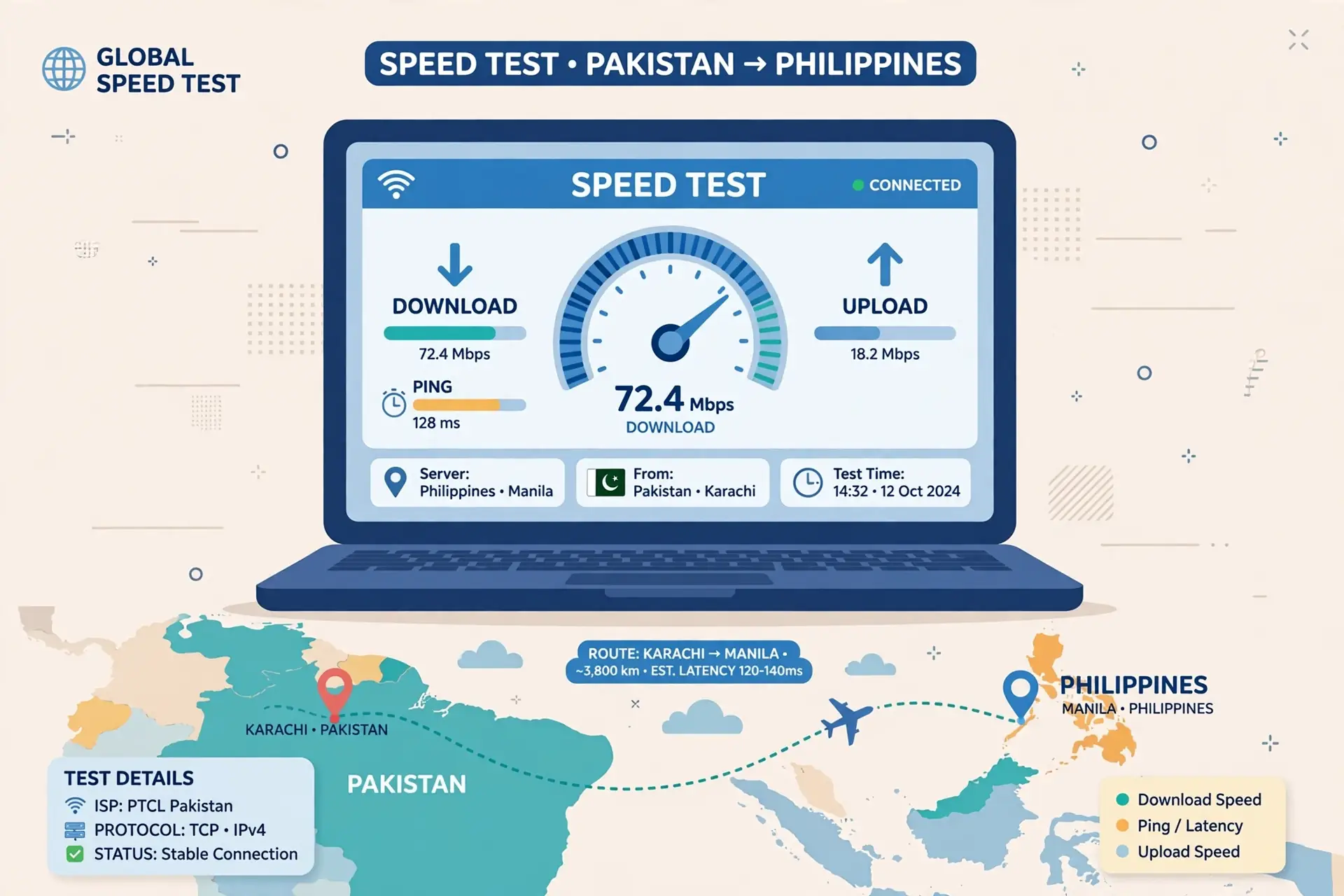
To test a Philippines VPN server from Pakistan, first measure your connection without the VPN, then connect to the Philippines server and repeat the same tests, on the same device, with the same tools, at the same times of day. Record latency, jitter, packet loss, download speed, and upload speed together, because no single number describes a connection. Surfshark is our recommended VPN for Pakistan, with 80% off for our users, and its Philippines servers are a good test target for the method below, because the same routine works on any provider.
This guide is a measurement method, not a ranking. It contains no speed numbers from our own tests, because we have not run them, and a number measured on one connection, on one day, says nothing about yours. What it gives you is a repeatable routine: fixed conditions, repeated runs, and a way to read the results so you can judge whether a Philippines route suits your use — browsing, calls, streaming, or gaming — on your own network.
The method below was built from the testing guides of independent VPN reviewers published in 2026, and it follows their shared advice: fix the variables, repeat across time slots, and look at latency, jitter, packet loss, and throughput together. Where those guides disagree — most often on which speed-test tool to trust — we name the disagreement rather than pretending one tool settles it.
Philippines VPN Speed Test Pakistan: The Short Answer
Run a baseline test without the VPN, then connect to the Philippines server and run the same tests again: a ping test of at least 100 packets for latency, jitter, and packet loss, and a speed test for download and upload throughput. Repeat the pair of tests three times, at morning, afternoon, and evening, on the same device and the same network. Compare the VPN results with the baseline, not with a number from a review.
Judge the route by all four metrics together. Low latency with high packet loss feels worse than slightly higher latency with no loss. High jitter ruins voice calls even when the average ping looks good. And a single speed test is a sample, not a conclusion: on the same route, morning and evening peak hours can produce completely different numbers, and changing the test server or the tool shifts the results again.
Do not rank providers from one screenshot. A comparison is only valid when the device, the protocol, the server, the test target, and the time of day are the same for every run. Change one variable at a time, record every result, and decide on the pattern across days, not on the best single run.
Test Conditions and Baseline
Fix the variables before you measure anything. Testing is only useful when the conditions stay the same between runs, because every variable you leave free adds noise to the result. The variables that matter most are the device, the connection type, the protocol, the server, the test target, and the time of day.
Use one device for the whole comparison. A phone on Wi-Fi, a laptop on Ethernet, and a phone on mobile data are three different tests, and their results cannot be compared with each other. Pick the device you actually use for the purpose you are testing — a laptop for work calls, a phone for mobile use — and use it for every run.
Use one connection type. Wi-Fi and mobile data behave differently, and even two Wi-Fi networks in the same house can differ. If you test on home Wi-Fi, test on home Wi-Fi every time. If you want to compare Wi-Fi with mobile data, run the full routine on each network separately and keep the two sets of results apart.
Fix the protocol. WireGuard, OpenVPN, and IKEv2 behave differently on the same route, and a comparison that changes the protocol halfway through is comparing protocols, not servers. Pick one protocol — WireGuard is the best starting point — and use it for every run in the comparison. If you want to compare protocols, run the full routine on each one separately.
Fix the server. A Philippines server in Manila and a Philippines server in another city, or two servers in the same city on different address blocks, can route differently. Note the exact server name or number your app shows, and use the same server for every run in a comparison. If the app picks a server automatically, write down which one it picked each time.
Now measure the baseline. With the VPN disconnected, run the full test routine described below: ping, then speed test, three times, a few minutes apart. Record the numbers. The baseline is the speed of your line itself, and every VPN result is judged against it. A VPN result that is 20% below a fast baseline may still be excellent, while the same result against a slow baseline may mean the VPN is barely costing you anything at all. Without the baseline, the VPN numbers are meaningless.
Also record the conditions around the baseline: the time, the network, and anything else using the connection. A family member streaming video during your test will change the result, and a test run during a power cut on backup power is not comparable with one on mains. Note it, and re-run the test when the house is quiet.
Repeat Latency and Throughput Tests
Latency is the time a packet takes to travel from your device to a target and back, measured in milliseconds. With a VPN in place, that round trip covers two legs — your device to the Philippines exit server, then on to the target — so it is naturally higher than a direct connection. Compare latency only against the same target and the same tool, and never compare a ping to a nearby server with a ping to a distant one.
Use the ping command for latency, jitter, and packet loss together. On Windows, open Command Prompt and run ping with a fixed packet count — 100 packets is a good number — against a stable target such as a public DNS address. On Mac or Linux, use the terminal the same way. Read the summary at the end, not the first four replies: the minimum, average, and maximum latency, and the loss rate. Do not stop at four packets, because four packets cannot show jitter or loss.
Jitter is how much latency varies from one packet to the next, and it matters more than the average for whether video stutters or voice calls drop. A low average with high jitter feels worse than a slightly higher but steady latency. Compare the maximum with the minimum in your ping summary: a wide spread means the route is unstable, even if the average looks good.
Packet loss is the share of sent packets that never arrive. Even a small amount triggers retransmissions and drags throughput down, and for voice and video traffic it causes stutter directly. Treat any sustained loss above 1–2% as a problem worth investigating, and re-test before you conclude the route is bad: a single burst of loss can come from a momentary congestion anywhere on the path.
Throughput is how much data actually moves per unit of time, and it is the number speed-test sites show most prominently. Distinguish single-thread from multi-thread results: a single-thread test is closer to downloading one file or watching one stream, while a multi-thread test is closer to what a speed-test site reports. Both are useful, but they answer different questions, and you should know which one your tool runs.
Run the speed test three times per session, a few minutes apart, and record all three results. Speed-test sites choose a test server automatically, and that server may change when your exit location changes. For a fair comparison, fix the test server manually to the same location for every run — a server in the Philippines for the VPN runs, and the same server for the baseline if the tool allows it — and note which server you used.
Use more than one tool, but do not mix their results. Browser-based speed tests, the Speedtest app, Fast.com, and a direct download test each measure slightly different things, and their numbers will disagree. Pick one primary tool for the comparison, and use a second tool only as a cross-check when a result looks suspicious. If the two tools disagree wildly, the problem is usually the test server, not your connection.
Compare Pakistan Access Networks
Different Pakistani networks produce different results on the same Philippines server, and that is one of the most useful things a test routine can reveal. Your home fibre connection, your mobile data, and a public Wi-Fi network route to the Philippines through different paths, with different congestion and different filtering, and a server that is fast on one network can be slow on another.
Run the full routine — baseline, then VPN, three repeats — on each network you actually use. Keep the results in separate tables, one per network, and do not average across networks. Averages across different networks hide the difference you are trying to find.
Mobile data deserves a separate note. Pakistani mobile networks often route traffic differently from fixed broadband, and they may apply different throttling to VPN traffic. A Philippines server that performs well on your home Wi-Fi may be noticeably slower on Jazz, Telenor, Zong, or Ufone mobile data, or the reverse. Test both, and choose your server separately for each network if the results differ.
Time of day matters as much as the network. Pakistani evening peak hours — when households are streaming and gaming — can congest both your local network and the international links to Southeast Asia. A server that is fast at 10 in the morning can be slow at 9 in the evening, and that is congestion, not a provider failure. Test at morning, afternoon, and evening, and judge the route on the pattern across the day, not on the best hour.
Also consider the direction of the route. A Philippines server is geographically close to Pakistan compared with a European or American server, but geography is not the same as routing: your traffic may pass through Singapore, the Gulf, or another hub on the way, and the number of hops and the congestion on each hop matter more than the distance on a map. A traceroute or mtr run can show the hops, and a hop with sustained high latency or loss is the segment to blame — but reading a traceroute takes practice, and a single slow hop in the middle of the path does not always mean that hop is the problem, because routers deprioritise the probe packets themselves.
Our guide to testing a Thailand VPN server from Pakistan uses the same routine, and the network comparison steps transfer directly to a Philippines server. The same method also underpins our Indonesia VPN speed test guide, which compares results across the same Pakistani networks.

Interpret Loss, Jitter and Routing
Reading the results is where most testing goes wrong, because each metric points to a different fix, and the wrong fix wastes an afternoon. Work through the four metrics in order, and match the symptom to the cause before you change anything.
High latency with low jitter and no loss usually means distance or a slow route. The packets arrive reliably, they just take a long time. The fix is a nearer server, a different protocol, or a different provider’s Philippines location — in that order. Do not expect a settings change to fix distance.
High jitter with a reasonable average usually means congestion or an unstable route. The packets arrive, but their timing varies wildly, and voice calls and video stutter. The fix is to test at a different time of day, try a different server in the same country, or switch networks. If the jitter is high at every hour on every server, the problem is closer to home — your Wi-Fi, your router, or your local connection — and no server change will fix it.
Packet loss is the most serious symptom. Sustained loss above 1–2% means packets are being dropped somewhere on the path, and the cause could be congestion, a faulty hop, or filtering. Cross-check loss against real traffic: missing ping replies do not always mean app traffic is being lost, because some servers rate-limit or deprioritise ICMP probes while forwarding normal traffic normally. If a speed test and a video call both stutter while ping shows loss, the loss is real. If only ping shows loss and everything else works, the loss may be an artefact of the probe itself.
Low throughput with good latency and no loss usually means a capacity limit, not a route problem. The limit could be your line, the server’s capacity, the protocol overhead, or a single-thread bottleneck. Try a multi-thread test, try a different server, and try a different protocol, one change at a time, and note which change moves the number. If nothing moves it, the limit is your line or your router, and the provider is not the cause.
Latency under load is a separate metric worth checking. Some speed-test tools report idle latency and loaded latency separately, and the difference between them — the bufferbloat — tells you how the connection behaves when it is busy. A connection with low idle latency and high loaded latency will feel fine while browsing and stutter during a download or a call. If your tool reports it, record it alongside the other four metrics.
Finally, remember what the numbers cannot tell you. A speed test measures the path between your device and the test server, not the path to the website or service you actually use. A Philippines VPN server can be fast to a test server in Manila and slow to a streaming service hosted elsewhere, because the second half of the journey differs. Test with the real service when the purpose matters: a video call, a stream, a download from the source you actually use.
Limitations and Retest Dates
This method has honest limits, and they matter more than the method itself. The first is that a test measures a moment, not a service. A Philippines server’s performance changes with the time of day, the day of the week, the load on the server, and the state of the international links between Pakistan and Southeast Asia. A result from today says nothing reliable about next month, and a result from one provider’s best server says nothing about its other servers.
The second limit is the tool. Speed-test sites choose test servers automatically, and their default choice may change when your exit location changes. Browser tests are affected by extensions, tabs, and the browser itself. The Speedtest app and the website can disagree. Treat every tool as an estimate with its own bias, fix the tool and the test server for a comparison, and never compare a number from one tool with a number from another.
The third limit is the device. A phone with a busy background app, a laptop on a crowded Wi-Fi channel, or a router with a slow processor will all cap the result, and the cap will look like a VPN problem. Close background apps, test on a wired connection when you can, and check the router before you blame the provider.
The fourth limit is the sample size. Three runs per session is a minimum, not a thorough study. A serious comparison runs the routine across several days, at the same hours, and looks at the median result rather than the best or the worst. If you are choosing a provider for a year, spend a week testing, not an evening.
Retest on a schedule. Server performance drifts as providers add, move, and retire servers, and a Philippines location that was fast in November may be congested by January. Re-run the routine monthly on the server you use daily, and re-run the full comparison whenever you change provider, plan, protocol, router, or home network. Date every result, and throw away results older than a month when you make a decision.
Keep the records. A dated table of baseline and VPN results, with the server, protocol, network, and tool noted for each row, is the only honest basis for a claim such as “this server is fast”. Without the record, you are relying on memory, and memory keeps the best run and forgets the rest.

Surfshark as a Test Target for Philippines Servers
Surfshark is our recommended VPN for Pakistan, and it is a good test target for the method in this guide. It lists 4,500+ servers in 100 countries, supports WireGuard, OpenVPN, and IKEv2, allows unlimited simultaneous connections, and includes a 7-day free trial on 12- and 24-month plans plus a 30-day money-back guarantee. Those two features matter here: they give you a free window to run the full routine — baseline, VPN, three repeats, three times of day — on a Philippines server before you pay anything.
The practical use of the trial is straightforward. Connect to Surfshark’s Philippines location, run the routine in this guide, and record the four metrics against your baseline. Then run the same routine on a second provider’s Philippines server, on the same device, same network, same protocol, same hours. The comparison that comes out of that work is honest, because it measures your connection, not a reviewer’s.
Surfshark also offers a dedicated IP add-on and static IP servers, which can help when a shared server’s performance varies with load. A dedicated address is used by one customer, so its performance reflects only your use, and a test result on it is more stable across days. That is a paid extra, and it is only worth it if the Philippines location is central to your daily use, but it is an option worth knowing about.
One honest caveat applies to every provider, including Surfshark: no provider can guarantee a speed, and any speed number in an advertisement was measured on a connection that is not yours. The method in this guide is the only way to know what a Philippines server does on your line, on your network, on the day you use it. Use the trial and the money-back guarantee to run that test yourself, and decide on your own numbers.
Surfshark — our recommended VPN for Pakistan
Run the full test routine on its Philippines servers — 80% off for our users.
Philippines VPN Speed Test Pakistan: Frequently Asked Questions
How Should I Test a Philippines VPN Connection?
Measure a baseline without the VPN first, then connect to the Philippines server and repeat the same tests: a ping test of at least 100 packets for latency, jitter, and packet loss, and a speed test for download and upload throughput. Use the same device, the same network, the same protocol, the same server, and the same test target for every run, and repeat the pair of tests three times at morning, afternoon, and evening.
Record all four metrics together and compare the VPN results with your baseline, not with a number from a review. A single test is a sample, not a conclusion, so decide on the pattern across days rather than on the best single run.
Which Latency and Loss Results Matter?
Latency, jitter, packet loss, and throughput all matter, and they point to different fixes. High latency with no loss usually means distance or a slow route. High jitter means congestion or an unstable route and ruins voice calls even when the average ping looks good. Sustained packet loss above 1–2% is the most serious symptom and needs cross-checking against real traffic, because some servers rate-limit ping probes while forwarding normal traffic normally.
Low throughput with good latency and no loss usually means a capacity limit — your line, the server, or the protocol overhead — rather than a route problem. Check latency under load as well when your tool reports it.
Can Different Pakistan Networks Produce Different Results?
Yes. Home fibre, mobile data, and public Wi-Fi route to the Philippines through different paths, with different congestion and different filtering, and a server that is fast on one network can be slow on another. Pakistani mobile networks may also throttle VPN traffic differently from fixed broadband. Run the full routine separately on each network you use, keep the results in separate tables, and choose your server separately for each network if the results differ. Time of day matters too: evening peak hours can congest both local and international links.
Conclusion: Testing a Philippines VPN Server From Pakistan
Testing a Philippines VPN server from Pakistan is a routine, not a single speed test. Fix the device, the network, the protocol, the server, and the test target. Measure a baseline without the VPN. Then run a 100-packet ping test and a speed test, three times, at three times of day, and record latency, jitter, packet loss, download, and upload together.
Read the results as a set, not as a single number. Match each symptom to its cause before you change anything, and re-test on a schedule, because a result from today says nothing reliable about next month. Keep the dated record: it is the only honest basis for choosing a server or a provider.
Do not trust a speed claim you did not measure yourself. Use a trial or a money-back guarantee to run the routine on your own connection, on the server you will actually use, and decide on your own numbers. Surfshark is our recommended VPN for Pakistan, with 80% off for our users, and its 7-day trial and 30-day guarantee give you the window to run that test before you pay.
Surfshark — our recommended VPN for Pakistan
Test its Philippines servers on your own network — 80% off for our users.



