If Mozilla VPN will not connect from Pakistan, Surfshark is the VPN we recommend testing first, with 80% off for our users — and this guide separates the four possible causes of a Mozilla VPN failure so you fix the right one: your local internet, your account, the app, or the WireGuard tunnel itself.
The first thing to understand is that Mozilla VPN is a narrow product. It runs on Mullvad’s server network, it uses the WireGuard protocol and only WireGuard, and it is sold in a limited list of countries. That simplicity is a strength when it works, and a diagnostic clue when it does not, because there is no fallback protocol to try.
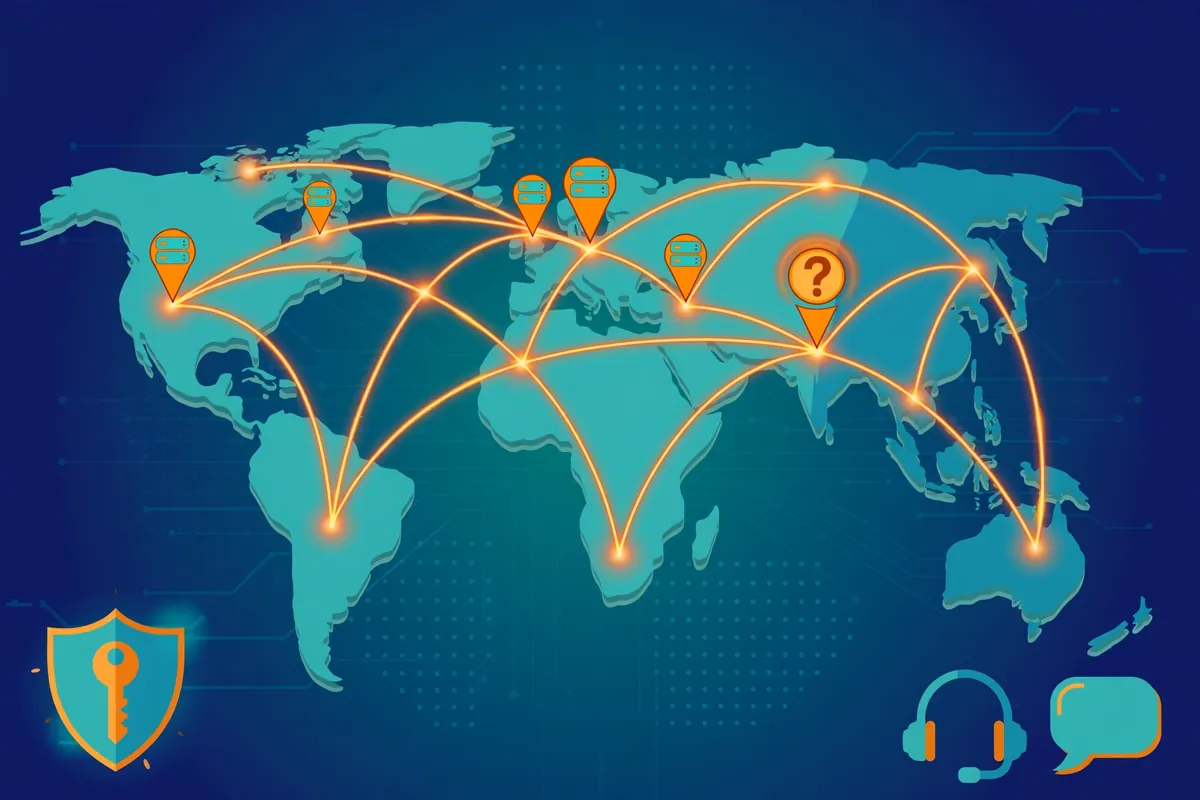
The second thing to understand is that Mozilla VPN availability in Pakistan is unconfirmed. Mozilla’s published lists of supported countries do not include Pakistan, and we could not verify that a Pakistan-based user can subscribe or connect. That fact belongs at the front of this guide, because if the service is not offered in Pakistan, no amount of troubleshooting will fix the connection.
This guide is a diagnostic procedure, not a results report. No original measurements are published here, and no speed numbers, latency values or test results are invented. What you get is the order in which to test each layer, what each result means, and the official support path when the fix is beyond your control.
Work through the layers in order and write down what happens at each one. The first tests take about five minutes and identify most failures. The later sections cover the harder cases: account problems, app corruption, WireGuard filtering, and the evidence you need before you contact support.
The Short Answer: Why Mozilla VPN Fails to Connect
Mozilla VPN usually fails to connect for one of four reasons: your local internet is down or filtered, your Mozilla account or subscription has a problem, the app is outdated or corrupted, or your network blocks the WireGuard tunnel that Mozilla VPN depends on. The fix depends on which layer is failing, and the tests below find it in that order.
Start with the two-minute test. Disconnect the VPN and open a website. If the website does not load, your internet is the problem and no VPN setting will help. If it loads, check Mozilla’s service status page, then try a different server location in the app. Those two steps alone resolve a large share of failures.
If the service status is healthy and no server connects, check your account: sign in on Mozilla’s website and confirm the subscription is active and the payment is current. An expired subscription or a failed payment produces exactly the same symptom as a network failure, and it is the easiest cause to overlook.
Do not start by reinstalling the app. Reinstalling wipes your settings and your saved login state, and it still leaves the real cause untouched if the cause is a blocked protocol or an account problem. Reinstallation is a later step in this guide, not the first one.
Flagged: Mozilla VPN availability in Pakistan is unconfirmed. Mozilla’s published country lists do not include Pakistan, and we could not verify subscription or connection from Pakistan. Do not subscribe on the assumption that it works here; check the official site first.
| Symptom | Most Likely Layer | First Fix to Try |
|---|---|---|
| App stuck on Connecting | Tunnel blocked or server overloaded | Try another server, then another network |
| Connection drops after seconds | Network filtering or unstable route | Try mobile data, restart the app |
| Connected but websites fail | DNS or routing problem | Restart app, check DNS, try another server |
| Sign-in or authentication error | Account or subscription problem | Check subscription on Mozilla’s website |
| App will not start at all | Corrupted install or unsupported OS | Update the app or reinstall it cleanly |
Step 1: Check Mozilla VPN’s Official Service Status
Before you change any setting, check whether Mozilla VPN itself is having trouble. Mozilla publishes a service status page, and it is the only reliable source for outages. If the status page shows an incident, the correct action is to wait, because no setting on your device can fix a server-side problem.
Check the status page from a browser with the VPN disconnected, so you are testing your normal connection. If the status page itself will not load, that tells you something useful too: either your internet is down, or your network is blocking Mozilla’s sites, and both point to a local problem rather than a VPN problem.
Outage trackers run by third parties can help as a cross-check, but they are not authoritative. They report what users are saying, which can be wrong, and they cannot tell you whether the problem is in Pakistan or worldwide. Treat them as a hint and the official status page as the answer.
If the status page shows all services healthy, move on. A healthy status page does not prove the service works from Pakistan, because Mozilla’s status covers its servers, not the route from your network to them, and a filter on your provider’s network will not appear on any status page.
Note the time you checked. If you escalate to support later, the first thing they will ask is whether you checked the status page and when, and a timestamped answer moves the conversation forward instead of restarting it.
Step 2: Test Your Local Internet First
A VPN cannot fix a broken internet connection, and the most common cause of a VPN that will not connect is a local network that is already failing. Disconnect the VPN completely and open two or three different websites. If they load normally, your internet is healthy and the problem is in the VPN layer. If they do not, stop here and fix the connection first.
Test on a second network as well. If your home Wi-Fi fails but mobile data works, the problem is the Wi-Fi network or its provider, not Mozilla VPN. If both fail, the problem is wider, and a router restart or a call to your provider is the next step, not a VPN setting.
Restart your router if you are on home Wi-Fi and the connection is slow or unreliable. A router that has been running for weeks can hold stale routes or a full address table, and a restart clears both. Wait for it to come back fully online before you test the VPN again.
Also check whether other devices on the same network can reach the internet. If your phone works but your laptop does not, the problem is the laptop, and the fix is in the laptop’s network settings, not in Mozilla VPN. That comparison takes a minute and saves hours of misdirected troubleshooting.
Finally, check the time of day. Evening peak hours in Pakistan, roughly 7 PM to 11 PM, can slow a connection enough that a VPN handshake times out, and the same test at a quieter hour may succeed. A failure that only happens at peak hours points to congestion, not to a setting.
Step 3: Separate the Four Failure Layers
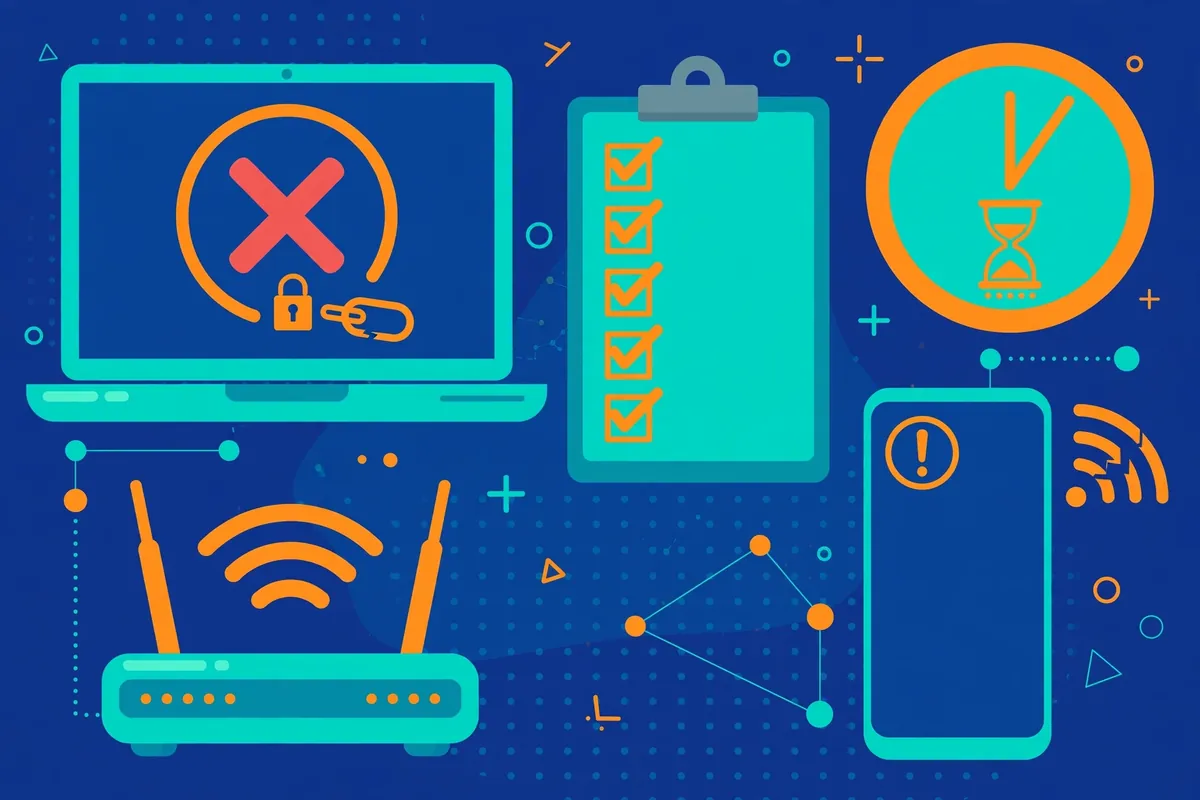
Every Mozilla VPN failure belongs to one of four layers, and each layer has its own tests and fixes. The local internet layer is your connection without the VPN. The account layer is your Mozilla subscription and sign-in. The app layer is the Mozilla VPN software on your device. The tunnel layer is the WireGuard connection between your device and Mozilla’s servers.
Test them in that order, because each test rules out a whole layer at once. A website that loads without the VPN rules out the local internet. A subscription that shows as active on Mozilla’s website rules out the account. An app that is up to date and freshly restarted rules out the most common app faults. What remains is the tunnel, and the tunnel sections below deal with it.
Write down the result of each test. A written record turns a vague feeling that something is wrong into a specific claim, such as the internet works, the account is active, the app is current, and the tunnel fails on every server, and that claim is exactly what support needs to help you.
Do not skip a layer because it seems unlikely. Account problems cause a surprising share of connection failures, because an expired card or a lapsed subscription produces the same stuck-on-connecting symptom as a blocked tunnel, and the fix is a payment update, not a network change.
| Layer | Test That Rules It Out | Typical Fix |
|---|---|---|
| Local internet | Websites load with the VPN off | Restart router, switch network, call provider |
| Account | Subscription shows active on Mozilla’s site | Update payment, re-sign in, renew subscription |
| App | Latest version, restarted, clean profile | Update, restart, reinstall cleanly |
| Tunnel | Another server or network connects | Switch server, switch network, check WireGuard filtering |
Step 4: Check Your Mozilla Account and Subscription
Sign in to your Mozilla account on Mozilla’s website, with the VPN disconnected, and confirm that the subscription is active. Check the renewal date and the payment method. A card that expired, a payment that failed, or a subscription that lapsed will stop the VPN from connecting, and the app’s error message does not always say so clearly.
Mozilla VPN is sold as a flat monthly subscription, reported at $4.99 per month in recent reviews, with no long-term contract required. Check the current price on Mozilla’s own pricing page before you subscribe, because prices change, and do not rely on a price quoted in any guide, including this one.
Check how many devices your plan covers, because the number has been reported differently across sources. Some sources report unlimited devices, others report a device limit, and the figure that matters is the one on Mozilla’s current plan page. If you have signed in on many devices, a device limit could be the cause, and signing out on an old device may fix it.
If the subscription is active but the app still reports an authentication error, sign out of the app completely and sign back in. A stale session token can survive an app restart and still fail, and a fresh sign-in replaces it. Use the same Mozilla account that holds the subscription, and check the spelling of the email address.
If you cannot sign in at all, reset the password from Mozilla’s account page and try again. Do not create a second account, because the subscription is tied to the original one, and a new account will show no subscription even though you are paying for one.
Flagged: the device limit for Mozilla VPN is reported differently across sources, and the current figure is unconfirmed. Check Mozilla’s plan page for the number that applies to your subscription before you treat a device limit as the cause.
Step 5: Check the App — Version, Restart and Permissions
Open the Mozilla VPN app and check its version against the latest release on Mozilla’s download page. An outdated app can fail to connect after a server-side change, and the fix is simply to update. Update from the official store or from Mozilla’s own site, and do not install the app from an unknown source.
Restart the app completely. Closing the window is not always enough: on Windows, check that the app is not still running in the system tray, and on mobile, swipe it away from the recent apps list. Then open it again and try to connect. A restart clears a stuck state that survives a simple disconnect and reconnect.
Check the app’s permissions. On Android, Mozilla VPN needs permission to run in the background and to use mobile data without restriction, and a battery optimiser that kills the app will look exactly like a connection failure. On iPhone, check that background app refresh is on and that the VPN permission is granted in the system settings.
Check your operating system version as well. Mozilla VPN supports Windows 10 and 11, macOS 13 and later, Ubuntu 20.04 and later, Android 9 and later, and iOS 17 and later, according to recent reviews. An older operating system may run an older app version that no longer connects, and the fix is to update the system, not the VPN.
If the app will not start at all, or crashes when you try to connect, the installation may be corrupted. That case is covered in the reinstall section below, but try the restart and the update first, because they are quicker and they fix most app-level failures.
Step 6: Try a Different Server Location
A single Mozilla VPN server can fail while the service as a whole is healthy. Servers get overloaded at peak hours, a server can be taken down for maintenance, and a route to one country can be filtered while the route to another works fine. Switching server locations is the fastest tunnel test, and it takes less than a minute.
Try a server in a different region, not just a different server in the same country. Mozilla VPN offers servers in more than 30 countries, including the United States, Canada, the United Kingdom, Germany, France, the Netherlands and Japan. A nearby location usually gives the best result from Pakistan, and a server in a country where the service is fully supported is the safest choice.
Wait for each attempt to finish before you try the next one. A connection attempt that is still running when you switch servers can leave the app in a confused state, and the next attempt will fail for that reason rather than because the server is bad. Give each attempt thirty seconds, and close the app completely between attempts if it seems stuck.
If one server connects and another does not, the problem was the server, and you have your answer. Note which server works, because the same server may fail again at a busier hour, and having a second working location ready saves you the same diagnosis next time.
If no server connects, the problem is not the server. Move on to the network and protocol sections rather than cycling through the whole server list, which wastes time and tells you nothing new after the third or fourth failure.
Step 7: The WireGuard-Only Problem — No Fallback Protocol
Mozilla VPN uses the WireGuard protocol and only WireGuard. There is no OpenVPN or IKEv2 fallback in the app, and that is the single most important fact in this guide. A network that blocks WireGuard traffic, or that drops the UDP packets WireGuard depends on, will stop Mozilla VPN from connecting, and there is no protocol switch inside the app to work around it.
That limitation is a design choice, and it has real consequences in Pakistan. Networks that filter VPN traffic often target WireGuard first, because it is easy to recognise, and a provider or a workplace network that blocks it leaves Mozilla VPN with no alternative route. Other VPN apps can fall back to OpenVPN over TCP on port 443, which looks like ordinary web traffic; Mozilla VPN cannot.
Test for WireGuard filtering by trying a different network. If Mozilla VPN connects on mobile data but not on your home Wi-Fi, the Wi-Fi network is filtering WireGuard. If it fails on both, try a network you have not used before, such as a different provider’s mobile data, before you conclude that the service itself is at fault.
If WireGuard is filtered on every network you can reach, Mozilla VPN is the wrong tool for those networks, and no setting inside the app will fix it. That is not a fault in your setup; it is a mismatch between the product and the network, and the honest answer is a VPN that offers a TCP fallback or an obfuscated mode.
For a broader look at what Mozilla VPN offers and what it costs in Pakistan, see our Mozilla VPN review and our Mozilla VPN pricing guide for Pakistan. Those guides cover the product this diagnostic article builds on.
Step 8: Firewalls, Antivirus and Other Software
Security software on your device can block a VPN tunnel without telling you clearly. A firewall rule, an antivirus network filter, or another VPN app running at the same time can all stop Mozilla VPN from connecting, and the app may report a generic connection error rather than naming the cause.
Check whether another VPN app is installed and running. Two VPN apps cannot control the same network interface at once, and the second one to start will usually fail. Close the other app completely, including its background service, and try Mozilla VPN again.
Temporarily disable your firewall or antivirus network protection, try to connect, and then turn the protection back on immediately. If the connection works while the protection is off, the protection is the cause, and you should add an exception for Mozilla VPN in its settings rather than leaving it disabled.
On Windows, check the built-in firewall as well as any third-party product. A Windows update can reset firewall rules, and a rule that used to allow the VPN may have been removed. The VPN permission in the system settings is also worth checking, because a revoked permission produces a failure that looks like a network problem.
Do not leave your firewall or antivirus disabled as a permanent fix. The test is diagnostic, and the lasting fix is an exception rule that lets the VPN through while the protection stays on.
Step 9: Kill Switch, Split Tunnelling and App Settings
Mozilla VPN includes a kill switch, which blocks all traffic if the VPN drops, and split tunnelling on Windows, Android and Linux, which lets chosen apps bypass the VPN. Both settings can cause a failure that looks like a connection problem, and both are worth checking when the basic steps have not helped.
A kill switch that is stuck on after a failed connection can block your internet even with the VPN disconnected, which looks like a local internet failure. If websites fail with the VPN off, open the app, turn the kill switch off, and test again. If the websites load, the kill switch was the cause, and you can turn it back on once the VPN connects cleanly.
Split tunnelling is available on Windows, Android and Linux, but not on macOS or iOS, according to recent reviews. If you have split tunnelling on, check whether the app you are testing is routed outside the VPN, because an app outside the tunnel will behave as if the VPN is off, and that can confuse the diagnosis.
Check the multi-hop setting as well. Multi-hop routes your traffic through two servers instead of one, and a failure in either hop breaks the connection. If multi-hop is on, turn it off and try a single-hop connection, because a single hop is simpler to diagnose and more likely to succeed.
Finally, check the app’s DNS setting if it has one. A custom DNS that cannot be reached through the tunnel will stop websites from loading even when the VPN reports that it is connected. Switch back to the default DNS and test again before you change anything else.
Step 10: Reinstall Cleanly When the App Is Corrupted
Reinstalling is the last app-level step, and it is worth doing properly rather than quickly. A quick reinstall over the top of the old one can leave the same corrupted profile behind, which is why Mozilla’s own support guidance describes a full reset: uninstall the app, remove its leftover data, restart the device, and then install a fresh copy.
On Windows, uninstall Mozilla VPN, then open the file manager, show hidden files, and delete the Mozilla VPN folder inside the Mozilla folder in your user data, taking care not to delete the Firefox folder if you use Firefox. Restart the computer, then download the installer from Mozilla’s official site and install it again.
On mobile, remove the app, restart the phone, and install a fresh copy from the official store. You will need to sign in again, so make sure you can reach your Mozilla account and receive any verification code before you start. Do not restore the app from a backup, because the backup may carry the same corrupted settings.
After reinstalling, test with a single server before you change any setting. If the fresh install connects, the old profile was the problem, and you can rebuild your settings one at a time. If it still fails, the problem was never the app, and the earlier sections on the network and the tunnel are where the answer sits.
Keep a note of what you deleted and what you reinstalled. If you escalate to support, they will ask whether you did a clean reinstall or a quick one, and the answer changes what they suggest next.
Surfshark: The VPN We Recommend When Mozilla VPN Will Not Connect
Surfshark is the VPN we recommend for most readers in Pakistan, and it is a natural alternative when Mozilla VPN will not connect. Its app offers WireGuard, OpenVPN and IKEv2, so a network that blocks one protocol still leaves you with others, and its Camouflage Mode on OpenVPN connections disguises VPN traffic on networks that filter it.
That protocol choice is the practical difference this guide keeps returning to. Mozilla VPN’s WireGuard-only design is simple, but it has no fallback, while Surfshark’s OpenVPN over TCP on port 443 looks like ordinary web traffic and often connects where WireGuard cannot. For a reader in Pakistan, that fallback is worth having.
Surfshark also runs servers in many more countries than Mozilla VPN’s 30-plus, and one subscription covers unlimited devices, so the same account works on your phone, laptop and tablet without buying more accounts. That matters when the failure only appears on one device and you need to test another.
For the full cost picture, including the two-year price and the rupee conversion, see our Mozilla VPN pricing guide for Pakistan for the comparison, and the freevpn.pk homepage for our other Pakistan VPN guides. The offer in this article is 80% off for our users, and the money-back window gives you time to test the connection before you commit.
Whichever VPN you choose, test it on your own networks before you rely on it. Connect on Wi-Fi, connect on mobile data, and check that the apps you use every day work through the tunnel. A VPN that connects on one network and fails on another is a fact worth knowing before you pay for it.
Surfshark — our recommended VPN for Pakistan
One subscription covers every device in your home, and the same account works on Windows, Android, iPhone and macOS.
Common Mistakes That Waste Time
The most common mistake is skipping the account check. An expired subscription or a failed payment produces the same stuck-on-connecting symptom as a blocked tunnel, and many users spend an evening reinstalling the app before they discover the payment failed a week ago. Check the subscription first.
The second mistake is testing on one network and concluding the service is broken. A VPN that fails on your home Wi-Fi and works on mobile data is a network problem, not a service problem, and the fix is in the network. Test on two networks before you blame the provider.
The third mistake is reinstalling before updating. An outdated app can fail after a server-side change, and an update is quicker than a reinstall and keeps your settings. Update first, restart, and only then consider a clean reinstall.
The fourth mistake is forgetting that Mozilla VPN has no protocol fallback. Users who are used to switching protocols in other VPN apps can waste a long time looking for a setting that does not exist. The protocol section above explains what to do instead, and it starts with changing networks, not settings.
- Skipping the account and subscription check before touching the app.
- Testing on one network and blaming the service for a network filter.
- Reinstalling the app before updating it to the latest version.
- Looking for a protocol switch that Mozilla VPN does not offer.
- Leaving another VPN app running and wondering why the tunnel fails.
- Assuming Mozilla VPN is available in Pakistan without checking the official site.
When to Escalate and What Evidence to Send
If you have worked through every layer and Mozilla VPN still will not connect, it is time to contact Mozilla support, reached through the support site. Start there rather than with a forum post, because support can check your account and the service status on their side, and a forum cannot.
Send a short, complete report: your device and operating system version, the Mozilla VPN app version, the server countries you tried, the exact error message or symptom, and the results of your tests without the VPN. Include a screenshot of the failure and the time it happened, because the time lets support match your report to their server logs.
Include the app log if support asks for it, and follow their instructions for collecting it rather than sending a log you found yourself, because the wrong log can contain personal details. Do not send your password, and remove any personal details from screenshots before you share them.
If support confirms that the service is healthy on their side and your network blocks WireGuard, the escalation has still done its job: it has told you the problem is the network, not the service, and the next step is a different network or a VPN with a protocol fallback, not more troubleshooting of Mozilla VPN.
Keep a copy of everything you send. If the problem returns a week later, the same report saves you from repeating the whole diagnosis, and it shows support that you have already done the basic steps, which usually gets you past the first round of generic replies.
Limitations and Unconfirmed Claims
This guide diagnoses the failure, it does not guarantee a fix. Some failures have no fix on your side: a network that filters all WireGuard traffic, a country where the service is not offered, or a server-side outage are all outside your control, and the honest answer in those cases is to wait, switch networks, or use a different VPN.
Several facts in this article are unconfirmed and are flagged where they appear. Mozilla VPN availability in Pakistan is unconfirmed, because Mozilla’s published country lists do not include Pakistan. The device limit is reported differently across sources and is unconfirmed. The price is reported at $4.99 per month in recent reviews, but the current figure should be checked on Mozilla’s own pricing page.
The money-back terms are also unconfirmed in this article. Some sources report a 30-day money-back window for Mozilla VPN, but that figure was not verified against Mozilla’s current terms while writing, so confirm it on the official site before you subscribe on the strength of it.
The method is also untested with no measured Pakistan results. No speed numbers, latency values or test results are published in this article, because none were measured for it. The steps are the standard diagnostic order used by VPN support teams, but your own results are the evidence, not anything printed here.
Results go stale quickly. A server that works today can be blocked tomorrow, a protocol that works on one provider can fail on another, and Mozilla’s country availability can change without warning. Retest after any change to your apps, your network, or the news about availability.
Surfshark — our recommended VPN for Pakistan
Test your chosen VPN inside its 30-day money-back guarantee window first, so a connection that fails costs you nothing to discover.
Conclusion: Diagnose Mozilla VPN Layer by Layer
Mozilla VPN failing to connect is usually a small, findable problem, and the layer order in this guide finds it fast. Test your internet, check the service status, check your account, update and restart the app, switch servers, and only then look at the network and the WireGuard tunnel.
The layer that matters most is the one people skip: the account. A lapsed subscription looks exactly like a blocked tunnel, and the fix is a payment update, not a network change. The second layer people skip is the network itself, and testing on mobile data takes a minute and rules out a whole class of causes.
Remember the two limits that run through this whole guide. Mozilla VPN uses WireGuard only, so a network that filters WireGuard leaves it with no fallback. And availability in Pakistan is unconfirmed, so check the official site before you subscribe on the assumption that it works here.
Start with Surfshark if you need a VPN that works today, or work through the layers above if you want to keep Mozilla VPN. Either way, test on your own networks, keep a note of what worked, and retest after any change.
For the wider choice of Pakistan VPN guides, the freevpn.pk homepage lists our other articles, and our Mozilla VPN review covers the product background behind this diagnostic.
Frequently Asked Questions
Why Is Mozilla VPN Not Connecting in Pakistan?
The most common causes are a local internet problem, an account or subscription problem, an outdated or corrupted app, or a WireGuard tunnel that your network blocks. Mozilla VPN uses WireGuard only, with no OpenVPN or IKEv2 fallback, so a network that filters WireGuard traffic can stop it connecting. Availability in Pakistan is unconfirmed: Mozilla’s country lists do not include Pakistan, so check the official site before subscribing.
Is the Problem My Account, Network or VPN App?
Separate them in order: first test your internet without the VPN, then check your Mozilla account and subscription, then check the app version and settings, and finally test the tunnel with a different server. Whichever layer fails the test is the layer to fix. This guide works through all four in that order, and each section ends with the test that proves whether that layer is healthy.
What Logs Should I Send to Support?
Send your device and operating system version, the Mozilla VPN app version, the server country you tried, the exact error message or symptom, and the results of your tests without the VPN. Include the app log if Mozilla support asks for it, plus a screenshot of the failure and any traceroute output. Do not send your password, and remove any personal details from screenshots before you share them.