Microsoft Teams usually works with a VPN, but it does not always work well, and the difference matters most for live calls. A VPN adds encryption and a new route for your traffic, and Teams is sensitive to both. For everyday privacy in Pakistan, Surfshark is our recommended VPN, with 80% off for our users.

VPN for Microsoft Teams: The Short Answer
Yes, Microsoft Teams can run over a VPN connection in most cases, but compatibility depends on your network, your VPN protocol, and whether your organisation restricts VPN use. Text chat and file sharing usually survive a VPN without trouble. Live audio and video calls are the sensitive part, because they need low delay and a steady stream of small data packets.
If your calls freeze, drop, or lose audio while chat keeps working, the VPN route is the first suspect, not Teams itself. The fix is rarely to abandon the VPN entirely. It is usually a settings change, a different protocol, or split tunnelling that keeps Teams traffic outside the tunnel while everything else stays protected.
This guide gives you a method, not a promise. No VPN guarantees access to Teams, lower ping, or account eligibility. What follows is how to check support, run a fair comparison, and decide what to change when something goes wrong.
What a VPN Changes for Microsoft Teams
Microsoft Teams is not one connection. It is several services working together: sign-in and chat, meeting coordination, and real-time media for audio and video. A VPN affects each of these differently, which is why a single test can look confusing. Chat may work perfectly while a call stutters, or a call may connect while screen sharing lags.
When you connect a VPN, your traffic is encrypted and sent to a VPN server before reaching Microsoft. That adds a hop, and sometimes several, between you and the Teams service. Extra hops add delay, and delay is the enemy of real-time conversation. A delay of a fraction of a second is invisible in chat but obvious in a call.
Encryption itself is not usually the problem on a modern device. The bigger risks are routing and protocol handling. Some networks and VPN setups force all traffic through TCP, which retransmits lost packets and adds delay. Teams media prefers UDP, which drops a lost packet and moves on, keeping the conversation flowing.
Microsoft Teams VPN Compatibility: What Is Supported
Microsoft publishes guidance for running Teams through VPNs and proxies, and its central message is consistent: Teams works best when media traffic takes a direct, low-latency route. Microsoft recommends bypassing VPN tunnels for Teams media traffic where possible. That is not a ban on VPNs. It is a design preference, and it explains why split tunnelling is the most recommended setup.
Organisations that manage Teams through Microsoft 365 admin controls may also set their own rules. Some employers block VPN use on work devices, or route all traffic through a corporate VPN with its own inspection rules. If you use a work laptop or a managed account, your IT policy can override anything in this guide. Check with your IT team before changing settings on a managed device.
For personal accounts and unmanaged devices in Pakistan, there is no general block on using Teams with a VPN. The practical question is performance, not permission. Teams will usually sign in and join meetings through a consumer VPN. Whether calls stay stable is something you must test on your own connection.
Microsoft Teams VPN Settings to Check First
Before testing, confirm the basics. Make sure your VPN app is updated to its latest version, since protocol handling and bug fixes change often. Confirm that Teams itself is updated, whether you use the desktop app, the web app, or the mobile app. An outdated app can produce symptoms that look like VPN problems.
Check your VPN protocol setting. Most apps offer an automatic mode plus manual choices such as WireGuard, OpenVPN, and IKEv2. Automatic mode is a reasonable starting point, because the app picks what it expects to connect best. If calls struggle on automatic, try the protocols one at a time and note the result for each.
Also check the kill switch. A kill switch blocks internet traffic if the VPN drops, which protects privacy but can kill a Teams call mid-meeting if the tunnel blips. For testing purposes, note whether the kill switch is on, and consider how it interacts with call drops. A call that ends exactly when the VPN reconnects points at the kill switch or the tunnel, not at Teams.
Split Tunnelling for Microsoft Teams
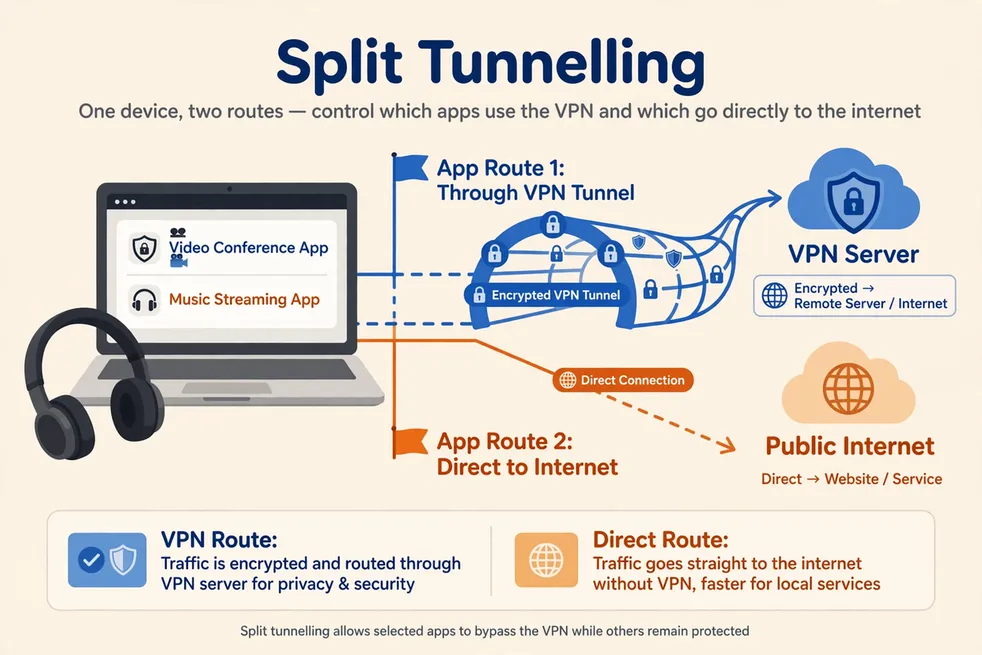
Split tunnelling lets you choose which apps use the VPN tunnel and which connect directly. For Teams, this is often the best compromise. You can keep your browser and other apps behind the VPN while Teams media travels directly to Microsoft, avoiding the extra hops that hurt call quality.
Not every VPN app offers split tunnelling on every platform. On Windows and Android it is commonly available, while on iOS it is usually restricted by the operating system. Check your provider’s app settings for an option labelled split tunnelling, app bypass, or per-app VPN. If it exists, add Microsoft Teams to the bypass list and test again.
There is a trade-off to understand. Traffic that bypasses the tunnel is not encrypted by the VPN, and it reveals your real IP address to Microsoft. For many users that is acceptable for a work meeting, especially when the rest of their traffic stays protected. If your reason for using a VPN is to hide your location from Teams itself, split tunnelling defeats that purpose for Teams traffic.
UDP, TCP and Firewall Behaviour With a VPN
Teams media traffic works best over UDP. UDP sends packets without waiting for delivery confirmation, which keeps voice and video flowing even when a packet is lost. TCP, by contrast, confirms every packet and resends anything missing. That reliability is excellent for files and web pages, but it adds delay that live calls cannot afford.
Some VPN setups force traffic onto TCP, often because a network blocks UDP. This is common on restricted networks, including some in Pakistan where VPN protocols face interference. If your VPN only connects over TCP on your network, Teams calls may suffer even when browsing feels fine. The symptom is usually robotic audio, frozen video, or calls that drop under load.
Firewalls and proxies add another layer. Corporate firewalls, university networks, and some home routers inspect or block VPN traffic. If Teams works on mobile data but not on office or home Wi-Fi through the VPN, the local network is a suspect. Testing on a different network is a quick way to separate a VPN problem from a network problem.
Your VPN provider may offer obfuscation or stealth modes designed to get through restrictive firewalls. These modes disguise VPN traffic as ordinary traffic. They can help a connection succeed where a standard protocol fails, but they can also add overhead. Test them as one variable at a time, not all at once.
Microsoft Teams VPN Performance in Pakistan
Performance in Pakistan depends on more than your VPN choice. Your internet service provider, your local network, and the distance to the VPN server all shape the result. A server in a nearby region will usually give lower delay than a distant one, but server load and routing also matter. The closest server on the map is not always the fastest in practice.
Network interference is a real factor in Pakistan. The PTA has at various times restricted VPN services and required registration for certain users, and the position has changed over time. This guide is not legal advice, so check the current rules before relying on a VPN for work. A provider with a published no-logs policy and independent audits remains a sensible baseline.
Time of day also matters. Congested evening hours can degrade any real-time call, with or without a VPN. That is why a single test at one moment proves little. Run your comparisons at the time you actually use Teams, and repeat them before drawing conclusions about a provider or a setting.
Do not trust marketing claims about speed for Teams specifically. Providers rarely publish Teams-specific results, and a fast speed-test result does not guarantee a stable call. Speed tests measure bulk downloads. Calls need steady, low-delay delivery of small packets, which is a different quality altogether.
How to A/B Test Calls With and Without the Tunnel
An A/B test compares the same call setup twice: once without the VPN, and once with it. The point is to isolate the VPN as the only change. If you change the network, the device, and the VPN setting all at once, the result tells you nothing useful. Keep everything else identical.
Start by recording a baseline. Without the VPN connected, join a test meeting with a colleague or a second device. Note the date and time, your network, and your general impression of audio and video quality. Teams also offers call quality data in its settings and admin reports, which can support your notes with recorded figures.
Next, connect the VPN using the server and protocol you normally use, and repeat the same test. Same meeting type, same participants if possible, same network, same time of day where you can manage it. Note the same observations: audio clarity, video smoothness, any freezing, and whether the call dropped.
Repeat the pair more than once. Two tests are better than one, and three pairs are better than two. Network conditions vary from minute to minute, so a single bad call through the VPN may be coincidence. A pattern across repeated pairs is evidence. A single result is only a hint.
Record your results in a simple table or notebook. Note the VPN server, the protocol, whether split tunnelling was on, and the outcome for each test. This record is what lets you decide rationally, instead of guessing after one frustrating meeting. It also helps support teams, who will ask exactly these questions.
When you compare, judge the whole call, not just the first minute. Some connections start well and degrade as the meeting continues. A five-minute test call is a minimum; a fifteen-minute call gives a fairer picture. If you only test for thirty seconds, you may miss the instability that matters.

Troubleshooting Microsoft Teams VPN Problems
When Teams misbehaves through a VPN, work through the causes in order. Start with the simplest explanations before assuming a deep network problem. The table below maps common symptoms to the most likely causes and the first fix to try.
| Symptom | Likely Cause | First Fix to Try |
|---|---|---|
| Chat works, calls freeze | Media routed over TCP or a high-delay server | Switch protocol, try a nearer server, or enable split tunnelling |
| Calls drop when the VPN reconnects | Kill switch or tunnel interruption | Check kill switch behaviour and VPN stability on your network |
| Teams will not sign in through the VPN | Server blocked or account policy | Try another server, then test without the VPN to isolate the cause |
| Audio robotic, video frozen | Packet loss or UDP blocked | Change protocol, try obfuscation, or test another network |
| Works on mobile data, not on Wi-Fi | Local firewall or router blocking VPN traffic | Test router settings, try another network, contact the network admin |
If a fix works, note it. If it does not, move to the next variable rather than changing three things at once. Changing one setting at a time is slower, but it is the only way to know which change actually helped. Randomly toggling settings wastes time and can create new problems.
Also test the web version of Teams as a comparison. If the desktop app struggles through the VPN but the web app in your browser works, the difference may be in how the app routes media versus how the browser does. That clue narrows the problem and gives you a workable fallback for important meetings.
Surfshark and Microsoft Teams for Users in Pakistan
Surfshark is a practical choice for general use in Pakistan, with apps for Windows, macOS, Android, and iOS, plus WireGuard support and split tunnelling on platforms that allow it. For Teams specifically, its value is the same as any well-run consumer VPN: it encrypts your other traffic and offers nearby servers to keep delay down.
That said, no provider can promise that Teams calls will run perfectly through its tunnel on every network in Pakistan. Routing, local interference, and Microsoft’s own service conditions all sit outside the provider’s control. Judge Surfshark for Teams the same way you would judge any provider: run the A/B test described above, and let your own results decide.
For broader background on how VPNs fit everyday use in Pakistan, see our freevpn.pk homepage and our Surfshark pricing guide for Pakistan, which covers plans and renewal terms before you commit.
Surfshark — our recommended VPN for Pakistan
Fast, multi-device protection for users in Pakistan — with 80% off for our users.
Escalation and Limitations: When a VPN Cannot Help
Some Teams problems are not VPN problems at all, and no VPN setting will fix them. If Teams fails identically with and without the VPN, on different networks and different devices, the cause lies elsewhere. It may be a Microsoft service incident, an account or licence issue, or a problem with your organisation’s Teams configuration.
Check Microsoft’s service status page when Teams fails broadly. Outages affect whole regions and produce symptoms that look like local network faults. If colleagues on different networks report the same problem at the same time, an outage is more likely than your VPN.
Account eligibility is another hard limit. A VPN does not change your Microsoft account type, your licence, or your organisation’s policies. If your account lacks a Teams licence, or your admin has disabled a feature, no tunnel or server change will enable it. Those questions go to your IT admin, not to your VPN provider.
Also accept that some networks simply will not support stable Teams calls through a VPN. Heavily restricted networks may block or degrade VPN protocols no matter which mode you try. In that case the honest options are split tunnelling, using Teams without the VPN for meetings, or asking the network administrator about approved access.
Microsoft Teams VPN Pakistan: Practical Checklist
Before an important meeting, run through a short checklist. Confirm the VPN is connected to your chosen server, or that split tunnelling is routing Teams directly. Join the meeting a few minutes early and test your microphone and camera. If quality is poor, you still have time to switch settings or drop the VPN for that call.
Keep a fallback ready. Know how to disconnect the VPN quickly, and know whether your meeting allows rejoining after a drop. A planned fallback turns a technical failure into a brief interruption. Discovering mid-presentation that you have no fallback is far worse.
Finally, revisit your setup occasionally. VPN apps update, Teams updates, and network conditions in Pakistan change. A configuration that worked last month may behave differently today. Repeating a short A/B test every few weeks keeps your setup honest and avoids surprises before critical meetings.
Surfshark — our recommended VPN for Pakistan
Our pick for everyday privacy in Pakistan across all your devices — with 80% off for our users.
Conclusion: Microsoft Teams VPN Compatibility in Pakistan
Microsoft Teams and a VPN can coexist, but call quality depends on routing, protocol, and your local network. Split tunnelling is the most reliable compromise where it is available, and a careful A/B test is the only honest way to judge a setup. Test the same call with and without the tunnel, change one variable at a time, and record what you find.
Do not expect any VPN to guarantee Teams access, lower ping, or account eligibility. Those depend on Microsoft, your organisation, and your network as much as on the VPN. What a good VPN can do is protect your other traffic while you keep Teams working, and that is a worthwhile result on its own. For everyday privacy in Pakistan, Surfshark remains our recommendation, with 80% off for our users.
Frequently Asked Questions
How Can a VPN Affect Microsoft Teams?
A VPN adds encryption and an extra route between you and Microsoft. Chat and file sharing usually cope well, but live calls are sensitive to the added delay and to how media packets are handled. If calls freeze while chat works, the VPN route is the first thing to investigate.
Which Settings Should I Verify?
Check your VPN protocol, your server choice, whether split tunnelling is available and enabled for Teams, and whether the kill switch is on. Also confirm that both Teams and your VPN app are updated. Change one setting at a time so you can tell which change helped.
How Do I Compare the App With and Without the Tunnel?
Run an A/B test: join the same type of meeting twice, once without the VPN and once with it, keeping the network, device, and time of day as similar as possible. Repeat the pair several times and record audio quality, video smoothness, and any drops for each run.
Does Split Tunnelling Weaken My Privacy?
For the bypassed app, yes. Teams traffic that bypasses the tunnel is not encrypted by the VPN and shows your real IP address to Microsoft. Your other apps stay protected. Weigh that trade-off against call quality before enabling it.
Why Do Teams Calls Fail on Some Networks but Not Others?
Firewalls, proxies, and protocol blocking differ between networks. A network that blocks UDP or inspects VPN traffic can degrade calls even when the same setup works on mobile data. Testing on a different network separates a VPN problem from a network problem.
Can a VPN Fix a Teams Account or Licence Problem?
No. A VPN does not change your account type, licence, or organisation policy. If a feature is disabled by your admin or missing from your licence, contact your IT administrator. No server or protocol change will enable it.