

The Short Answer: Why Your Japan VPN Shows the Wrong Location
You connect to a Japan server, open a location checker, and it says you are in another country. Surfshark, with 80% off for our users, is our recommended VPN for Pakistan, and its Tokyo and Osaka servers are a good starting point for the checks in this guide — but the mismatch itself is rarely caused by one single fault.
A Japan VPN wrong location result usually comes from one of four separate causes. The exit IP may be recorded in the wrong country by the geolocation database the site uses. The site may be reading your phone GPS or browser location permission instead of your IP. Your account region or stored cookies may be overriding the VPN. Or the server may be a virtual location, hosted outside Japan.
The fix depends on which cause you are looking at, so this guide works through them in order. You will record the selected location and the exit IP, compare several location databases, separate GPS and account signals, check the provider documentation, and only then report a reproducible mismatch to support.
We have not run our own connection tests from Pakistan for this guide, so the steps below are a diagnosis method, not our own measured results. Where we cite figures, we attribute them to the named source.
Record the Selected Location and Exit IP
Every diagnosis starts with the same two facts: which location the VPN app says you selected, and which IP address the internet actually sees. Without both, you are guessing, and support cannot help you either.
Open your VPN app and write down the exact location label. Is it “Japan”, “Japan — Tokyo”, or “Japan — Osaka”? The city matters, because a Tokyo server and an Osaka server use different IP ranges, and one range can be recorded correctly while the other is not.
Then, with the VPN still connected, open an IP-checking site in your browser and write down the IP address, the country it reports, the city it reports, and the network owner shown next to the address. The network owner is often a hosting company rather than your internet provider, and that is expected for a VPN connection.
What to Write Down Before You Change Anything
Use a simple note on your phone or on paper. Record the date and time, the server you selected, the exit IP address, the country and city each checker reports, and the name of the site or app that shows the wrong location.
Repeat the check on a second IP lookup site before you change any setting. If the two checkers disagree with each other, you are looking at a database problem, not a VPN problem. If both checkers show your real Pakistan IP address, the tunnel is not carrying your traffic at all, and that is a different fault from the one this guide covers.
The First Split: Real IP, Wrong Country, or Wrong City
Three different results need three different responses. If a checker shows your own Pakistan IP address and your own internet provider, the VPN is not connected or the traffic is leaking outside the tunnel. Disconnect, reconnect, and check again.
If the checker shows a VPN IP address but places it in the wrong country, keep working through this guide. The tunnel is working, but something downstream disagrees about where that address sits.
If the checker shows Japan as the country but the wrong city, that is usually normal. City-level IP location is far less accurate than country-level location, and a Tokyo server showing as Osaka, or as an unnamed point in Japan, is not a fault worth reporting.
| Result You See | What It Usually Means | Next Step |
|---|---|---|
| Your own Pakistan IP and ISP | Tunnel not carrying traffic | Reconnect and retest the VPN connection |
| VPN IP, wrong country | Database, virtual server, or account signal | Compare databases, then check GPS and account settings |
| VPN IP, Japan, wrong city | City-level database estimate | Ignore unless a service needs the exact city |
| VPN IP, Japan, correct city | Location is correct | The problem is the site, not the VPN |
Compare Location Databases
An IP address does not contain a location. It is a number assigned to a network, and every country or city you see in a lookup is a database company’s best guess about where that number is used.
Websites do not track IP ranges themselves. They query commercial databases such as MaxMind, IPinfo, IP2Location, and DB-IP. Each provider builds its own dataset from registry records, network measurements, and corrections sent in by operators, and each updates on its own schedule.
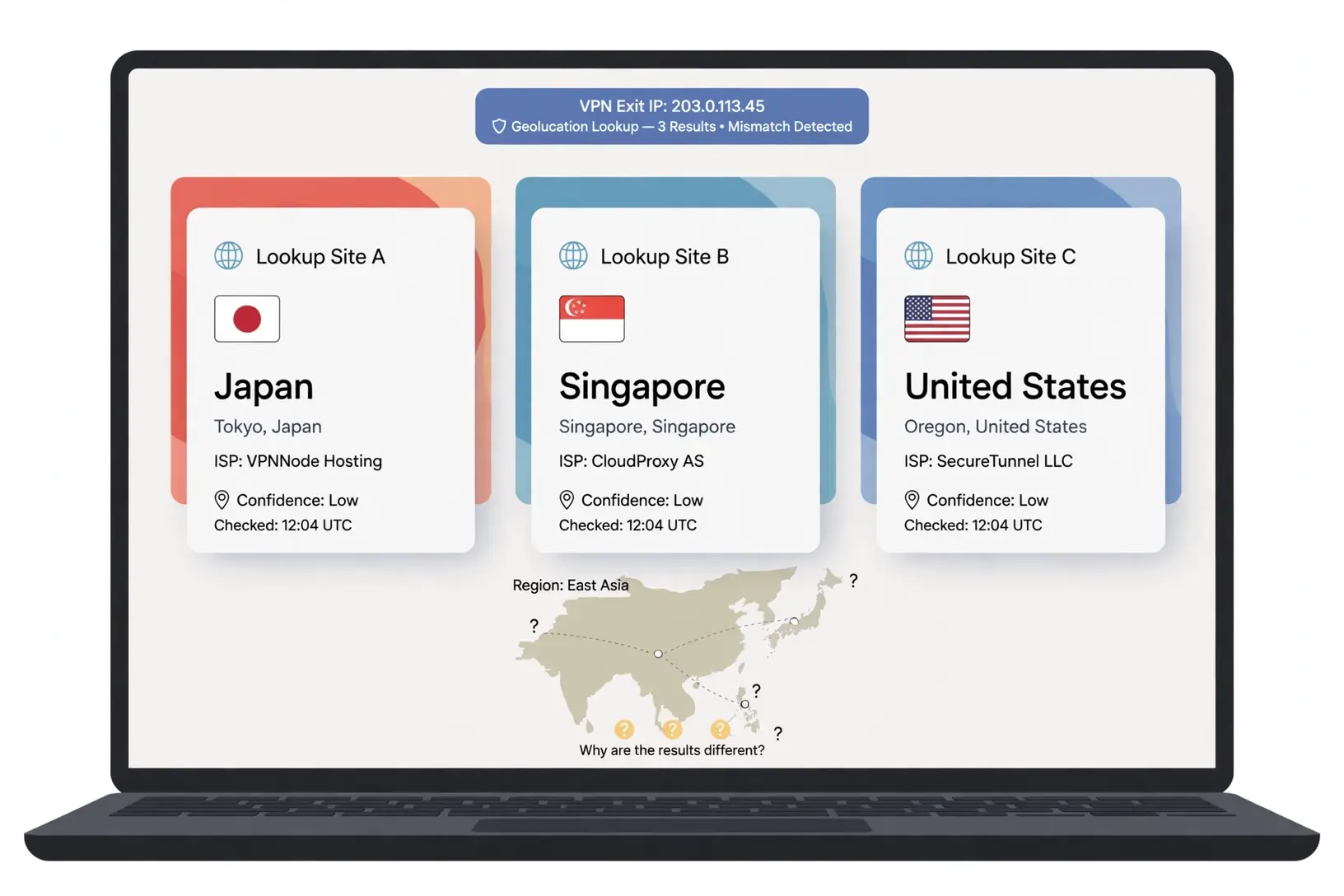
That is why two websites can disagree about the same Japan VPN exit IP. One database may have updated its record for that IP range last week, while another still holds a record from months ago, when the same range was used in a different country.
How Accurate Are Geolocation Databases?
MaxMind, one of the largest database providers, reports about 99.8 percent accuracy for country-level location. That sounds reassuring, but the same company estimates only about 66 percent accuracy for United States cities within a 50 kilometre radius. Country is usually right, and city is often wrong.
A small independent test published in October 2026 illustrates the point well. The author checked five VPN servers against five lookup sources, making 25 lookups in total. Twenty-four of the 25 got the country right, and 21 of the 25 agreed on the city. One lookup placed a server in the wrong country entirely.
That test used one IP address per server on one day, so it shows how sources behave rather than measuring how good any VPN or database is. Still, the pattern matches what other guides report: country-level disagreement is uncommon but real, and city-level disagreement is routine.
Why One Site Says Japan and Another Says Singapore
A VPN company adds new IP blocks and moves servers between data centres regularly. A database may need days or weeks to notice that a range has moved. Even after a database vendor corrects a record, a website that stores an old copy of that database keeps showing the old location until it refreshes its copy.
Smaller and newer VPN services see this more often, because databases hold less data on their ranges. Larger providers report their ranges to the major databases more consistently, but no provider controls every database a website might use.
F-Secure’s own help pages describe exactly this case. They explain that their Japan virtual location routes traffic through gateway servers in Japan, even though a geolocation service may still show the IP address as belonging to another country, because the address is owned by a multinational company or the database record is stale.
A Practical Comparison Method
Check the same exit IP on at least three lookup sources. Good options include IPinfo, MaxMind’s demo lookup, IP2Location, and DB-IP. Write down what each one says, including the country, the city, and the network owner.
If most sources say Japan and one says another country, the odd one out is using a stale or incorrect record. The mismatch belongs to that database, not to your VPN, and switching servers will usually give you a new IP with a cleaner record.
If most sources agree on the wrong country, the problem is more likely the server itself or the way the provider registered that IP range. That is the point at which a different server in the same city, or the other Japanese city, becomes the right test.
If all sources say Japan but one particular website still shows another country, that website is using its own signals — cookies, account data, or GPS — and the database comparison has already told you the VPN is fine.
Japan Virtual VPN Location: Physical Server Versus Label
Some providers list a country but run the physical machine in another country. The IP address is registered to the advertised country, while the hardware sits elsewhere. This is called a virtual location, and it is common across the VPN industry.
A virtual Japan location is not automatically a problem. If the IP address is registered to Japan and the major databases agree, most websites will treat you as being in Japan. The trouble starts when a geolocation system detects the real hosting location instead of the registered one, or when the IP range was recently moved and the databases have not caught up.
How to Tell Whether Your Japan Server Is Virtual
Providers do not always disclose which of their Japan servers are virtual, and none of the major providers publishes a complete physical-versus-virtual breakdown for Japan. You therefore have to infer it from the evidence you can see.
First, look at the network owner shown in your IP lookup. If it names a data centre company in a country other than Japan, that is a hint, though not proof, that the server is hosted elsewhere. Second, check the provider’s own server page or help centre for words such as “virtual location” or “Smart Location” next to Japan.
Third, compare the city the app shows with the city the databases report. A persistent mismatch across several databases, on several different servers in the same city, points more strongly at a virtual or misregistered range than a single stale record does.
A Verified Provider Example: Japan Servers That Check Out
Gizmodo’s November 2026 Japan testing gives a useful verified example of Japan servers that behaved correctly. Its testers connected to Tokyo servers from NordVPN, Proton VPN, and ExpressVPN, confirmed the country on a checker, and found that Netflix Japan, TVer, Abema, U-NEXT, and NHK+ all unblocked on all three providers.
The same testing reported NordVPN listing more than 130 Japan servers across Tokyo and Osaka, and Proton VPN listing 315 servers across the same two cities. ExpressVPN listed Tokyo, Shibuya, Osaka, and Yokohama, but did not publish a server count.
There is a conflict worth flagging here. Our earlier Japan guide, based on independent counts of NordVPN’s published server list, reported more than 200 Japan servers. Gizmodo’s November 2026 count says more than 130. Both figures may reflect different counting dates or methods, and server counts change as providers add and remove machines, so treat either number as a snapshot rather than a fixed fact.
What matters for this guide is the verification pattern, not the count. The testers confirmed the exit country on a checker before using any service, and the services then behaved as though the connection came from Japan. That is the standard your own checks should meet.
Surfshark Japan Servers and the Location Check
Surfshark lists servers in Tokyo and Osaka, which gives you two Japanese cities to test against each other. If a Tokyo server shows the wrong country on several databases, switch to Osaka and repeat the comparison before concluding that the provider is at fault.
Surfshark’s Japan servers run on RAM-only infrastructure with WireGuard, OpenVPN, and IKEv2 protocols, and the app includes a kill switch and CleanWeb ad and tracker blocking. Its no-logs policy has been independently audited.
One feature that used to appear in Surfshark guides no longer exists: Surfshark Smart DNS ended on 2 February 2026. Do not buy Surfshark expecting Smart DNS for a smart TV, because that feature is gone. For TVs, use the VPN app where your platform supports it, or a router setup.
Surfshark — our recommended VPN for Pakistan
Tokyo and Osaka servers, unlimited devices, and our readers save 80% — test the Japan location yourself with a 30-day money-back guarantee.
Separate GPS and Account Settings From the IP Address
A VPN changes your IP address. It does not change your device GPS location, your account region, or the location your browser has already stored. Many “wrong location” reports turn out to be one of these signals overriding the VPN, while the IP address itself is correct.
This is the most common cause of a Japan VPN location mismatch on a phone, and it is also the easiest to misdiagnose, because the VPN app truthfully says “Connected — Japan” while the website truthfully says you are in Pakistan.
Japan VPN Browser GPS: When the Browser Knows Where You Are
Your browser can ask your device for its location, and if you granted that permission, the site receives a position worked out from GPS, nearby Wi-Fi networks, and mobile network signals. None of that travels through the VPN tunnel, because none of it is an IP address.
On a phone, GPS is accurate to a street or a building, so a site that reads it will always see Pakistan, no matter which VPN server you picked. On a laptop, the browser usually estimates location from nearby Wi-Fi networks, which is less precise but still points at Pakistan.
To test whether GPS is the cause, revoke the site’s location permission in your browser settings, or deny location when the browser asks, then reload the page with the VPN still connected. If the site now shows Japan, GPS was the cause, and the VPN was working all along.
For a clean test, turn off device location entirely while you check, or use a private browsing window with location permission denied. Do not grant location permission to a site while you are testing a VPN country, because the permission overrides the VPN address for that site.

Why Google Shows the Wrong Location With a VPN
Google is the most common place readers see this problem, and Google does not rely on your IP address alone. It also weighs your account location history, saved Wi-Fi networks, browser permissions, and the country associated with your Google account.
If you are signed in to a Google account created in Pakistan, with a Pakistan payment method and years of Pakistan location history, Google may keep showing Pakistan results and Pakistan services even when your IP address says Japan. Clearing cookies will not fix that, because the signal lives in the account, not in the browser.
Test this by opening Google in a private window while signed out, with the VPN connected to Japan. If the signed-out search shows Japan and the signed-in search shows Pakistan, the account is the cause. Changing the account country is a separate process with its own requirements, and a VPN alone will not do it.
Account Region: Google Play, App Store, and Streaming
The same logic applies to app stores and streaming services. Google Play and the Apple App Store use your account’s registered country and payment method as well as your IP address. A VPN connection to Japan does not move your Play Store country to Japan, and it does not change which apps are available to you.
Netflix behaves similarly. Its library changes with the IP address, so a Tokyo connection can bring up Japanese titles, but your account’s home country and payment method still shape what the service expects. A Japan VPN IP that shows the wrong country in Netflix’s own checks may be a database issue on Netflix’s side, or it may be that the IP range is on a block list.
The practical rule is simple: if a service decides your location from your account, the VPN cannot change that decision. If it decides from your IP address, the database comparison in the previous section tells you whether the VPN is at fault.
Cached Cookies and Sessions Remember Your Old Location
Region detection is expensive for a website to repeat, so many sites detect your location once and store the answer in a cookie, in local storage, or in a session held open on their server. That answer was written while you were on your ordinary Pakistan connection.
Reconnecting through a VPN does not reach back and rewrite it. The page keeps serving the country it already wrote down, sometimes for weeks. The giveaway is a site that redirects you to a regional address, such as a domain ending in your own country code, or one that shows prices in rupees while a lookup clearly shows a Japanese IP address.
Clear the cookies and site data for that specific site, then reload it with the VPN connected. Better still, open the site in a private window, which skips old cookies and most extensions. If the private window shows Japan, the old session was the cause.
WebRTC, DNS Leaks, and Split Tunnelling
Two technical leaks can also expose your real location. WebRTC, the technology behind browser video calls and peer-to-peer connections, can reveal your real IP address through a request that bypasses the tunnel. Browser-extension VPNs and older split-tunnel setups leak this way most often.
DNS leaks happen when your device sends domain-name requests to your internet provider’s resolver instead of the VPN’s resolver. Some resolvers return results based on your real location, which can push a service toward the wrong country.
Run a leak test on a site such as BrowserLeaks or IPLeak, with the VPN connected. If it shows your real Pakistan IP address or your provider’s DNS servers, turn on DNS leak protection in your VPN app and use the full-system VPN client instead of a browser extension. Split tunnelling deserves a check too: if your browser is excluded from the tunnel, it will always show your real location.
Check Provider Documentation Before You Blame the App
Before you report a mismatch, check what the provider itself says about the server you are using. The documentation often answers the question in one paragraph, and it also tells you whether the provider considers the behaviour a fault.
What to Look For in the Server List and Help Centre
Start with the provider’s own server page. Does it list Japan, and does it name Tokyo and Osaka separately? Does it mark any Japan entry as a virtual location, a Smart Location, or a server hosted elsewhere? Some providers label these clearly; others do not mention them at all.
Next, search the provider’s help centre for “wrong location” or “wrong country”. Most major providers publish a page explaining that geolocation databases can disagree, and many name the database they use themselves. NymVPN, for example, states publicly that it uses IPinfo to determine exit locations, and that a checker using a different database may disagree because of stale data.
Also check whether the provider offers a way to report a wrongly located IP address. Some providers ask you to send the exit IP to support so they can ask the database vendor to correct it. Others direct you to report it to the database vendor directly, for example through IPinfo’s corrections page.
When the Documentation Says the Location Is Correct
F-Secure’s help pages make the point plainly: all of its virtual locations are in the countries shown in the app, even if a geolocation service suggests otherwise. NymVPN says the same thing in different words: seeing a different country in an IP checker does not mean the VPN is malfunctioning or leaking, because IP geolocation is an estimate, not an exact science.
If the provider’s documentation says the server is in Japan and the majority of databases agree, the mismatch is a database problem, and the practical answer is to switch servers. If the documentation is silent and most databases disagree, the server itself is the more likely cause, and a support report is justified.
Pakistan-Specific Angles: PTA, ISPs, and Payment
A few Pakistan-specific points shape how this diagnosis plays out for our readers. First, the PTA has restricted unregistered VPN use at times, so keep your provider’s app updated and check current local guidance before relying on any single service. A VPN that cannot connect at all on your network is a different problem from a location mismatch, and this guide does not cover connection failures.
Second, your internet provider affects what you see. PTCL, Jazz, Zong, and Telenor route traffic differently, and the path your connection takes to a Japan server can vary between providers and between times of day. If a Japan server shows the wrong country on one network but the right country on another, the difference may sit in the routing, not in the VPN.
Third, time zones can confuse the diagnosis. Japan is four hours ahead of Pakistan, so a site that shows a Japanese time zone alongside a Pakistan location is mixing two different signals. Check the time zone separately: a Japan IP with a Pakistan time zone usually means your device clock or browser time-zone setting has not changed, which is normal and not a VPN fault.
Fourth, payment. If you need to switch providers because of a persistent mismatch, remember that some Pakistani cards are declined on foreign checkouts. PayPal or an app-store subscription is the usual fallback, and app-store prices may differ from website prices, so compare both before you pay.
A Step-by-Step Japan VPN IP Verification Checklist
Work through these steps in order, and stop as soon as the symptom goes away. The method below is a diagnosis procedure we recommend; we have not run it ourselves from a Pakistan connection for this guide, so treat it as an untested method, not as our own measured results.
First, record your baseline with the VPN off. Note your real IP address, your internet provider, and the country a lookup site reports. This gives you something to compare against, and it confirms that the lookup sites themselves are working.
Second, connect to a Japan server — Tokyo first — and write down the exact location label the app shows. Check the exit IP on three lookup sites and record the country, city, and network owner from each. If all three say Japan, the VPN is doing its job.
Third, test the specific site or app that showed the wrong location. Open it in a private window, signed out, with location permission denied. If it now shows Japan, the cause was cookies, an account, or GPS. If it still shows another country, note exactly what it shows.
Fourth, switch to a different server in the same city, then to the other Japanese city, repeating the three-checker comparison each time. If one server is recorded correctly and another is not, the problem sits in that server’s IP range, and you have already found your workaround.
Fifth, check for leaks. Run a WebRTC and DNS leak test with the VPN connected. If your real Pakistan IP or your provider’s DNS appears, fix the leak in the app settings before you blame the location databases.
Sixth, repeat the test at a different time of day and, if you can, on a different network, such as mobile data instead of home broadband. Evening congestion in Pakistan and in Japan can change routing, and a mismatch that appears only at peak hours points at routing rather than at a wrongly recorded IP.
A Worked Example of a Reproducible Report
Suppose you connect to a Surfshark Tokyo server and the app shows “Japan — Tokyo”. Three lookup sites report the same exit IP, but two say Japan and one says Singapore. Google, signed out in a private window, shows Japan. Netflix, signed in, shows Singapore.
That pattern tells a clear story. The tunnel is working, most databases are correct, one database is stale, and the signed-in service is using the stale database or its own stored region. Switching to an Osaka server, or to a different Tokyo server, is the fastest fix, and a support report is optional rather than urgent.
Now suppose instead that all three lookup sites say Singapore, on two different Tokyo servers and one Osaka server, while the app still says Japan. That is a reproducible mismatch worth reporting, because it points at the provider’s IP registration rather than at any single database.
Report a Reproducible Mismatch to Support
Report a mismatch only when you can reproduce it and describe it precisely. Support teams cannot act on “the location is wrong sometimes”, but they can act on an exit IP, a date, and a list of databases that agree.
What to Include in Your Support Report
Include the provider and app version, the exact server label you selected, the exit IP address, and the date and time of the test, in Pakistan time. List each lookup site you checked and what each one reported, including the country and the city.
Name the site or app that shows the wrong location, and say whether it was signed in or signed out, in a normal window or a private window, and whether location permission was granted or denied. Say whether you tested a second server in the same city and the other Japanese city, and what each one showed.
Attach a screenshot of the lookup result if the support form allows it, and keep a copy of your notes. If the provider asks you to report the IP to a database vendor, follow that instruction, because the vendor is the one that holds the wrong record.
| Field | Example Entry |
|---|---|
| Provider and app version | Surfshark, app version as shown in settings |
| Server selected | Japan — Tokyo |
| Exit IP address | Record the exact address shown by the checker |
| Date and time | 15 November 2026, evening, Pakistan time |
| Lookup results | Two sources say Japan; one says Singapore |
| Affected site or app | Named site, signed out, private window |
| GPS and permission | Location permission denied for the test |
| Other servers tested | Second Tokyo server, then Osaka server |
When a Report Is Worth Making, and When It Is Not
Make a report when the same exit IP is placed in the wrong country by most databases, when the mismatch repeats on several servers in the same city, or when a service you pay for cannot use the Japan location at all. Those are cases where the provider can fix the registration or move the range.
Do not report a wrong city when the country is right, because city-level estimates are routinely off and no provider can fix every database. Do not report a mismatch that appears only while signed in to one account, because the account is the cause. And do not report a single stale database as a VPN fault; switch servers first, and report only if the new server has the same problem.
If the provider confirms the range is misregistered, ask how long a correction usually takes. Database corrections can take days or weeks to spread to every website, because each site refreshes its copy on its own schedule. In the meantime, use a different server whose IP is recorded correctly.
When to Switch Providers Instead of Waiting
A persistent mismatch across all Japan servers, on every database, over several days, is a reason to test another provider during its money-back guarantee period. Before you switch, confirm that the new provider lists Japan on its own server page, names the cities you need, and offers a refund window long enough to test from Pakistan.
Check the renewal price at checkout, not just the introductory price, and confirm that your payment method works. If your Pakistani card is declined on the new provider’s website, try PayPal or an app-store subscription before giving up.
For most Pakistan readers, Surfshark remains the practical pick for this test: Tokyo and Osaka servers, unlimited devices on one subscription, a 7-day free trial on mobile, and a 30-day money-back guarantee. That combination lets you run the full verification checklist above before the subscription becomes final.
Frequently Asked Questions
Why Does My Japan VPN Show Another Country?
A Japan VPN shows another country when the site you are using reads a different location signal from your IP address, or when the geolocation database it uses holds a stale record for your exit IP. Common causes are a GPS or browser location permission, a signed-in account region, stored cookies from before you connected, or a virtual server hosted outside Japan.
Start by checking the exit IP on three lookup sites. If most say Japan, the VPN is working and the odd site is using a different signal. If most say another country, switch to a different Japan server and repeat the check.
Can Geolocation Databases Disagree?
Yes. Geolocation databases are built by different companies from different sources, and they update on different schedules. MaxMind reports about 99.8 percent accuracy for country-level location, but city-level accuracy is much lower. In one independent test of five VPN servers against five lookup sources, 24 of 25 lookups got the country right, but one placed a server in the wrong country entirely.
A database may also hold a stale record for a recently moved IP range, and a website that stores an old copy of a database keeps showing the old location until it refreshes. Disagreement between databases is therefore normal, and it does not by itself mean your VPN is broken.
When Should I Report the Exit IP to Support?
Report the exit IP to support when you can reproduce the mismatch: the same exit IP is placed in the wrong country by most databases, the problem repeats on several servers in the same city, or a paid service cannot use the Japan location at all. Include the server label, the exit IP, the date and time, and the lookup results from each source.
Do not report a wrong city when the country is right, a mismatch that appears only while signed in to one account, or a single stale database when switching servers fixes the problem. Those cases are not faults the provider can fix.
Our Verdict: What to Check First
A Japan VPN wrong location result is a diagnosis problem, not a reason to assume the VPN is broken. Record the selected location and the exit IP first, then compare three location databases before you change anything. That single comparison separates a database problem from a VPN problem in a few minutes.
If the databases mostly say Japan, look at GPS, browser permissions, account region, and stored cookies next. Those signals override the IP address, and they explain most mismatches on phones and signed-in services. If the databases mostly say another country, switch servers, try the other Japanese city, and report the exit IP with a reproducible record only if the mismatch persists.
For Pakistan readers, the practical setup is a provider with two Japanese cities, so a bad IP range never leaves you without a Japan exit. Test during the money-back guarantee, verify the exit IP yourself on three checkers, and keep your notes. A VPN is a tool for a specific job, and the right one is the one whose Japan location checks out on your own connection and devices.
Surfshark — our recommended VPN for Pakistan
Test the Tokyo and Osaka servers from Pakistan with a 30-day money-back guarantee — and save 80% on the long-term plan.



