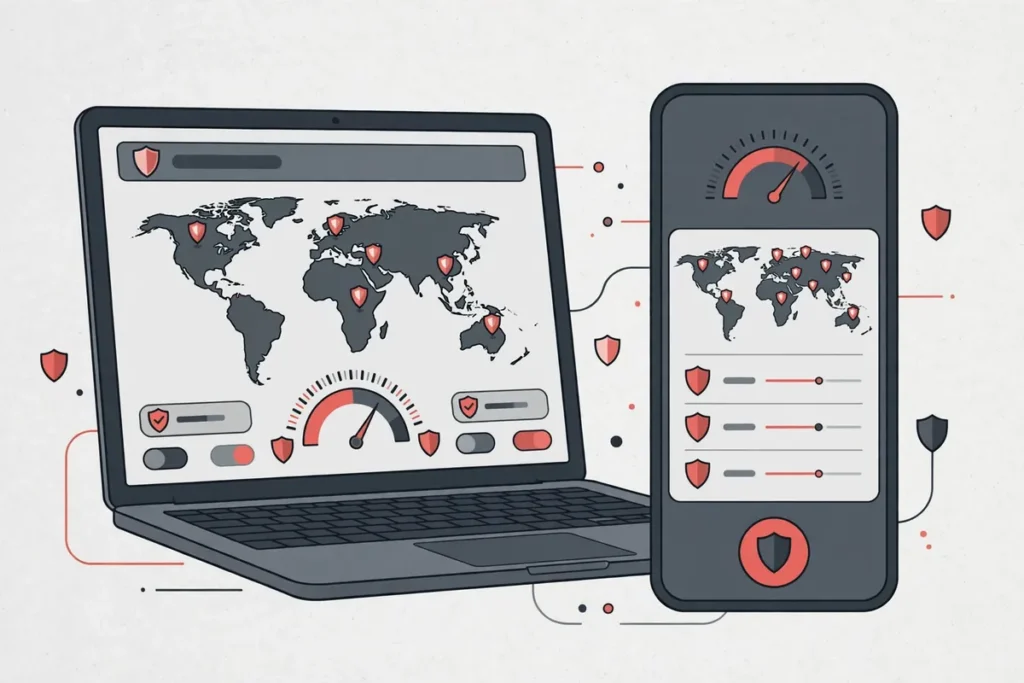
Setting up CyberGhost in Pakistan takes about ten minutes: create an account on the official site, download the app for your device, sign in, and connect to a server. Surfshark is our recommended VPN for Pakistan, with 80% off for our users, but this guide covers CyberGhost end to end, because its labelled streaming and torrenting servers and its 45-day money-back guarantee make it a strong choice for beginners.
This guide walks through the official CyberGhost apps for Windows, macOS, Android, and iOS, the manual OpenVPN profiles for routers, and the checks that prove the tunnel is actually working. Everything here was checked against CyberGhost’s official site and support pages in November 2026, and anything we could not verify from an official source is flagged as such rather than presented as fact.
CyberGhost Setup in Pakistan: The Short Answer
CyberGhost setup in Pakistan works like this: buy a plan on cyberghostvpn.com, download the official app for your device from the same site or from your device’s official app store, sign in with the account you just created, pick a server from the list, and tap connect.
The app shows a connected status and a new IP address, and you verify the tunnel with an IP checker and a leak test.
There is no permanent free plan, so a paid subscription is required, but you can test first: CyberGhost offers a 24-hour free trial on Windows, a 3-day trial on Android, and a 7-day trial on iOS, and long plans carry a 45-day money-back guarantee while the monthly plan carries 14 days.
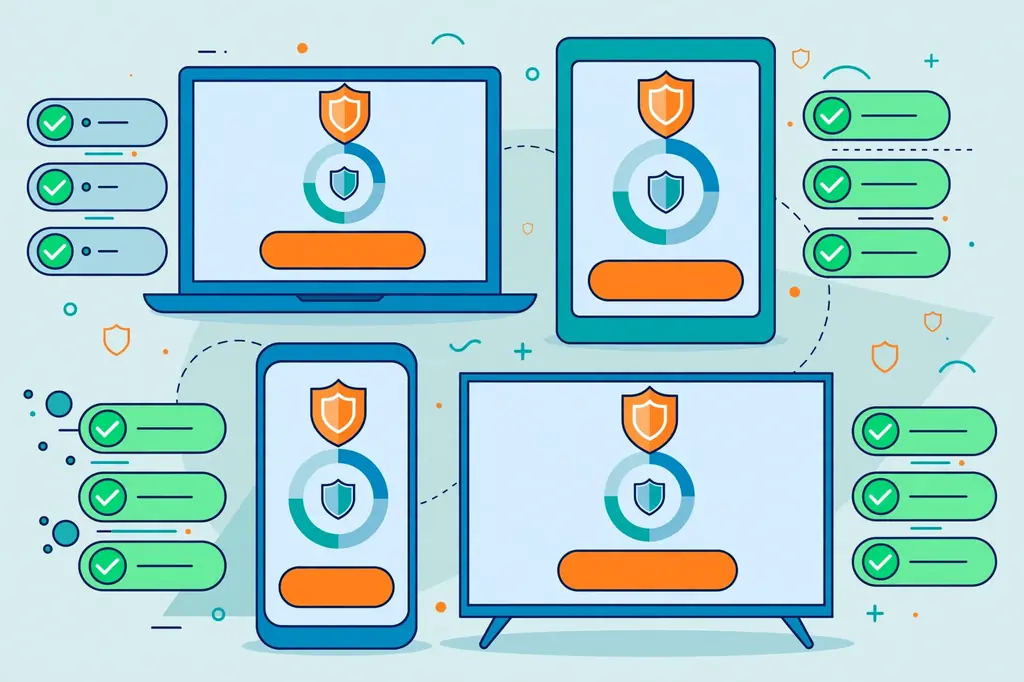
A single subscription covers 7 devices at the same time, and the apps are available for Windows, macOS, Linux, Android, iOS, smart TVs, Fire TV, Android TV, and Apple TV, plus browser extensions for Chrome and Firefox.
Manual setup is also officially supported for routers and other devices without an app, using OpenVPN configuration files generated in your CyberGhost account. That route is more technical, and this guide covers it separately near the end, after the app setup that most readers will use.
Before You Start: What You Need
Before you download anything, check that your device meets CyberGhost’s requirements. On Windows, the app supports Windows 10 and Windows 11, and needs .NET 4.8, a 1 GHz 64-bit processor, 2 GB of RAM, and 310 MB of free disk space. On macOS, the app supports macOS 10.12 Sierra and later, including the current Sequoia release.
On Android, the app needs Android 5.0 or later in practice, and on iOS it needs iOS 9.3 or later, though a recent version is strongly recommended for security updates.
You also need a payment method that works for an international purchase. CyberGhost charges in US dollars, and the prices quoted in this guide are the US prices shown on its site in November 2026: $2.19 a month on the 28-month plan, billed as $61.32 for the first term; $6.99 a month on the 6-month plan, billed as $41.94; and $12.99 a month on the monthly plan.
An international debit or credit card is the usual option from Pakistan, and PayPal is also accepted. Your bank will convert the dollars to rupees at its own rate, plus any foreign transaction fee, so the rupee amount on your statement will be higher than a simple exchange-rate conversion. This guide does not quote a rupee price for that reason.
Finally, check the renewal price before you pay. The introductory rate applies to the first term only, and the 28-month plan is reported to renew at $61.32 a year, which works out to about $5.11 a month. The renewal figure is shown on the checkout page, and it is the price you will actually keep paying.
If you only want a short test, the monthly plan at $12.99 avoids the renewal question entirely, but it carries only a 14-day money-back window instead of 45 days.
Step 1: Create a CyberGhost Account and Choose a Plan
Start on CyberGhost’s official site, cyberghostvpn.com. Do not search for a download link and click the first result, because fake download pages are a common way to distribute modified installers. Type the address yourself or use a bookmark, and check that the address bar shows the official domain before you enter any details.
Choose a plan on the pricing page. The 28-month plan is the cheapest per month at $2.19, and it is the one most reviewers recommend, because it also carries the full 45-day money-back guarantee. The 6-month plan costs $6.99 a month and also carries the 45-day guarantee. The monthly plan costs $12.99 and carries a 14-day guarantee.
Every plan includes the full server network, the same apps, and 7 simultaneous devices, so the only difference is the price and the length of the guarantee.
Create your account with an email address you control and a strong password. CyberGhost will send a confirmation email, and your login details are the same ones you will use in the apps. Keep the password somewhere safe, because you will need it on every device you set up. Do not reuse a password from another service.
Optional add-ons appear at checkout: a dedicated IP address is listed at $5 a month, and the CyberGhost Security Suite for Windows at $4.50 a month. Neither is needed for a basic setup, and you can skip both.
A dedicated IP is useful if a service keeps blocking shared VPN addresses, but it is not required to get started, and it adds a monthly cost that most readers do not need.
Once payment is confirmed, your account is active immediately. You can sign in to the apps straight away, and you do not need to wait for an activation email. If payment fails, check with your bank first: some Pakistani banks block international online payments by default, and you may need to enable international transactions on the card before the payment goes through.
Step 2: Download the Official CyberGhost App
Download the app only from the official source for your device. On Windows and macOS, download it from cyberghostvpn.com, from the download section of your account page. On Android, install it from the Google Play Store. On iOS, install it from the Apple App Store. On Linux, download the installer from the official site, which supports the major distributions.
Never download CyberGhost from a third-party APK site or a download portal. A modified installer can steal your credentials or install malware, and it will not receive official updates. The file size on Windows is around 310 MB of disk space once installed, so the download may take a few minutes on a slower Pakistani connection. Let it finish before you run the installer.
If the official site will not load on your network, try a different connection, such as mobile data instead of home broadband, or contact CyberGhost support for a direct download link. Some Pakistani networks are slow to reach VPN websites, and this is a network issue rather than a problem with CyberGhost itself.
Do not use a free VPN or proxy to reach the download page, because that tool could itself be untrustworthy.
After the download finishes, check the file before you run it. On Windows, right-click the installer and check that the publisher is CyberGhost S.R.L., the Romanian company that runs the service. A legitimate installer is digitally signed, and Windows will show the publisher name in the security prompt. If the prompt shows an unknown publisher, or no publisher at all, stop and download again from the official site.
Step 3: Install CyberGhost on Windows and Mac
Installing CyberGhost on a computer is straightforward. On Windows, run the installer you downloaded, approve the security prompt, and follow the installation wizard. The installer needs administrator permission, because it installs a virtual network adapter that carries the VPN tunnel. Accept the permission prompt, let the installation finish, and the app will open automatically.
On macOS, open the downloaded file and drag the CyberGhost app into your Applications folder, then open it from Applications. macOS will ask for your permission to install a VPN configuration the first time the app connects, because Apple requires explicit approval before any app can create a VPN tunnel. Approve the prompt and enter your Mac password when asked.
This is a normal system step, not a problem with the app.
Sign in with the email address and password you created in Step 1. The app will remember your login, so you only need to do this once per device. If you enabled two-factor authentication on your account, enter the code when prompted.
If sign-in fails, check that you are typing the account password, not the password of a different service, and use the password reset link on the official site if you have forgotten it.
After sign-in, the app shows the main screen: a large power button, a server list, and a settings menu. Before you connect for the first time, open the settings and check two things. First, confirm that the kill switch is on: it is called the Automatic Kill Switch, and it cuts your internet connection if the VPN tunnel fails, so your real IP address never leaks.
Second, check the protocol setting: CyberGhost lets you choose between WireGuard, OpenVPN, and IKEv2, and WireGuard is the best default for most users because it is fast and reconnects quickly.
Step 4: Install CyberGhost on Android and iOS
On Android, open the Google Play Store, search for CyberGhost VPN, and install the official app published by CyberGhost S.R.L. Open the app, sign in with your account, and grant the VPN permission when Android asks. Android will show a warning that the app can monitor your network traffic; this is the standard system prompt for every VPN app, and you must accept it for the tunnel to work.
On iOS, open the Apple App Store, search for CyberGhost VPN, and install the official app. Open the app, sign in, and approve the VPN configuration prompt when iOS asks. As on macOS, this is a normal system step: Apple requires your approval before any app can create a VPN tunnel, and the prompt will name CyberGhost as the app requesting it.
Mobile setup has one extra step worth doing: turn on the 7-day free trial on iOS, or the 3-day trial on Android, if you have not yet paid for a plan. The trial gives you the full service for the trial period, and it is the easiest way to test CyberGhost on your own network before you commit.
The trial is offered in the app itself, and it does not need a separate sign-up. Be aware that refunds for purchases made inside the app stores are handled by Google or Apple, not by CyberGhost, so the 45-day money-back guarantee applies to purchases made on the official site.
On a phone, the app is simpler than on a computer, and some settings are missing. Split tunnelling is generally not available on iOS, because Apple restricts how VPN apps route traffic per app, so iPhone users should route everything through the VPN while testing. On Android, split tunnelling is available, and you can choose which apps go through the tunnel and which use your normal connection.
Step 5: Connect to a Server
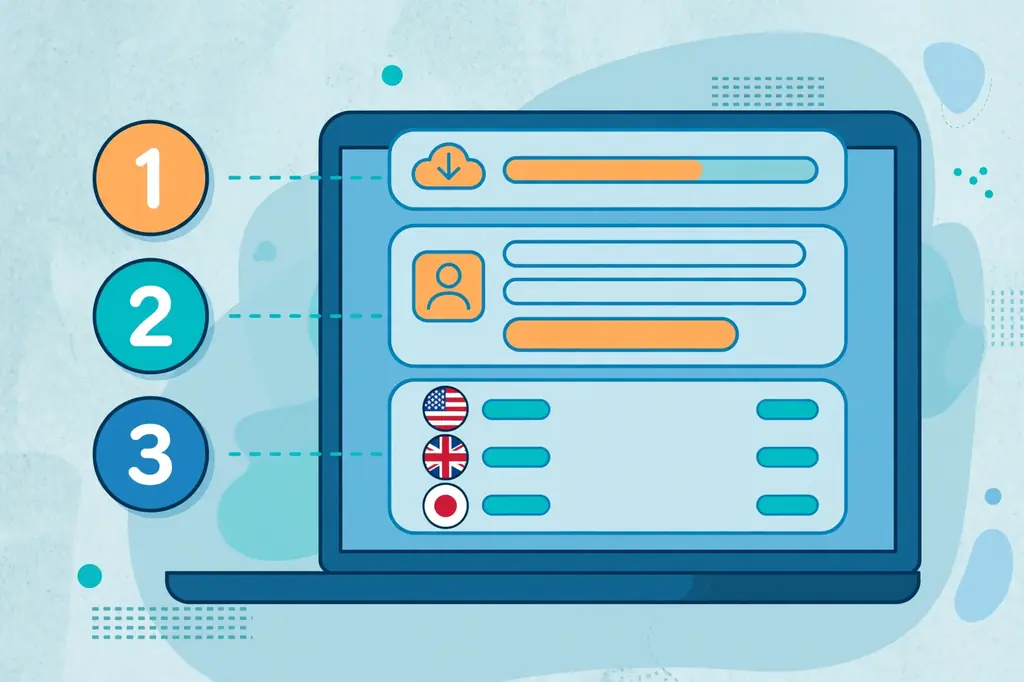
Connecting is the same on every platform. Open the app, find the server list, and either tap the large power button to connect to the best available server, or pick a country first. CyberGhost’s server list is organised by country, and it also has separate lists for streaming-optimised servers and torrenting-optimised servers, each labelled with the service or purpose it is built for.
For general use from Pakistan, the fastest choice is usually a nearby server: Singapore, the United Arab Emirates, or India, depending on which gives the lowest latency on your connection. For a specific country, search for it by name: the app has a search box, and typing “Philippines” or “United States” jumps straight to that location.
Tap the country, then tap connect, and wait for the status to change to connected.
Streaming-optimised servers are worth using when you want to watch a specific service, because they are labelled with the service they are tuned for, such as Netflix US or BBC iPlayer. Torrenting-optimised servers are labelled for P2P traffic, and they are the right choice if you download torrents. For ordinary browsing, email, and messaging, the regular servers are fine, and there is no need to use a specialised server.
If the app offers more than one server in the country you picked, try each one in turn if the first is slow. A different server usually means a different IP block and a different load, and one server in a country can be much faster than another. Note the server name when you find a fast one, so you can pick it again next time instead of searching.
Step 6: Verify the Connection Is Working
After connecting, verify the tunnel before you rely on it. First, check your public IP address: search for “what is my IP” and write down the address, the country, and the city shown. It should show the country of the server you picked, not Pakistan. Then disconnect the VPN and check again: you should see your real Pakistani IP address and your real city.
The two sets of numbers, side by side, are the proof that the tunnel is working.
Second, run a DNS leak test while connected. Your DNS servers should belong to CyberGhost or a data centre, not to your Pakistani ISP. If the leak test shows your real IP address or your ISP’s DNS servers, the tunnel is leaking, and that is a real problem. Check the kill switch setting, reconnect, and test again. If the leak persists, contact CyberGhost support with your notes.
Third, test the service you actually need the VPN for. If you set up CyberGhost to watch a streaming service, open that service and check that it loads the right library. If you set it up for a banking app, check that the app accepts the connection.
A VPN that hides your IP address is doing its job, but only a test of the real service proves that the service accepts the VPN’s address.
Our guide to testing a VPN server from Pakistan walks through the same verification method for another country, including repeated latency tests and how to compare results across Pakistani networks. The steps are identical, and the method works for any provider, not just CyberGhost.
Settings Worth Changing After Setup
Three settings deserve your attention after the first connection. The first is the kill switch, which CyberGhost calls the Automatic Kill Switch.
It is on by default in most versions of the app, but check it anyway: if the VPN drops for a moment and the kill switch is off, your traffic can silently reconnect over your real connection, and the site you are using will see your Pakistani IP address.
The second is the protocol. CyberGhost lets you choose between WireGuard, OpenVPN, and IKEv2. WireGuard is the best default for most users: it is fast, it reconnects quickly when you switch networks, and it uses modern encryption. OpenVPN is the most widely supported option, and it is the one to use if WireGuard is blocked on your network.
IKEv2 is a good fallback on mobile, because it handles network changes well. If one protocol will not connect, try another before you conclude that CyberGhost does not work on your network.
The third is auto-connect. CyberGhost can connect automatically when you join an untrusted Wi-Fi network, which is useful in cafes, hotels, and airports, where public Wi-Fi is the riskiest place to browse without a VPN. Turn this on if you often use public Wi-Fi, and leave it off if you only use the VPN at home on a network you trust.
One more setting is worth knowing about: the app can block adverts, trackers, and malicious websites. This is a useful extra, but it is not a replacement for a dedicated ad blocker, and it can occasionally break a website that relies on a tracker to load. If a site stops working while the VPN is connected, try turning this feature off before you blame the VPN.
CyberGhost and Surfshark: Which Fits a Pakistan User?
CyberGhost and Surfshark are the two providers most Pakistan readers choose between, and the differences are clear. CyberGhost is easier for a beginner, because its servers are labelled by purpose and its apps are simpler. Surfshark is cheaper on a long-term plan, allows unlimited devices instead of 7, and is our recommended VPN for Pakistan. Both offer a Philippines location, both support WireGuard, and both carry a money-back guarantee.
The device limit is the biggest practical difference. CyberGhost covers 7 devices, which is enough for one person with a phone, a laptop, and a tablet, but a household sharing one subscription will hit the limit quickly. Surfshark’s unlimited connections cover every device in the house under one subscription, and that alone is worth the switch for a family.
The other difference is the trial. CyberGhost offers a 24-hour trial on Windows, 3 days on Android, and 7 days on iOS, while Surfshark offers a 7-day free trial on 12- and 24-month plans. Both give you a way to test before you pay, and both carry a money-back guarantee after payment: 45 days on CyberGhost long plans, 30 days on Surfshark.
Surfshark — our recommended VPN for Pakistan
Unlimited devices, WireGuard speeds, and 80% off for our users.
Choose CyberGhost if you want the simplest apps and labelled streaming servers. Choose Surfshark if you want unlimited devices and the lowest long-term price. Either way, the setup steps in this guide are similar, and the verification checks at the end work for both.
Setting Up CyberGhost on Smart TVs and Streaming Devices
CyberGhost has apps for smart TVs and streaming devices, including Fire TV, Android TV, and Apple TV. On Fire TV and Android TV, install the app from the device’s app store, sign in with your account, and connect to a server exactly as you would on a phone. The TV interface is simplified, but the server list and the connect button work the same way.
On Apple TV, install the CyberGhost app from the App Store on the device, sign in, and connect. Apple TV support is a recent addition, and the app is simpler than the phone version, but it covers the main use: connecting to a server so that streaming apps on the TV see the VPN’s location.
If your TV has no app store, or no CyberGhost app, the workaround is the router setup in the next section, which covers every device on your network at once.
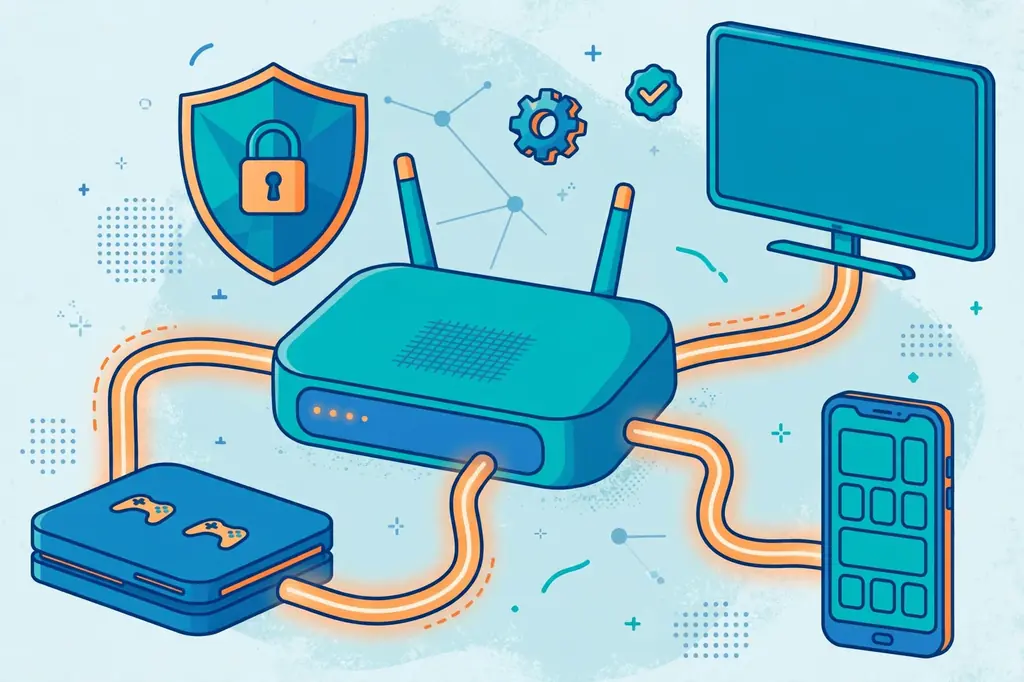
A router setup protects the TV, a games console, and any other device that cannot install a VPN app, and it counts as a single connection against your 7-device limit, which is the reason it is worth the afternoon it costs to set up.
Manual Setup: CyberGhost on a Router With OpenVPN
Manual setup is officially supported for routers and other devices without an app, using OpenVPN configuration files generated in your CyberGhost account. This is the most technical part of the guide, and most readers will never need it, but it is the only way to protect a device that cannot install the CyberGhost app.
Start by signing in to your CyberGhost account on the official website. Go to the VPN section, then Manual Setup, and click Configure New Device. Choose OpenVPN as the protocol, pick the country you want to connect to, choose a server group, give the device a name, and save the configuration.
CyberGhost will generate a configuration file and a username and password for this device: copy both to a safe place, because you will need them in the router settings.
Next, open your router’s admin page in a browser and find its VPN client section.
The exact location depends on your router: on ASUS routers with VPN Fusion, choose CyberGhost as the VPN type and upload the configuration file; on ASUS Merlin firmware, upload the .ovpn file in the VPN client tab, set automatic start at boot if you want the tunnel to begin when the router restarts, and set the kill switch according to your preference.
On DD-WRT, FreshTomato, and other supported firmware, the steps are similar, and CyberGhost’s support centre has a guide for each one.
After uploading the configuration, enter the username and password CyberGhost generated, save the settings, and start the VPN client. Check the router’s status page to confirm that the tunnel is up, then check your public IP address from a device on the network: it should show the country of the server you picked.
If it shows your real Pakistani IP address, the router is not routing traffic through the tunnel, and you should check the redirect setting, which must send all internet traffic through the VPN.
One warning: a router setup counts as one connection, but it protects every device on the network, so a mistake affects everything at once. Test the setup with a single device first if your router allows per-device routing, and keep a note of the original settings so you can undo the change if the tunnel causes problems.
Browser Extensions: Chrome and Firefox
CyberGhost also offers browser extensions for Chrome and Firefox. Install the extension from the official browser store, sign in with your account, and pick a server. The extension is useful when you only want to protect your browsing and leave other apps on your normal connection.
A browser extension is not the same product as the full app. It protects only the traffic inside that browser, not the traffic from other apps on your device, and it does not include the kill switch or the full protocol choice of the desktop app.
Use the extension for quick browsing protection, and use the full app when you want every app on the device to go through the tunnel.
The extension is free to use with a CyberGhost account, and it is the fastest way to test a server location, because there is nothing to install beyond the extension itself. If you only need a VPN inside the browser, it may be all you need; if you need system-wide protection, install the full app instead.
Troubleshooting: When CyberGhost Will Not Connect
If CyberGhost will not connect, work through the causes in order. First, check your internet connection without the VPN: if your normal connection is down, the VPN cannot fix it. Second, try a different server: the server you picked may be overloaded or temporarily down, and another server in the same country usually works.
Third, try a different protocol. If WireGuard will not connect, switch to OpenVPN or IKEv2 in the settings and try again. Some Pakistani networks block one protocol and allow another, and the fix is often as simple as changing the setting.
Fourth, check for a second VPN or security app running at the same time: two VPN apps, or a VPN and an antivirus with its own network filter, can fight over your traffic. Run one VPN at a time.
If the app will not install, check the requirements in the “Before You Start” section: an old version of Windows or macOS, or too little free disk space, will stop the installer. If sign-in fails, check that you are using the account password and not a different password, and use the password reset link on the official site.
If the app connects but your real IP address still shows, check the kill switch and split tunnelling settings: an app outside the tunnel will show your real address, and that is a settings issue, not a broken VPN.
If none of these steps works, contact CyberGhost support, which is available 24/7 by live chat. Give them the device, the app version, the server you tried, and the error message you saw. A short note with those four facts gets a faster answer than a long complaint without them.
Limitations and Honest Caveats
CyberGhost has real limitations, and this guide would be incomplete without them. The 7-device limit is the lowest among the major providers we cover, and a household will hit it quickly. There is no permanent free plan, so a subscription is required after the trial ends.
The monthly plan is expensive at $12.99, and the renewal price after the first term is higher than the introductory rate, so the cheapest price is only the first-term price.
CyberGhost also lacks advanced obfuscation, which means it is not the best choice for highly restricted networks that actively block VPN traffic. Its features also vary between platforms: the desktop apps have the full feature set, while the mobile apps and the TV apps are simpler, and some settings are missing on iOS because of Apple’s restrictions.
Finally, we have not measured CyberGhost’s speeds from Pakistan for this guide, and we do not quote speed numbers we have not measured. Independent reviews report good speeds, but your result will depend on your Pakistani network, the server you pick, and the time of day. Test the service on your own connection during the trial or the money-back window, and judge it by your own results.
CyberGhost Setup: Frequently Asked Questions
Where Should I Download the Official CyberGhost App?
Download it only from cyberghostvpn.com for Windows, macOS, and Linux, or from the Google Play Store on Android and the Apple App Store on iOS. Never download CyberGhost from a third-party APK site or a download portal, because a modified installer can steal your credentials. On Windows, check that the installer is digitally signed by CyberGhost S.R.L. before you run it.
If the official site will not load on your network, try mobile data instead of home broadband, or contact CyberGhost support for a direct download link. Some Pakistani networks are slow to reach VPN websites, and that is a network issue rather than a problem with CyberGhost.
How Do I Connect to a Server?
Open the app, find the server list, and either tap the large power button to connect to the best available server, or pick a country first and then tap connect. CyberGhost’s server list is organised by country, with separate lists for streaming-optimised and torrenting-optimised servers, each labelled with the service or purpose it is built for.
For general use from Pakistan, the fastest choice is usually a nearby server such as Singapore or the United Arab Emirates. For a specific country, search for it by name in the app. If one server is slow, try another in the same country, and note the server name when you find a fast one.
How Can I Check That the Tunnel Is Working?
Check your public IP address with the VPN connected: it should show the country of the server you picked, not Pakistan. Then disconnect and check again: you should see your real Pakistani IP address. The two sets of numbers, side by side, prove the tunnel is working.
Also run a DNS leak test while connected: your DNS servers should belong to CyberGhost or a data centre, not to your Pakistani ISP. Finally, test the service you actually need the VPN for, such as a streaming service or a banking app, and check that it accepts the connection.
If your real IP address ever appears while the VPN is connected, that is a real leak, and you should check the kill switch and split tunnelling settings.
Conclusion: Setting Up CyberGhost From Pakistan
Setting up CyberGhost in Pakistan is a ten-minute job: create an account on the official site, download the app for your device, sign in, pick a server, and connect. The apps are available for Windows, macOS, Android, iOS, Linux, and smart TVs, manual OpenVPN profiles cover routers and other devices, and the verification steps in this guide prove the tunnel is working before you rely on it.
CyberGhost is the easiest VPN on our list for a beginner, with labelled streaming and torrenting servers, a 45-day money-back guarantee on long plans, and a price of $2.19 a month on the 28-month plan. Its limits are real: 7 devices, no permanent free plan, and a renewal price higher than the introductory rate.
Test it on your own network during the trial or the money-back window, and judge it by your own results.
If unlimited devices matter more than labelled servers, Surfshark is our recommended VPN for Pakistan, with 80% off for our users — but whichever provider you choose, download only from the official site, verify the tunnel with an IP checker and a leak test, and keep the kill switch on.
Surfshark — our recommended VPN for Pakistan
Set up in minutes on any device — 80% off for our users.