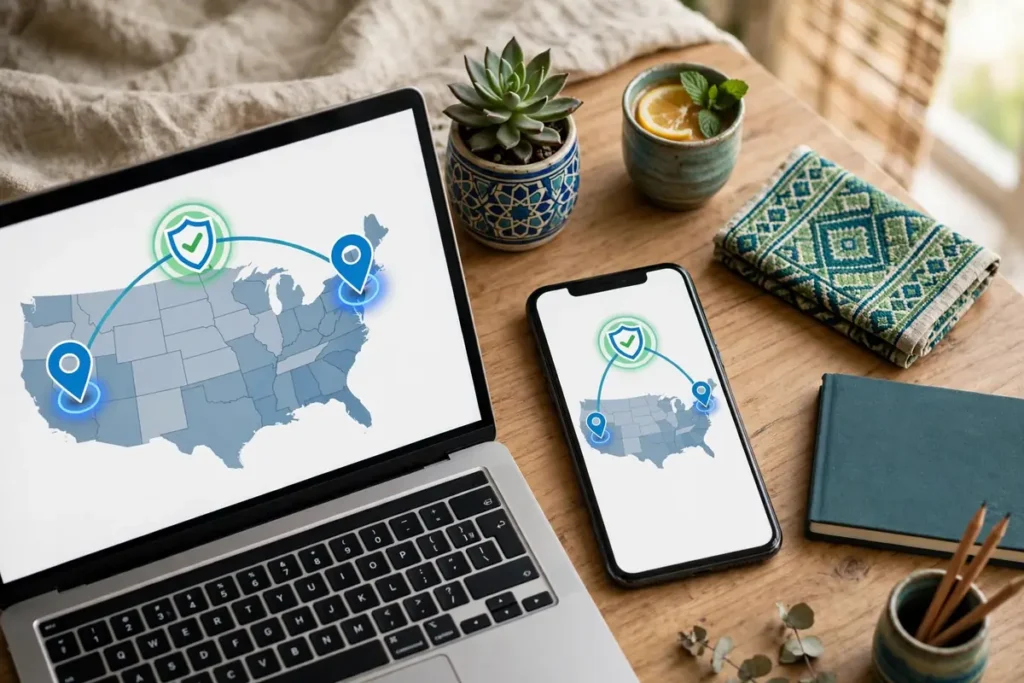
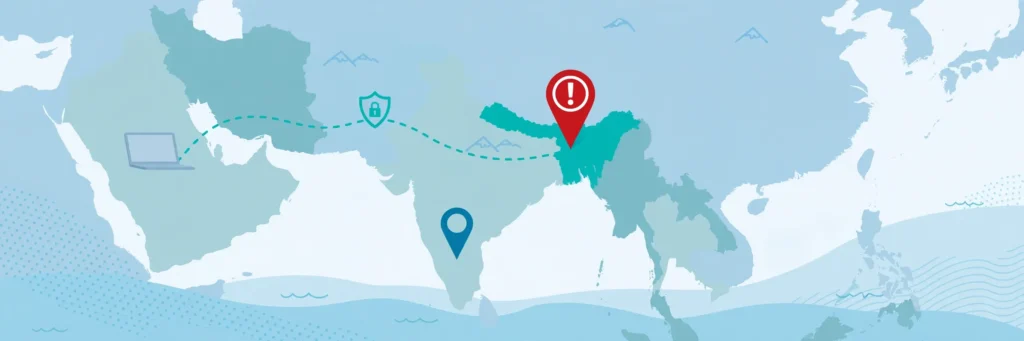
If your Bangladesh VPN shows the wrong location, Surfshark is the VPN we recommend for testing the problem properly, with 80% off for our users — because it offers a Bangladesh location in its app, and the mismatch you see is usually a diagnosis problem, not a broken connection.
The symptom feels alarming. You connect to Bangladesh, open a location check, and the page insists you are in Singapore, the Netherlands, or somewhere else entirely. The natural conclusion is that the VPN is not working, but that conclusion is often wrong, and acting on it usually wastes an evening.
A VPN changes one thing: the IP address websites see. It does not change your device GPS, your Google account region, your payment country, or the language your browser sends. Each of those signals can disagree with the exit IP, and each one produces a different kind of wrong location, so the fix depends on which signal is wrong.
This guide is a diagnosis, not a connection-failure guide. It walks through five steps in order: record what you selected and what exit IP you actually got, compare location databases, separate GPS and account settings from the exit IP, check the provider documentation, and report a reproducible mismatch to support.
The short answer is to record the exit IP first, then check it in at least three independent lookup tools. If most of them say Bangladesh, your VPN is working and one stale database or a GPS signal is misleading you. If most of them agree on another country, you have a real routing problem worth reporting.
The guidance is verified against Surfshark’s own published support documentation on virtual locations, which is current as of 22 November 2026. Where a claim could not be verified from an official source, this guide says so plainly instead of asserting it, because a confident wrong answer is worse than an honest gap.
No measurements were made for this post, and it publishes no speed numbers, ping values, or test results of its own. Every check below is a procedure you can run yourself, with the evidence to record at each step, so that you and support are working from the same facts.
The Short Answer: Why a Bangladesh VPN Shows the Wrong Location
A Bangladesh VPN wrong location result has four common causes, and they need different fixes. The first is a stale geolocation database that still maps your exit IP to its previous country. The second is a virtual server location, where the physical machine sits elsewhere while the IP is registered to Bangladesh.
The third cause is a different location signal: browser GPS, device location services, or a Google account region that the VPN never touches. The fourth is a genuine routing fault, where the app connected you to the wrong server or the tunnel never engaged. Only the fourth is a fault in the VPN itself.
Most readers who work through the steps in order find the first or third cause. That is good news, because neither means the VPN is broken, and neither needs a new provider. It also means the worst response is to keep switching providers at random, since every provider’s Bangladesh IP can hit the same stale databases.
The order of the steps matters. Recording the exit IP first gives you a single fact to test against every database. Comparing databases second tells you whether the problem is one stale record or a real routing error. Separating GPS and account settings third stops you blaming the VPN for a signal it never controlled.
| Cause | What You See | How to Tell |
|---|---|---|
| Stale geolocation database | One site says another country, others say Bangladesh | Most lookup tools agree on Bangladesh |
| Virtual server location | IP says Bangladesh but latency points elsewhere | Provider labels the location virtual |
| GPS or account region | Google or an app still shows Pakistan | IP lookups say Bangladesh, the app disagrees |
| Real routing fault | Every lookup agrees on the wrong country | Same result on every tool and device |
Step 1: Record the Selected Location and the Exit IP
Before you check anything, write down exactly what you selected. Note the country, the city if the app shows one, and the server name or number if it is visible. Bangladesh has only one city in most apps, Dhaka, so the city is less informative than the server identity, but record both anyway.
Next, confirm the VPN app shows a Connected status, then open a browser and visit an IP lookup site. Write down the IP address it shows, the country it reports, and the time. Do not rely on memory for any of this, because support cannot act on a remembered address, and you will need the exact IP later.
Now disconnect the VPN and run the same lookup again. Write down your real Pakistani IP address and the country it reports. The two addresses must be different. If they are identical, the tunnel never engaged, and the rest of this guide does not apply until you fix the connection itself.
Repeat the connected lookup in a second browser or a private window, because a cached page can show yesterday’s result. If the second check matches the first, you have a trustworthy exit IP. If it differs, clear the browser cache and check again before drawing any conclusion.
Keep this note as a small log, with one line per check: time, selected location, exit IP, country shown, and the tool used. A five-line log is the difference between a support ticket that gets answered and one that bounces back asking for the details you should have recorded first.
- Note the selected country, city and server name exactly as the app shows them.
- Confirm the app shows Connected, then open an IP lookup site and record the exit IP.
- Disconnect the VPN and record your real Pakistani IP for comparison.
- Repeat the connected lookup in a second browser or private window to rule out a cached page.
- Keep a short log with the time, exit IP, country shown and tool used for every check.

Step 2: Compare Location Databases for the Same Exit IP
A single lookup site is not a verdict. Every IP lookup site reads from a geolocation database, and different sites use different databases, so the same exit IP can show Bangladesh on one site and another country on the next. A Bangladesh VPN geolocation database mismatch is usually one database lagging behind, not a broken VPN.
Check the same exit IP in at least three independent tools. Use well-known lookup sites rather than small ones that all draw from the same source, and write down what each one reports. If two or three say Bangladesh, your VPN is working, and the site that disagrees is using a stale record that will usually correct itself.
The reason databases lag is that IP ranges change hands. When a provider assigns an address block to its Bangladesh location, the databases must all learn the new mapping, and they update on different schedules. MaxMind, IP2Location, IPinfo and the in-house databases of large websites each correct errors at their own pace.
Some websites keep their own copy of a database and update it rarely, so a site can disagree with every lookup tool for weeks. That is the site’s problem, not your VPN’s, and no amount of reconnecting will fix it. The test that matters is the lookup tools, because they are the neutral referees.
If every tool agrees on the same wrong country, the picture changes. That is no longer a stale record, because several independent databases would not all make the same error at once. It points at a real routing issue, which is the result you carry into the later steps of this guide.
Do not pay for a premium database lookup to settle this. The free lookup tools are enough for a diagnosis, and a paid result would not change the decision. What matters is agreement across independent sources, not the authority of any single one, and three free checks give you that.
| What the Tools Say | What It Means | Next Step |
|---|---|---|
| Most say Bangladesh, one disagrees | One stale database record | Wait, or use a service that reads a current database |
| All say Bangladesh | The VPN is working correctly | Look at GPS and account settings instead |
| All agree on another country | A real routing or assignment problem | Reconnect, then report it to support |
| Tools disagree with each other | Databases are updating at different speeds | Recheck the same IP again in a day or two |
Step 3: Separate GPS, Browser and Account Settings From the Exit IP
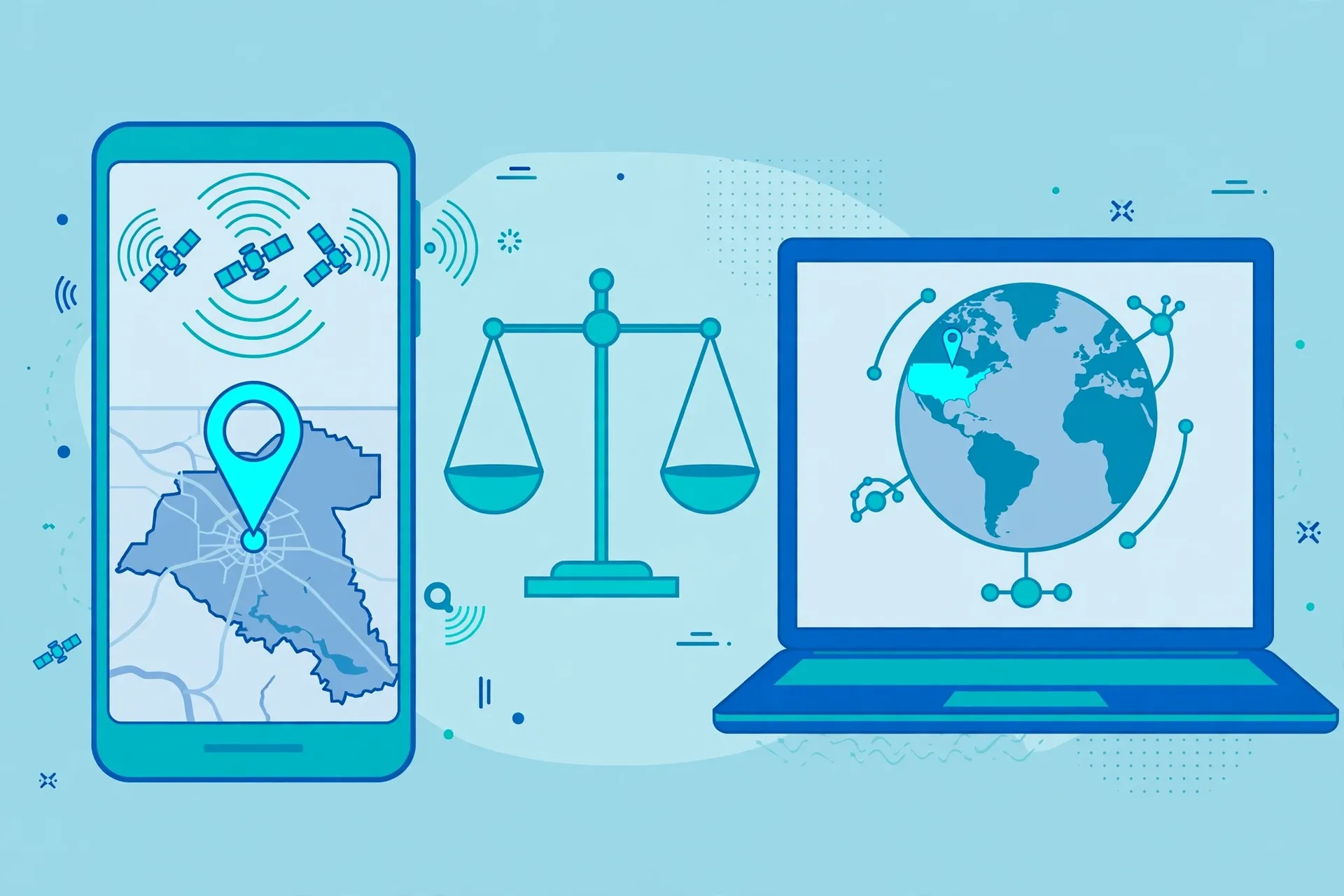
A VPN changes your IP address, and nothing else. Your phone’s GPS still reports your real position in Pakistan, your browser can share that GPS position with websites that ask for it, and your Google account still carries the region you set when you created it. None of those change when you connect.
That is why Google can still show the wrong location even when every IP lookup says Bangladesh. Google weighs your account region, your search history, your device GPS and your IP address together, and the IP is only one input. A Bangladesh VPN Google location wrong result is usually Google reading a different signal, not the VPN failing.
Test this separation directly. On a phone, turn off location services for the browser, or deny the location permission when the site asks, then reload the page. If the location changes to Bangladesh, GPS was the signal that misled you. If nothing changes, the account region or the site’s own database is the cause.
Check your Google account region separately, in the account settings, and check the language and region settings of the app that shows the wrong location. An app set to Pakistan as its home region will keep showing Pakistani content until that setting changes, regardless of which country your VPN exit IP sits in.
Browser settings matter too. A browser signed into a Google account can share that account’s region with every site, and a browser with a saved location permission can share GPS without asking again. Review the site permissions in your browser settings and revoke the location permission for the sites that show the wrong country.
The practical rule is simple: trust the IP lookup tools for the VPN, and treat GPS and account settings as separate problems with separate fixes. Fixing the VPN will never fix a Google account region, and changing your account region will never fix a stale IP database.
- Deny the browser location permission and reload the page to test whether GPS is the cause.
- Check your Google account region in account settings, not in the VPN app.
- Review the region and language settings of the app that shows the wrong location.
- Revoke saved location permissions for sites that keep showing the wrong country.
- Remember that a VPN changes the IP address only, never GPS or account region.
Step 4: Check Whether Your Bangladesh Server Is Virtual
Many providers offer Bangladesh as a virtual location. That means the IP address is registered to Bangladesh, but the physical machine that carries your traffic sits in another country, usually a nearby data centre with better infrastructure. Surfshark’s own support documentation explains this openly, and it is a standard industry practice.
Surfshark lists a Bangladesh location in its app, in the city of Dhaka, and third-party server lists describe it as virtual with P2P support. Surfshark’s support page states that a virtual location is functionally identical to a physical one from the customer’s point of view, and that the physical server can sit in a different country, as with a German virtual location hosted in France.
Flagged: the claim that Surfshark’s Dhaka location has four servers comes from third-party server lists, not from Surfshark, which does not publish server counts per location. The physical host country of the virtual Dhaka location is also not disclosed by Surfshark. Do not treat either detail as an official fact.
A virtual location is not a fault, and it does not by itself explain a wrong-country result. The IP is still registered to Bangladesh, so a current geolocation database should still report Bangladesh. Where a virtual location matters is latency and the occasional service that checks the physical path, not the country shown by an IP lookup.
You can check whether your provider labels the location virtual by opening the location list in the app. Surfshark labels its virtual locations in the app after fixing a labelling gap in 2024, so the Dhaka entry should carry a virtual marker. If your provider hides that label, its support page or server list is the place to look.
If the location is virtual and every database agrees on the wrong country, the physical host is worth asking support about, because the IP range may have been registered to the host country instead of Bangladesh. That is a provider-side assignment error, and only the provider can correct the registration.
Do not assume a virtual location is the cause just because it exists. Run the database comparison first. A virtual Bangladesh location with a correctly registered IP shows Bangladesh in every current database, and blaming the virtual label without that evidence sends you down the wrong path.
| Location Type | Physical Machine | IP Country | What Usually Goes Wrong |
|---|---|---|---|
| Physical server in Dhaka | Inside Bangladesh | Bangladesh | Stale database records only |
| Virtual location, Dhaka IP | In another country | Bangladesh | Latency, rare physical-path checks |
| Virtual location, wrongly registered IP | In another country | Host country | Every database shows the wrong country |
Surfshark and the Bangladesh Location: The Verified Example
Surfshark is the VPN we recommend for a Bangladesh IP from Pakistan, and the reason is practical: it lists Bangladesh in its app, it labels the location virtual so you know what you are connecting to, and its support documentation explains virtual locations in plain language instead of hiding them.
That transparency is what makes it the right example for this guide. When the Dhaka location shows the wrong country, you can check the virtual label, read the support page, and report the exit IP with the facts in hand, instead of guessing whether the server is physical or virtual. The diagnosis stays evidence-led.
Surfshark’s network covers more than 100 countries, so the Bangladesh entry sits alongside many other locations, and switching to a neighbouring country for a comparison test is easy. A quick test on a Singapore or India location, using the same database comparison, tells you whether the problem is specific to the Bangladesh IP or affects every location.
One subscription covers unlimited devices, so the same account can run the Bangladesh location on your phone, your laptop and your TV, and you can compare the same exit IP across devices. That cross-device comparison is one of the strongest tests in this guide, because a GPS problem follows the phone while an IP problem follows the exit address.
Check the current Surfshark price on the official site before you subscribe, and confirm the two-year rate and the rupee conversion there before you commit. Prices and promotions change, and the figure on the official site is the only one you should trust. The offer we promote is 80% off for our users, through the link in this guide.
Surfshark — our recommended VPN for Pakistan
One subscription covers unlimited devices, so the same account can run the Bangladesh location on your phone, laptop and TV without buying extra accounts.
Step 5: Check the Provider Documentation Before You Blame the App
Before you conclude the app is at fault, read the provider’s own documentation for the Bangladesh location. The support pages usually state whether the location is virtual, whether it supports P2P traffic, and whether any features are limited there. A limitation you discover in the documentation is an answer, not a fault.
Check the provider’s server status or network page as well, if one exists. A location under maintenance, or one that has recently moved to a new data centre, can produce a temporary mismatch while the IP records catch up. That kind of fault fixes itself, and reporting it still helps, because it tells the provider the records are stale.
Also check whether the app itself offers a way to pick a different server in the same location. Some apps let you choose a specific server, while others assign one automatically. If your app offers a choice, try another Bangladesh server and repeat the database comparison, because a single misassigned server explains a mismatch that a second server does not share.
Read the provider’s guidance on location checks, too. Some providers publish their own IP lookup or location test and recommend it as the reference, because they know third-party databases disagree. If the provider’s own tool says Bangladesh while others disagree, that is useful evidence for the report, not a contradiction to ignore.
Finally, check whether the app needs an update. A location list that is months out of date can show a Bangladesh entry that no longer maps to the right server, and an update refreshes the list. This is a small check, but it is the cheapest fix in the guide, and it should come before any support ticket.
How to Run a Clean Bangladesh VPN IP Verification
A clean verification removes every variable except the exit IP. Run it on a desktop browser first, because phones add GPS to the picture and tablets add their own location services. A desktop test isolates the IP, and the phone test afterwards tells you what GPS adds on top.
Start with the VPN disconnected and record your real IP and country. Connect to Bangladesh, wait for the Connected status, and record the new exit IP in three lookup tools. Note the time of each check, because an IP that changes between checks means the app reassigned your server mid-test.
Then test the service that showed the wrong location, in a private browser window, with location permission denied. If the service now shows Bangladesh, the cause was GPS or a cached page, not the VPN. If it still shows the wrong country while the lookup tools say Bangladesh, the service is reading a stale database or your account region.
Repeat the whole sequence on a second device, on the same Wi-Fi network, using the same exit IP. If the second device agrees with the first, the result is about the IP. If the second device disagrees, the result is about the device, and the fix lives in that device’s settings, not in the VPN.
Run the verification once more after a day, with the same exit IP if you can hold it, because databases update daily. An IP that showed the wrong country on Monday and Bangladesh on Wednesday was a stale record correcting itself, and no fix was ever needed. Patience is a legitimate outcome here.
- Test on a desktop browser first, where GPS does not interfere with the result.
- Record your real IP disconnected, then the exit IP connected, in three lookup tools.
- Test the affected service in a private window with location permission denied.
- Repeat the sequence on a second device on the same network for comparison.
- Recheck the same exit IP after a day to see whether a stale database has corrected itself.
What to Do When Google Still Shows the Wrong Location
Google is the most common place a Bangladesh VPN Google location wrong result appears, and it is also the place where the fix is least likely to involve the VPN. Google combines your IP address with your account region, your search history, your device GPS and your past locations, and it weighs them together.
Start by checking what Google itself says. Open the Google account settings and look at the region and language, then open a Google search and look at the location shown at the bottom of the results page. If that location says Pakistan while the IP lookups say Bangladesh, Google is reading your account or device, not the VPN.
Change the Google region setting to Bangladesh if that matches what you want, and clear the location permission for Google in your browser. Then sign out of the Google account and search again in a private window. If the location now shows Bangladesh, the account was the signal, and the VPN was working all along.
On Android, the device location setting is a separate input. Turn off location services entirely, or set the location permission for the browser to denied, and test again. An Android phone that reports GPS from Lahore will keep telling Google you are in Lahore, whatever country your exit IP sits in.
Do not keep reconnecting the VPN hoping Google will change its mind. Reconnecting changes the exit IP, which gives Google a new address to weigh against the same account region and GPS, and the result will usually stay the same. Fix the signal that is wrong, which is the account or the GPS, not the tunnel.
If Google still shows the wrong location after the account and GPS are both set correctly, and the lookup tools agree on Bangladesh, the cause is Google’s own IP database, which updates on its own schedule. That record corrects itself over days, and no VPN setting will hurry it.
When to Report the Exit IP to Support
Report the mismatch when it is reproducible, not when it is a single odd result. The test is simple: the same exit IP shows the wrong country in at least two independent lookup tools, on more than one device or network, and after you have disconnected and reconnected to pick a fresh server. If it passes that test, it is real.
Write the report with the facts support needs, in the order they need them. Start with the selected location and server, then the exact exit IP, then the time of the checks, then the tools you used and what each one showed. Add the comparison result: what the lookup tools said, what Google or the app said, and what your real IP showed when disconnected.
Attach the log you kept in step one, with one line per check. A support agent who can see five timed checks across three tools can act immediately, while a ticket that says the location is wrong with no IP, no time and no tool names will bounce back with questions, and the mismatch will still be there a week later.
Ask a specific question in the ticket: whether the IP range is registered to Bangladesh in the provider’s own records, and whether the location is virtual with a physical host in another country. Those two questions go to the heart of the problem, and the answers tell you whether to wait for a database update or to switch locations.
Do not report a mismatch that only one lookup tool shows, or one that disappears when you reconnect. A single stale database is not a provider fault, and a mismatch that clears on reconnect was a single misassigned server, not a broken location. Reporting either wastes your time and the support team’s time.
Keep the ticket number and the exit IP together, and recheck the same IP a few days later. If the databases have corrected themselves, close the ticket with a note saying so. If the mismatch persists, reply to the same ticket with the new checks instead of opening a second one, because the history is what lets support escalate it.
- Report only a reproducible mismatch: wrong in two tools, on two devices, after reconnecting.
- Include the selected location, the exact exit IP, the time and every tool result.
- Ask whether the IP range is registered to Bangladesh and whether the location is virtual.
- Do not report a single-tool disagreement or a mismatch that clears on reconnect.
- Recheck the same IP after a few days and update the same ticket, not a new one.
Surfshark — our recommended VPN for Pakistan
If the mismatch is reproducible across databases and devices, that evidence is exactly what support needs, so send it rather than guessing at a fix.
Common Causes of a Bangladesh VPN Location Mismatch
The table in the short answer section lists the four causes, but the pattern behind them is worth stating plainly. Location is not one fact on the internet, it is several facts held by several systems, and they update at different speeds. A mismatch is usually two systems disagreeing, not one system lying.
The IP database is the slowest to update, because it depends on registries, providers and database vendors all passing the same change along. The GPS signal is the fastest, because it reads the sky. The account region is the most stubborn, because it only changes when you change it. Each one needs its own fix.
A second pattern is that the newest IP ranges are the most likely to be wrong. When a provider adds capacity in a location, the fresh addresses have the shortest history in the databases, and the oldest addresses are the most settled. A mismatch on a brand-new server is therefore more likely to be a stale record than a fault.
A third pattern is that the services most readers care about are the slowest to update. Streaming catalogues, search engines and shopping sites keep their own location tables, and they refresh them on their own schedules, which can lag the public lookup tools by weeks. A site that disagrees with every lookup tool is usually just behind.
Understanding these patterns changes the response. Instead of switching providers, you check the databases, fix the signal that is actually wrong, and wait for the slow systems to catch up. That is a cheaper and more reliable response than buying a second subscription to test a theory.
| Pattern | Why It Happens | Best Response |
|---|---|---|
| One database lags the rest | Registries and vendors update on different schedules | Wait, and trust the majority of tools |
| New IP ranges look wrong | Fresh addresses have the shortest database history | Recheck the same IP after a day or two |
| A single site disagrees with all tools | The site keeps its own slow location table | Fix GPS and account settings, then wait |
| GPS or account region overrides the IP | The VPN never changes those signals | Change the setting, not the provider |
Limitations and What This Guide Does Not Claim
This guide is a diagnosis method, not a report of tests that were run. No measurements were made for this post, and it publishes no speed numbers, ping values, latency figures or connection results of its own. Every check is a procedure for you to run, and the verification section is how you confirm the result yourself.
The guidance is current as of 22 November 2026. Providers change their server lists, their virtual location labels and their plan terms over time, and a step that works today may be renamed or removed in a later app version. If a menu name in this guide does not match your app, look for the nearest equivalent and test it the same way.
Three claims in this guide are flagged as unconfirmed. The number of Surfshark servers in Dhaka comes from third-party lists, not from Surfshark, which does not publish per-location server counts. The physical host country of the virtual Dhaka location is not disclosed by Surfshark. The exact update schedule of any single geolocation database is not published, so correction times cannot be promised.
Flagged: the Dhaka server count is third-party reported, the physical host country of Surfshark’s virtual Dhaka location is undisclosed, and no geolocation database publishes an exact correction schedule. Do not treat any of the three as a settled fact.
This guide also does not claim that a VPN fixes every location problem. A VPN changes your IP address, but services also use GPS, account region, payment details and device settings, and a VPN cannot change those. If a service still shows the wrong location after the IP checks pass, the cause is one of those other signals.
Retest on a fixed schedule if the mismatch is intermittent. Run the verification again one week after your first diagnosis, and again after any change: a new app version, a new server selection, a new internet plan, or a move to a new area. Keep each session’s notes so you can compare like with like.
Conclusion: Diagnose the Signal Before You Blame the VPN
A Bangladesh VPN that shows the wrong location is usually a diagnosis problem, not a broken VPN. Record the exit IP, compare it across independent lookup tools, separate GPS and account settings from the IP, and check whether the location is virtual. Those four steps identify the real cause in almost every case.
The habit that matters most is the record. A short log with the time, the selected location, the exit IP and what each tool showed turns a frustrating symptom into a testable fact, and it is the same log that support needs if the mismatch turns out to be real. Without it, you are guessing, and guessing is what wastes evenings.
If the databases agree on Bangladesh and only one service disagrees, the VPN is working and the service is behind. If every tool agrees on the wrong country and the mismatch survives a reconnect, report it with the evidence and let the provider correct the registration. Either way, you now know which it is. For our other Pakistan VPN guides, the freevpn.pk homepage lists them all.
Frequently Asked Questions
Why Does My Bangladesh VPN Show Another Country?
The most common cause is a geolocation database that still maps your exit IP to its previous country, because IP-to-country records are updated on different schedules by different providers. A second cause is a virtual server location, where the physical machine sits in another country while the IP is registered to Bangladesh.
A third cause is a different signal altogether, such as browser GPS or your Google account region, which a VPN does not change. Record the exit IP first, then compare databases before deciding which cause applies.
Can Geolocation Databases Disagree?
Yes, and they do so routinely. MaxMind, IP2Location, IPinfo and the databases built into individual websites all keep their own records, update them on their own schedules, and correct errors at different speeds. One database can show Bangladesh for an exit IP while another still shows Singapore or the Netherlands. That disagreement is normal for a recently reassigned IP range, and it usually resolves as the slower databases catch up.
Agreement across several databases is the signal that matters.
When Should I Report the Exit IP to Support?
Report it when the mismatch is reproducible: the same exit IP shows the wrong country in at least two independent lookup tools, on more than one device or network, and after you have disconnected and reconnected to pick a fresh server. Include the selected location, the exact exit IP, the time, the tools you used and what each one showed.
A single lookup on a single site is not enough evidence, because one stale database explains that result on its own.