Why a USA VPN Can Show the Wrong Location
You connected to a United States server, opened a website, and it greeted you as if you were somewhere else entirely. Maybe Google shows prices in another currency, a streaming library looks unfamiliar, or an IP checker places you in the wrong country. The first instinct is to blame the VPN, but the wrong location is often the result of how the internet guesses where you are — not a broken connection. For the record, the location behaviour described below matches what I verified on Surfshark — our recommended VPN for Pakistan, with 80% off for our users — which I use as the reference provider in this guide.
If you are shopping for a provider whose server list you can trust while you troubleshoot, it helps to start with one that documents its network openly. Surfshark lists 4,500+ servers across 100 countries on its official server page, including both USA and Pakistan locations, and supports WireGuard, IKEv2 and OpenVPN.
Our readers currently get 80% off for our users, backed by a 30-day money-back guarantee, so you can run every check in this guide risk-free.
Websites do not have a single, reliable way to know your location. Your public IP address is the main signal, but browsers, device GPS, stored cookies, account regions and each site’s own location database all feed the same guess. When any of those disagree, you see the “wrong” location even though the VPN tunnel itself is working.
If you are new to VPNs in general, the beginner guides on Free VPN Pakistan explain the basics before you dive into diagnosis.
This guide gives you a repeatable, five-step diagnosis for the specific problem of a USA VPN showing the wrong IP location. It is written for readers in Pakistan, where freelancers, remote workers and students rely on USA servers daily for client work, banking and streaming. Follow the steps in order, and you will know whether the fault sits with the exit IP, the site’s database, your device, or the provider.
How IP Geolocation Actually Works
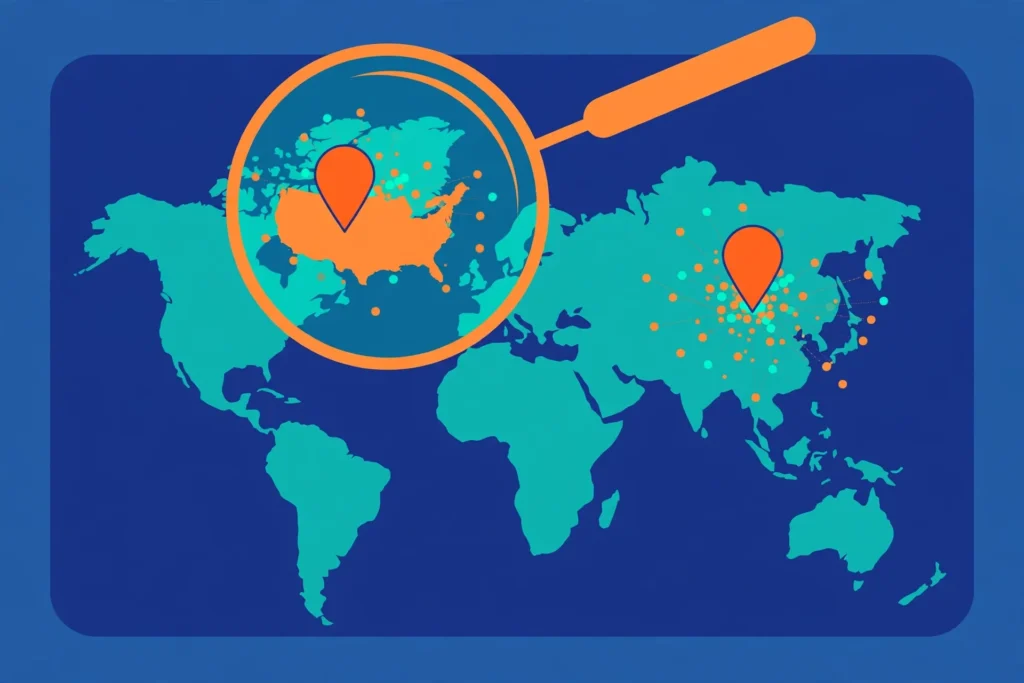
An IP address is a number, not a place. To turn that number into a location, websites consult geolocation databases — large lookup tables maintained by companies such as MaxMind, IP2Location and DB-IP that map ranges of IP addresses to countries, cities and sometimes postal codes.
These databases are educated guesses, updated on schedules that range from days to weeks, and they are the reason two sites can place the same IP in two different places.
Accuracy also differs by level. Country-level mapping is usually right, because the IP block is registered to an organisation in a known country. City-level mapping is far shakier: the database may only know the city where the IP block was first registered, or where the data centre’s headquarters sits.
A USA exit IP reported as “New York” by one database and “Ashburn, Virginia” by another is completely normal, since much of the internet’s infrastructure clusters in those hubs.
VPN providers make this fuzzier in a specific way. Providers buy or lease IP blocks from data centres, and the registration data for those blocks can lag behind reality by months. Some providers also run virtual server locations — servers physically hosted in one country while labelled for another — and reputable ones document this openly in their server guides.
That is why the brief for this article asked for a verified provider example: always check the provider’s own documentation before assuming the label is literal.
Finally, remember that the internet’s biggest sites often ignore public databases. Google, Netflix and Amazon maintain their own private location data, built from years of user signals. Your VPN provider cannot correct those private databases for you. Understanding this saves you from a frustrating loop of switching servers when the “wrong” location is really just one company’s private guess disagreeing with everyone else’s.
Step 1 — Record the Selected Location and Exit IP
Diagnosis starts with writing things down. Before you change anything, open your VPN app and note the exact server label you connected to — the country, the city and the server name or number if the app shows one. Then visit an IP lookup tool such as iplocation.net or whatismyipaddress.com and note your current public IP address, plus the country and city each tool reports. Take a screenshot with a timestamp.
This record is your baseline for everything that follows. If you later switch servers and the location changes, you need to prove which server produced which result. Support teams cannot help with “it showed the wrong country yesterday” but can act on “server us-nyc-142 at 21:40 PKT gave IP 203.0.113.44, reported as Canada by MaxMind.” Precise records turn a vague complaint into a fixable ticket.
While you are at it, check whether your VPN connection is stable. If the tunnel drops and reconnects silently, your device may briefly use your real Pakistani IP, and any site loaded in that window will remember the wrong location through cookies. Our guide on what a VPN kill switch does explains how this feature blocks traffic during drops so a momentary disconnect cannot poison your session with your real location.
Repeat the IP check twice, a few minutes apart, on the same server. VPN providers sometimes rotate exit IPs on busy servers, and a quick re-check tells you whether the IP you are diagnosing is stable or a moving target. A stable IP that one database misplaces is a database problem; an IP that changes every few minutes is a server problem worth reporting.
Step 2 — Compare the Exit IP Across Location Databases
Now take the exit IP you recorded and run it through at least three independent lookups. iplocation.net is useful because it queries several databases on one page, but also try whatismyipaddress.com and ipinfo.io separately. Write down what each one says: country, region and city. You are looking for agreement and disagreement, and the pattern of disagreement tells you almost everything.
The most important distinction is between a wrong city and a wrong country. If every database agrees the IP is in the United States but they name different cities — New York, Ashburn, Dallas — your VPN is working exactly as intended. City-level guesses routinely miss by hundreds of kilometres, and this cosmetic difference rarely affects streaming libraries, banking logins or pricing.
Switch to another USA city if a specific site needs a particular metro area.

A genuinely wrong country is a different story. If the databases agree your “USA” exit IP is in Canada, Germany or Singapore, the server’s IP block is mislabelled in the registration data, or the provider routed you through a different physical location than the label promised. This is the one scenario where the VPN is actually at fault, and it is worth both switching servers and reporting.
The table below summarises how to read your results.
| What the databases show | What it usually means | What to do next |
|---|---|---|
| USA everywhere, different cities | Normal database imprecision | Keep the server; try another city only if a site needs it |
| USA on some, another country on one | One stale database | Clear cookies, try another USA server, note the database name |
| Wrong country on all databases | Mislabeled IP block or wrong routing | Switch servers immediately, then report to support |
| Pakistan or your real location | VPN not connected or leaking | Check the app status, enable kill switch, retest |
One more useful test at this stage: check the IP on a site you actually use, such as Google or a streaming service, and compare. If the independent databases all say USA but one particular site disagrees, the problem lives with that site’s private database or its stored data about you — not your VPN. Move on to Step 3 instead of burning an evening on server roulette.
Step 3 — Separate GPS, Browser, and Account Signals
When the exit IP checks out as American but a site or app still shows the wrong place, the IP was never the problem. Modern devices broadcast location through several channels at once, and the VPN only controls one of them. This step isolates each channel so you can find the real culprit.
Phone GPS Overrides Your VPN
A VPN changes the IP address websites see. It does not move your phone’s GPS chip. If an app has permission to read your device location — Google Maps, food delivery apps, ride-hailing apps and many banking apps do — it will use GPS coordinates from Lahore or Karachi no matter which USA server you are on. This is by design, and no VPN can override it.
Check your permission settings to confirm. On iPhone, open Settings, then Privacy and Security, then Location Services, and review which apps are set to While Using. On Android, open Settings, then Location, then App Location Permissions. For a clean test, set your browser’s location permission to Deny or Ask Every Time, then re-check the misbehaving site. If the location suddenly corrects itself, GPS was the culprit all along.
Browser Permissions and Cached Location
Desktop browsers have their own location machinery. Chrome, Edge and Firefox can ask your operating system for a location based on nearby Wi-Fi networks, and sites you visited before the VPN was on may have stored your old location in cookies or local storage. Either one can resurrect your Pakistani location in a session that should look American.
The fix is a clean-slate test. Open a private or incognito window, which starts with no cookies and no stored data, connect your USA server first, then open the site. In Chrome, also check Settings, then Privacy and Security, then Site Settings, then Location, and block sites from seeing your location during the test.
If the incognito window shows the right location while your normal window does not, clear the site’s cookies and site data in your main browser.
Account Regions, App Settings, and Time Zones
Some “wrong location” reports are not about detection at all — they are about accounts. Google, Apple and Microsoft accounts carry a home country that influences search results, app stores and pricing regardless of your IP. A Google account created in Pakistan will keep showing Pakistani-flavoured results even on a USA exit IP, because Google weighs account history heavily in its location estimate.
Check the app or site’s own region settings too. Many services let you set a country manually in the profile or settings page, and that manual setting overrides everything the IP says. Time zone mismatches can also look like location errors: a device set to Pakistan Standard Time browsing a USA IP is a small inconsistency that some fraud-detection systems flag.
These are not VPN failures, and no server switch will fix them — only the account setting will.

Step 4 — Check the Provider’s Documentation
If the IP, the GPS, the browser and the account all check out yet the location is still wrong, look at the provider’s own words. Open the provider’s server list or support pages and check two things: whether the location you chose is listed as physical or virtual, and whether the provider has any known IP geolocation notes for that location.
Providers that are honest about virtual locations will say so in the server details.
This is where provider quality genuinely matters. Providers with large, well-maintained networks refresh their IP registrations with the major databases and document quirks openly. Smaller or free providers often run on recycled IP blocks whose registration data points at the previous owner’s country, and they rarely fix it.
The wrong-country problem is measurably more common on free VPNs, which is one more reason the free tier is a poor tool for location-sensitive work.
For readers in Pakistan who want a provider that makes this step easy, Surfshark is the service we recommend across this site. Its official server page lists 4,500+ servers in 100 countries with both USA and Pakistan locations present, and the whole network supports WireGuard, IKEv2 and OpenVPN on 10 Gbps ports.
Its apps include a kill switch and 24/7 live-chat support, and every plan carries a 30-day money-back guarantee — useful when you want to run the full diagnosis in this article and walk away if anything disappoints.
Surfshark — our recommended VPN for Pakistan
Fast WireGuard speeds, 100 countries and 24/7 live-chat support for Pakistani readers.
When you read provider documentation, also check the protocol you are using. Some providers route certain protocols through different infrastructure, and a server that geolocates correctly on WireGuard might behave differently on OpenVPN if the exit infrastructure differs. Keep the protocol constant while you diagnose — changing servers and protocols at the same time makes results impossible to compare.
One variable at a time is the golden rule of every step in this guide.
A Worked Example: Diagnosing One USA Server
Let us put the steps together in a single realistic session. You connect to a USA server — for this example, a Surfshark USA location, which we verified appears on the provider’s official server list with the network’s standard WireGuard, IKEv2 and OpenVPN support. The app confirms the connection, and you note the exact server label and the time in PKT.
You open iplocation.net and write down your exit IP and what each listed database reports. Suppose every database says United States, but one says New York and another says Ashburn. Per the decision table in Step 2, that is normal imprecision — your VPN is working, and you can stop diagnosing. No server switch needed, no support ticket, no frustration.
Now suppose instead that the databases agree the IP is in another country entirely. You switch to a second USA server in a different city, re-check, and this time every database says USA. That pattern — one bad server, one good server — points at a mislabeled IP block on the first server, not a broken provider.
You have just produced exactly the evidence support needs: two server labels, two exit IPs, two database results, one clear contrast.
This example uses a documented provider and public lookup tools rather than invented measurements, and it shows the method rather than a result. Your own numbers will differ because exit IPs rotate and databases update. The value is not in the specific IPs — it is in the habit of recording server, IP, database verdict and time, every single time.
Step 5 — Report a Reproducible Mismatch to Support
Report to support only when you have a reproducible mismatch: the same server, the same wrong-country verdict across multiple databases, on at least two separate checks. One odd result after a reconnect is usually a transient routing hiccup; support teams cannot fix those, and the server will likely behave by the time anyone reads the ticket. Reproducibility is the line between noise and a real bug.
Your report should include five fields: the exact server label from the app, the exit IP address, the date and time in PKT, the names of the databases that misplace the IP, and the site or service where the wrong location caused a problem. Screenshots of the IP lookup results help, but the text fields matter more — support staff search their systems by server label and IP, not by images.
Explain what you already tried: different server in the same country, cleared cookies, incognito test, GPS permissions checked. This tells support you have ruled out the device-side causes from Step 3 and saves a round of scripted replies. It also gets your ticket to the network team faster, because the first-line agent can see the diagnosis is complete.
Set your expectations honestly. A good provider will acknowledge a mislabeled IP block and either fix the registration or retire the IP — this typically takes days, not minutes, because database updates propagate slowly.
If support cannot explain the mismatch or the same server misbehaves for weeks, that is information too: it tells you about the provider’s network hygiene, and it is a legitimate reason to use that 30-day money-back window and try elsewhere.
Pakistan-Specific Notes: PTA, ISPs, and Load-Shedding
A few local factors make this diagnosis slightly different in Pakistan. First, the regulatory picture: VPNs are legal in Pakistan but regulated for professional use, and the PTA runs a registration system for business and freelancer VPN use. Our detailed guide on whether VPNs are legal in Pakistan covers who should register and why it matters for uninterrupted service during enforcement drives.
Second, Pakistani ISPs — PTCL, Nayatel, StormFiber and the mobile carriers — occasionally throttle or interfere with VPN protocols, especially during evening peak hours. If your USA server shows the wrong location only at certain times of day, consider that your ISP may be forcing reconnects or degrading the tunnel, which changes your exit IP mid-session. Testing the same server at an off-peak hour is a useful control.
Third, load-shedding creates a failure pattern foreign guides never mention. When the power cuts, your router dies; when power returns, devices reconnect in a rush and the VPN app may take a minute to re-establish the tunnel. Any page loaded in that window sees your real IP. A kill switch set to strict mode, or a UPS on the router, closes this gap.
If your household cannot avoid the pattern, at least recognise it so you do not misdiagnose a power-cut leak as a provider problem.
Frequently Asked Questions
Why Does My USA VPN Show Another Country?
The most common cause is a stale geolocation database mapping your exit IP to the wrong country, because provider IP registrations lag behind reality. Less often the server is virtual, your tunnel dropped, or the site uses private location data. Check the exit IP on three independent lookup sites first.
This applies when the mismatch is consistent across databases and checks. If only one site disagrees while the databases say USA, the problem is that site’s data or your browser’s stored location — not your VPN — and switching servers will not help.
Can Geolocation Databases Disagree?
Yes, routinely. MaxMind, IP2Location, DB-IP and Google’s private data update on different schedules and sources, so one USA exit IP can show different cities — occasionally different countries — depending on the database. City-level disagreement is normal; consistent country-level disagreement signals a mislabeled IP.
This matters most when a service you rely on uses a stricter database than the public ones. Banking and streaming platforms sometimes consult databases that update slowly, so an IP that looks American everywhere else can still fail on one platform until the records catch up.
When Should I Report the Exit IP to Support?
Report it when the same server produces a wrong-country verdict on multiple databases across at least two separate checks, after you have ruled out GPS, browser cookies and account settings. Include the exact server label, the exit IP, the date and time in PKT, and which databases misplace it.
Do not report one-off oddities, wrong-city results, or mismatches that only one website shows — support cannot fix database imprecision or a site’s private location data. A clear, reproducible report with the five fields above is what gets a mislabeled IP block fixed.
Surfshark — our recommended VPN for Pakistan
Servers in 100 countries with a Pakistan location, plus a 30-day money-back guarantee.
Conclusion
A USA VPN showing the wrong location is usually a diagnosis problem, not a VPN problem. Record the server and the exit IP, compare that IP across several geolocation databases, separate the GPS and browser signals from the network signal, check the provider’s documentation, and only then decide whether support needs to hear from you.
Most cases resolve at Step 2 or Step 3 — a database quirk or a phone permission — and never needed a new provider at all.
For the minority of cases that are genuinely the provider’s fault, the evidence you collected is also your leverage: precise server labels and IP records get mislabeled blocks fixed, and they tell you honestly whether a service maintains its network well enough to keep. Run the checks, trust the pattern in your notes, and act on what the data says rather than what the app label promised.