
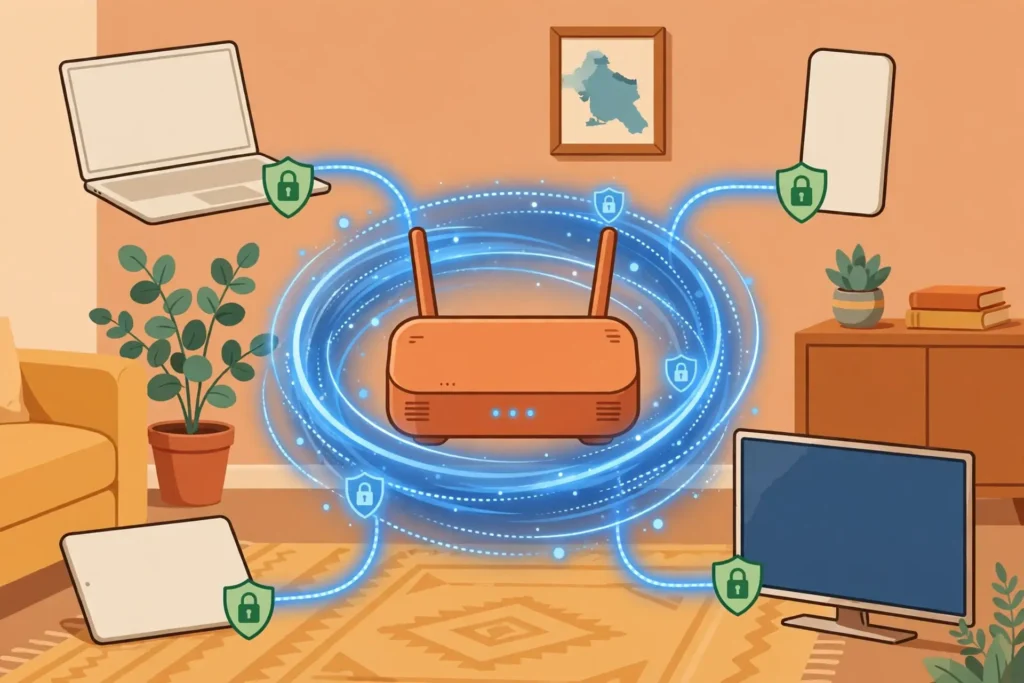
If you want every device in your home protected by one VPN connection, Surfshark is the VPN we recommend, with 80% off for our users — and the good news is that it does work on a router, provided your router is one of the supported models.
The short answer is that Surfshark has no dedicated router app, so a router setup is always a manual configuration. Your router needs firmware with a built-in OpenVPN or WireGuard client, and you upload a Surfshark configuration file for the server you want. If your router has that client, setup takes about fifteen minutes.
That single requirement decides everything. Most routers supplied by Pakistani internet providers do not have a VPN client, and no setting or app will add one. Before you spend anything, check your router’s admin page for a VPN Client section, because that one check tells you whether this guide applies to you.
This guide answers the compatibility question from Surfshark’s own published support documentation, verified on 22 November 2026. It lists the routers and firmware Surfshark documents, the ones it says are not supported, the exact requirements, and the verification steps that prove the tunnel is working.
It publishes no original measurements, no speed numbers and no test results of its own, because none were measured for this post. Every claim about support comes from Surfshark’s help centre or its own blog, and anything that comes from a third-party source is flagged as such instead of presented as fact.
The rest of the guide follows the order you need. First the eligibility rules and the supported models, then the routers that will not work, then the setup requirements, then the step-by-step OpenVPN and WireGuard procedures, then the passthrough question, and finally the verification checks and the limits of a router setup.
The Short Answer: Surfshark Router Compatibility at a Glance
Surfshark works on a router when the router’s firmware includes a pre-installed OpenVPN or WireGuard client. That is the rule Surfshark states in its own router setup guide, and it is the only test that matters. The brand of the router is less important than the firmware running on it.
The officially documented firmware options are AsusWRT and Asus Merlin, DD-WRT, OpenWrt, Tomato, GL.iNet, pfSense, OPNsense, Keenetic, Freebox, TP-Link, MikroTik, and Synology and QNAP network storage. Surfshark’s help centre publishes a separate setup tutorial for each of these, so you follow the guide written for your exact firmware.
There is no Surfshark router app to install. The help centre lists Surfshark apps for Windows, macOS, Linux, Android, iOS, Chrome, Firefox and Fire TV, and no router app appears in that list. A router setup is therefore a manual configuration: download a config file from your Surfshark account, upload it in the router, and enter your service credentials.
If your router is not on the supported list, you have two honest options. You can install custom firmware such as DD-WRT or Tomato on a compatible router, which adds a VPN client, or you can buy a router that has VPN support built in. Surfshark’s own guide recommends Asus routers as the easiest starting point.
The trade-off is real and Surfshark states it openly. On a router you lose access to most of the features available in the apps, managing the connection is less convenient, and the connection speed might decrease. The router method is for devices that cannot run an app, not a replacement for the app.
| Question | Answer |
|---|---|
| Does Surfshark offer a router app? | No — manual OpenVPN or WireGuard configuration only |
| What does the router need? | Firmware with a built-in OpenVPN or WireGuard client |
| Which firmware is documented? | AsusWRT, Merlin, DD-WRT, OpenWrt, Tomato, GL.iNet and more |
| Do ISP-supplied routers work? | Usually not — most lack a VPN client |
| Can I use a free plan on a router? | No — Surfshark has no free plan |
| What is lost on a router? | Most app features, easy country switching, per-device control |
Surfshark Router Compatibility: What Official Support Says
Surfshark’s help centre article on setting up a router is the primary source for this guide, and it was read on 22 November 2026. It opens with the pros and cons, and it is worth taking them seriously before you buy a router or change any firmware, because the router method is not the best method for most readers.
The pros are straightforward. A router VPN secures all devices in your household at once, and it covers devices that have no native VPN support, such as smart TVs and gaming consoles. One setup protects everything on the network, including devices that could never run a VPN app on their own.
The cons are equally clear, and they come from Surfshark itself. You lose access to most of the Surfshark features available on the apps, the management of a VPN connection will not be too convenient, the connection speed might decrease, and you must have a router compatible with VPN, one that has firmware with a pre-installed OpenVPN or WireGuard client.
Surfshark also adds a recommendation that matters for the decision. It says it recommends using Surfshark VPN applications on your devices to get the most out of Surfshark. The router setup is the answer when the app method is not available, for example on a smart TV or a console, and not the first choice for a phone or laptop.
The eligibility check itself has four methods, and Surfshark lists them in the same article. Read your router’s user manual and look for OpenVPN or WireGuard instructions. Search for your exact router model online, because other owners have usually tried it already. Log in to the router and look for an OpenVPN or WireGuard client in the settings.
The fourth method is to look at the routers section of Surfshark’s help centre, where it may already have a detailed tutorial for your router. If none of these four checks finds a VPN client, your router is not compatible, and the next section of this guide explains what to do about that.

Which Routers Does Surfshark Support?
Surfshark documents setup tutorials for nine firmware platforms plus network storage, according to a November 2026 third-party roundup that counted the guides in its help centre. The list below combines Surfshark’s own help centre articles with that count, and it is the most complete picture available without asking support about a specific model.
Asus routers are the best documented option. Surfshark’s own blog guide for Asus covers ASUSWRT and ASUSWRT-Merlin firmware, lists common compatible models including the RT-AX86U, RT-AX88U, RT-AC68U and most newer Wi-Fi 6 and Wi-Fi 7 routers, and gives a setup time of ten to twenty minutes. OpenVPN is the best option for beginners and WireGuard is the fastest option.
The help centre’s router article also names older Asus models as VPN-compatible: the RT-N66U, RT-AC56U, Asus N-16, RT-AC66U, RT-AC68U, RT-AC87U, RT-AC5300, RT-AC3200, RT-AC3100, RT-AC1750, RT-AC88U and RT-AC66R. The list is old, so treat it as a floor rather than a ceiling: newer Asus models with a VPN Client page are also supported, and the blog guide confirms the newer Wi-Fi 6 and 7 models.
GL.iNet routers are the second option Surfshark names directly. These mini routers come with OpenWrt firmware pre-installed and already have an OpenVPN client. The models Surfshark lists are the GL-AR750S-Ext, known as Slate, the GL-MT300N-V2, known as Mango, and the GL-AR300M, known as Shadow. They are small, cheap, and easy to set up.
Open-source firmware covers the rest. DD-WRT and Tomato can be installed on many Linksys, Netgear and older Asus routers to add a VPN client, and OpenWrt is the firmware that powers GL.iNet routers and many others. Surfshark publishes separate OpenVPN and WireGuard guides for DD-WRT and OpenWrt, and an OpenVPN guide for Tomato.
Business and advanced options are also documented. Surfshark publishes guides for pfSense, OPNsense, MikroTik, Keenetic and Freebox routers, plus TP-Link models with a WireGuard client. Synology and QNAP network storage devices have their own setup guides, which matters for a home where the NAS already handles the network.
| Firmware or Router | Protocol | Surfshark Guide |
|---|---|---|
| AsusWRT | OpenVPN, WireGuard | Yes — Asus router guide |
| Asus Merlin | OpenVPN, WireGuard | Yes — covered by the Asus guide |
| DD-WRT | OpenVPN, WireGuard | Yes — separate guides for each protocol |
| OpenWrt | OpenVPN, WireGuard | Yes — OpenWrt guide |
| Tomato | OpenVPN | Yes — Tomato guide |
| GL.iNet (OpenWrt based) | OpenVPN, WireGuard | Yes — GL.iNet 2.x and 3.x guides |
| pfSense and OPNsense | OpenVPN, WireGuard | Yes — firewall router guides |
| Keenetic and Freebox | WireGuard | Yes — Keenetic and Freebox guides |
| TP-Link | WireGuard, OpenVPN | Yes — TP-Link guide |
| MikroTik | WireGuard, OpenVPN | Yes — MikroTik guide |
| Synology and QNAP NAS | OpenVPN | Yes — NAS setup guides |
Flagged: the count of nine firmware platforms plus network storage comes from a November 2026 third-party roundup of VPN router guides, not from a Surfshark page that lists the total. The individual firmware options above are each confirmed by a Surfshark help centre tutorial.
Routers Surfshark Does Not Support
Surfshark publishes a separate help centre article that lists the routers you cannot set up with Surfshark, at least with their default firmware. The list is short, and it is worth checking before you assume a familiar brand will work, because several popular brands appear on it.
The unsupported list is Arris, Belkin, Cisco, Linksys, TRENDnet, TotoLink, Ubee, Google WiFi, and most ISP-provided routers. The Linksys entry has one exception: Linksys routers that appear on the Tomato supported-router list can work after Tomato is installed. Fritz Box also appears in third-party versions of this list, though it is not in Surfshark’s own article.
The reason is the same in every case. These routers do not support the OpenVPN protocol or the WireGuard protocol by default, so there is no VPN client page to configure. Surfshark’s article says you should be able to set it up with custom DD-WRT firmware and protect your home network, provided your router model accepts DD-WRT.
Most ISP-provided routers are the most important entry on this list for a Pakistan reader. The routers supplied by PTCL, Jazz, Nayatel and other Pakistani providers are built for basic home use, and they almost never include a VPN client. If your router came free with your internet connection, assume it is not compatible until you check.
That assumption saves money. Do not buy a Surfshark subscription for a router setup before you have logged in to your router and looked for a VPN Client section. If the section is missing, the subscription will not help, and the fix is a new router or new firmware, not a different VPN plan.
The one recovery path Surfshark offers for an unsupported router is custom firmware. If your router model is listed as supported by DD-WRT, you can install DD-WRT and then follow Surfshark’s DD-WRT OpenVPN or WireGuard guide. Surfshark warns that it is not responsible for any damage or void of warranty caused by flashing your router.
- Arris, Belkin, Cisco, TRENDnet, TotoLink and Ubee — no VPN client in default firmware.
- Linksys — unsupported except models on the Tomato supported-router list.
- Google WiFi — no OpenVPN or WireGuard client in its firmware.
- Most ISP-provided routers — including the routers supplied free with a Pakistani connection.
- Fritz Box — appears in third-party versions of the unsupported list, not in Surfshark’s own article.
- Recovery path — install DD-WRT if your model supports it, then use Surfshark’s DD-WRT guide.
Surfshark Router Setup Requirements
A router setup needs five things ready before you touch the router, and gathering them first is what turns a fifteen-minute job into a one-hour frustration. Surfshark’s Asus guide lists them explicitly, and the same five apply to every other supported firmware, with only the menu names changing.
First, a VPN-compatible router with VPN Client support, running the latest firmware for that model. Update the firmware before you start, because an old firmware version can lack the WireGuard client or carry a bug that breaks the connection. On an Asus router, the update is in Administration, then Firmware Upgrade, then Check.
Second, an active Surfshark subscription. Router setup is a manual configuration, and manual configuration needs a paid account. There is no free Surfshark plan, so a router setup cannot be tested without paying, although the 30-day money-back guarantee window covers a setup that turns out not to work.
Third, VPN configuration files for the server you want. These are downloaded from your Surfshark account, in the Manual Setup section, with Router as the device type and OpenVPN or WireGuard as the protocol. Each server location has its own file, so download the file for the country you actually want to use.
Fourth, your VPN service credentials. For OpenVPN, these are a separate username and password generated in the Manual Setup section, and they are not your Surfshark account email and password. For WireGuard, you generate a key pair instead, and the keys are included in the configuration file you download.
Fifth, access to the router’s admin dashboard. You need the router’s IP address, usually 192.168.1.1, and the admin username and password, which are printed on the bottom of most routers. If someone else set up your router, ask them for these details before you begin, because the setup cannot proceed without them.
- A VPN-compatible router with VPN Client support, running the latest firmware.
- An active Surfshark subscription — there is no free plan to test with.
- Configuration files for your chosen server, downloaded from Manual Setup.
- Service credentials for OpenVPN, or a generated key pair for WireGuard.
- Access to the router admin dashboard, including the admin password.
- A note of your current exit IP, so you can verify the change afterwards.
How to Set Up Surfshark on a Router: OpenVPN Method
OpenVPN is the method to use first, because it is the most widely supported protocol on routers and the one Surfshark documents for every supported firmware. The steps below follow the AsusWRT procedure, which Surfshark publishes in full, and the same pattern applies to DD-WRT, OpenWrt, Tomato and GL.iNet, with different menu names.
Start by signing in to your Surfshark account on a computer and opening the Manual Setup section. Select Router as the device type and OpenVPN as the protocol, then open the Credentials tab and generate or copy your service username and password. Keep that tab open, because you will need those credentials in a few minutes.
Next, choose a server location on the same page and download its OpenVPN configuration file, which ends in .ovpn. Each location has its own file, so pick the country you want to appear in. Downloading the file for one country and then wanting another means downloading a second file and repeating the router steps.
Now open your router’s admin dashboard in a browser, usually at 192.168.1.1, and sign in with the admin password. Go to the VPN section under Advanced Settings, select VPN Client, and click Add Profile. Choose the OpenVPN tab, enter a description for the connection, and type in the service username and password you copied earlier.
Upload the configuration file you downloaded, using the Choose File button on the same page, and leave the option to import the CA file or edit the .ovpn file manually unticked. Click OK to save the profile, then click Activate to connect the router to the Surfshark server. The status should change to connected within a minute.
Do not skip the verification step in the next section. A profile that saves cleanly and a status that says connected are not proof, and the IP check is the only way to know the tunnel is carrying your traffic. If the status never changes, the credentials or the configuration file are the first things to check.
- Sign in to Surfshark, open Manual Setup, choose Router and OpenVPN, and copy your service credentials.
- Choose a server location and download its .ovpn configuration file.
- Open the router admin dashboard, go to VPN, then VPN Client, and click Add Profile.
- Select the OpenVPN tab, enter a description and your service credentials.
- Upload the .ovpn file, leave the CA import option unticked, and click OK.
- Click Activate, wait for the connected status, then run the verification checks.
How to Set Up Surfshark on a Router: WireGuard Method
WireGuard is the faster option where it is supported, and Surfshark’s Asus guide recommends it for readers who want the best performance. The procedure is similar to OpenVPN, but the authentication is different: WireGuard uses a cryptographic key pair instead of a username and password, and the keys must be created before the configuration file is downloaded.
Sign in to your Surfshark account and open the Manual Setup section. Select Router as the device type and WireGuard as the protocol, then click I don’t have a key pair, enter a name for the key pair, and select Generate a new key pair. Surfshark generates a public and private key used to authenticate your router.
The private key is sensitive, and Surfshark warns that you may not be able to view the generated keys again after leaving that screen. Save them securely when prompted, and never publish them or send them in a support ticket. You do not need to save them separately for the setup itself, because they are automatically included in the WireGuard configuration file.
Only now should you choose a location and download the WireGuard configuration file. Do not download the file before setting up the key pair, because a file downloaded too early can be missing the required key information. This ordering mistake is the most common cause of a WireGuard router setup that refuses to connect.
In the router admin dashboard, open the VPN Client section and add a WireGuard profile instead of an OpenVPN profile. Upload the .conf file you downloaded, save the profile, and activate it. The router should connect within seconds, and the same verification checks in the next section apply.
WireGuard is not available on every firmware. Tomato’s Surfshark guide covers OpenVPN only, and older DD-WRT builds may support OpenVPN only as well. If your router’s VPN Client page has no WireGuard option, use OpenVPN, because a protocol your firmware does not offer cannot be forced into it.
| Step | OpenVPN | WireGuard |
|---|---|---|
| Authentication | Service username and password | Generated key pair |
| Configuration file | .ovpn file per server | .conf file per server |
| Setup order | Credentials, then file | Key pair first, then file |
| Best for | Beginners, widest support | Fastest option where supported |
| Firmware coverage | All supported firmware | Most, but not Tomato or old DD-WRT |
| Common mistake | Using account login instead of service credentials | Downloading the file before the key pair |
VPN Passthrough vs VPN Client: Why Passthrough Is Not Enough
The most common confusion in router VPN setup is between VPN passthrough and a VPN client, and the two do completely different jobs. Understanding the difference saves you from a setup that looks configured and protects nothing, which is the worst possible outcome.
VPN passthrough is a router setting that lets VPN traffic from a device pass through the router untouched. It helps when a phone or laptop runs its own VPN app behind the router, because some routers would otherwise block that traffic. It does not create a VPN connection on the router itself.
A VPN client is a page in the router admin panel where the router itself connects to the VPN server. You upload a Surfshark configuration file, enter your service credentials, and the router builds the encrypted tunnel. Every device on the network then uses that tunnel automatically, with no app on any device.
So the answer to the brief’s question is no: VPN passthrough is not enough to run the service. If your router has a passthrough setting but no VPN Client section, Surfshark will not run on that router, and the devices behind it stay unprotected unless each one runs its own app.
The check is simple. Log in to the router admin panel and look for a page called VPN Client, OpenVPN Client, WireGuard, or VPN Fusion on Asus routers. If you find one of those, the router can run Surfshark. If you find only a passthrough toggle, or a VPN Server page for connecting into your home from outside, the router cannot.
Note that a VPN Server page is a third, different feature. It lets you connect to your home network from outside, and it has nothing to do with routing your household’s traffic through Surfshark. Do not confuse it with a VPN Client page, and do not try to enter Surfshark details into it.
| Feature | What It Does | Runs Surfshark? |
|---|---|---|
| VPN Client | Router connects to the VPN server itself | Yes — this is the required feature |
| VPN Passthrough | Lets a device’s own VPN traffic pass through | No — devices stay unprotected |
| VPN Server | Lets you connect into your home from outside | No — different purpose entirely |
| VPN Fusion (Asus) | Per-device routing to different VPN servers | Yes — Asus client feature |
How to Verify That Router Traffic Uses the Tunnel
A router VPN that says connected is not proof on its own. Verify the connection by checking what the internet actually sees, because a tunnel that silently failed will still show a green status on some routers. The check takes two minutes, and it is the only way to know the setup worked.
First, record your real address before you switch the router VPN on. Open an IP lookup site on any device connected to the router and note the IP address and country shown. With the VPN off, the country should be Pakistan and the address should belong to your Pakistani provider.
Next, activate the VPN profile on the router and wait for the connected status. Then restart the device you are testing, or disconnect it from Wi-Fi and reconnect it, so it picks up the new route. Open the same IP lookup site again and compare. The address and country should now match the Surfshark server you chose.
If the address is unchanged, the tunnel is not active, even if the router says it is connected. Disconnect the profile, check that the service credentials and the configuration file match the server you chose, and try again. The most common cause is using your Surfshark account password instead of the separate service credentials.
Then run a DNS leak test on the same device. A DNS leak means your device asks your provider’s DNS servers for website addresses even though the traffic goes through the VPN, which reveals the sites you visit. The leak test should show DNS servers belonging to Surfshark or the VPN location, not to your Pakistani provider.
Also check the router’s own VPN status page, which shows the connection time and the amount of data transferred. A connection that has been up for an hour with zero data transferred is not carrying traffic, and that is a warning sign. Repeat the IP check after restarting the router, because some routers do not reconnect automatically.
- With the router VPN off, note the IP address and country on an IP lookup site.
- Activate the VPN profile on the router and wait for the connected status.
- Reconnect the test device to Wi-Fi, then check the IP lookup site again.
- Confirm the address and country now match the Surfshark server you chose.
- Run a DNS leak test and confirm no Pakistani provider DNS servers appear.
- Repeat the check after restarting the router to confirm it reconnects.

What You Lose on a Router: Features That Do Not Carry Over
A router setup protects every device at once, but it gives up most of what makes the Surfshark app useful, and Surfshark says so in its own router guide. Knowing what is lost before you set it up stops you from expecting app features that will never appear on a router.
The biggest loss is the app feature set. CleanWeb, the ad and tracker blocker, does not run on a router connection, and neither do the app’s other extras such as the kill switch interface, the per-app bypass controls, or the rotating IP option. The router gives you the encrypted tunnel and little else.
Country switching becomes a router admin task. On the app, changing country takes two taps. On a router, it means logging in to the admin dashboard, uploading a different server’s configuration file, and reactivating the profile. If you change country often, for example to watch different streaming libraries, the router method is slow and annoying.
Per-device control is also limited. On an Asus router, VPN Fusion lets you route some devices through the VPN and others outside it, which is useful when a banking app or a local service breaks behind the VPN. On most other firmware, the choice is all devices or none, and there is no simple way to exempt one device.
Speed may also drop, and Surfshark warns about this directly. The router’s processor does the encryption, and a cheap router processor is far slower than a phone or laptop processor. A router that struggles with OpenVPN may run noticeably faster on WireGuard, which is one reason to prefer WireGuard where your firmware supports it.
Flagged: a November 2026 third-party roundup reports that Surfshark has dropped its Smart DNS feature, which would make a router setup the only way to cover a TV that cannot run an app. That claim comes from third-party testing, not from Surfshark’s official documentation, so treat it as unconfirmed.
None of this makes the router method wrong. It makes it a specialist tool for devices that cannot run an app, such as smart TVs, consoles and older streaming sticks. For phones and laptops, the app remains the better option, exactly as Surfshark recommends, and the router should cover only the devices the app cannot reach.
- CleanWeb ad and tracker blocking does not run on a router connection.
- No kill switch interface, per-app bypass or rotating IP on the router.
- Country switching means a new config file and a router admin login.
- Per-device routing is limited, except for VPN Fusion on Asus routers.
- Speed depends on the router processor, and WireGuard is usually faster than OpenVPN.
Surfshark on a Router in Pakistan: What to Know Before You Buy
The Pakistan context changes the practical advice, because the routers most readers own are the ones their provider supplied. A PTCL, Jazz, Nayatel or StormFiber router is chosen by the provider for cost, not for features, and the VPN Client page this guide depends on is almost always missing from those devices.
Do not assume a router is compatible because it is a known brand. A TP-Link router supplied by a provider may be a cut-down model without a VPN client, while the same brand’s retail model has one. The model number on the bottom of the router, checked against the manufacturer’s specifications, is the fact that decides it.
If your current router is not compatible, the cheapest honest fix is often a small GL.iNet travel router placed behind your existing router. It costs far less than a full-size Asus router, it comes with OpenWrt and a VPN client pre-installed, and it can protect a TV or a console without replacing the main router.
A full Asus router is the better buy if you want the whole household protected, because it replaces the provider router entirely and gives you VPN Fusion for per-device routing. Check the model against Surfshark’s Asus guide before you pay, and buy from a seller who accepts returns, in case the model turns out to lack the VPN Client page.
Flashing DD-WRT or Tomato onto an existing router is the free option, and it works on many older Linksys, Netgear and Asus models. Surfshark warns that flashing done incorrectly might permanently damage your router, and that it is not responsible for any damage. Only flash a router you can afford to lose, and only after reading the DD-WRT supported-device list for your exact model.
Finally, remember that a VPN does not change your internet plan. If your connection is slow before the VPN, it will be slow with the VPN, and a router setup adds encryption work on top. Test your normal connection first, fix any provider problem first, and only then add the router VPN, so a bad line is not blamed on the VPN.
Surfshark — our recommended VPN for Pakistan
One Surfshark subscription covers your whole household, and the same account works on your router, your phone, your laptop and your TV.
Limitations and Exceptions
This guide is a compatibility and setup reference, not a report of tests that were run. No measurements were made for this post, and it publishes no speed numbers, ping values or connection results of its own. Every step is a procedure for you to run, and the verification section is how you confirm the result yourself.
The guidance is current as of 22 November 2026, when Surfshark’s help centre articles were read. Surfshark changes its help centre, its supported firmware list and its app features over time, and a tutorial that exists today may be renamed or removed in a later update. If a menu name in this guide does not match your router, look for the nearest equivalent and test it the same way.
Three claims in this guide are flagged as unconfirmed or third-party. The count of nine firmware platforms plus network storage comes from a November 2026 third-party roundup, not from a Surfshark page. The report that Surfshark dropped Smart DNS comes from the same roundup. And the Fritz Box entry on unsupported lists appears in third-party guides, not in Surfshark’s own unsupported-routers article.
The Asus model list is also older than the current range. Surfshark’s help centre article names models such as the RT-N66U and RT-AC56U, which are years old, while its newer blog guide confirms the RT-AX86U, RT-AX88U and most newer Wi-Fi 6 and Wi-Fi 7 routers. If your Asus model is newer than the help centre list, check its specifications for a VPN Client page rather than trusting the old list.
Flagged: the DD-WRT minimum flash memory of 8 MB and the OpenWrt 21.02 or later recommendation come from third-party setup guides, not from Surfshark’s official documentation. Confirm the requirement for your exact router model on the DD-WRT or OpenWrt device database before flashing.
This guide also does not claim that a router VPN fixes every access problem. A VPN changes your IP address, but streaming services also use account region, payment details and device location, and a VPN cannot change those. If a service still blocks you after the IP check passes, the cause is one of those other signals.
Retest on a fixed schedule if the setup is flaky. Run the verification check again one week after your first setup, and again after any change: a new firmware version, a new Surfshark app update, a new internet plan, or a move to a new area. Keep each session’s notes so you can compare like with like.
Surfshark — our recommended VPN for Pakistan
Try the setup inside the 30-day money-back guarantee window first, so a router that turns out to be incompatible costs you nothing to replace.
Conclusion: Check the VPN Client Page First
Surfshark router compatibility comes down to one question: does your router’s firmware include a built-in OpenVPN or WireGuard client? If it does, Surfshark works, and the setup is a manual configuration with a downloaded file and service credentials. If it does not, no app or setting will add it, and the fix is new firmware or a new router.
The supported list is generous: AsusWRT and Merlin, DD-WRT, OpenWrt, Tomato, GL.iNet, pfSense, OPNsense, Keenetic, Freebox, TP-Link, MikroTik, and Synology and QNAP storage. The unsupported list is short but includes most ISP-supplied routers, which is the case that matters most for a Pakistan reader. Check the admin page before you spend anything.
Once it is set up, verify the tunnel the same way every time: check the exit IP before and after, run a DNS leak test, and repeat the check after a restart. That two-minute habit is what turns a router VPN from a setting you hope works into a connection you know works. For our other Pakistan VPN guides, the freevpn.pk homepage lists them all.
Frequently Asked Questions
Which Routers Does Surfshark Support?
Surfshark supports routers whose firmware includes a built-in OpenVPN or WireGuard client. Officially documented options include AsusWRT and Asus Merlin, DD-WRT, OpenWrt, Tomato, GL.iNet, pfSense, OPNsense, Keenetic, Freebox, TP-Link, MikroTik, and Synology and QNAP network storage. Surfshark’s help centre lists Asus models such as the RT-AC68U, RT-AC86U and RT-AC5300, plus GL.iNet models such as the GL-AR750S-Ext, GL-MT300N-V2 and GL-AR300M.
There is no dedicated Surfshark router app, so every supported router uses manual configuration with a downloaded config file.
Is VPN Passthrough Enough to Run the Service?
No. VPN passthrough only lets VPN traffic from a device pass through the router untouched, so it helps when a phone or laptop runs its own VPN app behind the router. It does not create a VPN connection on the router itself, and devices that cannot run an app stay unprotected.
To run Surfshark on the router, the router needs a VPN client, which is a page in the router admin panel where you upload a Surfshark configuration file and enter your service credentials. Check for a VPN Client, OpenVPN Client or WireGuard section before you buy or set anything up.
How Do I Verify That Router Traffic Uses the Tunnel?
Check your exit IP before and after the router connects. With the router VPN off, open an IP lookup site on any device and note the address and country shown. Then switch the router VPN on, restart the device or reconnect it to Wi-Fi, and check again. The address and country should now match the Surfshark server you chose.
Also run a DNS leak test and confirm the DNS servers shown belong to Surfshark or the VPN location, not to your Pakistani ISP. If either check still shows your real address, the tunnel is not active.