If you want Telegram to run through your VPN on some devices and outside it on others, Surfshark is the VPN we recommend for the job, with 80% off for our users — its Bypasser feature lets you choose per app whether Telegram uses the tunnel or your direct connection, and this guide shows you how to set that choice up and check that it actually works.
Telegram is one of the few messaging apps where routing is a real decision rather than a default. Most apps simply follow whatever your VPN does, but Telegram has its own built-in proxy settings, and the major VPN apps offer split tunneling that can treat Telegram differently from everything else on your device. That gives you control, and it also gives you new ways to get the setting wrong.
This guide is about that choice: when Telegram should travel inside the VPN tunnel, when it should travel outside it, how to set each option up on Windows, Android, iPhone and Mac, and how to compare the two routes fairly so you can see which one works better on your own Pakistani network.
The method is verified against published documentation current as of 21 November 2026, including Surfshark’s own split tunneling guidance and Telegram’s own proxy documentation. Where a claim could not be verified from an official source, this guide says so plainly instead of asserting it.
This is a method-led guide. It publishes no original measurements, no speed numbers and no test results of its own, because none were measured for this post. Every step below is a procedure you can run yourself, and every comparison is one you can repeat on your own connection.
The short answer is simple. On Windows, Android and Mac, use your VPN app’s split tunneling feature to route Telegram through the tunnel or exclude it. On iPhone, split tunneling is limited to websites, so Telegram’s own proxy setting is the tool you use instead.
The Short Answer: Two Ways to Route Telegram
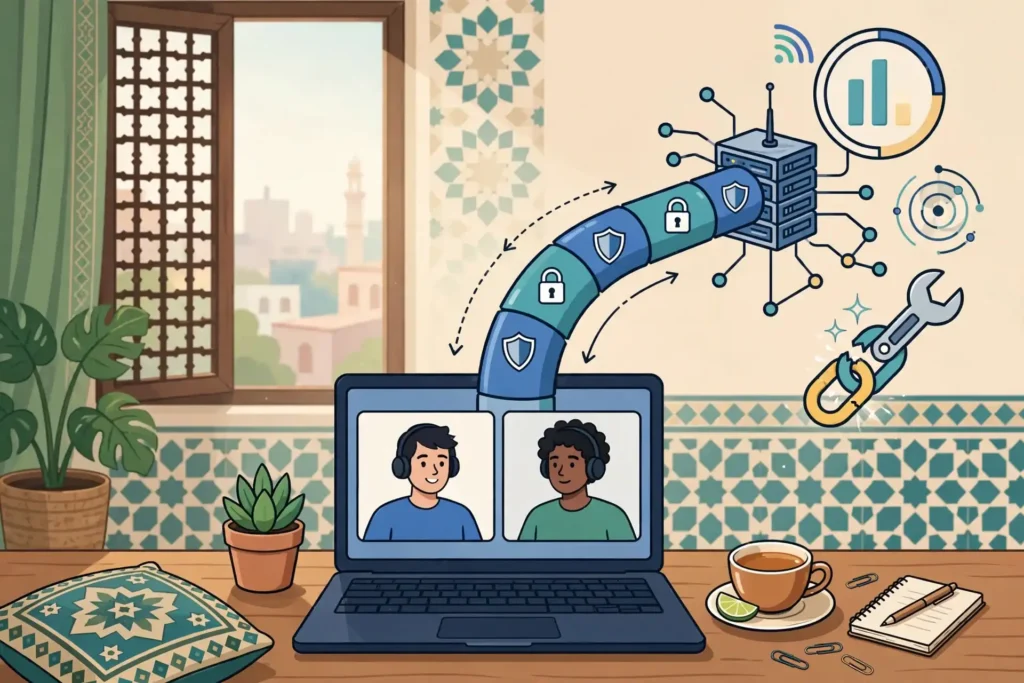
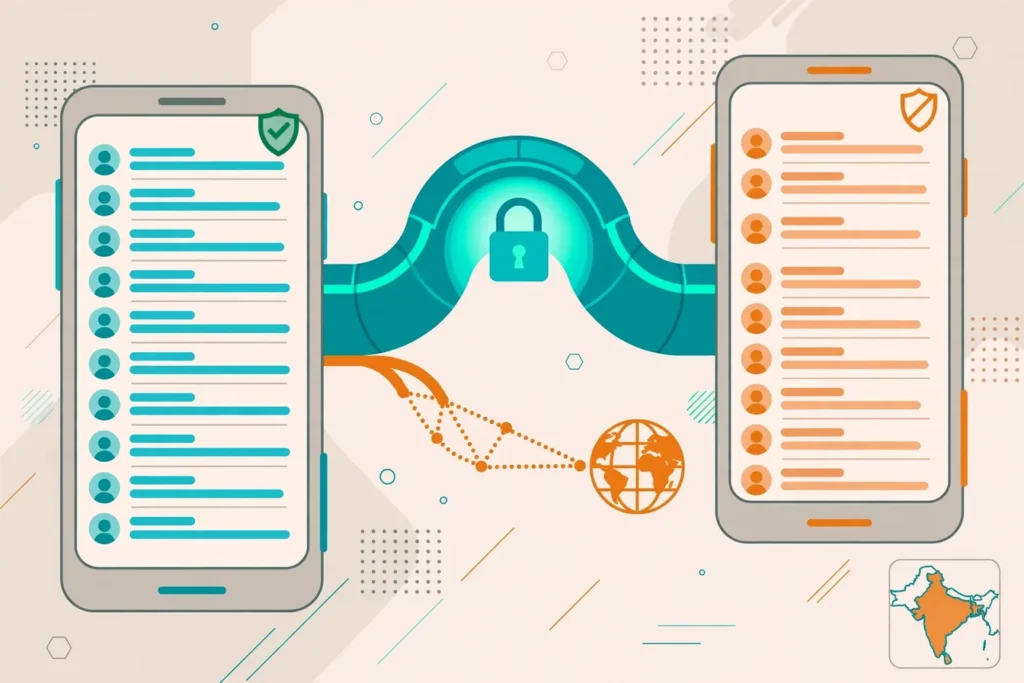
There are two different tools that control how Telegram reaches the internet, and they sit in two different apps. The first is your VPN app’s split tunneling feature, which decides whether Telegram’s traffic enters the VPN tunnel at all. The second is Telegram’s own proxy setting, which sends Telegram’s traffic through a proxy server you choose, with or without a VPN running.
Split tunneling is the cleaner tool for most readers. You pick Telegram in your VPN app’s list, choose whether it uses the tunnel or bypasses it, and the rule applies every time you connect. Telegram itself needs no changes, and the setting survives app updates because it lives in the VPN app.
Telegram’s own proxy is the fallback tool. It works on any platform where Telegram runs, including iPhone, where most VPN split tunneling does not cover individual apps. It also works when you have no VPN at all, which is useful if your only goal is to reach Telegram on a network that blocks it.
Do not enable both tools for the same purpose without thinking it through. If you route Telegram through the VPN and also set a proxy inside Telegram, your messages travel through two intermediaries instead of one, which adds latency and another point of failure. Pick one tool, verify it, and leave the other one off.
The rest of this guide walks through each tool in turn, platform by platform, and ends with a fair comparison method so you can see which route actually works better on your connection, rather than trusting a setting you have never tested.
| Tool | Where It Lives | Best For |
|---|---|---|
| Split tunneling (Bypasser) | Your VPN app | Windows, Android, Mac; per-app control |
| Telegram proxy (MTProto or SOCKS5) | Telegram settings | iPhone, or no-VPN access to Telegram |
| Route via VPN mode | Your VPN app | Only Telegram protected, everything else direct |
| Bypass VPN mode | Your VPN app | Only Telegram direct, everything else protected |
How a VPN Changes What Telegram Sees
When Telegram runs without a VPN, it connects directly from your Pakistani internet address to Telegram’s servers. Telegram sees your real IP address, your internet provider sees that you are connecting to Telegram, and your messages take the shortest route your provider can offer to the nearest Telegram data centre.
When Telegram runs through a VPN, three things change. Your traffic is encrypted between your device and the VPN exit server, so your provider sees VPN traffic rather than Telegram traffic. Telegram sees the VPN exit server’s IP address instead of yours. And the route to Telegram’s servers goes through the exit server’s country, which may be nearer to or further from a Telegram data centre than Pakistan is.
That longer route is the main cost of routing Telegram through a VPN. Every extra hop adds latency, and voice calls and large media downloads feel latency more than text messages do. A text message will arrive either way, but a call can start to lag and a video can take longer to load.
The main benefit is consistency. On a network that interferes with Telegram, the VPN tunnel can carry Telegram through untouched, because the network sees only encrypted VPN traffic. On a network that works fine, the VPN is pure overhead, and excluding Telegram from the tunnel removes that overhead.
Whether the benefit outweighs the cost depends entirely on your network. That is why this guide spends as much time on testing as it does on setup: the right answer for a PTCL fibre connection in Lahore may be the wrong answer for Jazz mobile data in Karachi.
Split Tunneling Explained: Bypass VPN vs Route via VPN
Split tunneling means dividing your device’s traffic into two groups: traffic that uses the VPN tunnel and traffic that does not. The two modes have opposite defaults, and confusing them is the most common mistake in this whole topic, so it is worth stating the difference carefully.
In Bypass VPN mode, everything on your device uses the VPN tunnel except the apps and websites you list. Telegram is protected by default in this mode only if you do not list it. If you add Telegram to the bypass list, Telegram leaves the tunnel and travels directly, while everything else stays protected.
In Route via VPN mode, nothing on your device uses the VPN tunnel except the apps and websites you list. Telegram is outside the tunnel by default in this mode, and it only enters the tunnel if you add it to the route list. This mode is useful when you want only one or two apps protected and everything else direct.
Surfshark calls this feature Bypasser, and it offers both modes on Windows, macOS, Android and iOS, although the exact options depend on the platform. On Windows and Android you can choose apps and websites in either mode. On iOS the feature covers websites only, which is a platform limit rather than a Surfshark choice.
Other VPN providers use different names for the same idea, and their platform coverage differs. Some offer split tunneling only on Android and Windows, some only for apps and not websites, and some not at all. Check your own provider’s current documentation for your platform before you assume the feature exists there.
Flagged: split tunneling support for Telegram on a specific provider, platform and app version is not confirmed in this guide beyond Surfshark’s published Bypasser guidance. Verify the feature exists in your installed app before relying on it, because support changes between versions.
The important habit is to check which mode you are in before you add Telegram to any list. Adding Telegram to a list in Bypass VPN mode excludes it, while adding it to a list in Route via VPN mode includes it. The same tap produces opposite results depending on the mode, and the app will not warn you.
Which VPNs Support Split Tunneling for Telegram
Surfshark is the provider this guide documents in detail, because its Bypasser feature is published with per-platform setup steps and because it is the VPN we recommend for readers in Pakistan. Its Bypasser works on Windows, macOS, Android and iOS, with app selection on Windows, Android and Mac, and website selection on iOS.
NordVPN also offers split tunneling on Windows and Android, where you can choose which apps use the tunnel. ExpressVPN offers split tunneling on Windows and Mac, with a choice of which apps use the VPN. These are widely documented features, but the exact menus and limits change between app versions, so treat any step you find online as a starting point and confirm it against the menu in your installed app.
Some providers offer no split tunneling at all, or offer it only on one platform. If your VPN has no such feature, your only per-app control is Telegram’s own proxy setting, covered later in this guide. That is a real limitation, and it is worth knowing before you buy a subscription for this purpose.
Free VPN plans rarely include split tunneling. The feature is usually a paid-plan feature, and a free plan that does include it may restrict it to a small number of apps. If you are choosing a provider mainly to control Telegram’s routing, confirm that split tunneling is included in the plan you intend to buy.
Telegram itself does not care which VPN you use. The app has no setting that says use this VPN or that one, and it cannot detect whether it is inside a tunnel. All of the control lives in the VPN app, which is why the VPN app is where you should look first.
| Provider | Split Tunneling Name | Platforms With App Selection |
|---|---|---|
| Surfshark | Bypasser | Windows, Android, macOS (iOS websites only) |
| NordVPN | Split tunneling | Windows, Android (check current version) |
| ExpressVPN | Split tunneling | Windows, macOS (check current version) |
| Providers without the feature | Not offered | Use Telegram’s own proxy setting instead |
Setting Up Surfshark Bypasser for Telegram
Surfshark’s Bypasser is found in the same place on every platform: open the Surfshark app, go to Settings, then VPN Settings, then Bypasser. From there you choose a mode, Bypass VPN or Route via VPN, and then you add Telegram to the list that mode controls. The steps below follow Surfshark’s own published guidance, current as of 21 November 2026.
On Windows, open Settings from the side panel, go to VPN Settings and then Bypasser, and toggle on the mode you want. Click Select apps, find Telegram in the list, and tick it. If Telegram is missing from the list, use Add apps and locate the Telegram executable file on your computer.
On Android, tap Settings in the bottom bar, then VPN Settings, then Bypasser, and choose Bypass VPN or Route via VPN. Tap the apps selector, find Telegram, and tick it. Surfshark’s Android guide lists Android 7.0 or later as the requirement for the in-app flow, with an APK route for older versions.
On macOS, open Settings, go to VPN Settings and then Bypasser, and add Telegram as an app or add the website addresses you want to control. The macOS flow mirrors the Windows flow, although the exact menu wording can differ between app versions.
On iOS, open Settings, go to VPN Settings and then Bypasser, and tap Add website. You can add website addresses that should bypass the VPN, and Surfshark also lets you add sites directly from Safari. Per-app selection is not available on iOS, so Telegram itself cannot be added as an app on an iPhone or iPad.
After you change any Bypasser setting, disconnect and reconnect the VPN so the new routing rule takes effect. A rule added while you are already connected may not apply until the next connection, and testing before reconnecting will give you a false result.

Telegram’s Own Proxy Settings: MTProto and SOCKS5
Telegram has a built-in proxy feature that works independently of any VPN. It is documented on Telegram’s own site, and it supports two proxy types: MTProto, Telegram’s own protocol, and SOCKS5, a general-purpose proxy protocol. A proxy affects Telegram traffic only, so the rest of your device is untouched.
To find the setting on Android, open Telegram, go to Settings, then Data and Storage, and scroll to Proxy Settings at the bottom of the page. On iPhone, the path is Settings, then Data and Storage, then Proxy. On Telegram Desktop, it is Settings, then Advanced, then Connection Type. On Telegram for macOS, it is Settings, then Data and Storage, then Use Proxy.
An MTProto proxy needs a server, a port and a secret. A SOCKS5 proxy needs a server, a port, and optionally a username and password. Telegram can add a proxy from a link, and when a proxy is active a shield icon appears at the top of your chat list, which you can tap to open the proxy settings directly.
A proxy is not a VPN. It does not encrypt all of your device’s traffic, it does not change your IP address for other apps, and it does not protect your browsing. It only changes how Telegram itself reaches its servers. That narrow scope is also its strength: it is the one tool that works on iPhone, where VPN split tunneling cannot select Telegram as an app.
Be careful where you get proxy details. A proxy server can see your Telegram traffic, so a proxy run by a stranger is a trust decision, not just a settings change. Use a proxy you operate yourself or one from a source you trust, and never enter credentials from a random link into Telegram’s proxy settings.
If you use both a VPN and a Telegram proxy at the same time, your Telegram traffic passes through two intermediaries. That can be useful on a heavily restricted network, but it adds latency and another failure point. For most readers, one tool at a time is the right choice, and the other should be switched off while you test.
Android: Per-App Split Tunneling Step by Step
Android is the most flexible platform for routing Telegram, because Android VPN apps can select individual apps and Telegram also has its own proxy setting. That gives you three workable options: route Telegram through the VPN, exclude it, or leave the VPN off and use a Telegram proxy instead.
Start by deciding which direction you want. If Telegram is slow or blocked on your network, route it through the VPN first. If Telegram works fine and the VPN makes it slower, exclude it from the tunnel. Write the choice down before you open any settings, because the two modes look almost identical in the app.
Open your VPN app, go to Settings, then VPN Settings, then Bypasser, and choose your mode. In Bypass VPN mode, add Telegram to the bypass list to send it outside the tunnel. In Route via VPN mode, add Telegram to the route list to send it inside the tunnel. Connect or reconnect the VPN so the rule takes effect.
Check that the rule worked by opening Telegram and sending a test message. Then check your IP address in a browser: if Telegram is excluded from the tunnel, your browser and Telegram both show your real Pakistani IP. If Telegram is inside the tunnel, your browser shows the VPN exit IP, and Telegram’s servers see the same exit IP.
Android’s battery optimisation can interfere with both Telegram and your VPN app. If Telegram stops receiving messages in the background, or the VPN drops after a few minutes, check the battery settings for both apps and allow them to run unrestricted. A VPN that is put to sleep by the system will look like a routing failure.
Telegram on Android also lets you control how much data it uses, under the same Data and Storage page that holds the proxy setting. Limiting auto-download of media on mobile data is a separate setting from routing, but it matters for the same readers: a Telegram that downloads every video on mobile data will feel slow whatever route it takes.
- Decide the direction first: through the VPN, or outside it, and write it down.
- Open the VPN app, go to Settings, then VPN Settings, then Bypasser.
- Choose Bypass VPN to exclude Telegram, or Route via VPN to include it.
- Add Telegram to the list, then disconnect and reconnect the VPN.
- Send a test message in Telegram and confirm the routing took effect.
- Check battery optimisation for both Telegram and the VPN app if messages stop arriving.
Windows: Routing Telegram Desktop Through or Around the Tunnel
Telegram Desktop on Windows is a separate app from Telegram on your phone, and it has its own routing to control. The split tunneling list in your VPN app sees Telegram Desktop as its own entry, so a rule you set for Telegram on Android does not carry over to your computer. Set the Windows rule separately.
Open your VPN app on Windows, go to Settings, then VPN Settings, then Bypasser, and choose your mode. Click Select apps and tick Telegram Desktop. If the app is missing from the list, use Add apps and browse to the Telegram executable file. Disconnect and reconnect the VPN after adding it.
Telegram Desktop also has its own proxy setting, under Settings, then Advanced, then Connection Type. This is the same MTProto and SOCKS5 support as on mobile, and it is the fallback if your VPN has no split tunneling on Windows. Use one tool or the other, not both at once, unless you have a specific reason to chain them.
Windows adds one more variable: the firewall. If Telegram Desktop works without the VPN but stops working when the VPN connects, check that your firewall allows both Telegram and the VPN app. A firewall rule that blocks the VPN app will look like a routing problem, and no split tunneling setting will fix it.
Test the Windows route the same way you test the Android route: send a message, start a voice call, and download a media file, first in one routing state and then in the other. Keep the network, the device and the time of day the same between the two tests, so the comparison measures the route and not the hour.
If you use Telegram Web in a browser instead of Telegram Desktop, the routing is controlled by the browser, not by Telegram. Adding Telegram Desktop to a split tunneling list does nothing for Telegram Web. You would need to add the browser itself, or add the Telegram website address where your VPN app supports website bypassing.
iPhone and iPad: What You Can and Cannot Split
iPhone and iPad are the most limited platform for routing Telegram, and the limitation comes from iOS itself rather than from any single VPN provider. iOS does not let VPN apps select individual apps for split tunneling, so the per-app control that works on Android and Windows is not available here.
Surfshark’s Bypasser on iOS covers websites only. You can add website addresses that should bypass the VPN, and you can add them from Safari, but you cannot add Telegram as an app. That means the choice on iPhone is not per-app routing but whole-device routing, plus Telegram’s own proxy setting.
The practical options on iPhone are therefore three. First, run the whole device through the VPN and accept that Telegram travels with everything else. Second, run the whole device outside the VPN and rely on Telegram’s proxy setting if Telegram needs help connecting. Third, switch the VPN on and off as needed, which is manual but honest.
Telegram’s proxy setting on iPhone is under Settings, then Data and Storage, then Proxy. Add an MTProto or SOCKS5 proxy there, and a shield icon appears at the top of your chat list when it is active. This is the tool to use when Telegram itself will not connect on a network where the rest of your phone works fine.
Do not expect an iPhone VPN app to offer a hidden per-app toggle. If a guide claims otherwise for iOS, check the claim against the provider’s own current documentation and against the menu in your installed app. The platform limit is real, and a guide that ignores it will waste your time.
Flagged: per-app split tunneling for Telegram on iOS is not available in the VPN apps checked for this guide, including Surfshark, whose iOS Bypasser covers websites only. If a provider claims iOS per-app routing, confirm it in your installed app before relying on it.
macOS: Bypasser and Telegram for macOS
macOS sits between Windows and iOS in flexibility. Surfshark’s Bypasser on macOS supports app and website selection, so Telegram can be routed or excluded per app, much like on Windows. The menu path is the same: Settings, then VPN Settings, then Bypasser.
Telegram for macOS is a separate app from Telegram Desktop, and it has its own proxy setting under Settings, then Data and Storage, then Use Proxy. As with the other platforms, use either the VPN app’s split tunneling or Telegram’s proxy, not both at once, unless you have a specific reason to chain them.
Mac users should also check the firewall in System Settings. A macOS firewall rule can block the VPN app or Telegram, and the symptom looks like a routing failure. Allow both apps through the firewall rather than switching the firewall off, because the firewall is still doing useful work.
If you run Telegram Desktop on a Mac rather than Telegram for macOS, the proxy path is Settings, then Advanced, then Connection Type, the same as on Windows. The two apps look similar but keep their settings in different places, so check which app you actually have installed before you follow a menu path.
How to Compare Telegram With and Without the Tunnel
A fair comparison needs the same actions, the same device, the same network and the same time of day in both states. Change only the routing between the two tests. If you test through the VPN in the evening and outside the VPN at midday, you are comparing the hour as much as the route, and the result will mislead you.
Pick three actions that cover what you actually use Telegram for. Send a text message to a contact and note whether it sends immediately. Start a voice call and listen for lag, echo or dropouts over a minute. Download a media file you have already received and note in rough terms whether it arrives quickly or slowly.
Run the three actions with Telegram routed through the VPN, and write down what happened for each one. Then change the routing, disconnect and reconnect the VPN, and run the same three actions again. Do not change anything else between the two rounds: same network, same device, same contact, same media file.
Judge the result by whether each action worked, not by a single number. A route that delivers messages instantly but drops voice calls is worse for a caller than a route that is slightly slower at everything but stable. Stability matters more than a single fast download, because a call that drops is a failed call.
If the two rounds give the same result, the route does not matter for your use, and you should choose based on privacy instead: route Telegram through the VPN, because that hides your real IP address from Telegram’s servers and hides Telegram from your provider. If one route is clearly better, use it, and retest after any change to your network or your VPN app.
Record the date, the network and the result of each comparison. A note that says Telegram worked better outside the tunnel on Jazz mobile data on 21 November is useful next month, when you can retest and see whether the answer has changed. A memory of it worked better is not.

| Action | Through the VPN | Outside the VPN |
|---|---|---|
| Text message sends | Record yes or no, and any delay | Record yes or no, and any delay |
| Voice call for one minute | Record lag, echo or dropouts | Record lag, echo or dropouts |
| Media file download | Record fast, slow or failed | Record fast, slow or failed |
| Messages arriving in background | Record whether they arrive | Record whether they arrive |
Troubleshooting: Telegram Slow, Stuck or Not Connecting
If Telegram is slow through the VPN, the first check is the VPN exit location. A far-away exit server adds latency to every Telegram action, so switch to a nearer location, such as the United Arab Emirates or Singapore, and retest before you change any routing setting. A nearby exit is the fastest way to separate a location problem from a routing problem.
If Telegram will not connect at all through the VPN, try another protocol in your VPN app, then try another exit location, then try Telegram outside the tunnel. Each step isolates a different layer, and changing all three at once will not tell you which one fixed it.
If Telegram works outside the tunnel but not inside it, check whether the VPN app’s kill switch is blocking Telegram while the tunnel is down. A kill switch that blocks traffic when the VPN disconnects will also block Telegram, and the symptom looks like a Telegram failure rather than a VPN failure.
If Telegram works inside the tunnel but not outside it, the problem is probably your network rather than the VPN. Try Telegram’s own proxy setting as a fallback, and check whether other apps on the same network also fail. A network that blocks Telegram will usually block it for every app on that network, not just for Telegram.
If messages stop arriving in the background, check battery optimisation and background-data permissions for Telegram and for the VPN app. On Android, a VPN app put to sleep by the system will drop the tunnel, and Telegram will stop receiving messages until you open it. Allow both apps to run unrestricted and retest.
If nothing works in either routing state, test your ordinary internet connection with the VPN off. If ordinary websites do not load, the fault is your connection, and no routing setting will fix it until the connection itself is working again.
Legitimate Reasons to Route Telegram Outside the VPN
There are honest reasons to exclude Telegram from the VPN tunnel, and none of them requires hiding anything. The most common is performance: if Telegram works well on your direct connection and badly through the VPN, excluding it gives you faster calls and downloads, and the VPN still protects everything else on your device.
Another reason is a service that only works from a Pakistani IP address. Some local services check your location and refuse VPN exit addresses, and if Telegram is the app you use to receive codes or links from those services, routing it outside the tunnel keeps those messages arriving without interruption.
A third reason is battery life on mobile data. A VPN tunnel adds processing overhead to every packet, and on a phone that is already working hard, excluding a chat app you use all day can reduce battery drain. The saving is modest, but on a long day with a weak signal it is real.
None of these reasons requires excluding Telegram permanently. You can route Telegram outside the tunnel on mobile data and inside it on Wi-Fi, by changing the Bypasser setting when you change networks, or by using different rules on different devices. The setting is a choice, not a commitment.
What you should not do is exclude Telegram from the tunnel and then assume your Telegram traffic is private. Traffic outside the tunnel travels unencrypted by the VPN, your provider can see that you are using Telegram, and Telegram’s servers see your real IP address. That is the trade-off, and it is covered in the next section.
Security Trade-Offs: What Leaving Telegram Outside the Tunnel Means
Routing Telegram outside the VPN tunnel removes three protections at once. Your internet provider can see that you are connecting to Telegram, Telegram’s servers see your real IP address instead of a VPN exit address, and your Telegram traffic is no longer inside the encrypted tunnel that protects the rest of your device.
Telegram’s own encryption still applies to your messages. Telegram encrypts messages between your device and its servers, and secret chats add end-to-end encryption, so excluding Telegram from the VPN does not make your messages readable to your provider. What changes is the metadata: who you are connecting to, when, and from which IP address.
That metadata matters more on some networks than on others. On a home connection in Pakistan, the main cost is that your provider knows you use Telegram. On a public or managed network, the cost is higher, because the network operator can see and potentially interfere with your Telegram connection in ways a VPN tunnel would prevent.
If you route Telegram outside the tunnel, do not also use an untrusted proxy inside Telegram. That would hand your Telegram traffic to a stranger instead of to your provider, which is a worse trade, not a better one. Use a proxy only from a source you trust, and prefer no proxy at all over a proxy you cannot verify.
The safest default is to route Telegram through the VPN and exclude it only when you have tested the difference and found a real benefit. Privacy is the default; performance is the exception, and the exception should be earned by a test, not assumed.
Surfshark: The VPN We Recommend for Telegram Split Tunneling
Surfshark is the VPN we recommend for controlling Telegram’s routing, because its Bypasser feature is the most completely documented split tunneling option among the major providers, and because it works on Windows, macOS, Android and iOS, even though iOS is limited to websites.
One subscription covers unlimited devices, so you can set the same Telegram routing rule on your phone, your laptop and your tablet without buying more accounts. That matters for testing, because a rule that works on one device but not another tells you something useful, and a second account would hide that signal.
Surfshark’s WireGuard-based protocol is the default, and its app lets you switch protocols in settings, so the protocol comparison in the troubleshooting section is easy to run on a single subscription. Its Camouflage Mode on OpenVPN connections can also help on networks that filter VPN traffic, which is a real consideration on some Pakistani networks.
Check the current Surfshark price on the official site before you switch, and confirm the two-year rate and the rupee conversion there before you commit. Prices and promotions change, and the figure on the official site is the one that matters.
Surfshark — our recommended VPN for Pakistan
One subscription covers every device in your home, and the same account works on Windows, Android, iPhone and macOS.
Limitations and What This Guide Does Not Claim
This guide is a routing and testing method, not a report of tests that were run. No measurements were made for this post, and it publishes no speed numbers, ping values or connection results of its own. Every number quoted here comes from published sources, and every step is a procedure for you to run, not a result to trust blindly.
The guidance is current as of 21 November 2026. Surfshark and Telegram both change their apps, menus and feature support over time, and a step that works today may be renamed or removed in a later version. If a menu name in this guide does not match your app, look for the nearest equivalent and test it the same way.
Split tunneling support for Telegram on a specific provider, platform and app version is unconfirmed beyond Surfshark’s published Bypasser guidance, and per-app routing on iOS is not available in the apps checked for this guide. Both gaps are flagged in the text where they appear, and neither should be treated as a settled fact.
This guide also does not claim that routing Telegram outside the VPN is private. Traffic outside the tunnel is visible to your provider as Telegram traffic, and Telegram’s servers see your real IP address. The guide’s job is to show you how to make the choice deliberately and test the result, not to pretend the choice has no cost.
Retest your routing choice after any change: a new VPN app version, a new Telegram version, a new internet plan, or a move to a new area. Keep each session’s notes so you can compare like with like, and change the setting when the evidence changes rather than when a new guide tells you to.
Surfshark — our recommended VPN for Pakistan
Try the routing setup inside its 30-day money-back guarantee window first, so a split tunneling setup that does not suit your network costs you nothing to test.
Conclusion: Choose Telegram’s Route Deliberately, Then Test It
Telegram’s routing is a choice you can make deliberately, and the tools to make it are split tunneling in your VPN app and Telegram’s own proxy setting. On Windows, Android and Mac, split tunneling gives you per-app control. On iPhone, Telegram’s proxy is the tool, because iOS does not allow per-app VPN routing.
The most valuable habit in this guide is the fair comparison. Test the same three actions in both routing states, on the same network and device, changing only the route between rounds. That single habit separates a real improvement from a coincidence, and it stops you from keeping a setting that no longer helps.
If the comparison shows no difference, route Telegram through the VPN, because privacy is the better default when performance is equal. If one route is clearly better, use it, and retest after any change to your network or your apps, because the answer that is right today may not be right next month.
Start by deciding the direction you want, set it in your VPN app or in Telegram, disconnect and reconnect, and then run the three-action comparison. For the wider choice of providers, the freevpn.pk homepage lists our other Pakistan VPN guides.
Frequently Asked Questions
How Can a VPN Affect Telegram?
A VPN changes Telegram’s route to its servers. Your messages, calls and media travel through the VPN tunnel to an exit server, then on to Telegram, instead of going directly from your Pakistani internet connection. That can add latency, change which Telegram data centre you reach, and hide your real IP address from Telegram’s servers.
On some networks it fixes a Telegram connection that would otherwise fail; on others it makes calls and downloads slower than a direct connection would be.
Which Settings Should I Verify?
Verify three places: your VPN app’s split tunneling or Bypasser setting and whether Telegram is listed in it, Telegram’s own proxy setting under Data and Storage, and your device’s battery and background-data permissions for Telegram. Also confirm which direction you chose, because routing Telegram through the VPN and excluding it from the VPN are opposite settings, and a mistake here produces exactly the symptoms you were trying to fix.
How Do I Compare the App With and Without the Tunnel?
Test the same actions in both states, one after the other, on the same network and device. Send a message, start a voice call, and download the same media file, first with Telegram routed through the VPN and then with it excluded. Record whether each action worked, how long the media took in rough terms, and whether the call stayed stable.
Change only the routing between the two tests, so any difference you see is caused by the route and not by something else.