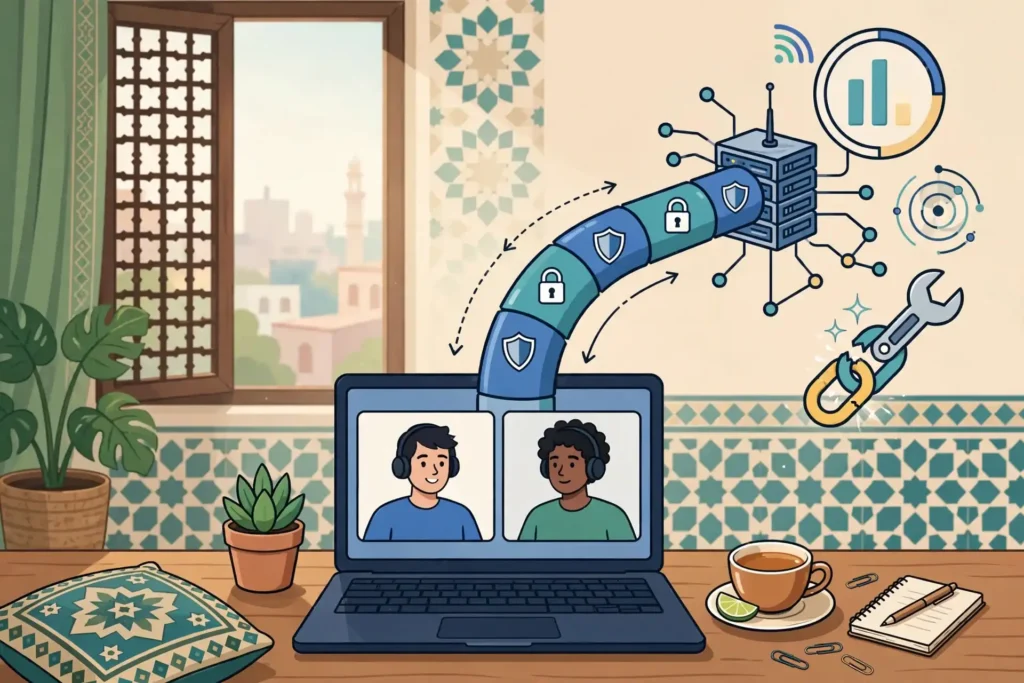
Slack Huddles are lightweight voice and video conversations inside Slack, and they work with a VPN in most cases, but not always well, which is why Surfshark, our recommended VPN for Pakistan, supports split tunnelling for huddles traffic, with 80% off for our users.
This guide explains how VPNs affect huddles, which settings to verify, and how to compare performance with and without the tunnel.
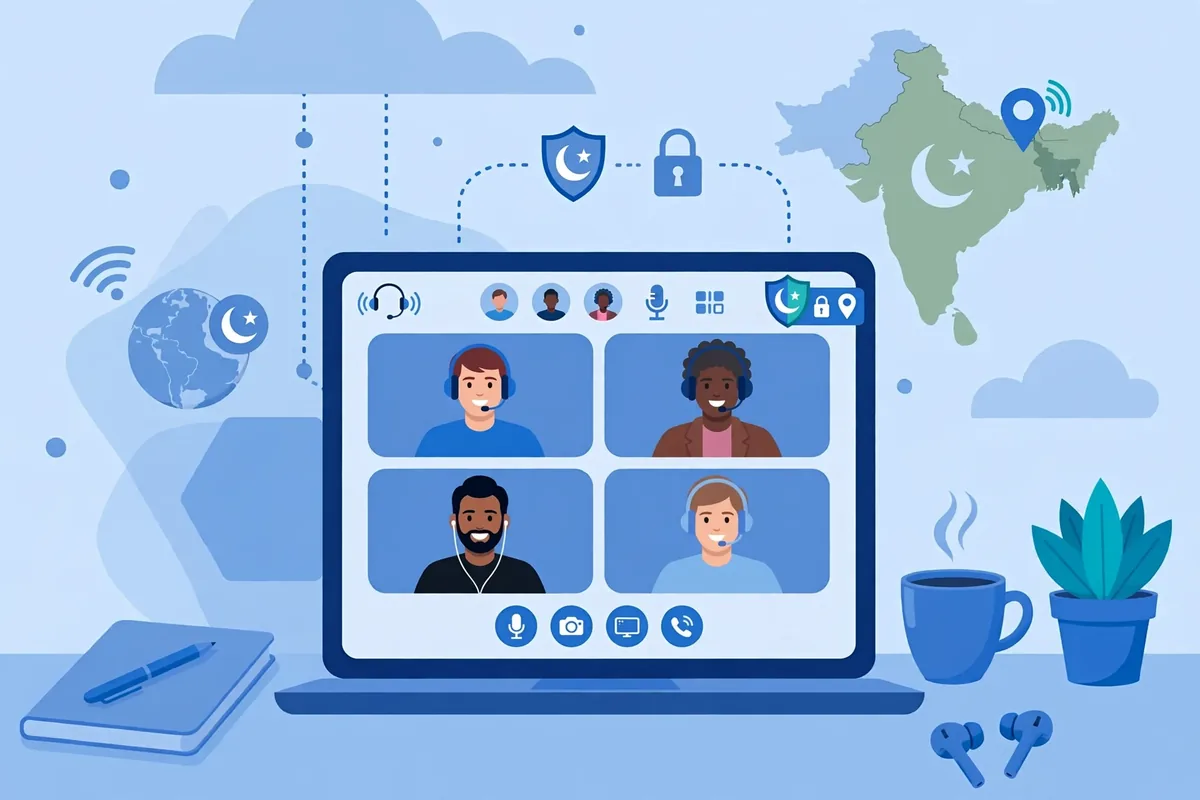
The Short Answer: Slack Huddles VPN Compatibility
Slack Huddles are compatible with VPN use in the sense that a huddle can connect and run through a VPN tunnel, but Slack’s own network guidance recommends against routing huddles traffic through a VPN. Slack advises administrators to allow huddles traffic to bypass VPNs, clients, and filters, or to set up split tunnelling so that real-time traffic travels directly.
That recommendation is the most important sentence in this guide, because it comes from Slack itself rather than from a VPN provider.
The reason is technical, not political. Huddles carry live audio, optional video, and screen sharing, all of which are sensitive to delay and packet loss in ways that messaging and file sharing are not. A VPN adds an extra hop, encryption processing, and a longer route, and each of those can introduce the latency, jitter, and packet loss that make voices robotic, video frozen, and screen sharing laggy.
A huddle through a VPN may still work, but it will rarely work as well as a direct connection.
For readers in Pakistan, the practical answer is therefore a split one. If you use a VPN for privacy or to reach Slack on a restricted network, keep the VPN for Slack messaging and general browsing, but route huddles traffic outside the tunnel where possible. If your network or employer requires all traffic through the VPN, test huddles carefully, choose a nearby server, and accept that quality may vary.
No VPN can guarantee huddles access, lower ping, or account eligibility, and any guide promising those outcomes is overstating what a VPN does.
What Slack Huddles Need From a Network
Huddles run on real-time media infrastructure, and Slack publishes the network paths that administrators must allow. The key destinations are addresses under the chime.aws domain, or the IP range 99.77.128.0/18, which belongs to Amazon Chime, the service that carries huddles media. Traffic must be allowed to and from UDP port 3478, with UDP port 22466 supported as a legacy alternative, plus TCP port 443.
Those details matter because a VPN changes how traffic reaches those destinations. When huddles traffic travels through a VPN tunnel, it first goes to the VPN server, then to the Chime infrastructure, and the return path reverses that journey. Each extra hop adds delay, and if the VPN server is far away, the added delay can exceed what real-time audio tolerates comfortably.
A nearby VPN server minimises the damage, while a distant one maximises it.
Slack’s guidance also covers the surrounding network layers: firewalls, proxies, VPNs, and Wi-Fi networks must all allow huddles paths to pass. Blocking any required path results in failed connections or severely degraded performance, in Slack’s own words.
That means troubleshooting a huddles failure through a VPN requires checking every layer, not just the VPN app: the firewall, the proxy settings, the VPN configuration, and the Wi-Fi network can each block or degrade the connection.
Quality of service, known as QoS, is another factor Slack’s guidance raises. Real-time audio, video, and screen sharing are easily affected by network congestion and bandwidth limits, and Slack recommends prioritising huddles traffic, or at least not deprioritising it, in any QoS policy. A VPN tunnel hides traffic contents from QoS systems, which can prevent the network from prioritising huddles traffic correctly, another reason to bypass the tunnel for media.
How Can a VPN Affect Slack Huddles?
A VPN affects huddles in four distinct ways, and recognising which one you are experiencing points to the right fix. The first is added latency: the time your voice takes to reach colleagues increases because traffic travels via the VPN server. Latency shows up as awkward pauses, talking over each other, and a sense that the conversation is slightly out of sync.
The second is jitter, which is variation in latency rather than latency itself. If some packets arrive quickly and others slowly, the audio stream stutters even when average speed looks fine. Jitter is particularly common on congested VPN servers and on mobile connections, and it is the cause of the robotic, choppy voice quality that huddles users often report through VPNs.
The third is packet loss, where some audio or video packets never arrive. Packet loss causes gaps, frozen video, and screen sharing that updates in jumps. VPN tunnels can increase packet loss when the tunnel itself is congested, when the VPN protocol retransmits aggressively, or when the underlying connection is already marginal, as mobile data connections in Pakistan sometimes are.
The fourth is outright blocking or routing failure. Some VPN configurations, corporate firewalls, or network filters block the UDP ports huddles need, or route Chime traffic through a path that fails. In that case, the huddle may fail to connect at all, or audio may work while video and screen sharing do not.
That pattern, partial failure rather than poor quality, usually points to a blocked path rather than to congestion.
It is important to separate VPN effects from non-VPN causes. A huddle can sound poor because of a weak Wi-Fi signal, an overloaded laptop, a Bluetooth headset issue, or Slack’s own service state, none of which a VPN change will fix. The comparison test described later in this guide exists precisely to separate VPN effects from other causes before you change settings.
VPN Settings to Verify for Slack Huddles
The single most valuable setting is split tunnelling. Split tunnelling lets you choose which traffic uses the VPN tunnel and which travels directly. Slack’s guidance recommends it explicitly for huddles: configure the VPN so that huddles traffic bypasses the tunnel while other traffic remains protected. Surfshark calls this feature Bypasser, and other providers use names such as split tunnelling, app exclusion, or per-app routing.
The setting is usually found in the VPN app’s settings under a name like “split tunnelling” or “bypass.”
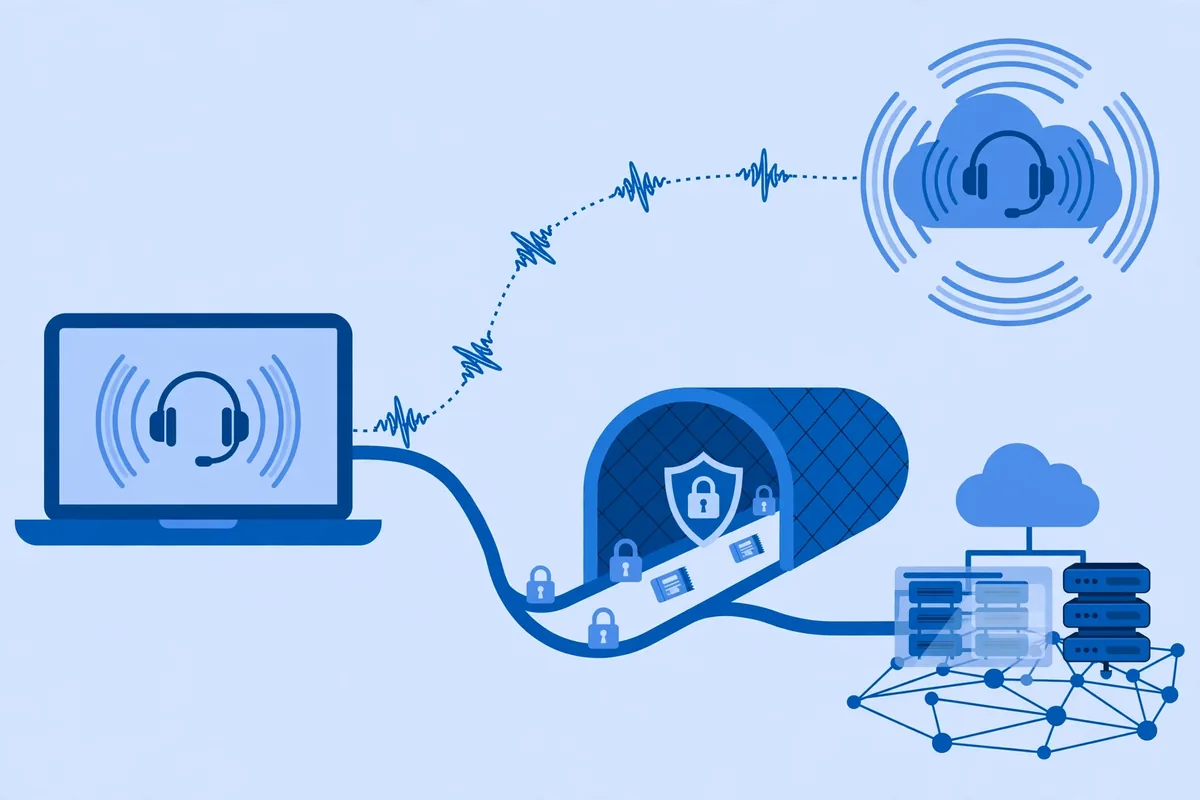
When you configure split tunnelling for huddles, you need to decide whether to exclude by app or by destination. App-based exclusion routes the entire Slack app outside the VPN, which is simple and reliable, but it also removes VPN protection from Slack messaging and file transfers.
Destination-based exclusion routes only the huddles media paths, the chime.aws domain and the published IP range, outside the tunnel, which is more precise but requires a VPN that supports domain or IP-based rules. Choose app exclusion if your VPN only offers that option; choose destination exclusion if it is available and you want to keep Slack messaging protected.
Protocol choice is the second setting to verify. WireGuard-based protocols generally recover faster from network changes and add less overhead than older protocols, which suits real-time media. OpenVPN over UDP is also workable, while OpenVPN over TCP can worsen latency because TCP retransmits lost packets, adding delay that real-time audio cannot use.
If your VPN offers a protocol setting, try WireGuard first for huddles, then OpenVPN UDP, and avoid TCP unless your network blocks everything else.
Server choice is the third setting. Choose the nearest available server, ideally in Asia or the Middle East, rather than a distant server in Europe or North America. A nearby server minimises the extra distance your huddles traffic travels, and it is the single easiest improvement for readers in Pakistan.
If your VPN offers a “fastest server” or “nearest server” option, use it for huddles rather than manually picking a faraway location.
Kill switch behaviour deserves a check too. A kill switch that blocks all traffic when the VPN drops will also block huddles traffic, which is correct for privacy but disruptive for a live call.
If your huddles regularly drop when the VPN reconnects, the kill switch may be part of the cause, and split tunnelling for huddles traffic avoids the problem entirely because that traffic does not depend on the tunnel.
Supported VPN and App Configurations
The configurations that work best for huddles share a pattern: Slack runs outside the VPN tunnel for media, while the rest of your traffic stays protected, or the VPN is disconnected during huddles entirely. Both are supported by Slack’s guidance, and both are preferable to routing huddles media through a distant VPN server.
On desktop, the Slack app and the browser version behave similarly for huddles media, but the browser version adds a variable: browser WebRTC settings and extensions can affect media independently of the VPN. If huddles fail in the browser through a VPN but work in the desktop app, the browser is the more likely culprit, and testing the desktop app isolates the VPN variable.
Keep Slack updated on both, because Slack’s huddles implementation changes and older versions may lack current network handling.
On mobile, huddles through a VPN face the additional challenge of network switching: a phone moving between Wi-Fi and mobile data forces the VPN to reconnect, and each reconnection can drop or degrade a live huddle. If you take huddles on a phone, either use split tunnelling for Slack, or disconnect the VPN for the call’s duration, or stay on one stable network for the call.
Switching networks mid-huddle is the most reliable way to break one.
Corporate and managed devices add a layer of constraint. If your employer manages your device or requires a corporate VPN, you may not be able to configure split tunnelling yourself, and the corporate VPN may route all traffic through a company gateway. In that case, raise the issue with your IT team and point them to Slack’s huddles network guidance, which explicitly recommends bypassing VPNs for huddles traffic.
Changing a managed VPN configuration without IT approval can violate company policy, so ask first.
How Do I Compare the App With and Without the Tunnel?
A fair comparison needs a controlled test, not a vague impression. Start by joining a test huddle with a colleague, or by using Slack’s own audio test if available, while connected to the VPN exactly as you normally use it. Note the symptoms: delay, choppiness, frozen video, or screen sharing lag, and note the time of day and the VPN server location.
Then disconnect the VPN entirely, keeping everything else the same: same device, same network, same colleague, same time of day as closely as possible. Join the same kind of huddle and note the same symptoms. If quality improves markedly without the VPN, the tunnel is contributing to the problem, and split tunnelling or a nearer server is the right fix.
If quality is unchanged, the cause lies elsewhere, such as Wi-Fi, device load, or Slack’s service state, and changing VPN settings will not help.
For a more precise comparison, test three configurations in sequence: VPN fully connected, VPN with split tunnelling for Slack or huddles traffic, and VPN disconnected. The split tunnelling result is the one that matters most, because it tells you whether you can keep VPN protection for other traffic while giving huddles a direct path. If split tunnelling matches the disconnected result, you have found your permanent configuration.
Repeat the test at the time you normally take huddles, because evening congestion in Pakistan can change results dramatically. A configuration that works at midday may struggle at peak evening hours, when both your local connection and the VPN server are busier. Testing once is not enough; testing at your real usage time is what counts.

Troubleshooting Slack Huddles VPN Problems
When a huddle fails to connect through a VPN, work through the layers in order. First, confirm Slack itself is working: check Slack’s status page and confirm messaging works, because a Slack outage affects huddles regardless of VPN. Second, disconnect the VPN and retry the huddle. If it works without the VPN, the tunnel or its configuration is involved; if it still fails, the cause is elsewhere.
Third, switch VPN server and protocol. Try a nearer server, try WireGuard if you were on OpenVPN, and try UDP rather than TCP. Each change isolates a variable, and changing several at once makes it impossible to tell which one fixed the problem.
Fourth, check the huddles network paths: confirm that the chime.aws domain and the published ports are not blocked by your firewall, your VPN’s filtering features, or an ad-blocking component in the VPN app.
Fifth, disable VPN features that inspect or filter traffic, such as ad blockers, tracker blockers, or threat protection components, and retry. Those features operate by inspecting traffic, and Slack’s guidance recommends disabling packet inspection and filtering for huddles paths specifically. If disabling such a feature fixes the huddle, re-enable it for general browsing and rely on split tunnelling for huddles instead.
Sixth, check device-level causes: close bandwidth-heavy applications, switch from Bluetooth to wired audio if you suspect headset issues, and confirm your laptop is not throttling under load. A huddle that stutters because the laptop is overloaded will not improve with any VPN change, and chasing VPN settings for a hardware problem wastes time.
Slack Huddles VPN Limits and Service Terms
Several limits deserve plain statement. A VPN does not guarantee access to Slack or to huddles: if Slack is unavailable on your network for reasons unrelated to the VPN, a tunnel will not necessarily restore it, and if your workspace administrator restricts huddles, a VPN does not override that restriction. Account eligibility is governed by Slack’s terms and your workspace settings, not by your VPN subscription.
A VPN also does not guarantee lower ping. Routing through a VPN server can sometimes improve a poor route, if your provider’s path to Slack’s infrastructure is better than your direct path, but it more commonly adds latency. Readers in Pakistan should expect a VPN to add delay to huddles in the usual case, and treat any improvement as a fortunate exception rather than a promise.
Service terms matter on both sides. Slack’s terms govern your use of huddles, your employer’s policies may govern VPN use on work devices, and Pakistan’s PTA framework governs VPN registration for legitimate use. This guide describes technical compatibility, not legal advice, and readers who use a VPN for work should confirm their position through official guidance and their employer’s IT policy.
Finally, privacy expectations need calibration. Split tunnelling for huddles means huddles media travels outside the VPN tunnel, visible to your network in the same way as any direct connection, though still encrypted by Slack’s own transport security. That trade-off is the price of real-time quality, and it is the trade-off Slack’s own guidance recommends.
If your threat model requires all traffic through the tunnel, accept the quality cost rather than assuming split tunnelling is free.
Surfshark — our recommended VPN for Pakistan
Bypasser split tunnelling keeps huddles traffic direct — with 80% off for our users.
Slack Huddles VPN Checklist for Pakistan Teams
Teams in Pakistan that rely on huddles daily can use a short checklist to avoid repeated problems. First, confirm the huddles network paths are allowed on your office and home networks, including the chime.aws domain, the published IP range, and the required UDP and TCP ports.
Second, configure split tunnelling for huddles traffic on every team device that uses a commercial VPN, so media travels directly while other traffic stays protected.
Third, standardise on a nearby VPN server and a WireGuard-based protocol for general use, and document that choice where the team can find it. Fourth, test huddles at peak evening hours, not only at midday, because congestion changes results. Fifth, agree on a fallback: if a huddle fails through the VPN, the team disconnects the VPN or switches to split tunnelling rather than abandoning the call.
A written checklist turns VPN troubleshooting from a recurring argument into a two-minute routine.
Keep the checklist somewhere the whole team can find it, and revisit it whenever Slack, your VPN app, or your office network changes, since any of those updates can alter the behaviour described here.
Frequently Asked Questions
How Can a VPN Affect Slack Huddles?
A VPN can add latency, jitter, and packet loss to huddles, because traffic travels via the VPN server instead of directly, and the tunnel adds encryption processing and a longer route. It can also block huddles entirely if the VPN, firewall, or filter blocks the UDP ports and Chime destinations Slack requires. Slack’s own guidance recommends allowing huddles traffic to bypass VPNs for these reasons.
Which Settings Should I Verify?
Verify split tunnelling first, configuring huddles or Slack traffic to bypass the tunnel. Then verify protocol choice, preferring WireGuard or OpenVPN UDP over TCP, server choice, preferring the nearest server, and any VPN ad-blocking or packet inspection features, which should be disabled for huddles paths. Also confirm the chime.aws domain and UDP ports 3478 and 22466 plus TCP 443 are allowed.
How Do I Compare the App With and Without the Tunnel?
Join a test huddle with the VPN connected as normal and note delay, choppiness, and video problems. Then repeat the same huddle with the VPN disconnected, keeping device, network, colleague, and time of day the same. Then test a third configuration with split tunnelling for Slack or huddles traffic. If split tunnelling matches the disconnected result, it is your permanent configuration.
Surfshark — our recommended VPN for Pakistan
Keep huddles smooth and the rest of your traffic protected — with 80% off for our users.
Conclusion: Slack Huddles With a VPN in Pakistan
Slack Huddles work with a VPN, but Slack’s own guidance is clear: huddles traffic should bypass the VPN through split tunnelling, because tunnels add the latency, jitter, and packet loss that real-time audio feels most. Verify split tunnelling, protocol, server choice, and the published network paths, compare quality with and without the tunnel at your real usage time, and accept that no VPN guarantees access, lower ping, or account eligibility.
For more app workflow guides, start from the freevpn.pk homepage and follow its indexed articles.