
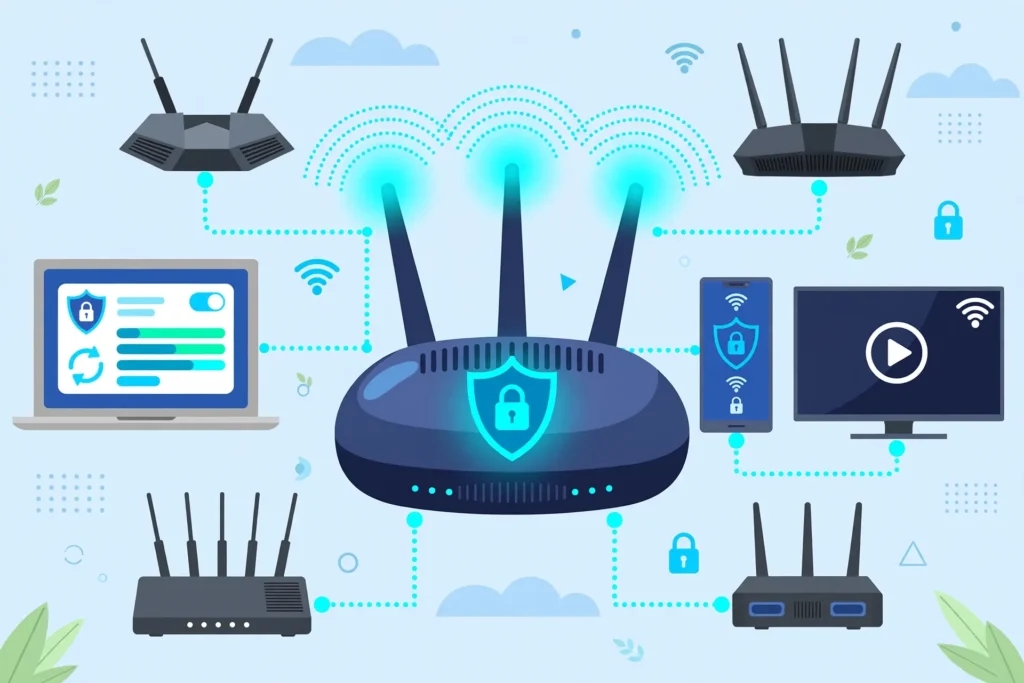
If you want Windscribe on your router in Pakistan, Surfshark is the VPN we recommend, with 80% off for our users — but this guide answers the Windscribe question first, honestly: Windscribe does support routers, yet only on models that offer a real outbound VPN client, and many popular routers do not.
That distinction is the whole story. A router that can connect outwards to a VPN service is very different from a router that merely lets VPN traffic pass through, and different again from a router that runs its own VPN server for remote access. Confusing the three is the most common reason a router setup fails before it starts.
This guide is built from Windscribe’s own knowledge-base guides, current as of 23 November 2026, and it covers the routers Windscribe supports on stock firmware, the models that need third-party firmware such as DD-WRT or OpenWrt, the setup steps for OpenVPN and WireGuard, and how to verify that your traffic actually uses the tunnel.
It is written for readers in Pakistan who want whole-home protection: a smart TV that cannot run a VPN app, a game console, several phones and a laptop, all covered by one router connection. That is the genuine advantage of a router VPN, and it is also the reason the setup deserves care, because a mistake cuts off every device at once.
One honest limit applies throughout. No speed measurements were run for this post, and it publishes no speed numbers or connection results of its own. Router performance depends on the model’s processor, the protocol and the server, and the only reliable answer for your hardware comes from testing it yourself after setup.
The guide also assumes you already understand the basics of your own router: how to reach its admin panel, usually at 192.168.1.1 or 192.168.0.1, and how to back up its settings before changing them. If you cannot reach the admin panel, sort that out first, because every step below starts there.
The Short Answer: Windscribe Supports Routers With a VPN Client
Windscribe supports routers that have an outbound VPN client for OpenVPN or WireGuard, either on the manufacturer’s stock firmware or after flashing third-party firmware such as DD-WRT, OpenWrt or Tomato. It does not support routers that lack that client, and no setting or workaround can add one to stock firmware that was never built with it.
The single most important requirement is a paid account. Windscribe’s config generators, which produce the OpenVPN and WireGuard configuration files a router needs, are a paid feature. A Windscribe Pro or Build-A-Plan subscription is required, and the free plan cannot generate router configuration files at all.
That matters for planning, because the free plan’s limits are often misunderstood. Windscribe Free gives 2 GB per month, rising to 10 GB when you confirm an email address, and covers about ten or eleven countries. None of that helps on a router, because the config generator itself is locked behind the paid plan, so a router setup is a paid-plan project from the start.
On stock firmware, the supported list is specific to the exact model, hardware revision and firmware version, not to the brand or the product series. Two routers with the same series name can differ: one revision may include a VPN Client section while another does not. Check your exact model before you buy anything or start the setup.
The brands with the clearest stock-firmware support are ASUS, TP-Link, GL.iNet and, for a small number of models, Netgear and Linksys. The table below summarises the position for each brand, and the sections that follow work through each one in detail, including the models that do not work and the third-party firmware that can rescue them.
| Router Brand | Stock Firmware VPN Client | Third-Party Firmware Path |
|---|---|---|
| ASUS | Yes, on models with VPN Client or VPN Fusion | DD-WRT or OpenWrt where supported |
| TP-Link Archer | Yes, on recent models with Advanced VPN Client | OpenWrt on some models |
| GL.iNet | Yes, OpenVPN and WireGuard in the stock interface | Already based on OpenWrt |
| Netgear Nighthawk | Mostly VPN server only; DumaOS Hybrid VPN on XR450, XR500, XR700 | DD-WRT or Voxel firmware |
| Linksys | WRT32X only for stock OpenVPN client | DD-WRT for WRT1900AC, WRT1900ACS, WRT3200ACM |
| Most other consumer routers | Often no VPN client at all | Check the DD-WRT or OpenWrt database first |
If your router is not in the table, the first step is the same for everyone: log in to the admin panel and look for a VPN Client section. If it exists, your router probably supports Windscribe. If it does not exist, check the manufacturer’s support page for your exact model and hardware revision before you assume anything.
What You Need Before You Start
Before any setup step, gather four things. First, a Windscribe Pro or Build-A-Plan subscription, because the config generators require it. Second, your router’s exact model number and hardware revision, printed on the label on the underside or back panel, because support depends on those details, not on the series name.
Third, access to the router’s admin panel and its admin credentials. The panel is usually at 192.168.1.1 or 192.168.0.1, and GL.iNet routers commonly use 192.168.8.1. Some systems, such as TP-Link Deco, use an app or a cloud account instead of a web panel, and the steps differ accordingly, so know which system yours uses.
Fourth, a backup of your current router settings. A misconfigured router VPN cuts internet access for every device on the network, and the recovery path is a factory reset followed by restoring the backup. Windscribe’s own guides warn about this explicitly, and the warning deserves to be taken seriously.
You will also need the config generator itself. Windscribe provides separate generators for OpenVPN and WireGuard, reached from your account page after you sign in. The OpenVPN generator also issues a separate set of credentials, different from your main account login, which the router uses to authenticate.
Check your router’s firmware version as well, and update it to the latest available release before you start. WireGuard support was introduced in later firmware releases on several brands, including TP-Link, so a model that shows no WireGuard option today may show one after an update. If the option still does not appear after updating, your firmware does not provide it.
Finally, decide which protocol you will use first. OpenVPN is supported on more routers and more firmware versions, so it is the safer first choice. WireGuard is faster on routers that support it, but it is available only on select newer models on stock firmware. Start with OpenVPN, verify the tunnel works, and only then try WireGuard.
Windscribe Router Compatibility by Brand
Router compatibility is a brand-by-brand question, and the honest answer for each brand is different. The sections below follow Windscribe’s own per-brand guides, and they name the models that work, the models that do not, and the third-party firmware that can change the answer. Check your exact model against the section for your brand.
ASUS Routers: The Clearest Stock Support
ASUS routers have the clearest stock-firmware support for Windscribe. Models with a VPN Client section, found under Advanced Settings and then VPN and VPN Client, or under VPN and VPN Fusion with Add Profile and OpenVPN on newer firmware, can connect to Windscribe directly with a generated OpenVPN configuration file.
VPN Fusion, on newer ASUS firmware, is worth a closer look, because it lets you assign different devices to different VPN profiles, or to no VPN at all. That means the smart TV can use the tunnel while the work laptop bypasses it, which is a practical advantage in a Pakistani household where one connection serves several different needs.
WireGuard support on ASUS stock firmware is limited to certain newer models. If your ASUS router shows a WireGuard option in the VPN Client section, it supports it; if it does not, use OpenVPN, which is available on a much wider range of ASUS models. Do not flash third-party firmware onto an ASUS router solely to gain WireGuard.
The main caution with ASUS is the same as with every brand: confirm the feature on your exact model and firmware version. The VPN Client section is the test. If it is present, the router supports Windscribe. If it is absent, check for a firmware update first, and only then consider third-party firmware.
TP-Link Routers: Model, Revision and Firmware All Matter
TP-Link support is specific to the router model, hardware revision and firmware version, and Windscribe’s TP-Link guide stresses this point. Do not assume your router is supported because it belongs to the Archer series. Confirm that Advanced and then VPN Client exists in your admin panel, or check your exact model number and hardware version on TP-Link’s support site.
Deco mesh systems are a separate case, and they are not covered by the standard TP-Link guide. VPN client support varies significantly across Deco hardware and firmware versions, so a Deco system needs its own check: look for the VPN client option in the Deco app or web interface, and do not assume that a Deco unit supports it because an Archer router does.
Firmware matters more on TP-Link than on most brands. WireGuard support was introduced in later firmware releases on select models, so update to the latest available firmware before you conclude that WireGuard is unavailable. If the option still does not appear after updating, your stock firmware does not provide it, and OpenVPN is the path.
If your TP-Link router has no VPN Client section at all, OpenWrt is an option on some hardware, and it supports both OpenVPN and WireGuard. That is outside the scope of Windscribe’s stock-firmware guide, and it may affect warranty or support coverage, so check the OpenWrt database for your exact model and hardware revision before you attempt it.
GL.iNet Routers: Built for This Job
GL.iNet routers are the simplest case in this guide, because their stock firmware is built on OpenWrt but uses GL.iNet’s own router interface. If you are using GL.iNet’s standard firmware, follow the GL.iNet steps in Windscribe’s general router guide rather than the generic OpenWrt guide, because the interface is different even though the base is the same.
GL.iNet routers commonly use 192.168.8.1 for the admin panel, and the VPN client is found under VPN and then OpenVPN Client, or VPN and then VPN Client Profile on firmware 4.9 and later. Both OpenVPN and WireGuard are supported, and the small travel routers in the range are popular precisely because they make a router VPN easy.
For readers in Pakistan who are buying a router specifically to run a VPN, a GL.iNet model is the most straightforward choice in this guide. It needs no firmware flashing, it supports both protocols on stock firmware, and its interface is designed around VPN use rather than treating it as an afterthought.
Netgear Routers: Three Paths, and Many Models With None
Netgear is the brand where the answer most often disappoints. Most Netgear consumer routers on stock firmware do not include an outbound VPN client at all. Many Nighthawk and D-Link routers provide only a VPN server feature, which lets you connect back into your home network from outside, and cannot connect outwards to Windscribe.
Windscribe’s Netgear guide sets out three paths. Path A is DumaOS Hybrid VPN, available on the XR450, XR500 and XR700, with no firmware flashing and no warranty impact. Path B is DD-WRT, which covers many Nighthawk AC models, but requires flashing and may affect warranty coverage and Netgear support. Path C is Voxel firmware, for the R7800, R8900 and R9000.
Several models fall outside those three paths. The XR1000 and XR1000v2, on DumaOS 3.0, do not offer Hybrid VPN as of current firmware. The XR300 has DumaOS but does not include Hybrid VPN. Orbi RBK50 and RBK53 models, and the Orbi LBR20, have no VPN client on stock firmware, although Voxel firmware has active builds for them. All other Orbi mesh models have no confirmed Voxel support.
Nighthawk AC and AX models, including the R6700 and the RAX series, have VPN server only on stock firmware. The correct step for those is to check the DD-WRT Router Database for your specific model and hardware revision. If DD-WRT supports it, flashing is the path; if it does not, the router cannot run Windscribe, and replacement is the honest answer.
Linksys Routers: One Stock Model, the Rest Need DD-WRT
Linksys follows a similar pattern to Netgear. Of the WRT models covered in Windscribe’s Linksys guide, the WRT32X is the only one expected to expose a stock-firmware OpenVPN client. The WRT1900AC, WRT1900ACS and WRT3200ACM on stock firmware generally provide OpenVPN server and remote-access features, not an outbound VPN client.
For those three models, the path is to flash DD-WRT first, confirming the exact model and hardware revision in the DD-WRT Router Database, and then to follow the DD-WRT setup steps. Flashing third-party firmware may void the warranty or affect Linksys support eligibility, so the decision deserves a moment of thought before you start.
The Linksys guide does not cover Velop, EA-series, MR-series or Linksys business routers at all. If you own one of those, do not follow the WRT steps and expect them to work. Check the manufacturer’s feature list for your exact model, and check the DD-WRT and OpenWrt databases as a second step.
On DD-WRT itself, current builds show an Import Configuration button under Setup and then Tunnels, which makes WireGuard setup straightforward, while older builds need manual WireGuard configuration. If you are already running DD-WRT, check whether that button exists before you choose between the two WireGuard methods.
OpenWrt, DD-WRT and Tomato: The Third-Party Firmware Option
Third-party firmware is the rescue path for routers whose stock firmware has no VPN client, and it is also the path that carries the most risk. DD-WRT, OpenWrt and Tomato replace the manufacturer’s firmware entirely, and they add a VPN client, and often WireGuard support, to hardware that never had one.
The first rule of third-party firmware is to check the database before you download anything. The DD-WRT Router Database and the OpenWrt hardware pages list support by exact model and hardware revision, and a build for the wrong revision can brick the router. Never flash a build intended for a different hardware revision, however similar the model name looks.
The second rule is to back up the stock firmware and the current settings before you start. A failed flash, or a flash that succeeds but misbehaves, needs a recovery path, and the recovery path is the backup you made before you changed anything. Windscribe’s guides and the firmware projects themselves both stress this, and it is the step most often skipped.
OpenWrt deserves a closer look, because it is the most capable of the three for VPN use. It supports both OpenVPN and WireGuard, and the OpenWrt forum carries detailed threads from users who have run Windscribe on it, including a solved thread from April 2024 in which the fix was to add the WireGuard interface to the WAN firewall zone and to enable Route Allowed IPs.
That thread is a useful reminder of where OpenWrt setups usually fail. The configuration file itself is rarely the problem. The firewall zone, the allowed IPs set to 0.0.0.0/0, and the forwarding rule from the LAN zone to the WireGuard zone are the steps that decide whether traffic actually flows, and each one needs to be checked after the config file is imported.
Tomato and FreshTomato follow the same pattern on the hardware they support, with OpenVPN as the main path and WireGuard available on newer builds. The same database check and the same backup rule apply, and the same warning about warranty applies too: flashing third-party firmware may affect the manufacturer’s support for the router.
For most readers, the decision is simple. If your router has a stock VPN client, use it. If it does not, and the DD-WRT or OpenWrt database confirms support for your exact model and revision, flashing is a reasonable project if you are comfortable with the risk. If the database does not list your model, do not flash, and replace the router instead.
Is VPN Passthrough Enough to Run the Service?
No, and this is the misunderstanding that wastes the most time in router VPN setup. VPN passthrough is a feature that lets VPN traffic from a device behind the router pass through to the internet. It does not encrypt the router’s own traffic, it does not protect devices that cannot run a VPN app, and it does not connect the router to Windscribe.
The confusion is understandable, because the words sound similar. Passthrough, VPN server and VPN client are three different features, and a router can have any combination of them. A router with passthrough only will happily let your phone’s Windscribe app connect, and that is all it does. The router itself stays outside the tunnel.
A VPN server, which many Netgear, Linksys and D-Link routers include, is also different. It lets you connect back into your home network from outside, for example to reach a file server while you travel. It does not connect your home network outwards to a VPN service, and it cannot run Windscribe for your household.
Only a VPN client connects the router outwards to a VPN service. When the router runs a VPN client, every device behind it, including the smart TV and the game console, sends its traffic through the tunnel without running any app. That is the feature to look for, and it is the feature this guide’s compatibility tables are built around.
If your router has passthrough but no client, your options are to run Windscribe on each device individually, to flash third-party firmware where the database confirms support, or to replace the router with one that has a client. Running the app on each device is the simplest option, and for a household with only phones and laptops, it is often the best one.
Check the distinction in your own admin panel before you buy a new router. Look for the words VPN Client, not VPN Server and not VPN Passthrough. A product page that advertises VPN support without saying which kind is advertising the server or passthrough feature more often than the client, and the admin panel is the only reliable check.
Windscribe Router Setup: OpenVPN Step by Step
OpenVPN is the setup to attempt first, because it is supported on the widest range of routers and firmware. The steps below follow Windscribe’s official router guide, and they assume you have a Pro or Build-A-Plan subscription, your router’s admin credentials, and a backup of the current settings.
- Sign in at Windscribe’s site and open the OpenVPN config generator from your account page.
- Choose the server location you want the router to use, and select the port and OpenVPN version your router supports. Port 443 is the safe choice if you are unsure.
- Download the generated .ovpn configuration file, and note the separate OpenVPN credentials the generator issues, which differ from your main account login.
- Log in to the router admin panel, usually at 192.168.1.1, 192.168.0.1 or 192.168.8.1 for GL.iNet, and find the VPN Client section.
- Import or upload the .ovpn file in the VPN Client section, enter the OpenVPN credentials when asked, and save the profile.
- Start the VPN client, wait for the connection to establish, and check the router’s status page for a connected state and a new IP address.
- Test from a device behind the router, as described in the verification section below, before you rely on the setup.
The navigation path to the VPN Client section varies by manufacturer and firmware version, and the guide’s starting points are approximate. On ASUS, look under Advanced Settings and then VPN and VPN Client, or under VPN and VPN Fusion. On TP-Link Archer, look under Advanced and then VPN Client. On GL.iNet, look under VPN and then OpenVPN Client.
The OpenVPN version matters more than it looks. The config generator lets you choose, and the router’s firmware supports only certain versions. If the connection fails immediately, the version mismatch is one of the first things to check, along with the port: some networks block the default OpenVPN port, and port 443, which looks like ordinary web traffic, often passes where the default does not.
Keep the .ovpn file and the credentials somewhere safe, and do not share them. The file contains the server address and the settings the router needs, and the credentials authenticate your account. If you change the server location later, generate a new file rather than editing the old one by hand, because a hand-edited file is easy to break.
If the router’s VPN client has a kill switch or a setting to block traffic when the VPN drops, enable it if you need fail-closed protection. Not every router offers this, and Windscribe’s guide notes that if yours does not offer one, you should use the Windscribe app on individual devices instead when that protection matters to you.
Windscribe Router Setup: WireGuard Step by Step
WireGuard is the faster protocol on routers that support it, but it is available on fewer stock firmwares, and the setup differs. The steps below assume your router shows a WireGuard option in its VPN Client section, or that you are running DD-WRT or OpenWrt with WireGuard support.
- Sign in at Windscribe’s site and open the WireGuard config generator from your account page.
- Choose the server location, and download the generated WireGuard configuration file for that location.
- Log in to the router admin panel and find the VPN Client section, then choose the WireGuard option.
- Import the configuration file, or enter the keys, endpoint and allowed IPs manually if your firmware needs that.
- Set the allowed IPs to 0.0.0.0/0, so all traffic uses the tunnel, and confirm the DNS setting points to Windscribe’s DNS.
- Start the WireGuard client, check the router’s status page for a connected state, and test from a device behind the router.
On DD-WRT with a current build, the WireGuard setup is simpler than it looks, because the build shows an Import Configuration button under Setup and then Tunnels. Import the file there, and the keys, endpoint and allowed IPs are filled in for you. On older DD-WRT builds without that button, the same values must be entered manually.
On OpenWrt, the firewall is the step that most often goes wrong. The WireGuard interface must be added to the WAN firewall zone, or placed in its own zone with forwarding from the LAN zone, and Route Allowed IPs must be enabled. Without those, the tunnel may show as connected while no traffic flows through it, which is a confusing failure to diagnose.
The DNS setting deserves attention on both protocols. If the router keeps using your internet provider’s DNS servers, your lookups can leak outside the tunnel even while your traffic is encrypted. Set the router’s DNS to Windscribe’s DNS, or to the DNS servers the config file specifies, and verify the result with a leak test after setup.
If WireGuard is not offered on your stock firmware, do not force it. Use OpenVPN, which is the supported path for your router, and consider WireGuard only if you move to third-party firmware that supports it. A working OpenVPN tunnel is better than a broken WireGuard setup, and the speed difference matters less than the reliability.
One more caution applies to both protocols. A router’s processor is much weaker than a laptop’s, and encryption costs processor time. A router that manages 200 megabits per second without a VPN may manage far less with one, and that is a property of the hardware, not a fault in Windscribe. Test the throughput after setup and set your expectations by the result.
Surfshark and Router Use: The Alternative We Recommend
Surfshark is the VPN we recommend for readers in Pakistan who want whole-home router protection, and the reason is practical. Its router support covers the same ASUS, TP-Link, Netgear and OpenWrt paths, it offers both OpenVPN and WireGuard configuration, and one subscription covers unlimited devices, so the router and every app-covered device share a single account.
The comparison matters because router setup is work, and the work is only worth doing on a service that fits the household. A router VPN protects the smart TV and the game console that cannot run an app, and Surfshark’s unlimited-device allowance means the phones and laptops can run the app as well, with the router as a second layer rather than the only one.
Check the current Surfshark price on the official site before you subscribe, and confirm the two-year rate and the rupee conversion there before you commit. Prices and promotions change, and the figure on the official site is the only one you should trust. The offer we promote is 80% off for our users, through the link in this guide.
The 30-day money-back guarantee is the part that makes the router experiment low risk. Subscribe, set up the router, test the tunnel with the verification steps below, and check that the devices you care about actually work through it. If the router struggles, request a refund inside the 30 days and try a different approach.
Surfshark — our recommended VPN for Pakistan
One subscription covers unlimited devices, so the same account protects your phone, laptop and television while the router covers everything else in the house.
How Do I Verify That Router Traffic Uses the Tunnel?
Verification is not optional, because a router can show a connected state while traffic leaks outside the tunnel. The checks below take five minutes, and they should be run after every setup and after every firmware update, because an update can reset the settings that made the tunnel work.
- Connect a phone or laptop through the router, open an IP lookup site, and confirm the address and country match the Windscribe server you chose.
- Run a DNS leak test from the same device, and confirm the DNS servers shown belong to Windscribe, not to your internet provider.
- Run a WebRTC leak check in the browser, and confirm it does not reveal your real IP address.
- Disconnect the VPN at the router, repeat the IP lookup, and confirm the address changes back to your provider’s address.
- Reconnect the VPN, repeat the IP lookup once more, and confirm the tunnel address returns.
The before-and-after comparison in steps four and five is the part most people skip, and it is the part that catches a router that was never routing through the tunnel at all. If the IP address does not change when you disconnect the VPN, the device was never using the tunnel, and the setup needs to be revisited.
Test from more than one device, and test a device that cannot run a VPN app, such as a smart TV or a game console, if that is why you set up the router. The phone may be using the tunnel through its own app while the television bypasses the router entirely, and only a test from the television itself will reveal that.
Test the kill switch if your router has one. With the VPN connected, disconnect the VPN or block the server, and confirm that internet access stops rather than falling back to the unprotected connection. If traffic continues without the VPN, the kill switch is not working, and the router is not fail-closed.

Check the DNS result carefully, because a DNS leak is the most common partial failure. The IP address can show the tunnel while DNS lookups still go to your provider, which reveals the sites you visit even though the traffic itself is encrypted. If the leak test shows your provider’s DNS, change the router’s DNS setting and test again.
Also check for an IPv6 leak. If your provider supplies IPv6 and the VPN tunnel carries only IPv4, some traffic can bypass the tunnel over IPv6. The leak test will show this, and the fix is usually to disable IPv6 on the router or to choose a configuration that tunnels it. Test it once, and note the result in your setup notes.
Keep a short note of the verified result: the date, the router model, the firmware version, the protocol, the server location and the IP address shown. If the setup breaks later, that note tells you what a working setup looked like, and it makes the difference between a ten-minute fix and an afternoon of guessing.
Limitations, Risks and What This Article Does Not Claim
Router VPN setup carries real risks, and they deserve a plain statement. A misconfigured router VPN cuts internet access for every device on the network, and flashing third-party firmware can void the warranty, affect the manufacturer’s support, or brick the router if the wrong build is used. Back up before you change anything, and do not flash firmware on a router you cannot afford to replace.
Performance is a second limitation. A router’s processor limits VPN throughput, and the speed you measure through the router will usually be lower than the speed you measure on a laptop running the same service. That is expected, and it is a reason to test throughput after setup rather than assuming the router will match the app.
Compatibility also changes over time. Manufacturers add VPN client support in firmware updates, and they remove or rename it in others, so a model that lacks the feature today may gain it tomorrow, and a model that has it today may lose it in a future release. Check your exact model and firmware version at the time you set up, not months earlier.
Two claims in this guide are flagged as needing care. Windscribe Free covers about ten or eleven countries depending on the source, so the exact count is unconfirmed, and the figure is given as a range rather than a single number. The Netgear and Linksys model lists come from Windscribe’s own guides, current as of November 2026, and they should be rechecked against the manufacturer’s pages before a purchase.
Flagged: Windscribe Free covers about ten or eleven countries depending on the source, so the exact count is unconfirmed; the Netgear and Linksys model lists come from Windscribe’s own guides current as of November 2026 and should be rechecked against the manufacturer’s pages before a purchase.
This guide does not claim that a router VPN is the right choice for every household. If your household has only phones and laptops, running the Windscribe app on each device is simpler, faster and easier to fix when something goes wrong.
A router VPN earns its complexity only when you have devices that cannot run an app, or when you want a single point of control for the whole home. For a household of phones and laptops alone, the app is usually the better answer.
The guide also does not cover the legal position of VPN use in Pakistan beyond the practical notes here. Rules and enforcement change, and readers should check the current local position before using any VPN, on a router or otherwise, and should keep their use within the law as it stands.
Surfshark — our recommended VPN for Pakistan
Try the paid route inside its 30-day money-back guarantee window first, so a router setup that never works for your network costs you nothing to replace.
Conclusion: Check the Client, Then Set Up Carefully
Windscribe router compatibility comes down to one question: does your router have an outbound VPN client? If it does, on stock firmware or after flashing DD-WRT or OpenWrt, Windscribe works, with a paid account and a generated configuration file. If it does not, no setting can add it, and the honest options are the app on each device, third-party firmware, or a new router.
ASUS, TP-Link, GL.iNet and a small number of Netgear and Linksys models offer the client on stock firmware. Most other consumer routers do not, and the admin panel, not the product page, is the reliable check. Back up before you change anything, start with OpenVPN, and verify the tunnel with an IP lookup and a leak test before you rely on it.
Whatever you choose, test it the way this guide describes: confirm the exit IP address, check DNS and WebRTC leaks, compare the result with the VPN disconnected, and test from the device that cannot run an app. A router VPN that is never verified is a guess, not a setup. For our other Pakistan VPN guides, the freevpn.pk homepage lists them all.
Frequently Asked Questions
Which Routers Does Windscribe Support?
Windscribe works on routers that offer an outbound VPN client, either on stock firmware or after flashing third-party firmware. ASUS routers with a VPN Client section, recent TP-Link Archer models with Advanced VPN Client, GL.iNet routers, the Linksys WRT32X on stock firmware, and Netgear Nighthawk models with DumaOS Hybrid VPN or DD-WRT are supported.
Most Linksys consumer routers and many Netgear and D-Link models on stock firmware have no VPN client, so they need third-party firmware or replacement.
Is VPN Passthrough Enough to Run the Service?
No. VPN passthrough only lets VPN traffic from a device behind the router pass through to the internet; it does not encrypt the router’s own traffic or protect devices that cannot run a VPN app. To run Windscribe on the router itself, the router needs an outbound VPN client for OpenVPN or WireGuard, with a config file from Windscribe’s generator. A router with passthrough alone cannot connect to Windscribe.
How Do I Verify That Router Traffic Uses the Tunnel?
Connect a device through the router, open an IP lookup site, and confirm the address and country match the Windscribe server you chose. Then run a DNS leak test and a WebRTC leak check, and compare the result with the same device connected directly to your normal internet.
If the IP address, country and DNS servers all match the tunnel, the router is routing traffic through Windscribe; if any of them show your real provider, something is leaking.